
01Who this is for
- Online retailers who need to showcase seasonal or promotional items at the top of their catalog.
- Store owners who want to feature best selling or new arrival products first.
02Manual product sorting, explained
The feature adds a Display Priority field next to every product in the store editor. By entering whole numbers, the owner defines the exact sequence in which products are shown on the Product List page. When two products share the same number, the system falls back to alphabetical order.
The sorting order is controlled through the builder. Selecting the Featured option as the default tells the page to use the manual priorities when it loads. The list updates immediately, and the owner can preview the result before publishing. The setting lives inside the Product List element under Sort & Filter options.
03How businesses use manual product sorting
- Highlight best selling products. Assign the lowest numbers to top selling items so they appear first on the Product List, directing shoppers to the most popular choices.
- Show new arrivals. Give new products the highest priority numbers (lowest numeric value) to ensure they are displayed before older inventory.
- Promote seasonal or promotional items. Set a priority for seasonal items so they appear at the top of the list during a promotion, increasing their visibility.
04The numbers and rules that matter
- 1 = highest priority; larger numbers appear lower.
- Products per page can be set up to 100.
05How to set up and use manual product sorting in HighLevel
Open the ecommerce store editor
- Sign in to your HighLevel account.
- Click Sites in the left hand navigation.
- Select Stores to view your ecommerce stores.
- Create a new store with + New Store or edit an existing one via its name or the three dot menu.
Access the Product List
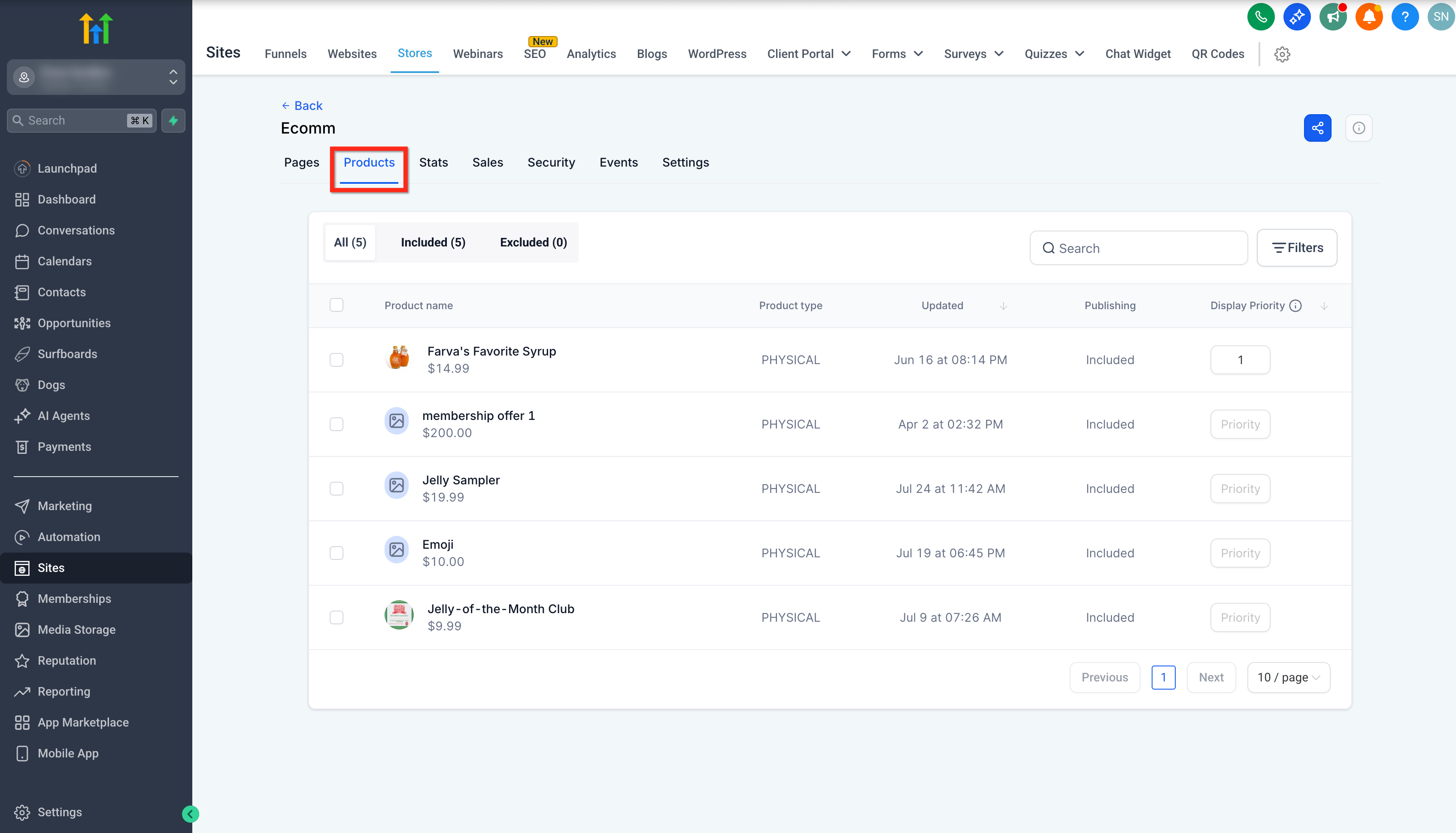
- Inside the store editor, open the Products tab.
- You will see a list of all products associated with the store.
Set display priorities for products
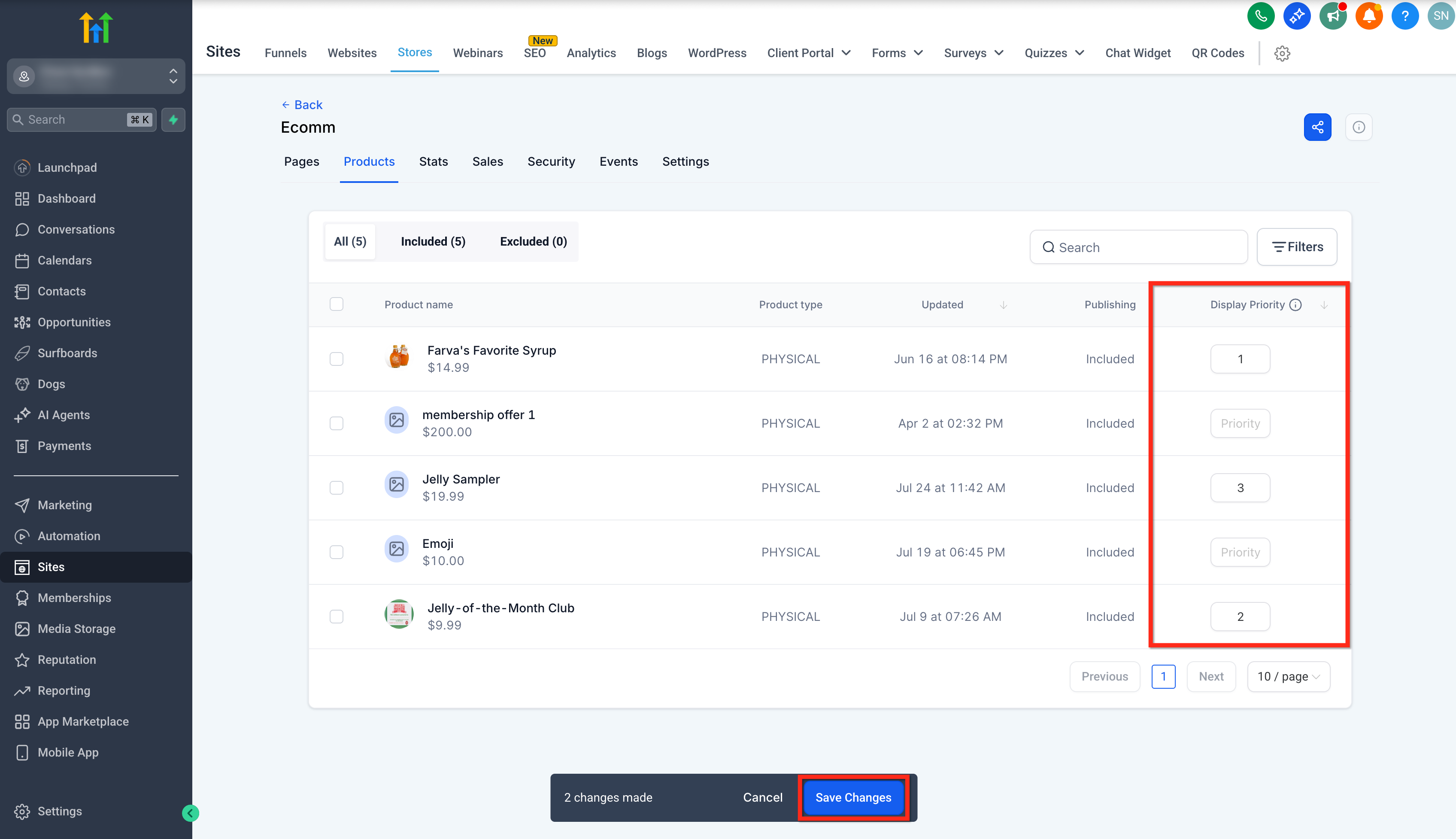
- Find the Display Priority column beside each product.
- Enter a whole number for every product you want to rank.
- Remember that lower numbers place the product higher on the list.
- Press Save Changes to store the new ordering.
Preview your storefront
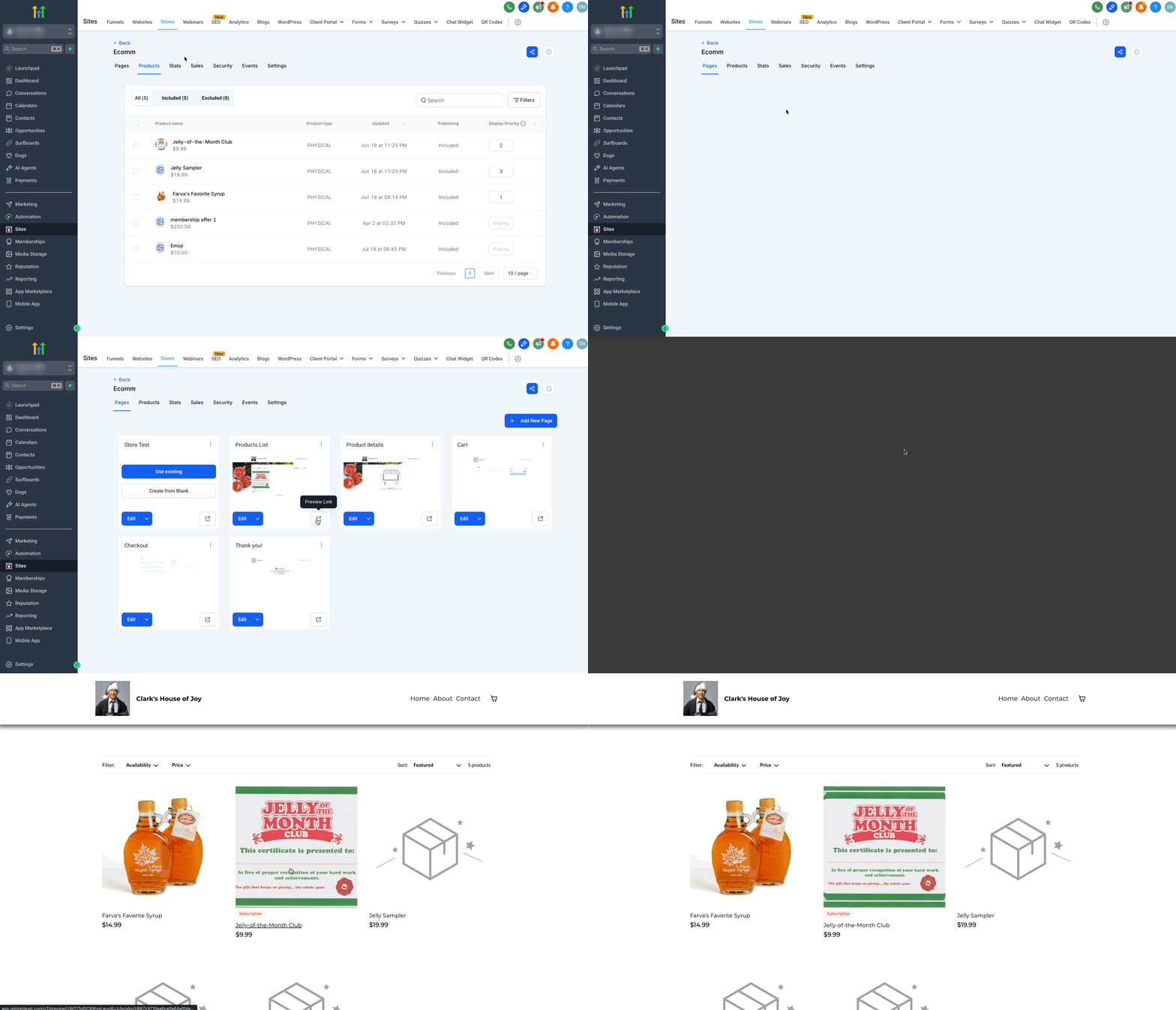
- Open the Pages tab inside the editor.
- Click the Preview Link button for the Product List page.
- Check that the items appear in the order defined by the priorities.
Set the sorting method in the builder
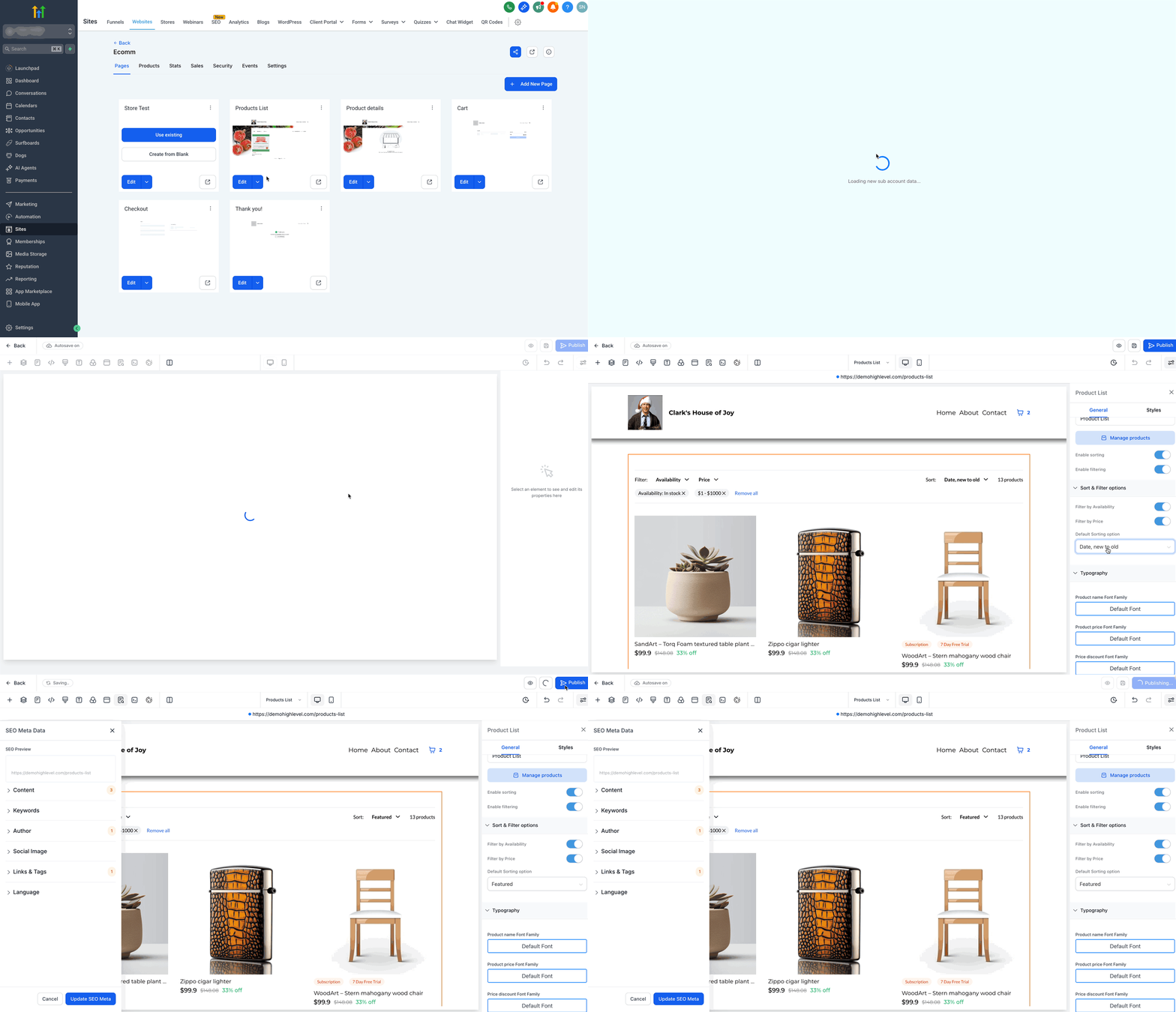
- Open the product list page for editing by choosing Edit or Edit in a New Tab.
- Select the Product List element on the canvas.
- Under Sort & Filter, pick Featured as the Default Sorting Option.
- Optionally raise the products per page value under Layout up to 100.
- Click Save to apply the sorting configuration.
06What it looks like in HighLevel

07Settings that matter
- Display Priority. Controls the numeric order of a product on the Product List page; lower numbers show higher.
- Featured as the Default Sorting Option. Sets the product list to use the manual display priorities whenever the page loads.
- products per page. Determines how many items are shown on a single page of the product list, with a maximum of 100.
08Things to know before you rely on it
- Only whole numbers are accepted in the Display Priority field; decimals or letters trigger a validation error.
- Products per page cannot exceed 100.
- Mobile shoppers can change the order using the Sort bottom sheet, which overrides the manual sequence.
- Out of stock items always move to the end of the list, ignoring their assigned priority.
09If something goes wrong
- Validation error after entering a value in Display Priority. Replace the entry with a whole number such as 1, 2, or 3.
10How it connects to the rest of HighLevel
- How to set up a HighLevel ecommerce store ecommerce store setup guide
- HighLevel product list sorting and filtering setup sorting and filtering overview
- HighLevel pricing and plans pricing information
Michael's take

When I need a quick way to make my top selling or promotional items appear first for shoppers, manual product sorting is handy. It lets me dictate the exact order without writing code. If I have a huge catalog where most visitors use filters or search, the benefit is smaller, since assigning numbers to many items can be time consuming, and mobile users can change the sort order with the Sort bottom sheet.