
01Who this is for
- Ecommerce Founders, they can show prices in a format that local shoppers recognize, reducing confusion.
- Digital product sellers, consistent price display across product pages, carts and checkout improves the buying flow.
- Subscription service owners, a single store can serve worldwide audiences without creating separate store versions.
02Locale based currency formatting, explained
The feature watches the visitor’s location and the language set on each page. Based on that information it decides which punctuation and currency symbol layout to use. The actual numeric value stays the same; only the visual formatting changes.
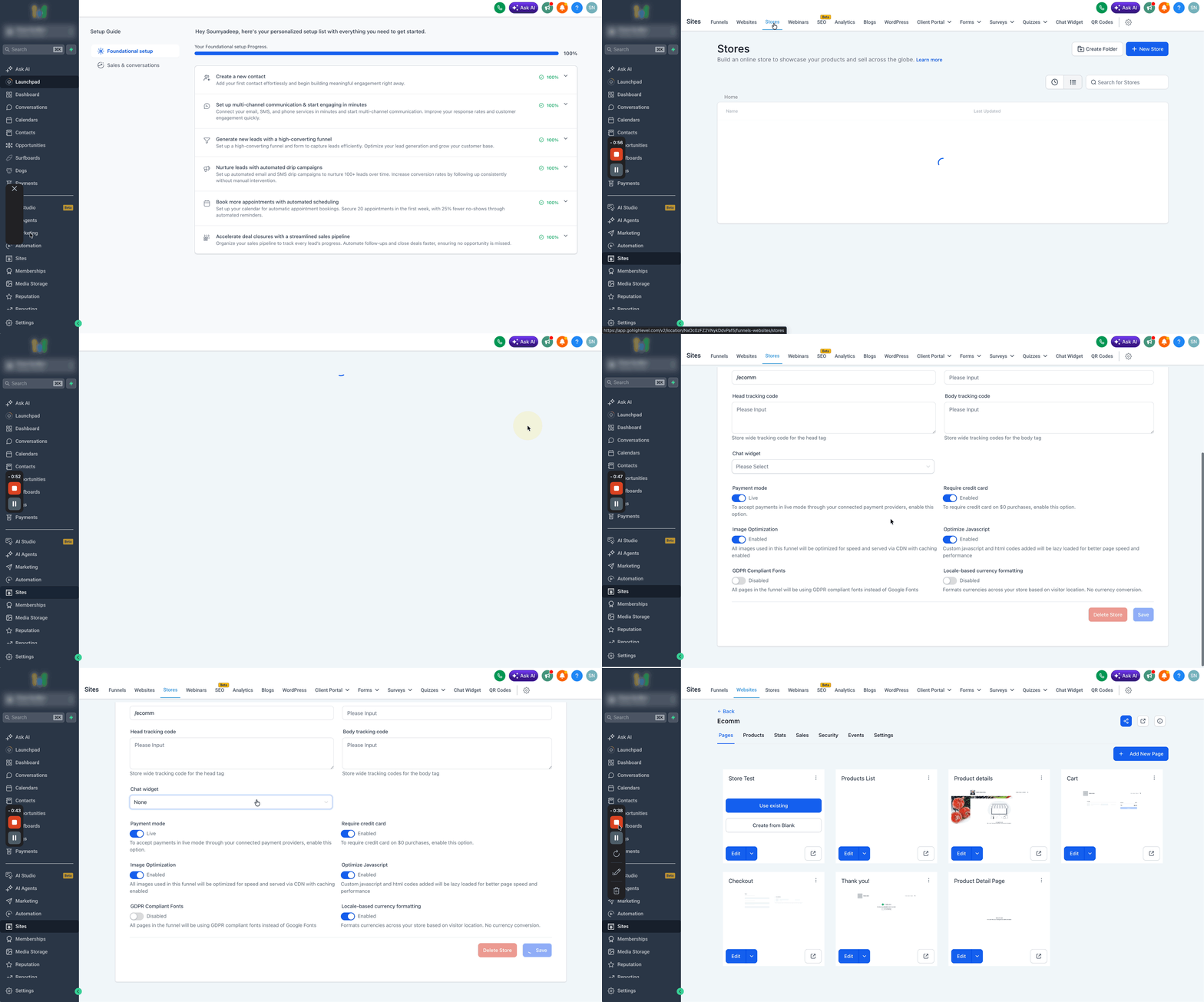
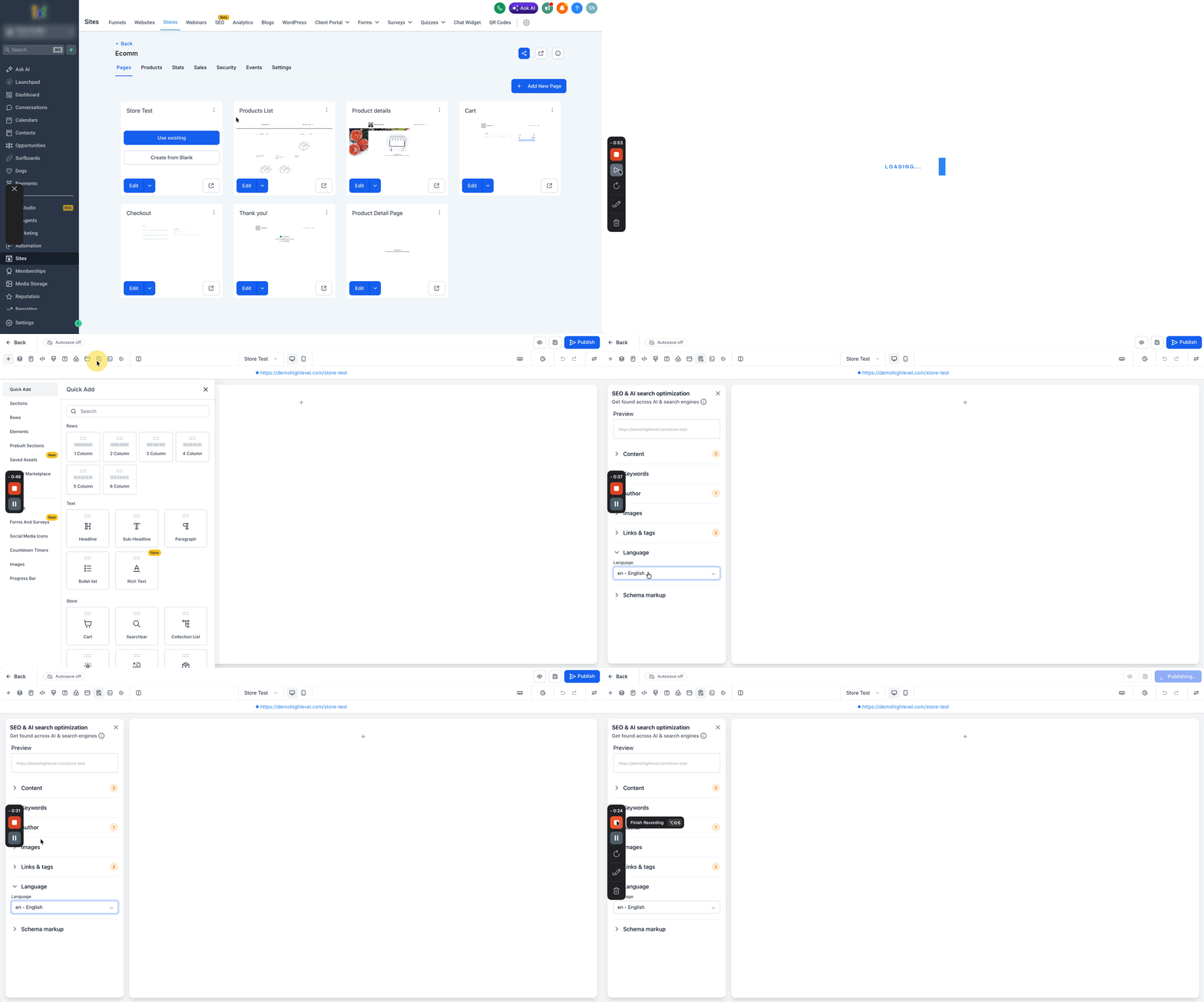
The toggle lives in the Store Settings of a HighLevel store. After activation, the system applies the formatting to every price element, including product listings, detail pages, the cart and the checkout. The page language, configured in the Builder under SEO & AI Search Optimization, provides the primary cue for formatting.
03How businesses use locale based currency formatting
- Fashion retailer. The owner opens Store Settings, enables the Locale Based Currency Formatting toggle and saves. Then, in the Builder, they set the page language to match their target market. Prices on product listings and checkout appear with the correct separators for each shopper.
- Online course creator. After turning on the formatting toggle, the creator selects English (UK) as the page language in the SEO panel. Learners from different countries see prices with the appropriate decimal mark and currency symbol placement, while the course price remains unchanged.
- Handmade crafts shop. The shop manager activates the toggle, saves, and publishes the store. They ensure the page language aligns with their primary audience. Visitors from South America see prices with commas as decimal separators, matching local conventions.
04How to set up and use locale based currency formatting in HighLevel
Enable locale based currency formatting
- Go to Sites > Stores within your HighLevel dashboard.
- Select the store you want to edit and open its Store Settings.
- Find the toggle labeled Locale Based Currency Formatting.
- Turn the toggle on to activate the feature.
- Press the Save button to store the change.
- Open the same store using the Builder editor.
- In the Builder, access the SEO & AI Search Optimization panel.
- Choose the correct Page Language for the store.
- Save the language setting and publish the store updates.
05What it looks like in HighLevel
06Settings that matter
- Locale Based Currency Formatting. Controls whether prices are shown using the formatting conventions of the visitor’s region and page language.
- Page Language. Sets the base language that influences which regional format is applied to prices.
07Things to know before you rely on it
- The feature does not convert the currency amount; it only changes the visual format.
- Formatting depends on the visitor’s location, not on the store’s physical location.
- If the page language is set incorrectly, the displayed format may not match expectations.
- When locale data cannot be determined, the system falls back to United States (en US) formatting.
08How it connects to the rest of HighLevel
- Learn how to create and configure a HighLevel ecommerce store where the formatting toggle resides. ecommerce store setup
- Adjust the page language that drives locale based formatting under SEO settings. SEO & AI Search Optimization
- Review plan options to ensure your subscription includes ecommerce features. HighLevel pricing
Michael's take

Locale based currency formatting can feel like a hidden trap if you forget that it only changes appearance, not value. Missetting the page language will cause odd looking prices and can erode the trust you’re trying to build.