
01Who this is for
- Online apparel brands benefit because they can sell custom clothing without handling inventory or shipping.
- Event organizers gain a quick way to offer branded merchandise directly from their HighLevel site.
- Home goods boutiques can add drop shipped décor items and keep product data up to date automatically.
02Printful integration, explained
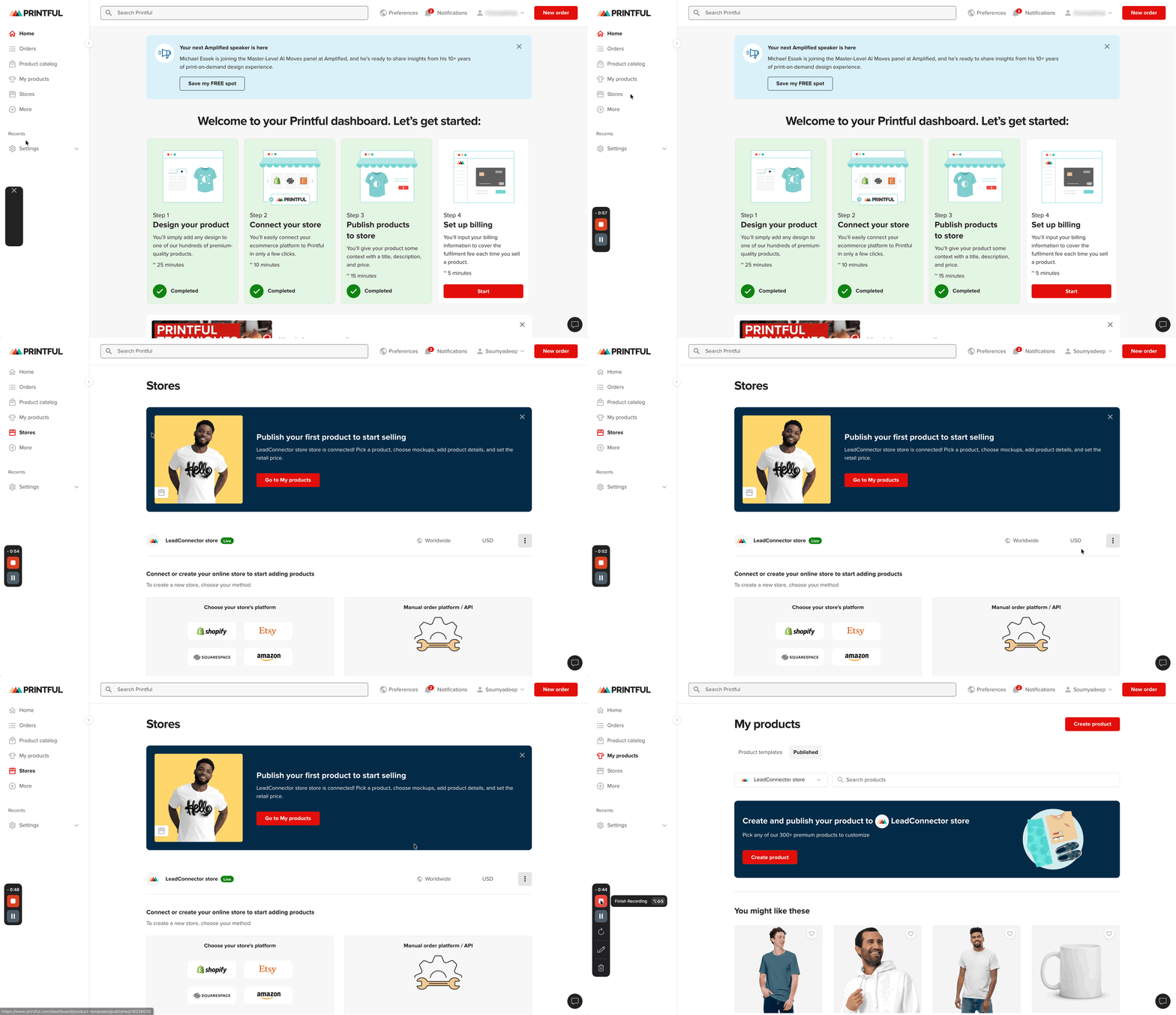
The integration connects a Printful store to a HighLevel subaccount. After installing the app, Printful products appear in HighLevel’s product list with titles, images, variants and pricing already set. Descriptions must be added manually in HighLevel. Orders placed on the HighLevel storefront automatically flow to Printful for production and shipping, while customer address and email data populate the HighLevel CRM. The integration is accessed via Settings > Integrations and appears in the HighLevel Marketplace. A dedicated Printful store called "Lead Connector" is created to keep the sync isolated. A system generated Printful shipping profile provides live rates at checkout, but it must remain attached to the products to function.
03How businesses use the Printful integration
- Apparel brand. The brand designs shirts in Printful, publishes them, and then toggles "Include in Online Store" in HighLevel so the items show on their website. When a shopper purchases a shirt, the order routes to Printful for automatic fulfillment and the customer’s address lands in HighLevel.
- Event merchandise vendor. The vendor imports event specific caps and tote bags from Printful, adds custom descriptions in HighLevel, and enables the products on the storefront. Purchases trigger Printful fulfillment and the attendee’s shipping information syncs back for follow up communication.
- Home decor boutique. The boutique creates pillow and wall art designs in Printful, publishes them, and edits the product description in HighLevel. Customers buy directly from the boutique’s site, orders flow to Printful, and the buyer’s contact details are stored in HighLevel for future marketing.
04Before you start
- A Printful account must exist before installing the integration.
- You need access to a HighLevel subaccount where the integration will be installed.
05How to set up and use the Printful integration in HighLevel
Install the Printful integration
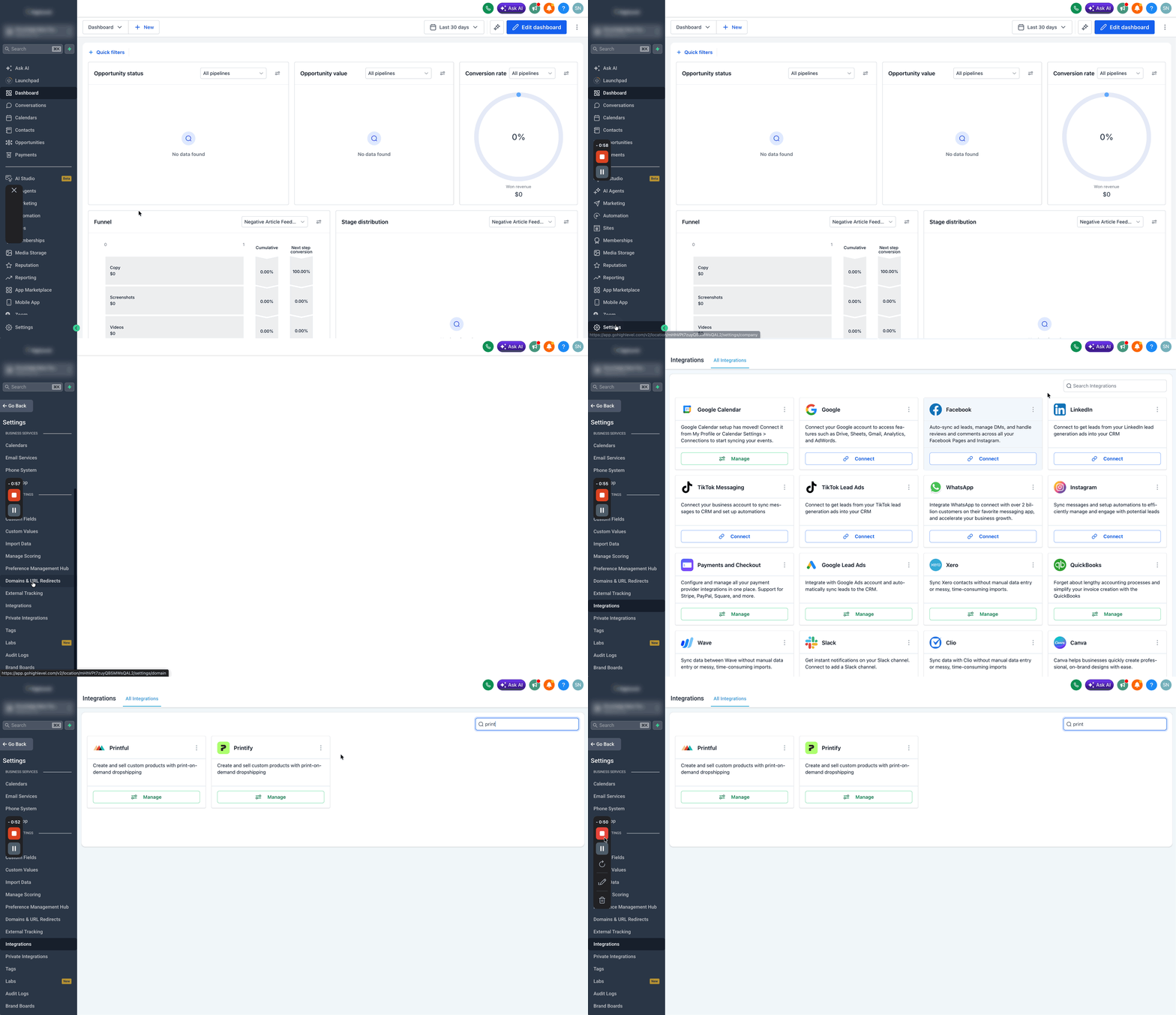
- Open Settings > Integrations in your HighLevel subaccount and locate the Printful entry.
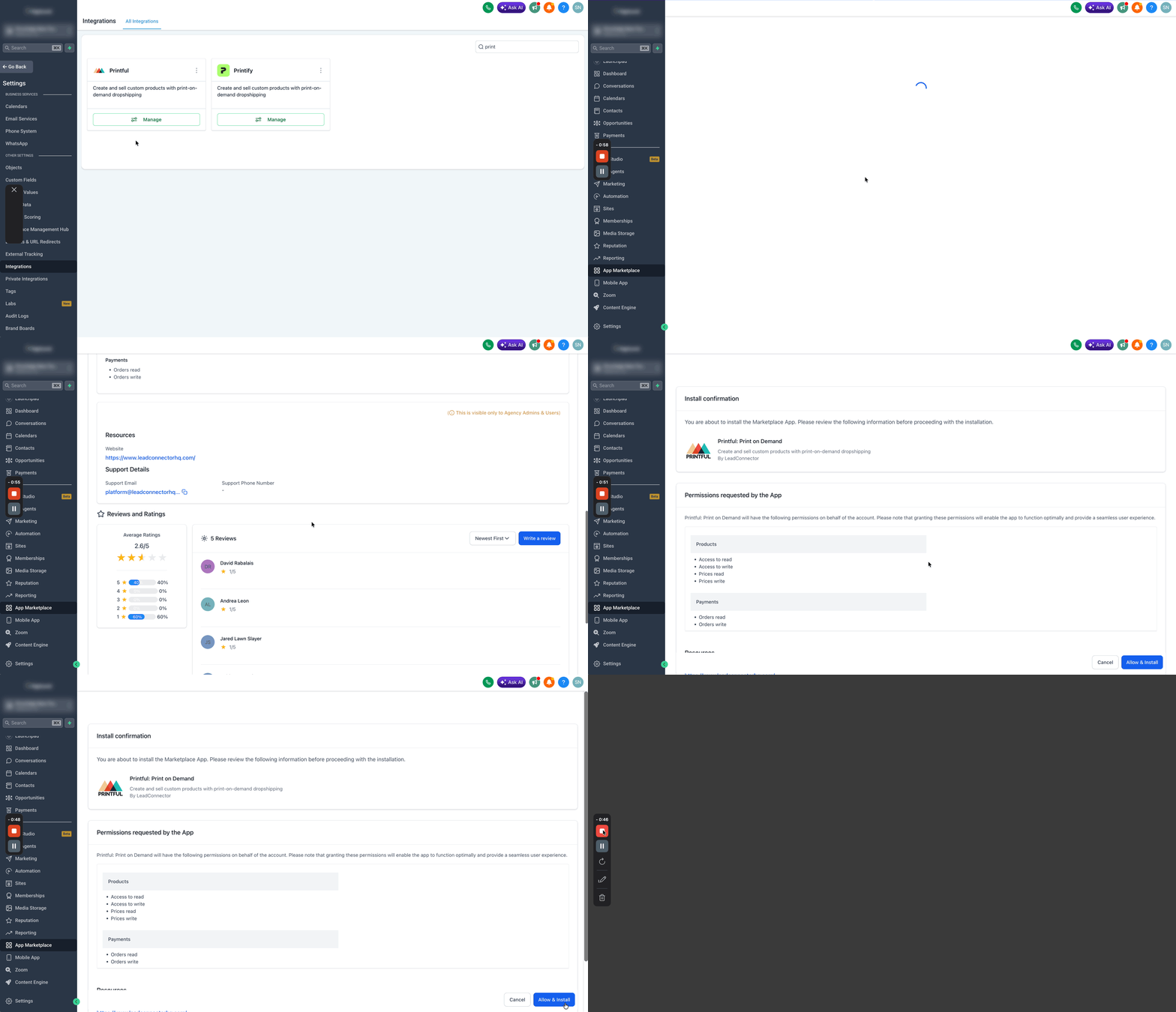
- Click Manage, then choose Install.
- Confirm the requested permissions by selecting Allow and Install.
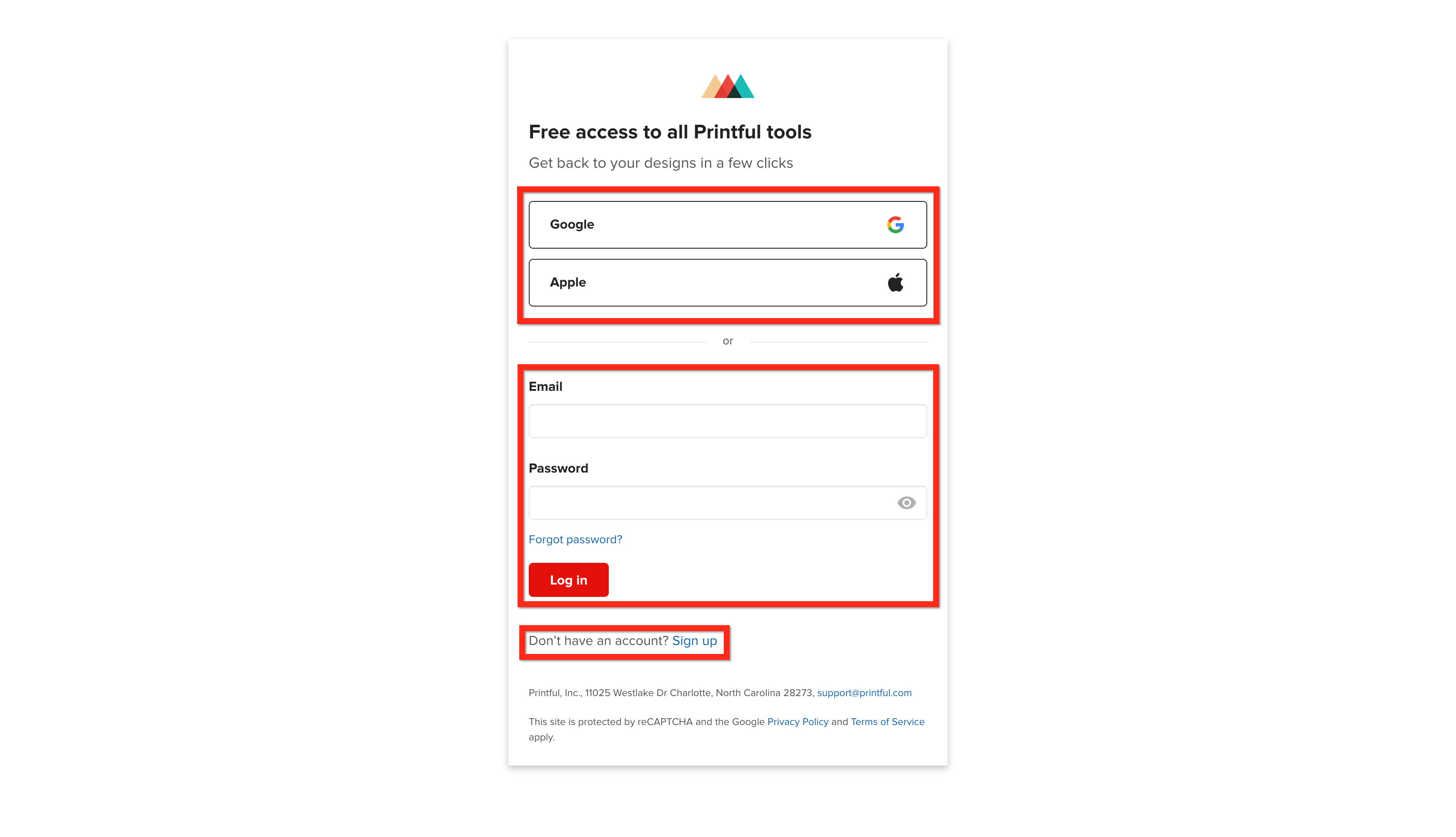
- Sign in to your Printful account when redirected, or create a new account.
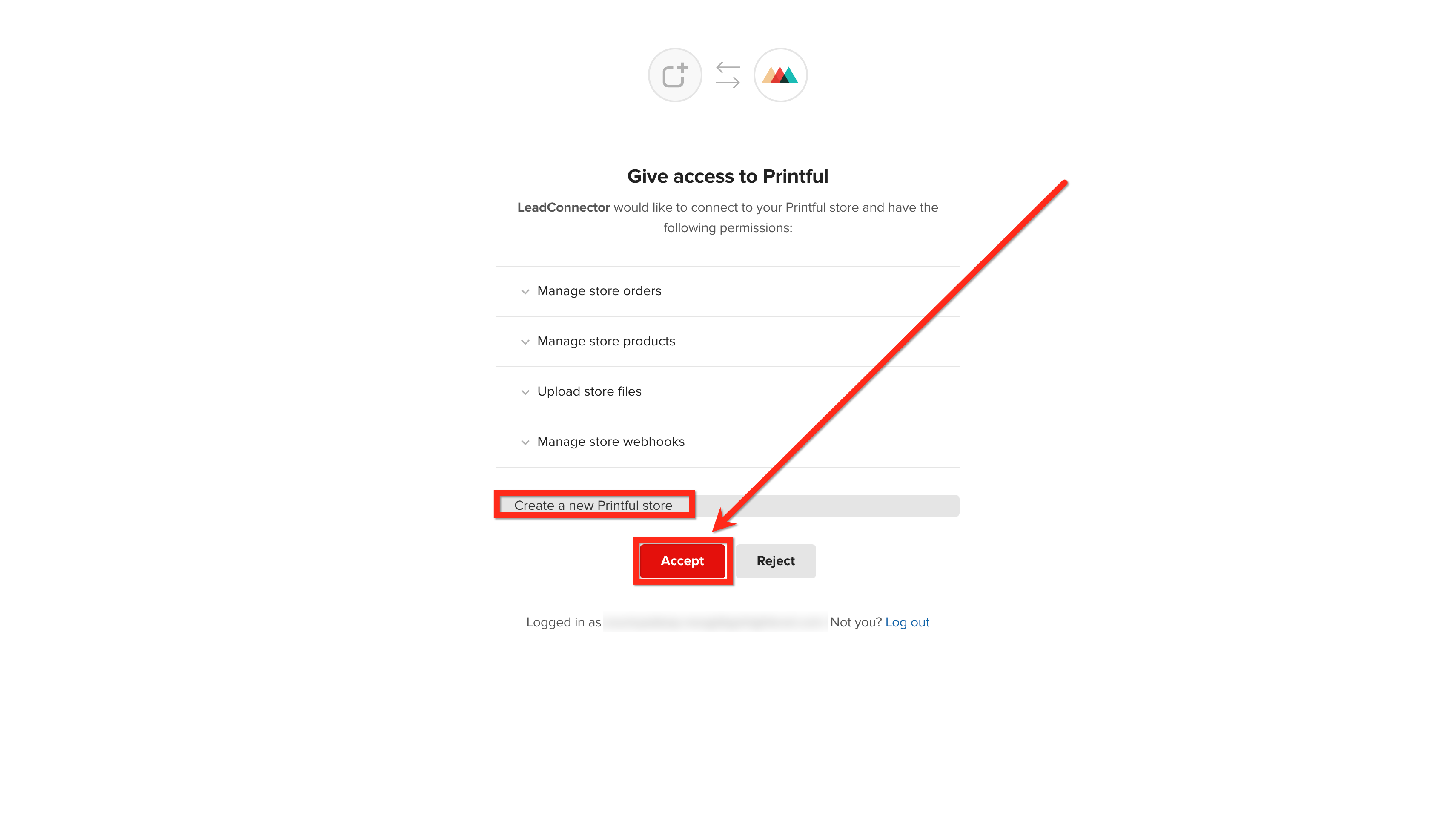
- Choose whether to create a new Printful store or connect an existing one, then accept to complete the connection. A new store named Lead Connector will be created if needed.
Add products to your HighLevel store
- In Printful, go to the Stores section, open the Lead Connector store, and choose View Products.
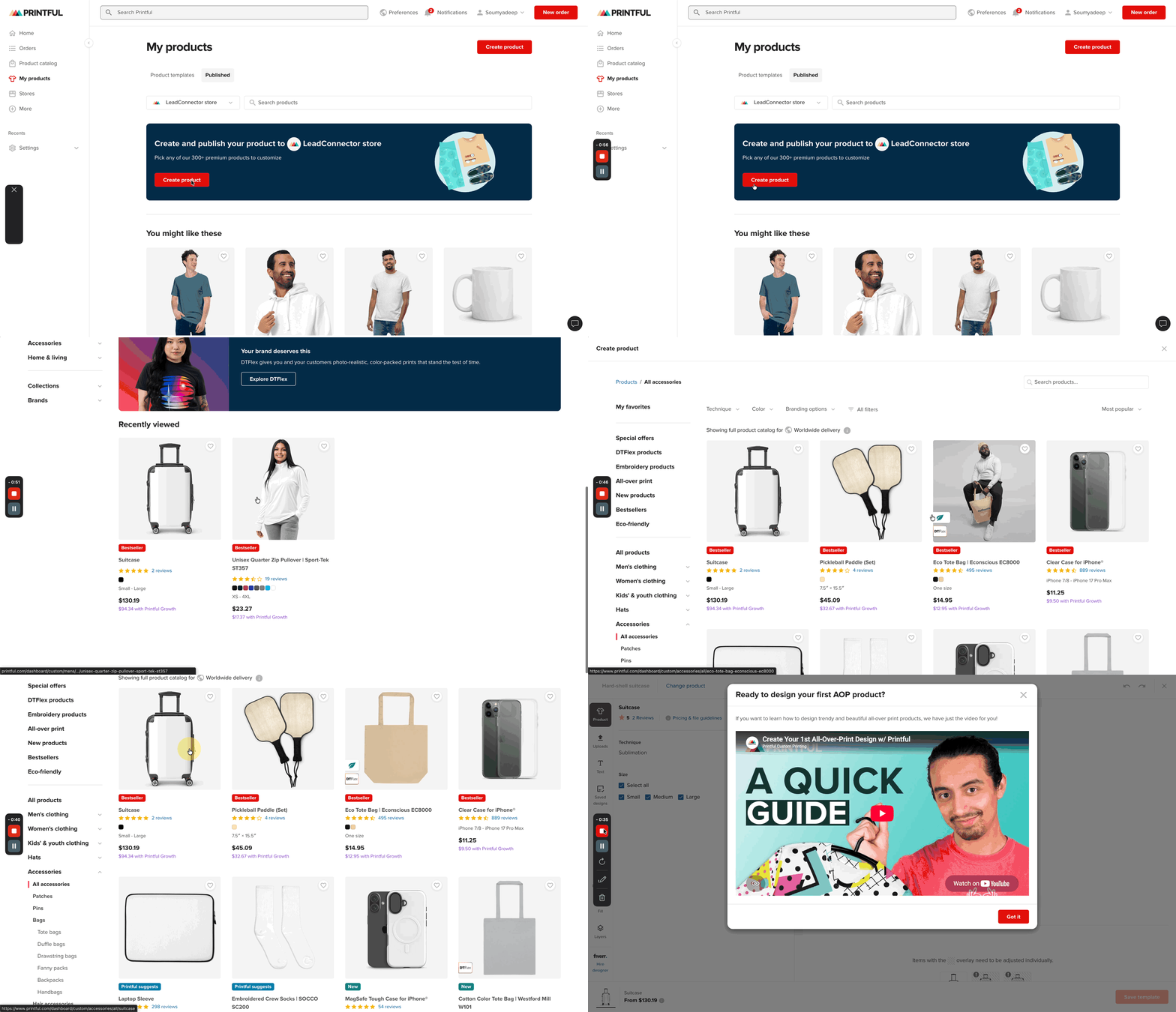
- Click Add Product and select Create New Products to start a new design.
- Follow Printful’s flow to generate mockups and set variants such as size and colour, then save the template.
- Pick mockup images, set a price and product name, and click Publish to sync the item to HighLevel.
Manage product sync and pricing
- Navigate to Payments > Products in HighLevel to view the synced Printful items.
- Use the three dot menu on a product and select Edit to adjust details like price or images.
- Turn on the Include in Online Store toggle so the item appears on your live storefront.
- Enter a product description manually in the HighLevel editor because descriptions do not sync from Printful.
Handle order fulfillment and customer data
- When a customer buys a Printful product on your HighLevel site, the order is automatically sent to Printful.
- Printful fulfills the order according to your subscription settings, either automatically or after manual approval.
- Shipping address and email from the order are imported into HighLevel for follow up and tracking.
06What it looks like in HighLevel
07Settings that matter
- Include in Online Store. Controls whether a product appears on the public HighLevel storefront.
08Things to know before you rely on it
- Product descriptions are not transferred from Printful; they must be added manually in HighLevel.
- Changes made in Printful to titles, pricing or variants will overwrite edits made in HighLevel.
- If the Printful shipping profile is removed, live shipping rates stop calculating until the profile is restored.
- Deleting the Printful shipping profile does not recreate it automatically; you must reinstall the integration.
09How it connects to the rest of HighLevel
- Set up a HighLevel ecommerce store to host Printful items ecommerce store setup
- Configure shipping zones and ZIP limits for accurate checkout rates shipping zones
- Add manual payment methods if needed for your Printful products manual payments
Michael's take

The Printful integration lets you sell designs without storing stock or handling fulfillment.
The Include in Online Store toggle must be on for each synced product to appear on the live site.
After setting the toggle, double check that the product remains assigned to the Printful shipping profile so live rates can be calculated at checkout.