
01Who this is for
- Ecommerce Founders who need real time control over product stock to avoid overselling.
- Online course creators managing digital asset availability for enrollment limits.
- Small retailers using variant specific quantities to track inventory across limited SKUs.
02Inventory Management, explained
The inventory management interface lets you set the available count for any product variant. It also offers a toggle called Continue selling when out of stock, which lets the item stay purchasable even when its quantity is zero.
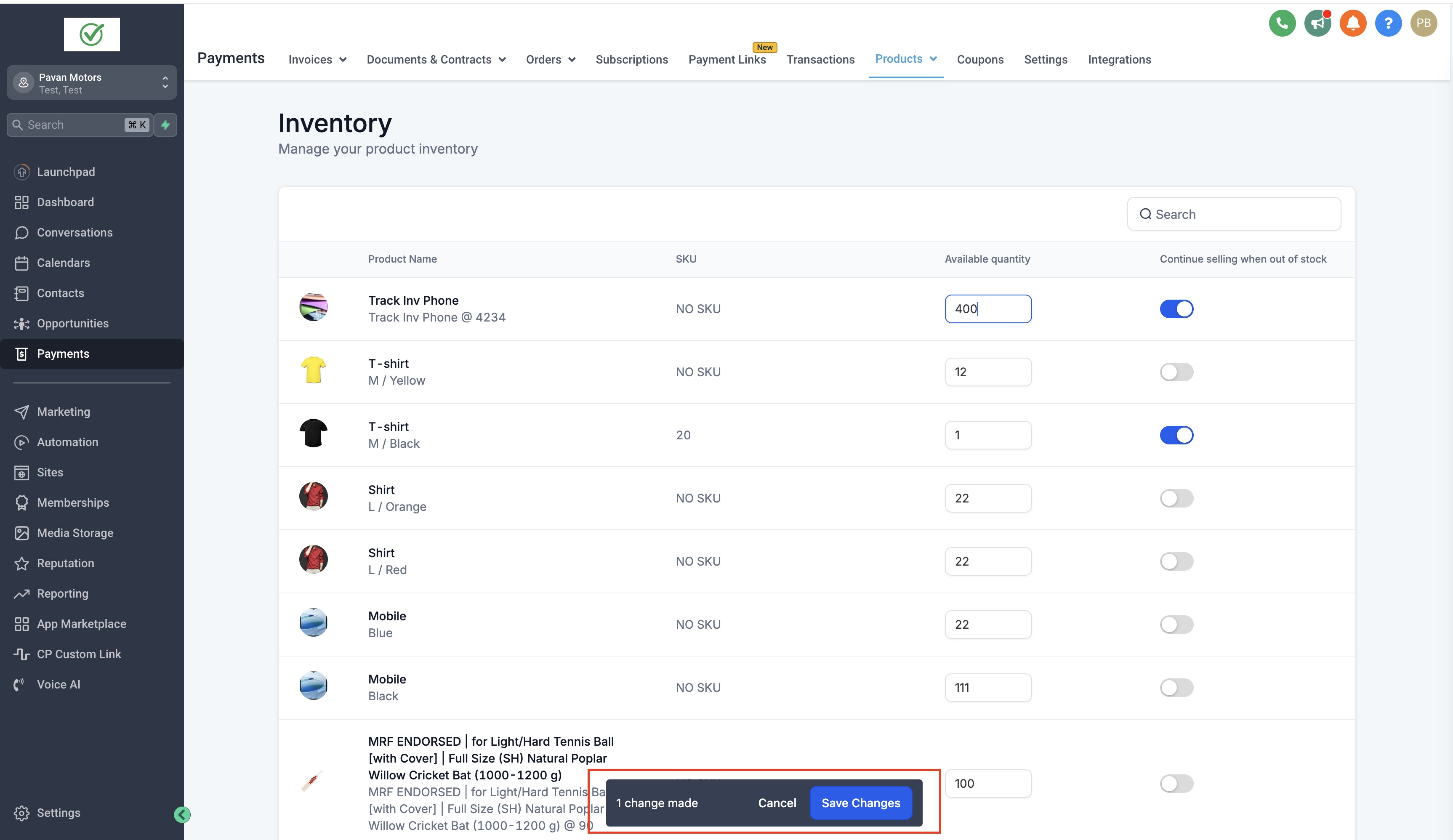
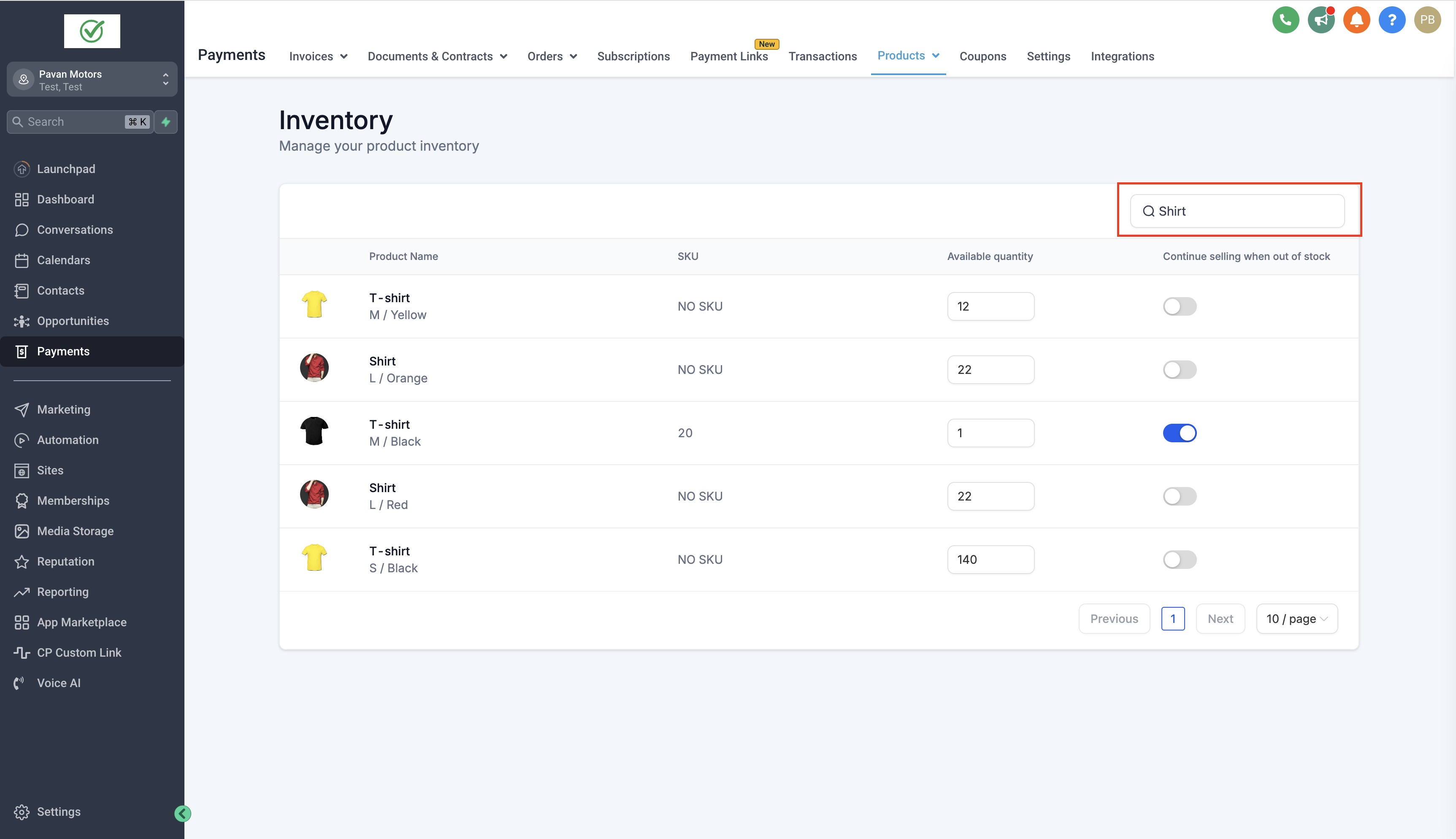
All edits stay on the page until you click Save; clicking Cancel discards any changes. If you attempt to leave the page with unsaved edits, navigation is blocked. A search bar at the top lets you filter items by SKU or by the product or variant name, and selecting a variant opens its detailed view.
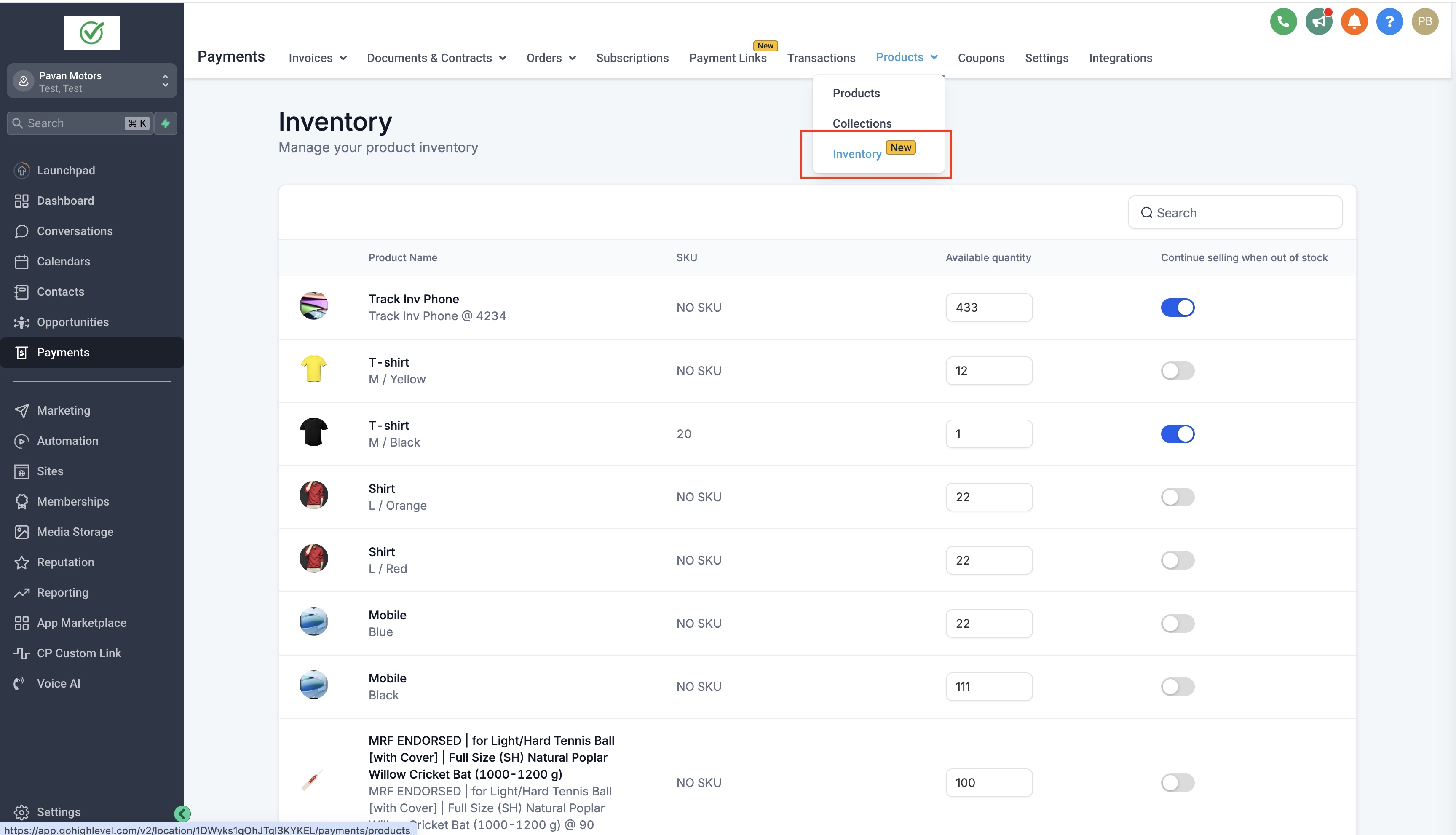
You can open the inventory view by choosing Payments, then the Products dropdown, and finally Inventory.
03How businesses use Inventory Management
- Clothing boutique. The boutique updates each size variant’s stock after a new shipment arrives. If a popular size sells out, the owner can toggle Continue selling when out of stock to keep the item visible for back order. The staff also searches by SKU to verify inventory during fulfillment.
- Digital course platform. Course admins adjust the enrollment limit for each class variant to match seat availability. When a class is full, they may enable Continue selling when out of stock to allow waitlist sign ups. They locate a specific course variant by typing its name into the search field.
- Health supplement retailer. The retailer modifies the quantity of each supplement bottle size after production runs. To keep an item listed despite low inventory, they turn on the out of stock selling toggle. They also search for products using the SKU code printed on packaging.
04How to set up and use Inventory Management in HighLevel
Update inventory
- Navigate to Payments, open the Products dropdown, and select Inventory.
- Pick the product variant whose stock you want to change.
- Enter the new quantity for that variant.
- Toggle the Continue selling when out of stock option if you want to allow sales after inventory reaches zero.
- Click Save to apply the changes or Cancel to discard them.
Search for a product
- Open the Inventory management page.
- Enter a SKU or product/variant name into the search bar.
- Examine the filtered list; click a variant to open its detail page.
05What it looks like in HighLevel
06Settings that matter
- Continue selling when out of stock. Controls whether a product variant remains purchasable after its quantity drops to zero.
07Things to know before you rely on it
- Unsaved changes prevent leaving the Inventory page until you Save or Cancel.
- If a variant lacks a SKU, the system displays "NO SKU" in the search results.
- The out of stock selling toggle applies to each variant individually.
08How it connects to the rest of HighLevel
- Set up a HighLevel ecommerce store ecommerce store setup
- Add manual payment methods for checkout manual payments
- View HighLevel pricing and plans pricing
Michael's take

It’s easy to overlook the need to lock down inventory changes before you move on to other tasks. Leaving a page with unsaved edits can halt navigation and waste time.
When you keep it simple. Update quantities, decide on the out of stock toggle, and hit Save. You’ll have a reliable stock view that supports smooth order flow.