
01Who this is for
- Ecommerce Founders who want to increase product visibility can show items that belong to the same collection as the current product.
- Digital product sellers can recommend other downloads that share a collection, helping shoppers find complementary files.
- Retail managers with multiple product categories can use the feature to cross promote items within a seasonal collection.
02Related products, explained
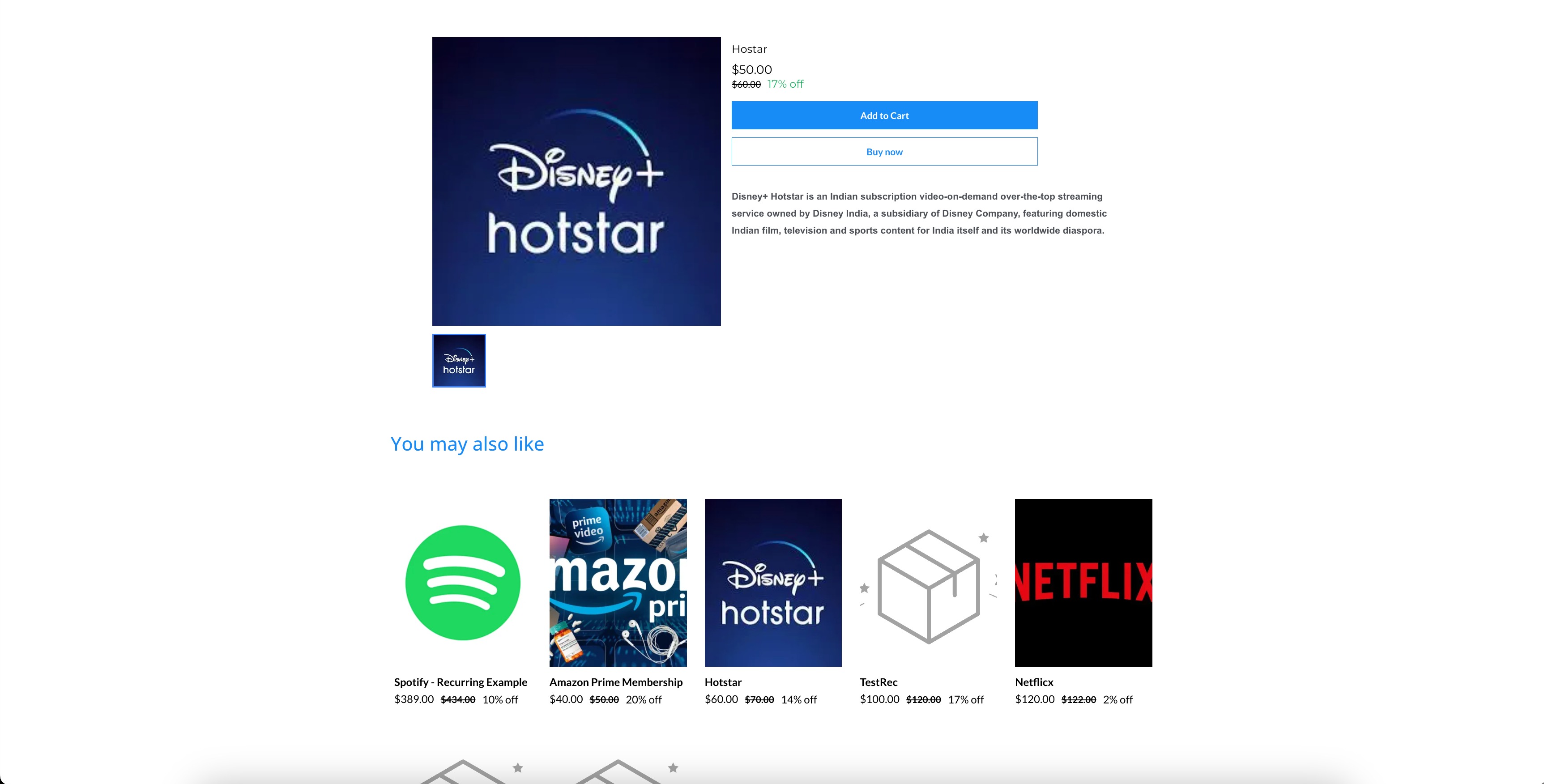
The feature adds a section to a product detail page that displays related items. It appears only when the Show related products toggle is turned on.
Related items are drawn from any collection that includes the current product. Items from each collection are shown in the order they are added, up to a maximum of ten products.
Store owners can set the number of items, the column count for desktop and mobile, and the heading text. The images in this list are forced to a square 1:1 aspect ratio.
03How businesses use related products
- Clothing retailer. In the page builder, the retailer opens the product detail page, enables the Show related products toggle, selects the collections for shirts and accessories, sets the display to four items in two columns on mobile, and saves the changes.
- Electronics store. The store edits a smartphone detail page, turns on related products, chooses to show six items, adjusts the desktop layout to three columns, writes a heading like "You may also like", and publishes the page.
- Digital course provider. The provider opens a course detail page, activates the related products toggle, limits the number to three, sets a single column for mobile, adds a custom heading "Related courses", and saves the page.
04The numbers and rules that matter
- Number of products to be shown default: 6.
- Number of columns per product default: Desktop 3, Mobile 2.
- Maximum related products capped at 10.
- Images restricted to a 1:1 aspect ratio.
05How to set up and use related products in HighLevel
Enable related products on a product detail page
- Open the product detail page in the page builder.
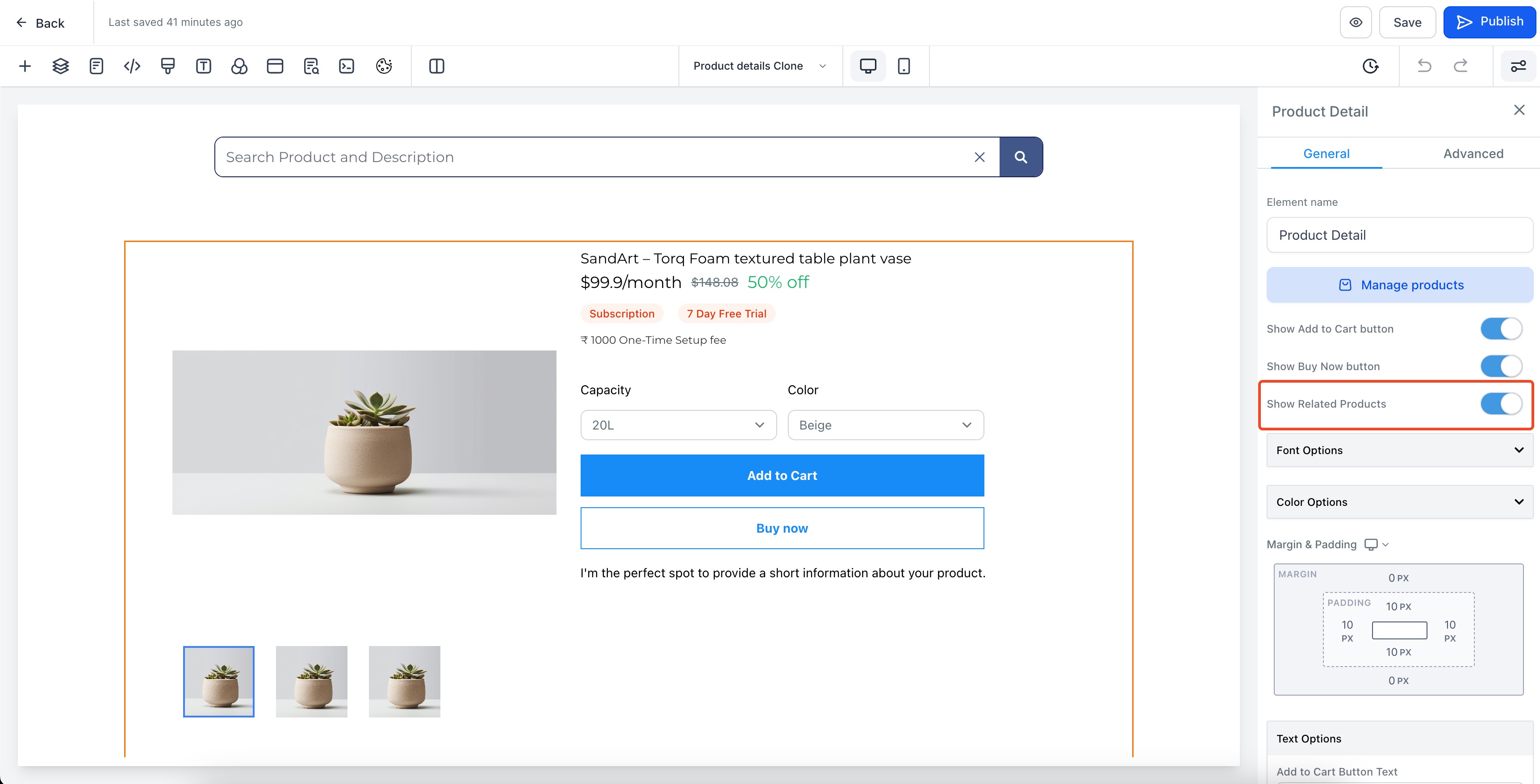
- Turn on the Show related products toggle.
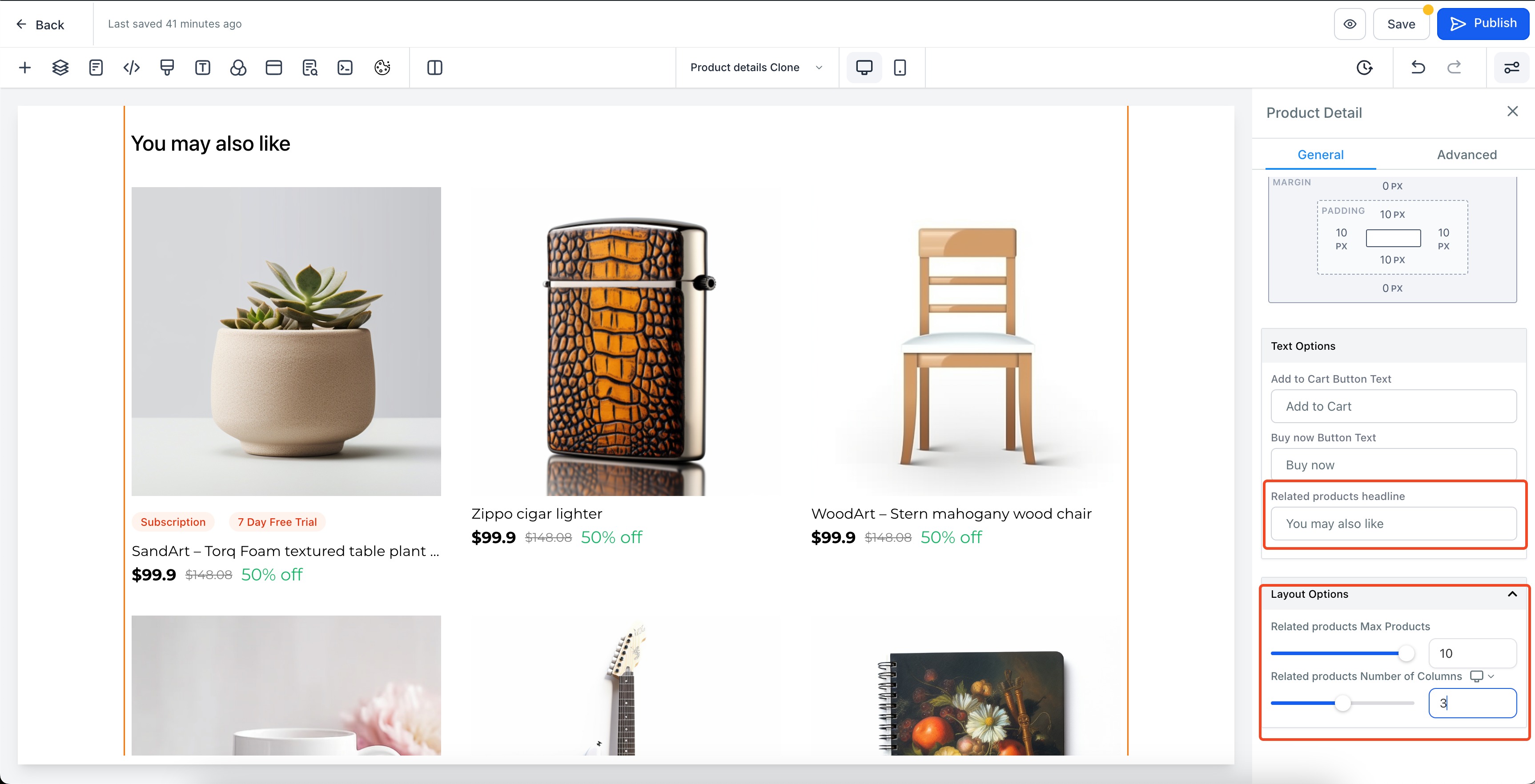
- Enter the number of products you want to display.
- Set the number of columns for desktop view.
- Set the number of columns for mobile view.
- Enter a heading for the related products section.
- Save the page and publish the changes.
06What it looks like in HighLevel
07Settings that matter
- Show related products toggle. Turns the related products section on or off for the current product page.
- Number of products to be shown. Controls how many related items appear, up to a maximum of ten.
- Number of columns per product in both desktop and mobile. Defines the layout grid for the related items on desktop and on mobile devices.
- Heading for the related products section. Sets the text displayed above the related items list.
08Things to know before you rely on it
- A maximum of ten related products can be displayed on a product detail page.
- Product images in the related list are forced to a 1:1 aspect ratio and are cropped to fit.
09How it connects to the rest of HighLevel
- Learn how to set up an ecommerce store before adding related products. Ecommerce store setup
- Adjust product sorting and filtering to control which items appear in related sections. Product sorting and filtering
- Check the pricing and plans to ensure your account includes the ecommerce feature. Pricing and plans
Michael's take

Michael ReimerFounder of CRM Pros, HighLevel Commander and Certified Admin
I find the related products settings helpful for customizing the product page.
Get More InformationOpens on HighLevelPublished November 2, 2026 · Updated November 17, 2026