
01Who this is for
- Ecommerce Founders who need automatic order syncing to reduce manual entry.
- Online retailers looking to offer live carrier rates for transparent checkout.
- Small businesses that want centralized fulfillment and branded tracking notifications.
02ShipStation integration, explained
The ShipStation integration acts as a bridge between your HighLevel ecommerce store and the ShipStation platform. It moves new orders into ShipStation, where you can generate shipping labels, compare live carrier rates from more than 50 carriers, and manage shipments from a single dashboard.
Inside HighLevel, the integration lives under Settings > Integrations or the App Marketplace. Once installed, you configure your ShipStation API credentials, set up shipping options with optional fallback rates, and test the checkout flow. After activation, orders sync automatically, labels are created in ShipStation, and tracking numbers flow back to HighLevel for customer notifications.
03How businesses use the ShipStation integration
- Apparel retailer. The retailer installs the integration, connects their ShipStation account, and creates shipping options such as standard and express. Customers see live carrier rates during checkout, and the retailer prints labels in ShipStation. Tracking numbers are sent to shoppers via HighLevel notifications.
- Handmade crafts shop. The shop adds a fallback flat rate option in case live rates are unavailable. After testing the checkout flow, orders sync to ShipStation where the owner prints labels and marks shipments as shipped. Customers receive branded tracking updates automatically.
- Subscription box service. The service defines multiple carrier services for recurring deliveries, sets up live rates, and uses the integration to keep shipping statuses up to date. When an order is fulfilled, the tracking number is pushed back to HighLevel and included in the subscription email.
04The numbers and rules that matter
- Access to 50+ carriers.
05Before you start
- Create at least one Ship From location in ShipStation.
- Enable the Package option for all active carriers in ShipStation.
- Make sure the currency in ShipStation matches the store currency.
- Obtain a Live API Key and API Secret from ShipStation (test tokens are not supported).
06How to set up and use the ShipStation integration in HighLevel
Install ShipStation integration
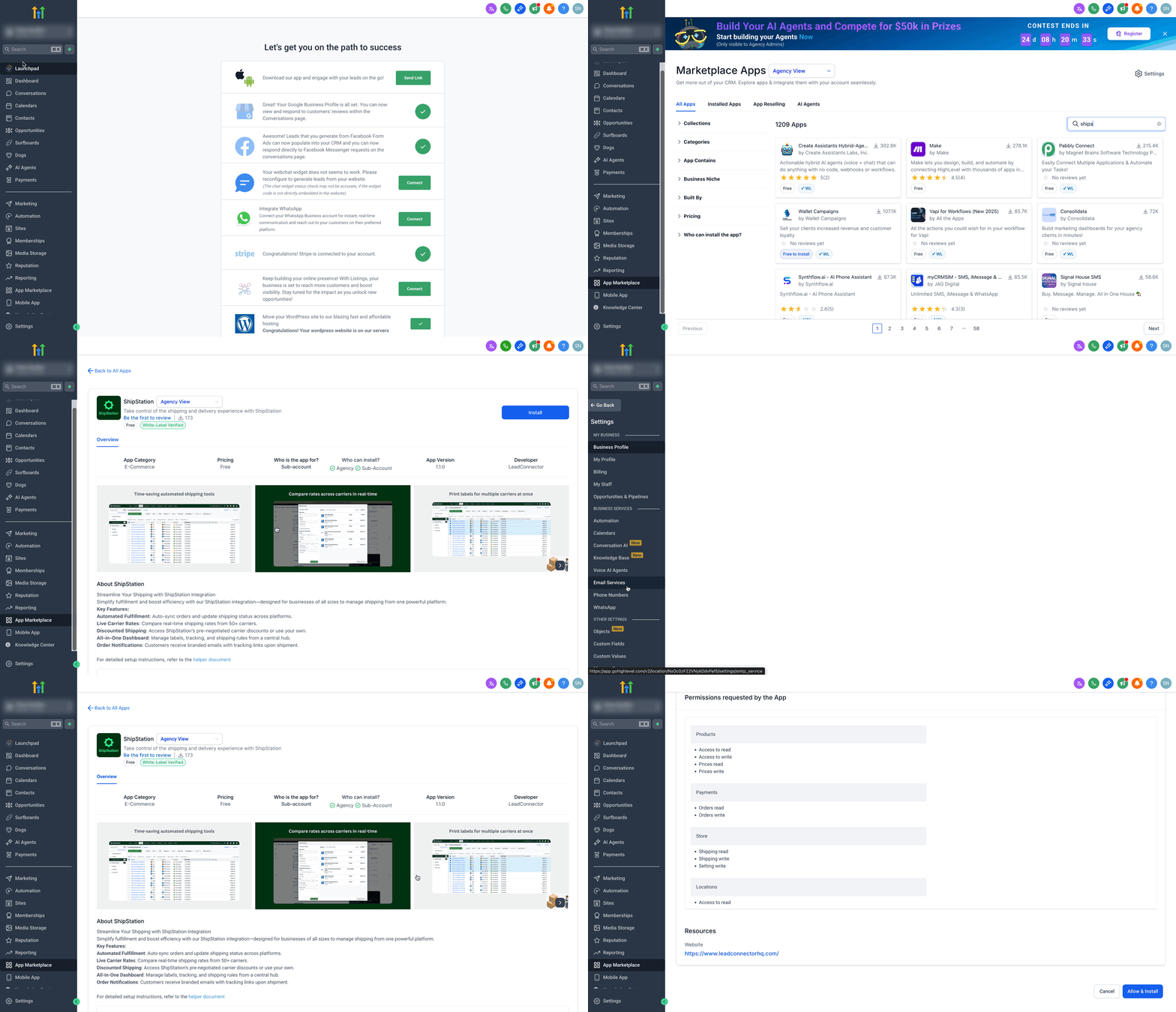
- Go to the App Marketplace or Settings > Integrations from your subaccount.
- Search for ShipStation Integration by LeadConnector.
- Select View App and click Install.
- Press Allow & Install to finish the installation.
Connect your ShipStation account
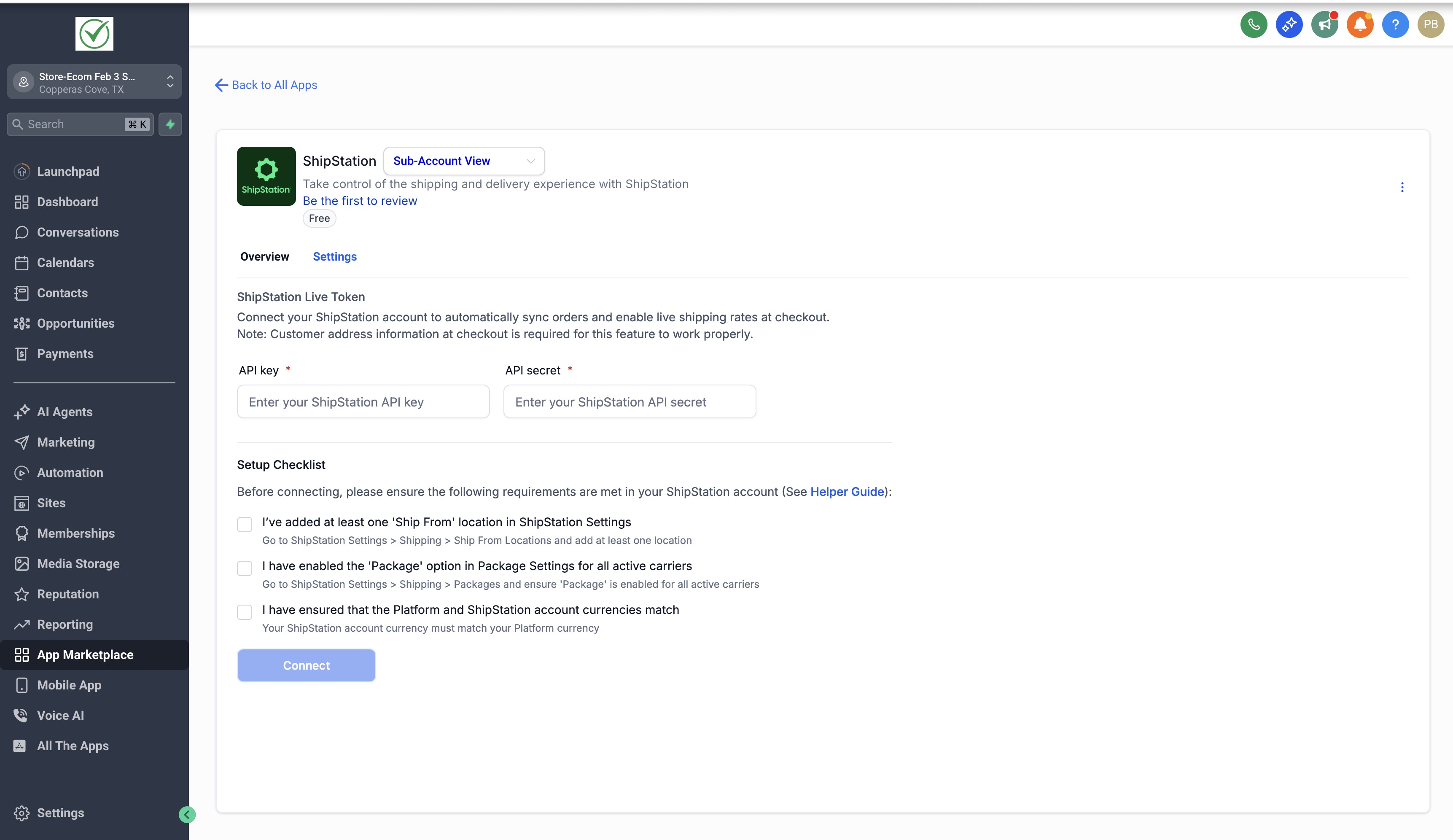
- Open the ShipStation app inside the platform.
- Select the Settings tab.
- Enter your ShipStation Live API Key and API Secret.
- Generate the keys in ShipStation under Settings > Account > API Settings.
- Click Connect, using only a live token.
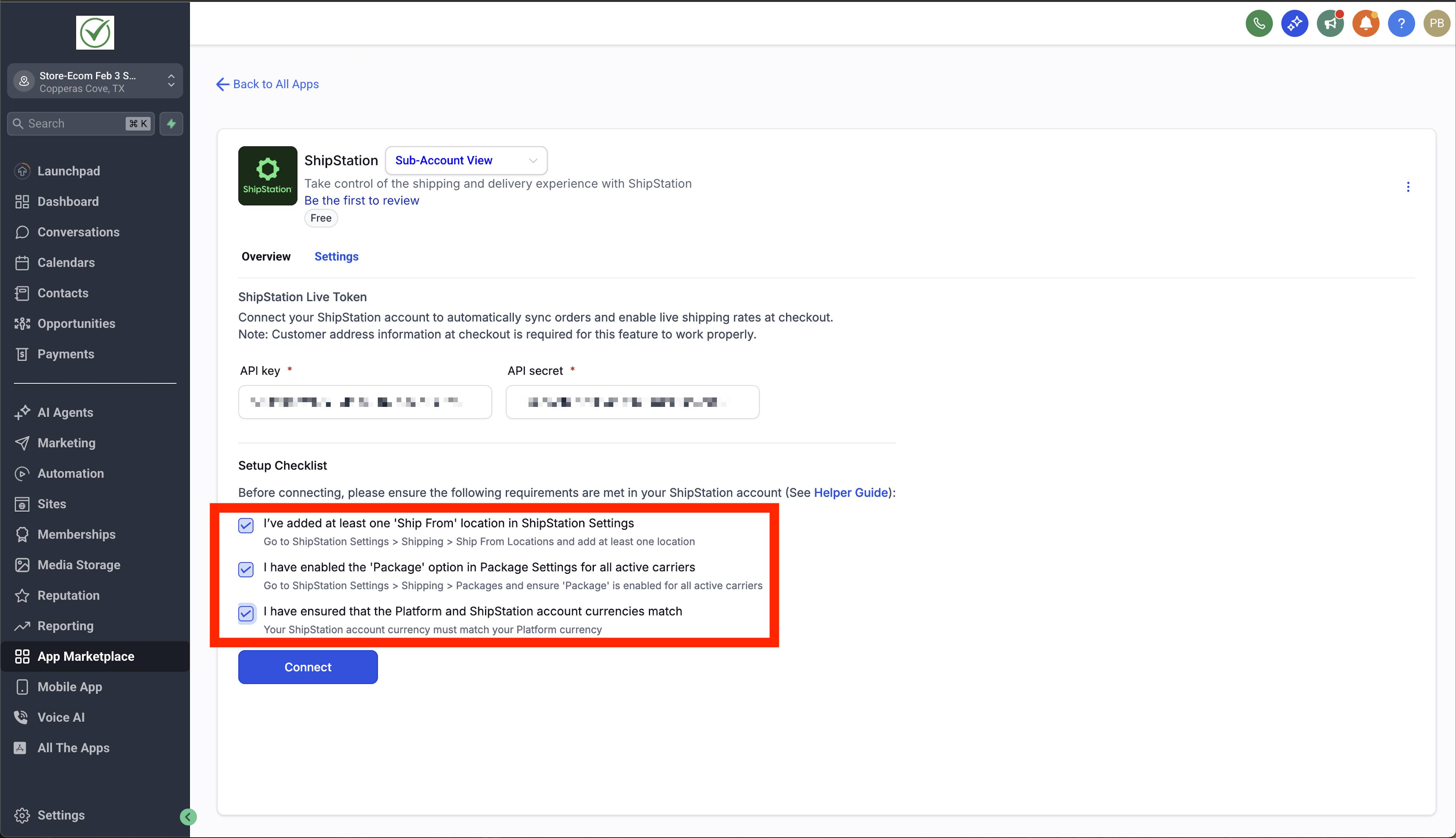
Complete the setup checklist
- Create at least one Ship From location in ShipStation (Settings > Shipping > Ship From Locations).
- Enable the Package option for all active carriers (Settings > Shipping > Packages).
- Ensure the ShipStation account currency matches the store currency.
- Check the boxes in the integration settings and click Connect.
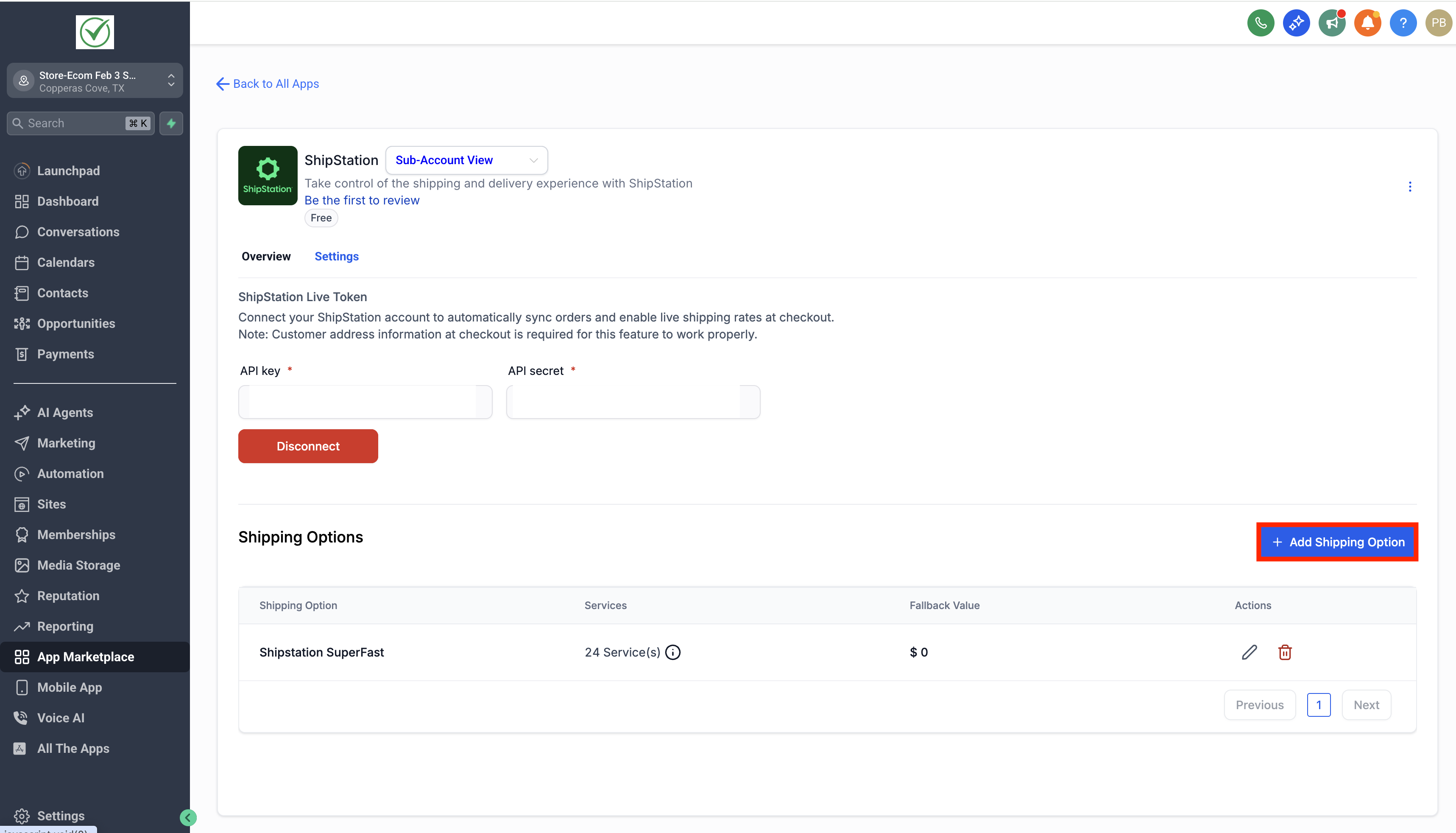
Add shipping options
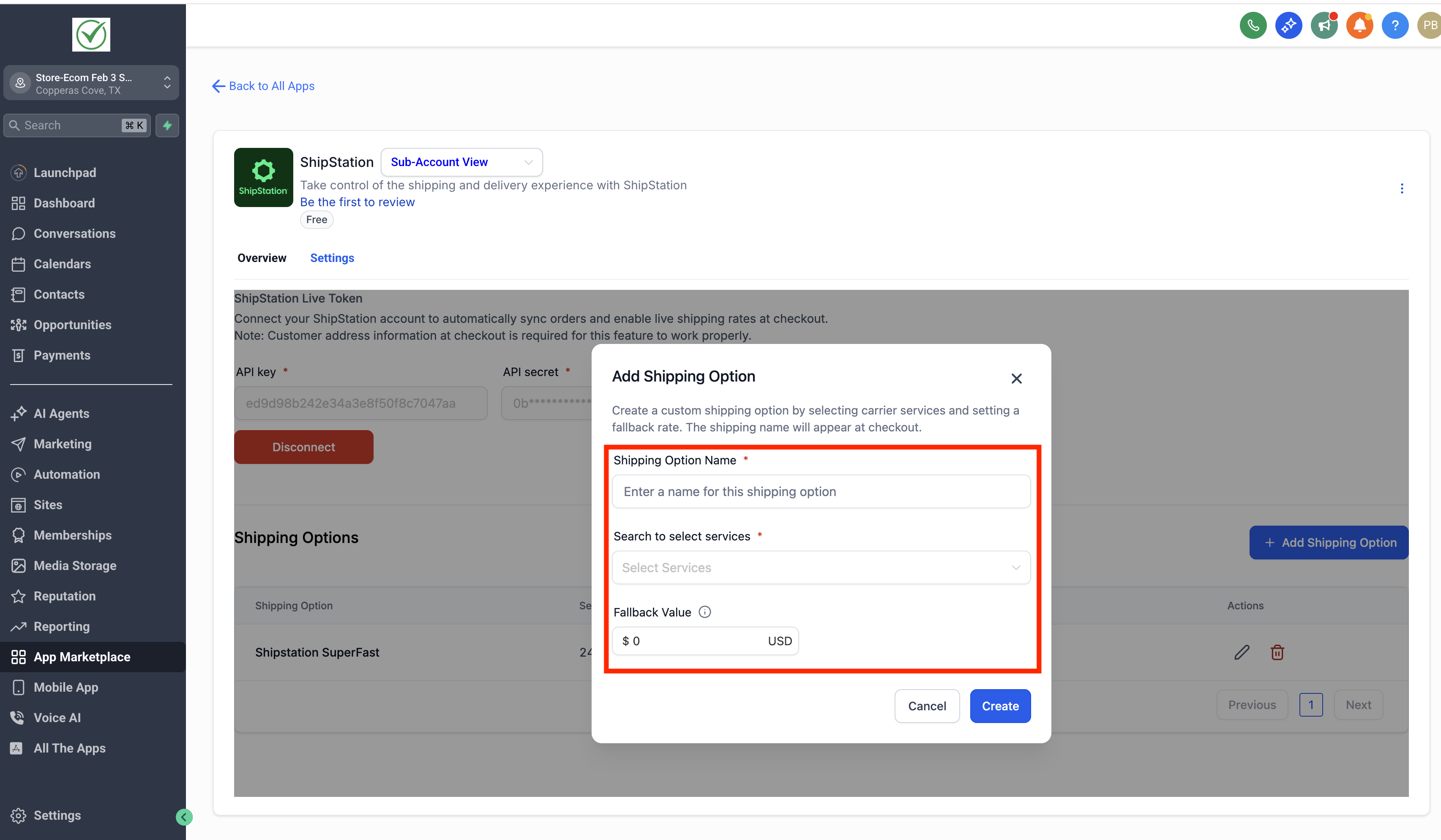
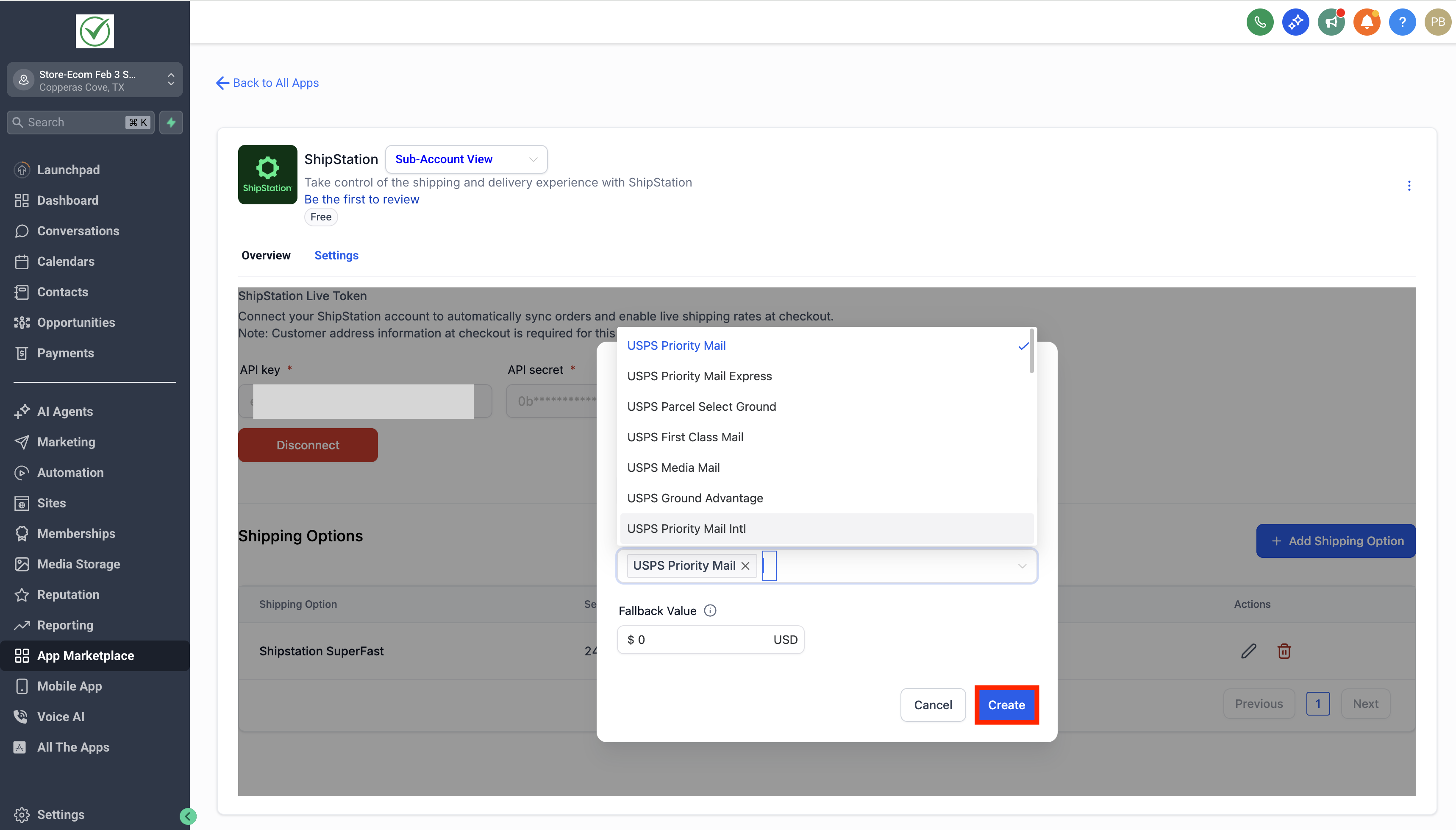
- Press + Add Shipping Option.
- Enter a name that will appear at checkout.
- Choose one or more carrier services, such as USPS Priority Mail or UPS Ground.
- Provide a fallback flat rate value for cases when live rates are unavailable.
- Click Create to save the option.
Test the checkout flow
- Add a product to the cart in your ecommerce store.
- Proceed to the checkout page.
- Review the shipping step for displayed rates.
- Verify that live rates appear; otherwise the fallback rate is applied.
Fulfillment & tracking
- Orders sync automatically to the ShipStation dashboard.
- Generate and print labels, then mark orders as shipped in ShipStation.
- Tracking numbers flow back to HighLevel and are sent to customers via branded notifications.
07What it looks like in HighLevel
08Settings that matter
- Ship From Locations. Defines the origin address used for shipping calculations and rate quotes.
- Packages. Enables package options for each active carrier, influencing how rates are calculated.
- Live API Key. Authenticates HighLevel with ShipStation to allow real time data exchange.
- API Secret. Works with the Live API Key to secure the connection between platforms.
- Shipping Option Name. The label that customers see on the checkout page for each shipping method.
- Fallback Value. A flat rate amount used when live carrier rates cannot be retrieved.
09Things to know before you rely on it
- Live rates are pulled from over 50 carriers.
- Only Live API tokens are accepted; test tokens will not work.
- A fallback flat rate must be set for scenarios where live rates are unavailable.
- Currency settings must match between ShipStation and the HighLevel store for accurate rate calculations.
10If something goes wrong
- Live rates not showing at checkout. Ensure the customer entered a valid shipping address and that carriers are active in ShipStation.
- Currency mismatch between store and ShipStation. Update the currency in both ShipStation and HighLevel so they match.
- Using test API tokens. Replace test tokens with a valid Live API Key and Secret.
11How it connects to the rest of HighLevel
- Set up shipping zones and ZIP limits to control where live rates apply. Shipping zones
- Configure manual payment methods for orders that require offline payment options. Manual payments
- Review HighLevel pricing to confirm your plan includes the ShipStation integration. Pricing
Michael's take

ShipStation integration feels like a useful convenience for most ecommerce shops, and for a fast growing brand it can change how you handle fulfillment. The automation of order syncing and the ability to show live carrier rates reduce manual effort and give customers clearer shipping costs.
A boutique apparel retailer that ships nationwide fits well. With dozens of carriers to choose from, they can offer a cheap ground option and a premium express service, while keeping tracking emails on brand. If I were setting it up, I’d run a quick checkout test to confirm the fallback rate works, then let the first few orders flow into ShipStation before fully publishing the live rates.