
01Who this is for
- Ecommerce store owners, they can produce printable shipping documentation directly from the platform, removing manual paperwork.
- Fulfillment team members, they can generate labels for selected items while processing orders, simplifying partial shipments.
02Shipping labels and packing slips, explained
The platform adds a Print Shipping Label function that creates a PDF containing a shipping label or packing slip for a chosen order. The PDF shows the order ID, date, store name, shipping and billing addresses, and an itemized product list with variant names, images and quantities. For orders with multiple partial fulfillments, each fulfillment appears on a separate page in the PDF.
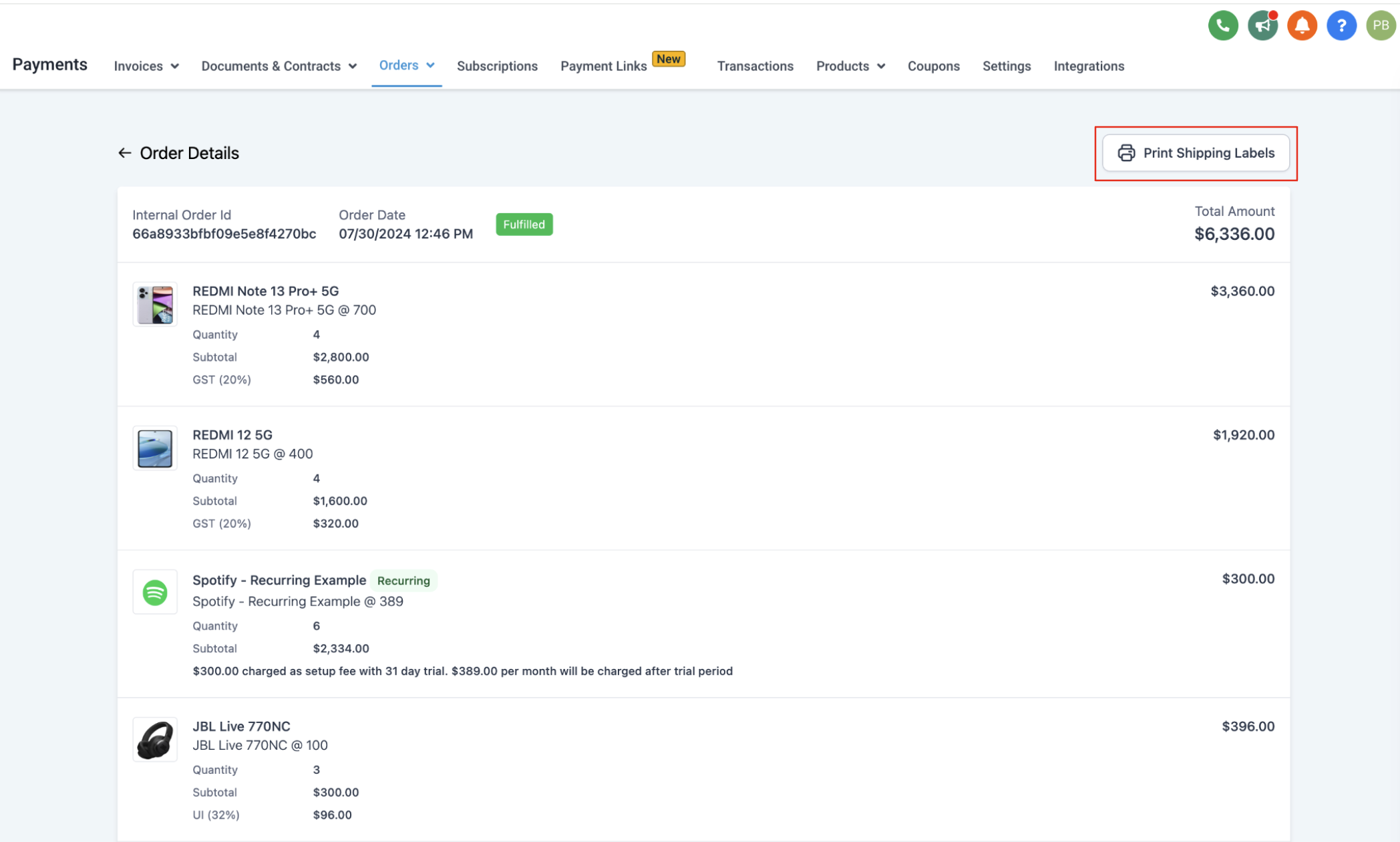
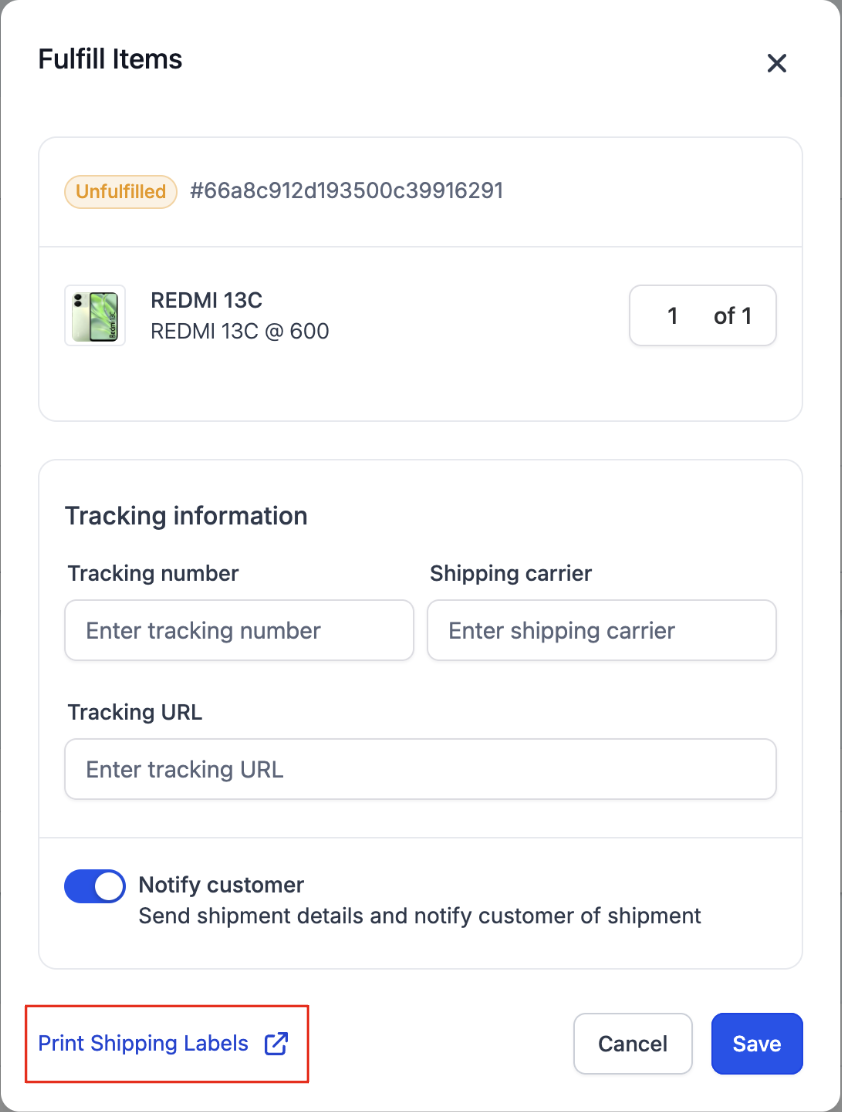
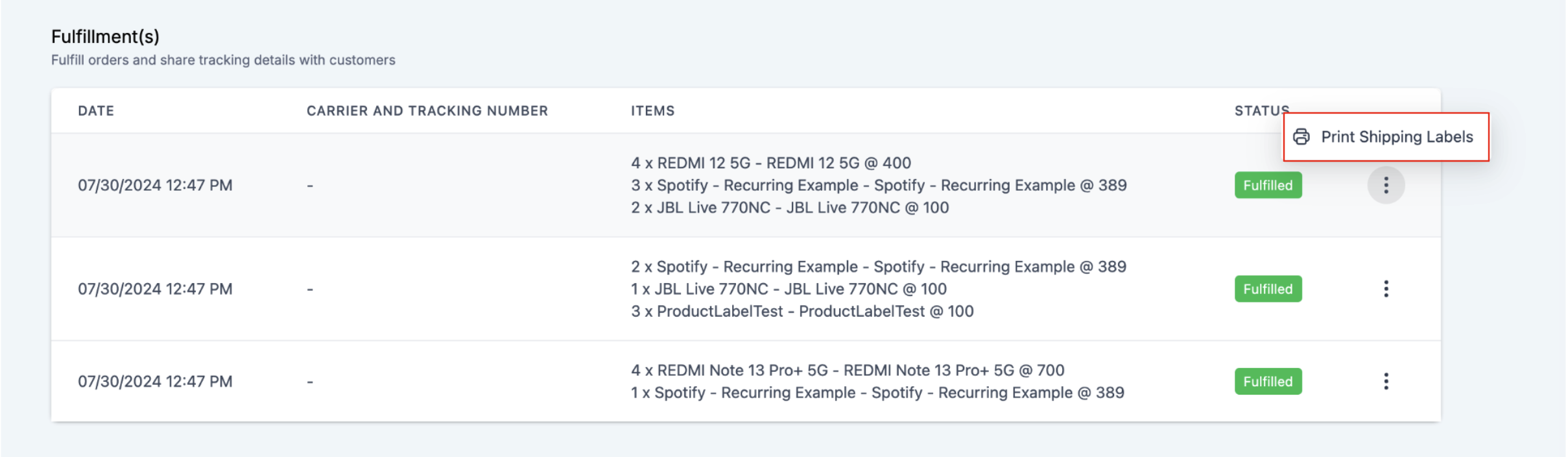
You access the feature from Payments > Orders, then open the desired store order and click the Print Shipping Label button. The option is also available while fulfilling an order and from the three dot menu of a partially fulfilled order. After clicking, the system downloads the PDF so you can save or print it.
03How businesses use shipping labels and packing slips
- Boutique clothing retailer. The retailer opens an order in Payments > Orders and clicks the Print Shipping Label button on the order details page. The generated PDF includes the customer’s address and product images, ready for printing and attaching to the package.
- Handmade jewelry maker. During fulfillment the maker selects the specific jewelry items to ship, then clicks the Print Shipping Label button. HighLevel creates a label that lists only those selected items, allowing precise partial shipments.
- Bookstore with back order items. For a partially fulfilled order the bookstore clicks the three dot menu beside the order, chooses Download Packing Slip, and receives a PDF showing the remaining books to pack and ship.
04The numbers and rules that matter
- Generated labels and slips include Order ID, Order Date, Store Name, Shipping Address & Billing Address, Itemized List of Products with Variant Name, Product Image, Quantities, Sender's Address (Store Address).
05Before you start
- An order must exist in a HighLevel ecommerce store.
06How to set up and use shipping labels and packing slips in HighLevel
Generate shipping label or packing slip
- Open the platform menu and select Payments then Orders.
- Find and open the specific store order you need to print.
- On the order details page, locate and click the Print Shipping Label button.
- If you are in the fulfillment view, select the items and quantities, then click the same button.
- For a partially fulfilled order, click the three dot icon next to it and choose Download Packing Slip or Download Shipping Label.
- Save or print the downloaded PDF that contains the label or slip.
07What it looks like in HighLevel

08Things to know before you rely on it
- Labels and slips can only be generated for orders that belong to a HighLevel ecommerce store.
- The billing and shipping addresses are identical on the label; this will become editable when the billing address field is added to checkout.
- When an order has multiple partial fulfillments, each fulfillment is placed on a separate page in the PDF.
09How it connects to the rest of HighLevel
- Learn how to set up your ecommerce store before printing labels. Set up ecommerce store
- Configure shipping zones and ZIP limits to ensure accurate address information. Shipping zones
- Review all ecommerce store features, including label printing. All ecommerce features
Michael's take

Printing shipping labels and packing slips can feel like a distraction if you’re still figuring out your basic order flow, so be sure you’re comfortable with your fulfillment steps before relying on the PDFs. The upside is clear: You get a single, printable document that bundles every key detail. Order number, addresses, product images and quantities. So you can hand it to your shipper or keep it for records without hunting through the dashboard.
I’d use the feature first to pull a label for a brand new order and see how the layout matches your carrier’s requirements. If the PDF looks right, you’ll have confidence that the same process will work for partial shipments and larger batches later on.