
01Who this is for
- Online retailers who want each product to appear with custom titles in search results.
- Boutique stores that rely on the featured image to generate a search preview.
02SEO information for products, explained
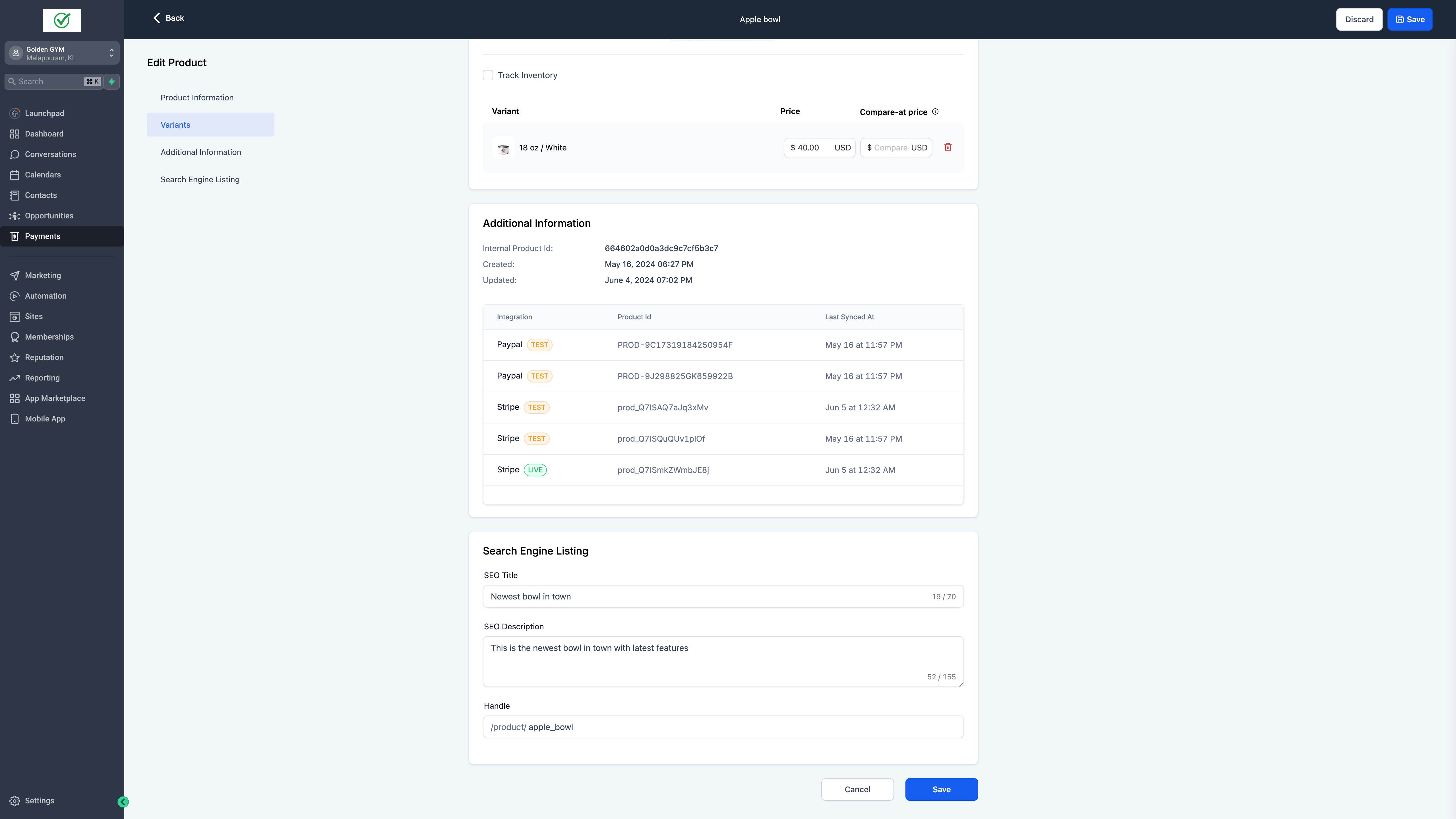
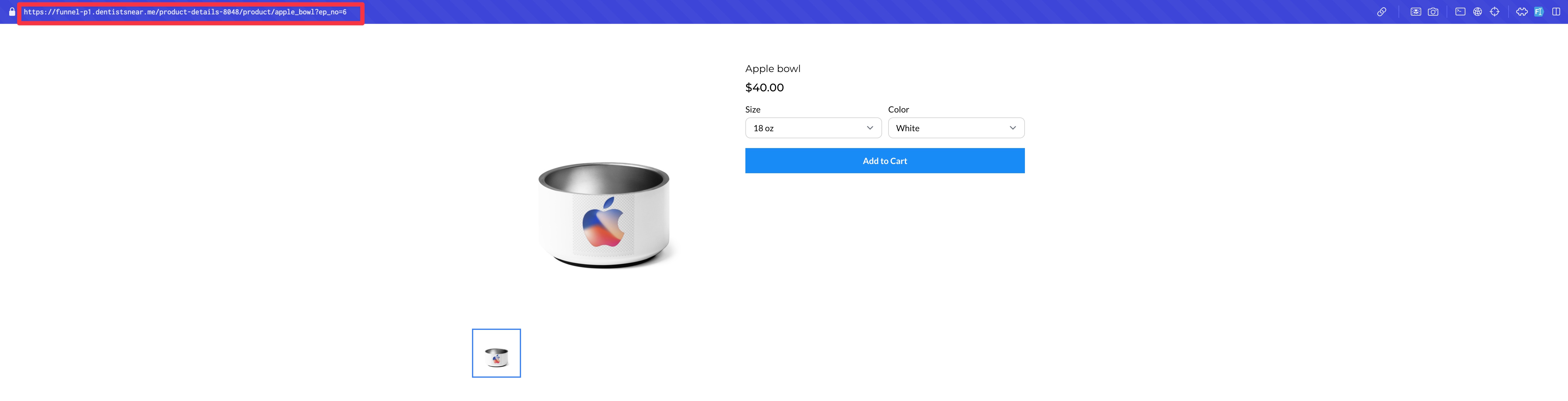
The SEO feature adds three fields to a product’s edit screen: an SEO title, an SEO description and a custom slug. The slug becomes part of the product’s web address, while the title and description are shown to search engines and when the product appears in search listings.
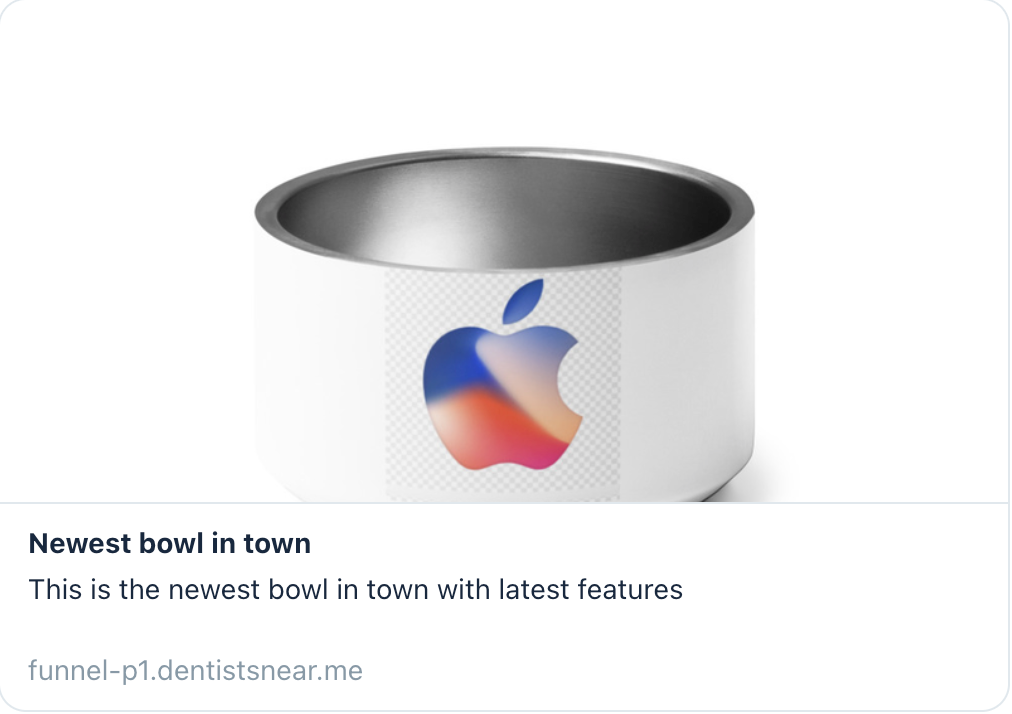
These fields are visible only when the product is set to appear in online stores. The platform automatically uses the product’s featured image as the preview picture for search results. Each slug must be unique across all products.
03How businesses use SEO information for products
- Fashion retailer. The retailer opens a product page, enables the online store toggle, and enters a concise SEO title that includes key style terms. They add a brief description that highlights fabric and fit, and set a slug like "summer dress red" to make the URL descriptive.
- Home goods boutique. The boutique updates a new lamp listing, checks that the product appears in the online catalog, and sets the SEO title to feature the lamp’s style. They add a description that mentions size and material, and assign a unique slug like "midcentury table lamp".
- Artisan jewelry maker. The maker edits a necklace product, turns on the online store toggle, inputs an SEO description with relevant keywords, and creates a unique slug such as "handcrafted silver pendant" so the link reflects the item.
04Before you start
- The toggle for product listing in online stores must be turned on for SEO fields to appear.
05How to set up and use SEO information for products in HighLevel
Add SEO to product
- Open the Payments menu and select Products.
- Choose an existing product or start a new product entry.
- Verify that the product listing toggle for online stores is enabled.
- In the Search Engine Listing section, type the desired SEO title.
- Enter the SEO description in the provided field.
- Fill the custom slug field with a unique value, making sure it is not used by another product.
- Save the product to apply the SEO changes.
06What it looks like in HighLevel
07Settings that matter
- SEO title. Controls the headline that search engines display for the product.
- SEO description. Controls the summary text shown under the title in search results.
- Custom slug. Defines the text segment used in the product’s URL.
08Things to know before you rely on it
- A slug must be unique; the same slug cannot be reused for multiple products.
- SEO fields appear only when the product listing toggle for online stores is enabled.
- The featured image of the product is automatically selected for the search preview.
09How it connects to the rest of HighLevel
- Set up your HighLevel ecommerce store to begin adding products. Ecommerce store setup
- Review all ecommerce store capabilities, including SEO options. All ecommerce store features
- Explore pricing plans to ensure your account includes product SEO features. HighLevel pricing
Michael's take

Michael ReimerFounder of CRM Pros, HighLevel Commander and Certified Admin
I would make sure the custom slug matches the product’s main keyword and is unique before anything else.
Get More InformationOpens on HighLevelPublished November 2, 2026 · Updated November 17, 2026