
01Who this is for
- Ecommerce Founders who need precise shipping calculations for each product variant.
- Small business owners selling physical goods who want to track inventory using SKUs.
02Product weights, dimensions, and SKU information, explained
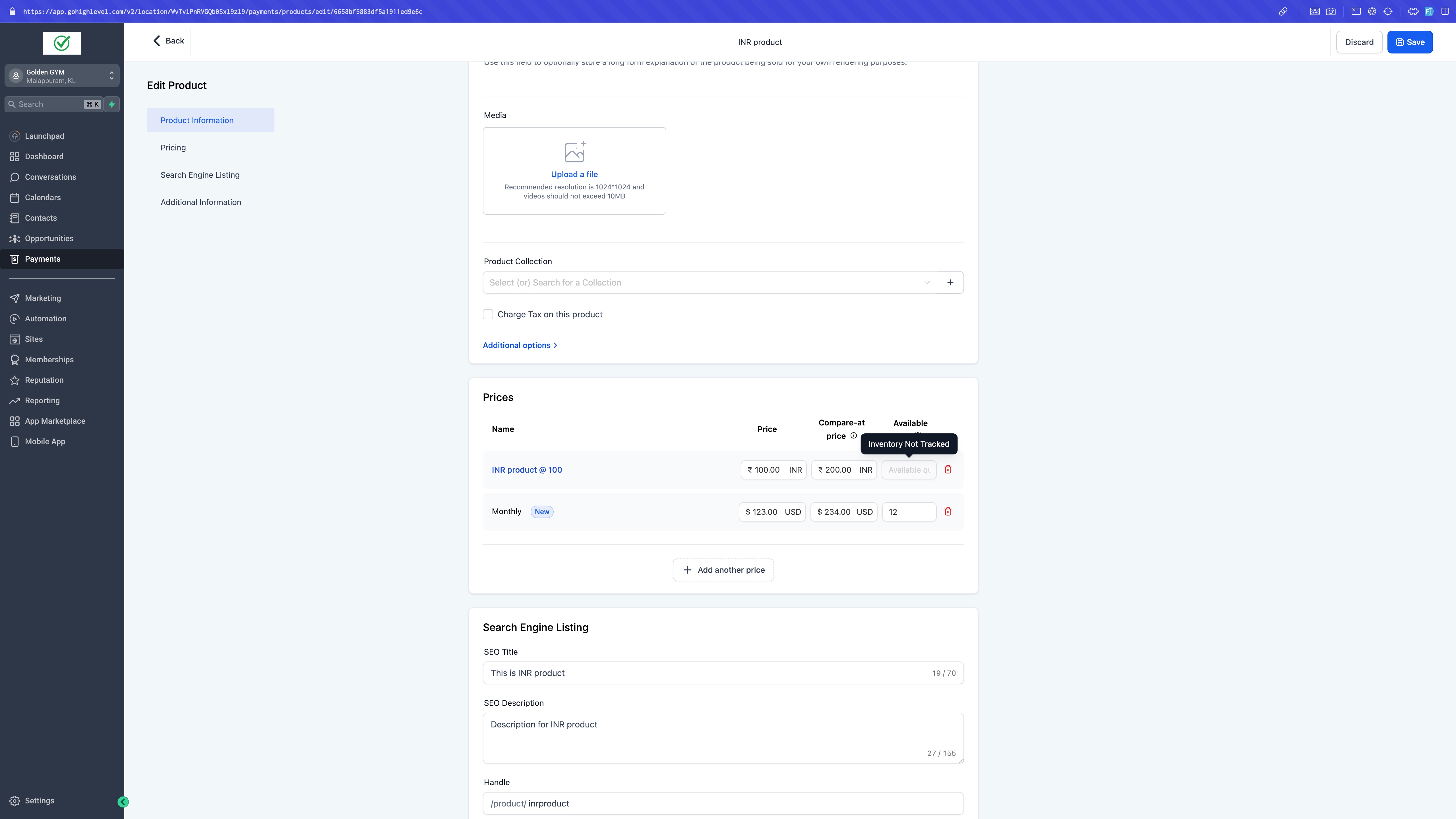
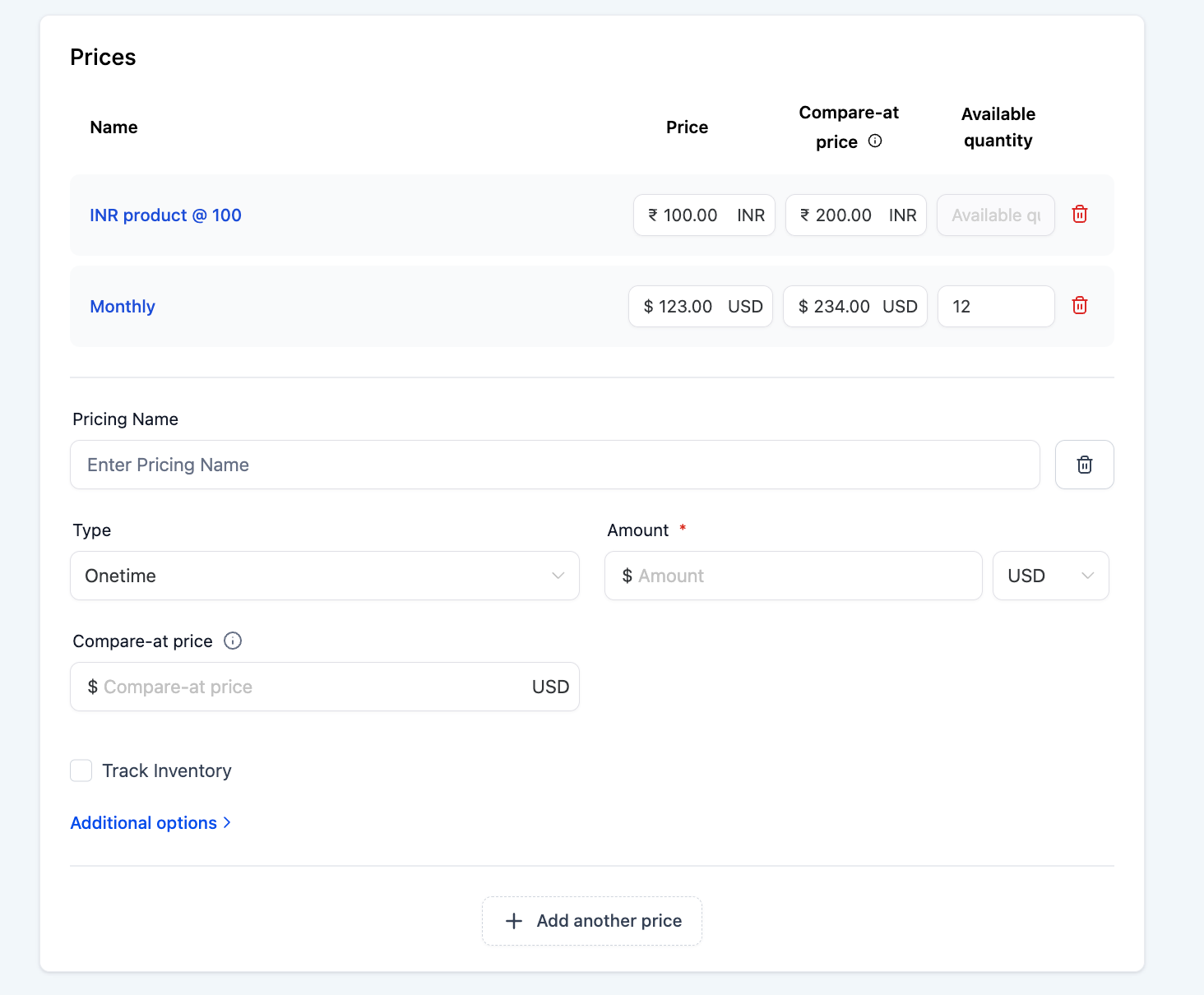
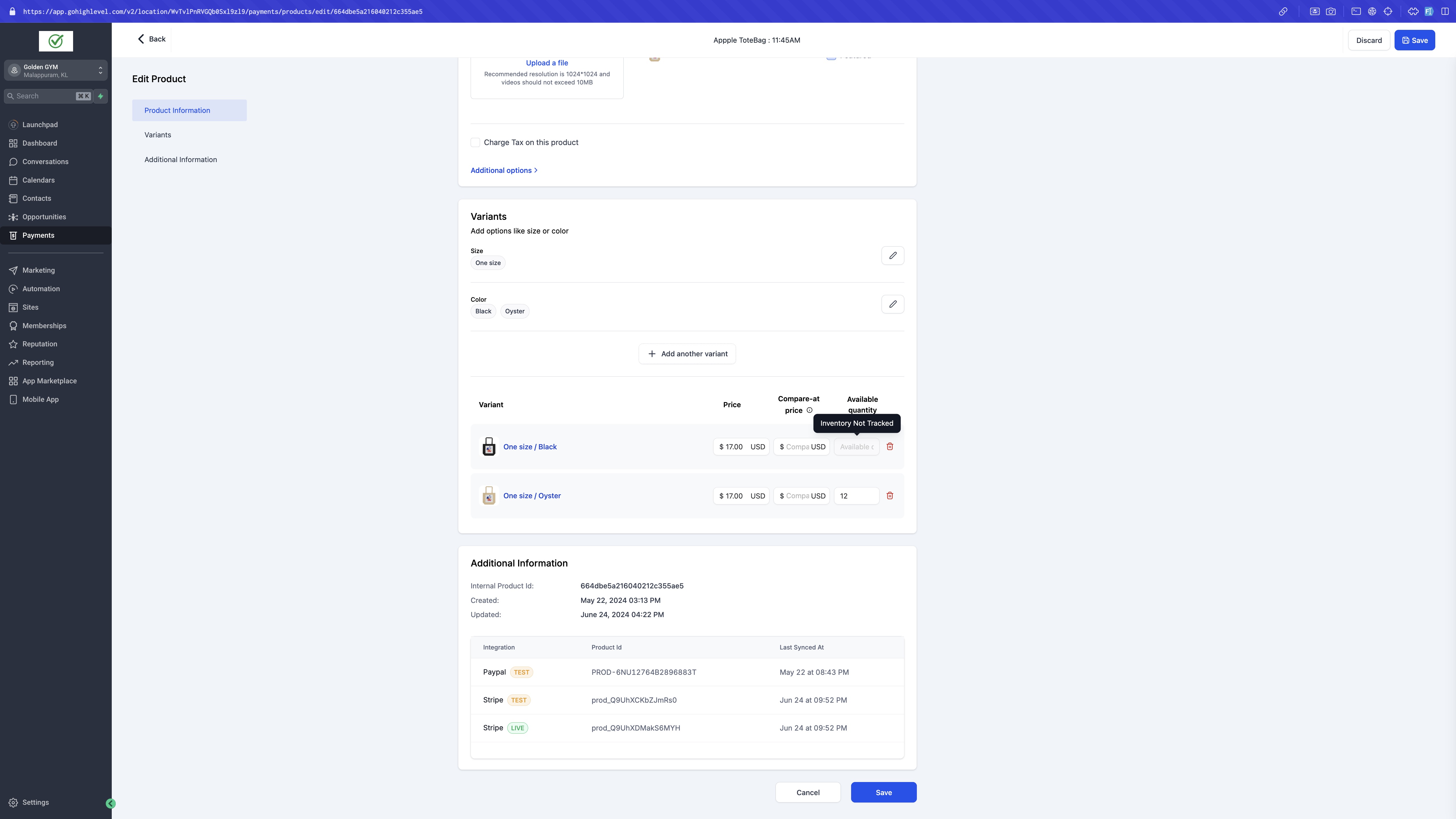
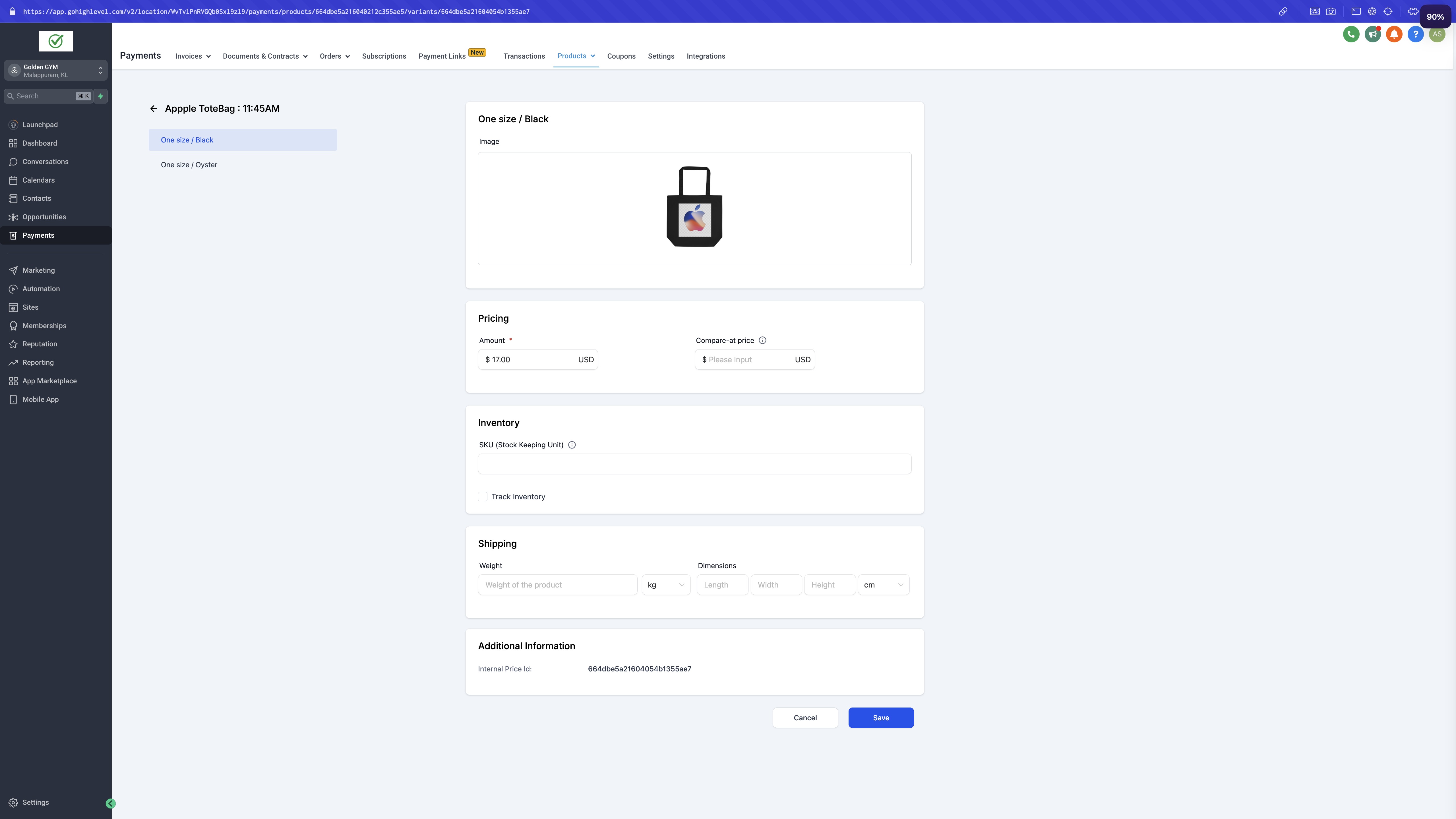
HighLevel provides a dedicated section on the pricing/variant page where users can input weight, dimensions, and SKU for each price variation. The page becomes available only after a price or variant is saved, and unsaved entries show a “New” tag. Within the list of prices/variants, tiles highlight on hover and include quick edit and delete actions for fast management.
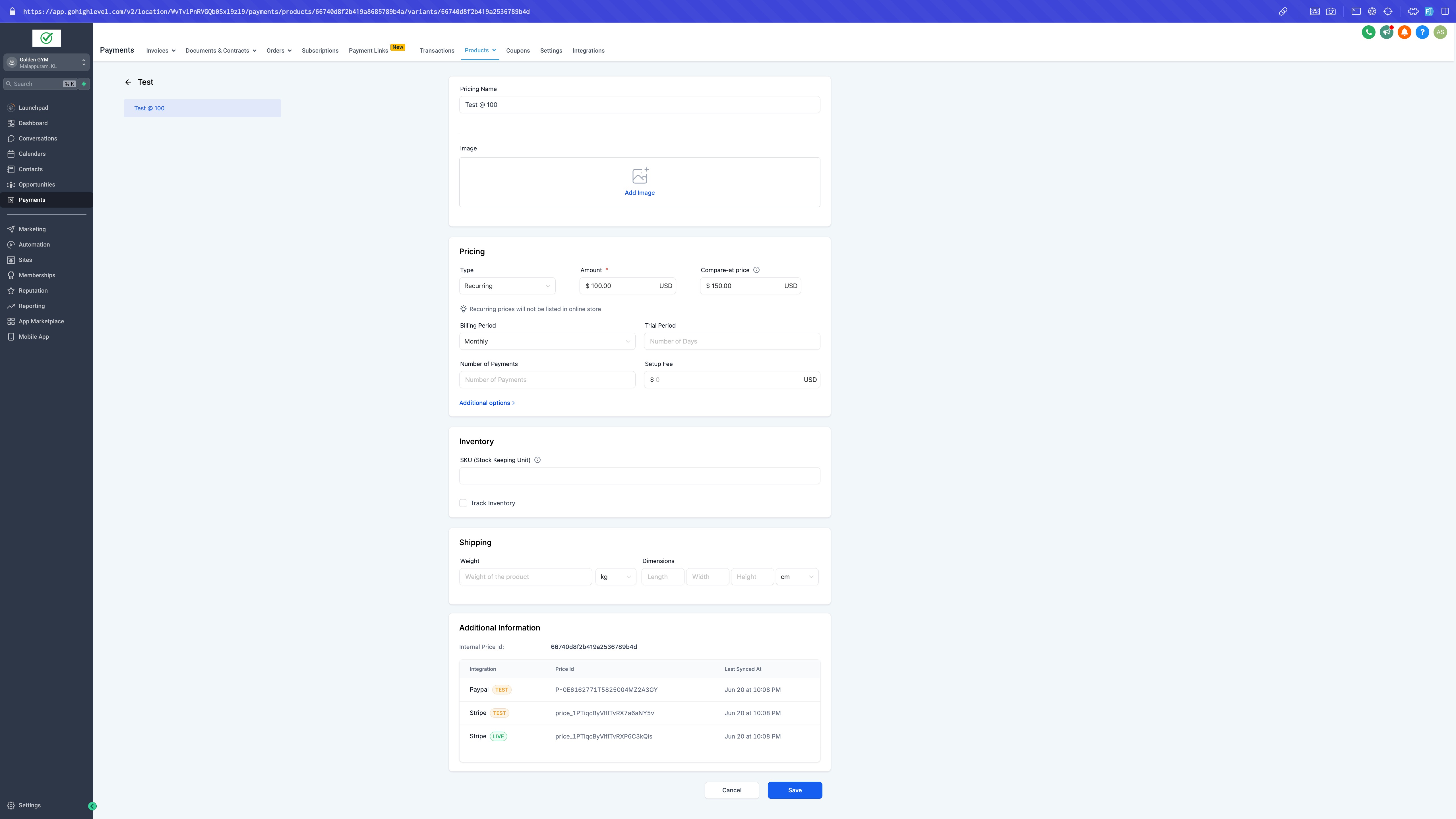
These fields are optional but useful for shipping calculations and inventory control. The information is stored with the specific variant, so each size or color can have its own weight and SKU. The option to track inventory is also located on the same page.
The feature lives under Payments > Products > Create Product > Add Pricing/Variants, and it is accessed through the hyperlink on the product name that opens the detailed pricing/variant view.
03How businesses use product weights, dimensions, and SKU information
- Apparel retailer. The retailer creates a size based variant, opens its pricing page, and enters the weight, box dimensions, and a unique SKU for each size. This lets the store calculate shipping costs accurately for each garment.
- Electronics reseller. For each model variant, the reseller adds the device's weight, package dimensions, and SKU on the variant page. The data supports future shipping carrier integrations and inventory counts.
- Home goods boutique. The boutique defines weight and dimensions for each furniture variant, records a SKU, and enables inventory tracking. All details are saved on the pricing/variant page before publishing the product.
04Before you start
- A product must be created in the Payments > Products section.
- At least one price or variant must be added and saved to open the detailed pricing/variant page.
05How to set up and use product weights, dimensions, and SKU information in HighLevel
Add product weight, dimensions, and SKU
- Go to Payments > Products > Create Product.
- Select Add Pricing/Variants.
- Create a new price or variant and click the product name hyperlink to open its pricing/variant page.
- Notice the “New” tag for the unsaved entry and then save the price or variant.
- On the pricing/variant page, find the fields labeled Weight, Dimensions, and SKU.
- Enter the appropriate values for each field.
- Save the changes to store the weight, dimensions, and SKU information.
06What it looks like in HighLevel
07Settings that matter
- Weight. Specifies the product’s mass, used for shipping calculations.
- Dimensions. Defines the length, width, and height of the product for packaging purposes.
- SKU. A unique identifier that enables inventory tracking for the specific variant.
- Track inventory. Turns on inventory management for the selected variant.
08Things to know before you rely on it
- The pricing/variant page becomes accessible only after the price or variant is saved.
- A “New” tag indicates an unsaved price or variant entry.
09How it connects to the rest of HighLevel
- Set up shipping zones and ZIP limits for future weight usage Shipping zones
- Configure manual payment methods for orders that include weight data Manual payment methods
- Review HighLevel pricing and plan options Pricing plans
Michael's take

Most people jump straight to typing a weight or SKU before the variant has been saved, and they end up on a dead end screen. I would first create the variant, hit Save, then open the tile to fill in the shipping details.