
01Who this is for
- Founders of online product brands who need a single flow from marketing content to checkout, keeping the experience inside one funnel.
- Small business owners selling digital or physical goods who want to showcase items without building a separate store site.
02Ecommerce stores in funnels, explained
Adding a store to a funnel creates a dedicated shopping journey that lives inside the funnel’s step list. The platform generates five required pages, Product List, Product Details, Cart, Checkout and Thank You, and locks their internal order. These pages can be moved together relative to other funnel steps but cannot be reordered individually.
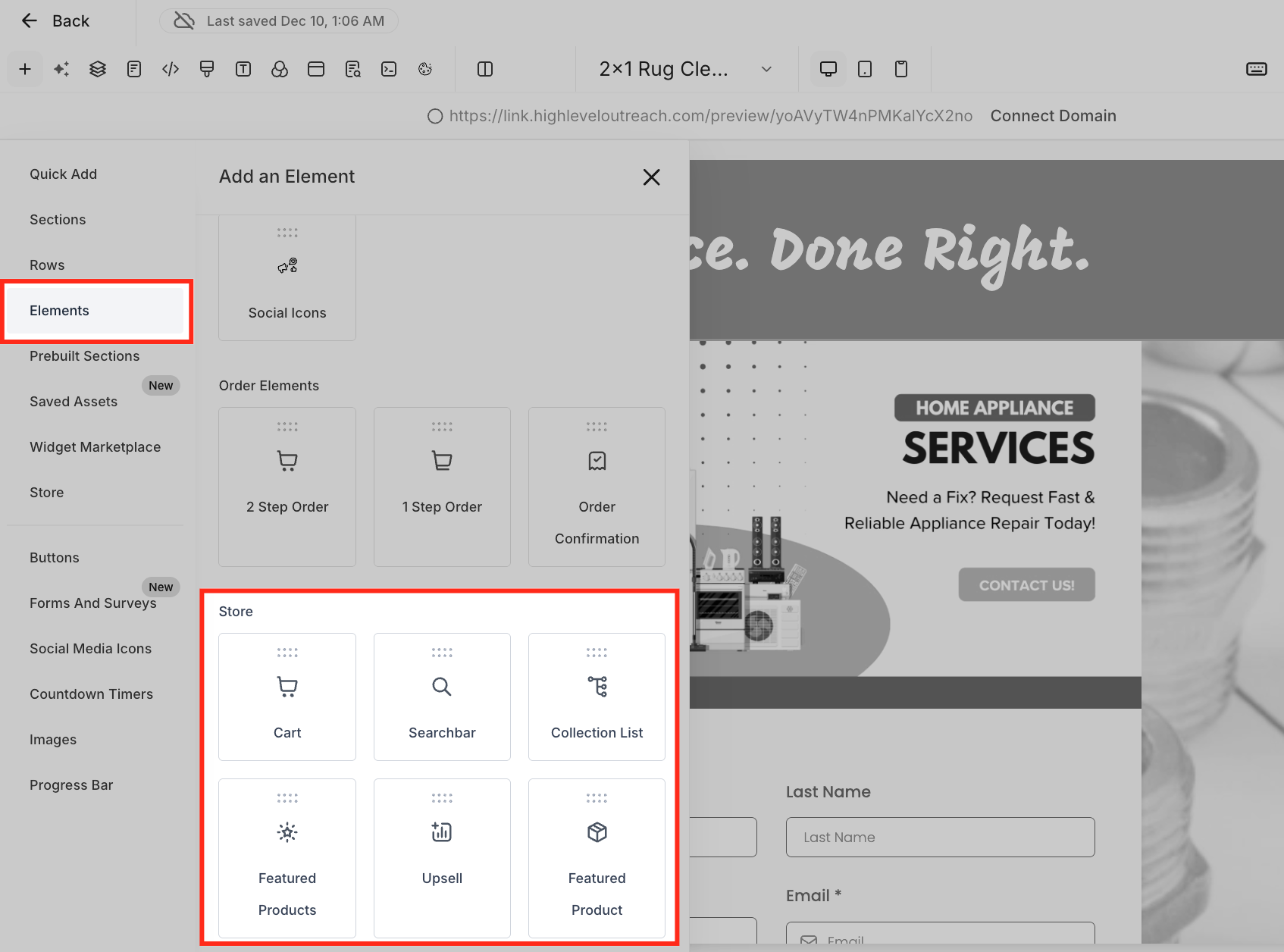
Store elements such as Featured Product, Upsell, Collection List or Search Bar can be placed on any regular funnel page. When an element is added, the funnel automatically gains the five store pages, turning it into a store embedded funnel. Product visibility and ordering are managed from the Store Products tab that appears on the funnel’s step list.
03How businesses use ecommerce stores in funnels
- Fitness apparel brand. The brand adds a Store to a new launch funnel, letting visitors view the collection, read details, add items to a cart and complete checkout without leaving the campaign. The five store pages are customized to match the brand’s colors and messages.
- Online course creator. On a funnel page that promotes a free webinar, the creator inserts a Search Bar store element so attendees can quickly find related paid courses. Adding the element converts the funnel, automatically creating the necessary store pages for browsing and purchase.
- Handmade jewelry shop. The shop places a Featured Product element on its promotional landing page to highlight a new necklace. When a visitor clicks the product, the store pages handle details, cart, checkout and order confirmation within the same funnel flow.
04The numbers and rules that matter
- One Store per Funnel.
05How to set up and use ecommerce stores in funnels in HighLevel
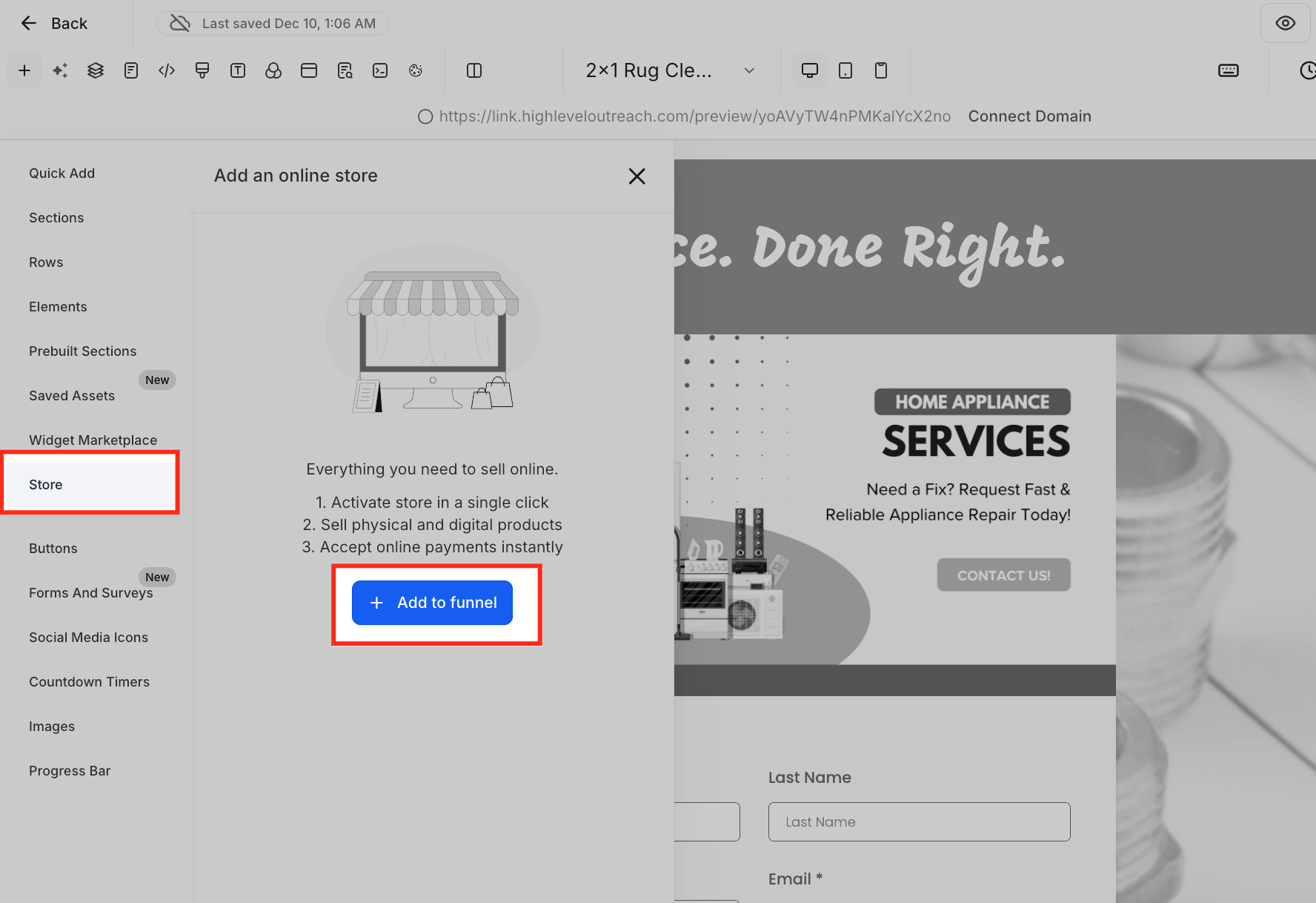
Add a Store to a Funnel
- Open Sites > Funnels.
- Select the funnel that will host the store.
- Click Add a Store in the Store section.
- Choose a store theme.
- Follow the prompts to finish the store setup.
- Check that the five store pages appear and edit them as desired.
Add a Store element to an existing Funnel step
- Open Sites > Funnels and choose the funnel.
- Edit the funnel step where you want e commerce content.
- Open the element panel in the page builder.
- Find the Store elements group.
- Insert the desired element, such as Featured Product or Search Bar.
- Pick a theme and complete the store configuration prompts.
- Verify that the five required store pages were generated.
- Set up the store element according to the experience you need.
- Save the changes to the funnel step.
06What it looks like in HighLevel
07Settings that matter
- Store theme. Determines the visual style applied to all automatically created store pages.
- Store Products tab. Controls which eligible products appear in the store and lets you set their display priority.
08Things to know before you rely on it
- Only one store can exist in a single funnel.
- The five store pages keep a fixed internal sequence that cannot be changed.
- Store pages move as a group relative to other funnel steps.
- Individual store pages cannot be cloned using the Clone Step action.
- A/B split testing is not available on store pages.
- Removing any one of the five store pages deletes all of them and disables the store.
09How it connects to the rest of HighLevel
- Set up a HighLevel ecommerce store Setup guide
- HighLevel pricing and plans Pricing
- Start a 30 day HighLevel trial Trial
Get More InformationOpens on HighLevelPublished November 3, 2026 · Updated November 17, 2026