
01Who this is for
- Founder of a boutique online store, gives shoppers a self service view of purchases, reducing support requests.
- Owner of a digital product business, lets buyers retrieve download links and track fulfillment without manual emails.
02Customer login, explained
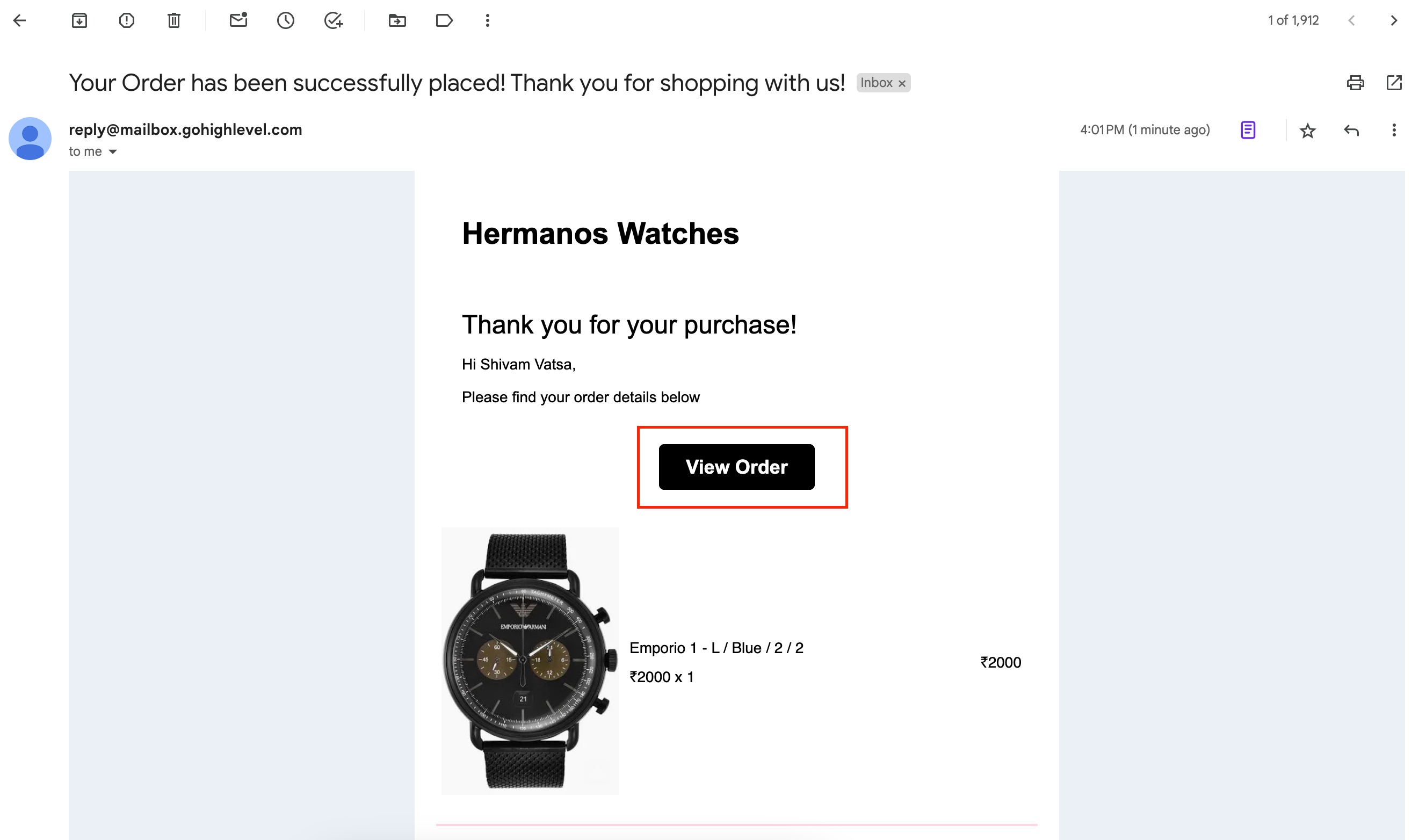
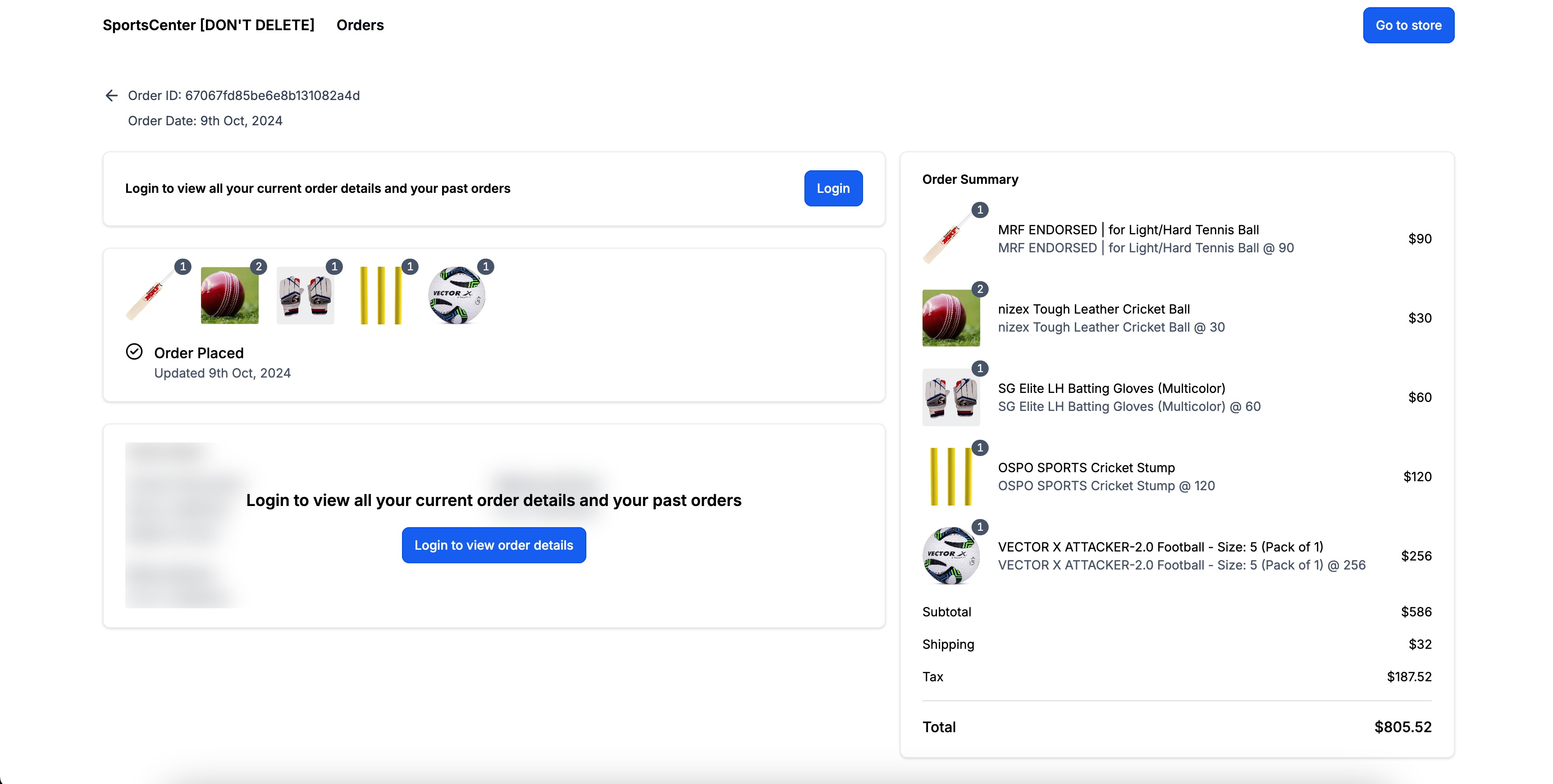
HighLevel sends an order confirmation email that contains a button to the Customer Access Center. When a shopper clicks the button, they are prompted to enter the email used at checkout. An OTP is sent and verified automatically by Cloudflare Turnstile; any extra challenge appears only when required. After verification, the portal displays the current order, its fulfillment status (including tracking number, URL and carrier) and a list of past orders.
The feature lives under the Payments section for email activation and is accessed through the link in the email or directly via a unique URL that follows the pattern <storeurl>/store/account/orders. No additional configuration is needed beyond enabling the email and ensuring the store domain is correctly connected.
03How businesses use customer login
- Boutique clothing retailer. The retailer enables the order confirmation email, then customers click the "View Order" button, verify with OTP and see their purchase details, shipping tracker and past orders all within the HighLevel portal.
- Online course provider. The provider turns on the email notification, allowing students to log in from the confirmation email, verify right away and access their course enrollment details and any prior courses they bought.
- Digital download seller. The seller activates the setting, so buyers receive the email, log in via OTP and can view the download links, fulfillment info and history of earlier digital purchases in the Customer Access Center.
04Before you start
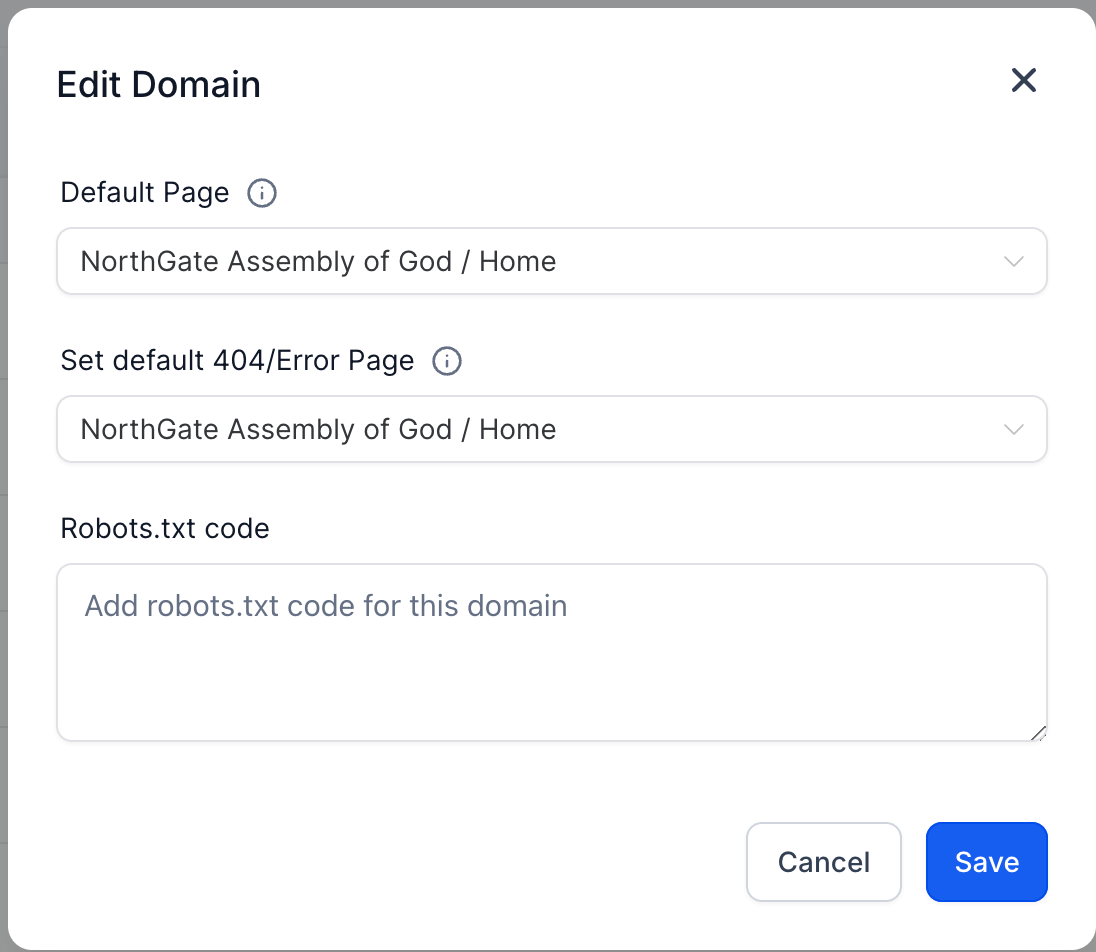
- The store’s domain must be connected and its default path set to a page within the store.
- Order confirmation emails must be enabled before customers can receive the login link.
05How to set up and use customer login in HighLevel
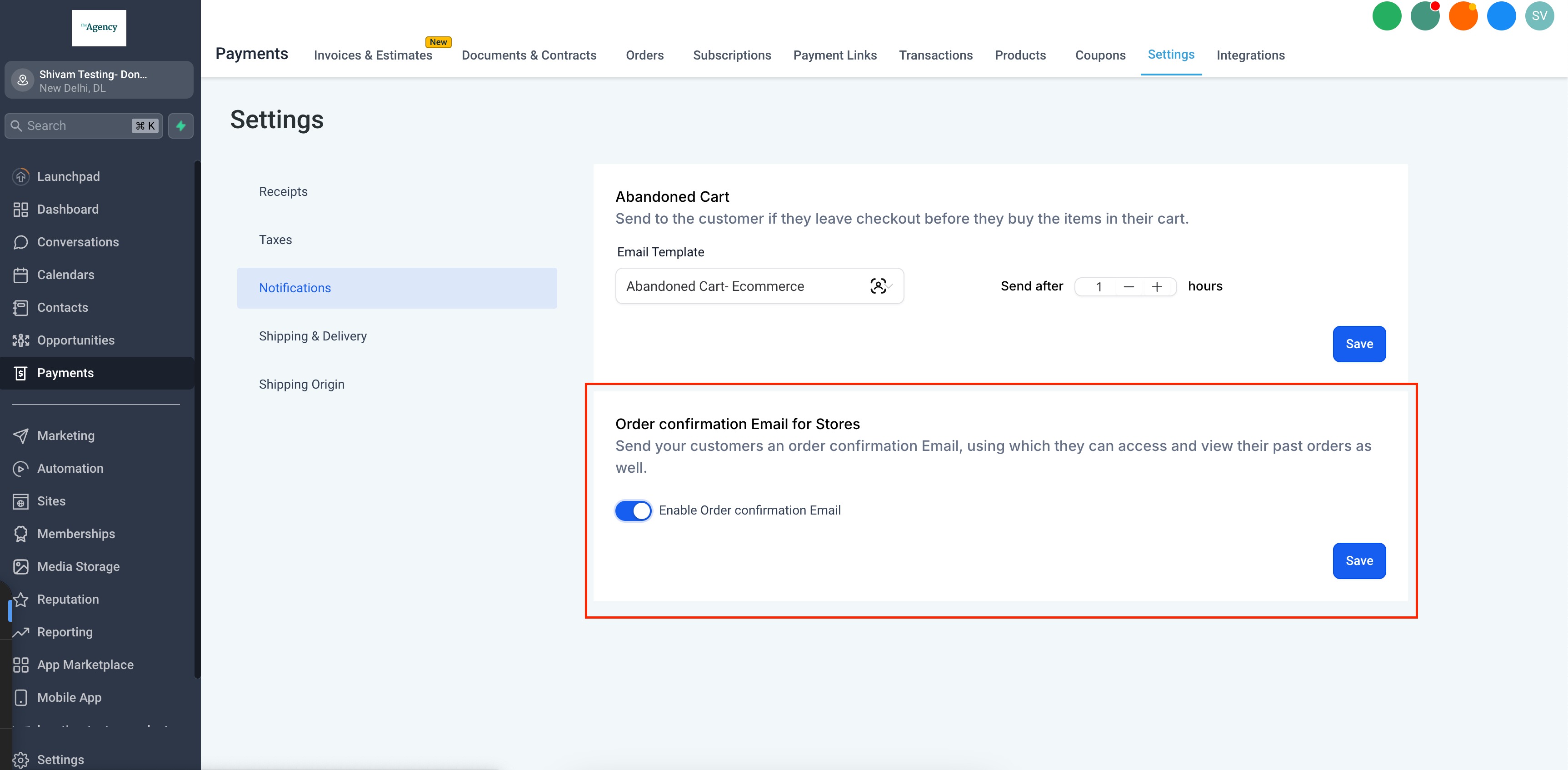
Enable order confirmation email
- Open the Payments menu in HighLevel.
- Select Settings, then Notifications.
- Turn on Order confirmation Email for Stores.
Customer login flow
- Open the order confirmation email that was sent after purchase.
- Click the "View Order" button inside the email.
- Enter the email address used at checkout on the login screen.
- Enter the OTP that is sent to that email address.
- If a visible challenge appears, complete it to finish OTP verification.
- After successful login, view current order details, fulfillment status and past orders.
06What it looks like in HighLevel
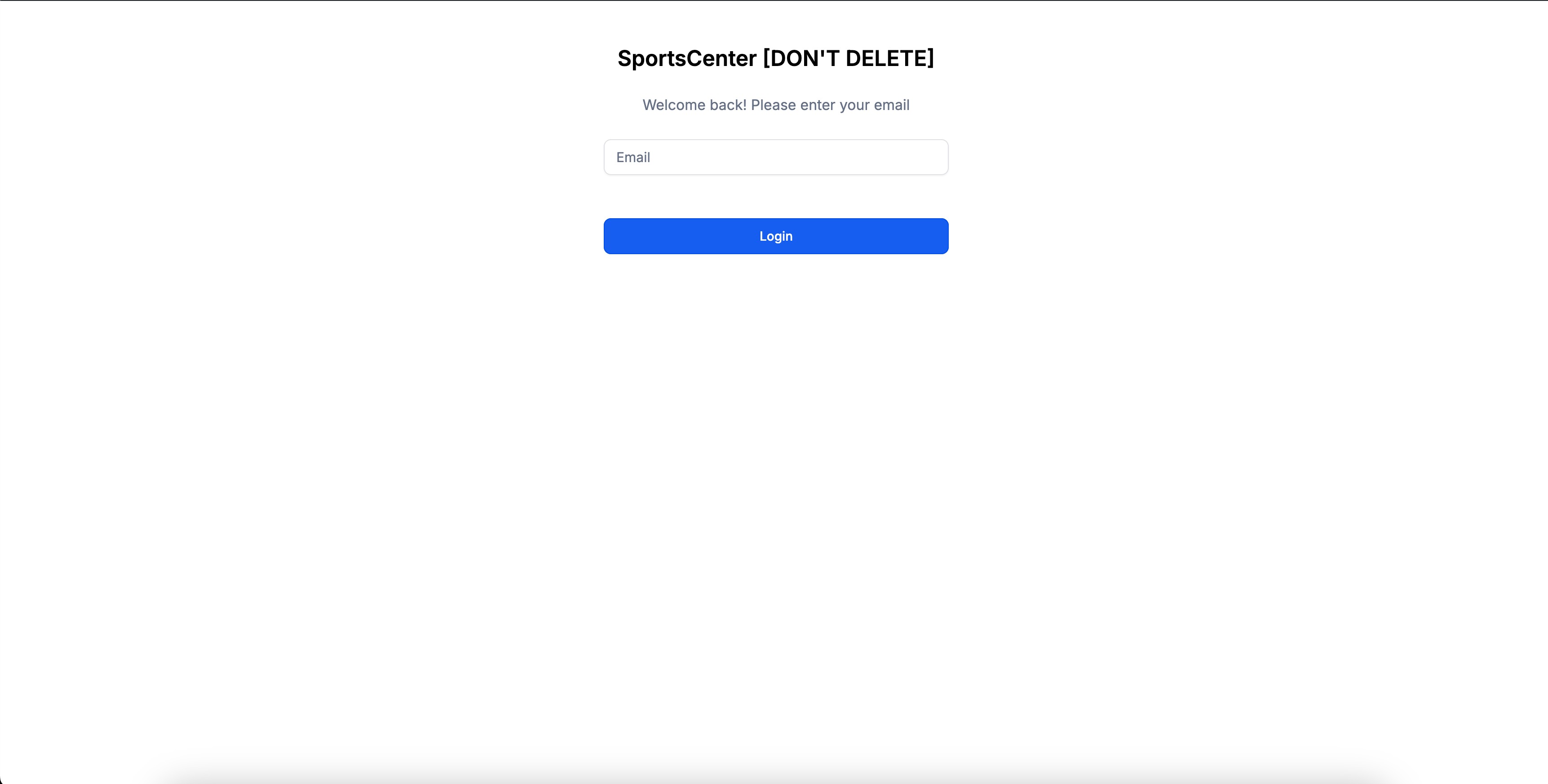
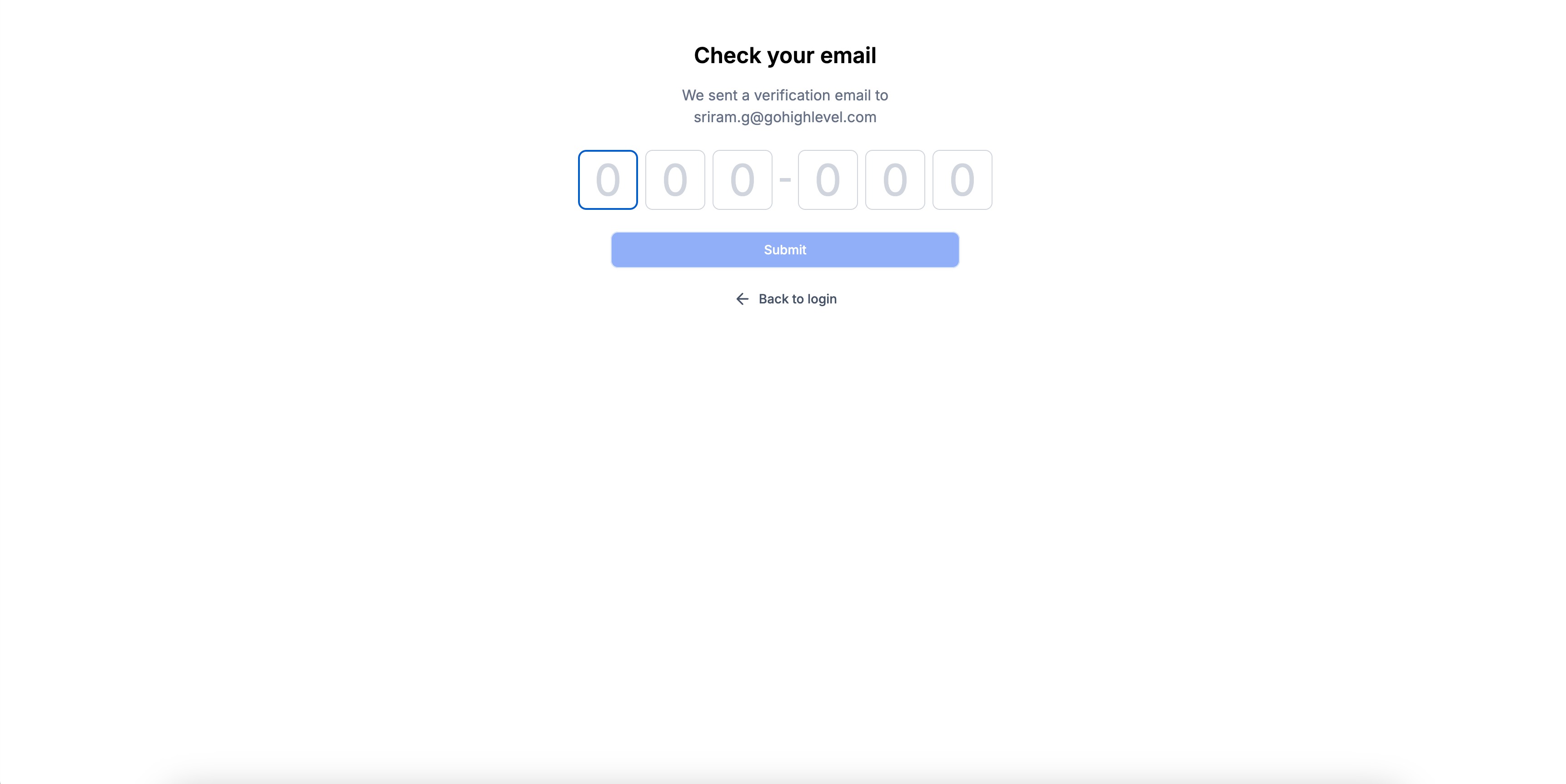
07Settings that matter
- Order confirmation Email for Stores. Controls whether customers receive the email that contains the link to the Customer Access Center.
08Things to know before you rely on it
- If several contacts share the same email, the first created contact is used for login.
- Sticky contact consolidates all orders for the same browser session.
- The portal URL works only when the store domain is properly connected.
09How it connects to the rest of HighLevel
- Learn how to build the ecommerce store where this login feature lives. Set up ecommerce store
- Configure shipping zones and rates that affect order fulfillment details shown to customers. Shipping settings
- Review pricing plans to ensure your account includes ecommerce features. Pricing and plans
Michael's take

The biggest risk is thinking the portal will work without a connected domain. If the domain isn’t set up correctly, the login page will never load, leaving customers confused.
When the domain is ready, shoppers can view their orders through the Customer Access Center.