
01Who this is for
- Ecommerce Founders who need a checkout that matches their branding and reduces friction for shoppers.
- Agency users who build stores for clients and want centralized control over checkout fields and policy consent.
02Checkout page customization, explained
The feature gives you full control over the checkout form that customers see in a HighLevel store. You can hide fields, make fields mandatory, or set them as optional, and you can switch between a single page form and a split two page form. It also lets you turn on Google powered address auto complete, limit checkout to selected countries, and add a consent checkbox for your Terms and Conditions or Privacy Policy.
All of these options are found in the Checkout page editor of a store. After opening the editor, you select the Checkout element and then use the right hand panel to adjust typography, text labels, button actions, contact settings, form layout, address handling, notes, and country selection. The changes are saved and published directly to the live store.
03How businesses use checkout page customization
- Boutique clothing retailer. The retailer hides the company name field, enables address auto complete, and switches to a one step form to speed up purchases. They also turn on the Terms and Conditions checkbox so shoppers must agree before completing an order.
- Online course provider. The provider enables the notes field so students can add questions at checkout, customizes the checkout button text to say "Enroll Now," and sets the form to two step to separate contact details from payment.
- Food delivery service. The service restricts checkout to the countries it delivers to, activates geolocation to pre select the customer's country, and makes address, city, and zip code mandatory to ensure accurate shipping calculations.
04The numbers and rules that matter
- $0.002972 per search request (triggered when customers start typing) (per HighLevel's help center, checked November 2026).
- $0.00525 per API call (retrieves full address details) (per HighLevel's help center, checked November 2026).
- Supported address fields: Address, City, Country, State, Postal code.
05How to set up and use checkout page customization in HighLevel
Customize the checkout page
- Sign into the required subaccount.
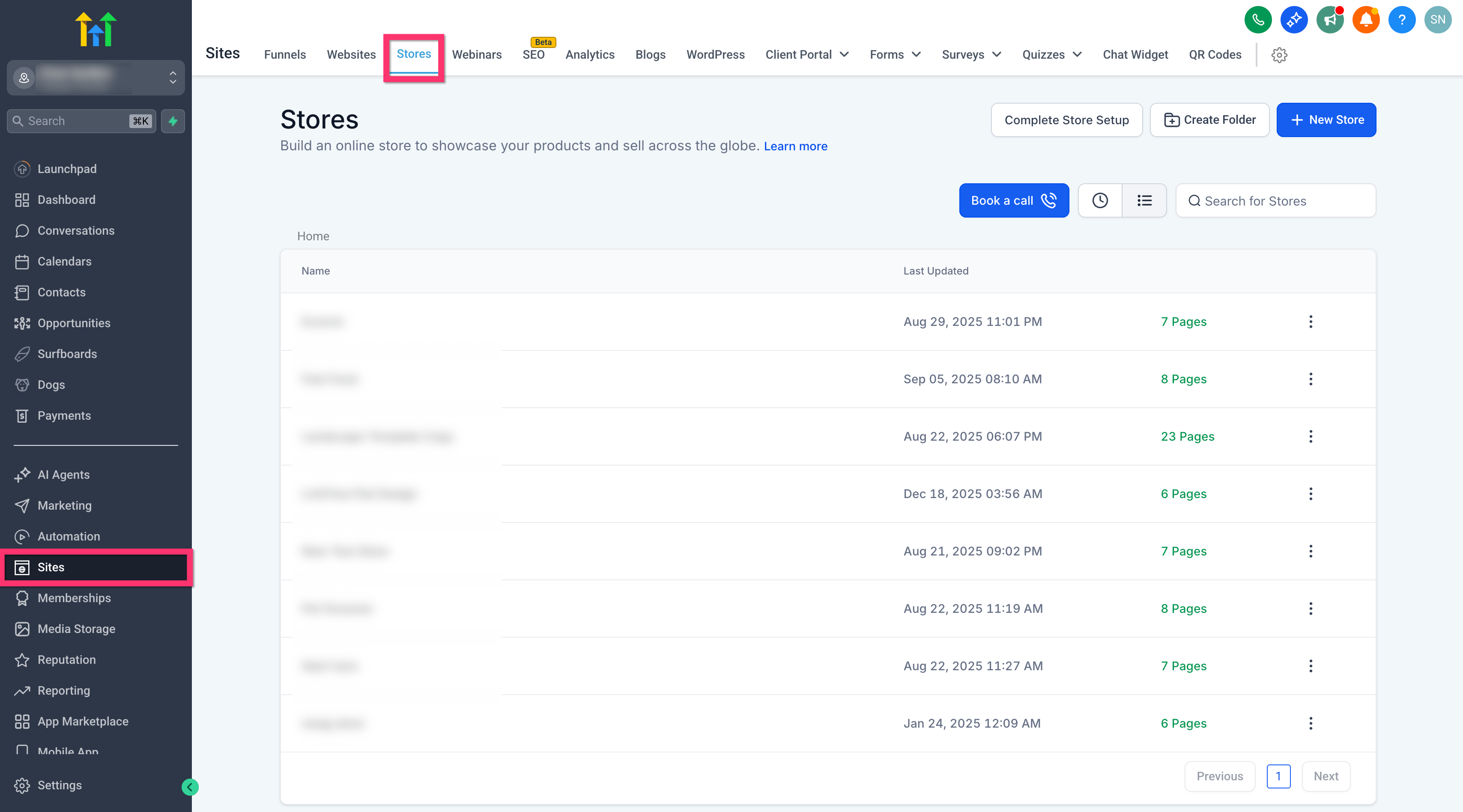
- Navigate to Sites > Stores.
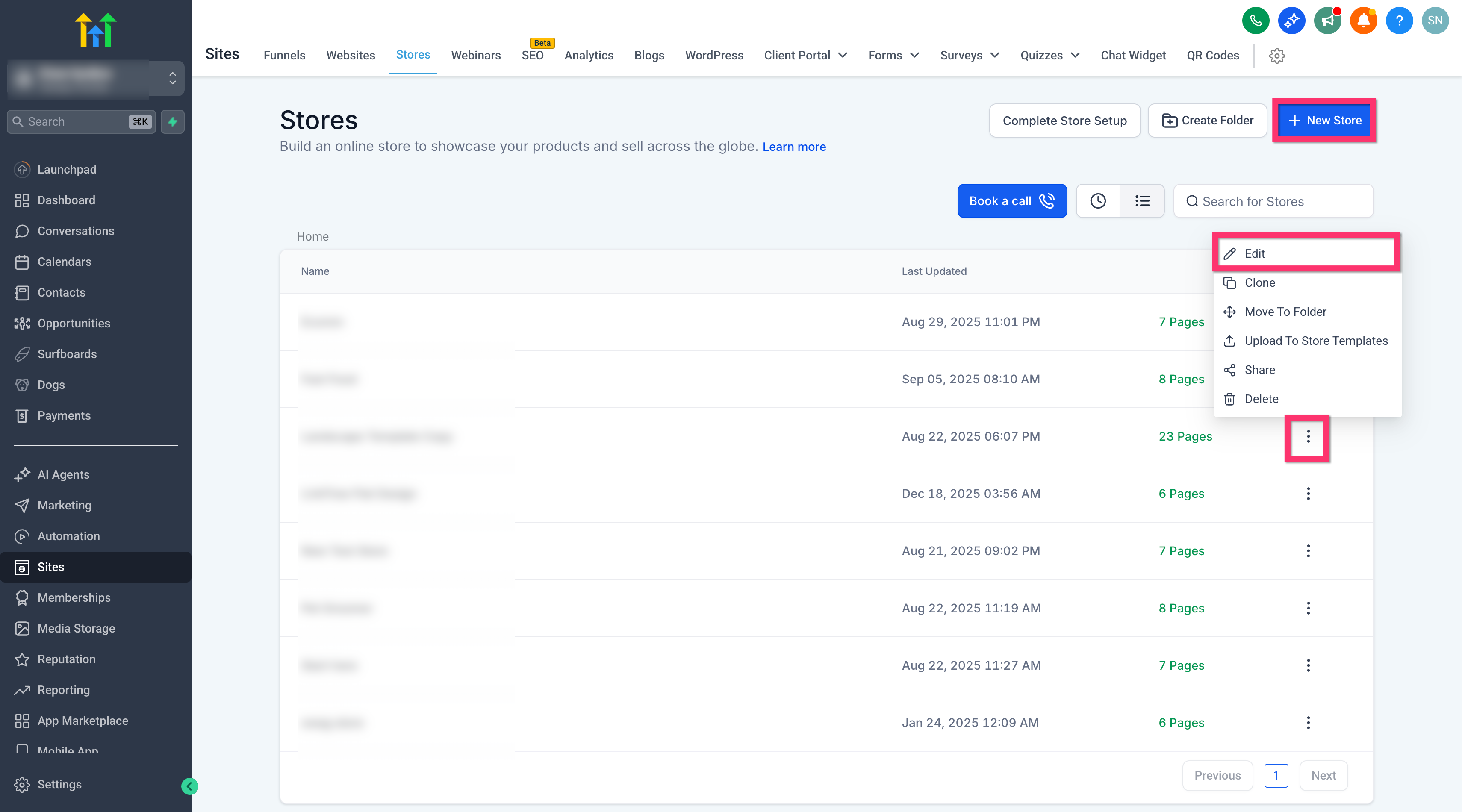
- Create a new store or edit an existing one.
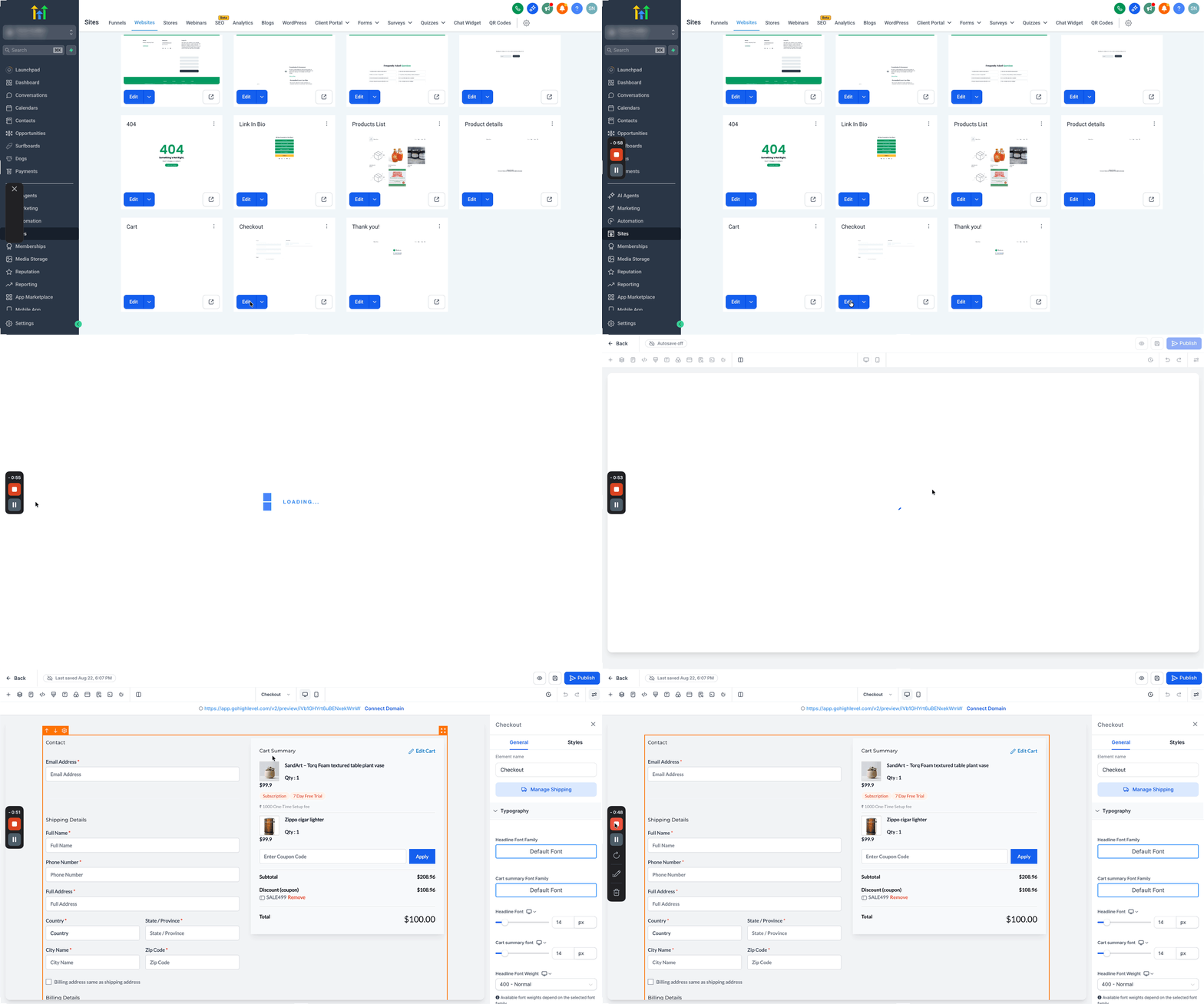
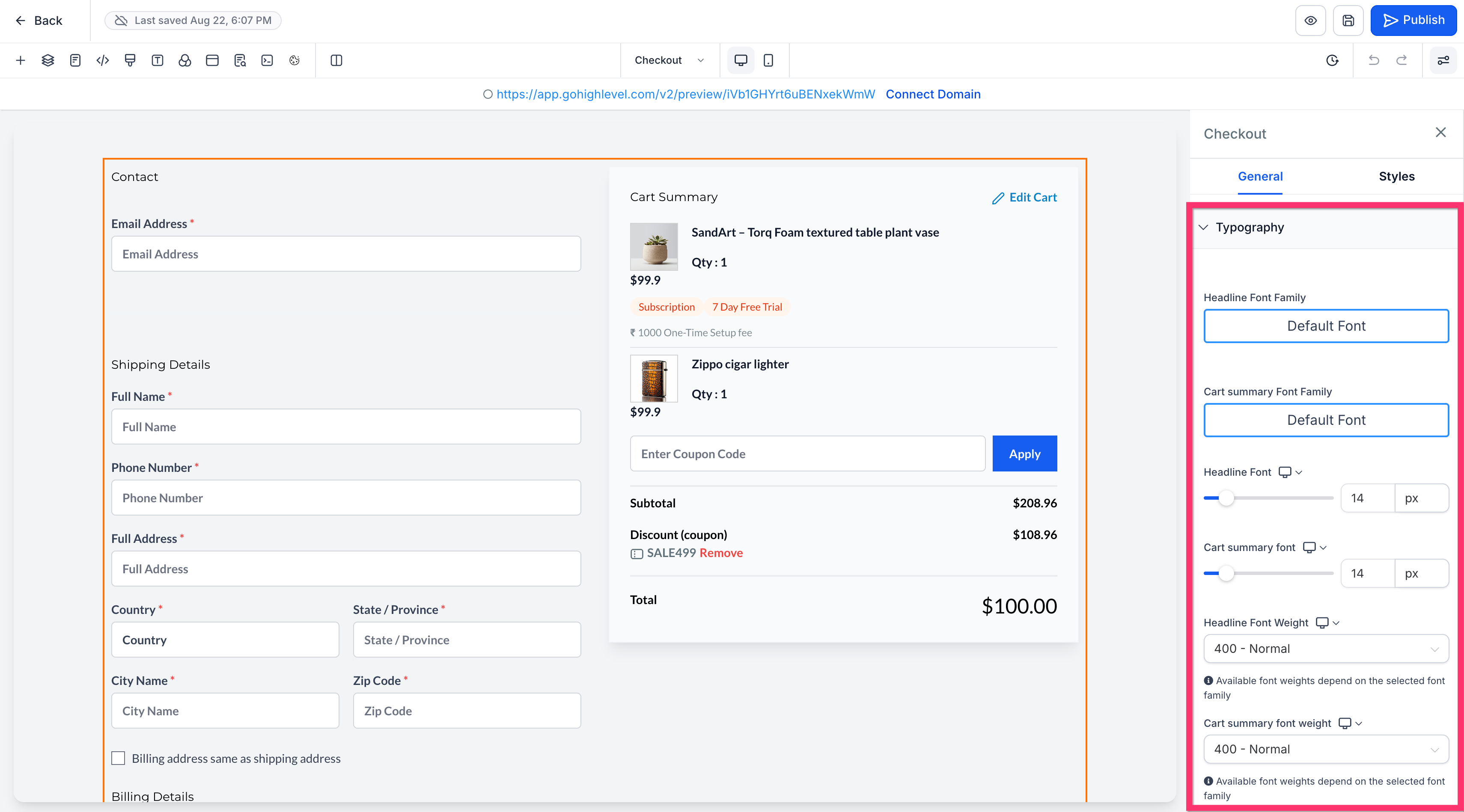
- Open the Checkout page editor and select the Checkout element.
- Adjust typography settings such as fonts, sizes, and weights for headlines and card summaries.
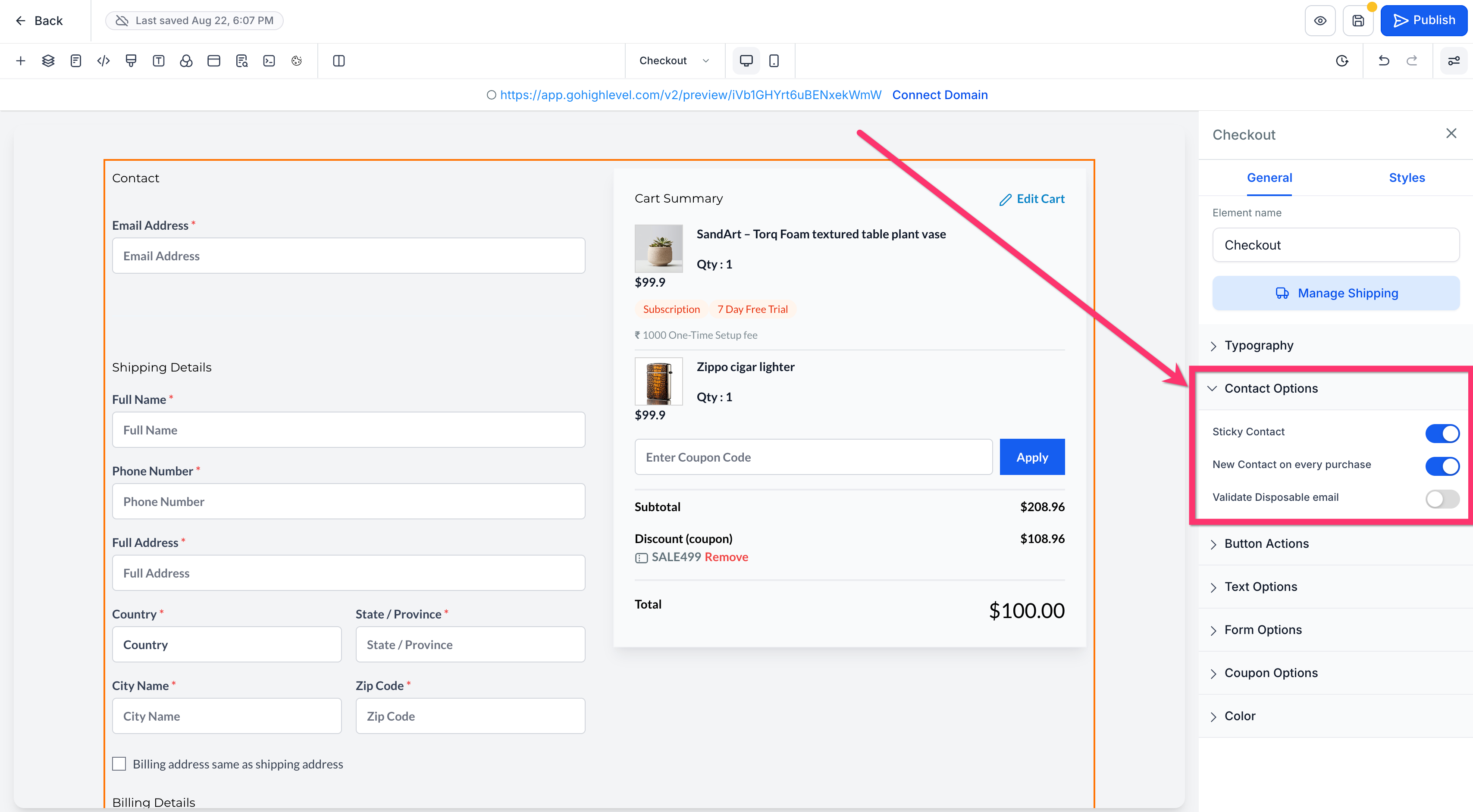
- Set contact options like sticky contact, new contact per purchase, and disposable email validation.
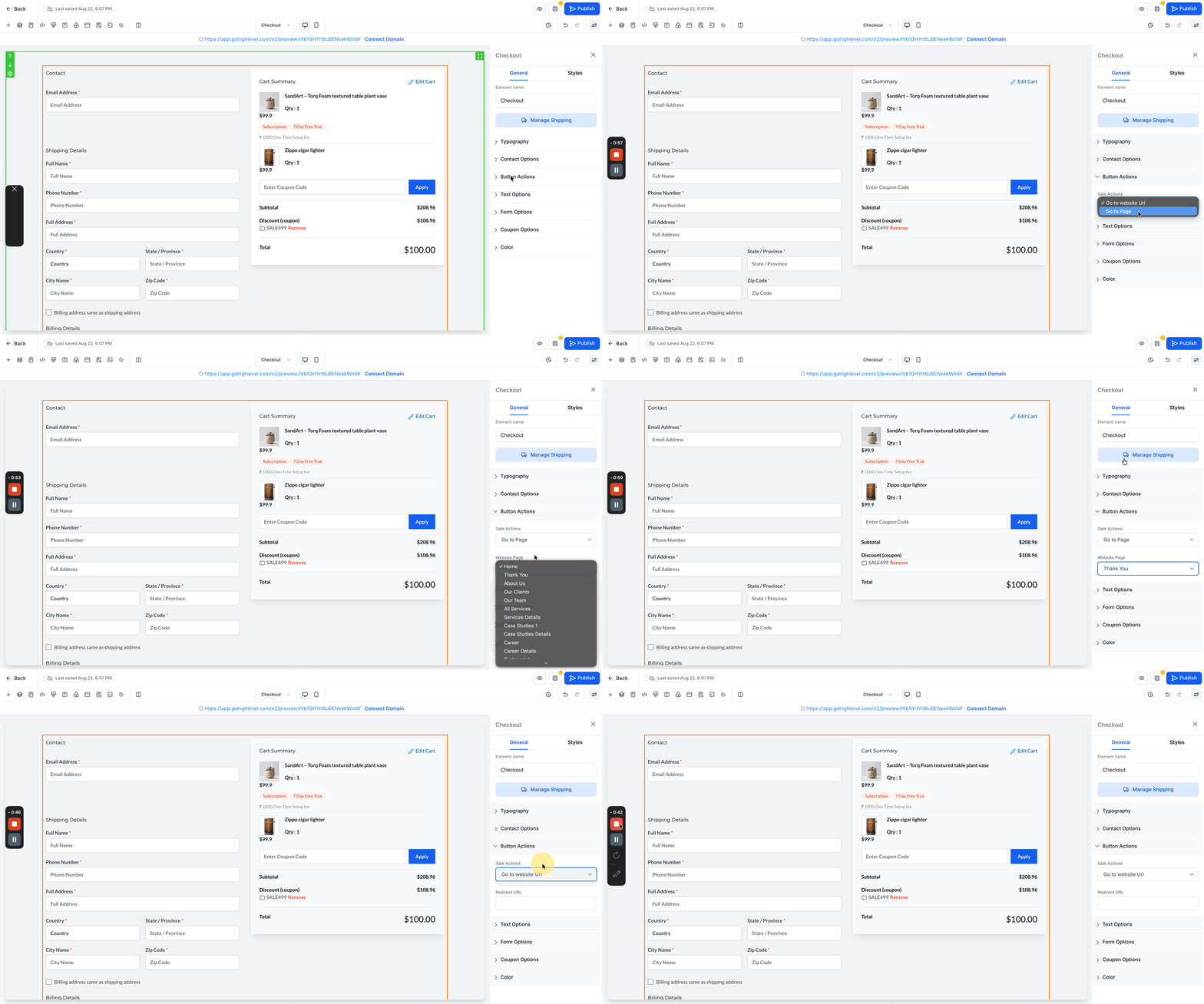
- Choose the button action that runs after checkout, a website URL, a specific page, or the default setting.
- Edit the visible text for each checkout section, including contact, shipping, billing, payment, footer and cart summary.
- Select either a one step or two step form layout.
- Configure form options including full name validation, billing address visibility, shipping display, and address auto complete.
- Toggle postal code and country fields per gateway and enable or disable the notes field at checkout.
- Set each field’s status to mandatory, optional, or hidden, and define country selection and shipping location preferences.
Configure terms and conditions consent
- Select the Checkout element in the editor.
- Scroll in the right panel until the Terms and Conditions section appears.
- Turn on the Enable Terms and Conditions switch.
- Edit the checkbox label to match your policy wording.
- Add hyperlinks that point to your Terms and Conditions or Privacy Policy documents.
- Save the changes and publish the store.
06What it looks like in HighLevel
07Settings that matter
- Enable Terms and Conditions. Shows a consent checkbox before the payment button and requires the customer to check it to finish checkout.
- Sticky contact. Keeps the contact information visible throughout the checkout flow.
- New contact on every purchase. Creates a fresh contact record for each order instead of reusing an existing one.
- Validate disposable email. Blocks the use of disposable email addresses during checkout.
- Button actions. Determines what happens after the checkout button is pressed, redirect to a website URL, a specific page, or stay on the current page.
- Full name validation. Enforces that the full name field contains a complete name.
- Enable billing address. Shows or hides the billing address fields on the checkout form.
- Shipping. Controls whether shipping fields are displayed to the customer.
- Enable/disable Auto complete address. Turns Google powered real time address suggestions on or off.
- Enable/disable Postal Code & Country. Shows or hides postal code and country fields based on the selected payment gateway.
- Enable/disable Notes at checkout. Adds or removes an optional notes field where customers can provide extra instructions.
- Mandatory / Optional / Hidden. Sets each checkout field’s requirement level, deciding if it must be filled, can be skipped, or is hidden entirely.
08Things to know before you rely on it
- Address auto complete costs $0.002972 per search request and $0.00525 per full address API call (per HighLevel's help center, checked November 2026).
- If the Country field is hidden in Shipping Details, the Country Selection option will not appear on checkout.
- Live shipping rates from carriers such as Shippo require all address fields marked as mandatory to calculate rates accurately.
09How it connects to the rest of HighLevel
- Set up a HighLevel ecommerce store Store setup guide
- Configure shipping zones and ZIP limits Shipping configuration
- HighLevel pricing and plans Pricing page
Michael's take

When the settings are right, you can collect higher quality addresses, require clear policy acceptance, and have flexibility to sell globally or to selected markets.