
01Who this is for
- Ecommerce store owners can give buyers a self service portal to track orders and download files.
- Digital product sellers benefit from automatic download availability when files are added after purchase.
- Brands with international buyers gain automatic language matching for all order messages.
02Customer Access Center, explained
The Customer Access Center is a secure portal linked from the order confirmation email. After a shopper clicks the button, they receive a one time passcode at the checkout address and log in to see order specifics.
The portal displays active order items, price breakdowns, tax, shipping, fulfillment updates, tracking numbers and any available digital downloads. Past purchases are reachable via the Orders tab, and the whole experience respects the buyer’s preferred platform language.
03How businesses use the Customer Access Center
- Online clothing boutique. The boutique enables the order confirmation email, then customers click the view button to see order status, shipping updates and tracking links inside the portal.
- Software course provider. After a student buys a course, the provider uploads the video files. The portal updates automatically, showing a download button for the course materials.
- Handmade gift shop. When a buyer purchases a mix of physical and digital items, the shop’s portal shows a download option for the digital gift while displaying shipping details for the physical product.
04The numbers and rules that matter
- With sticky contact enabled, all orders are consolidated per browser session.
05Before you start
- Connect and configure your domain in HighLevel.
- Mark a product as Digital and upload at least one file before the order is placed.
- Ensure your domain is connected and properly configured.
06How to set up and use the Customer Access Center in HighLevel
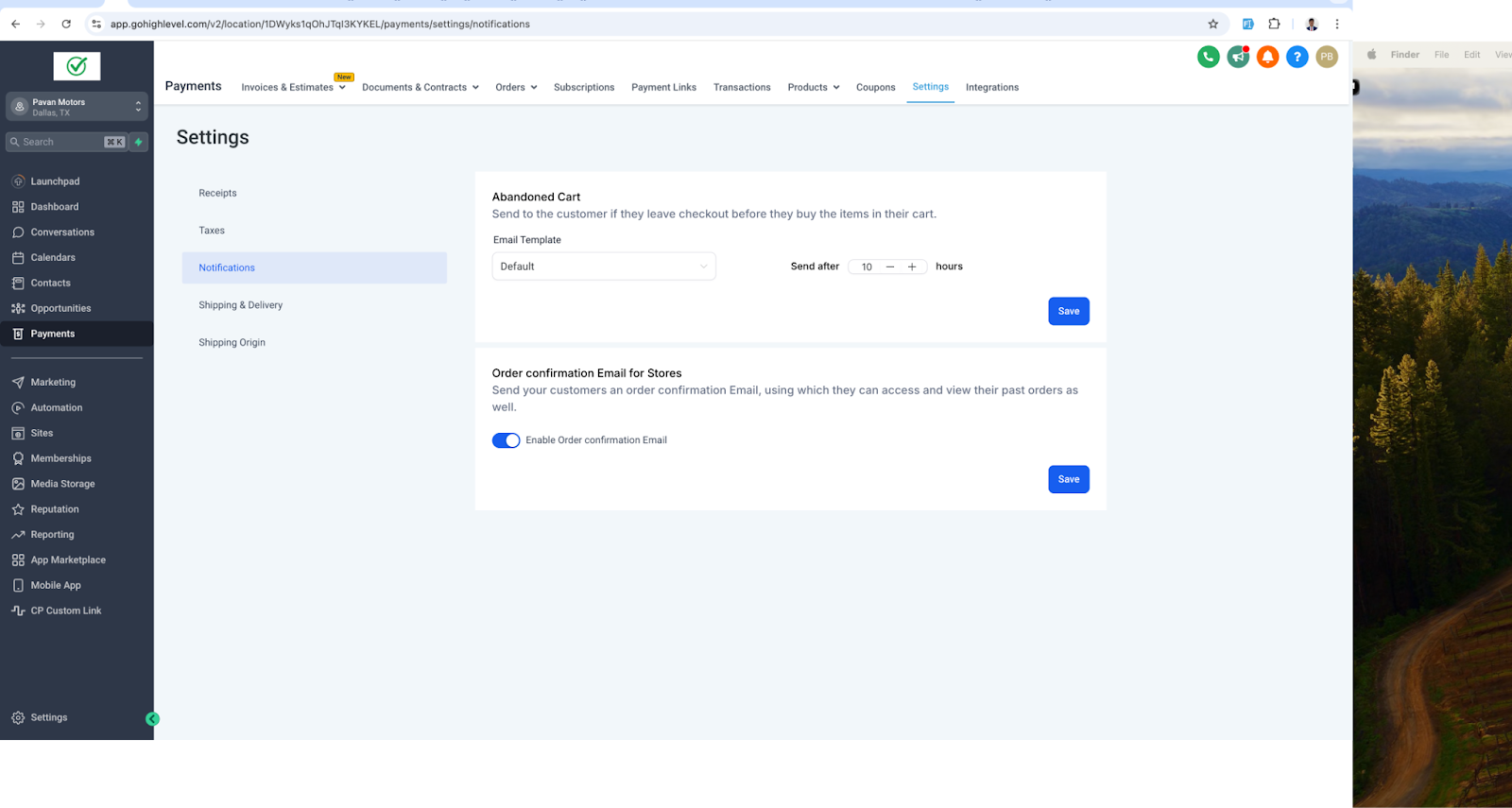
Enable order confirmation email
- Open Payments then Settings then Notifications.
- Find the entry for Order Confirmation Email for Stores.
- Switch the toggle to enable the email.
- Press Save.
Access the Customer Access Center
- After purchase, the buyer receives an order confirmation email.
- The email contains a View Order button.
- Select the button to open the portal.
- Enter the one time passcode sent to the checkout email address.
07What it looks like in HighLevel
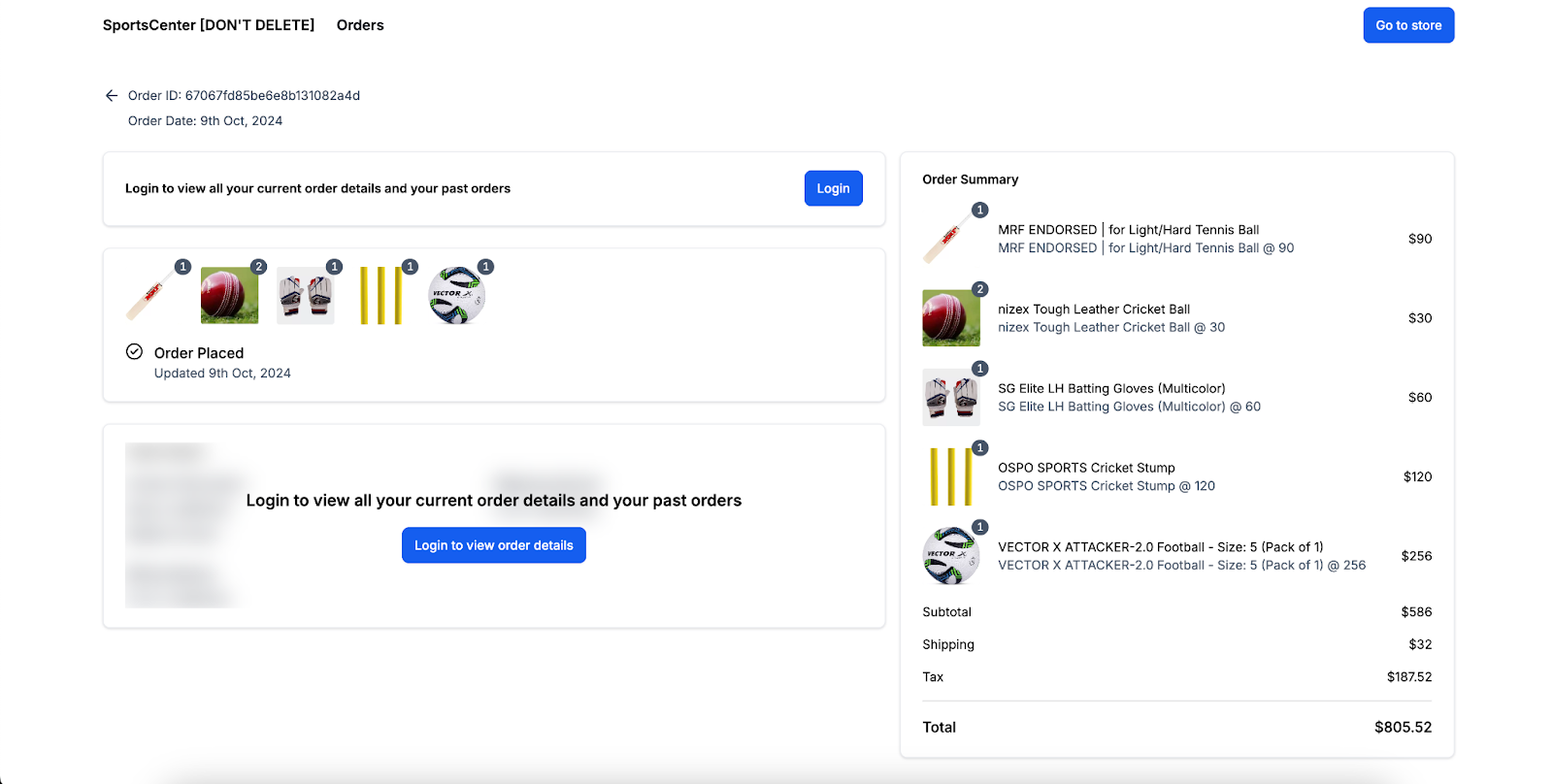
08Settings that matter
- Enable Order Confirmation Email. Turns on the automatic email that contains the link for customers to open the Customer Access Center.
09Things to know before you rely on it
- If the toggle is off, no email is sent and customers cannot access their orders.
- When multiple contacts share the same email, the first created contact is used for login.
- Digital download buttons appear only if a valid file has been uploaded to the product.
- Physical items never display a download button.
10If something goes wrong
- Customer did not receive the order confirmation email. Verify that the Enable Order Confirmation Email toggle is turned on under Payments Settings Notifications.
- Download button is missing for a digital product. Upload at least one valid digital file to the product or its variant.
- Portal shows “No downloads available yet”. Confirm that the purchased digital product has uploaded assets.
11How it connects to the rest of HighLevel
- Set up an ecommerce store in HighLevel ecommerce store setup
- Configure manual payment methods for your store manual payments
- Deliver digital products with files and download buttons digital delivery
- Learn about HighLevel pricing and plans pricing
Michael's take

Michael ReimerFounder of CRM Pros, HighLevel Commander and Certified Admin
The Customer Access Center can be useful for online stores that sell physical or digital goods.
Get more informationOpens on HighLevelPublished November 2, 2026 · Updated November 16, 2026