
01Who this is for
- Founders building an ecommerce store can programmatically add catalog items without manual entry.
- Developers integrating external inventory systems benefit from API driven product and price synchronization.
- Marketing teams launching limited time offers can create one time price records on the fly.
02Products with price, explained
The Product API lets you create a product record that includes basic details such as name, description, location, type, and a featured image. You can also define media entries and, for variant products, specify variant groups and their options.
After a product exists, the Price API creates a price record linked to that product. Required fields cover the amount, currency, pricing type (one_time or recurring), and, for variant products, the IDs of the selected options. Optional fields let you manage inventory, SKU, digital flags, and shipping attributes.
All of these calls live in the HighLevel developer marketplace. They require an access token, are invoked via HTTPS POST requests, and return JSON responses containing identifiers that are used in subsequent calls, such as linking images to variant prices.
03How businesses use products with price
- Fitness studio. The studio creates a digital membership product via the API, sets a one time enrollment price, and assigns a promotional image to the price record. The API responses provide the product and price IDs for later use in checkout forms.
- Custom apparel retailer. The retailer defines a T shirt product with color and size variants, creates separate price records for each variant combination, then updates the product media to map each variant’s image using the price IDs.
- Software vendor. The vendor posts a software license product, adds a recurring price for monthly billing, and marks the price as digital. No variant handling is needed, but the product becomes available in the store automatically.
04The numbers and rules that matter
- Weight unit supported values: Kg, g, lb, oz.
- Dimensions unit supported values: Cm, in, m.
05Before you start
- Obtain a valid access token for HighLevel public API requests.
- Identify the subaccount (locationId) where the product will reside.
- For variant products, record the option IDs that will be referenced when creating prices.
06How to set up and use products with price in HighLevel
Create product
- Generate an access token using the HighLevel authorization endpoint.
- Compose a JSON payload containing name, locationId, description, productType, image, availableInStore, and medias array.
- If needed, include a variants array with each variant's id, name, and options (id and name).
- Send a POST request to the Create a Product API endpoint and record the returned _id as the productId.
Create price for a product
- Prepare the productId obtained from the product creation response.
- Build a JSON payload with product, locationId, name, type, currency, amount, description, and sku.
- Add variantOptionIds when the product has variants, using the option IDs collected earlier.
- Optionally set inventory fields such as trackInventory, availableQuantity, and allowOutOfStockPurchases.
- Post the payload to the Create Price for Product API endpoint and capture the priceId from the response.
Add image to a variant
- Take the priceId returned from the price creation step.
- Create a product update payload that includes a medias entry with url, type, isFeatured, and a priceIds array containing the priceId.
- Send the updated payload to the product endpoint to map the image to the specific variant price.
- Verify that only one image is linked to each priceId, as multiple mappings are not supported.
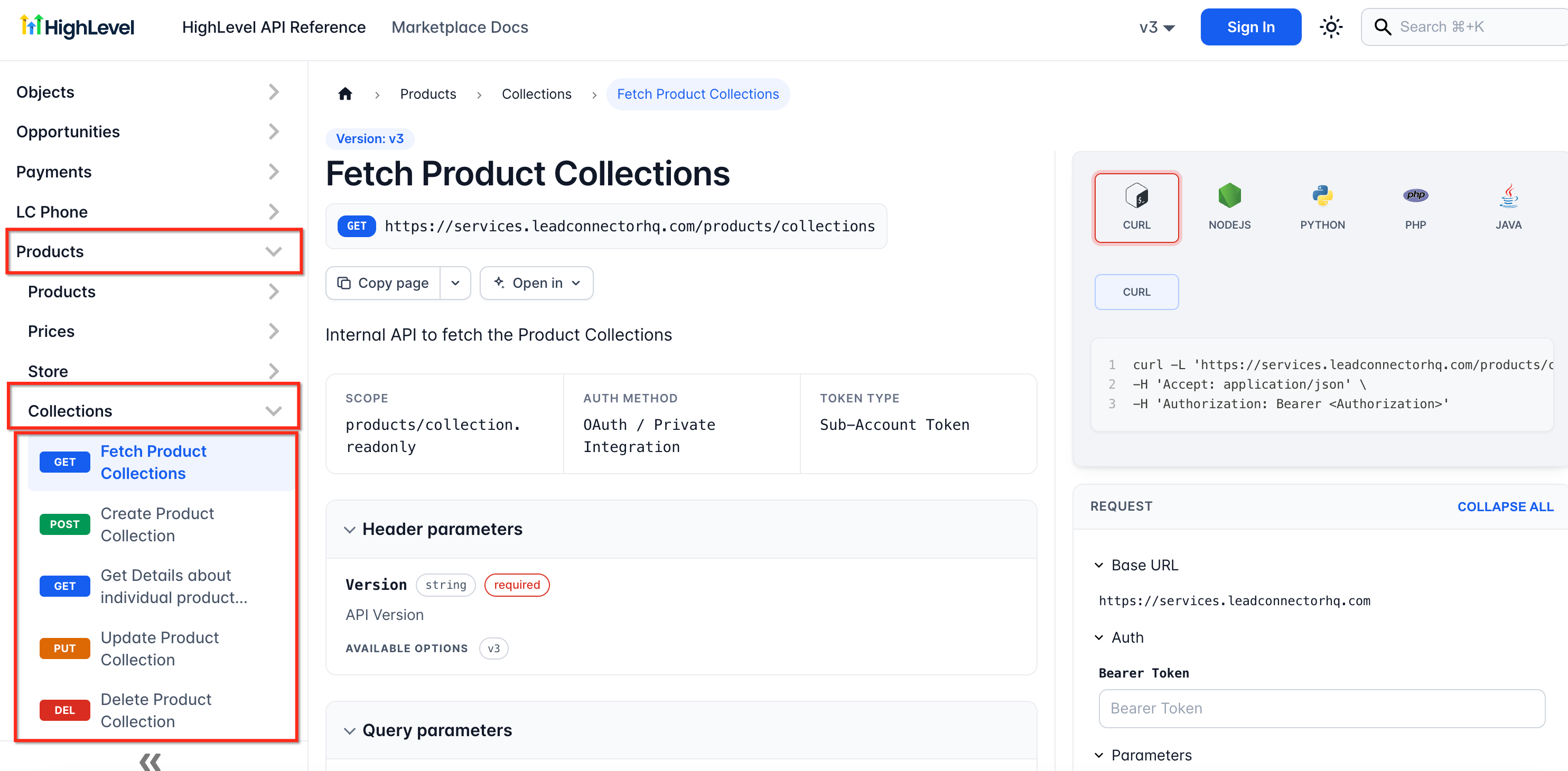
07What it looks like in HighLevel
08Settings that matter
- name. Sets the display name of the product or price.
- locationId. Identifies the subaccount where the record is created.
- description. Provides a short text that appears on sales channels.
- productType. Defines whether the product is PHYSICAL or DIGITAL.
- image. URL of the default featured image for the product.
- availableInStore. Controls whether the product appears in ecommerce stores.
- medias. Array of media objects that can include images linked to specific priceIds.
- variants. Array that describes variant groups and their selectable options.
- type. Specifies pricing model; accepted values are one_time and recurring.
- currency. Denotes the currency code for the price amount.
- amount. Numeric value of the price in the chosen currency.
- variantOptionIds. List of option IDs that identifies the exact variant combination for the price.
09Things to know before you rely on it
- Only the image media type is supported in the medias array.
- A variant product can have only one image mapped to a single priceId; mapping multiple priceIds to one image may cause rendering problems.
- Adding images via the API is limited to variant type products; price only products cannot receive media updates through this method.
10How it connects to the rest of HighLevel
- Set up a HighLevel ecommerce store Ecommerce store setup
- HighLevel pricing and plans Pricing
- Start a 30 day HighLevel trial Free trial
Michael's take

People often try to push a variant image into the product payload before they have a price ID, which leaves the image unlinked and the variant invisible in the store.
The API expects the price ID first, then the image mapping.