
01Who this is for
- Physical product ecommerce stores, avoid orders that can’t be shipped to the customer’s address.
- Online retailers with restricted shipping zones, ensure only regions with defined rates can complete checkout.
- Businesses selling both digital and physical items, prevent checkout blocks for physical items while allowing digital only orders.
02Block shipping at checkout, explained
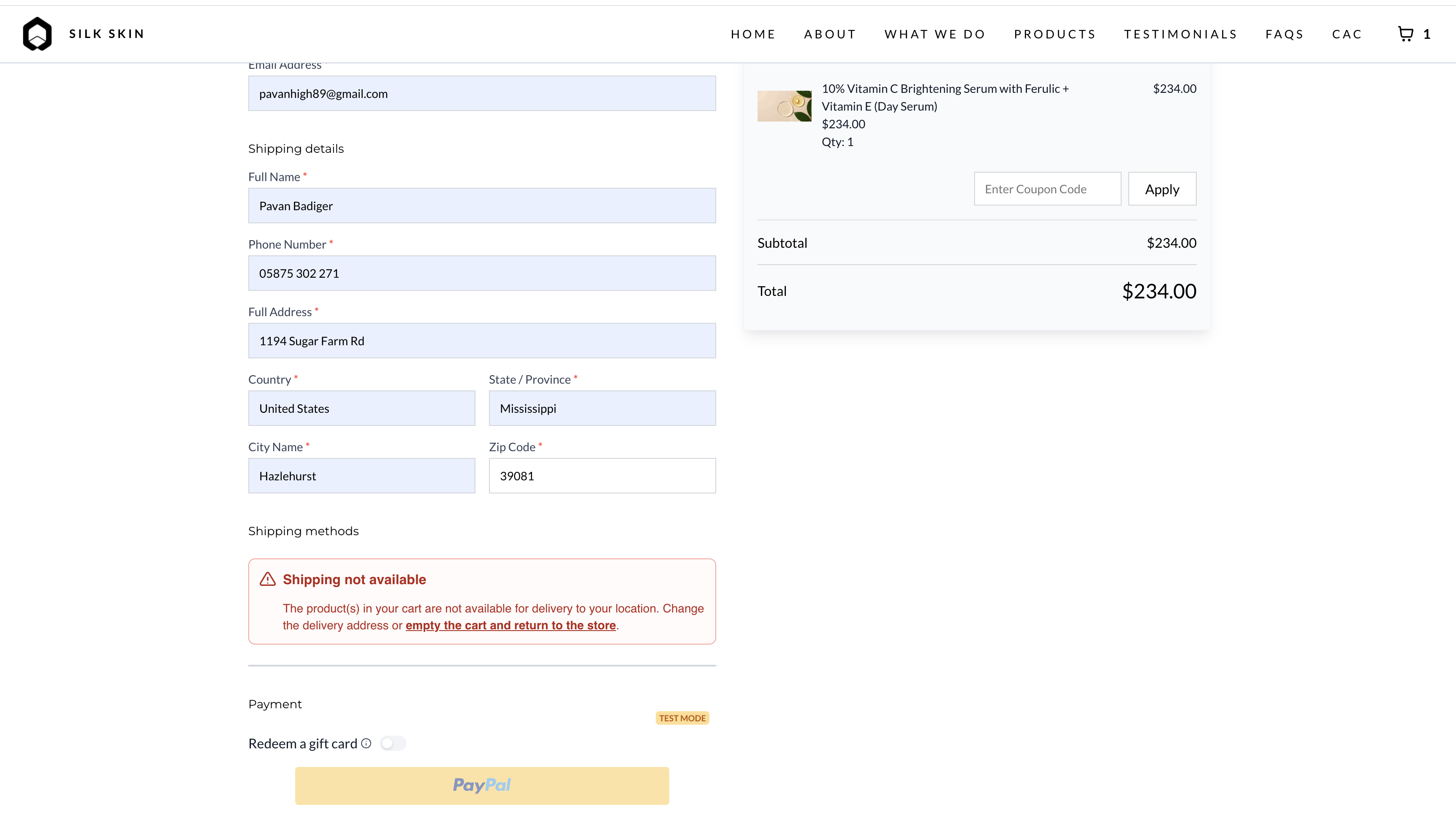
The Block Shipping at Checkout option lives under Settings ▶ Shipping & Delivery. When turned on, the platform checks for a usable shipping rate each time a delivery address is entered on the Checkout page or after an upsell is accepted. If the calculation returns no matching rate, the checkout flow stops and a “Shipping not available” notice appears.
The feature works in real time. Changing the address triggers an automatic re evaluation, and customers can remove undeliverable items, clear the cart, or update the delivery address to proceed. Digital only carts bypass this validation because shipping is not required. Store owners can also set the error message’s text color in the theme settings for brand consistency.
03How businesses use block shipping at checkout
- Home décor retailer. The retailer activates Block Shipping, then defines zones for the regions it ships to. When a shopper’s address falls outside those zones, checkout stops and the shopper sees a colored “Shipping not available” alert, prompting a change of address or item removal.
- Custom apparel brand. The brand enables the setting and sets the error text color to match its branding. After adding a size specific item, if the customer’s address is not covered by a rate, the upsell validation blocks the order and displays the branded message.
- Digital course creator with optional physical workbook. When a buyer selects only the online course, checkout proceeds because no shipping is needed. If the workbook is added and the address lacks a shipping rate, the platform blocks checkout and shows the error, allowing the buyer to remove the workbook or adjust the address.
04Before you start
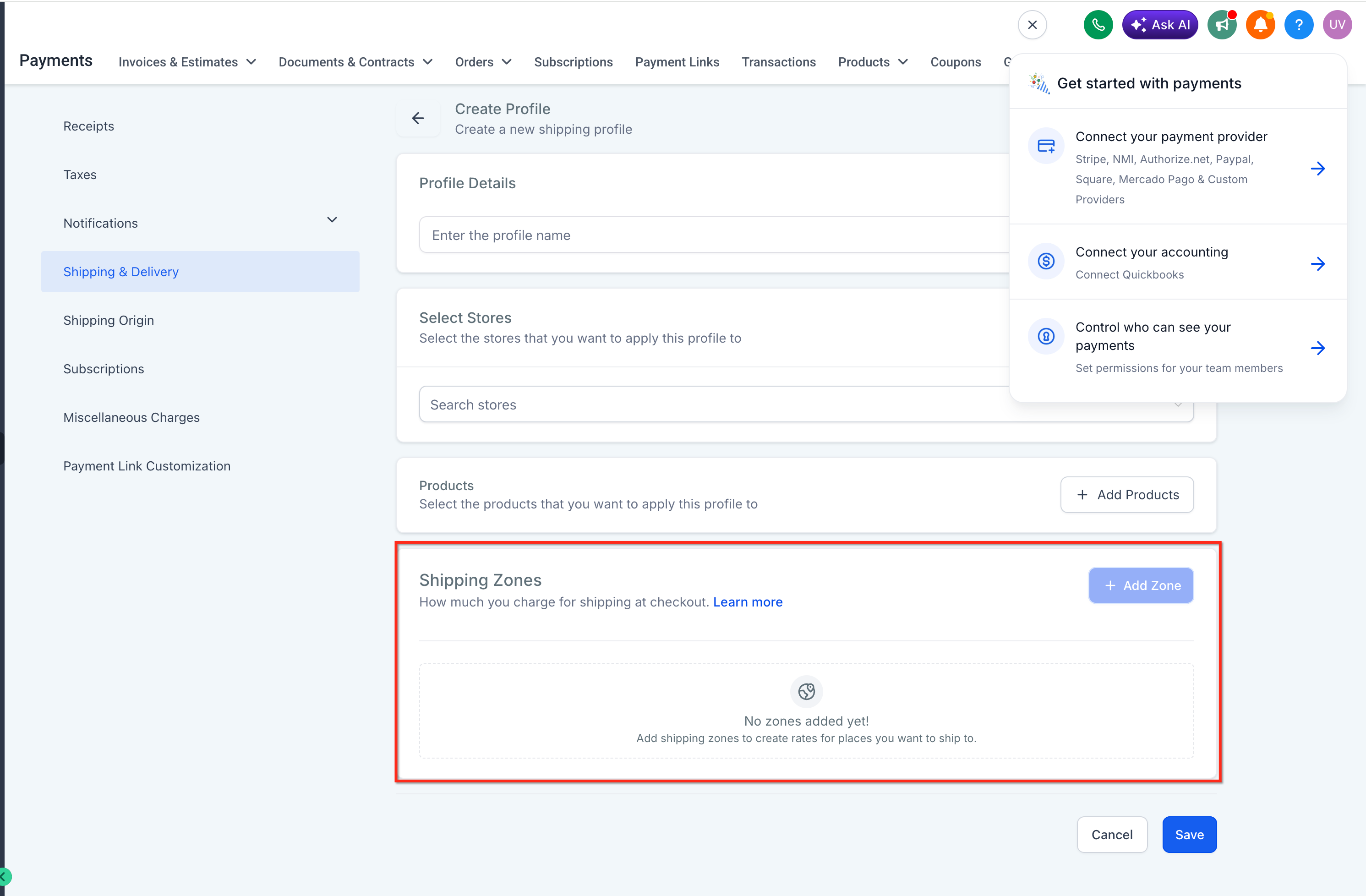
- Create shipping zones, profiles, and rate conditions that cover all intended delivery regions.
05How to set up and use block shipping at checkout in HighLevel
Enable block shipping at checkout
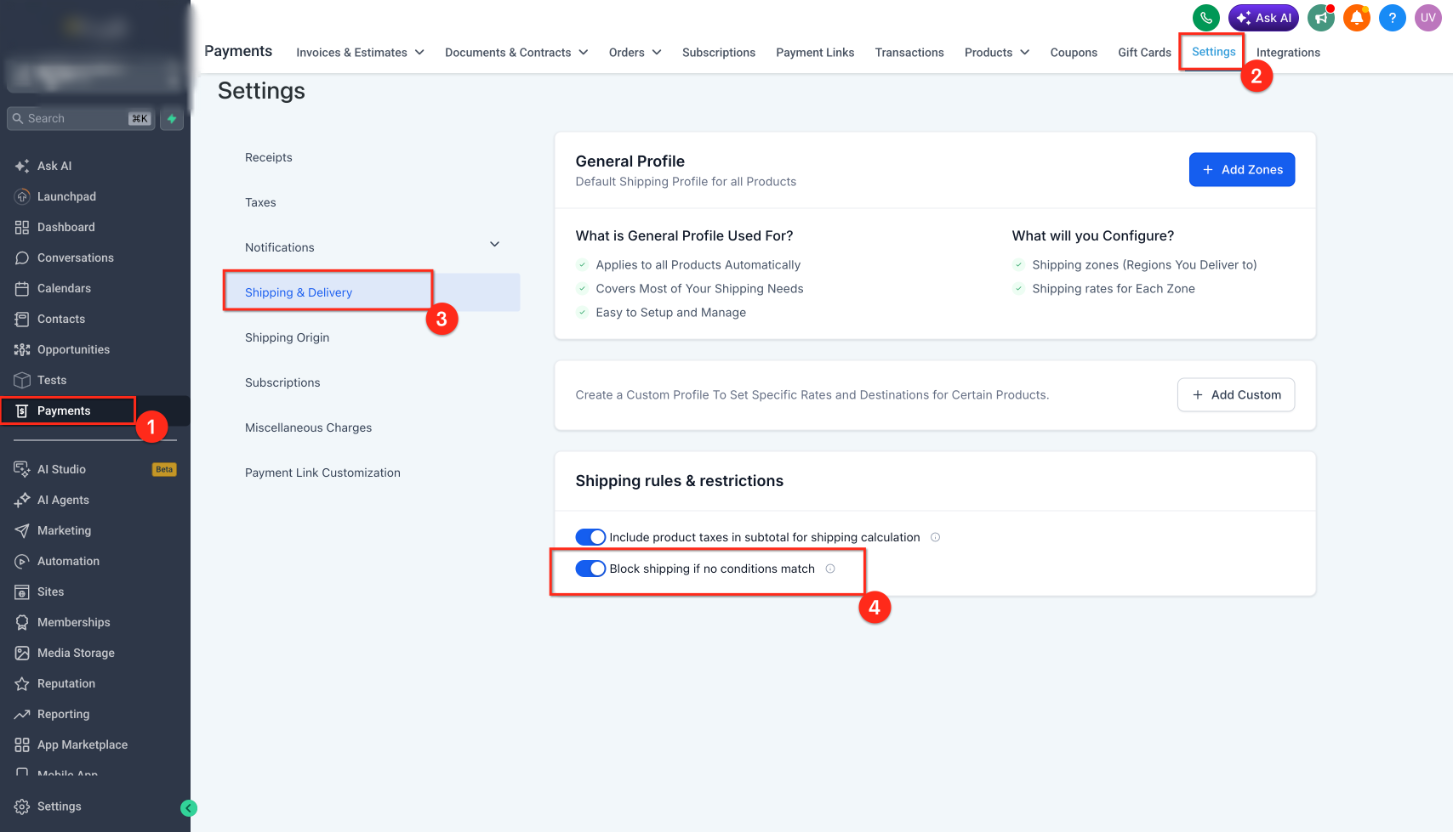
- Open the HighLevel dashboard and go to Payment > Settings > Shipping & Delivery.
- Find the Block Shipping toggle and switch it on.
- Set up the necessary shipping zones, profiles, and rate rules for the areas you serve.
- Save the changes and publish the store to apply the new configuration.
06What it looks like in HighLevel
07Settings that matter
- Block Shipping. Controls whether checkout is halted when no applicable shipping rate is found for the cart and delivery address.
08Things to know before you rely on it
- The setting is OFF by default, so existing checkout behavior remains unchanged until you enable it.
- Checkout is blocked only when the shipping calculation succeeds but returns no matching rate; calculation errors do not trigger a block.
- Digital only carts are not affected because shipping is not required.
- Only the error message colour can be customized; the text itself is fixed.
09If something goes wrong
- Block Shipping does not appear to work after being enabled. Republish the page or the entire site to clear the cache and apply the latest configuration.
10How it connects to the rest of HighLevel
- Set up your shipping zones and rate conditions before enabling the block feature. Shipping zones guide
- Learn how to build and publish your HighLevel ecommerce store. Store setup
- Review plan options and pricing for HighLevel features. Pricing
Michael's take

Ever wonder why some orders slip through with free shipping even though you don’t ship to that area? The block shipping at checkout setting stops those orders at the gate, so you only see carts you can actually fulfill.
If I were setting up a new store, I’d turn this on right after my shipping zones are defined, then run a few test addresses to make sure the block behaves as expected before going live.