
01Who this is for
- Course creators who run programs in multiple cities can reuse the same certificate layout without rebuilding it for each location.
- Fitness studios that offer certifications at several branches can keep branding consistent by cloning the template across sites.
- Real estate training firms with offices in different regions can quickly apply a single certificate design to all locations.
02Certificate templates, explained
The feature creates an exact copy of an existing certificate template and places it in the selected locations. All media assets attached to the original template move to the new copies, and the settings that define the layout remain unchanged. The version history of the source template is also preserved in each clone.
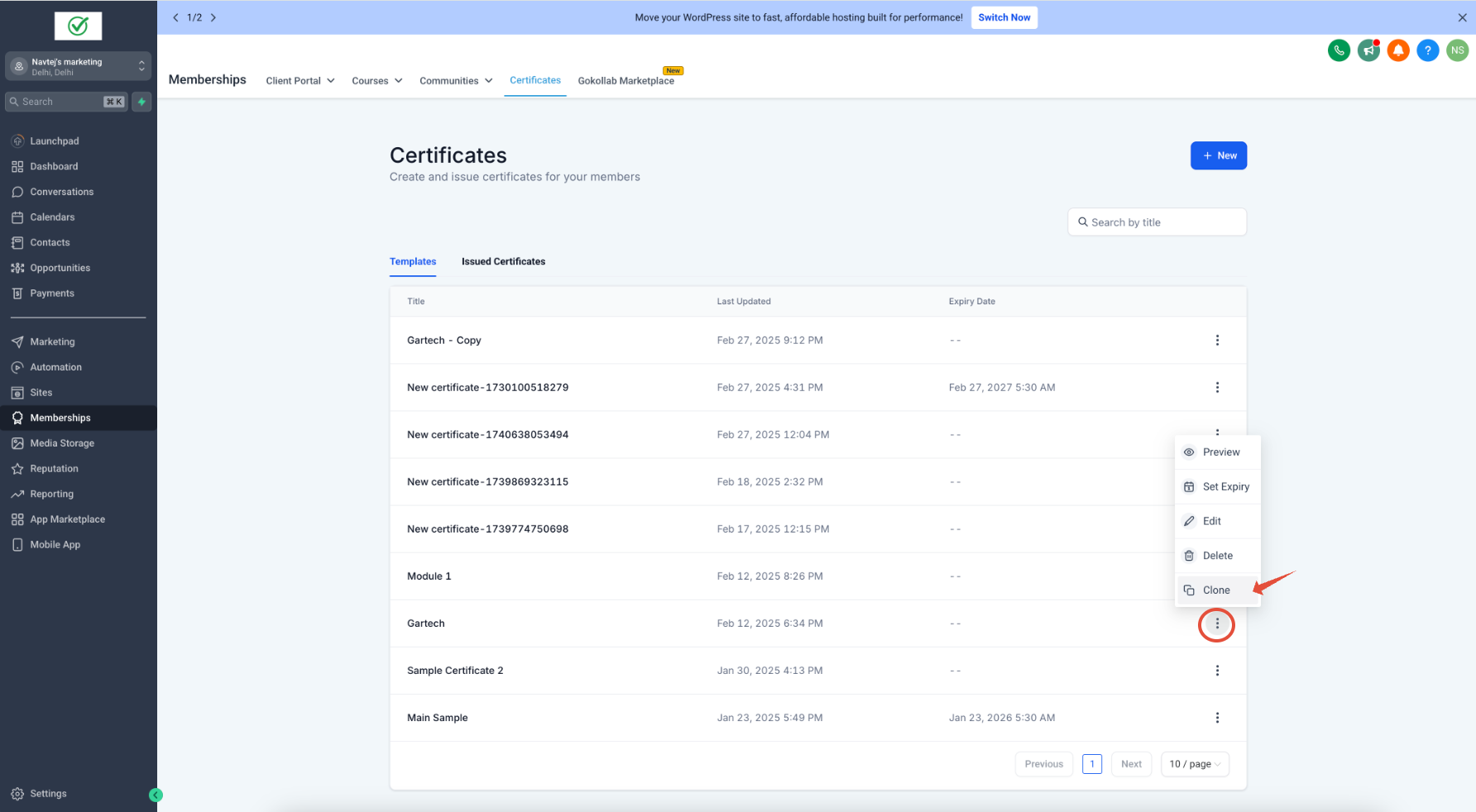
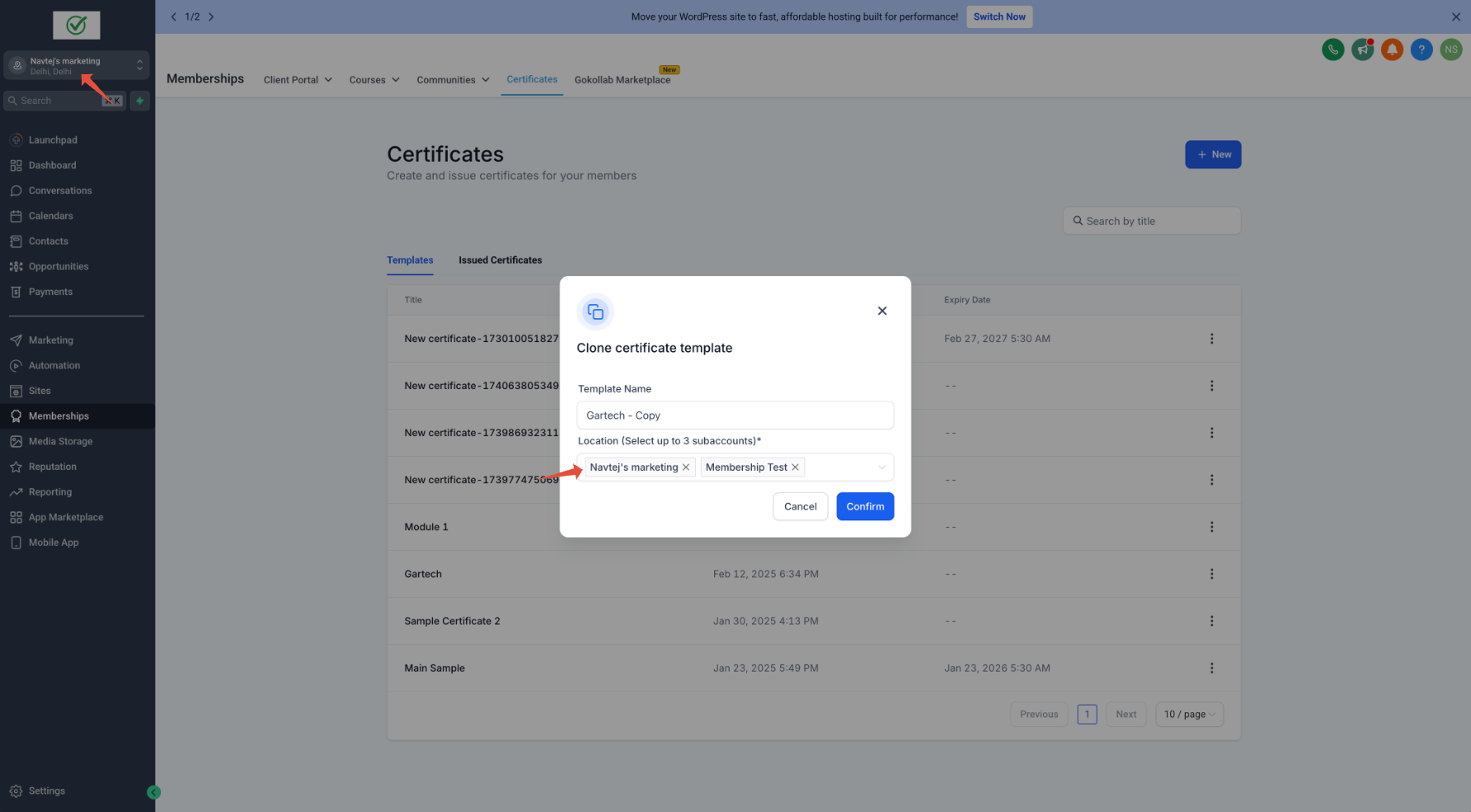
Cloning is performed from the Certificates area inside the Memberships section. After choosing a template, you open a menu, select the clone option, adjust the name if needed, pick up to three destination locations and confirm the action. The system then reproduces the template in each chosen location.
The cloned templates appear alongside other templates in each location’s certificate list. From there, you can edit, publish or assign them just like any other template.
03How businesses use certificate templates
- Online education platform. Create one certificate template for a course and clone it to all campus locations. The platform then issues the same design to students regardless of where they complete the course.
- Gym chain. Design a trainer certification certificate at the headquarters and clone it to each gym location. Each branch can issue the same certificate without rebuilding the layout.
- Franchise consulting business. Build a consulting completion certificate once and duplicate it across each franchise office. The cloned templates keep the original branding and version records.
04The numbers and rules that matter
- Clone certificate templates across multiple locations (up to 3 at a time).
05How to set up and use certificate templates in HighLevel
Clone a certificate template
- Open Memberships > Certificates.
- Click the three dots (⋮) next to the template you want to duplicate.
- Select Clone from the displayed menu.
- Edit the Template Name if a different name is required.
- Choose the locations where the template should be copied, up to three locations.
- Confirm the selection to finish the cloning process.
06What it looks like in HighLevel
07Settings that matter
- Template Name. Controls the displayed title of the cloned template; you can change it before the copy is created.
- Locations. Specifies the destination locations for the cloned template; you may select up to three locations or the same location.
08Things to know before you rely on it
- You can clone a template to a maximum of three locations at one time.
- Cloning can also be performed within the same location if needed.
- All media files, images, configurations and version history are moved to each clone.
09How it connects to the rest of HighLevel
- Create a new certificate template before cloning Create template
- Issue certificates automatically after a course ends Issue certificates
- Manage user permissions for the certificates module Certificates permissions
Michael's take

Cloning certificate templates can feel risky if you forget that each copy carries the full version history; you might end up with more versions to manage than you need.
When the feature is available, I would use it to roll out a new branding set to every office I manage.