
01Who this is for
- Marketing managers who want to reward customers for completing a campaign and then send a thank you message.
- Course instructors who need to acknowledge learners after they finish a module and automatically enrol them in the next course.
- Community managers seeking to flag members who reach a participation milestone and then apply new tags.
02Badge automation, explained
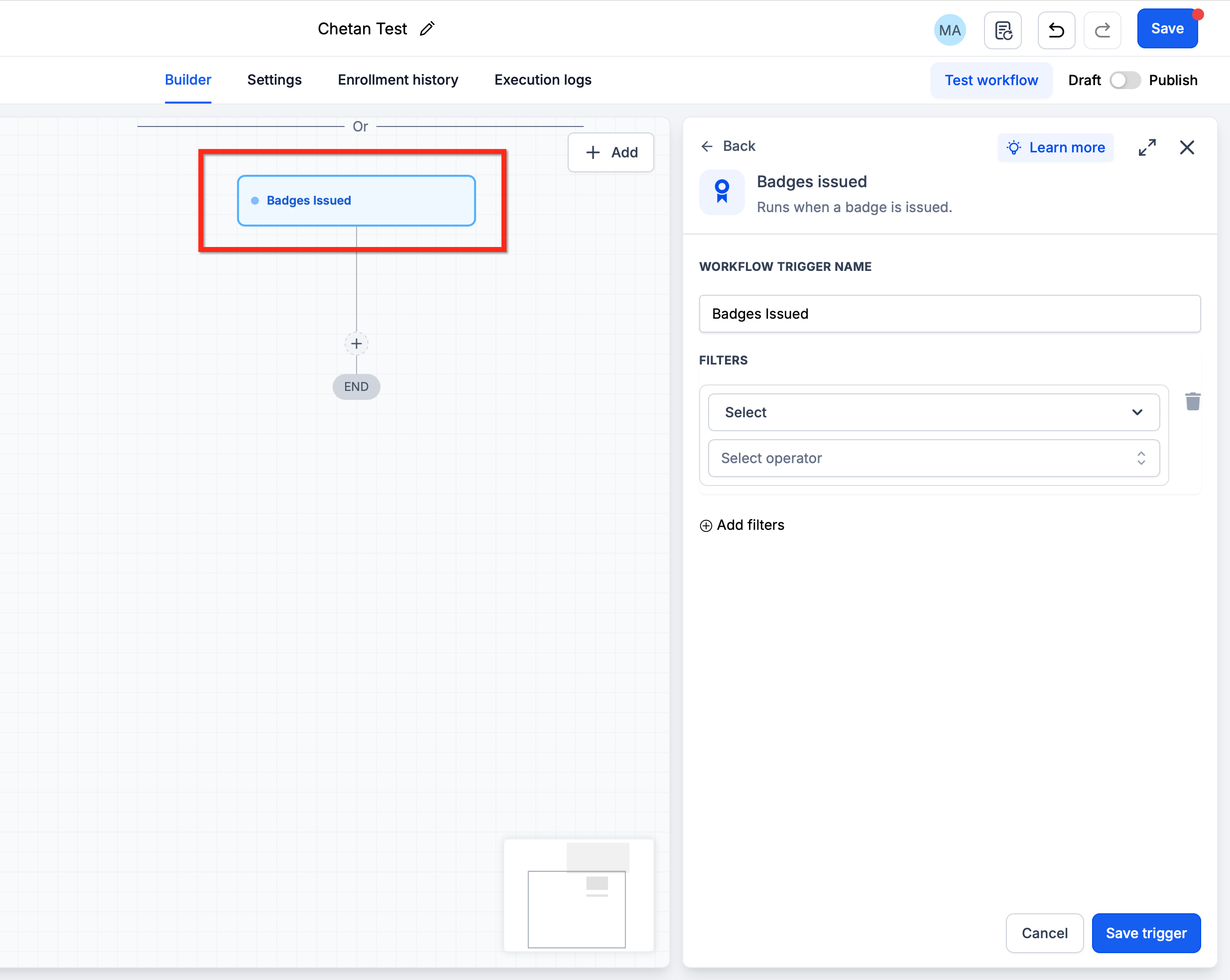
The feature adds two new workflow components: an action that assigns a badge to a contact when the workflow reaches that step, and a trigger that starts a new workflow whenever a specific badge is recorded. The action pulls the badge from the list of active badges you have already created. The trigger fires regardless of how the badge was awarded, whether by this action, manually, or any other method.
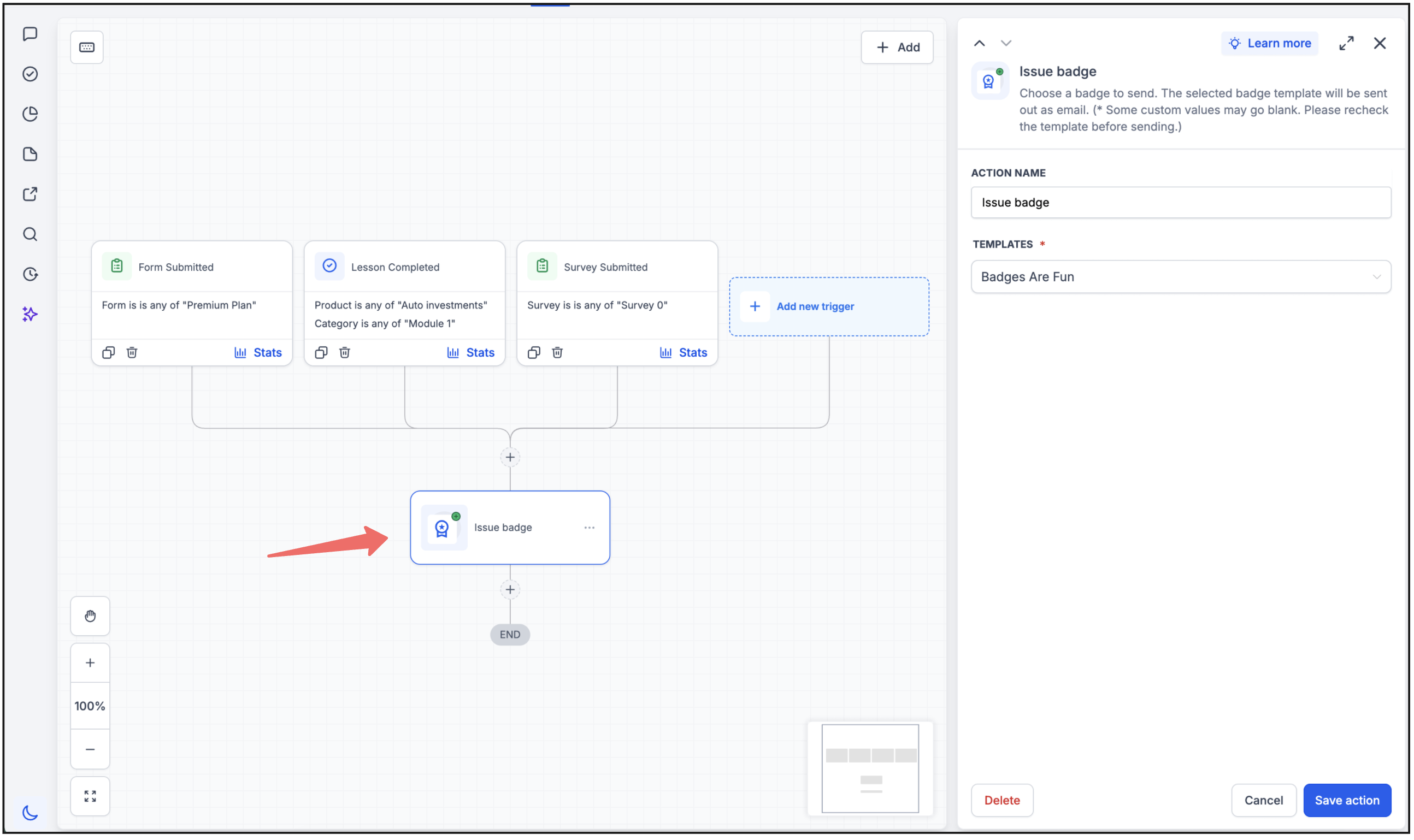
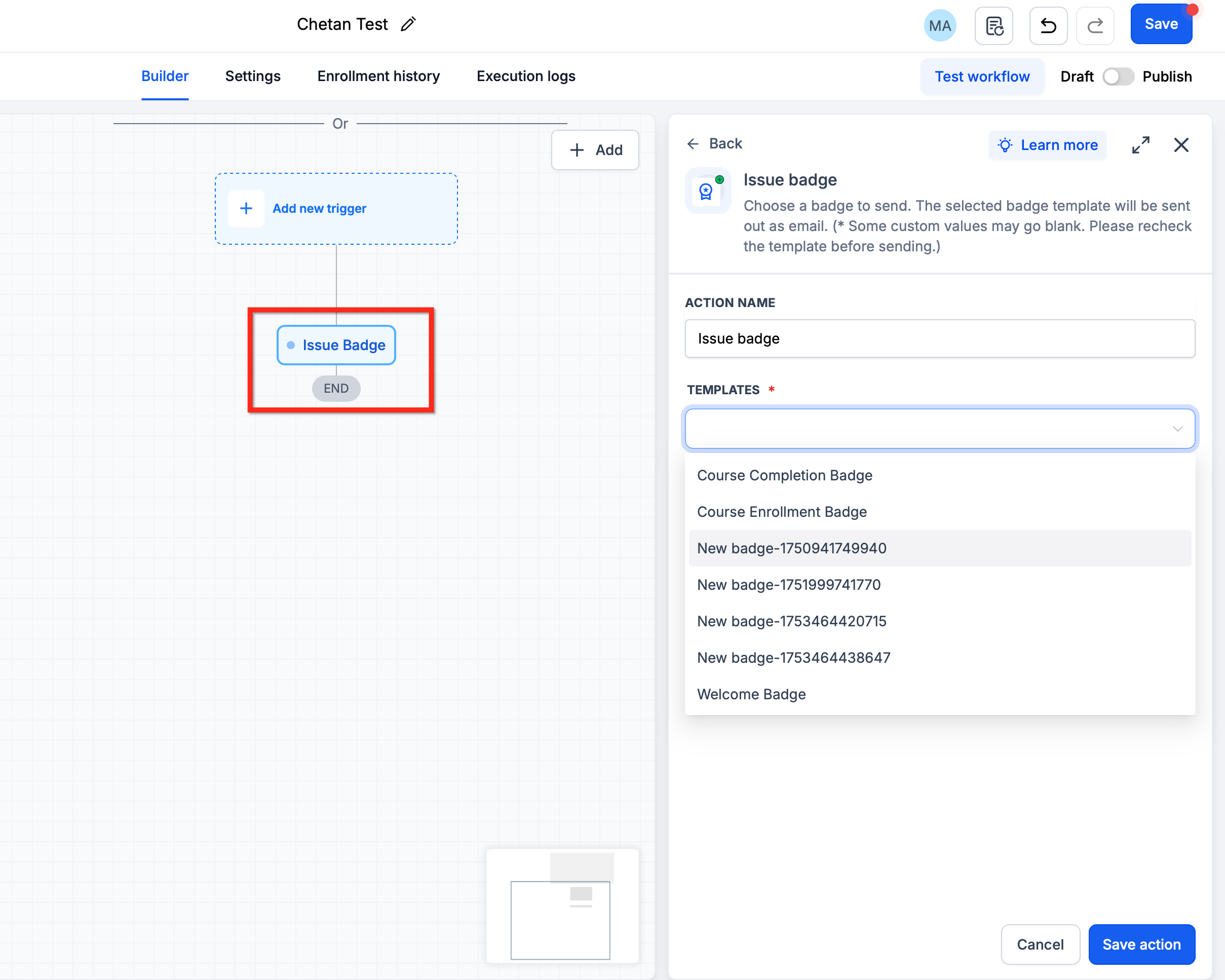
Both components live inside the Workflow builder. When you select the Issue Badge action, you pick a badge from a dropdown. After a badge is issued, any workflow that begins with the Badge Issued trigger can run further steps such as sending emails, updating fields, or moving the contact through a pipeline. This creates a continuous recognition journey within the platform.
03How businesses use badge automation
- Online course provider. Create a workflow that triggers on course completion, add the Issue Badge action to grant a 'Course Completed' badge, then use a separate workflow with the Badge Issued trigger to enroll the student in the next module.
- Ecommerce store. Set up a purchase based workflow that includes the Issue Badge action for a 'First Purchase' badge, then launch a follow up workflow via the Badge Issued trigger to send a discount coupon email.
- Fitness club. Design a workflow that awards a '30 day Attendance' badge when a member logs a set number of visits, and use the Badge Issued trigger to automatically add a motivational text message to the member’s profile.
04The numbers and rules that matter
- Each badge can only be awarded once per contact, preventing duplicate issuance.
- There are no specific limits on badge issuance through workflows beyond the general badge and workflow limits of your HighLevel account plan.
05Before you start
- Create the badges you intend to issue within the Certificates module; only active badges appear when configuring the workflow.
06How to set up and use badge automation in HighLevel
Configure badge issuance in a workflow
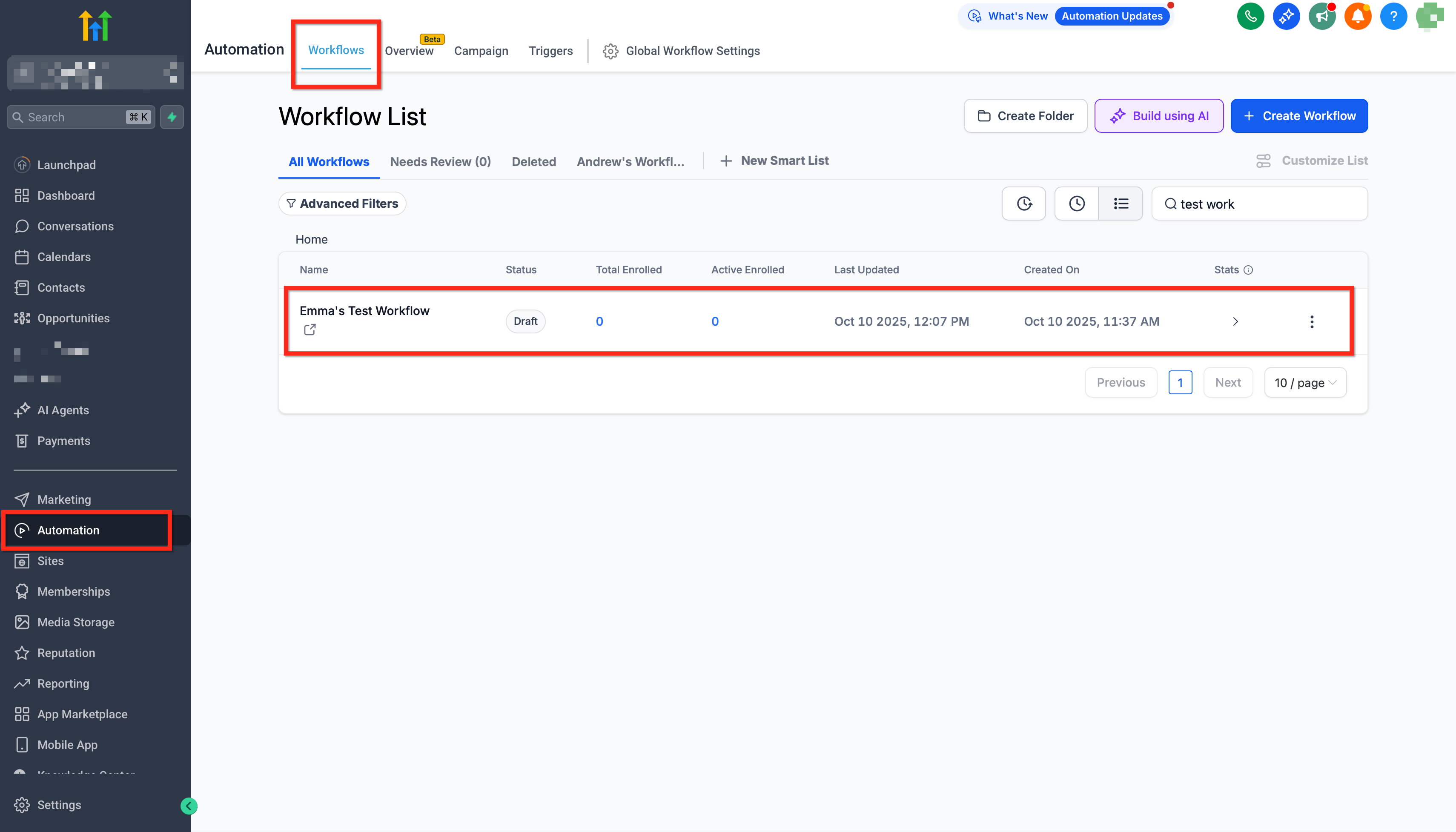
- Open the Workflows area and either start a new workflow or edit an existing one.
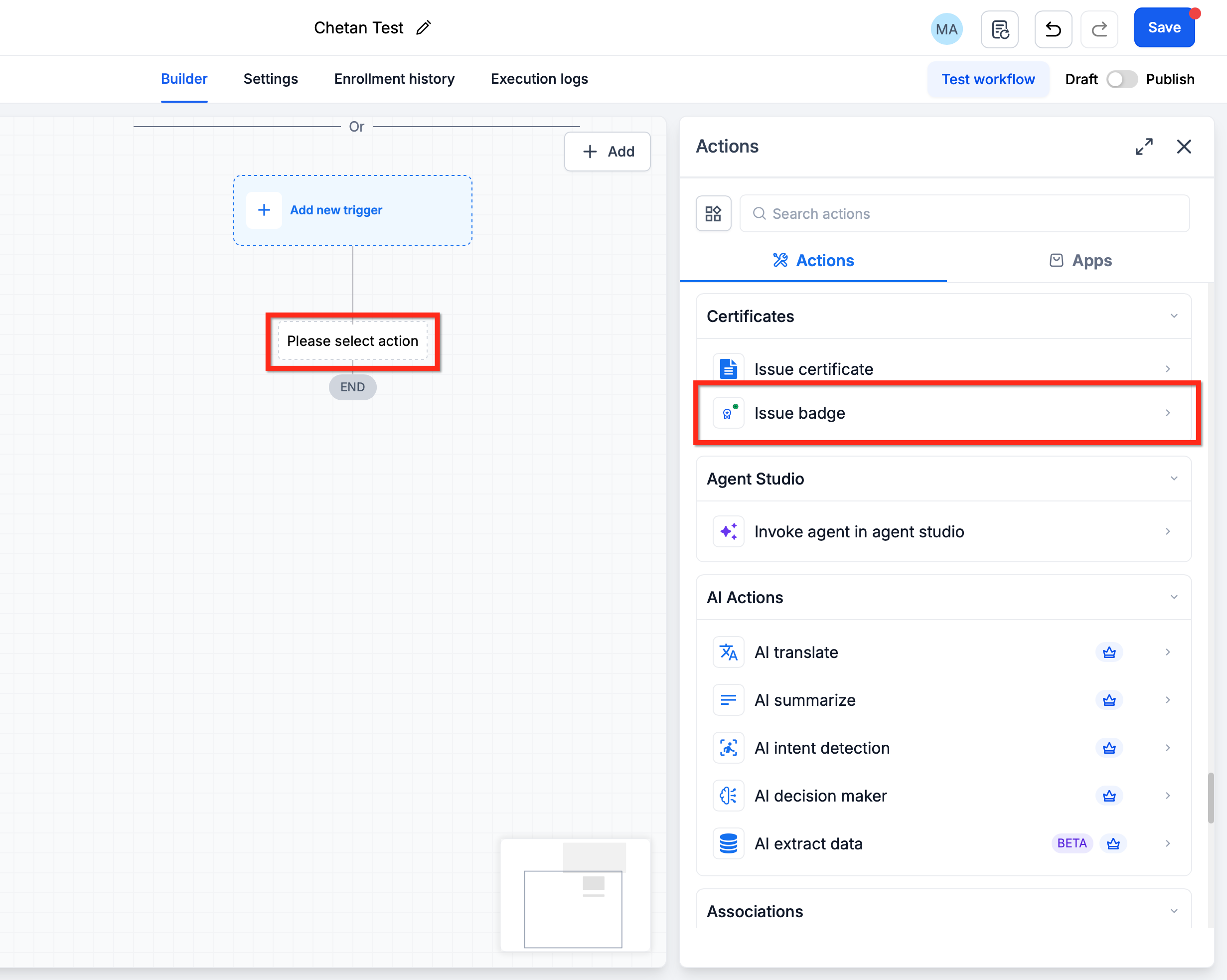
- Insert a new action block and locate the option named Issue Badge.
- Choose the desired badge from the dropdown list of active badges.
- Save the workflow and turn it on so the badge is awarded when conditions are satisfied.
Set up follow up actions after badge issuance
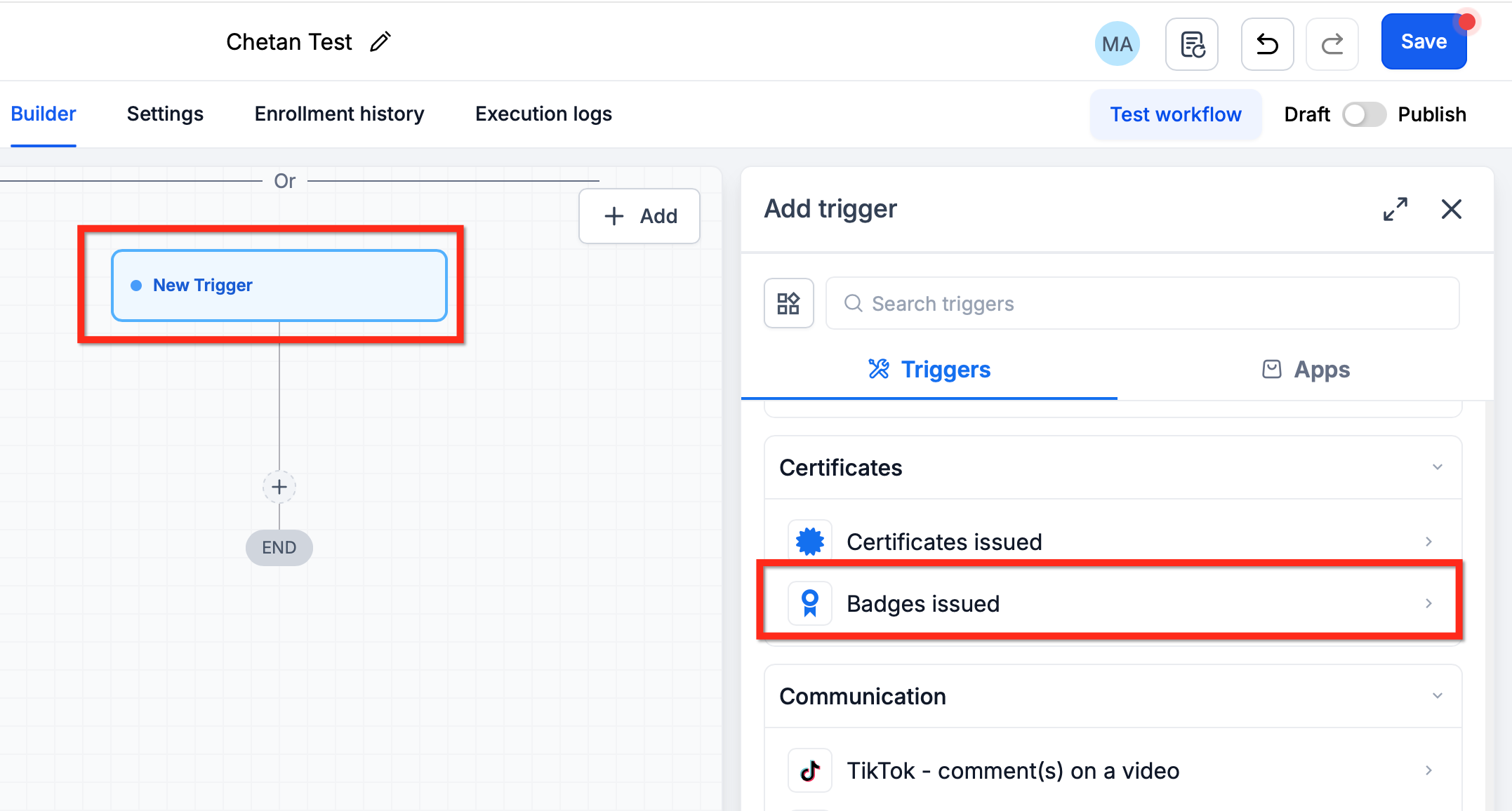
- Create a separate workflow that begins with the Badge Issued trigger.
- Select the same badge used in the Issue Badge action.
- Add any follow up actions such as emails, tag updates, or pipeline moves.
07What it looks like in HighLevel
08Settings that matter
- Issue Badge. Specifies which badge to award when the workflow reaches this step.
- Badge Issued. Acts as a workflow trigger that starts a new automation whenever the selected badge is recorded for a contact.
09Things to know before you rely on it
- A contact can receive a particular badge only once; the system blocks duplicate issuance.
- Badge automation follows the overall badge and workflow limits of the current HighLevel plan.
10How it connects to the rest of HighLevel
- Design badges before using them in workflows Badge design guide
- Explore all certificate and badge capabilities Certificates overview
- Check plan details that affect badge limits Pricing and plans
Michael's take

Badge automation is a quick win for any small business that wants to celebrate customer milestones without adding manual steps, turning recognition into a trigger for the next engagement.
Don’t forget to create the badge first; the workflow can’t issue something that doesn’t exist.