
01Who this is for
- Sales teams can keep meeting history directly on lead or account records, so follow up is always contextual.
- Real estate managers can tie property viewings to each property record, ensuring schedules stay organized.
- Insurance agents can attach policy renewal meetings to individual policy records for easy tracking.
02Appointments for Custom Objects and companies, explained
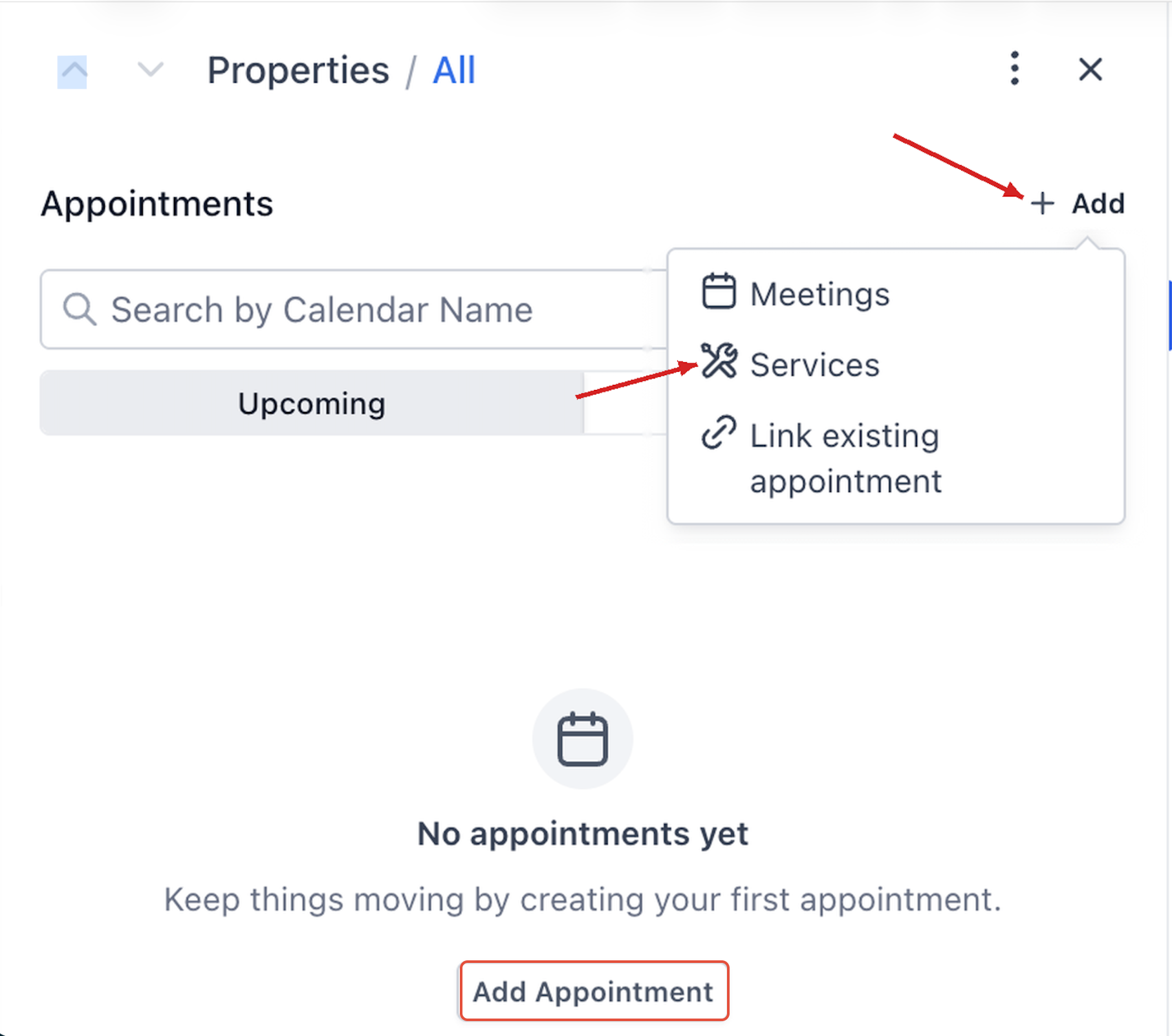
Record level appointments allow meetings to be associated with a specific Custom Object or Company record. The Appointments tab on a record shows two views, Upcoming and Past, that list bookings linked to that record. You can also start a new meeting, add a service, or link an existing appointment without leaving the record.
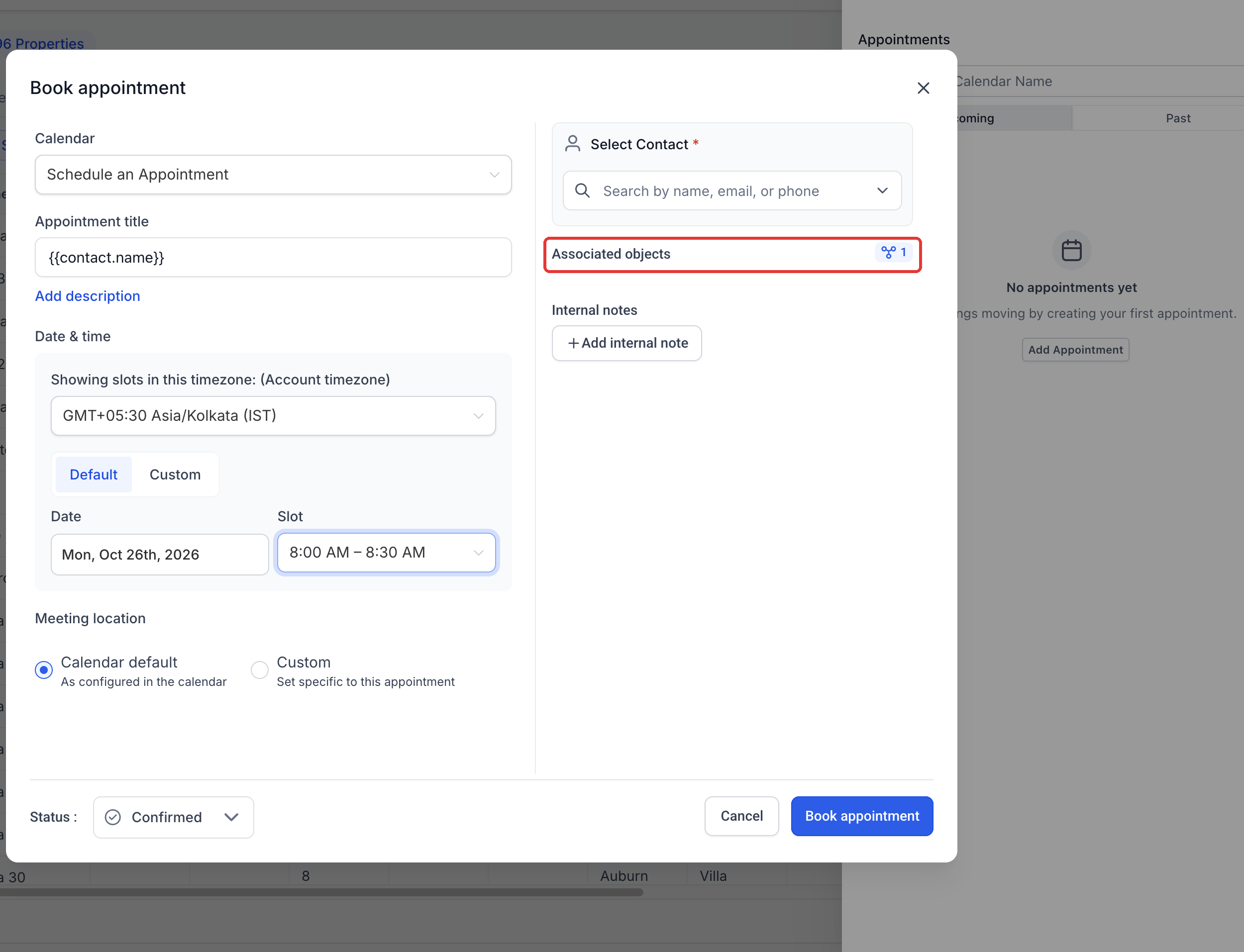
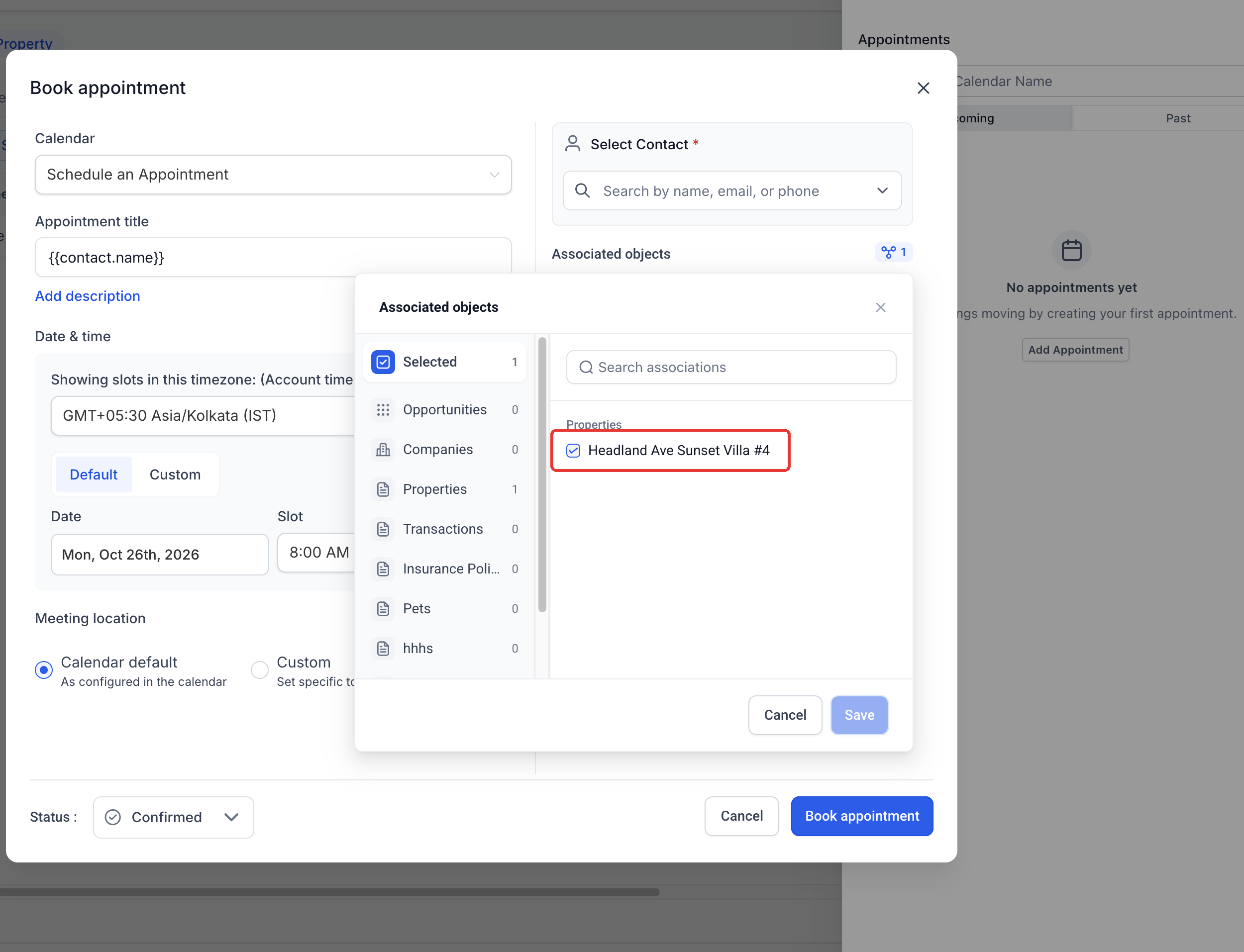
The feature lives inside the side panel of each Custom Object or Company record when the Appointments tab is enabled for the location. When you create a meeting from the record, the current record appears preselected in the Associated objects selector, and you can add other supported records before confirming the booking.
03How businesses use appointments for Custom Objects and companies
- Real estate agency. Open a property record and view all scheduled viewings in the Upcoming tab. Use the Add button to create a new showing, selecting the property’s calendar and buyer contact. Link a showing that was booked elsewhere to keep the property’s schedule complete.
- Insurance brokerage. Navigate to an insurance policy record to see past renewal meetings. Book a new policy review meeting directly from the record, choosing the appropriate calendar and client contact. Add the client’s account as an additional associated object if needed.
- Consulting firm. Open a company record to review upcoming strategy sessions. Use the Add menu to start a Service booking for a consulting engagement, selecting the service calendar and client contact. Link an existing kickoff call to the company record to avoid duplicate entries.
04Before you start
- Your location must be enrolled in the private beta.
- The Appointments tab must be enabled for your location.
- You need access to the specific Custom Object or Company record you want to work with.
05How to set up and use appointments for Custom Objects and companies in HighLevel
Open appointments from a Custom Object record
- Open the HighLevel Subaccount view.
- Choose the desired Custom Object type in the left navigation.
- Open the specific record you want to inspect.
- Click the Appointments option in the record’s side panel.
- Switch between the Upcoming and Past tabs to see linked appointments.
- Use the Search by Calendar Name field to filter the list.
Open appointments from a Company record
- Open the HighLevel Subaccount view.
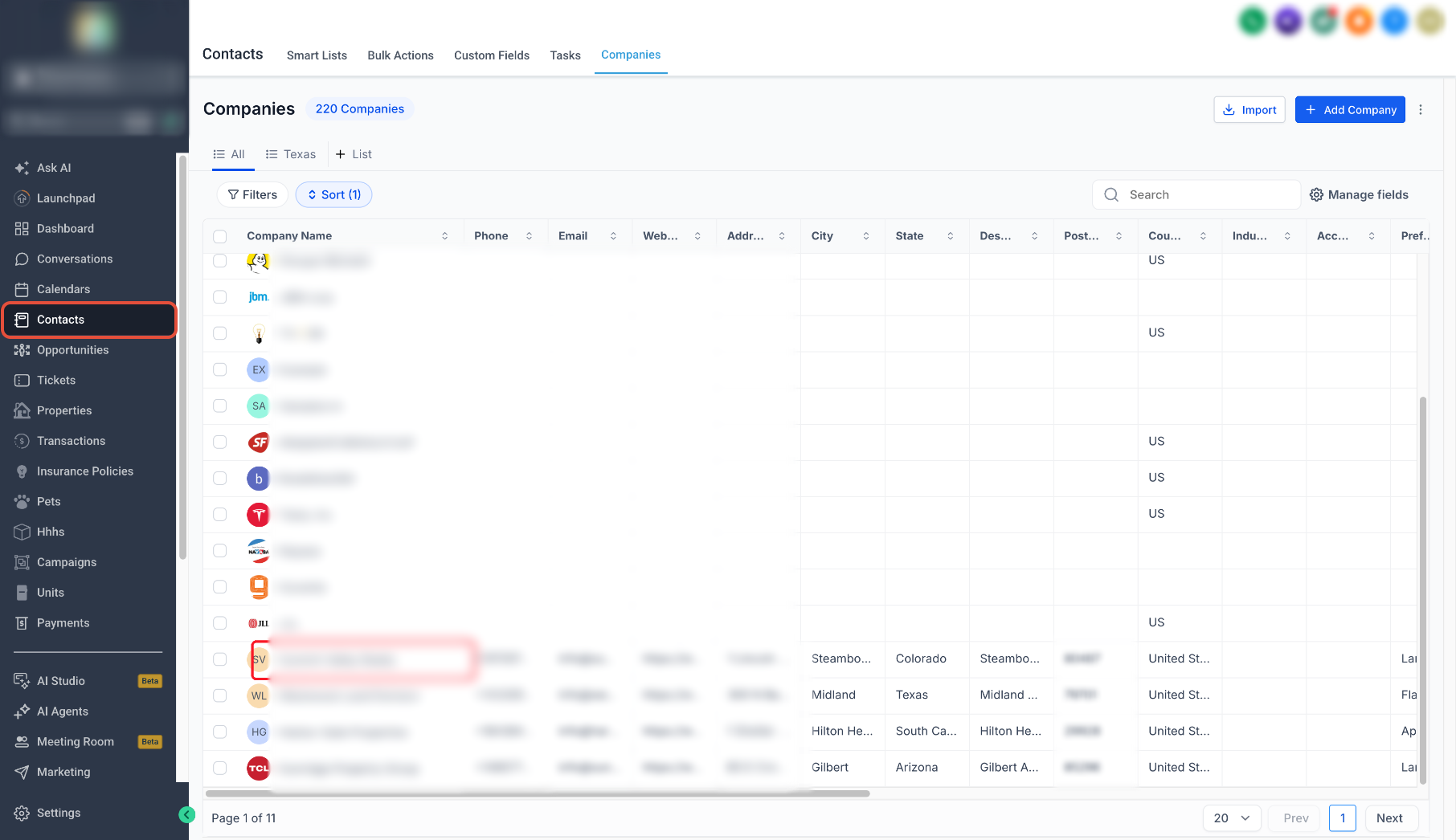
- Select Contacts from the left navigation.
- Click the Companies tab.
- Find and open the target Company record.
- In the right hand side panel, locate the vertical tab rail.
- Click the calendar icon to open the Appointments section.
- Review the Upcoming and Past appointments shown.
- Use Search by Calendar Name to narrow the list if needed.
Book a new meeting
- From the HighLevel Subaccount view, open the desired Custom Object record or a Company record via Contacts > Companies.
- Choose Appointments in the side panel.
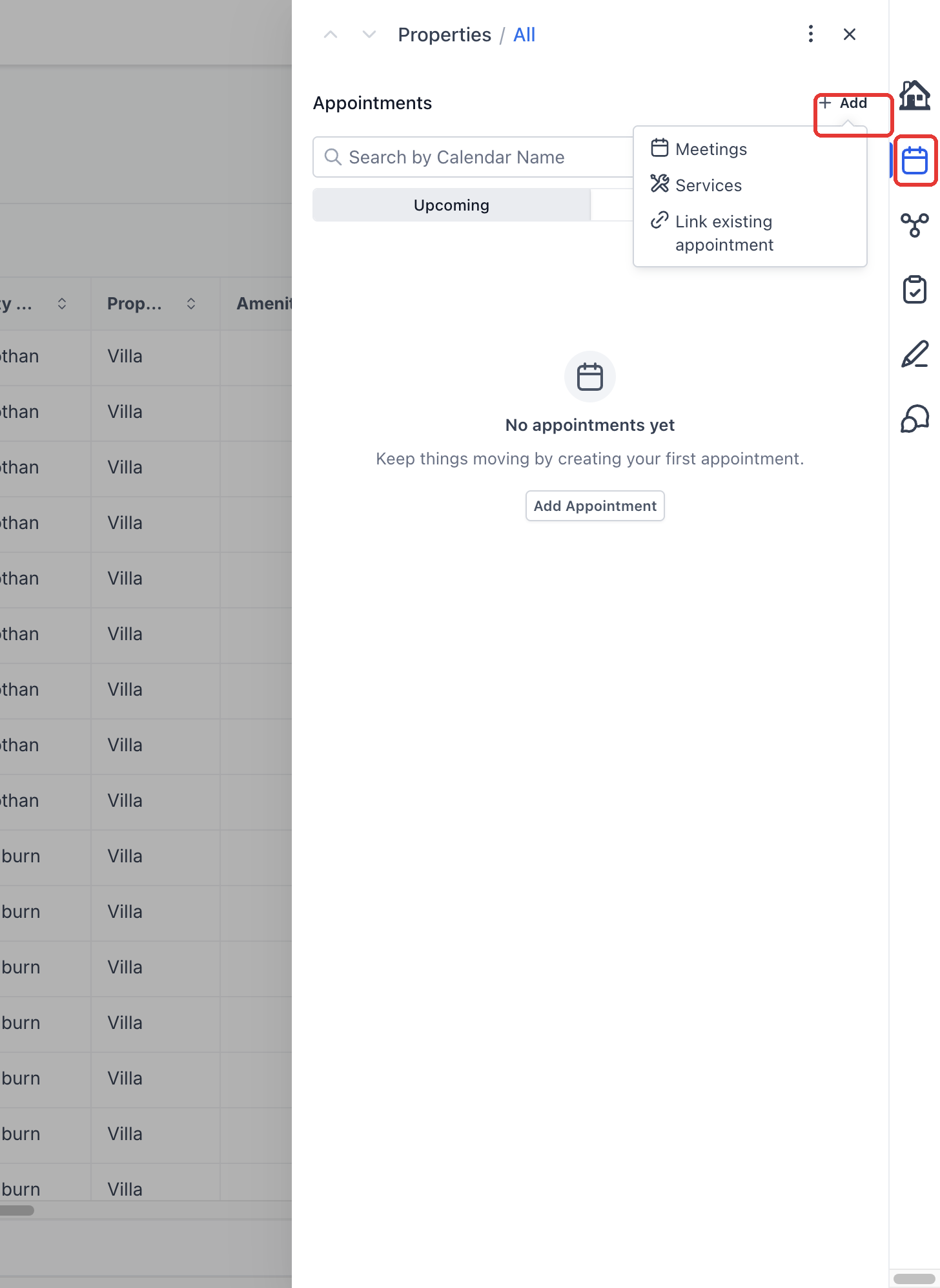
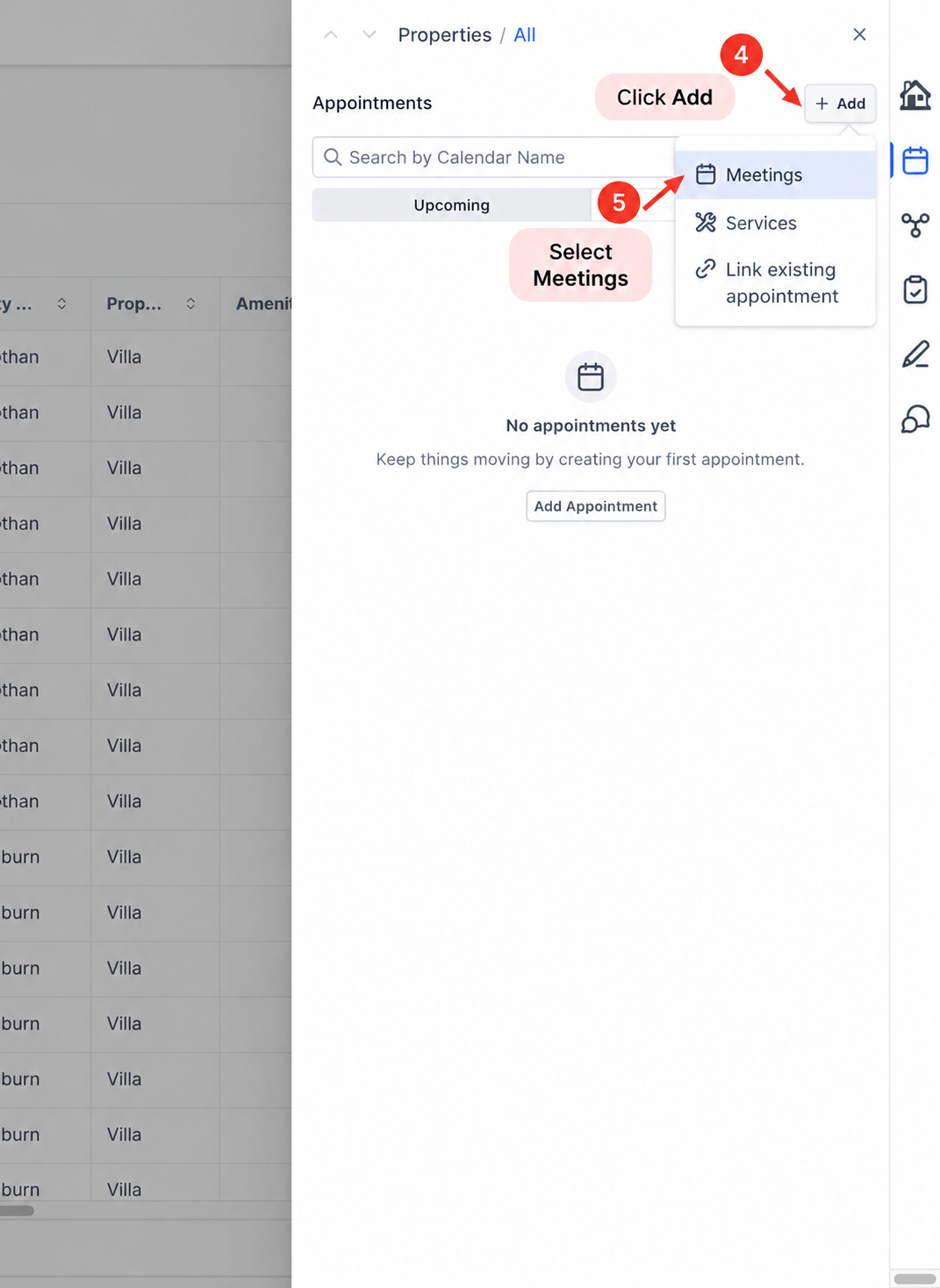
- Click the Add button.
- Select Meetings as the appointment type.
- Pick the calendar for the meeting.
- Set the appointment date and time.
- Choose the Contact who will attend.
- Review the title, location, status and other required fields.
Review associated objects and complete booking
- In the booking form, open the Associated objects section.
- Verify that the current Custom Object or Company record is selected.
- Search and select any additional supported records you want to associate.
- Review all selected associations.
- Click Book appointment to finalize the meeting.
Start a service booking
- Open the HighLevel Subaccount view.
- Open the appropriate Custom Object record or a Company record via Contacts > Companies.
- Select Appointments from the side panel.
- Click the Add button.
- Choose Services as the appointment type.
Link an existing appointment
- From the HighLevel Subaccount view, open the relevant Custom Object record or a Company record via Contacts > Companies.
- Select Appointments in the record’s side panel.
- Click the Add button.
- Choose Link existing appointment.
- Search for the appointment within the current location.
- Locate the correct booking and click Link.
06What it looks like in HighLevel
07Settings that matter
- Associated objects. Determines which supported records are attached to the meeting; the record you started from appears preselected.
08Things to know before you rely on it
- The feature is only available to locations participating in the private beta.
- The Appointments tab must be enabled for the location to use record level appointments.
- Booking a meeting requires a calendar, a date, a time, and a Contact.
- Existing appointments can be linked only from the same HighLevel location.
- When starting a meeting from a record, that record is automatically preselected under Associated objects.
- Service bookings are initiated from the Add menu but may have different subsequent steps than Meetings.
09If something goes wrong
- Appointments tab shows no entries. Check both Upcoming and Past views, clear any Calendar Name search, and use Link existing appointment if the booking is not yet linked.
- Appointments tab is missing. Confirm your location is enrolled in the private beta and that the Appointments tab feature is enabled.
10How it connects to the rest of HighLevel
- Create and edit appointment notes that appear across records. Appointment notes
- Manually book a calendar appointment when you need full control over the details. Manual booking
- Use the Appointment List View to see and filter all meetings in one place. Appointment list view
Michael's take

I think linking meetings directly to the custom object or company record makes it easier to keep everything together. I would begin with confirming the location is part of the private beta and that the Appointments tab is turned on, then try the flow on a Property record and a Company record to see the preselected association work as expected.