
01Who this is for
- Founders who run conferences or expos can offer a single booking page without assigning attendees to individual team members.
- Small business owners hosting public workshops can quickly publish a schedule that reflects venue capacity instead of staff calendars.
- Marketing teams managing webinars can embed a static meeting link and let participants sign up directly from a landing page.
02Event calendars, explained
Event Calendars are a calendar type in HighLevel that tracks bookings at the calendar level rather than assigning them to a user. Because no user is attached, the calendar does not rely on any staff member’s availability and cannot use dynamic video meeting links. The calendar stores the event name, duration, daily availability, and a meeting location that can be a physical address or a static virtual meeting URL. An external calendar, usually a Google Calendar, is linked via External Sync, and all bookings are pushed to and pulled from that single calendar. The Event Calendar appears under the Calendars section of a subaccount, and after creation HighLevel provides a unique booking link and an embed code.
03How businesses use event calendars
- Conference organizer. Create an Event Calendar, set the event dates and times, add the venue address, and publish the booking link to allow attendees to register without assigning each registration to a staff member.
- Workshop provider. Set up an Event Calendar, paste a static virtual meeting link into the Meeting Location field, define the workshop’s duration and availability, and embed the calendar on the class page so participants can sign up directly.
- Webinar host. Configure an Event Calendar, choose a single Google Calendar for External Sync, add a static meeting room URL as the location, and share the generated booking link with the audience.
04The numbers and rules that matter
- Dynamic meeting link tools (Zoom, Google Meet, Microsoft Teams) are not supported.
05Before you start
- You must be logged into a HighLevel subaccount where you can create calendars.
06How to set up and use event calendars in HighLevel
Create an Event Calendar
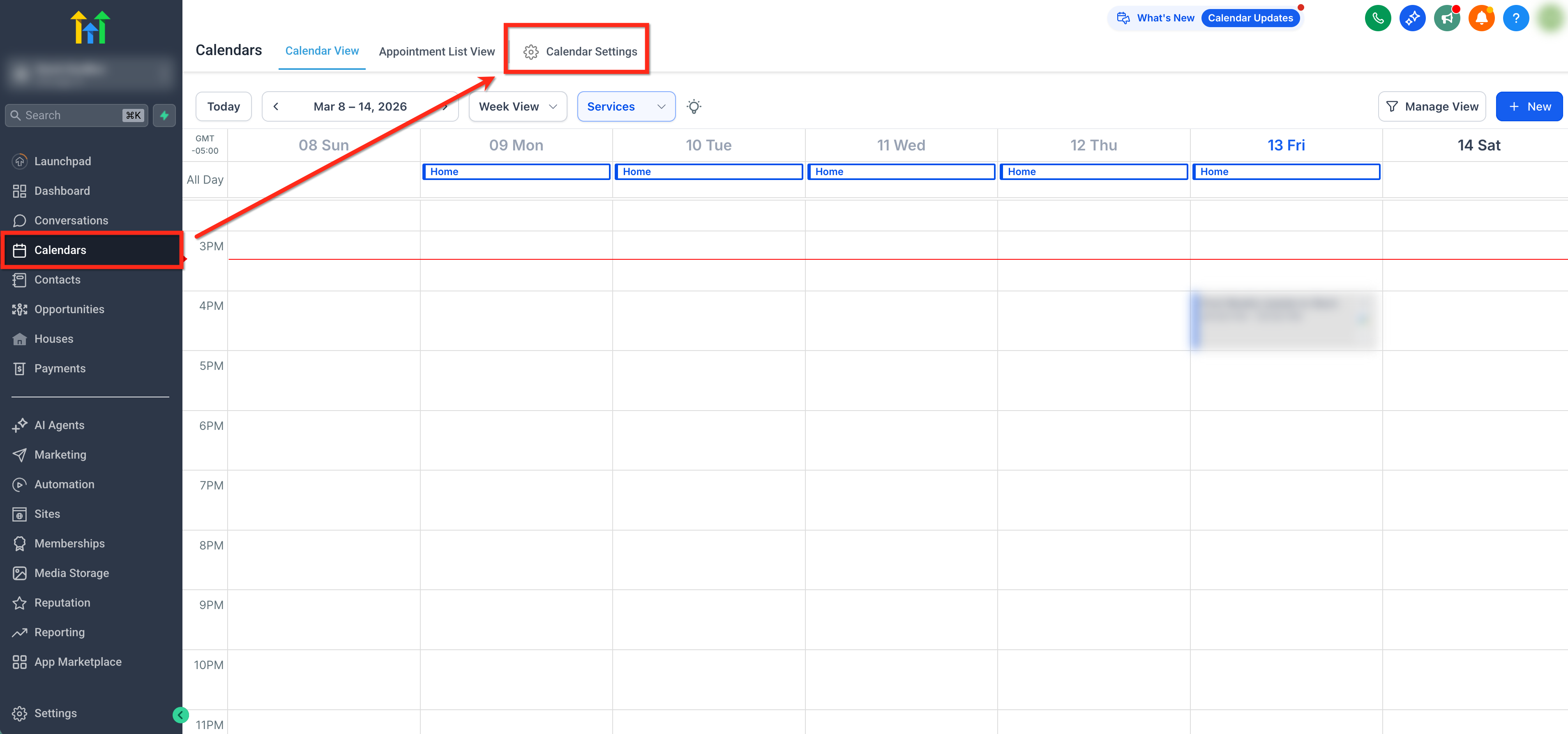
- In your subaccount, open Calendars from the left navigation.
- Click Calendar Settings in the top navigation bar.
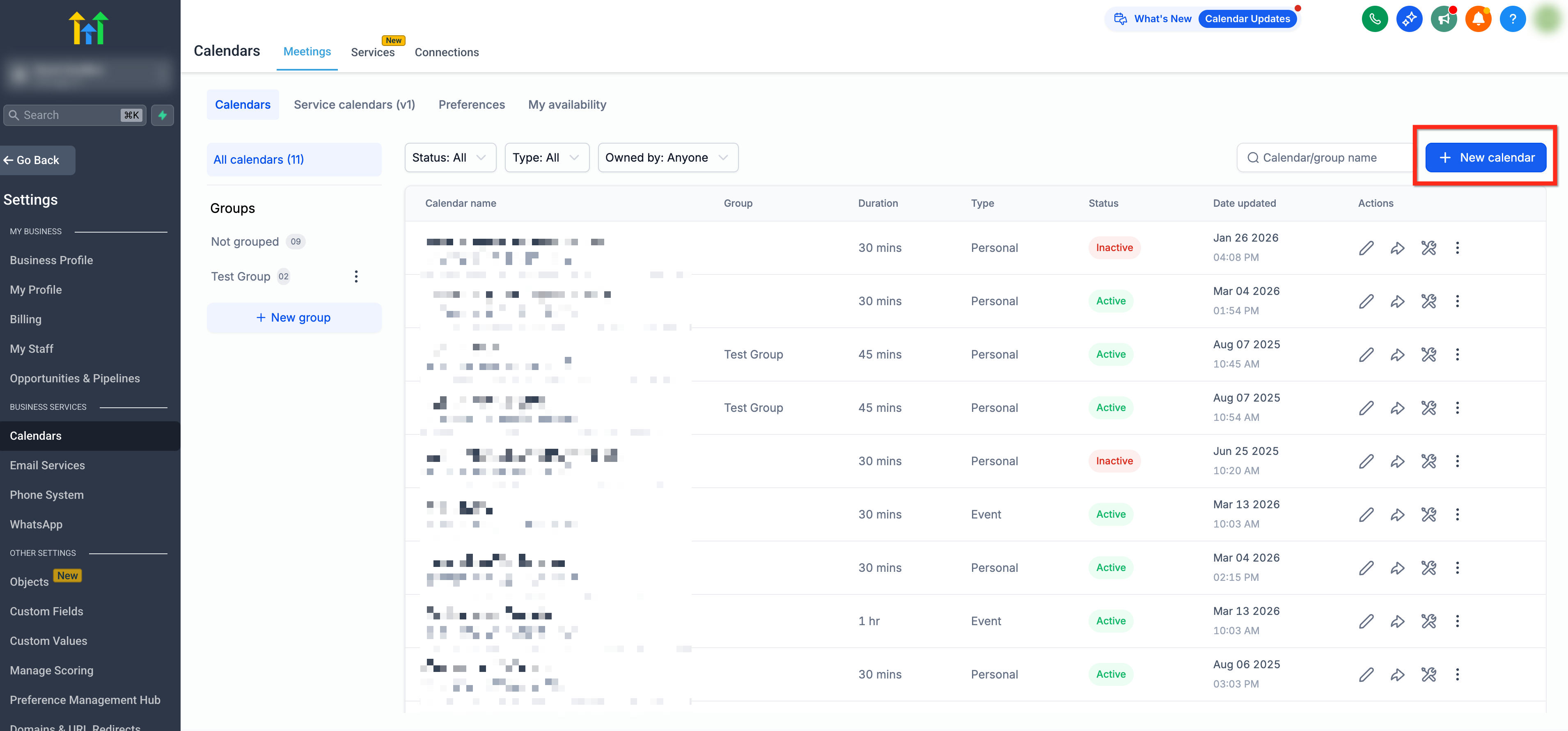
- Press the + New Calendar button in the top right corner.
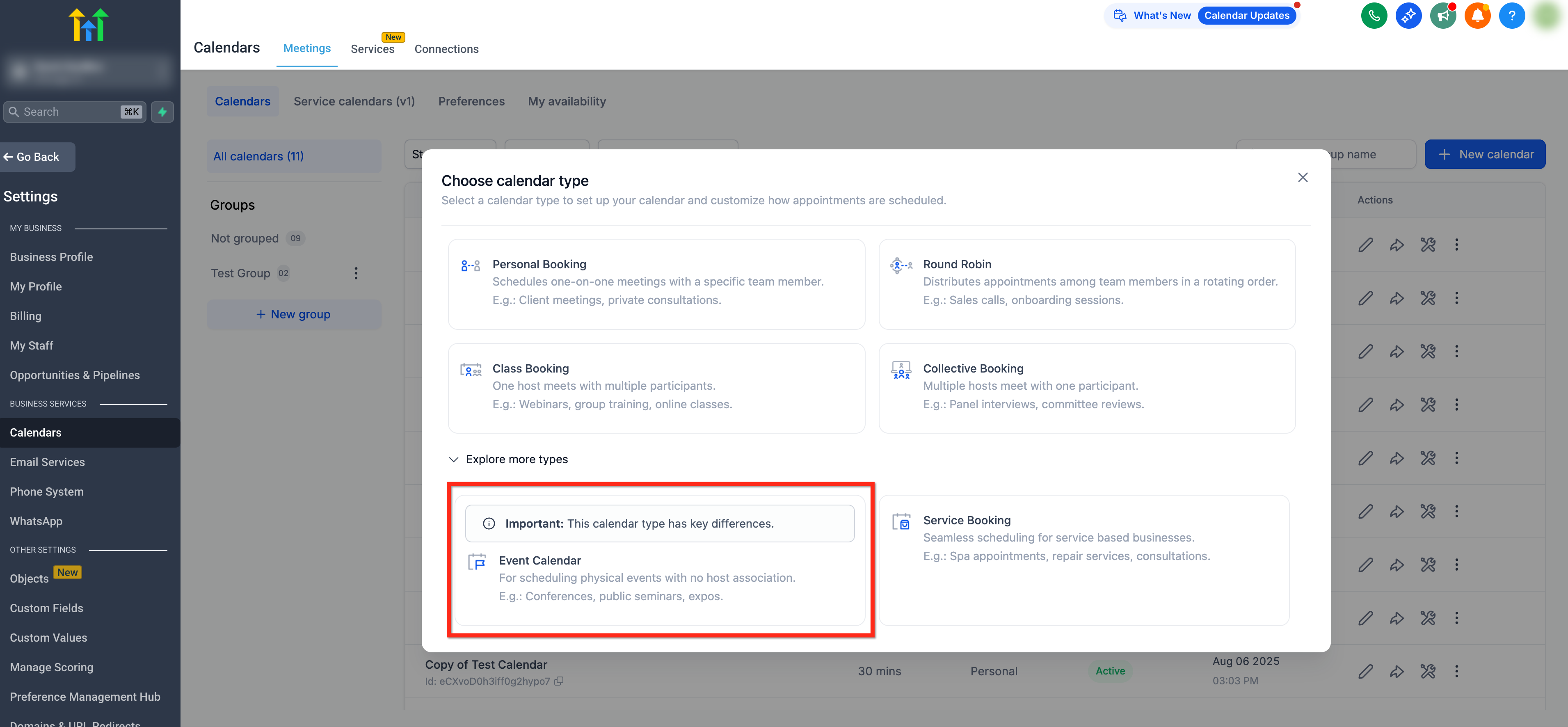
- In the pop up, open the drop down for more calendar types and choose Event Calendar.
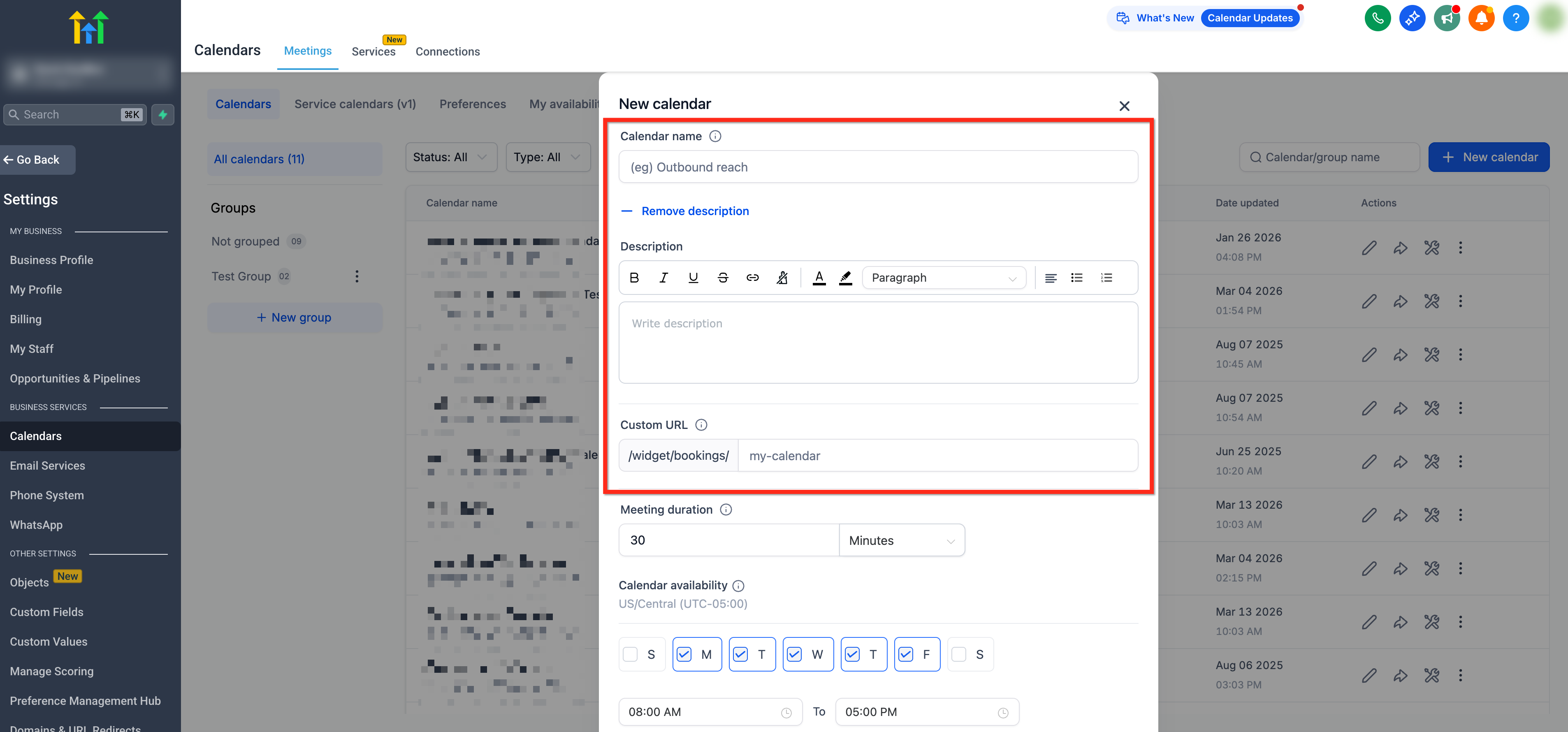
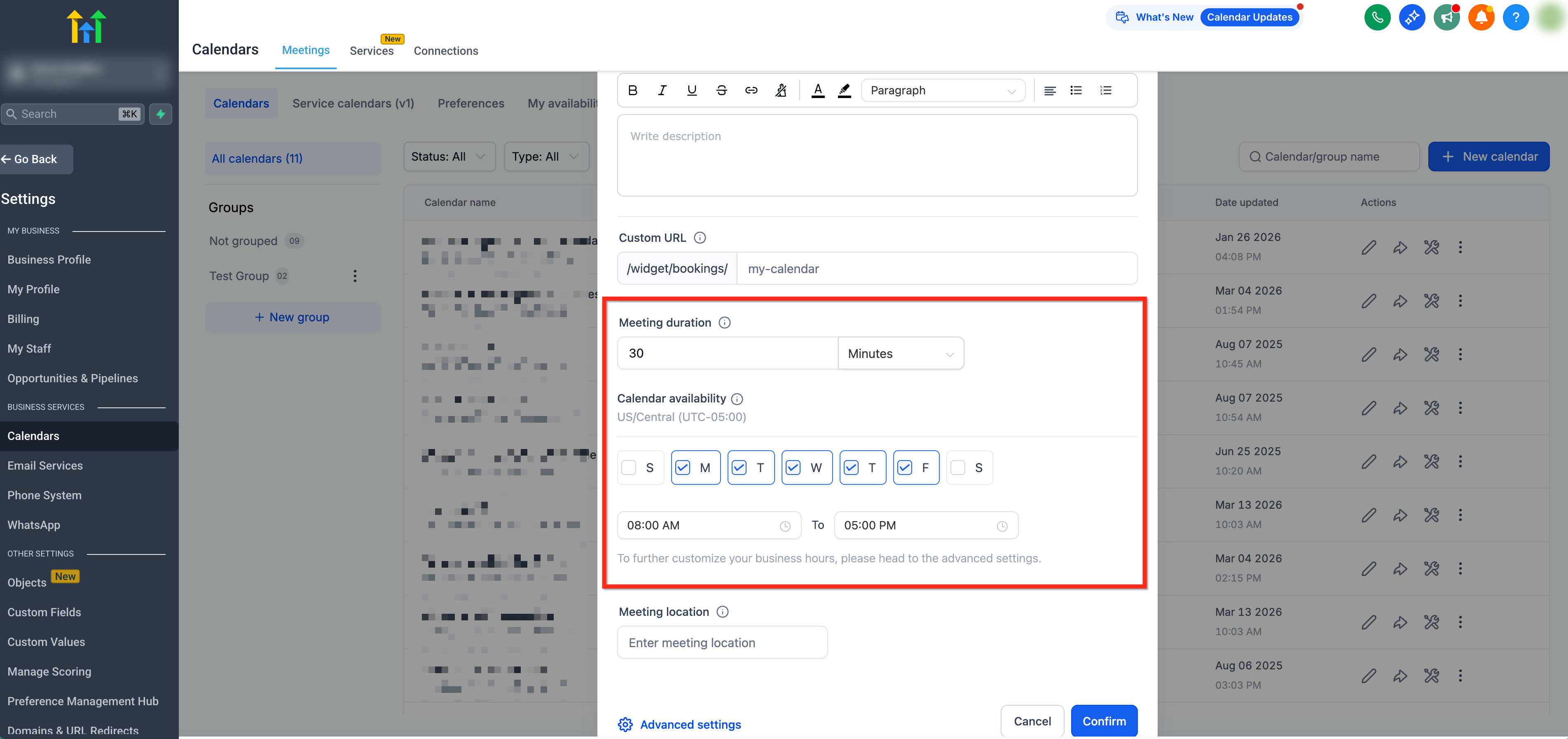
- Enter a Calendar Name, optionally add a Description, and customize the Custom URL if desired.
- Set the Meeting Duration and select the days and times for Availability.
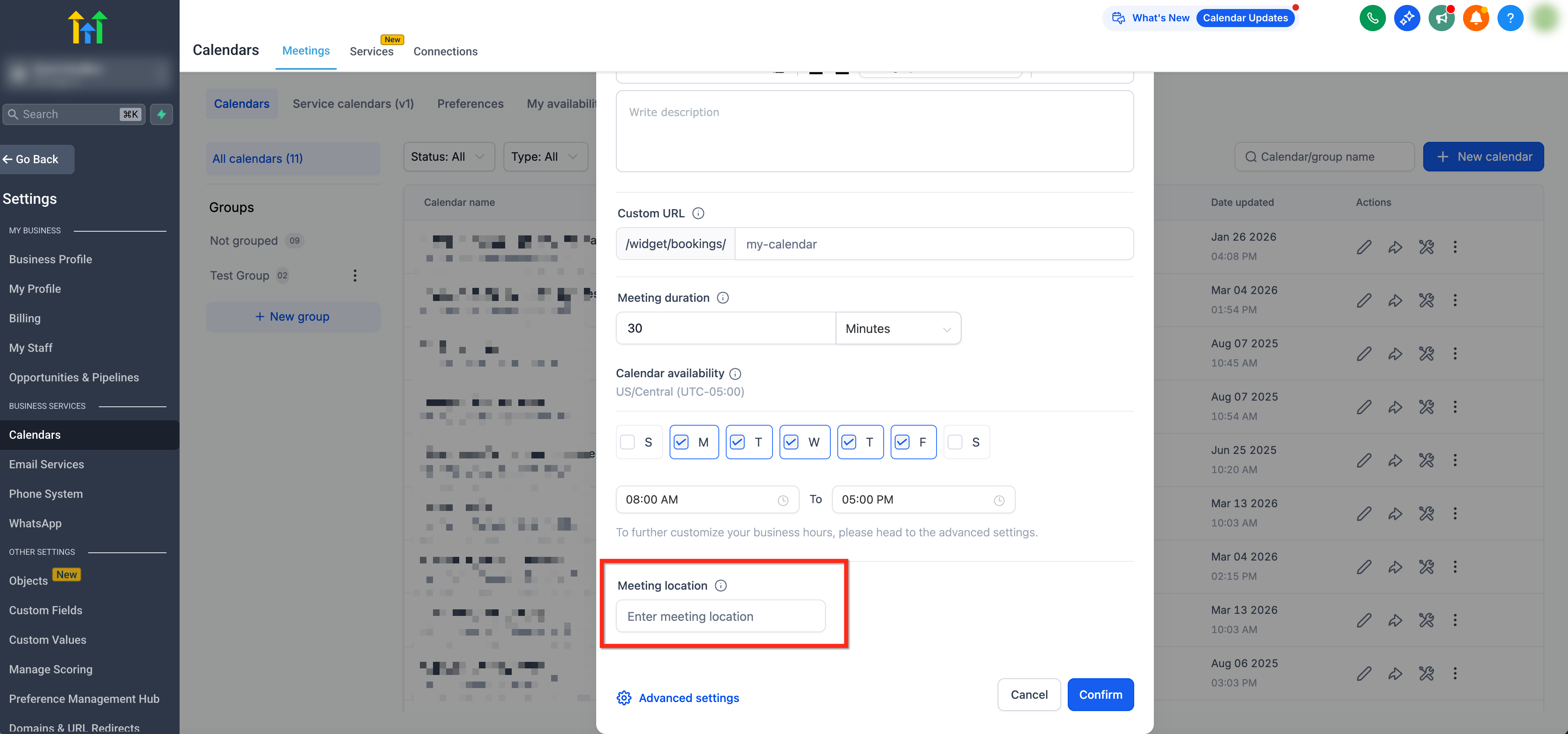
- Add the Meeting Location; type a physical address or paste a static virtual meeting link.
- Open Advanced Settings if additional options are needed, then click Confirm to create the calendar.
07What it looks like in HighLevel
08Settings that matter
- Calendar Name. Defines the title shown to attendees for the event.
- Description. Provides optional details about the event that appear on the booking page.
- Custom URL. Changes the default booking widget link to a personalized URL.
- Meeting Duration. Specifies how long each booking slot lasts.
- Availability. Selects which days and times the event can be booked.
- Meeting Location. Sets a physical address or a static link for virtual events.
- Advanced Settings. Offers optional configuration such as buffer times or reminders.
- External Sync. Determines which external calendar receives and provides bookings for this Event Calendar.
09Things to know before you rely on it
- Event Calendars have no associated users, so meetings cannot be assigned to a specific staff member.
- Dynamic meeting link integrations (Zoom, Google Meet, Microsoft Teams) are not supported; a static link must be used instead.
- Bookings do not sync to a user's personal calendar via Calendar Settings > Connections.
- Conflict calendars added under Calendar Settings > Connections are ignored for Event Calendars.
- Only the calendar chosen under External Sync receives bookings; no other calendars are considered.
- Only one Google Calendar can be connected using External Sync.
10If something goes wrong
- Dynamic video meeting links do not work with an Event Calendar.. Copy a static conference URL from your meeting platform and paste it into the Meeting Location field.
- Bookings are not appearing in the desired external calendar.. Verify that the correct calendar is selected under External Sync for the Event Calendar.
11How it connects to the rest of HighLevel
- Learn how to integrate Google Calendar for External Sync with your Event Calendar. Google Calendar integration
- Explore other calendar types like group calendars and service calendars for different booking needs. Group calendar overview
- See the full list of Calendars & Appointments features available in HighLevel. All calendar features
Michael's take

People often try to drop a Zoom or Teams link into an Event Calendar expecting it to generate a unique meeting per booking. That doesn’t work because the calendar has no assigned user, so the platform can’t create dynamic links. I would paste a static link instead, or use a physical address for in person sessions, and keep the booking flow simple.
If I were setting up a public workshop, I’d start with an Event Calendar, set the availability to the workshop dates, add the static virtual link, and then embed the widget on the registration page. Test the link yourself to confirm the static URL appears for registrants before you send it out.