
01Who this is for
- Sales representatives who need to move quickly from chat to a live conversation to close high intent leads.
- Support agents who handle complex questions that are easier explained by voice rather than long messages.
- Customer service managers who want to keep conversation history in one place while offering call back options for missed calls.
02WhatsApp voice calling, explained
The feature adds real time voice calling to WhatsApp conversations in the HighLevel web app. Users can place outbound calls, answer inbound calls, display call buttons, and enable customers to request a callback after a missed call. Availability can be limited with defined available and temporarily unavailable hours.
All settings are managed from the WhatsApp Calling tab within a subaccount. Call permission follows the WhatsApp service window, using template based requests when the window is closed or interactive automation when it is open. The feature currently works only on the web and is in a closed beta.
03How businesses use WhatsApp voice calling
- Real estate agency. Agents can click a call button inside a property inquiry chat to discuss listing details or schedule a showing. They can also receive inbound calls from interested buyers when the agency is marked as available.
- Healthcare clinic. Front desk staff can answer incoming WhatsApp calls to confirm appointments or answer pre consultation questions, and they can call patients directly from a chat to clarify medical requests while keeping records in one thread.
- Ecommerce brand. Sales reps can place outbound calls to high intent shoppers who abandoned a cart, and customers who miss a call can request a callback, ensuring the conversation stays within the existing WhatsApp chat.
04The numbers and rules that matter
- The WhatsApp Business Account messaging limit must be at the 2,000 tier or higher.
05Before you start
- The WhatsApp phone number must be in a connected state.
- The WhatsApp Business Account messaging limit must be in the 2,000 tier or higher.
- The number must not be using WhatsApp Coexistence.
- The subaccount must have access to the closed beta.
- Calling must be configured from the HighLevel web app.
06How to set up and use WhatsApp voice calling in HighLevel
Set up WhatsApp voice calling
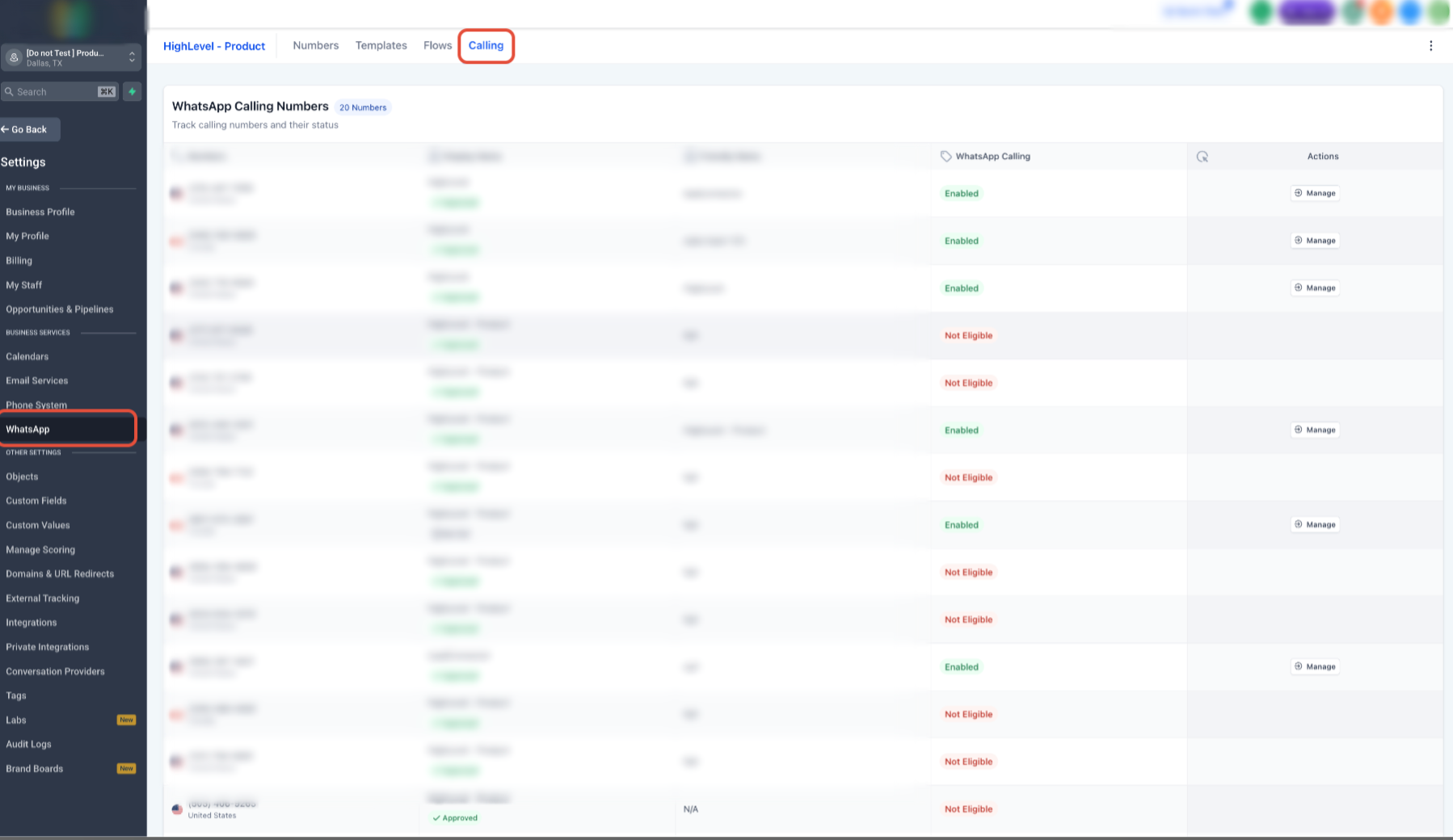
- Open Settings in the subaccount.
- Select WhatsApp from the settings menu.
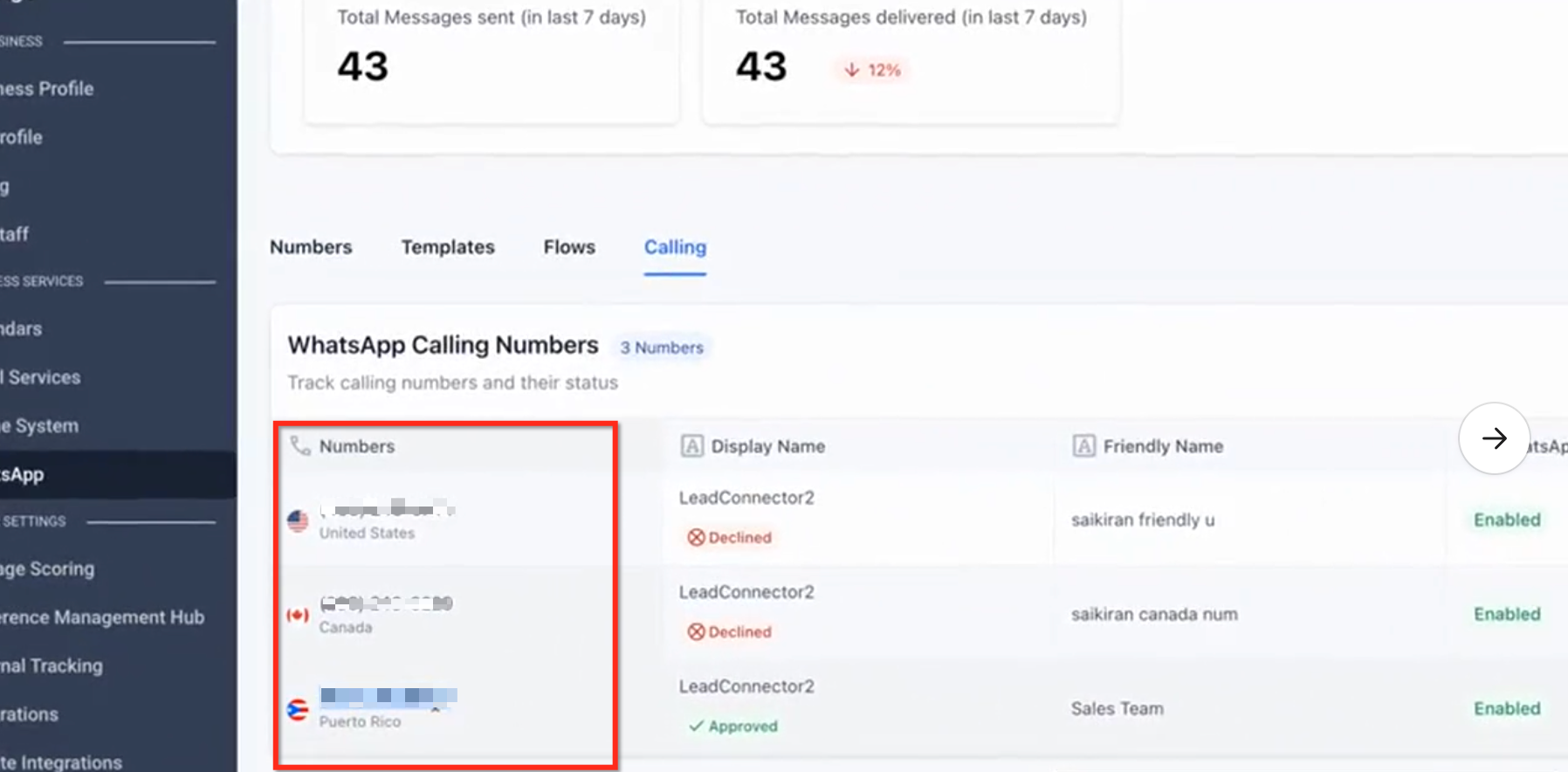
- Choose the Calling tab.
- Pick the WhatsApp phone number you want to configure.
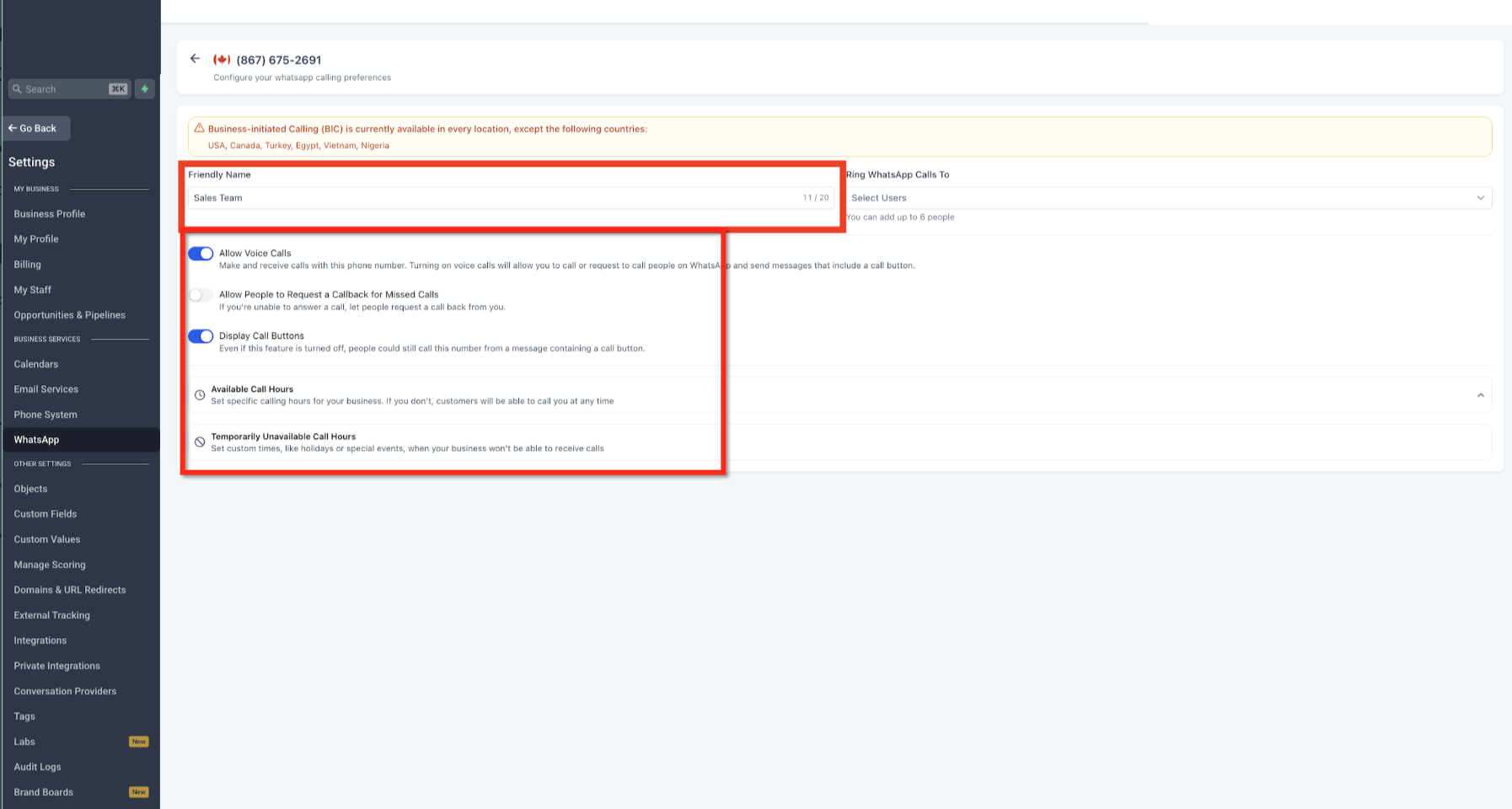
- Enable Allow calls and configure Callback on missed calls and Call buttons as required.
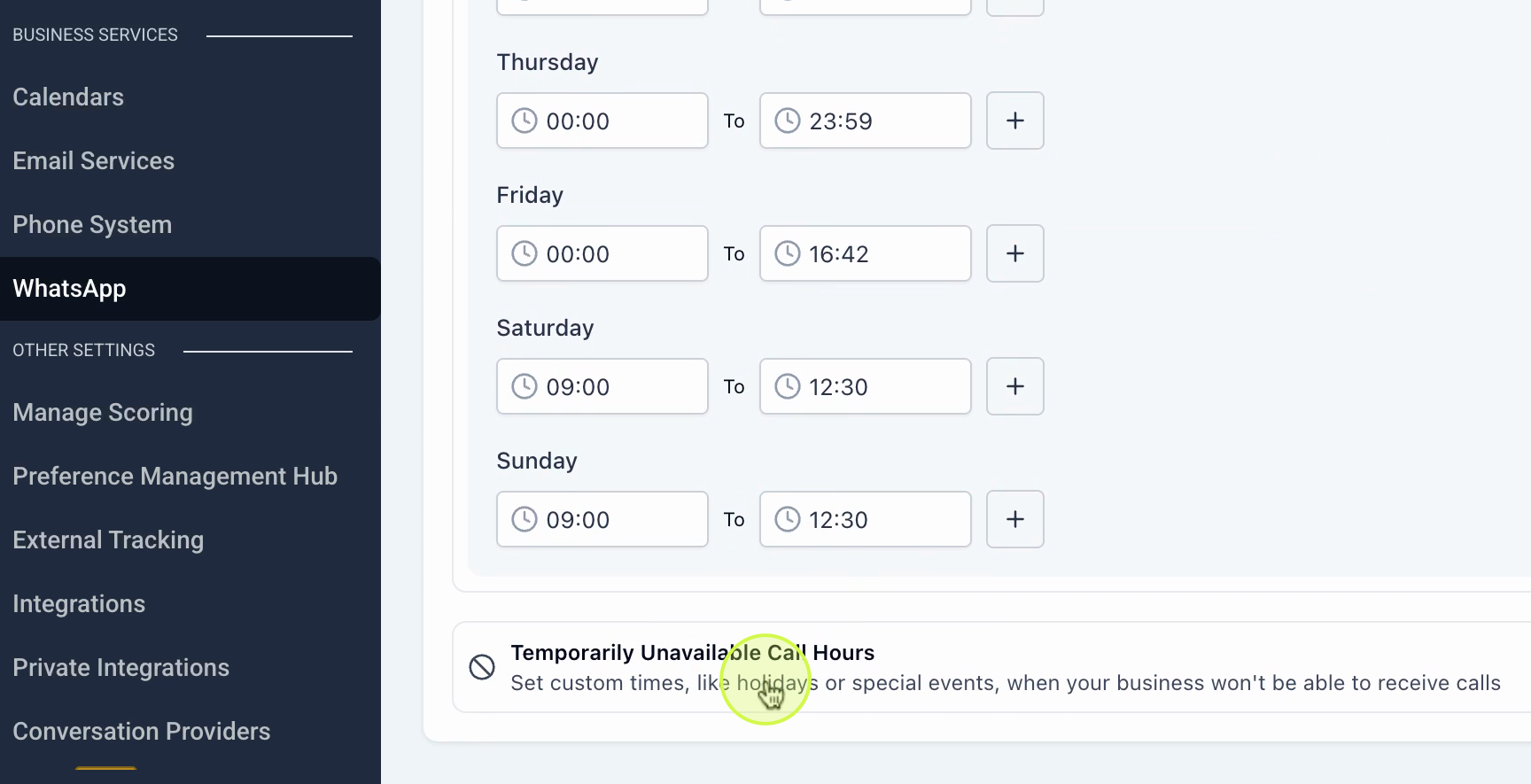
- Set your Available hours and add any Temporarily unavailable hours.
- Save the changes.
07What it looks like in HighLevel
08Settings that matter
- Allow calls. Controls whether the selected WhatsApp number can make and receive voice calls inside HighLevel.
- Callback on missed calls. Enables a prompt that lets customers request a call back when they miss an incoming WhatsApp voice call.
- Call buttons. Shows a clickable call icon inside the WhatsApp conversation so users can start a voice call without leaving the chat.
- Available hours. Defines the time periods when the team can receive inbound WhatsApp calls.
- Temporarily unavailable hours. Specifies additional times when calls are blocked, overriding the regular available hours.
09Things to know before you rely on it
- WhatsApp Voice Calling is only available in a closed beta and works on the web platform; mobile support may be added later.
- Numbers using WhatsApp Coexistence cannot use this native HighLevel calling feature.
- The feature requires a messaging limit of the 2,000 tier or higher.
10If something goes wrong
- Calling tab does not appear under WhatsApp settings. Verify that the subaccount has beta access, the WhatsApp number is connected, the messaging limit meets the required tier, and the number is not using WhatsApp Coexistence.
11How it connects to the rest of HighLevel
- Set up inbound call flow for Voice AI agents Inbound call flow
- Configure working hours for Voice AI agents Working hours
- All AI Employee features overview AI Employee features
Michael's take

Once the basics are in place, I’d turn on Call buttons so agents can jump from chat to voice in a single click, and I’d enable Callback on missed calls to capture any lost opportunities. Test a quick inbound call with a colleague to confirm the flow before rolling it out to the whole team.