
01Who this is for
- Founders of outbound marketing agencies benefit by gaining full visibility into AI driven call campaigns and spotting trends quickly.
- Sales managers in real estate firms can see which lead generation workflows generate the most connected calls and adjust outreach timing.
- Customer support leaders in subscription businesses use the dashboard to monitor call outcomes and ensure follow up actions fire correctly.
02Voice AI outbound calling dashboards, explained
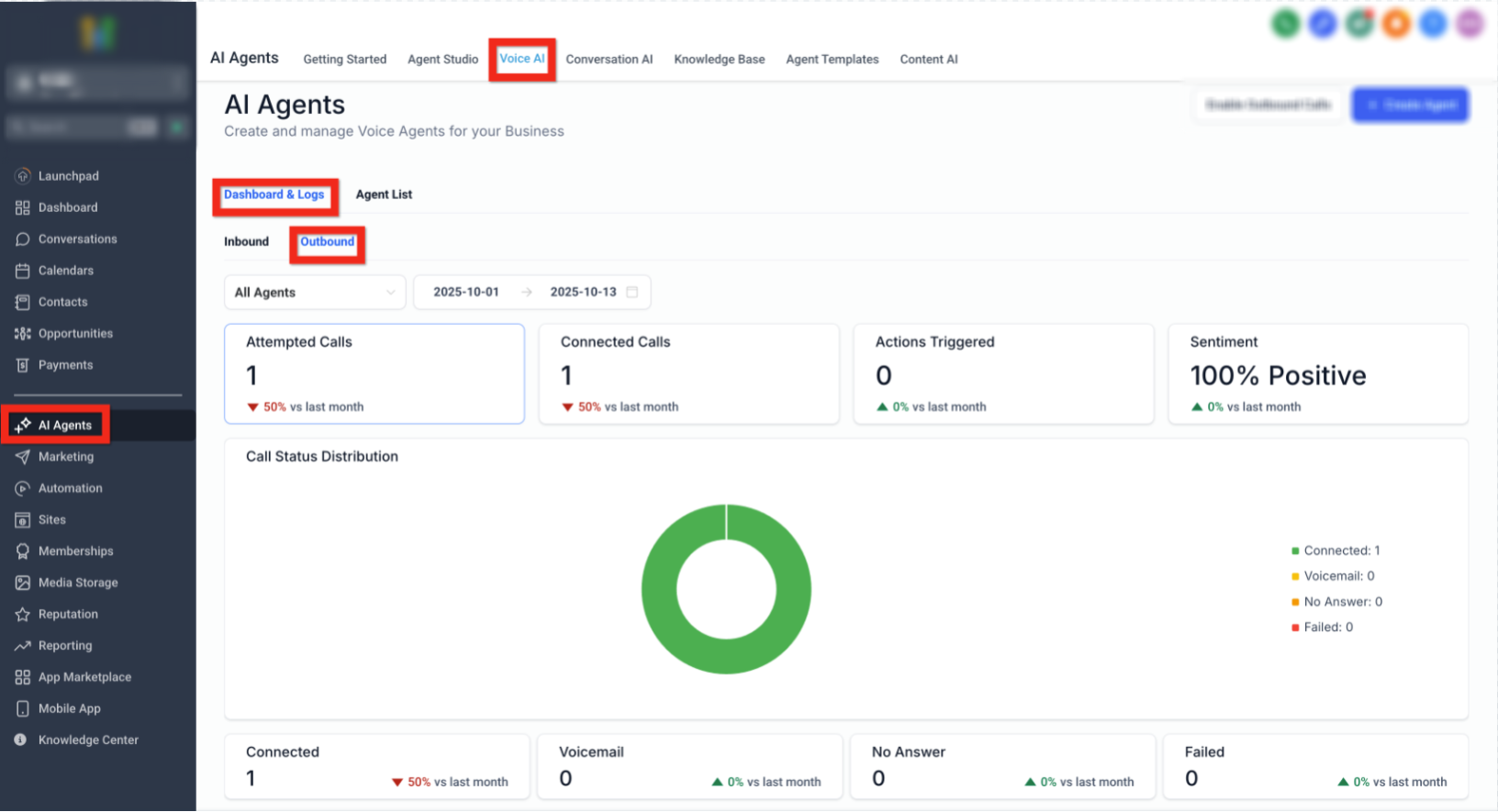
The dashboard is an analytics page inside the HighLevel platform. It aggregates data from every outbound call an AI agent attempts, including successful connections, voicemails, no answer and failed attempts. Tiles show total attempts, connected calls, total and average duration, and a sentiment breakdown of conversations.
Trend charts let users compare performance over the current month, week or year. An actions tile reports how often workflows trigger follow up steps during or after a call. A call status distribution chart visualises the proportion of each outcome. Detailed logs list each call with status, workflow name, contact, timestamp, duration, recording and transcript.
The dashboard lives under AI Agents > Voice AI > Dashboard & Logs > Outbound. Filters for specific agents and date ranges let users narrow the view to particular campaigns or time periods.
03How businesses use Voice AI outbound calling dashboard
- Real estate brokerage. The team opens the outbound dashboard, selects the AI agent that runs their cold call campaign, and reviews the attempted call tile to confirm the volume of calls placed. They then examine the connected call tile and trend chart to see weekly changes in outreach success.
- Medical clinic. Staff filter the dashboard by date to match a recent appointment reminder workflow. They check the actions tile to verify that reminder calls are triggering follow up SMS messages, and they use the call logs to listen to recordings of any failed attempts.
- SaaS startup. Product marketers open the dashboard, view the sentiment tile to gauge prospect reactions, and use the workflow name column in the call logs to identify which onboarding sequence generated the most positive outbound conversations.
04Before you start
- A HighLevel subaccount with Voice AI agents configured.
05How to set up and use Voice AI outbound calling dashboard in HighLevel
Access the outbound dashboard
- Sign in to the appropriate HighLevel subaccount.
- Navigate to the AI Agents section.
- Open the Voice AI tab within AI Agents.
- Select Dashboard & Logs from the Voice AI options.
- Click the Outbound button to load the outbound dashboard.
- Apply the agent filter to choose a specific AI agent.
- Set the date filter to define the desired reporting period.
- Examine the dashboard tiles for attempted calls, connected calls, actions triggered and sentiment.
- Review the call status distribution chart for outcome breakdowns.
- Open the call logs to inspect individual outbound call attempts when needed.
06What it looks like in HighLevel
07How it connects to the rest of HighLevel
- Learn how to build and launch a Voice AI agent in HighLevel Create Voice AI agents
- Configure inbound call flow for Voice AI in HighLevel Inbound call flow
- View HighLevel pricing and plans for AI Employee features Pricing
Michael's take

The Voice AI outbound calling dashboard is a solid way to keep tabs on how your AI driven outbound calls are performing.
If you don’t run outbound Voice AI campaigns, you can skip this dashboard.