
01Who this is for
- Customer support teams benefit from clearer client speech, reducing repeats.
- Marketing departments gain a polished brand sound that matches their tone.
- Sales reps using voice AI can keep conversations flowing with natural acknowledgments.
02Voice AI noise cancellation & backchanneling, explained
Noise Cancellation and Backchanneling are audio enhancements applied to Voice AI calls. Noise Cancellation filters out ambient sounds such as HVAC hum or keyboard clicks, making the main speaker easier to hear. Backchanneling inserts brief acknowledgments like “uh huh” during pauses, signaling that the AI is listening.
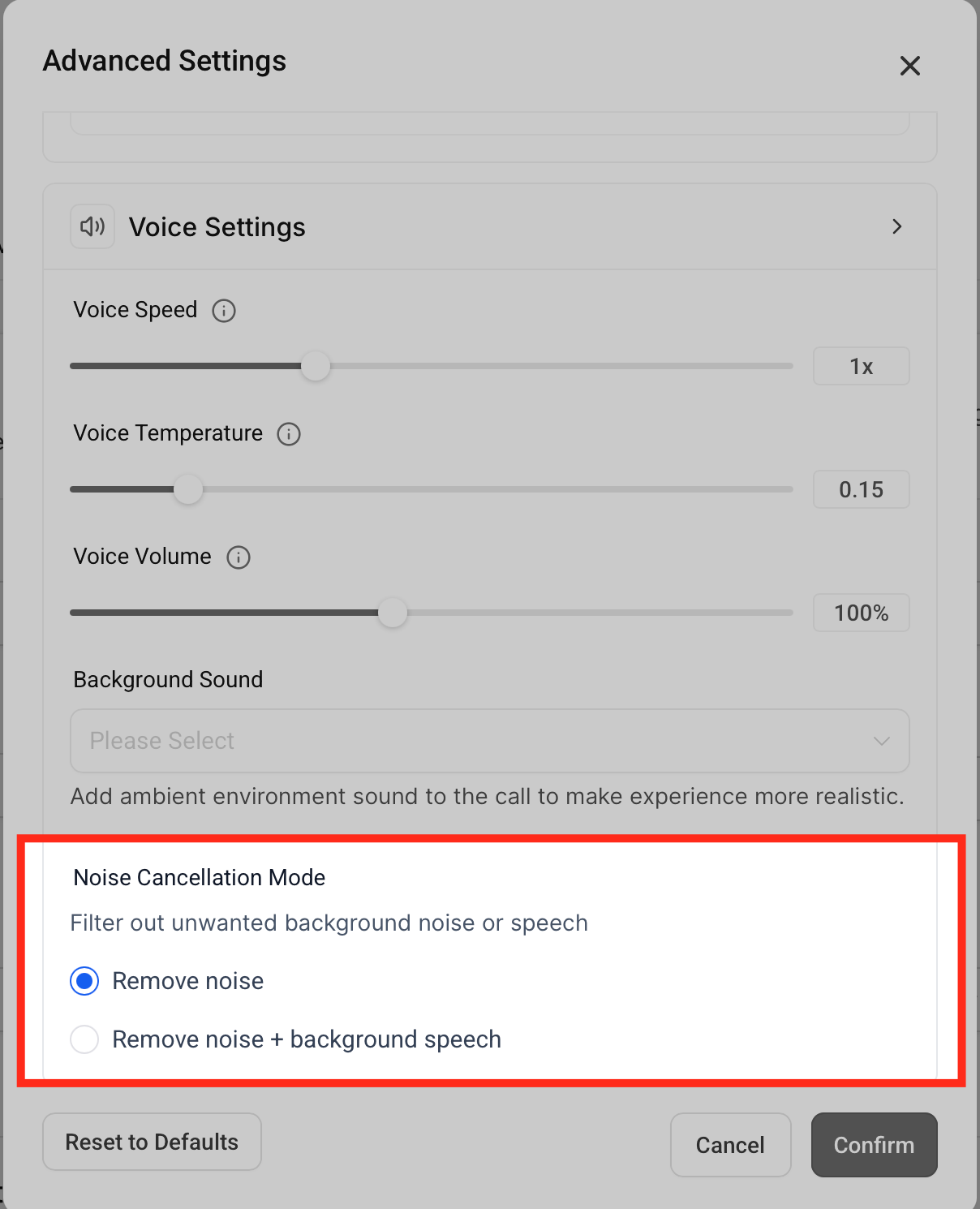
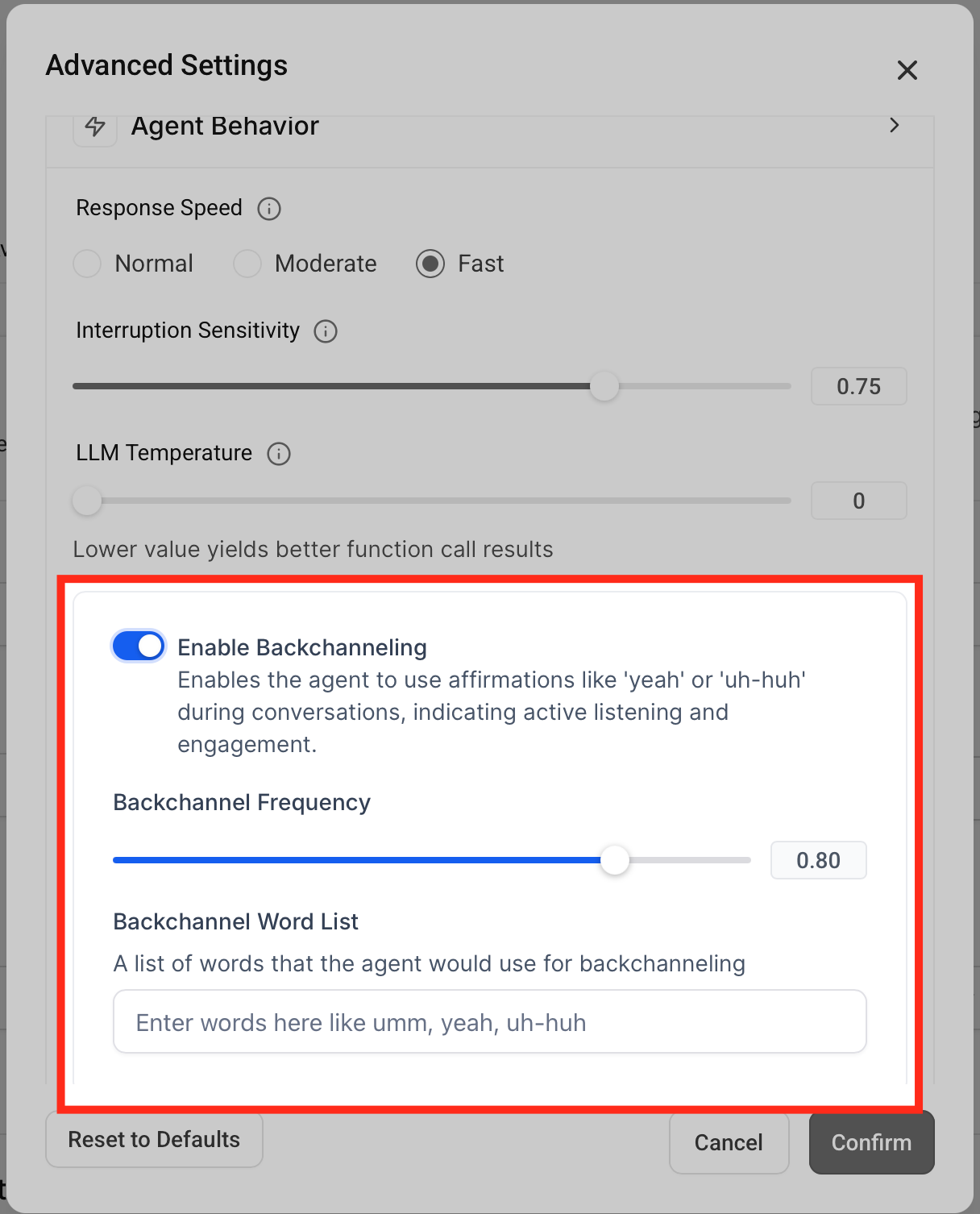
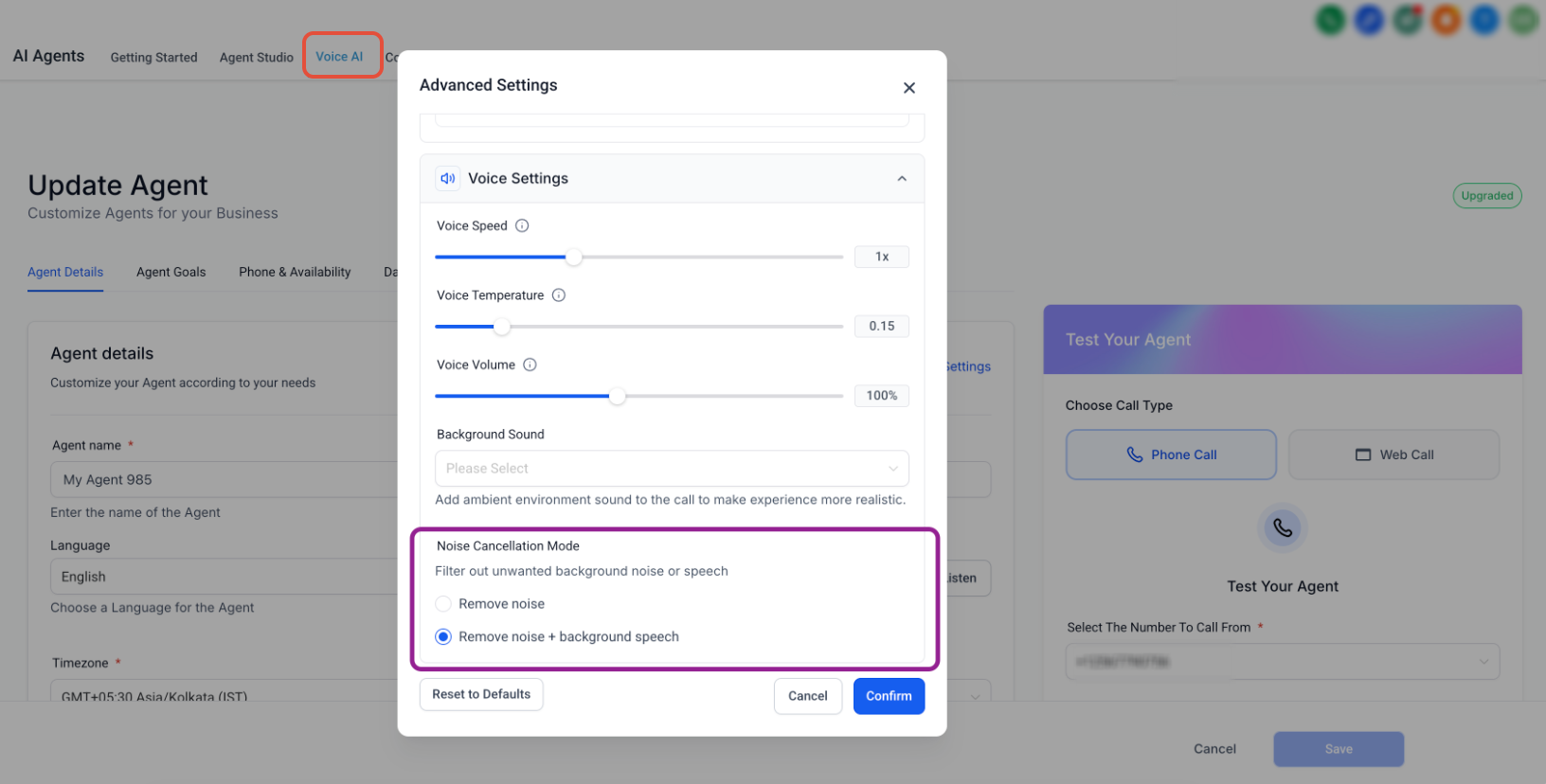
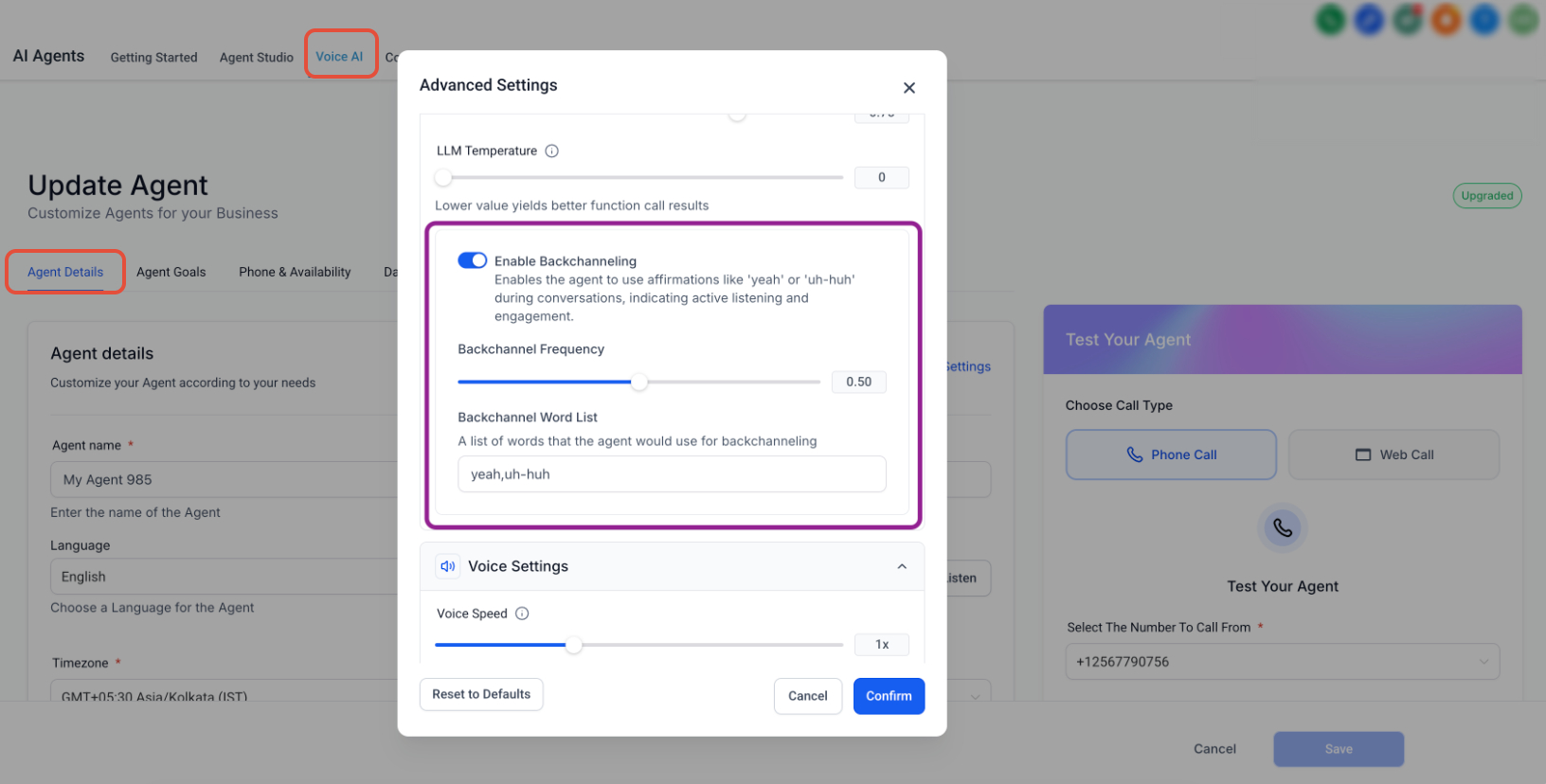
These features are turned on in Labs and then configured for each agent under Voice AI > Agents. Within an agent’s Advanced Settings you choose a Noise Cancellation mode, either basic ambient filtering or a stronger setting that also removes overlapping speech. You can also enable Backchanneling, set how often cues appear, and edit the exact phrases used.
All changes are saved at the agent level. After configuration you can run a test call using built in options to hear the result and review the call log for audio quality.
03How businesses use Voice AI noise cancellation & backchanneling
- Dental practice. The practice enables Noise Cancellation to reduce the sound of dental equipment during virtual intake calls. Backchanneling is set to a moderate frequency with simple phrases like “okay” to keep patients comfortable while the AI gathers information.
- Real estate agency. Agents activate the Background Speech suppression mode for property tours conducted from busy open house locations. They customize Backchannel Words to match their brand tone, ensuring callers feel heard during property descriptions.
- Call center. The center selects the highest Noise Cancellation level to block nearby conversations in a shared workspace. Backchanneling is tuned to a low cadence to avoid cluttering high volume interactions, and the settings are applied to each AI agent handling inbound leads.
04How to set up and use Voice AI noise cancellation & backchanneling in HighLevel
Enable the Feature in Labs
- Go to Settings > Labs.
- Find Voice AI, Noise Cancellation & Backchanneling.
- Switch the toggle to on.
- Return to Voice AI > Agents to edit an agent.
Configure an Agent
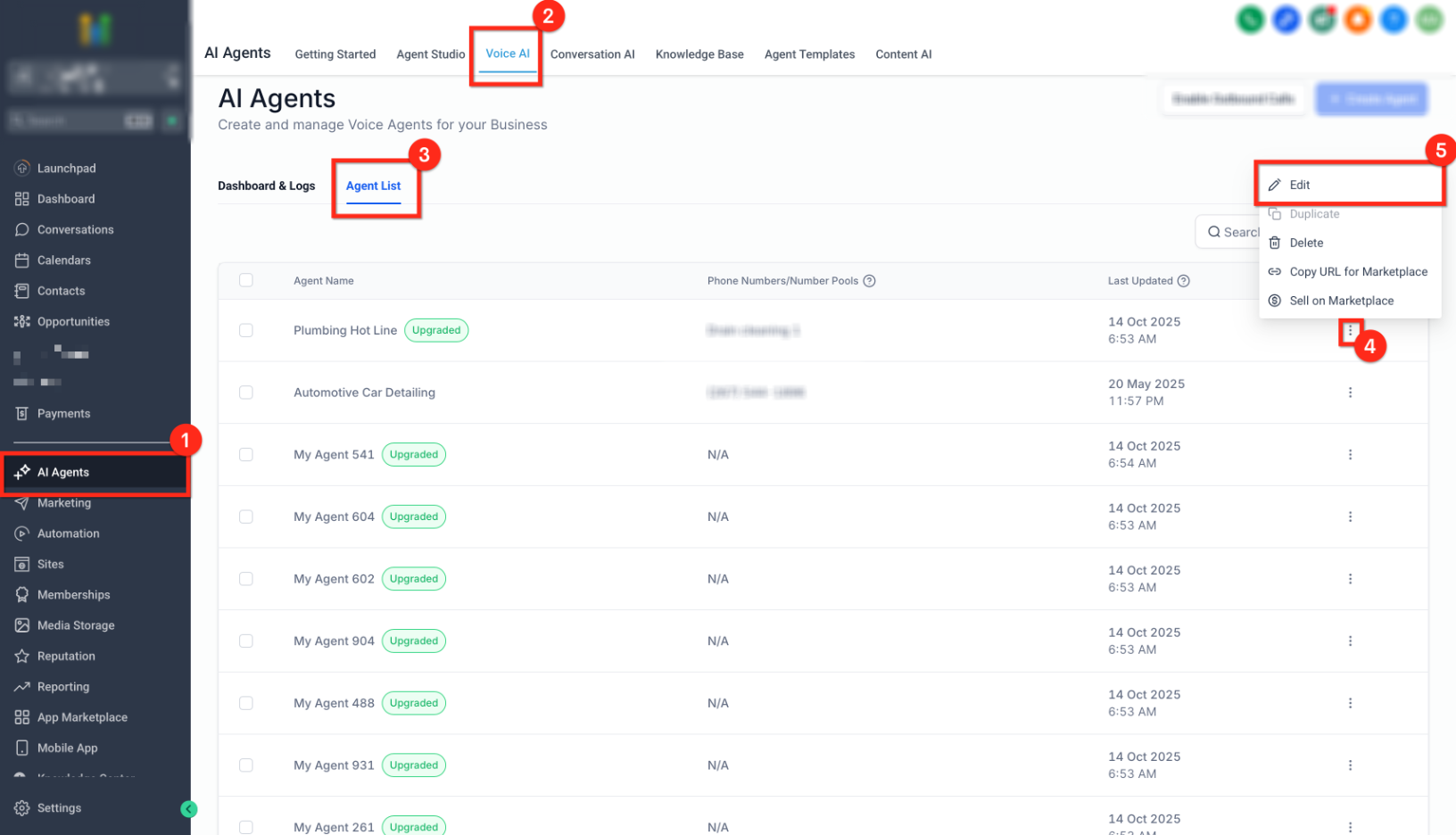
- Open Voice AI > Agents and select Edit for the target agent.
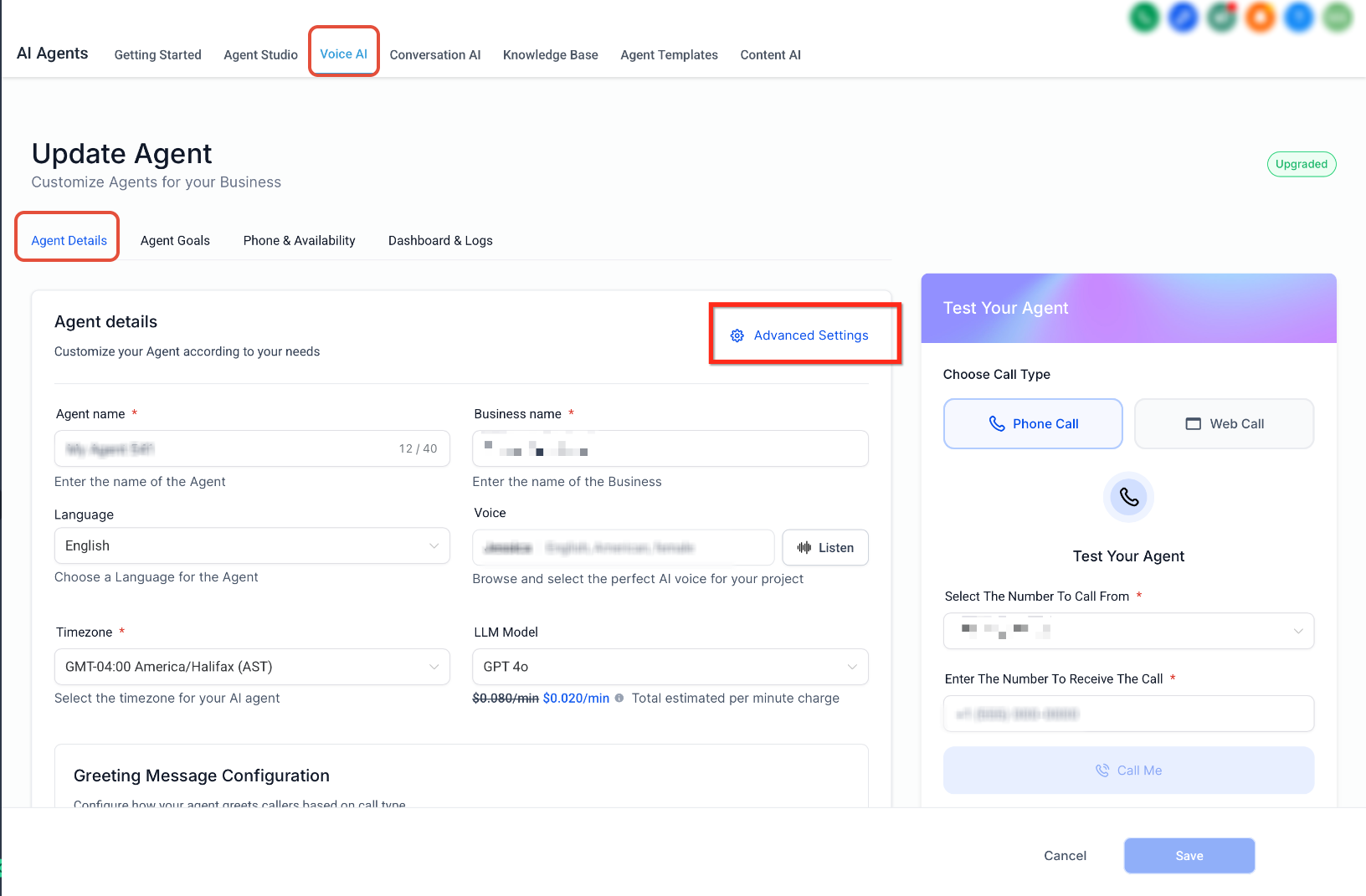
- Open the Advanced Settings panel.
- Pick the desired Noise Cancellation mode.
- Turn on Backchanneling, set the Frequency, and edit Backchannel Words if needed.
- Click Save.
Test Before Going Live
- Use the Test options such as Call Me or Web Call to hear the audio.
- Have a teammate speak from a typical environment like an office, car, or café.
- Review the call in Voice AI > Dashboard/Logs to confirm audio quality and pacing.
05What it looks like in HighLevel
06Settings that matter
- Voice AI, Noise Cancellation & Backchanneling. Activates the audio enhancement features for all Voice AI agents.
- Noise Cancellation mode. Chooses between filtering only ambient sounds or also suppressing overlapping speech.
- Backchannel Frequency. Controls how often brief acknowledgment cues are inserted during pauses.
- Backchannel Words. Allows editing of the short phrases used for acknowledgments.
07Things to know before you rely on it
- Agent level audio enhancements must be available before settings can be applied.
- Backchannel cues are limited to brief pauses to avoid talking over the caller.
08How it connects to the rest of HighLevel
- Overview of HighLevel voice AI agents and their business uses Voice AI overview
- How to create and launch a Voice AI agent in HighLevel Create Voice AI agent
- Configure inbound call flow for Voice AI in HighLevel Inbound call flow
Michael's take

Background noise and stiff AI conversations are a big hurdle for businesses that want callers to feel heard and understood. Getting rid of that constant “what did you say?” loop can boost confidence and keep calls moving forward.
The first setting to nail is the Noise Cancellation mode. Start with the simple Remove Noise filter and only add Background Speech suppression if you still hear overlapping talk. Once the audio is clean, the backchannel cadence can be fine tuned without breaking the flow.