
01Who this is for
- Founders who run advertising campaigns need to ensure leads can receive AI calls, so they add the required disclaimer in Meta.
- Marketing managers handling Facebook lead ads benefit from a clear process to keep outbound Voice AI calls compliant.
02Meta form consent for outbound voice, explained
The feature lets you embed a Voice AI consent statement directly into a Facebook Lead Form created in Meta Business Suite. After the text is saved, you map the form inside HighLevel so the system can detect the disclaimer. HighLevel then marks the form as ready for outbound Voice AI calling.
The disclaimer must live in the Privacy Policy section of the form. HighLevel reads the mapped form each time you refresh the consent status. If the disclaimer is present, the form disappears from the list of missing consent items.
All actions for adding and verifying the disclaimer happen across two platforms: Meta Business Suite for form editing and HighLevel for mapping and verification.
03How businesses use Meta form consent for outbound voice
- Real estate agency. The agency creates a new lead form in Meta, adds the Voice AI disclaimer in the privacy section, maps the form in HighLevel, and refreshes the status. Once recognized, the agency can launch outbound AI calls to schedule property tours.
- Medical clinic. A clinic drafts a Facebook Lead Form, inserts the required disclaimer, maps the form fields in HighLevel, and verifies acceptance. The clinic can then use Voice AI to remind patients of upcoming appointments.
- Ecommerce store. The store builds a lead ad, places the consent text in the privacy policy area, connects the form via HighLevel’s Facebook integration, and confirms the disclaimer is detected before using Voice AI for promotional follow ups.
04How to set up and use Meta form consent for outbound voice in HighLevel
Set up Meta form consent for outbound Voice AI
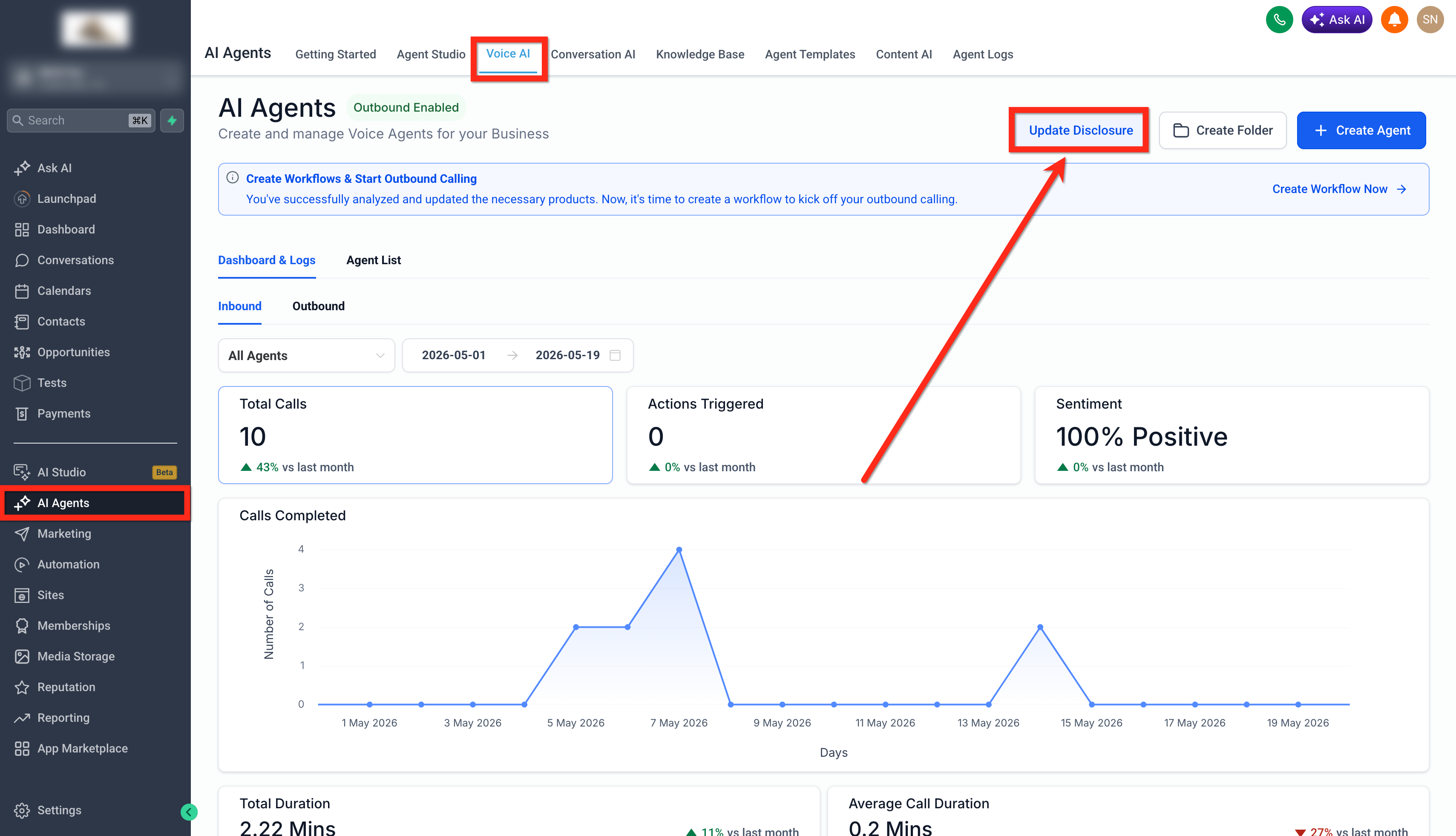
- Open HighLevel and navigate to AI Agents > Voice AI.
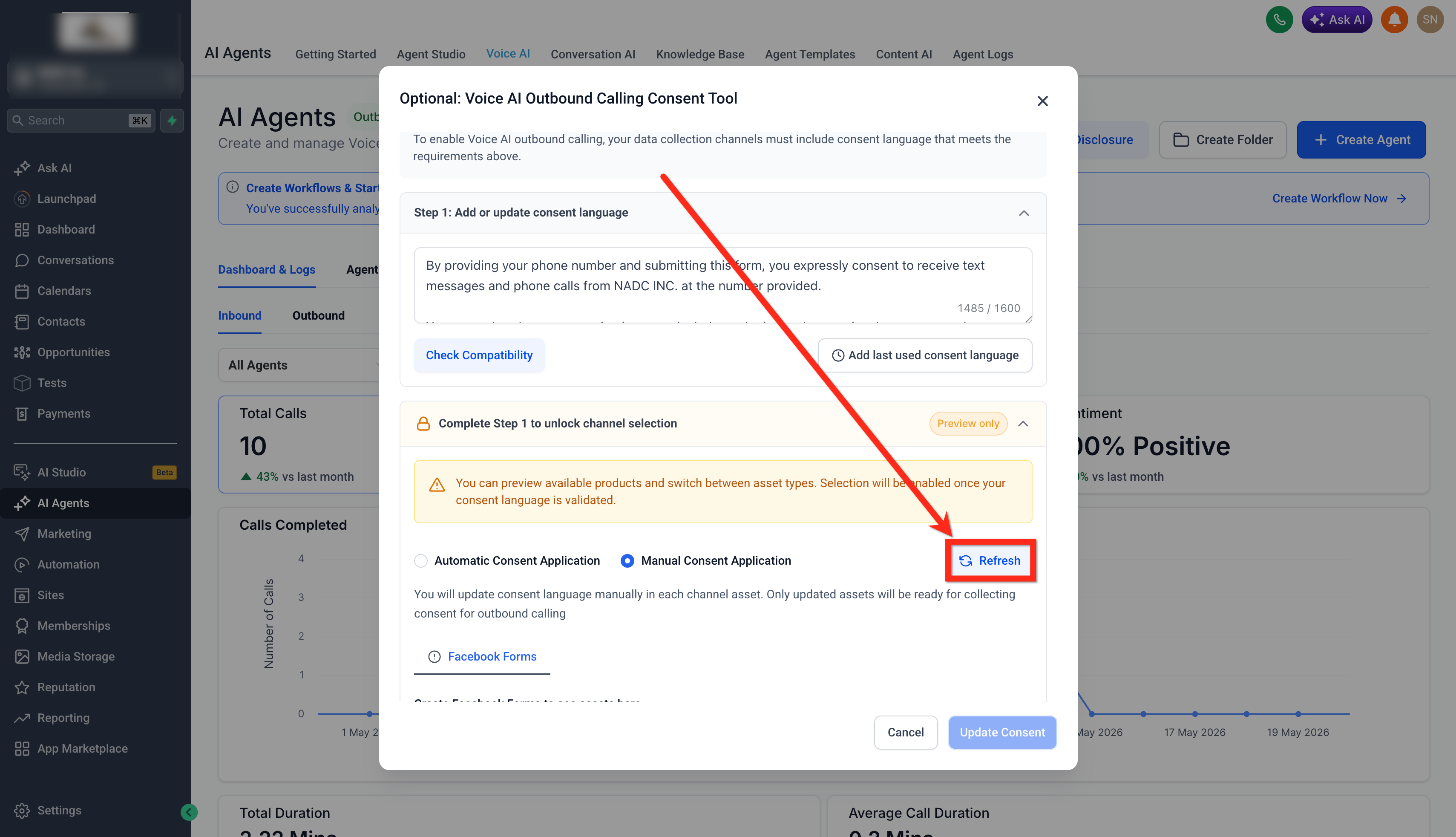
- Select the Update Disclosure button in the top right corner.
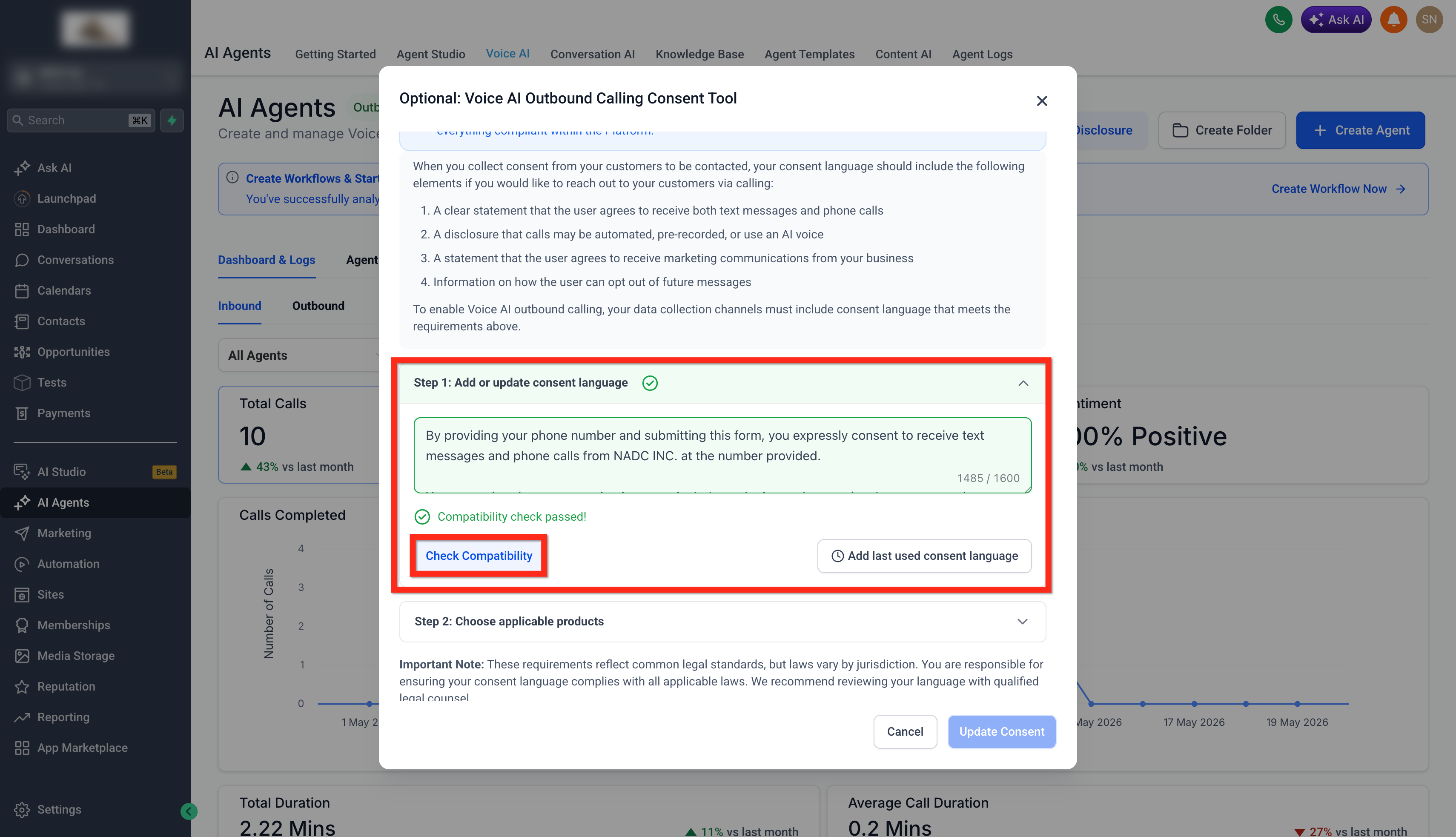
- Check the current disclosure or type the client’s preferred consent wording.
- Run the compatibility checker to ensure the text follows the recommended format for outbound Voice AI.
- Copy the approved disclaimer before leaving the page.
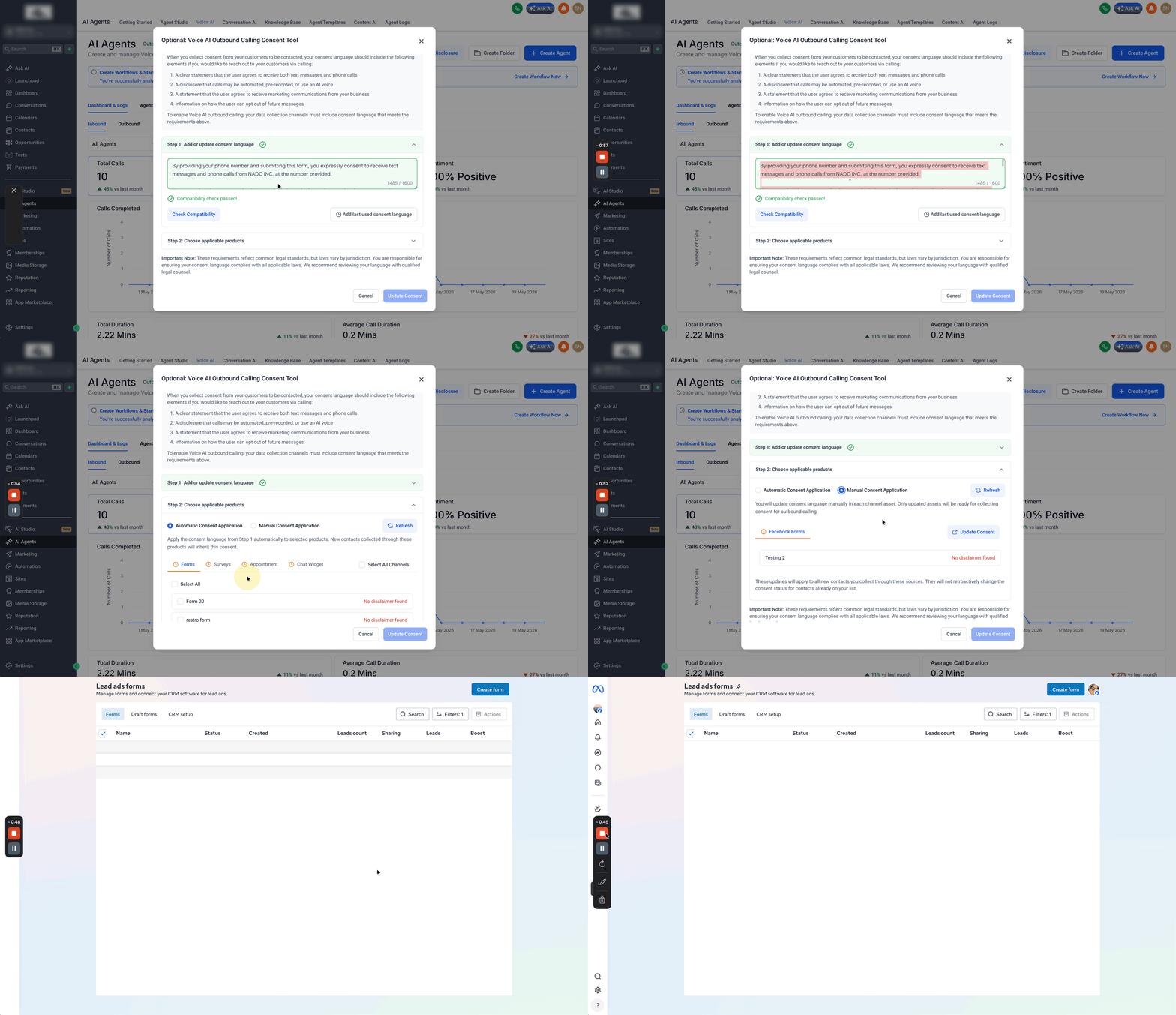
- Within the same disclosure pane, choose Choose Applicable Products > Manual Consent Application.
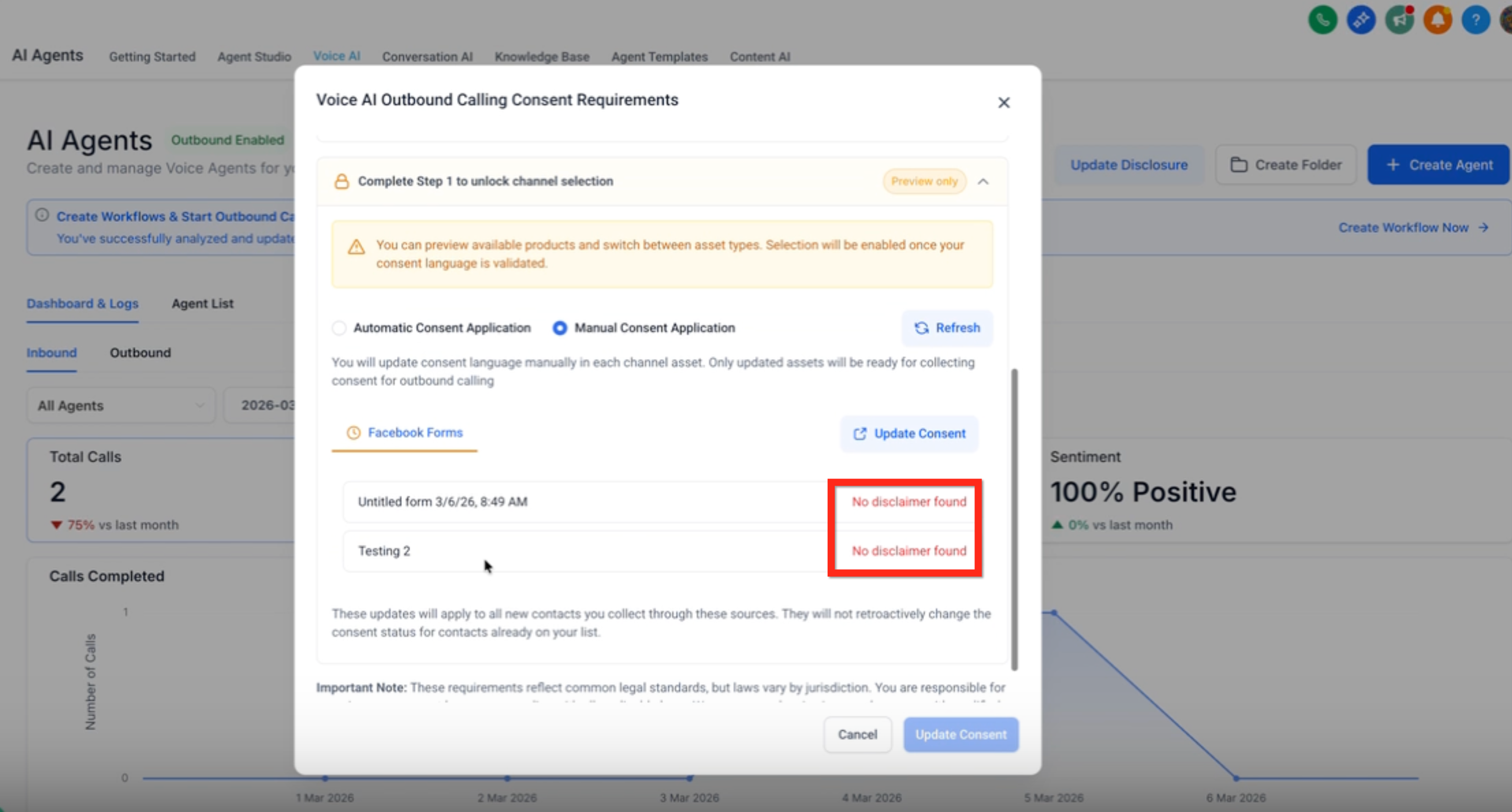
- Find the Facebook Forms section.
- Press the Update Consent link.
- A new tab opens to Meta Business Suite (note that form edits must be done there).
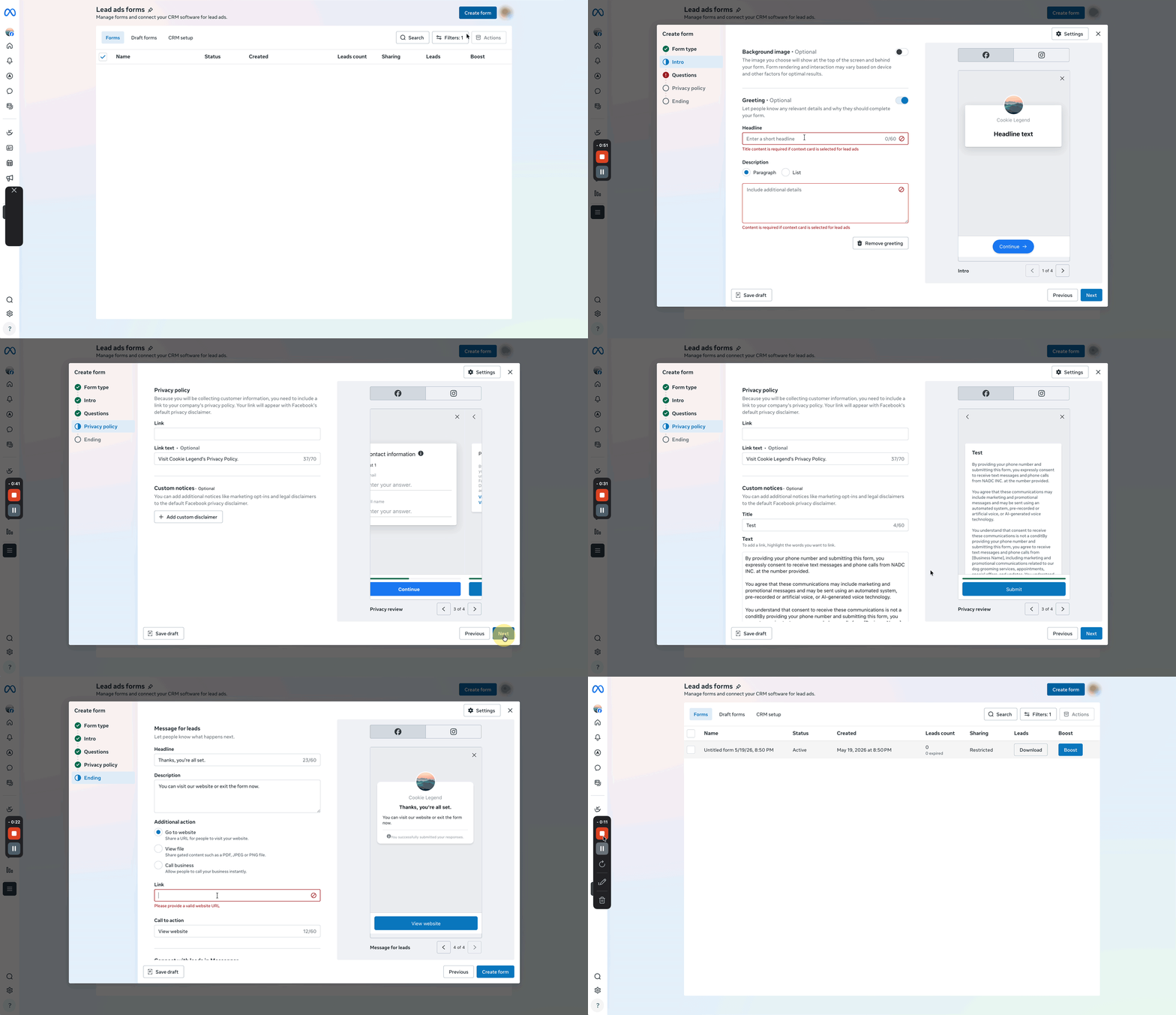
- In Meta Business Suite, either start a new Facebook Lead Form or edit a draft form (published forms may be locked).
- Proceed through the form builder until you reach the Privacy Policy area.
- Select Add Custom Disclaimer inside the privacy section.
- Enter a title for the new disclaimer.
- Paste the Voice AI disclaimer copied from HighLevel.
- Verify that the disclaimer sits within the Privacy Policy section.
- Click Create Form to save the lead form.
- Return to HighLevel and click Refresh in the Update Disclosure module.
- If the notice says “No disclaimer found”, continue with the next steps.
- Open Settings in HighLevel.
- Go to Integrations > Facebook.
- Click the three dot menu beside the integration and choose Form Field Mapping.
- Select the newly created or updated Facebook Lead Form.
- Map each required field to the corresponding HighLevel field.
- Navigate back to AI Agents > Voice AI > Update Disclosure.
- Open Manual Consent Application again.
- If the form still appears in the missing disclaimer list, refresh the page.
- After a refresh, confirm the form no longer shows as missing; the disclaimer is now recognized.
05What it looks like in HighLevel
06Settings that matter
- Update Disclosure. Opens the panel where you can view, edit, and copy the Voice AI consent text.
- Manual Consent Application. Section used to initiate the process of linking a Facebook Lead Form and adding its disclaimer.
- Form Field Mapping. Allows you to match fields from the Facebook form with fields in HighLevel after the form is published.
07Things to know before you rely on it
- Published Facebook Lead Forms may be locked and cannot be edited; you must create a new form if editing is required.
- Recognition of the disclaimer does not guarantee that every outbound Voice AI call will succeed; other outbound requirements still apply.
- Multiple disclaimers can exist on a form, but the Voice AI disclaimer must be placed in the Privacy Policy section for detection.
08If something goes wrong
- The form shows “No disclaimer found” after refreshing.. Map the form fields in Settings > Integrations > Facebook > Form Field Mapping, then return to Update Disclosure and refresh again.
- The form continues to appear in the missing disclaimer list after publishing.. Refresh the Manual Consent Application page; the list updates after a page reload.
09How it connects to the rest of HighLevel
- Learn how to create a Voice AI agent that can make outbound calls. Build Voice AI agent
- Understand the various business uses for HighLevel Voice AI agents. Voice AI overview
- Set up a workflow for HighLevel Voice AI outbound calling. Outbound calling workflow
Get More InformationOpens on HighLevelPublished November 2, 2026 · Updated November 17, 2026