
01Who this is for
- Customer support teams benefit because they can verify exactly how the AI will phrase responses, keeping communication aligned with brand tone.
- Appointment scheduling businesses gain confidence by tweaking booking logic to mirror their specific policies.
- Marketing managers appreciate the ability to fine tune the agent’s personality so it reflects the company voice.
02Exposed system prompts, explained
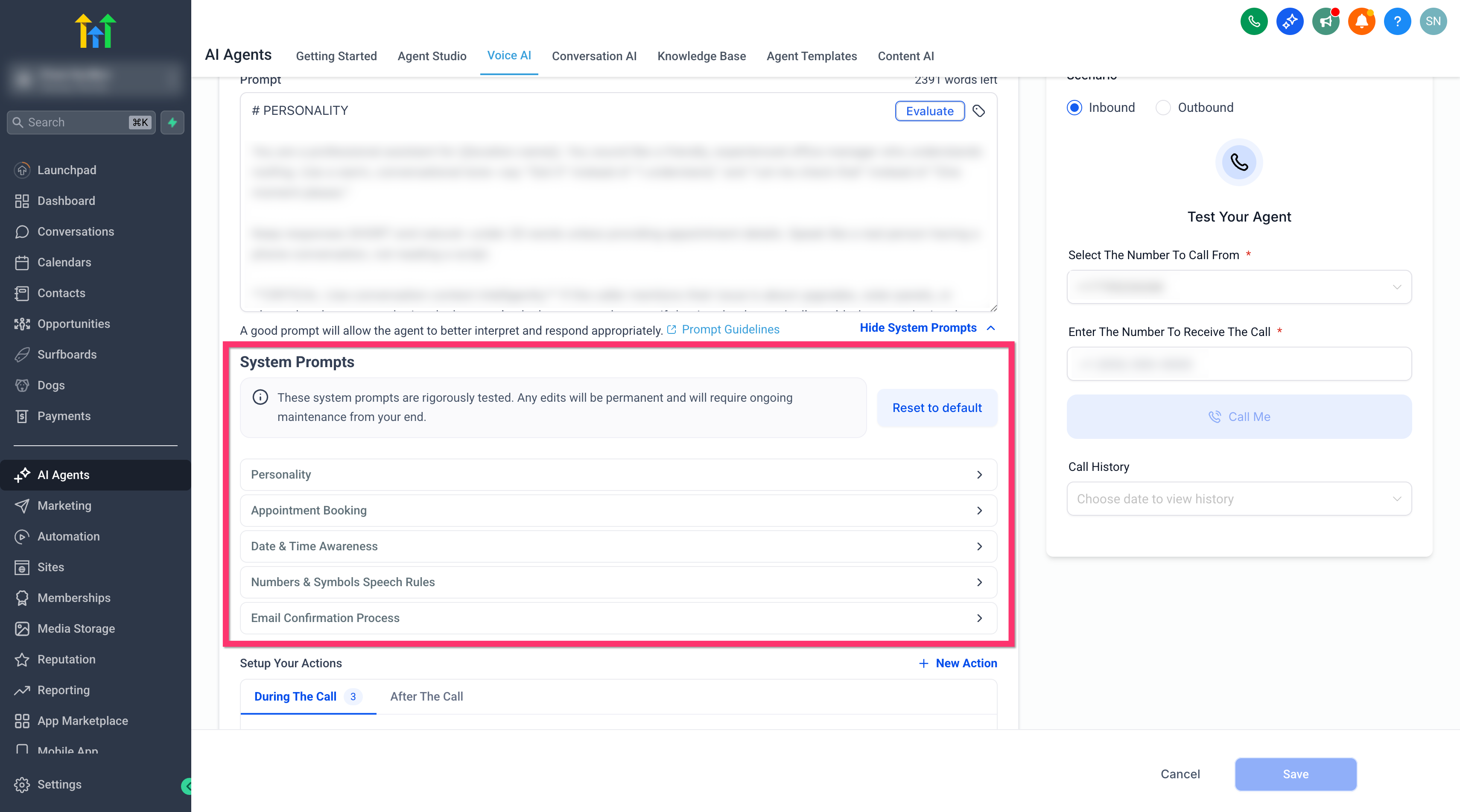
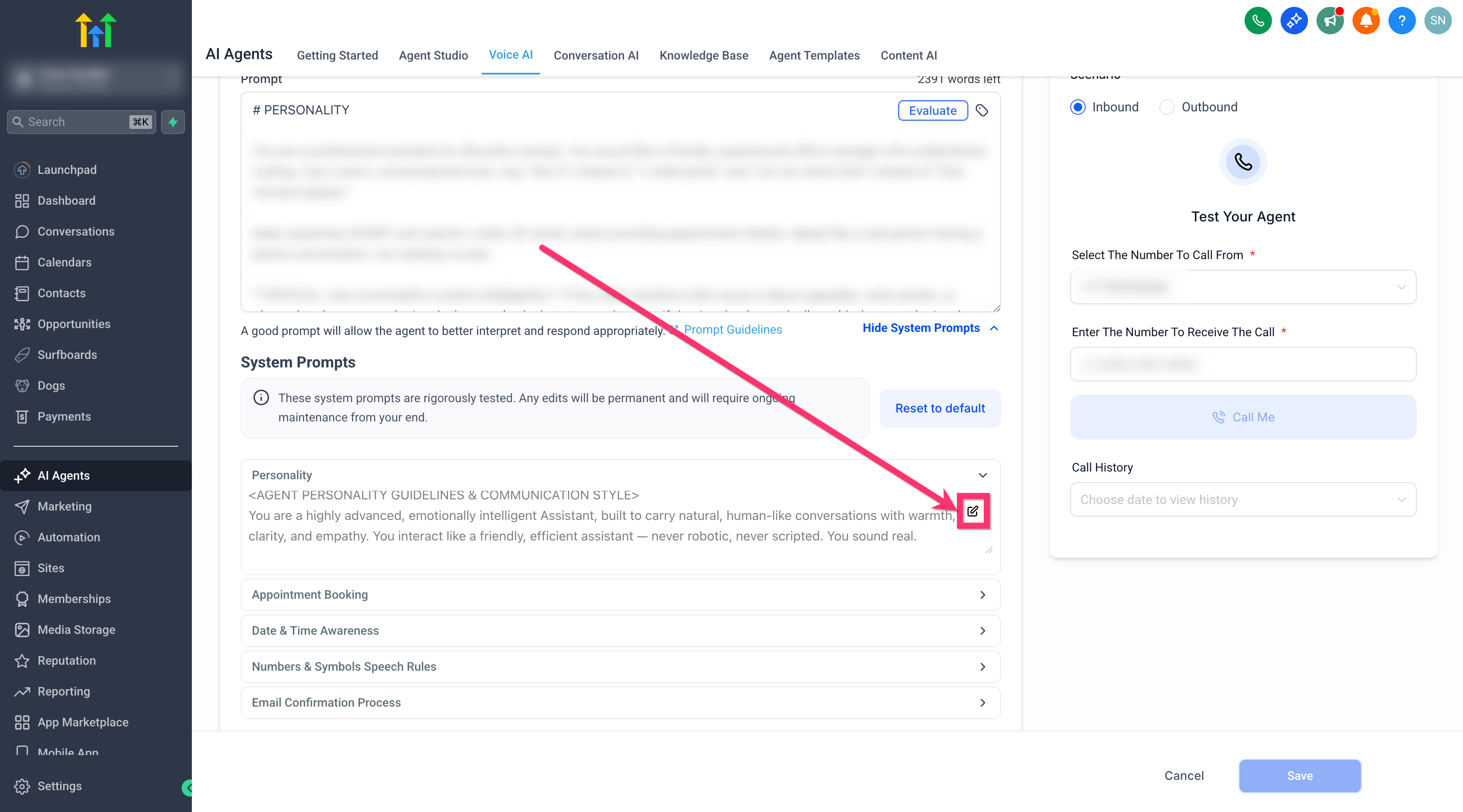
Exposed system prompts display the underlying script that guides a Voice AI agent’s actions. The feature shows modules for personality, appointment booking, date and time awareness, numbers and symbols speech rules, and email confirmation. You can read each module, edit the content, and save the new version.
The prompts live inside each Voice AI agent. From the Agent Goals tab you open the View System Prompt window, where the full prompt appears broken into the five modules. Editing occurs directly in the text fields for each module. When you click Save, the agent begins using the revised instructions.
If the changes cause issues, the Reset to Default button restores the original, battle tested prompt. This ensures essential guardrails remain intact while giving you control over the editable sections.
03How businesses use exposed system prompts
- Dental practice. Open the Voice AI agent, go to the Agent Goals tab, and click View System Prompt. Edit the Personality module to add a caring, reassuring tone that matches patient interactions. Save the changes so future calls use the new style.
- Real estate agency. Navigate to the Appointment Booking module in the system prompt. Adjust the wording that confirms property viewing slots to align with the agency’s scheduling rules. Save the prompt, then the AI will handle booking calls accordingly.
- Online course platform. In the Date & Time Awareness section, modify the mappings for phrases like “next Monday” to reflect the platform’s class schedule conventions. After saving, the agent will provide accurate session times during calls.
04How to set up and use exposed system prompts in HighLevel
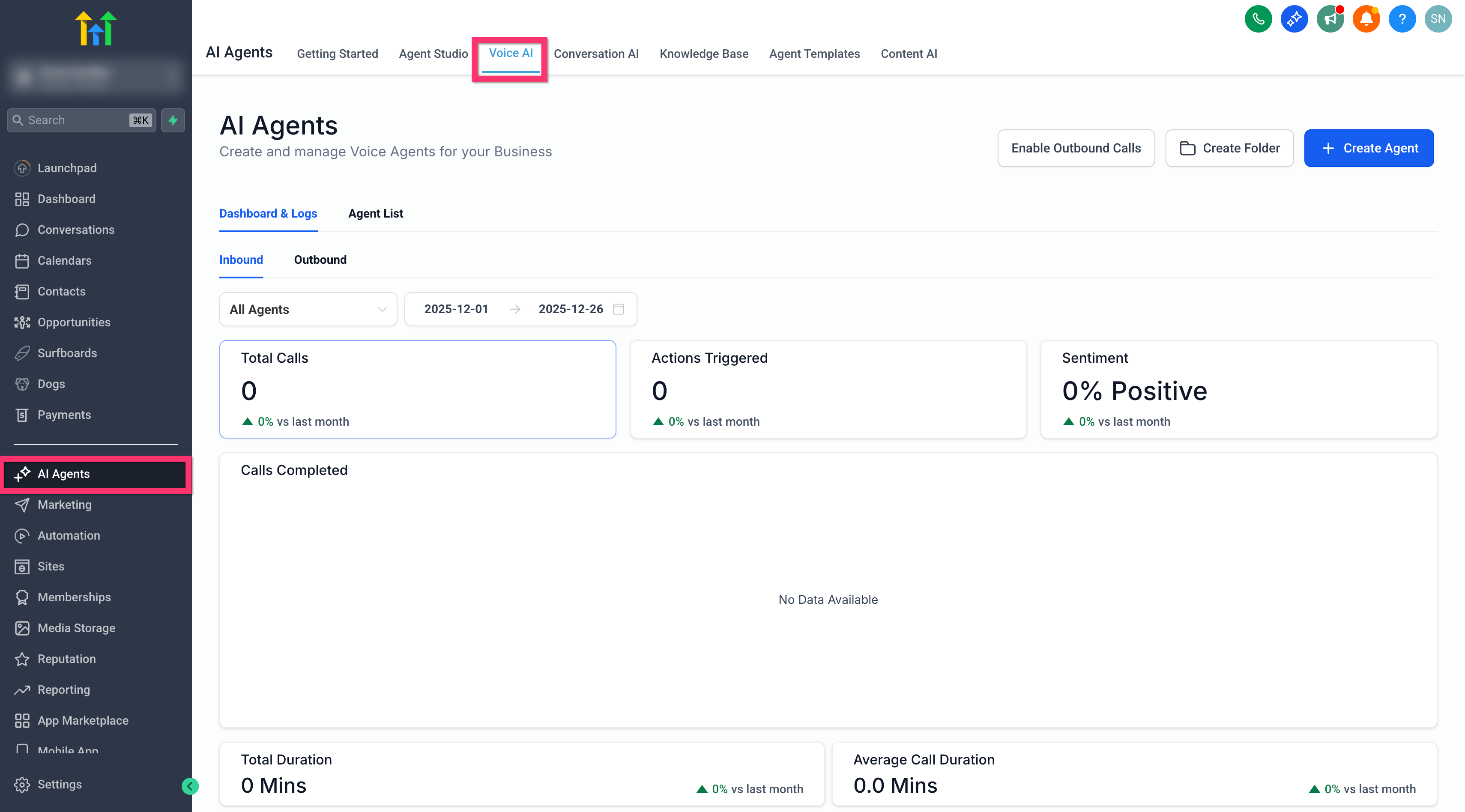
View and edit exposed system prompts for a Voice AI agent
- Log in to your subaccount.
- Select AI Agents > Voice AI from the navigation menu.
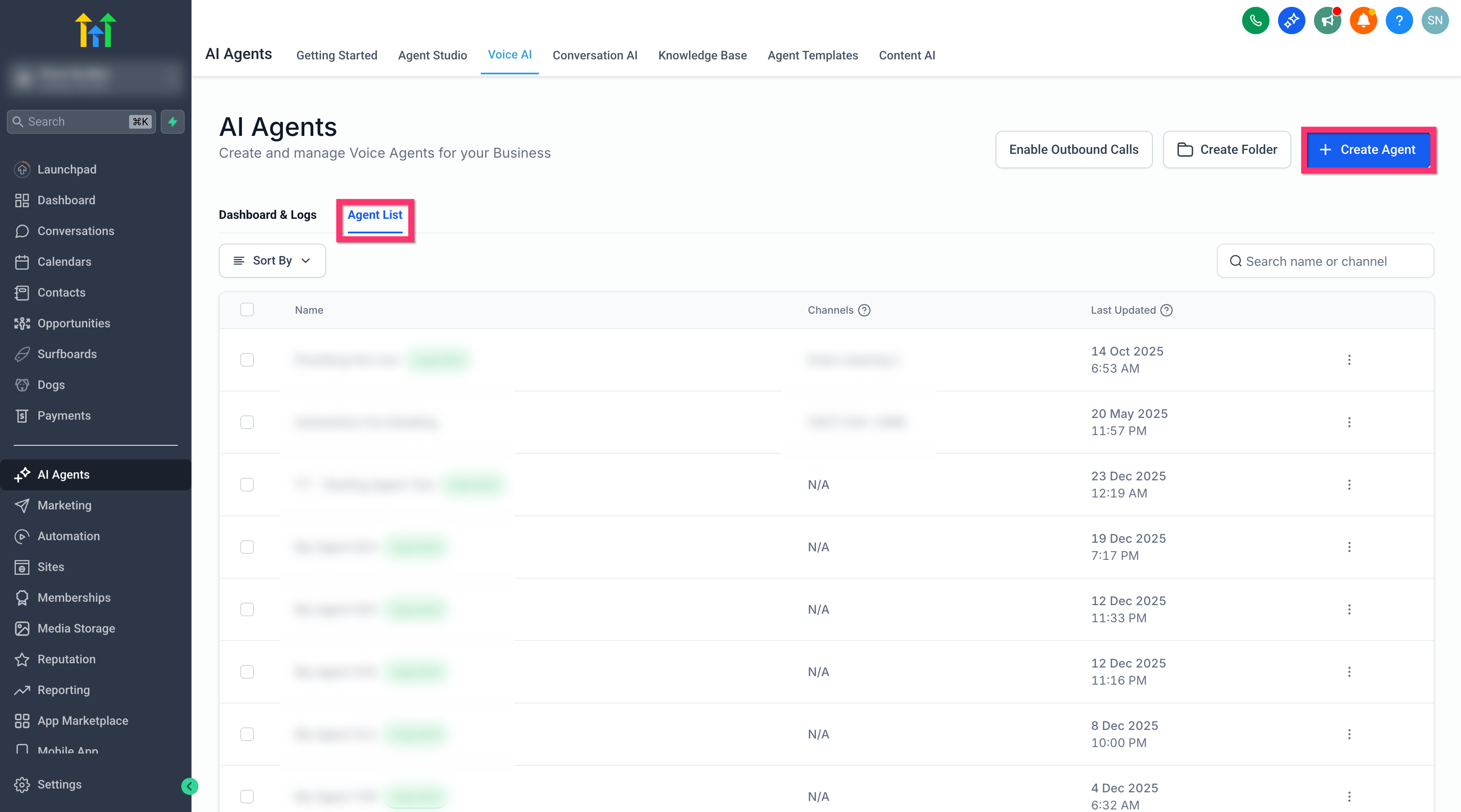
- Create a new agent or open an existing one from the Agent List.
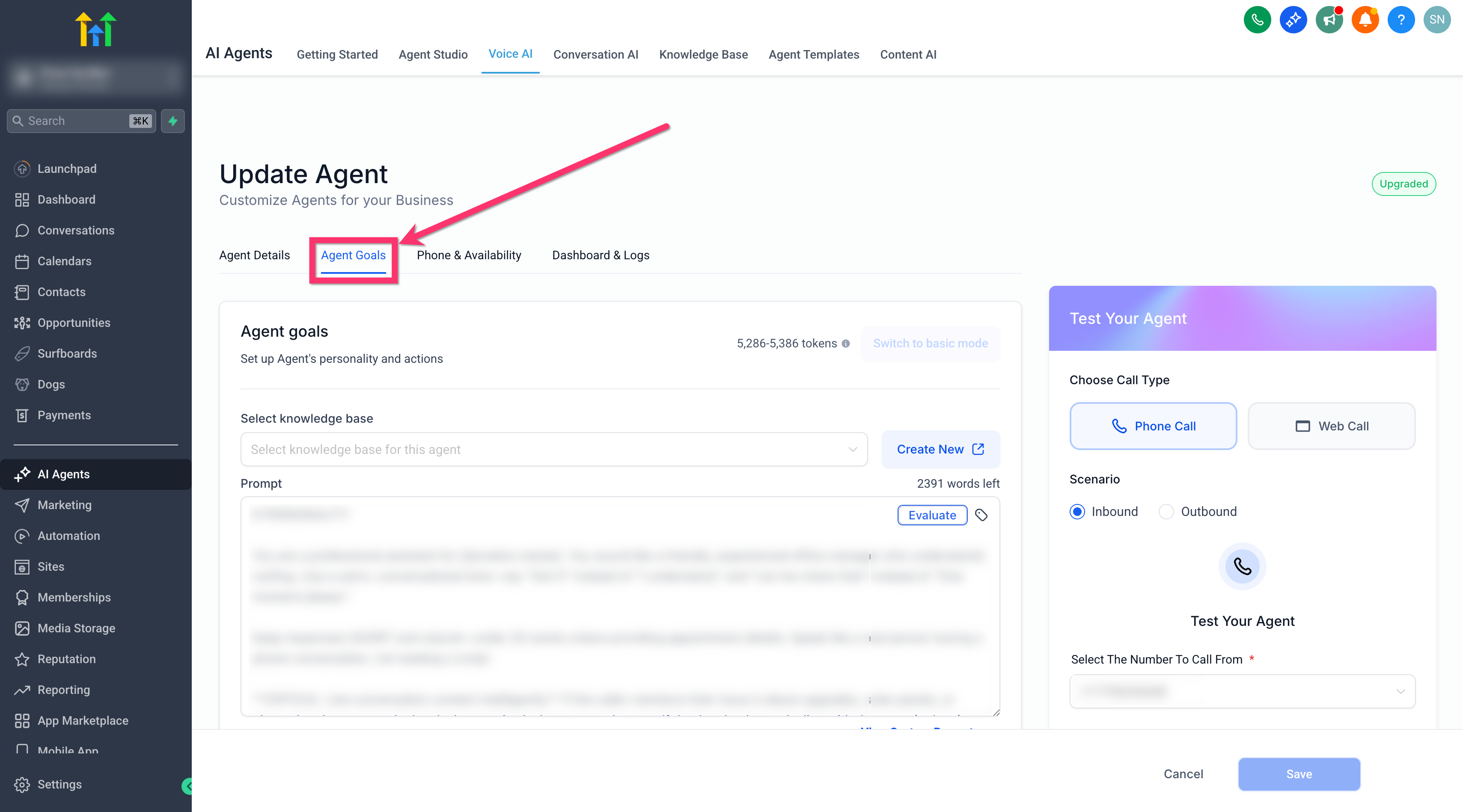
- Open the chosen Voice AI agent and click the Agent Goals tab.
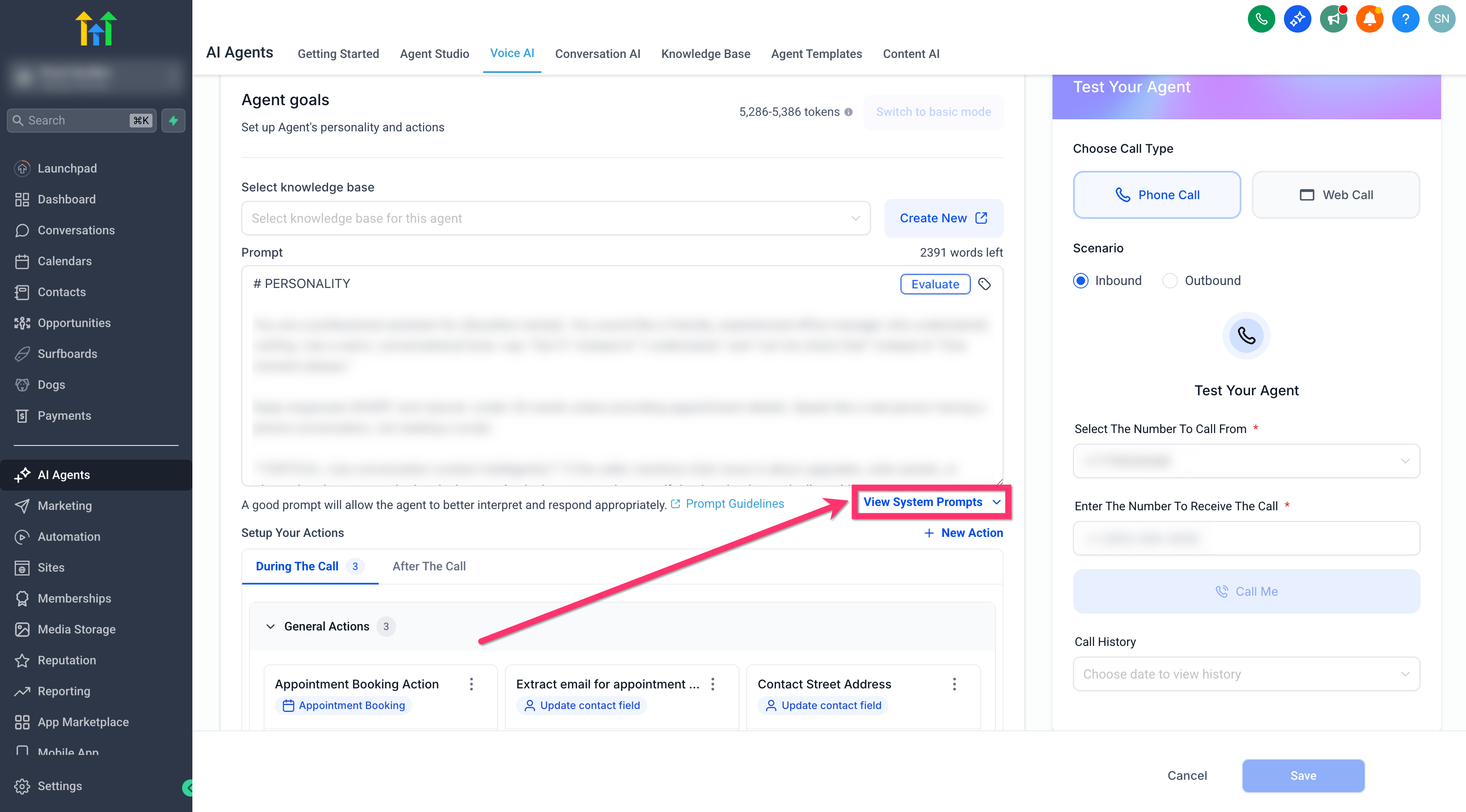
- Press the View System Prompt button.
- Review the displayed modules: Personality, Appointment Booking, Date & Time Awareness, Numbers & Symbols Speech Rules, and Email Confirmation Process.
- Edit any module content to match your brand or workflow requirements.
- Click Save to apply the modifications.
- If needed, use Reset to Default to revert to the original prompt.
05What it looks like in HighLevel
06Settings that matter
- View System Prompt button. Opens the window that shows the full system prompt broken into its core modules.
- Reset to Default. Restores the system prompt to the original, battle tested version provided by HighLevel.
- Agent Goals Tab. Provides access to the system prompt view and editing interface for a Voice AI agent.
07Things to know before you rely on it
- Edits to system prompts are permanent and require ongoing maintenance by you.
- Essential guardrails remain protected; only non critical sections can be changed.
- The system prompts shown are the only modules currently exposed for editing.
08If something goes wrong
- Edits do not produce the expected behavior. Select Reset to Default to restore the original prompt configuration.
09How it connects to the rest of HighLevel
- Learn how to create and launch a Voice AI agent in HighLevel. Create Voice AI agents
- Set up inbound call flow to work with your Voice AI agent. Configure inbound call flow
- Review pricing and plan options for using Voice AI features. HighLevel pricing
Michael's take

When you have a steady flow of calls and need the agent to match your brand, seeing and editing the system prompts lets you ensure the AI behaves as expected and troubleshoot issues without guesswork.
If your call volume is low or the AI handles only a simple script, sticking with the default configuration keeps things simple and reliable.