
01Who this is for
- Call center managers who need to tweak agent wording without rebuilding entire scripts, helping keep call flow consistent.
- Marketing teams that want to adjust tone or personality of a Voice AI agent to match brand voice quickly.
- Product support leaders who must update objection handling language after reviewing support call logs.
02Edit prompts with AI, explained
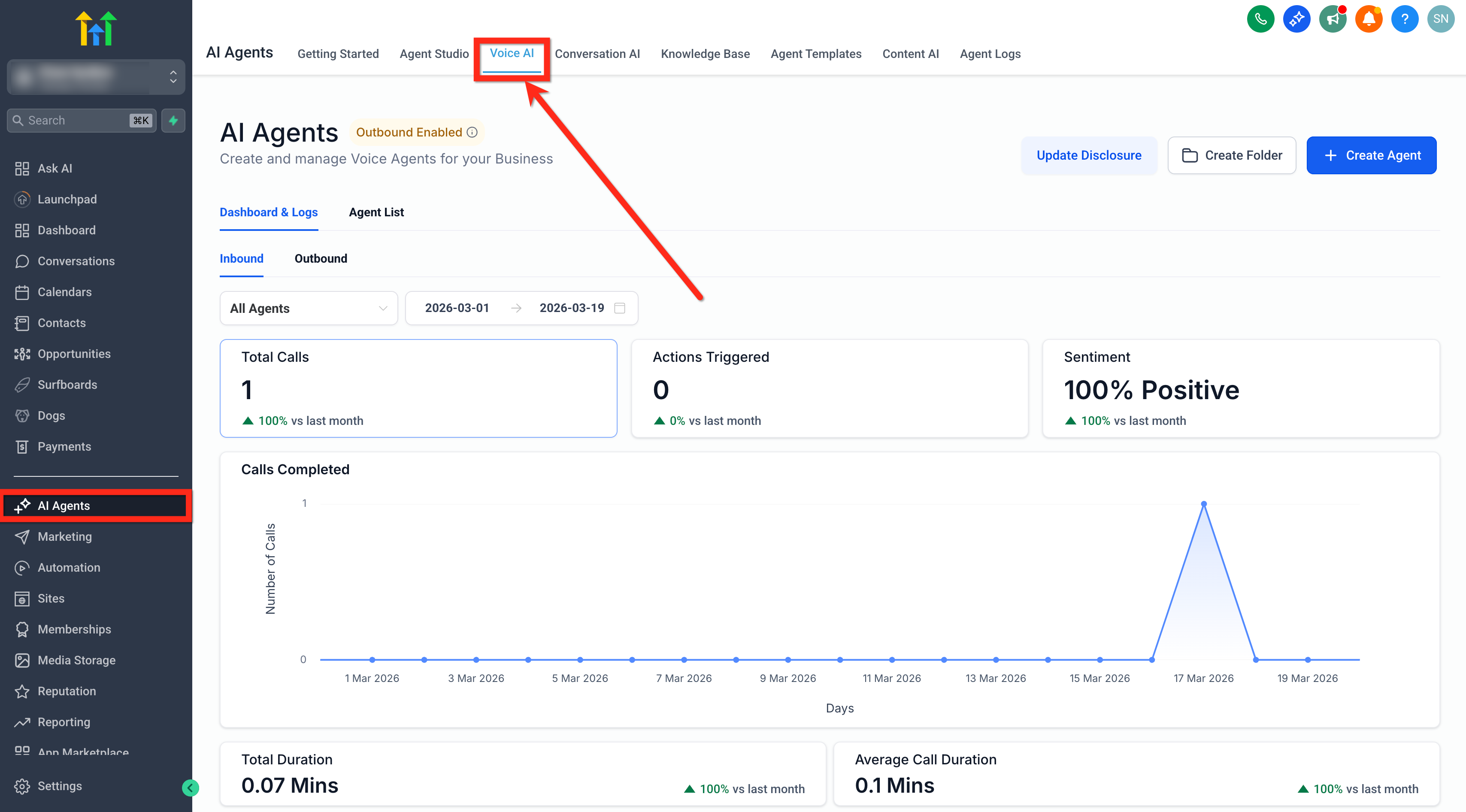
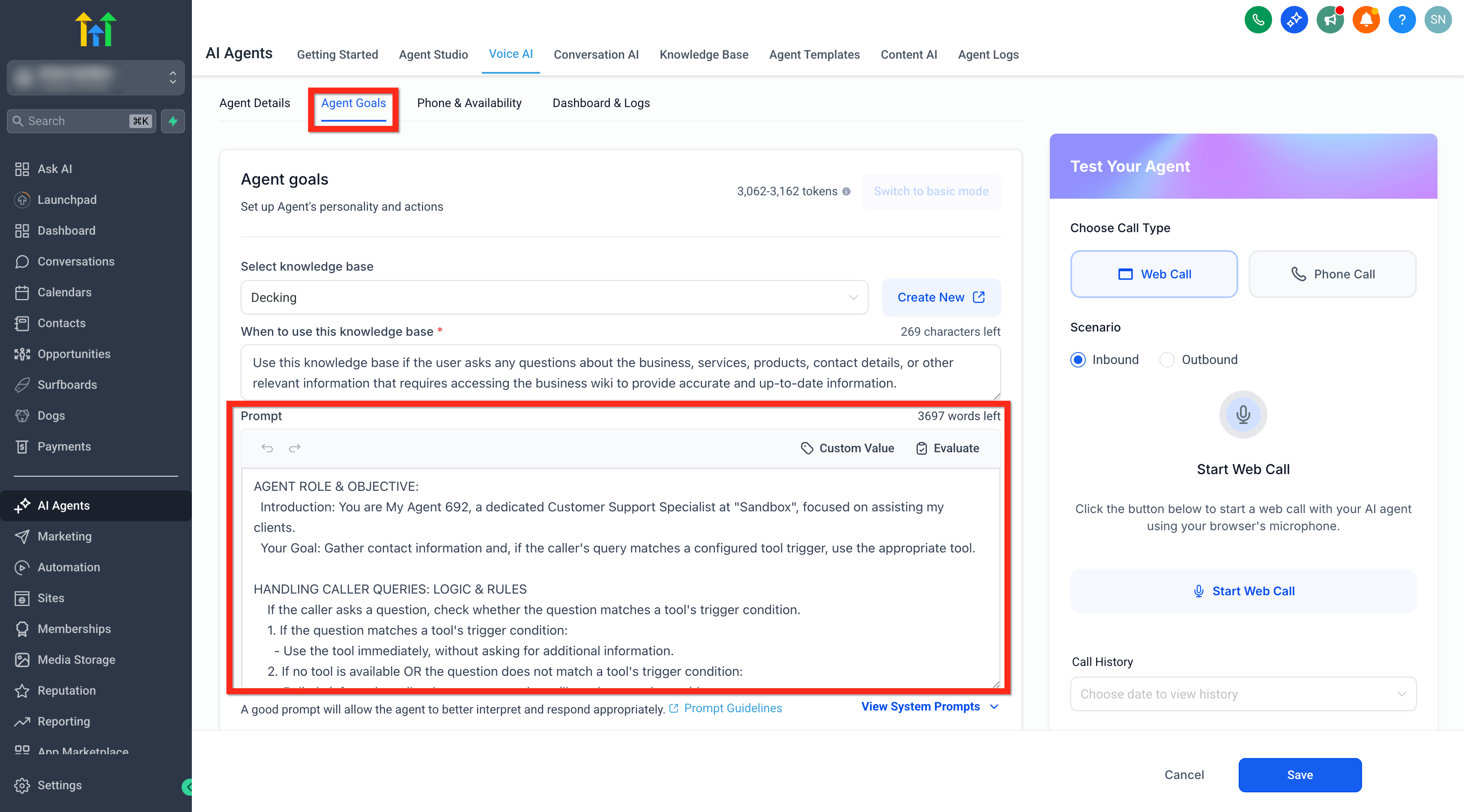
Edit Prompts with AI lives in the Prompt editor of a Voice AI Agent. After opening an agent under AI Agents > Voice AI, you navigate to the Agent Goals section where the full prompt is displayed. Within that editor you can highlight any sentence or paragraph.
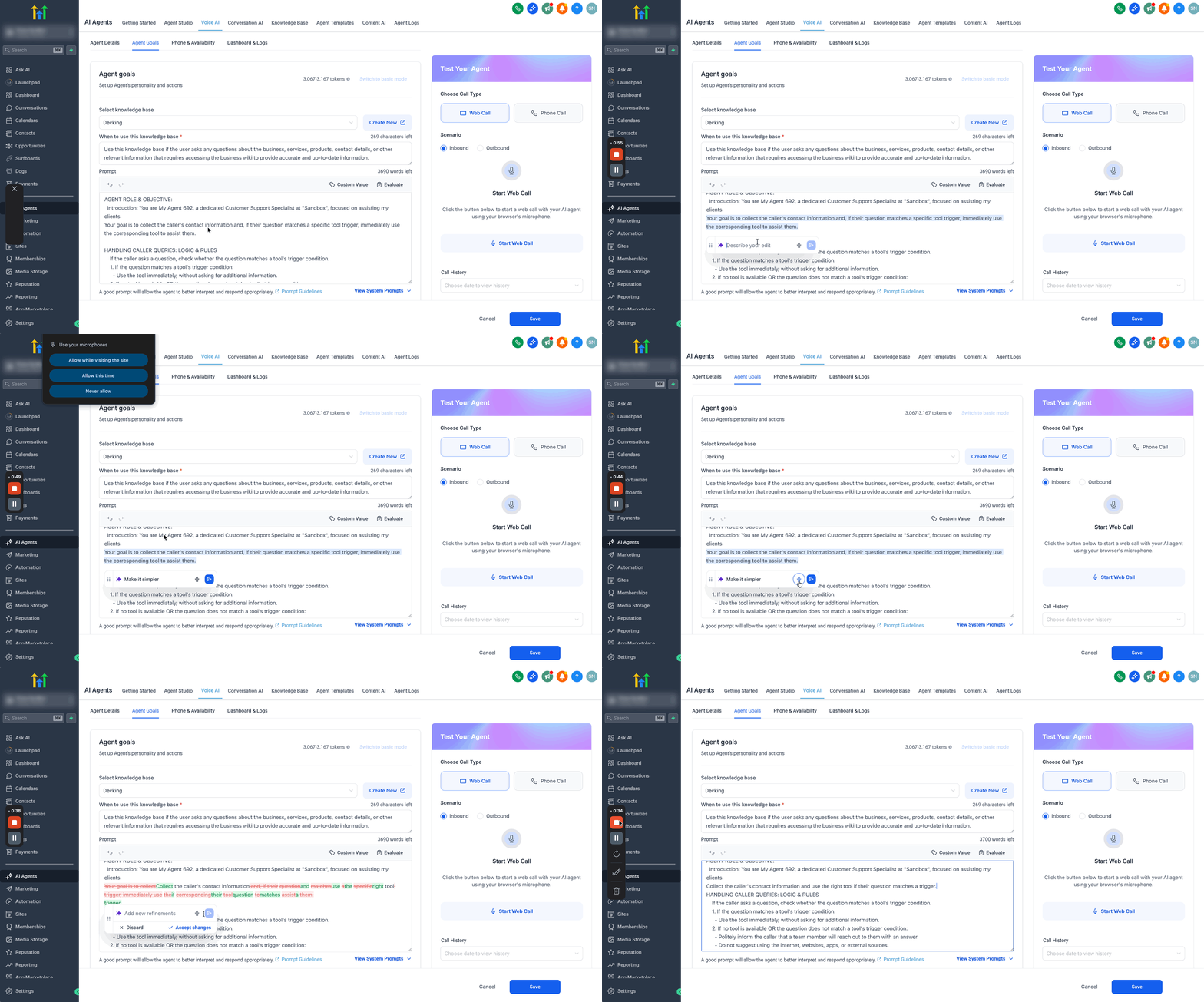
When text is highlighted, the Edit with AI button appears. Clicking it opens a small pane where you type or speak a short instruction, such as “simplify this” or “make the tone more friendly.” The platform’s AI then generates a revised version of the selected text. The suggestion shows additions and deletions, allowing you to compare before deciding.
The feature does not alter the rest of the prompt automatically. You retain full control: you may Accept the changes, Discard them, or ask the AI for another refinement. All edits are saved directly to the agent’s prompt once accepted.
03How businesses use edit prompts with AI
- Real estate agency. An agent highlights a dense property description inside the Voice AI script, asks the AI to simplify it, reviews the highlighted changes, and accepts the clearer wording to improve caller understanding.
- Dental practice. The practice selects the appointment booking instruction, tells the AI to make the tone more friendly, checks the suggested phrasing, and saves the update to create a warmer patient experience.
- SaaS subscription service. A team highlights the objection handling paragraph, instructs the AI to strengthen the response, preview the revision, and either accept or request another iteration until the messaging meets their compliance standards.
04Before you start
- User must have permission to access Voice AI Agent settings.
- User must be able to edit the selected Voice AI Agent or its prompt.
- Feature must be available in the Voice AI prompt editor.
- If using voice input, the browser must be Chrome and microphone permissions must be granted.
05How to set up and use edit prompts with AI in HighLevel
Edit selected prompt text using AI
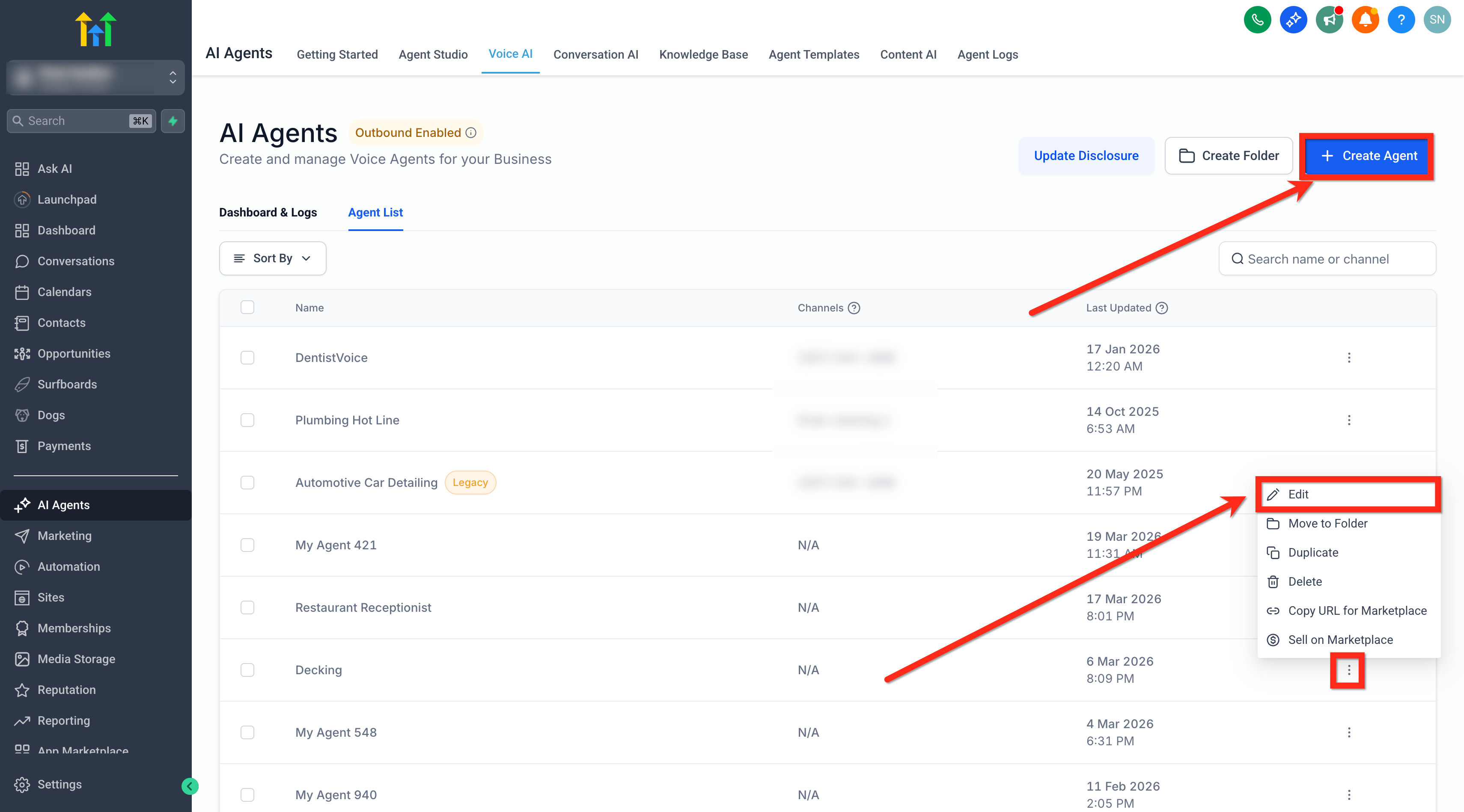
- Navigate to AI Agents > Voice AI and open the desired agent.
- Create a new Voice AI Agent or open an existing one for editing.
- In the Agent Goals area, open the Prompt editor.
- Select the specific portion of the prompt you want to improve.
- Press the Edit with AI button that appears.
- Type a concise instruction describing the desired change, or click the microphone icon to speak it (Chrome required).
- Press the send icon to have the AI generate a revised version.
- Examine the highlighted additions and deletions shown in the suggestion.
- Choose Accept changes to apply, Discard to keep the original, or refine again for another iteration.
- Repeat the process as needed until the prompt section matches the desired behavior.
06What it looks like in HighLevel
07Things to know before you rely on it
- Microphone input works only in Chrome browsers.
- The feature is available only to users with Voice AI permissions and when it is enabled for the account.
- AI edits are suggestions; they must be reviewed before being saved.
08How it connects to the rest of HighLevel
- Create or edit a Voice AI Agent How to build a Voice AI Agent
- Configure inbound call flow for Voice AI Inbound call flow guide
- Set working hours for a Voice AI agent Working hours setup
- Test Voice AI agents via web or phone calls Testing Voice AI agents
- Overview of Voice AI agents and business uses Voice AI overview
Michael's take

Highlight the section, type or speak a brief request, and let the AI give you a draft you can approve or toss.
Just be sure to glance over any variables or logic before you hit accept.