
01Who this is for
- Founders of ecommerce businesses who need instant order status lookups without putting callers on hold.
- Customer support managers who want agents to retrieve client records or schedule appointments during a call.
- Developers building integrated phone systems that must trigger external APIs as part of a live conversation.
02Voice AI custom actions, explained
Voice AI Custom Actions are a feature inside the Voice AI Agent builder. They let the agent issue a POST request to any external endpoint while the call is active. The request can include headers, authentication tokens, and a body built from values captured during the conversation.
When a trigger condition, such as a spoken phrase, an email address, or a numeric string, is met, the action fires. The platform then sends the webhook, receives the response, and makes the data available to the Voice AI flow. Multiple actions can run independently in the same call.
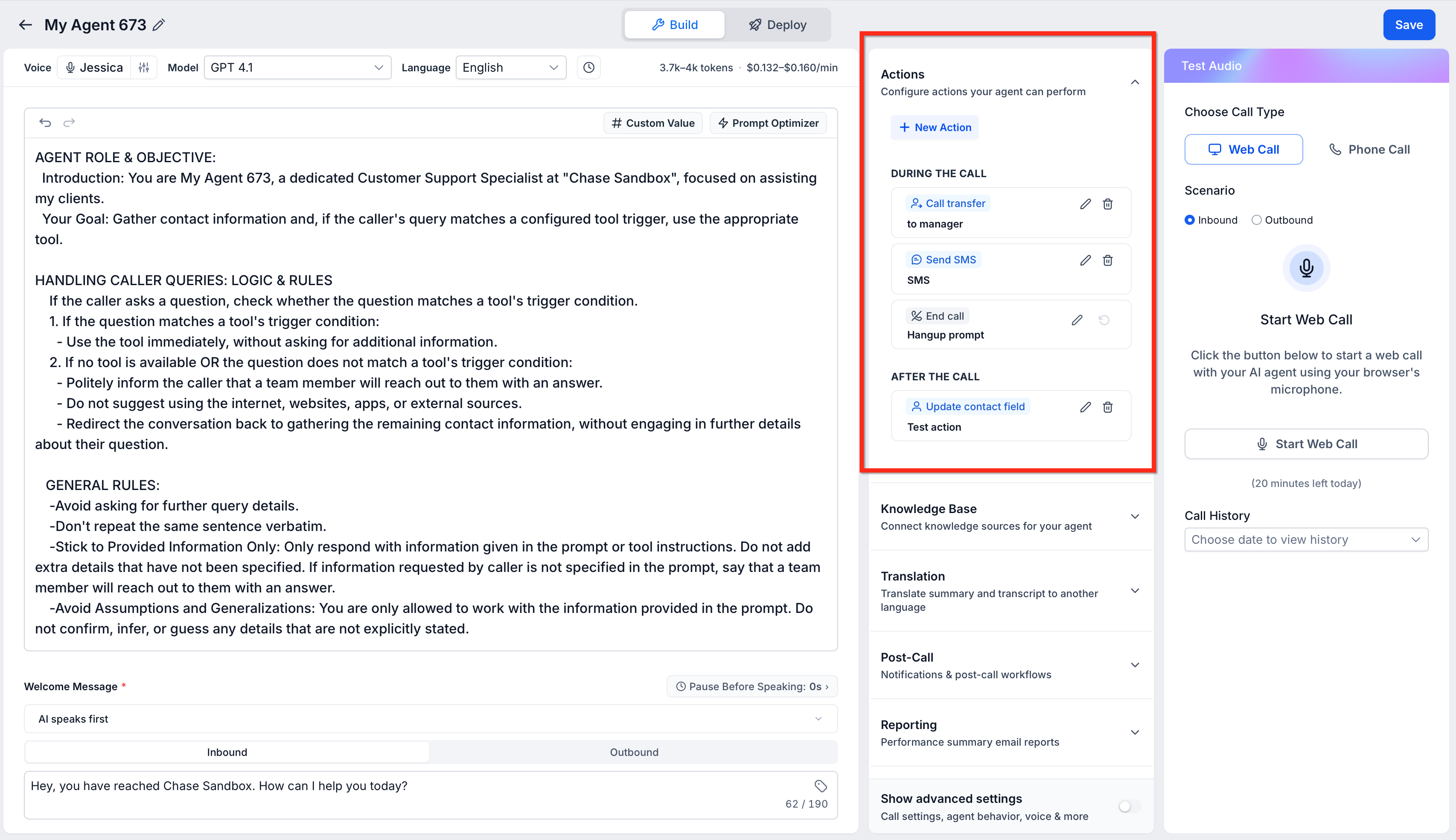
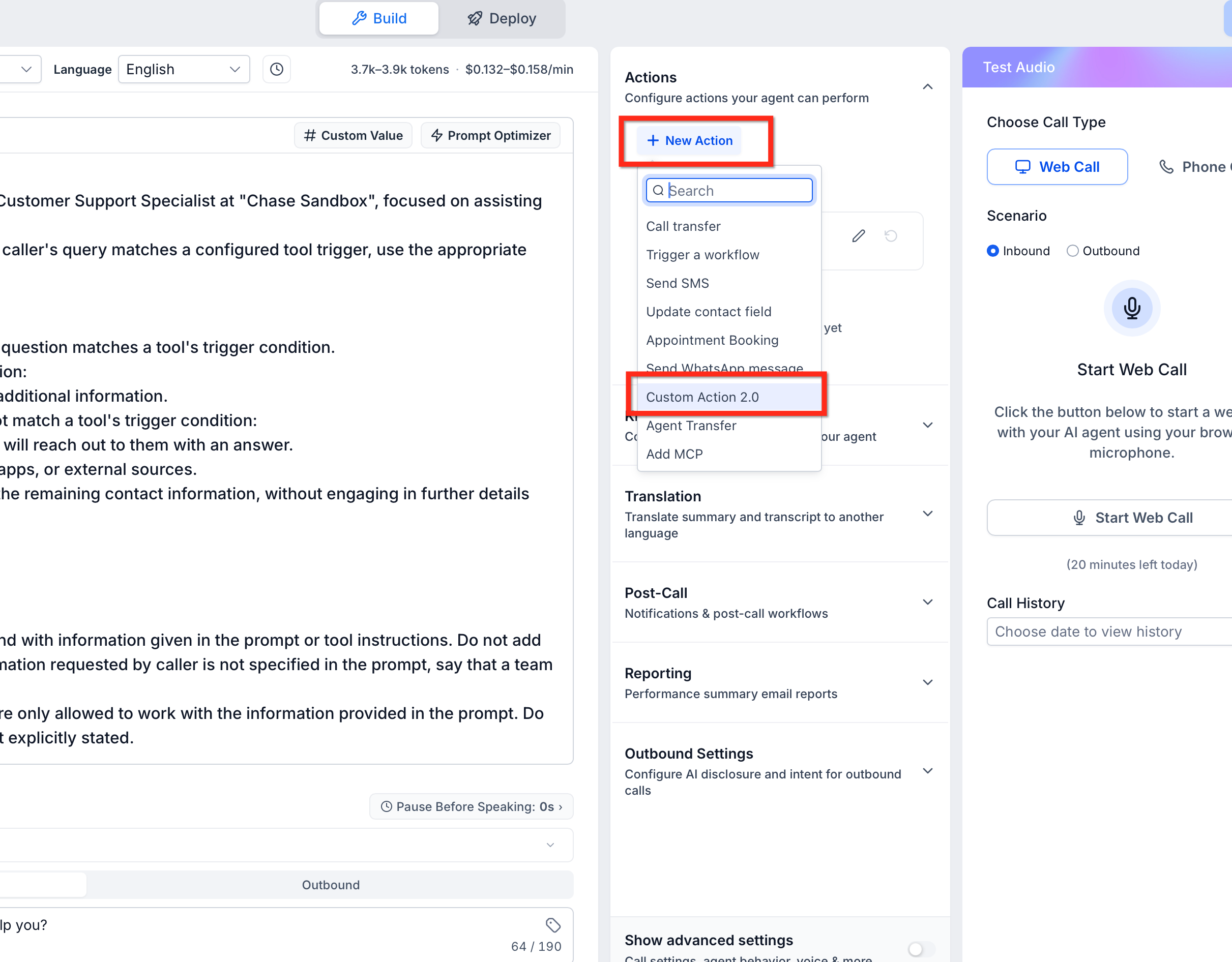
The configuration screen lives in AI Agents > Voice AI, under the Build tab’s Actions section. From there you add a Custom Action 2.0, set the trigger, specify the URL, method, headers, authentication, and dynamic parameters, and test the request before saving.
03How businesses use Voice AI custom actions
- Ecommerce store. The store adds a custom action that triggers when a caller asks for order status. The action sends the caller’s order number to the inventory API, receives the current status, and the Voice AI reads it back to the customer.
- Medical practice. A practice creates an action that fires when a patient mentions a preferred date. The webhook sends the date to the scheduling system, creates a provisional appointment, and the agent confirms the slot to the patient.
- SaaS company. The company configures an action that runs when a user provides an email address. The webhook looks up the account in an external system, pulls the subscription tier, and the Voice AI tailors its response based on that information.
04The numbers and rules that matter
- Supported data types: Text / String, Number / Numeric, Email, Phone Number, Date.
05How to set up and use Voice AI custom actions in HighLevel
Set up Voice AI custom actions
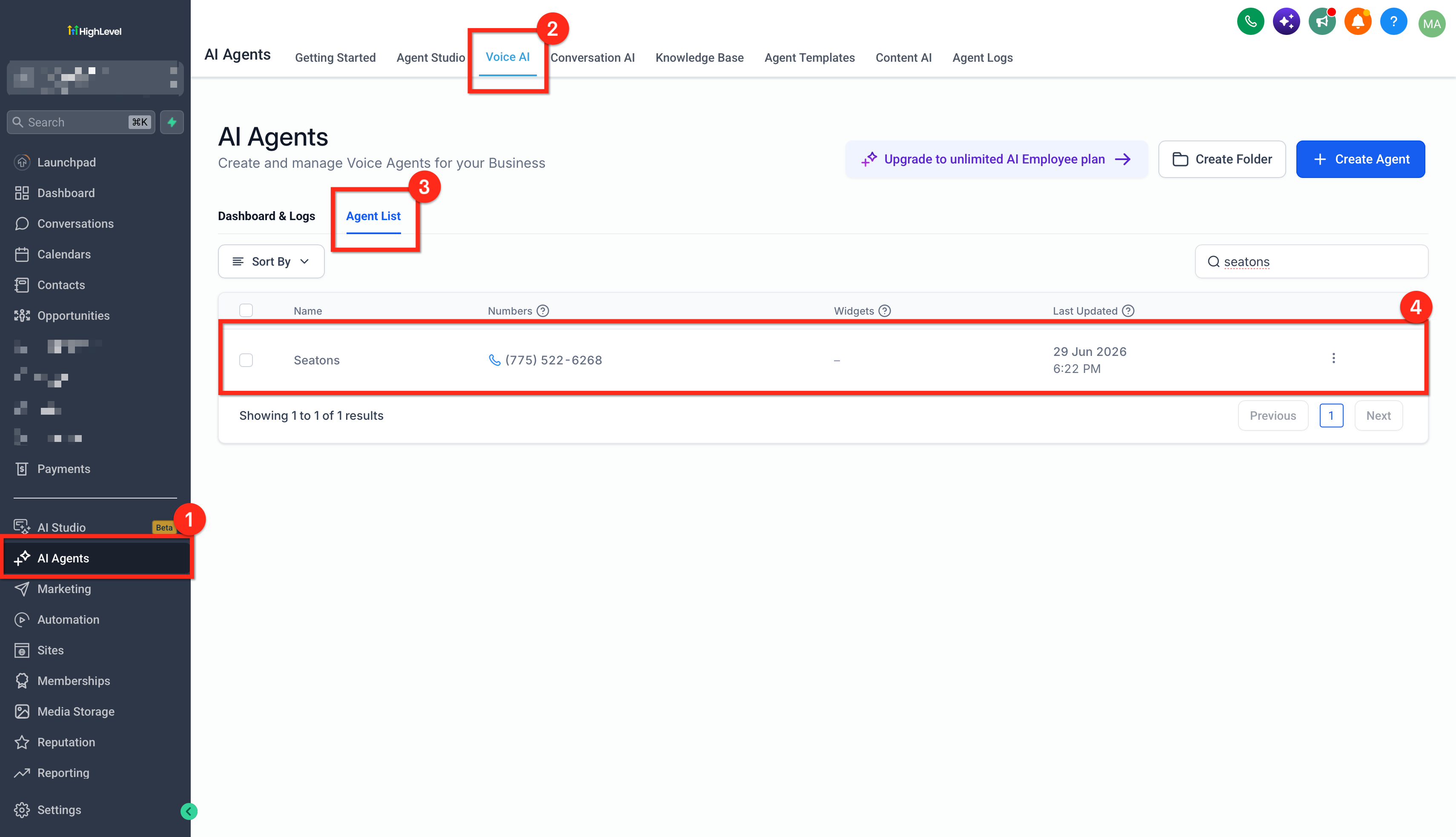
- Open AI Agents > Voice AI and select the desired agent from the Agent List tab.
- In the Voice AI builder, ensure the Build tab is active and locate the Actions section.
- Click + New Action and choose Custom action 2.0.
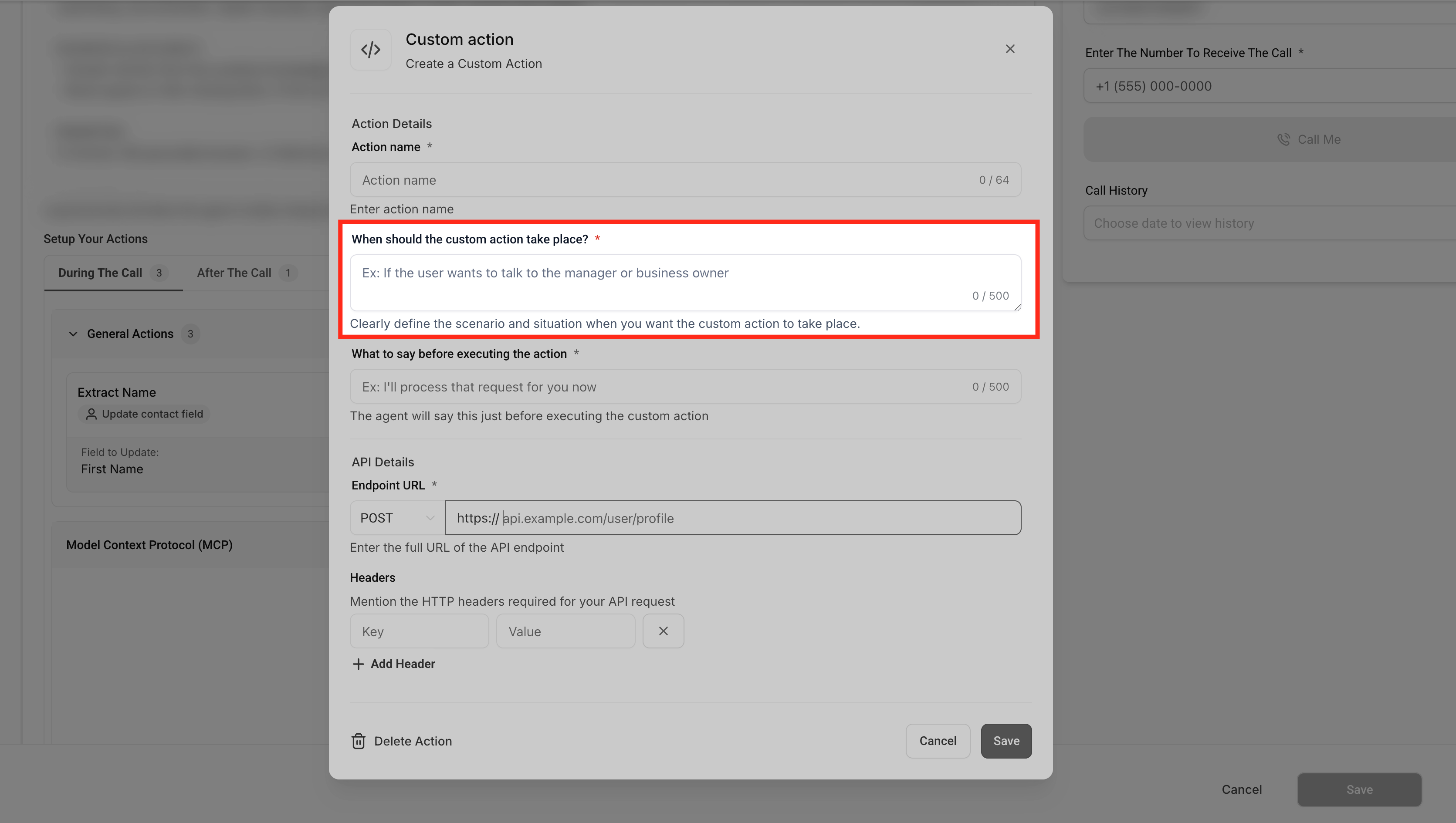
- Enter a descriptive name for the new custom action.
- Define the conversation trigger conditions that will initiate the action.
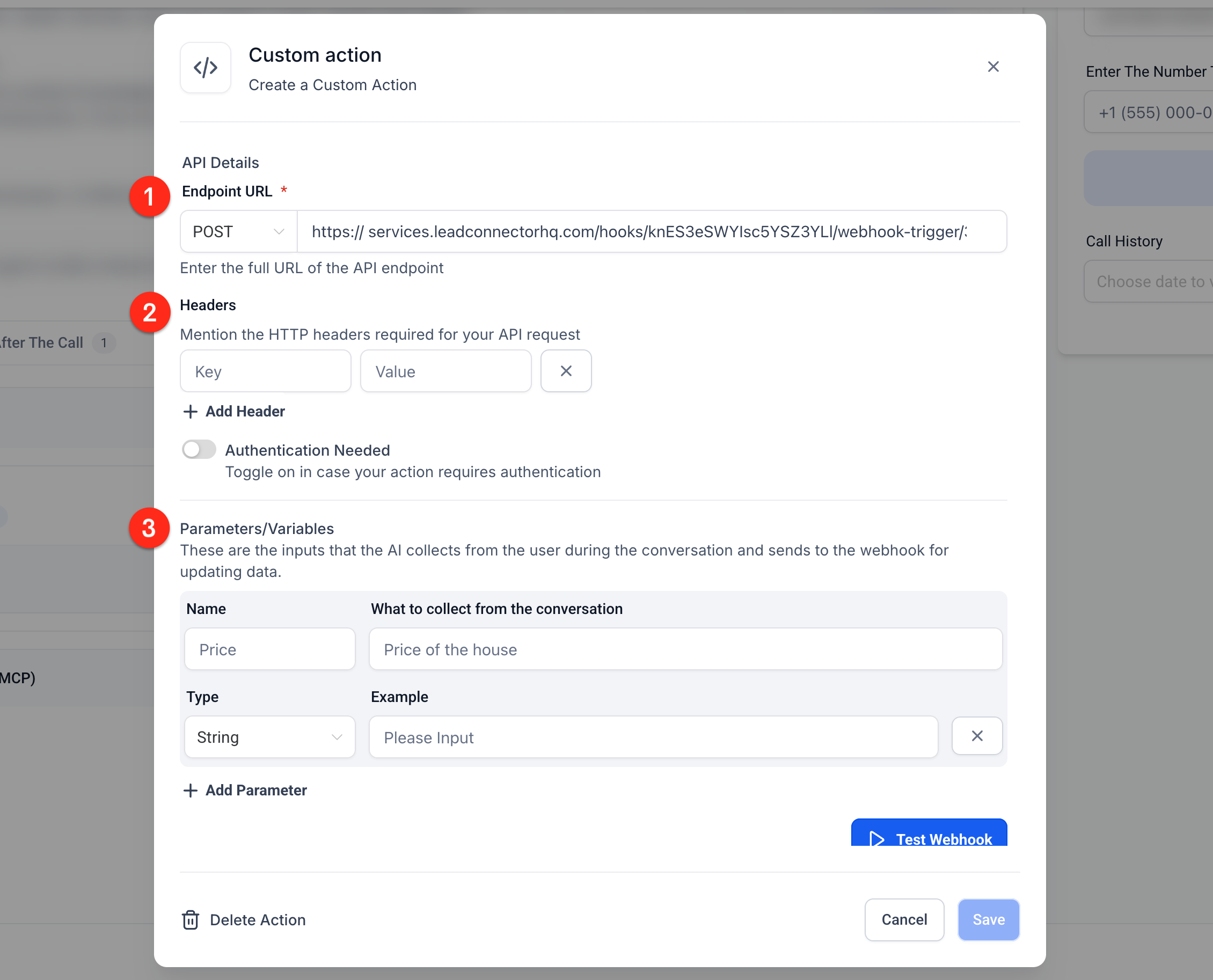
- Provide the webhook endpoint URL for the POST request.
- Confirm that the request method is set to POST.
- Add any required HTTP headers, such as API keys or tokens.
- Enter authentication details, choosing Bearer token or Basic Auth as needed.
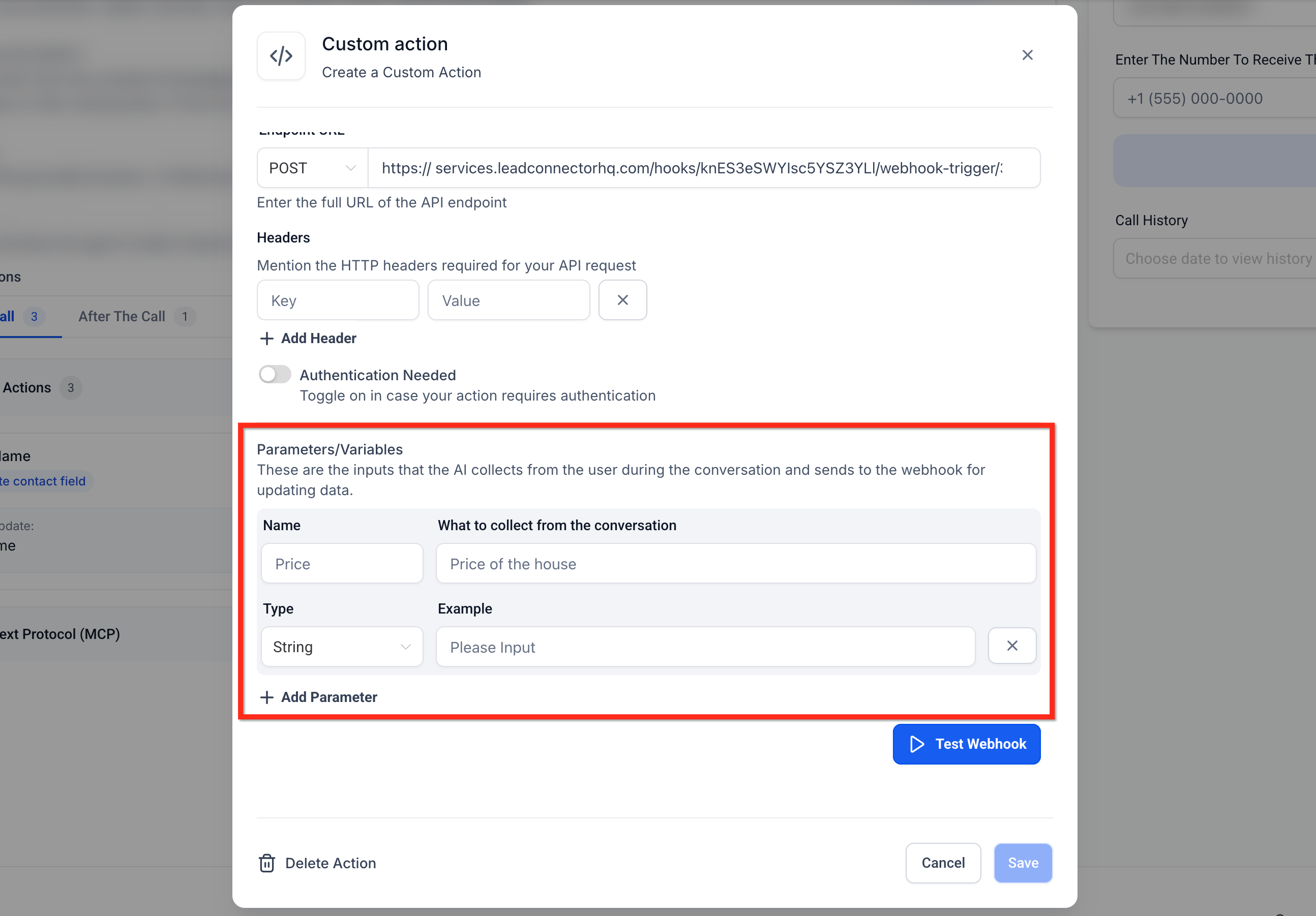
- Create dynamic parameters to capture caller data and insert them into the request body.
- Use the Test Webhook tool to send sample data, review the request and response, and then save the action.
06What it looks like in HighLevel
07Settings that matter
- Name. The label that identifies the custom action inside the Voice AI flow.
- Conversation trigger conditions. The phrases, intents, or data patterns that cause the action to run during a call.
- Webhook URL. The endpoint address that receives the POST request.
- Request method. Specifies that the action will use a POST request; other methods are not supported.
- Headers. Key value pairs added to the HTTP request, often used for API keys or other identifiers.
- Authentication. Credentials such as a Bearer token or Basic Auth used to authorize the webhook call.
- Dynamic parameters. Variables collected from the conversation (text, number, email, phone, date) that are inserted into the request body.
- Test Webhook. A built in tool that sends a sample request and displays the full request and raw response for verification.
08Things to know before you rely on it
- Only POST requests are supported; GET or other HTTP methods cannot be used.
- Authentication is limited to Bearer tokens, Basic Auth, or header keys.
- If a webhook fails, the system logs the error; you can define fallback behavior for no data, failure, or timeout.
- Multiple custom actions can be triggered in a single call, each with its own conditions.
09If something goes wrong
- Webhook request returns an error such as 400 Bad Request or 404 Not Found. Use the Test Webhook tool to review the request payload and headers, correct any missing or malformed parameters, and retest until a successful response is received.
- No data is returned during a call and the Voice AI cannot continue. Define fallback behavior in the custom action settings to handle empty responses or timeouts.
10How it connects to the rest of HighLevel
- Learn the overall capabilities of Voice AI agents and where custom actions fit Voice AI agents overview
- Set up inbound call flow to route calls to your Voice AI agent Inbound call flow
- Explore other AI Employee tools and how they integrate with custom actions AI tools guide
Michael's take

Wondering if a Voice AI webhook is worth the effort for your small business? It lets you answer customer questions on the spot without putting anyone on hold, which can reduce manual follow up work.
If I were adding this, I’d start by mapping a simple use case. Like checking an order status. So I can see the request flow in the test tool and make sure the response feeds back into the call. A quick test helps confirm the integration works before you roll it out to live callers.