
01Who this is for
- Call center supervisors can monitor overall call volume and action completion to refine agent prompts.
- Marketing managers can track outbound call outcomes to gauge campaign effectiveness.
- Customer experience teams can review sentiment trends to identify areas needing improvement.
02Voice AI Agents Dashboard, explained
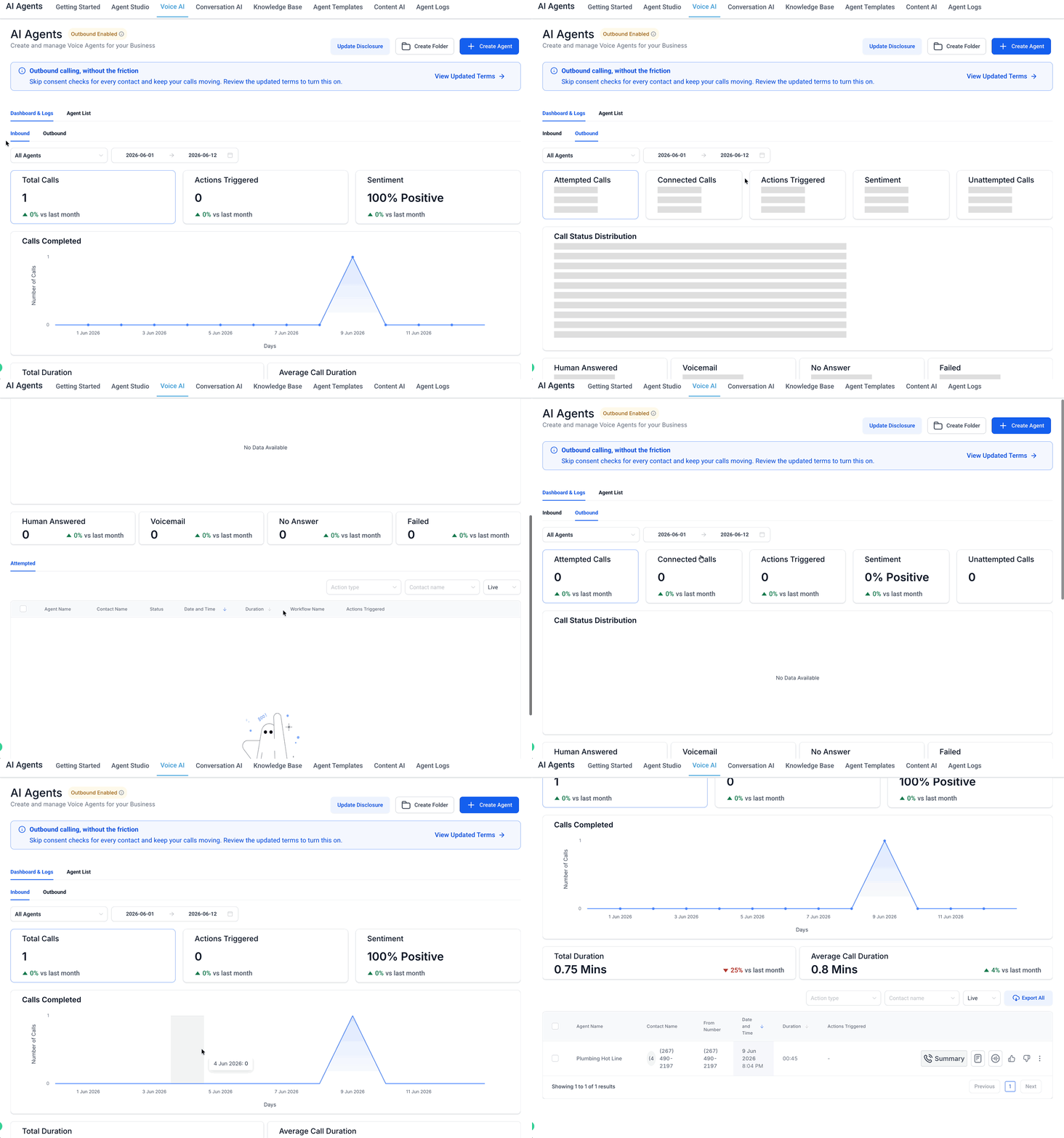
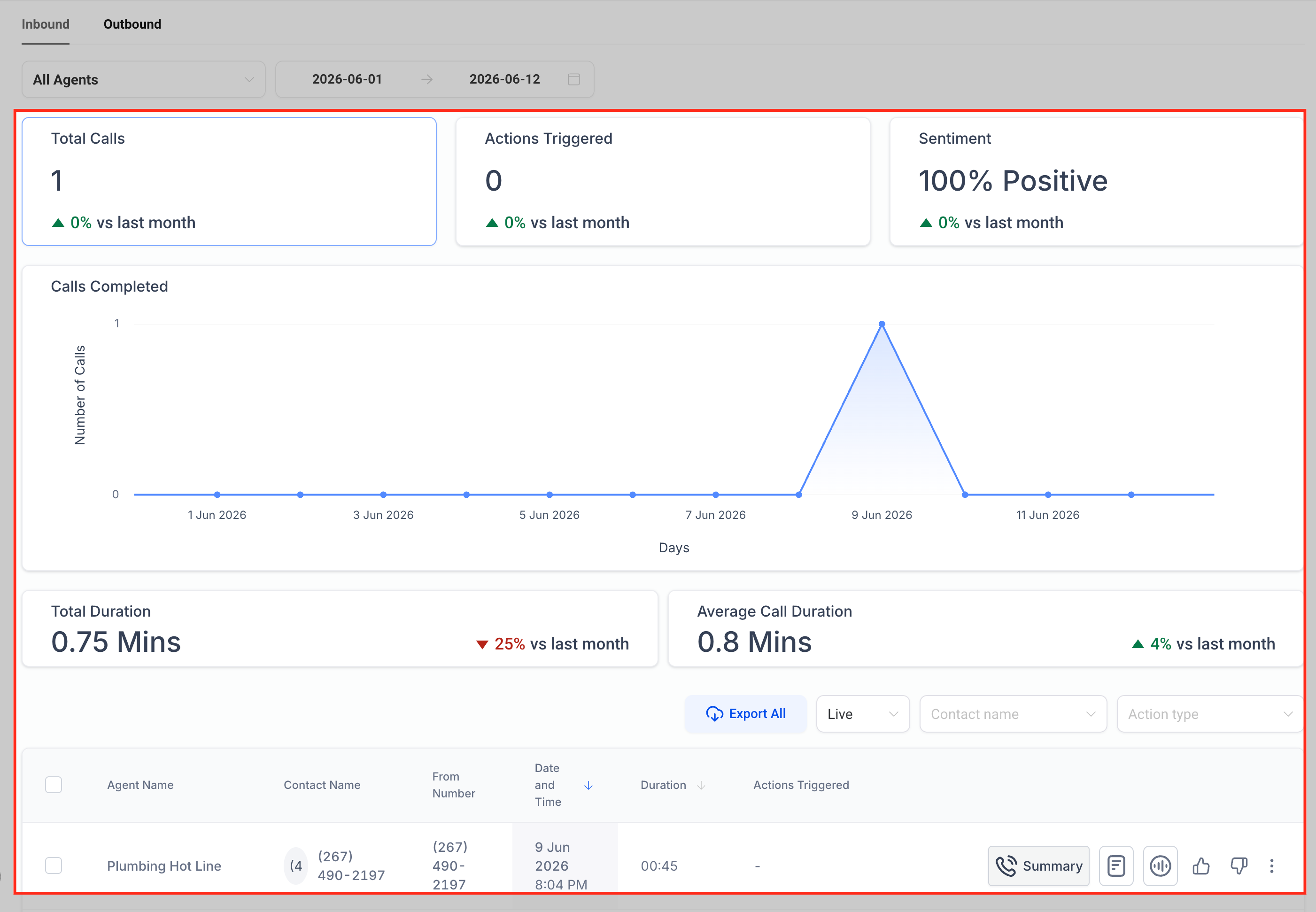
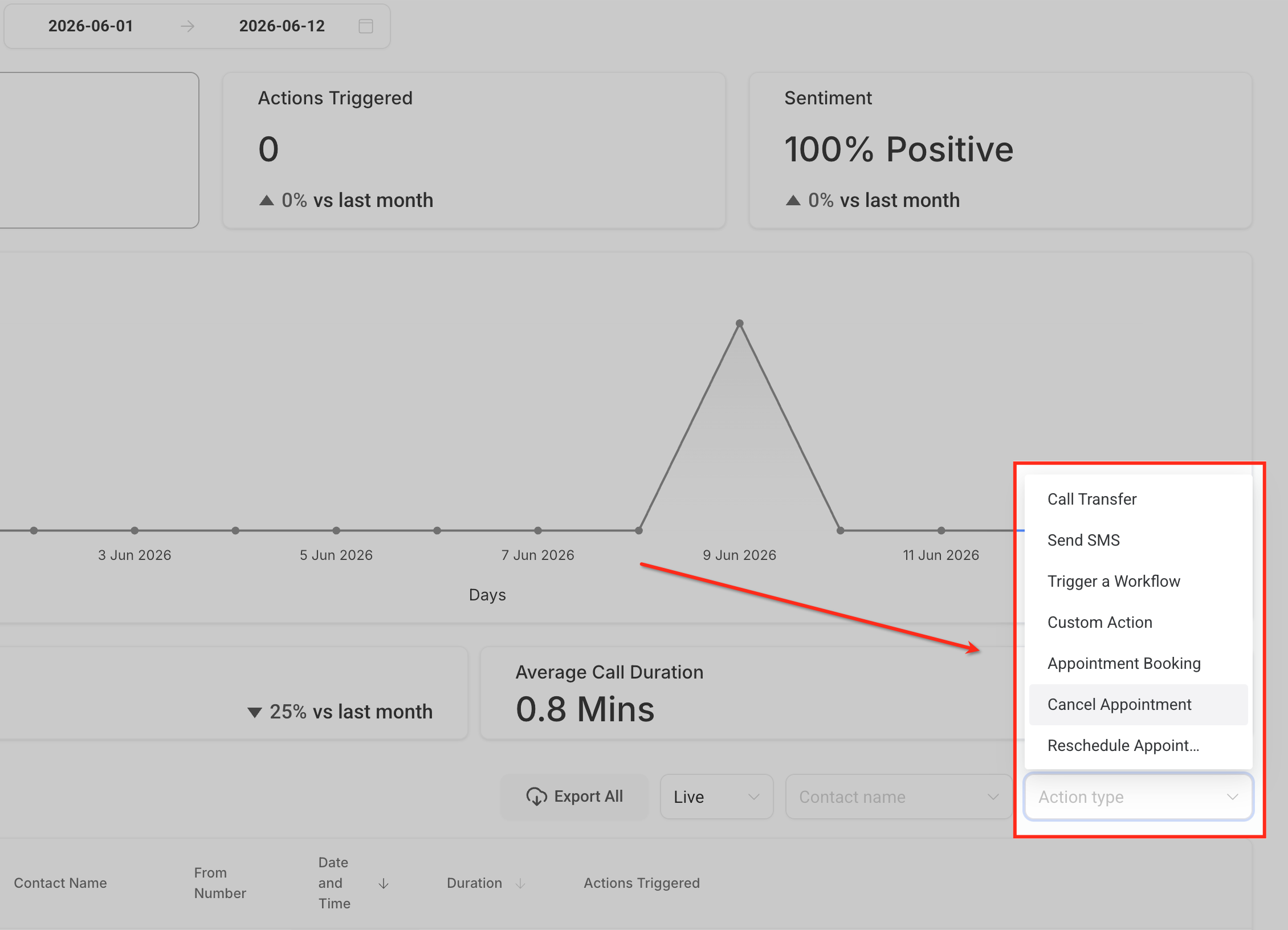
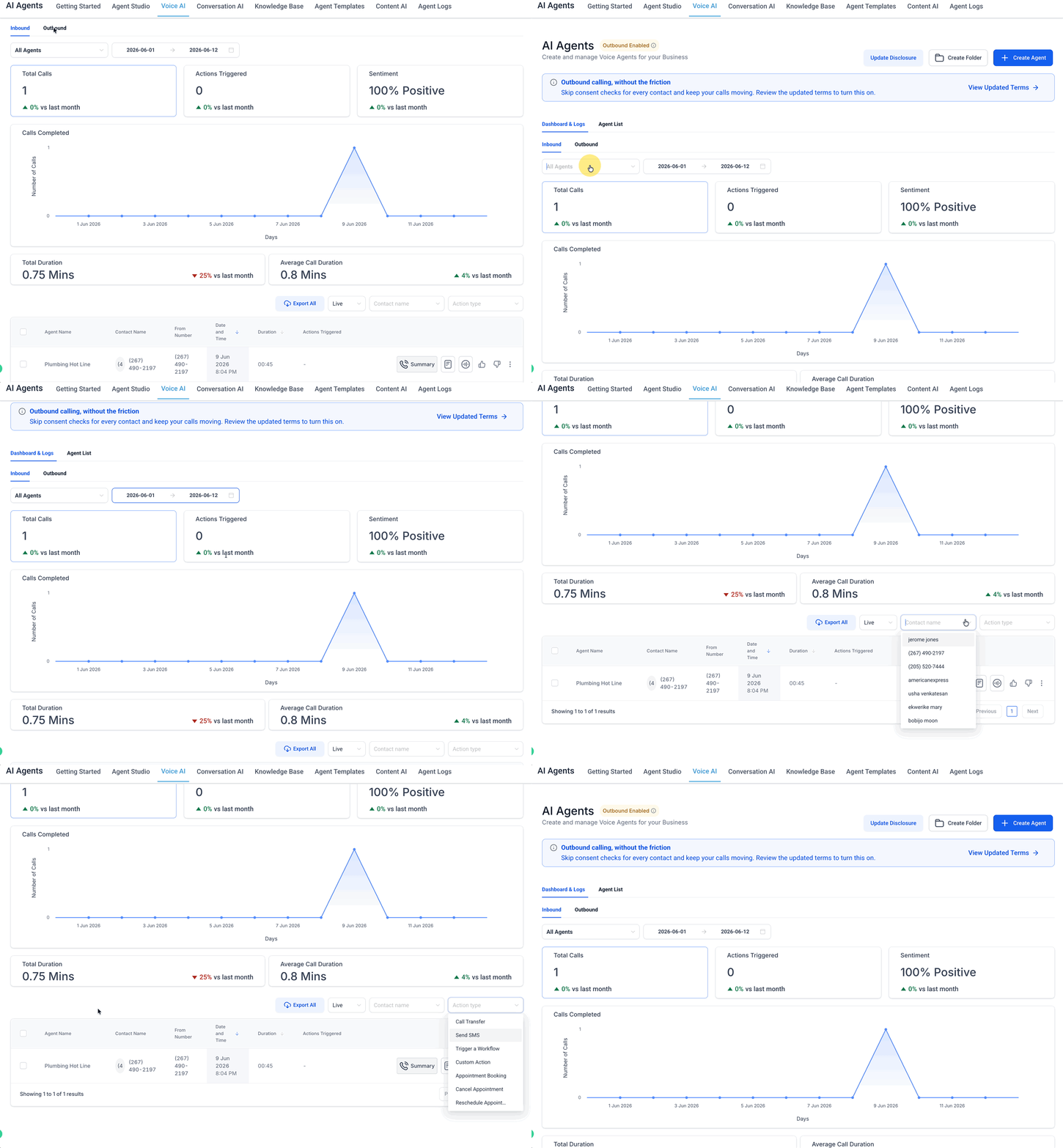
The Voice AI Agents Dashboard aggregates performance data for all Voice AI agents. It displays metrics such as total calls, actions triggered, sentiment analysis, call duration, and outcomes for both inbound and outbound calls. The page also provides a log view where you can examine individual live or test calls.
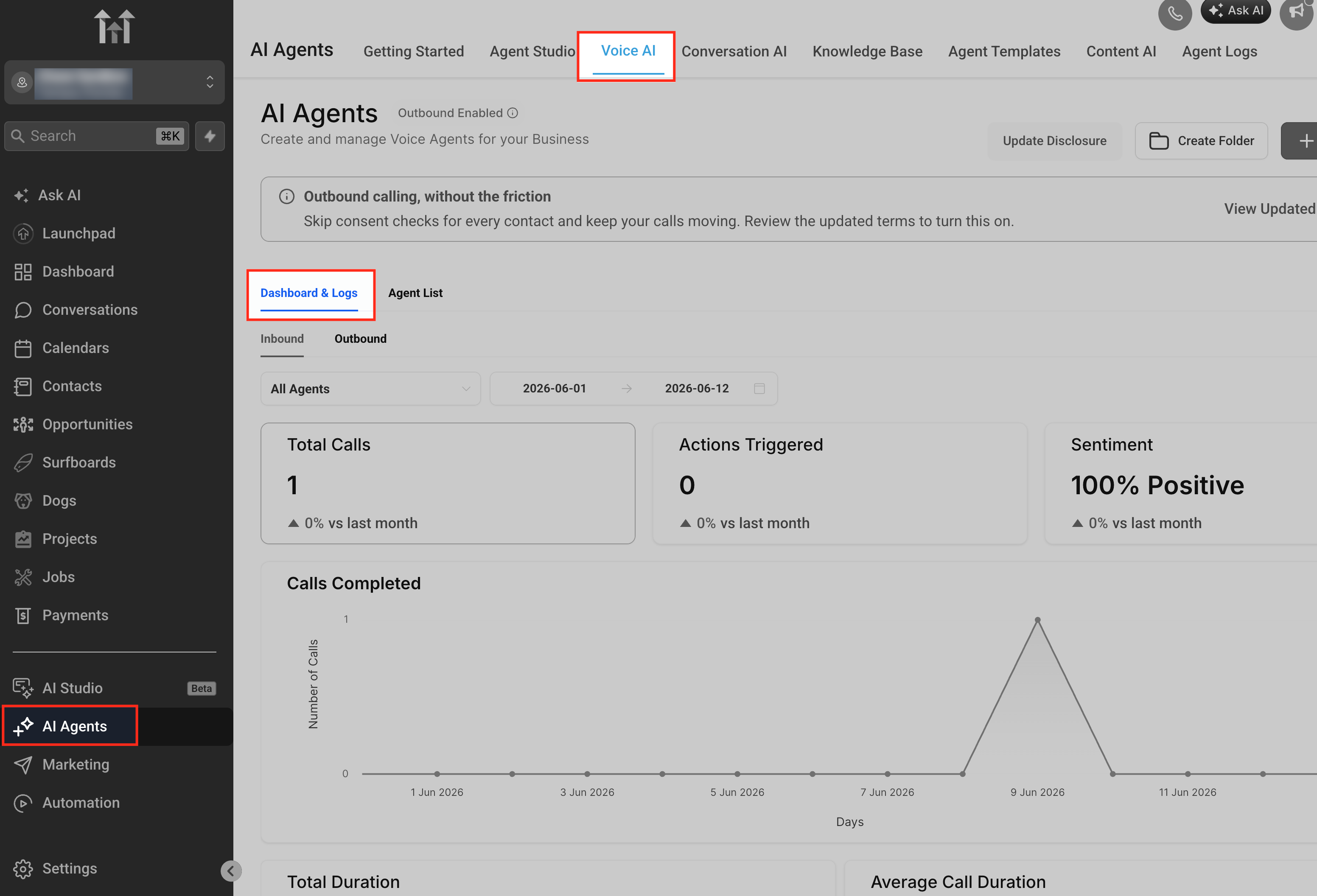
You reach the dashboard from the AI Agents section by selecting Voice AI and then clicking Dashboard & Logs. Once opened, you can filter by call type, specific agent, date range, and live or test calls. The separate inbound and outbound views adjust the displayed metrics to match the call direction, showing details like human answered rates for outbound or sentiment scores for inbound.
Metrics give a high level view while the log area offers call level details, including execution timelines, transfers, and action histories. Use the dashboard to spot trends and the logs to investigate specific calls or unexpected results.
03How businesses use the Voice AI Agents Dashboard
- Dental practice. The practice reviews inbound call metrics to see how many appointment bookings the Voice AI agent completes. By filtering to the specific dental agent, they compare booking counts over weeks and drill into logs of low booking calls to adjust prompts or calendar availability.
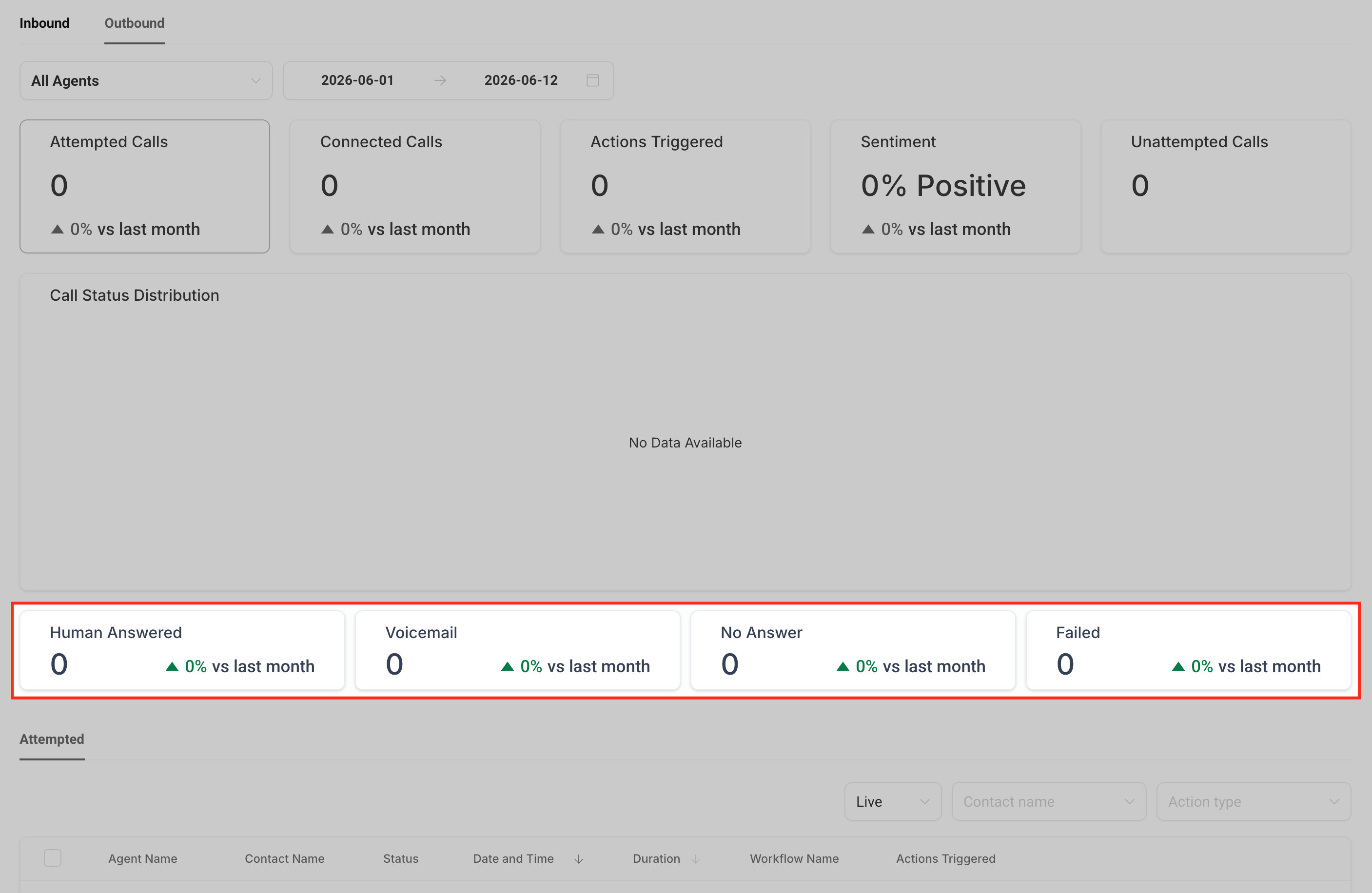
- Real estate agency. Agents examine outbound call outcomes such as Human Answered and Voicemail rates. They filter the dashboard to outbound calls made by their follow up Voice AI agent, then check logs for any failed attempts to improve contact lists.
- Online education platform. The platform tracks sentiment trends for inbound support calls handled by a Voice AI tutoring agent. Using the sentiment filter, they identify negative spikes and open the related logs to review recordings and refine the agent’s responses.
04The numbers and rules that matter
- Inbound metrics may include Total Calls, Actions Triggered, Sentiment, Calls Completed, Total Duration, Average Call Duration, SMS Sent, Workflows Triggered, Call Transfers, Custom Actions, Appointment Booking, Contact Info Updated.
- Outbound metrics may include Human Answered, Voicemail, No Answer, Failed, Attempted Calls.
05How to set up and use the Voice AI Agents Dashboard in HighLevel
Access the Voice AI Agents Dashboard and apply filters
- Open the HighLevel platform and navigate to AI Agents.
- Select the Voice AI option.
- Click the Dashboard & Logs button.
- Set the desired filters for call type, agent, and date range.
06What it looks like in HighLevel
07Things to know before you rely on it
- Test calls appear in the logs but are omitted from the aggregate dashboard metrics.
- Percentage delta compares the selected period with the previous equivalent period.
- If no data is shown, the current filters may exclude all live call activity.
08If something goes wrong
- Dashboard shows no data. Check the selected filters to ensure they include live calls and cover a period with call activity.
- Action counts differ from workflow activity. Remember dashboard counts only reflect actions triggered by Voice AI agents; workflow records have their own counting system.
09How it connects to the rest of HighLevel
- Create a Voice AI agent to start collecting data Build Voice AI agent
- Set up inbound call flow so calls reach your Voice AI agents Inbound call flow
- Configure outbound calling to generate metrics displayed in the dashboard Outbound calling
Michael's take

Wondering if you really need a separate view for Voice AI performance? The dashboard gives you the big picture and the detail you need to keep your agents sharp without hunting through each one.
I would begin with watching the sentiment and action cards after a new prompt goes live. A quick look tells you if callers are confused or if the expected actions fire, then you can dive into the logs for any outliers.