
01Who this is for
- Support managers can see exactly what a caller heard and how the agent responded, helping them diagnose issues.
- Product developers use the logs to verify that new prompts or actions behave as expected before wide release.
- Quality assurance teams review recordings and execution timelines to ensure compliance and performance standards.
02Voice AI Agent logs, explained
Voice AI Agent Logs are individual records of calls or test interactions handled by a Voice AI agent within HighLevel. Each log captures the spoken input, the AI’s reply, any triggered business actions, timestamps and technical data.
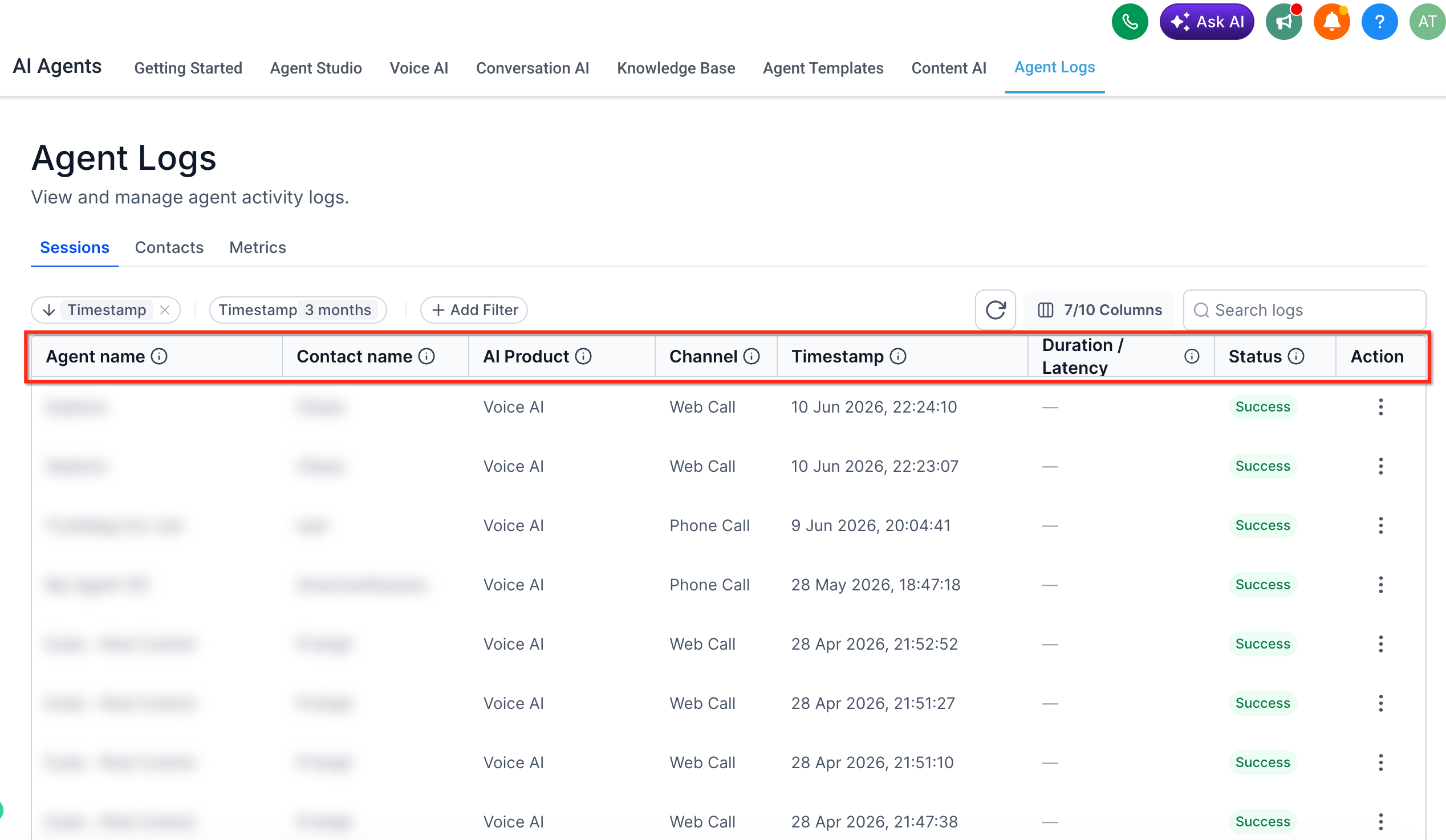
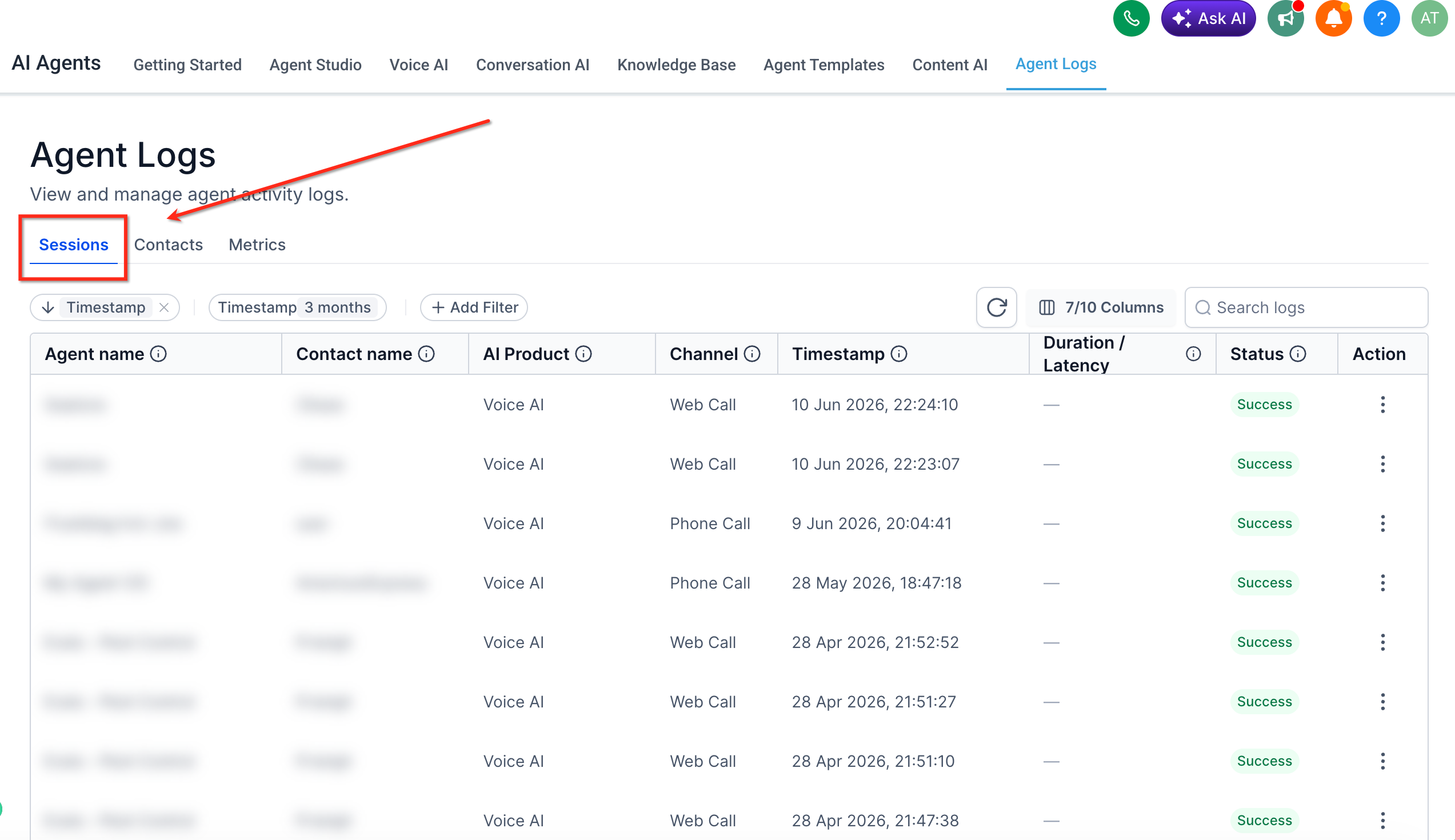
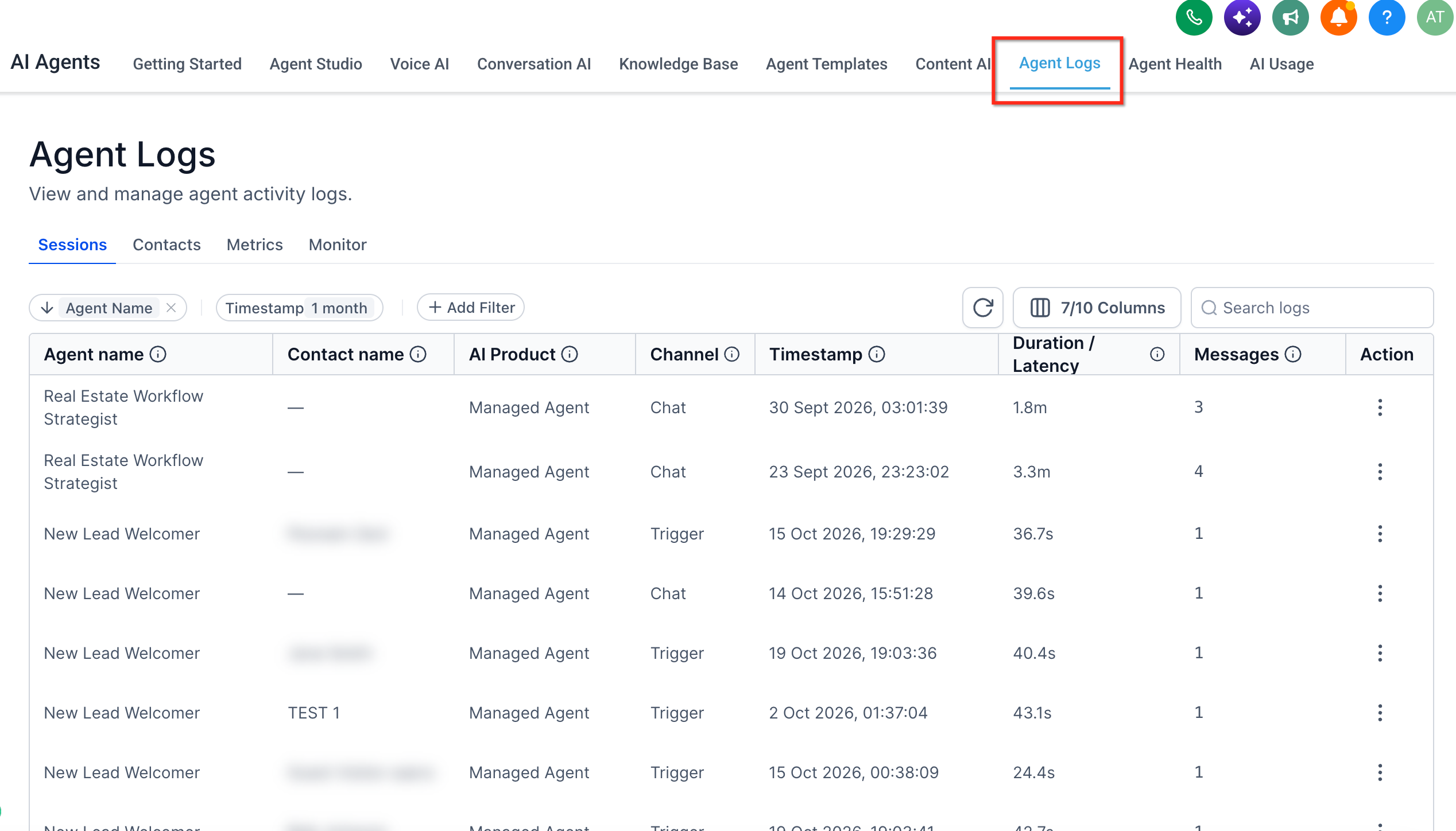
The logs are accessed from the AI Agents section via the Agent Logs menu. A table lists logs with columns such as agent name, contact, channel, timestamp and status. Filters let users narrow the view to specific agents or call types.
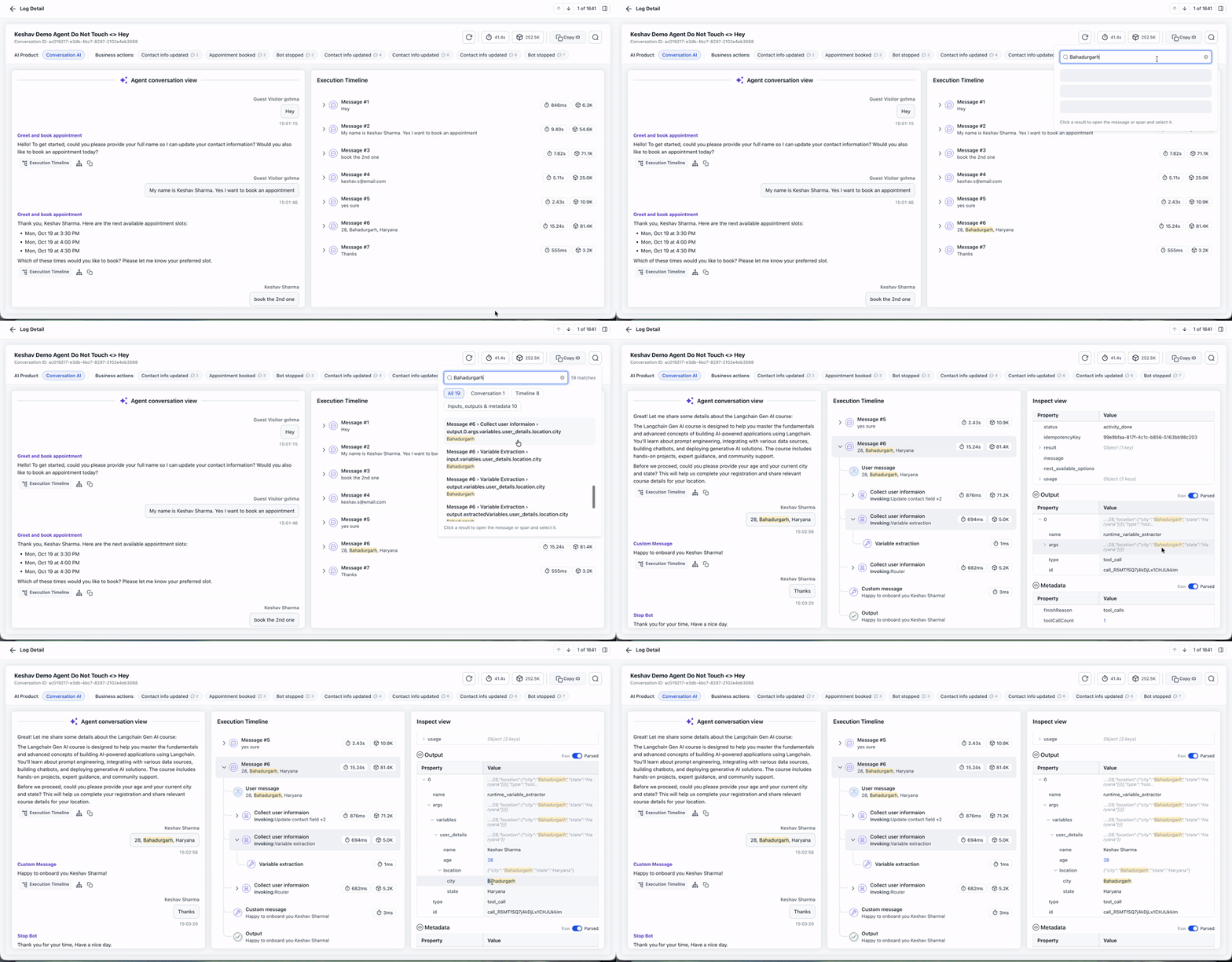
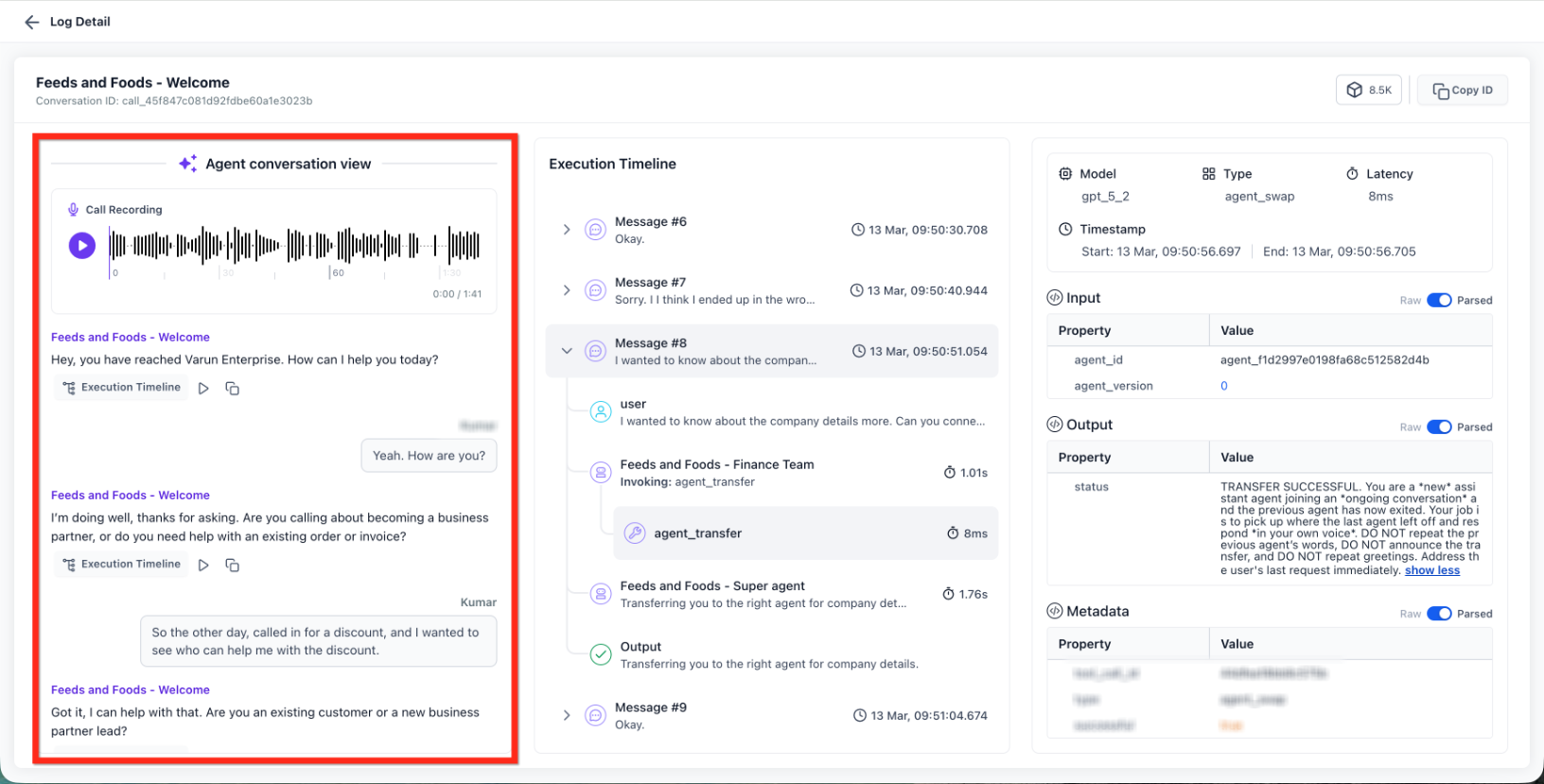
Selecting a log opens a detail view where users can explore the conversation, playback recordings, examine raw or parsed data, and trace the execution timeline. Additional navigation lets users jump to specific business actions, switch between multiple session recordings, or search for keywords across the interaction.
03How businesses use Voice AI Agent logs
- Real estate brokerage. The brokerage opens a log for a missed call to see why the appointment booking action failed. It selects the failed business action in the detail view, jumps to that step, and reviews the input data to correct the prompt.
- Dental practice. The practice reviews a test call log to verify that the AI correctly captured patient symptoms. It switches to the parsed data view to read the formatted input, then plays the recording to confirm audio quality.
- Online education platform. The platform inspects the execution timeline of a call where the AI attempted to enroll a student. Using the session navigation control, it toggles between the enrollment action and subsequent confirmation messages to ensure the flow works.
04The numbers and rules that matter
- Technical details include model used, execution type, latency and metadata.
05Before you start
- User must have Voice AI permissions within the HighLevel account.
06How to set up and use Voice AI Agent logs in HighLevel
Access Agent Logs
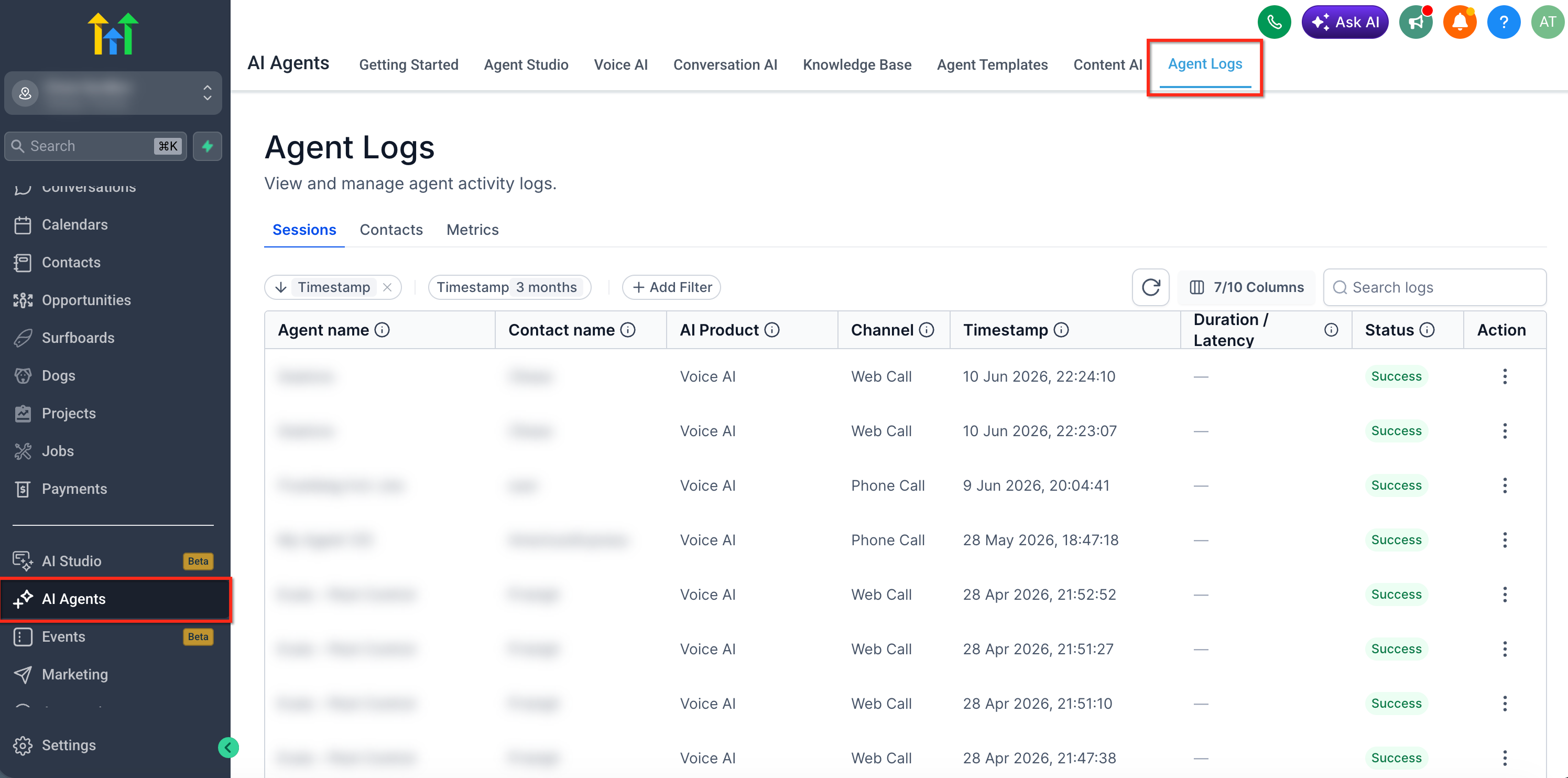
- Navigate to AI Agents in the main navigation.
- Click Agent Logs in the top menu.
Review the Logs Table
- View the columns such as agent name, contact, AI product, channel, timestamp and status.
- Use the filters at the top of the table to narrow results.
Locate and Select a Log
- Scroll through the list of interactions.
- Identify the desired call by its timestamp and status.
Open Detailed Log View
- Click the agent name or use the three dot action menu and choose View Details.
Navigate updated log detail view
- Look at the header to confirm which AI product the log belongs to.
- Choose a completed business action, such as an appointment booking, to jump directly to its step.
- Open the session navigation control, expand the side panel and pick a different session if needed.
- Tap the search icon, type a keyword, and select a result to view the matching message or execution step.
07What it looks like in HighLevel
08If something goes wrong
- Recording is missing from a log. Make sure call recording is enabled for the interaction type and that the phone configuration supports recordings.
- Transcript is incomplete or missing. Check audio quality, ensure the call did not end early, and review the available recording and timeline details.
- Unable to see Agent Logs. Confirm the user has the required Voice AI permissions and that the account includes access to the feature; an admin should review permissions.
09How it connects to the rest of HighLevel
- Create a Voice AI agent to generate logs for testing Create Voice AI agents
- Configure inbound call flow so calls reach your Voice AI agent Inbound call flow
- Learn how to test Voice AI agents via web or phone calls Test Voice AI agents
Michael's take

When every misdial or unexpected response costs a lost sale, being able to open a single call and see where the AI stumbled is valuable.
If you run a simple FAQ bot that rarely hands off or you rarely get detailed recordings, the time spent digging into logs may outweigh the benefit. In those cases the high level dashboard metrics give enough insight without opening each individual log.