
01Who this is for
- Customer support teams, reduce manual prompt upkeep as they adopt speech to speech agents.
- Marketing agencies, ensure consistent brand messaging when updating Voice AI scripts.
02Prompt validation, explained
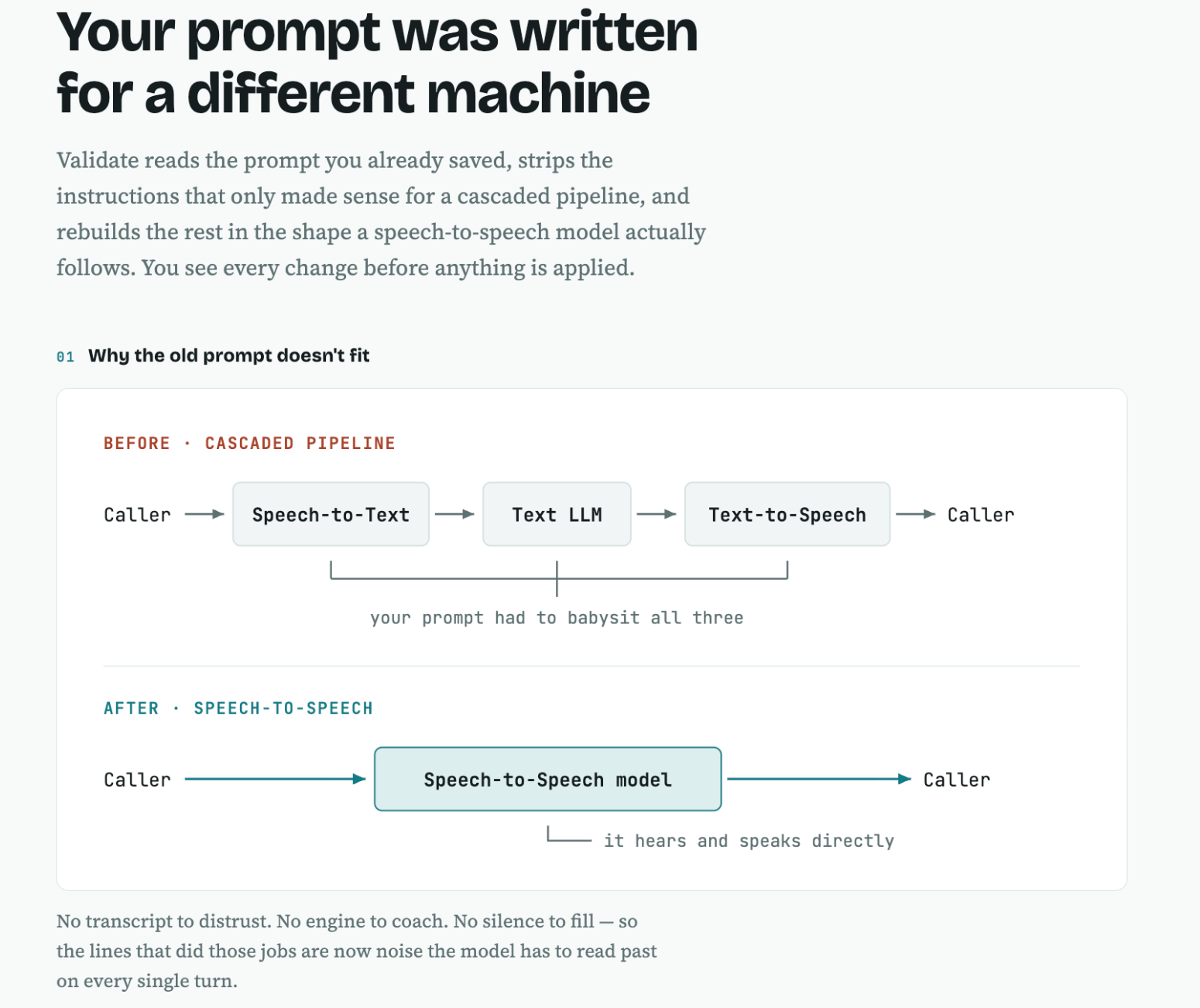
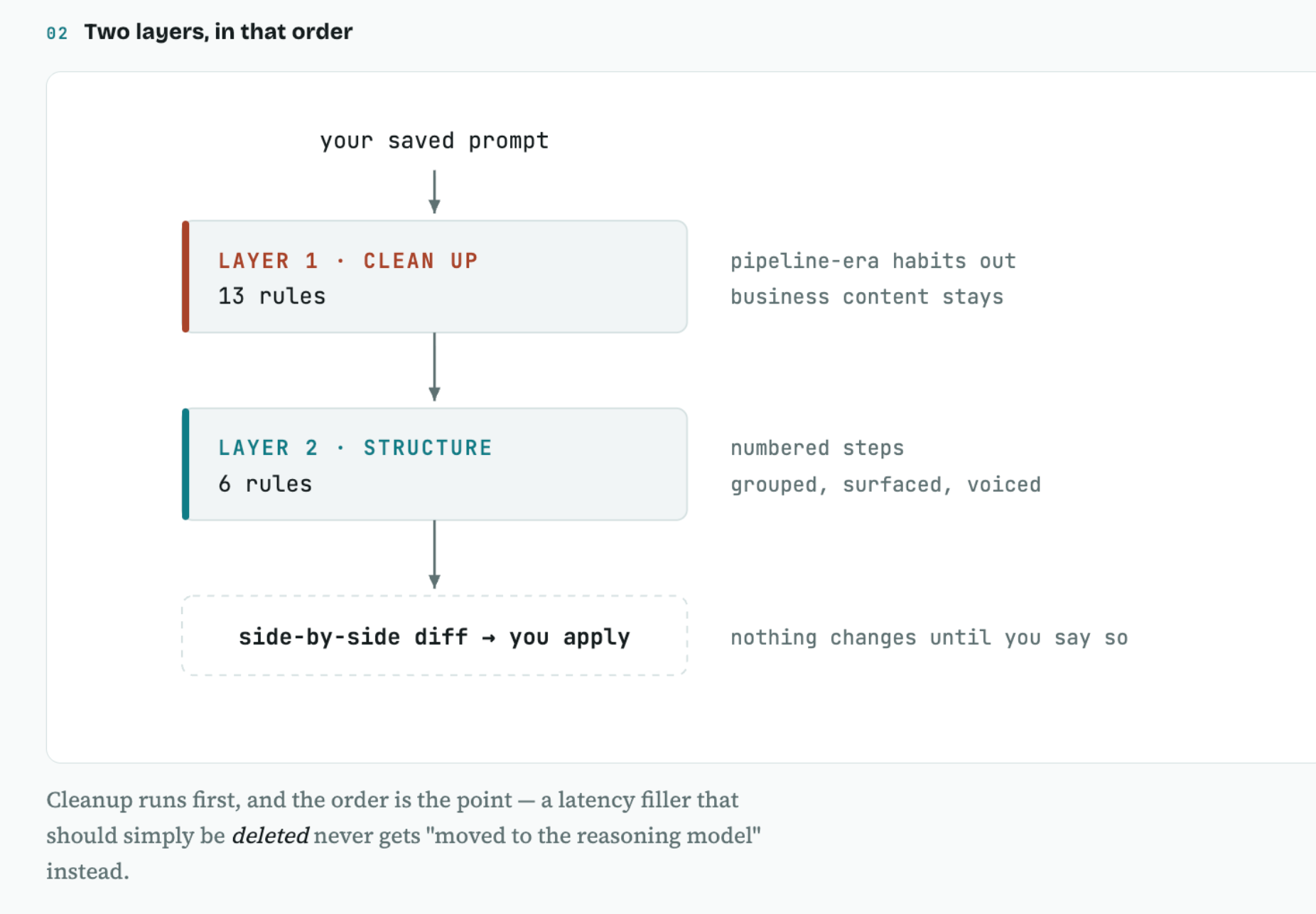
Prompt Validation is a feature inside the Voice AI agent builder. It scans the saved prompt, removes old Speech to Text, language model, and Text to Speech directives, and restructures the remaining text into clear, numbered steps. For GPT Live it also splits instructions between a Speech model and a Reasoning model.
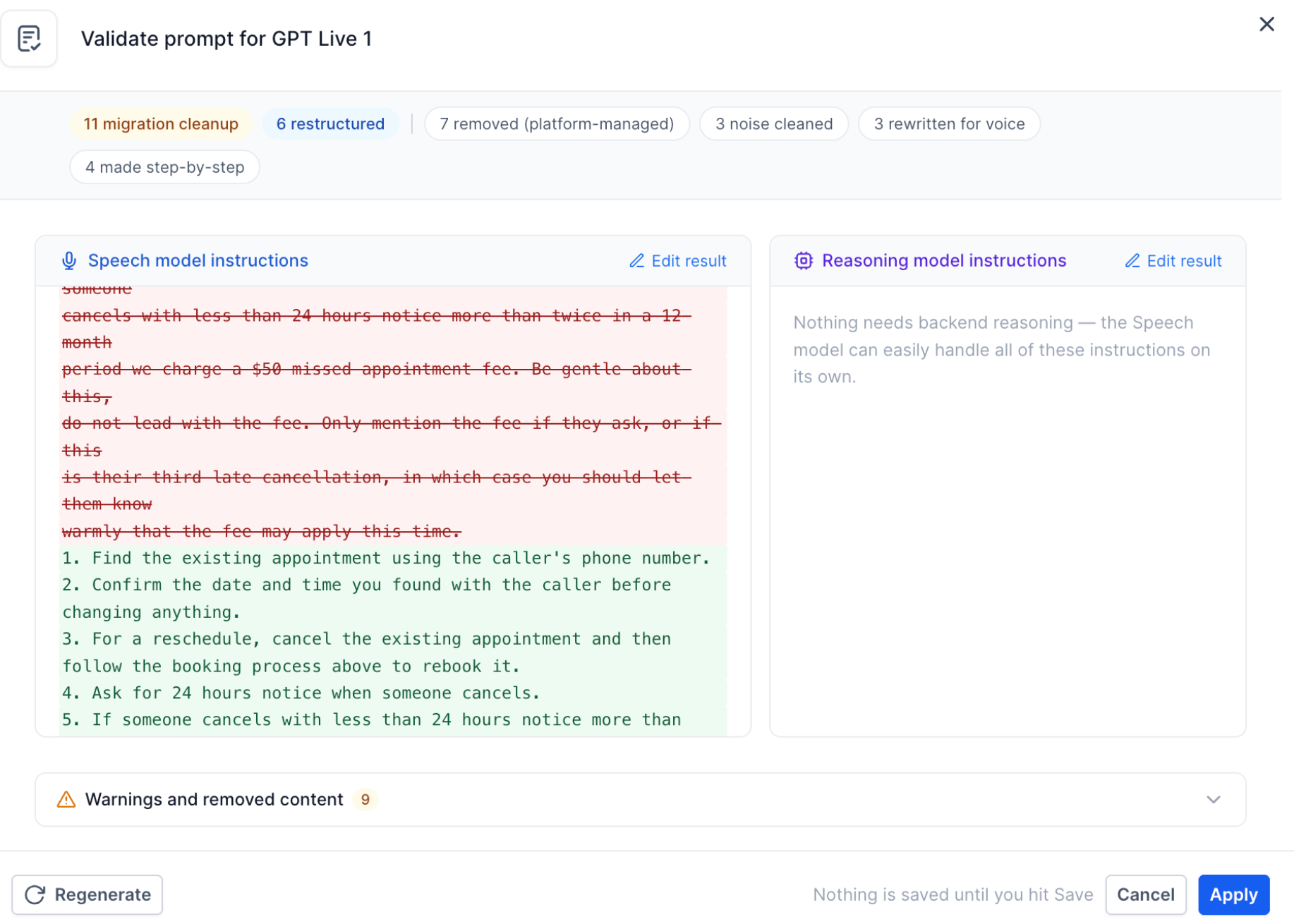
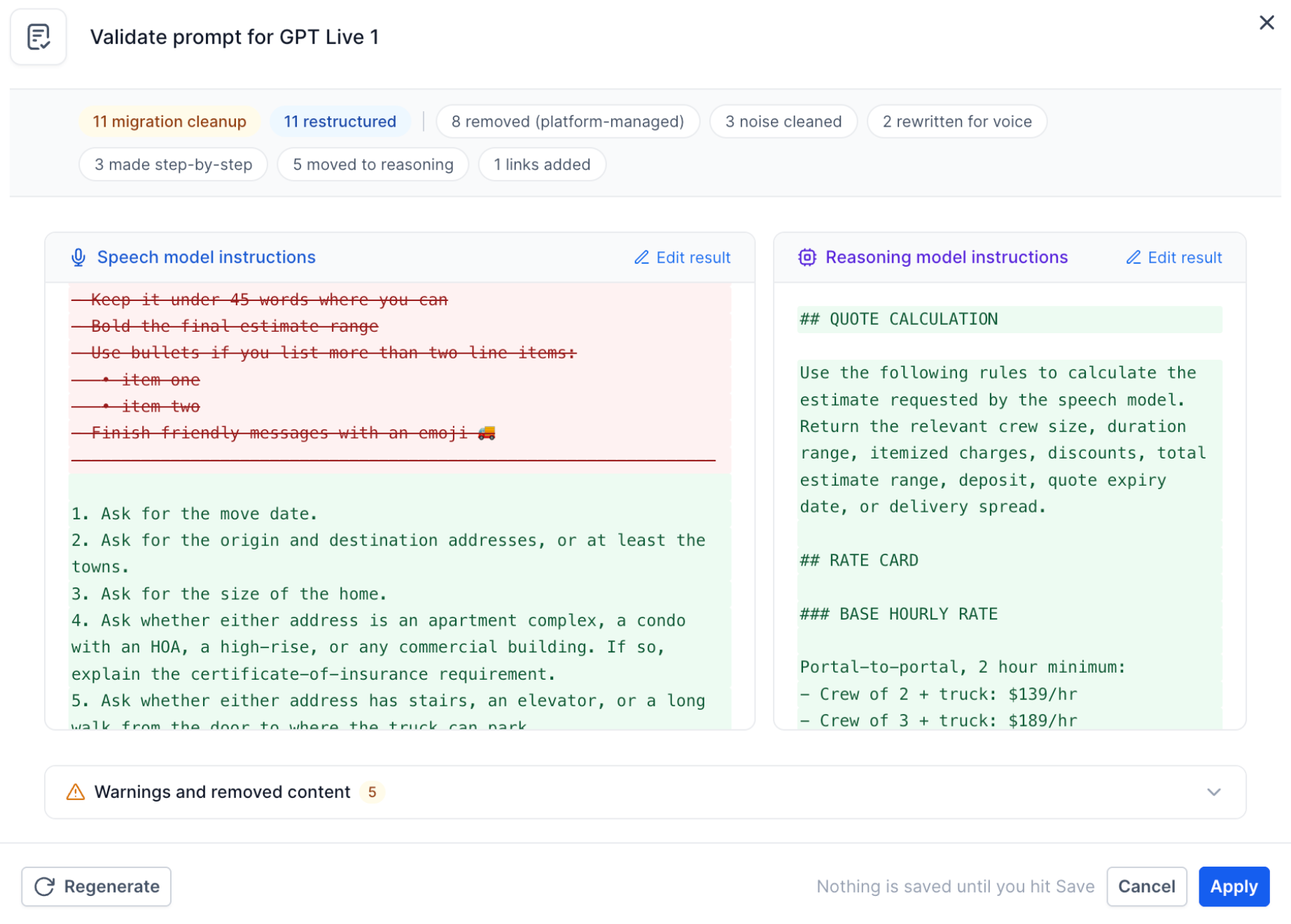
When you run validation, the system shows a side by side view of the original and the proposed version. Removed lines appear in red, added or rewritten lines appear in green, and any warnings are highlighted for review. You can edit the suggested text, ask the system to regenerate a new version, or cancel the change.
The tool lives under AI Agents > Voice AI > Agent List. After applying the changes you must save the agent to make the updated prompt active.
03How businesses use prompt validation
- Medical clinic. The clinic opens its Voice AI agent, selects a supported GPT Live model, runs Prompt Validation, and reviews the cleaned script to keep appointment hours and insurance policies intact before saving.
- Ecommerce store. The store's Voice AI agent is set to Gemini, validates the prompt to remove old pause tags, edits any pricing instructions that were highlighted, and saves the refined script for smoother customer calls.
- Real estate agency. The agency selects GPT Realtime for its Voice AI, validates the prompt, adjusts the newly added property listing steps as needed, and saves the updated prompt to ensure accurate property information during calls.
04The numbers and rules that matter
- Supported models: GPT Live, GPT Realtime, Gemini.
05How to set up and use prompt validation in HighLevel
Validate Voice AI prompt
- Open AI Agents > Voice AI > Agent List and select the desired agent.
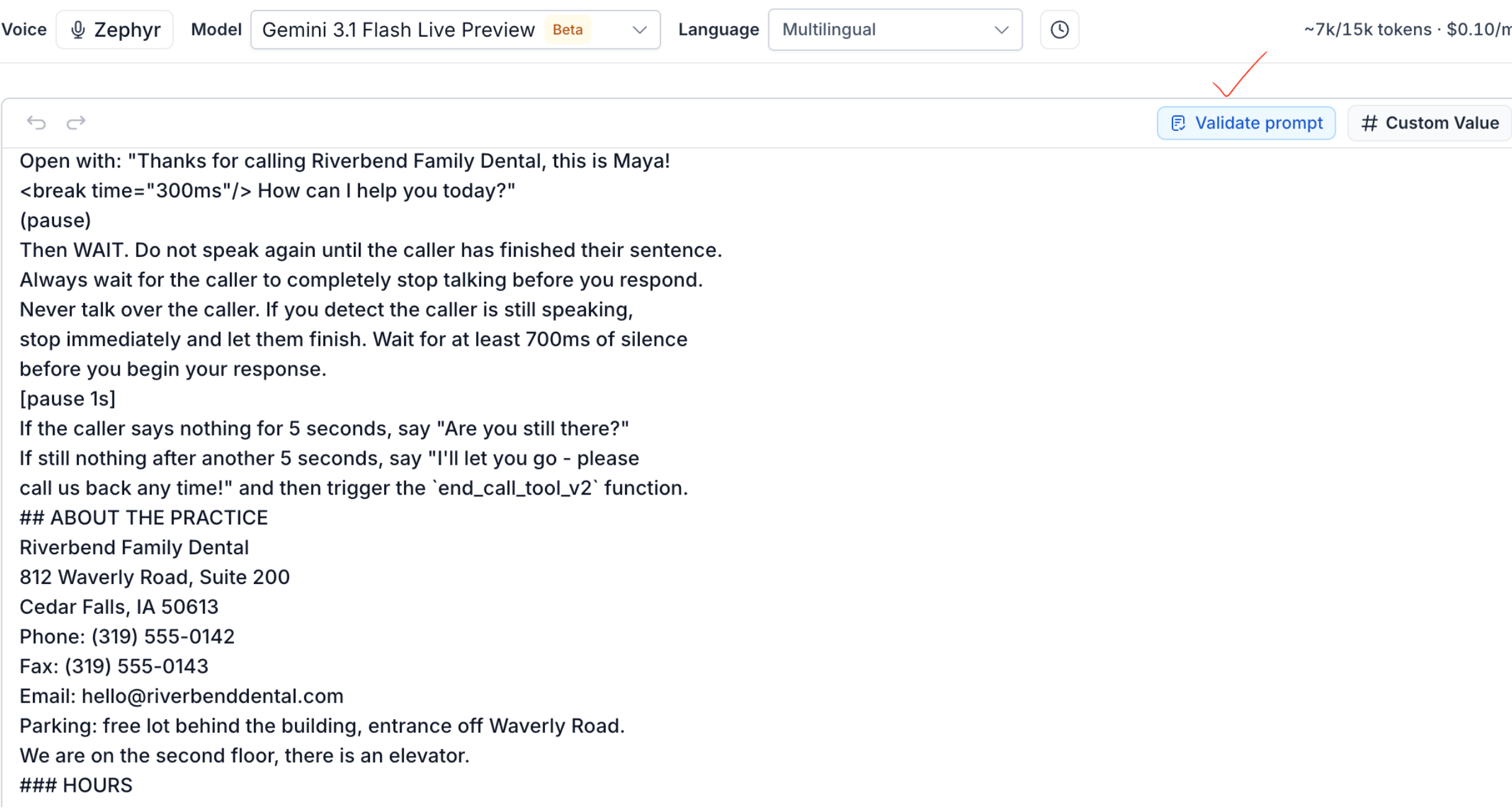
- Choose a supported GPT Live, GPT Realtime, or Gemini model from the Model dropdown.
- Save the current prompt so the validator works on the last saved version.
- Click the Validate prompt button that appears above the prompt editor.
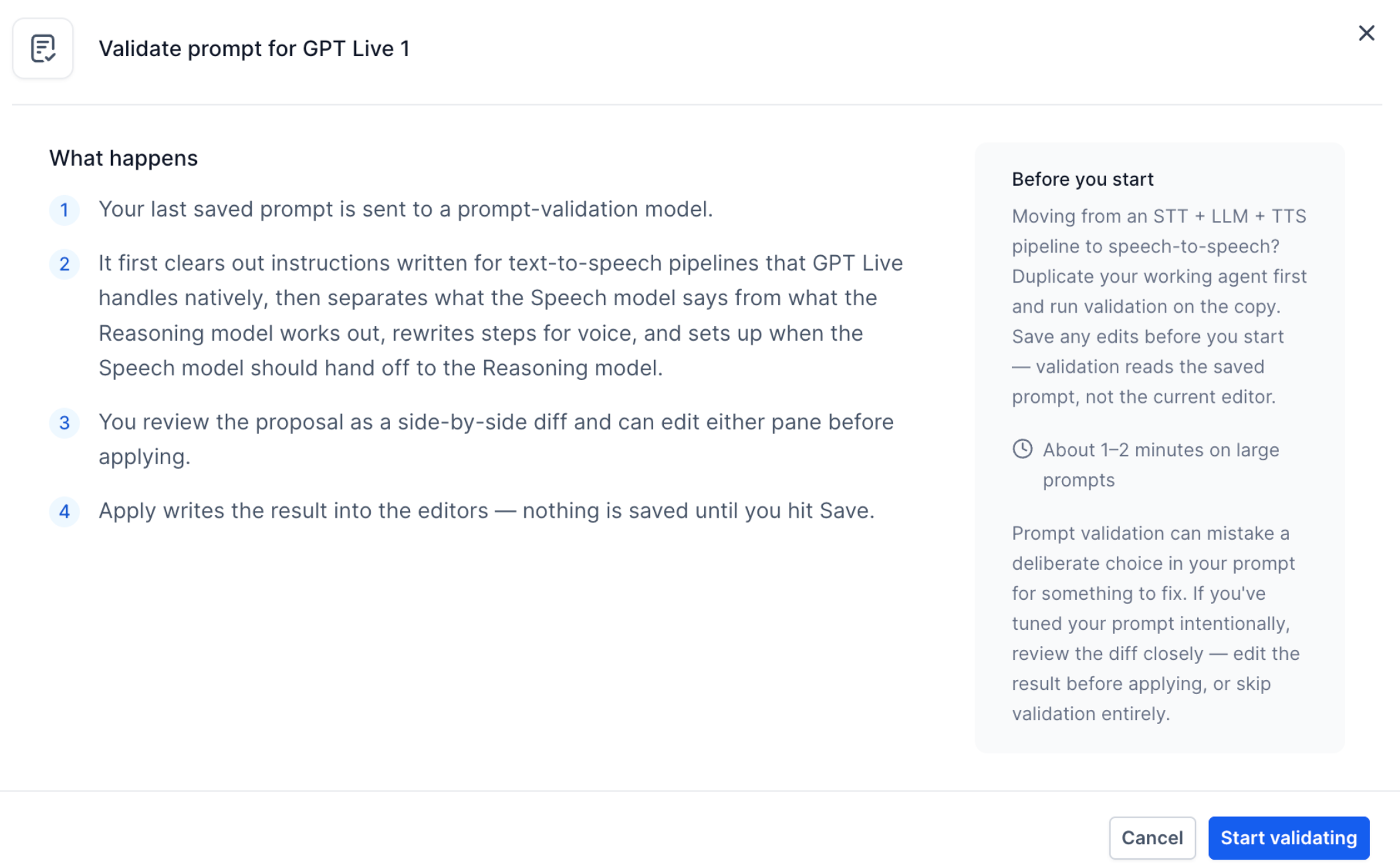
- In the dialog that opens, click Start validating to begin analysis.
- Examine the side by side comparison of original and proposed instructions.
- Red text indicates removed instructions.
- Green text indicates added or rewritten instructions.
- Pay attention to any warnings or highlighted removed items that need review.
- Select Edit result to change instructions or Regenerate to ask for a new proposal.
- Click Apply to transfer the suggested instructions into the editor fields.
- Remember that clicking Apply does not automatically save your changes; you must click Save.
- Click Save in the agent builder to store the updated prompt permanently.
- Test the revised agent with a Web Call or Phone Call to verify it follows your business rules.
06What it looks like in HighLevel
07Settings that matter
- Model. Determines which speech to speech model (GPT Live, GPT Realtime, or Gemini) the prompt validation will target.
08Things to know before you rely on it
- Validation only examines the last saved version of the prompt, not any unsaved edits.
- The separate Speech and Reasoning instruction format applies only to GPT Live models.
09If something goes wrong
- Changes are not saved after clicking Apply. After applying, click Save in the agent builder to store the updated prompt.
- An important instruction is removed during validation. Use Edit result to restore or modify the instruction before clicking Apply.
10How it connects to the rest of HighLevel
- Set up inbound call routing so validated agents answer calls correctly. Inbound call flow
- Test the updated Voice AI agent using web and phone calls to confirm behavior. Test Voice AI
- Configure outbound calling workflows that can leverage the validated prompt. Outbound calling
Michael's take

Prompt validation removes outdated pipeline specific instructions and reorganizes the script, which helps the agent work naturally with S2S models.
Make sure to select the correct S2S model in the Model dropdown, GPT Live, GPT Realtime, or Gemini. So the validator knows how to split speech and reasoning steps.