
01Who this is for
- Businesses that run Voice AI calls and need to share information right away via WhatsApp.
- Teams that have WhatsApp Business numbers linked to their contacts and want to automate template delivery during calls.
02Send WhatsApp messages, explained
The Send WhatsApp Message action is an option inside a Voice AI agent that sends a pre approved WhatsApp template to the contact linked to the active phone call. The AI monitors the dialogue, and when the defined trigger phrase appears, it first speaks a short pre message and then sends the template in the background.
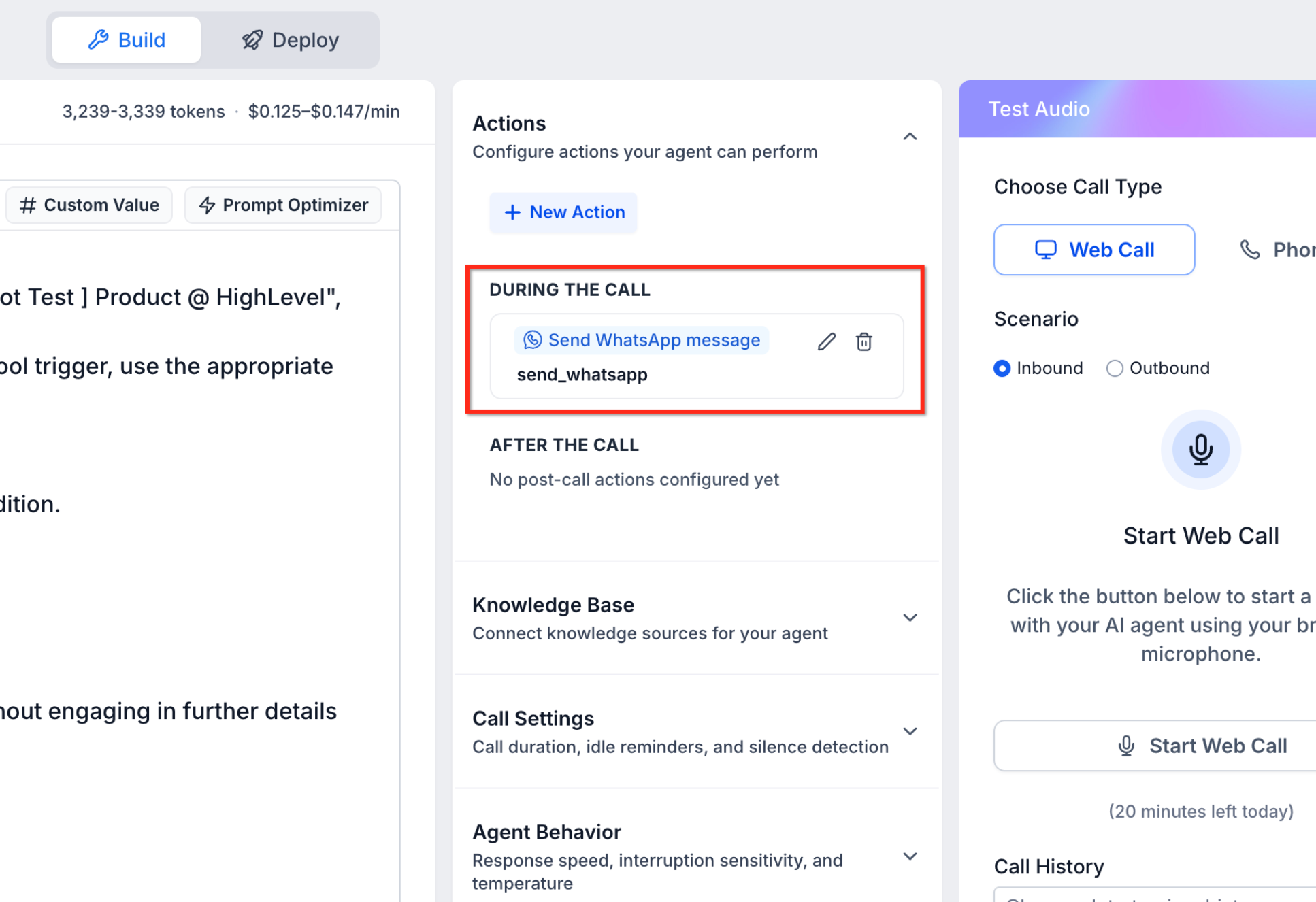
The feature lives in the Actions panel of a Voice AI agent. After enabling the Labs toggle, the action appears in the dropdown menu, where you set a name, a trigger condition, the spoken pre message, the WhatsApp number to use, the approved template, and any variable values. Once saved, the action sits in the DURING THE CALL section and runs automatically during live calls.
Delivery is asynchronous, so the caller continues hearing the AI while the WhatsApp message is sent. The recipient is always the WhatsApp number attached to the caller’s contact record, and only templates that WhatsApp has approved can be used.
03How businesses use the Send WhatsApp Message action
- Personal training studio. The studio creates an approved template that contains a booking link. In the Voice AI agent, they set the trigger phrase "I want to book a session" and the pre message "Sending the link now." When a prospect says the phrase, the AI sends the link via WhatsApp without ending the call.
- Online boutique. The boutique adds a template with a payment URL. The agent’s trigger condition is "send me the payment link." The AI says "I’ll send that to your WhatsApp" and then pushes the payment template to the buyer’s WhatsApp number while the conversation continues.
- Home repair service. The service defines a template with contact details and service pricing. The trigger phrase is "give me the quote on WhatsApp." The AI delivers the preset quote template to the caller’s WhatsApp automatically after confirming with a spoken cue.
04Before you start
- WhatsApp Business API must be set up in the subaccount with at least one WhatsApp enabled phone number (Settings > WhatsApp).
- At least one WhatsApp template must be created and approved by WhatsApp (Settings > WhatsApp).
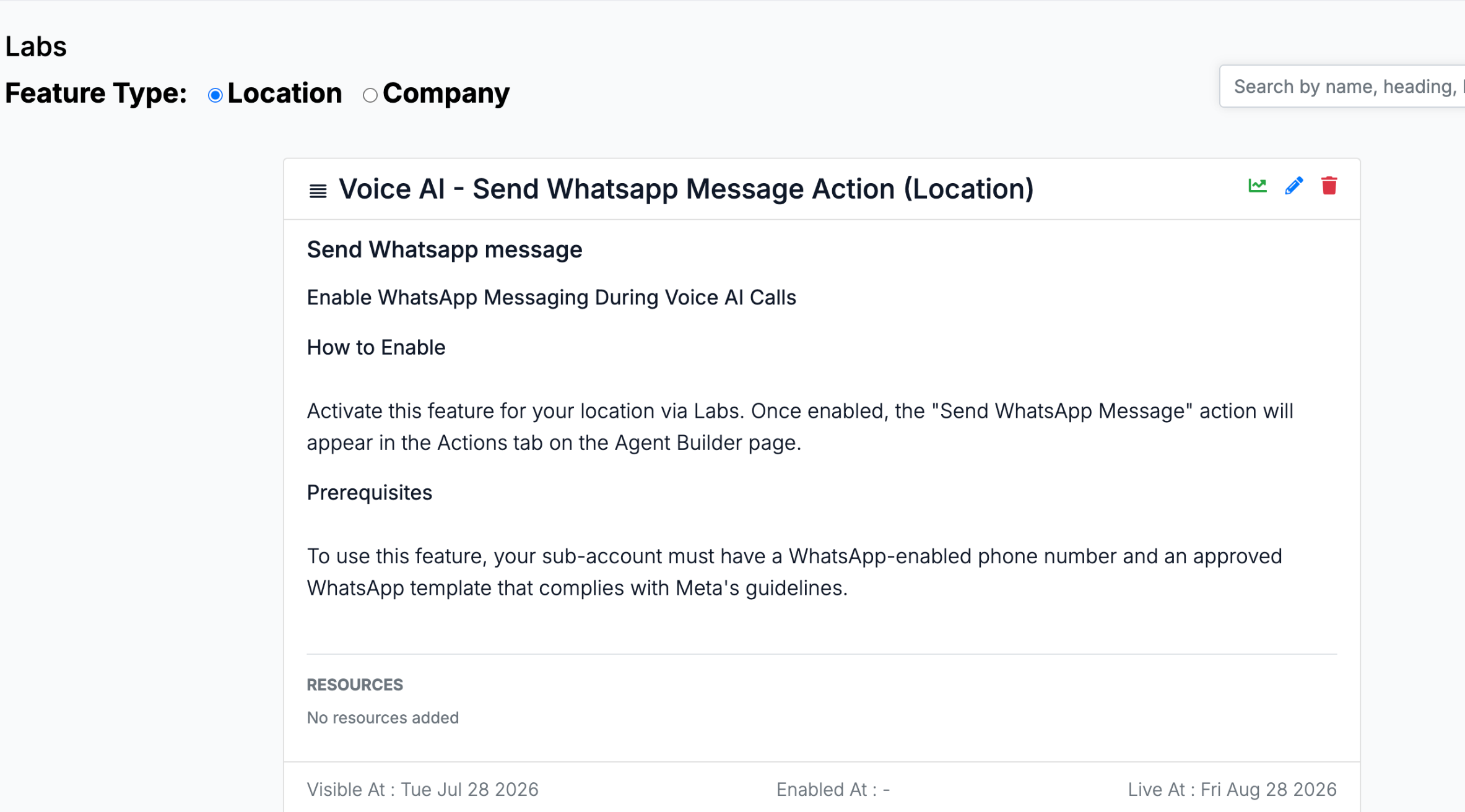
- The Labs feature "Voice AI - Send WhatsApp Message Action (Location)" must be enabled (Settings > Labs).
05How to set up and use the Send WhatsApp Message action in HighLevel
Configure the Send WhatsApp Message action
- Open Settings > Labs and turn on the Voice AI - Send WhatsApp Message Action (Location) feature.
- Select the Voice AI agent you want to edit and go to its Actions section.
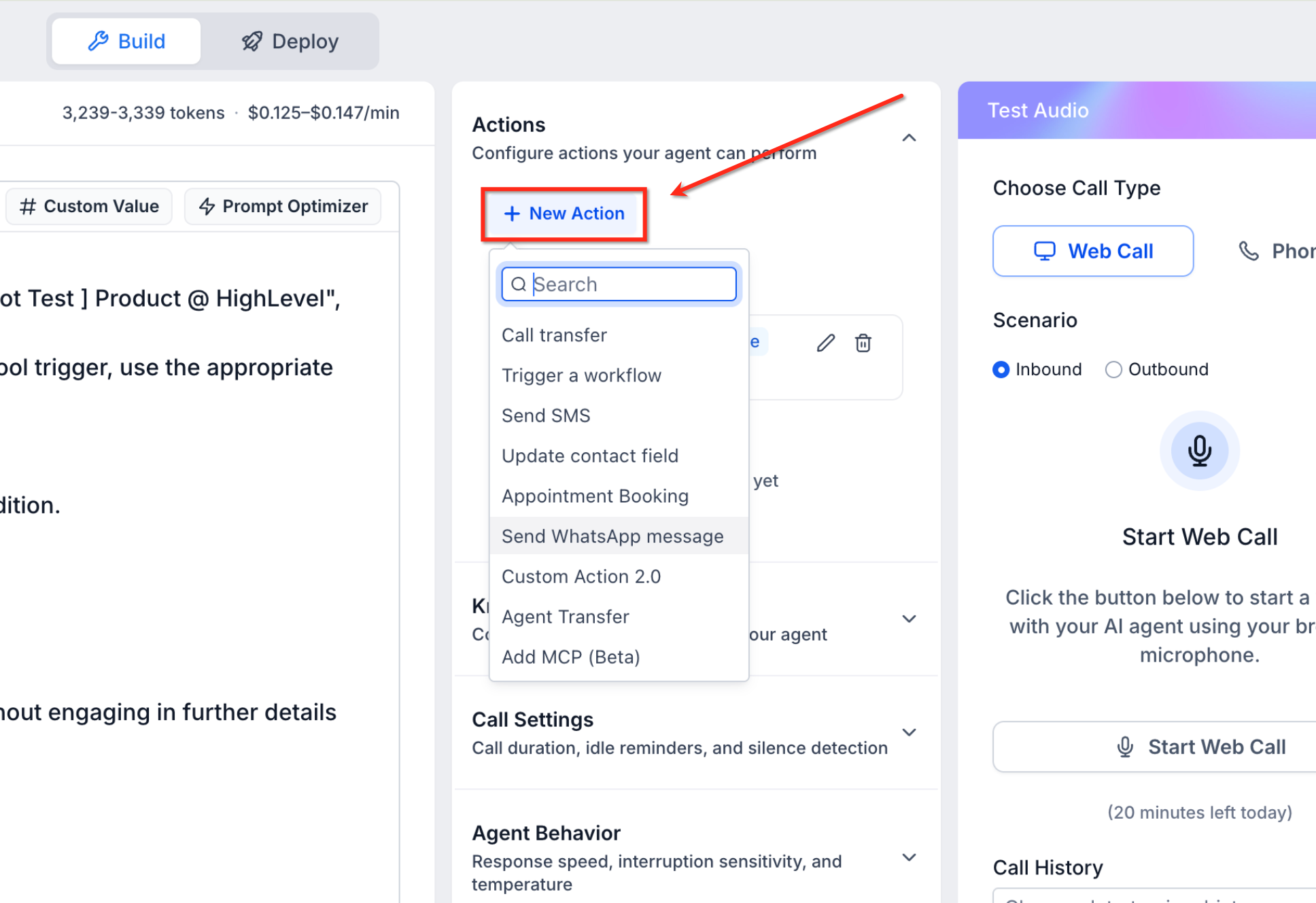
- Click the + New Action button and choose Send WhatsApp message from the dropdown.
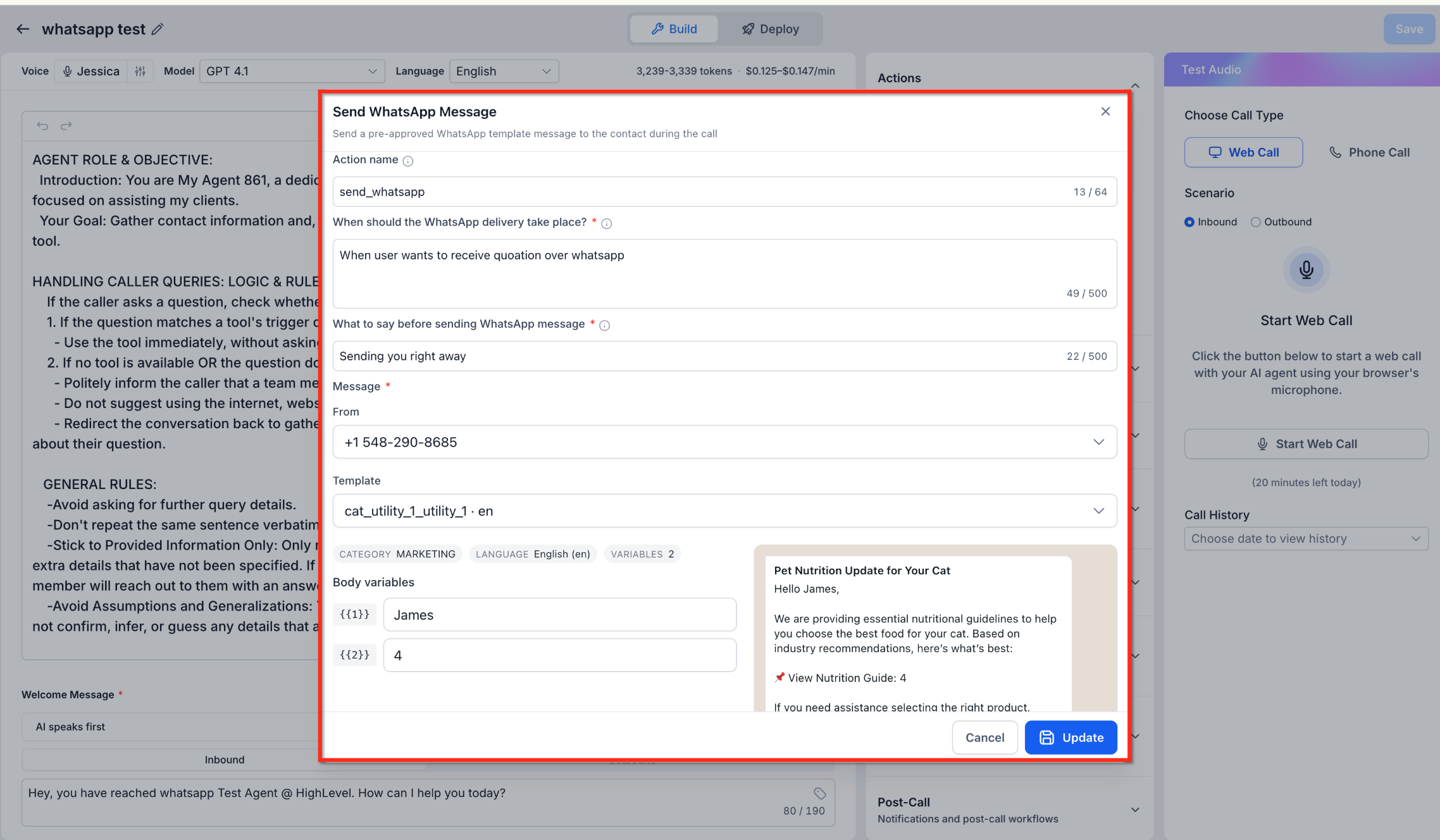
- Enter a clear name for the action in the Action name field.
- Specify the trigger phrase in the When should the WhatsApp delivery take place? field.
- Write the spoken cue for the caller in the What to say before sending WhatsApp message field.
- Pick the WhatsApp Business number that will send the message from the From dropdown.
- Select an approved WhatsApp template from the Template dropdown list.
- Provide values for any body variables shown in the Body variables section and verify the preview.
- Press Update to save the configuration; the action now appears in the DURING THE CALL area.
06What it looks like in HighLevel
07Settings that matter
- Voice AI - Send WhatsApp Message Action (Location). Enables the Send WhatsApp Message action in the Voice AI agent builder.
- Action name. Sets the identifier for the action within the agent configuration.
- When should the WhatsApp delivery take place?. Defines the conversation condition that triggers the message send.
- What to say before sending WhatsApp message. Specifies the phrase the AI will speak right before the WhatsApp message is sent.
- From. Chooses which connected WhatsApp Business number will be used to send the template.
- Template. Selects which pre approved WhatsApp template will be delivered during the call.
- Body variables. Allows entry of dynamic content for placeholders in the chosen template.
08Things to know before you rely on it
- Only WhatsApp templates that have been approved by WhatsApp can be sent; custom messages are not permitted.
- The recipient is fixed to the contact’s WhatsApp number linked to the active call; the agent cannot change it.
- Message delivery occurs in the background and does not pause or interrupt the phone call.
- The feature is available as a Labs option, meaning it may be in testing or early access and could change.
09How it connects to the rest of HighLevel
- Learn how to create a Voice AI agent that can use this action. Create Voice AI agent
- Set up inbound call routing so calls reach your Voice AI agent. Configure inbound call flow
- Read an overview of Voice AI agents and the situations they support. Voice AI overview
Michael's take

Callers often need a link or payment info and then have to write it down or switch apps. Sending a WhatsApp template right from the Voice AI call solves that friction by delivering the data fast to the device they’re already using.
The first thing I would lock down is the trigger phrase and the premessage the AI says. Getting that wording clear ensures the caller knows a WhatsApp message is coming and avoids confusion.