
01Who this is for
- Founders who need to limit who can edit Voice AI agents to prevent accidental changes.
- Support managers who only require read only visibility of agent goals and performance data.
- Analysts who should see dashboards but not modify any Voice AI settings.
02Granular permissions for Voice AI Agents, explained
Granular permissions are a set of five toggles that define which users can view, edit, or analyze Voice AI agents, their goal configurations, and performance dashboards. The toggles sit in the Roles & Permissions panel under the AI Agents section and work per subaccount.
When a permission is enabled, the related UI elements become visible and actionable for the user. If disabled, the elements are hidden and the user cannot perform those actions. Changes take effect immediately; the platform blocks any disallowed activity and displays a Permission Denied notice.
03How businesses use granular permissions for Voice AI Agents
- Call center. A call center manager can enable View & Manage Voice AI Agents for supervisors, allowing them to create and edit agents, while granting only View Voice AI Dashboard to quality analysts for monitoring call metrics.
- Digital marketing agency. An agency can give its clients read only access to View Voice AI Agent Goals so they can review configured automation without being able to alter the logic.
- Healthcare clinic. A clinic’s admin staff can turn on View & Manage Voice AI Agent Goals for the IT team to adjust appointment booking workflows, while restricting other staff to only view the dashboard.
04The numbers and rules that matter
- Granular Voice AI permissions are set per subaccount.
05How to set up and use granular permissions for Voice AI Agents in HighLevel
Configure granular Voice AI permissions for a staff member
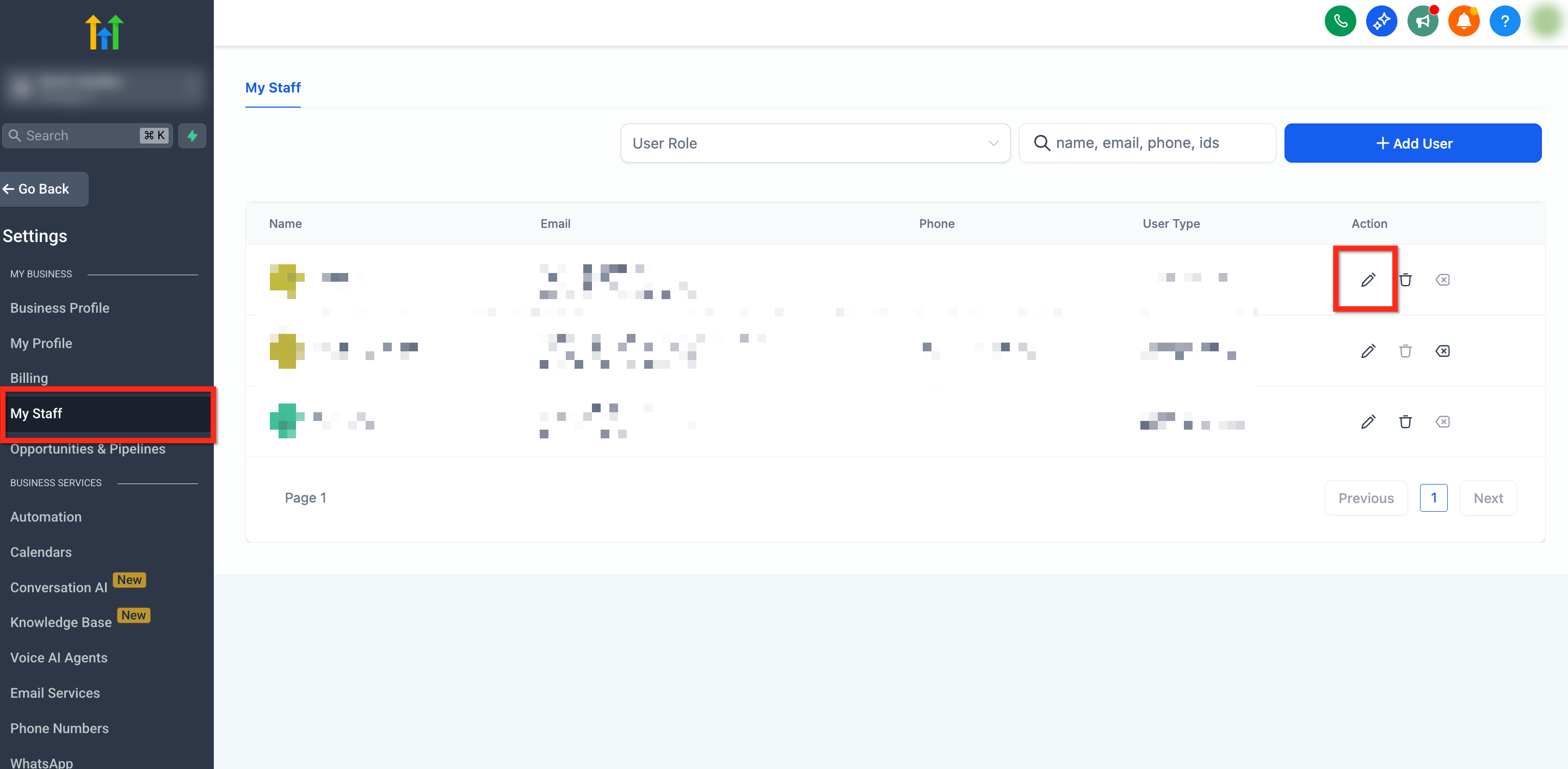
- Open Settings from the lower left corner of the subaccount.
- Select My Staff from the left navigation.
- Click the pencil icon next to the user you want to edit.
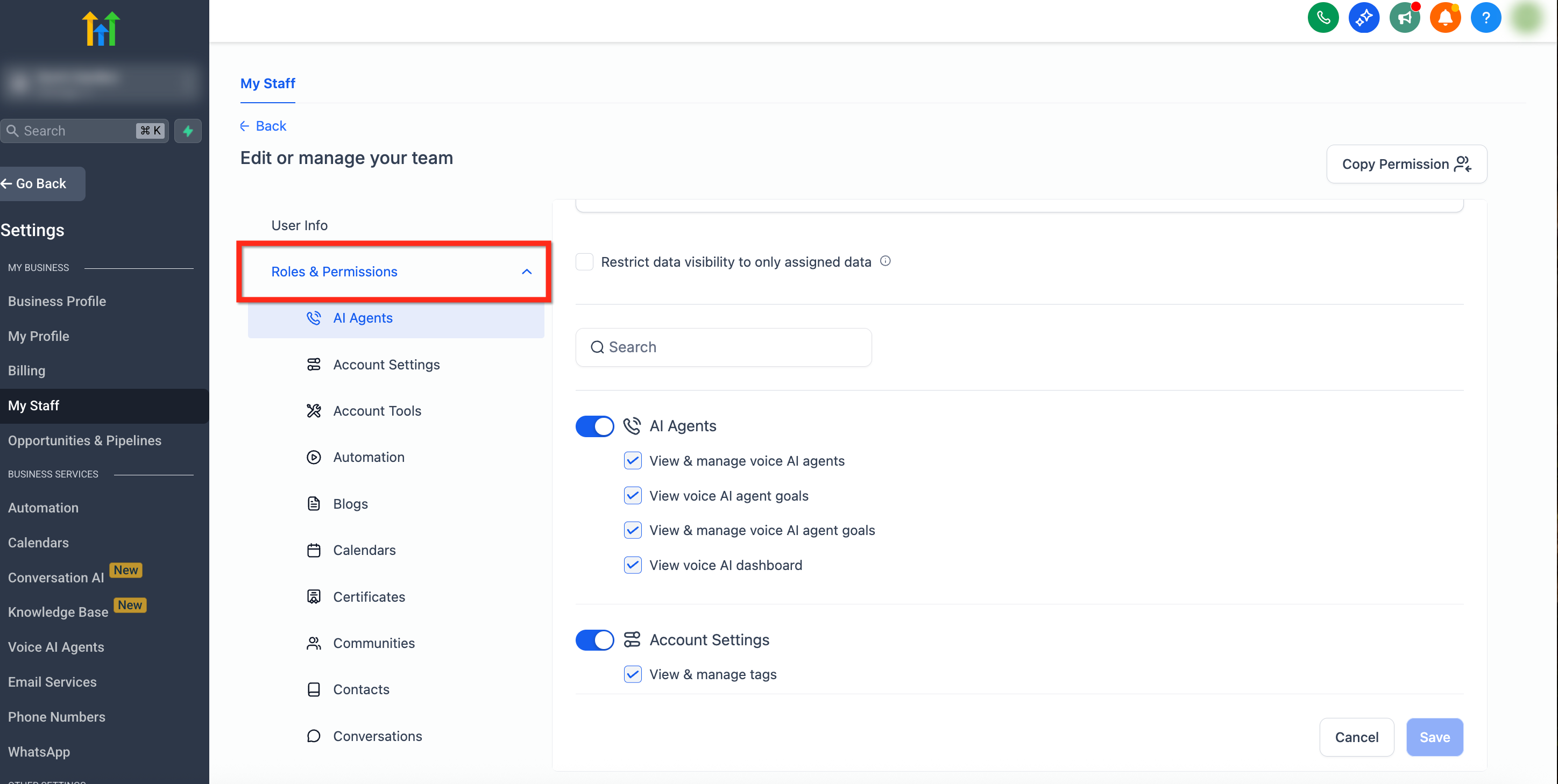
- Choose Roles and Permissions in the secondary left menu.
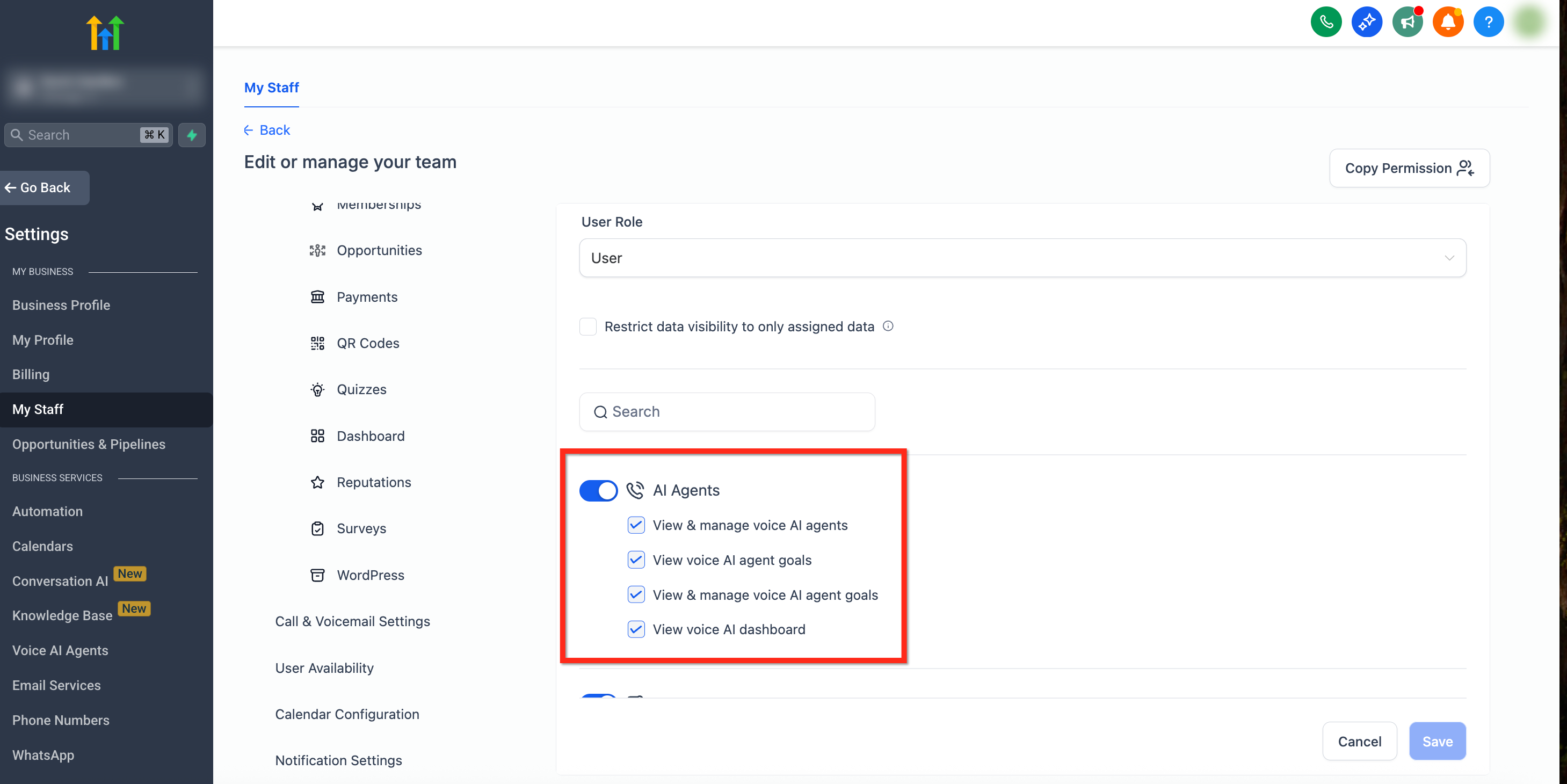
- Scroll down the permissions list until the AI Agents section appears.
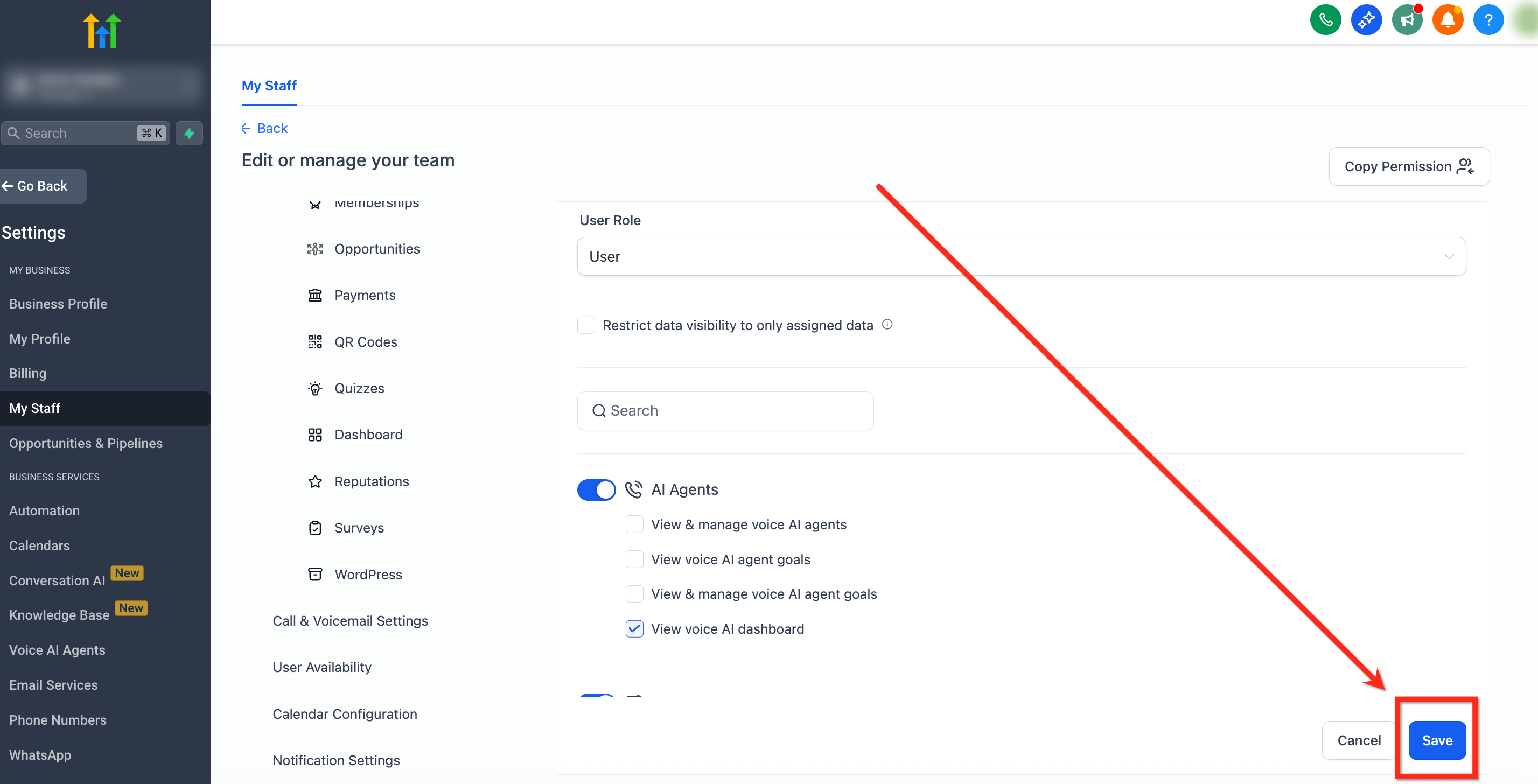
- Toggle the desired Voice AI permissions on or off.
- Press the blue Save button to apply the changes.
- Note: Changes are applied immediately; if a permission is revoked while a user is active, HighLevel blocks further actions and shows a Permission Denied message.
06What it looks like in HighLevel
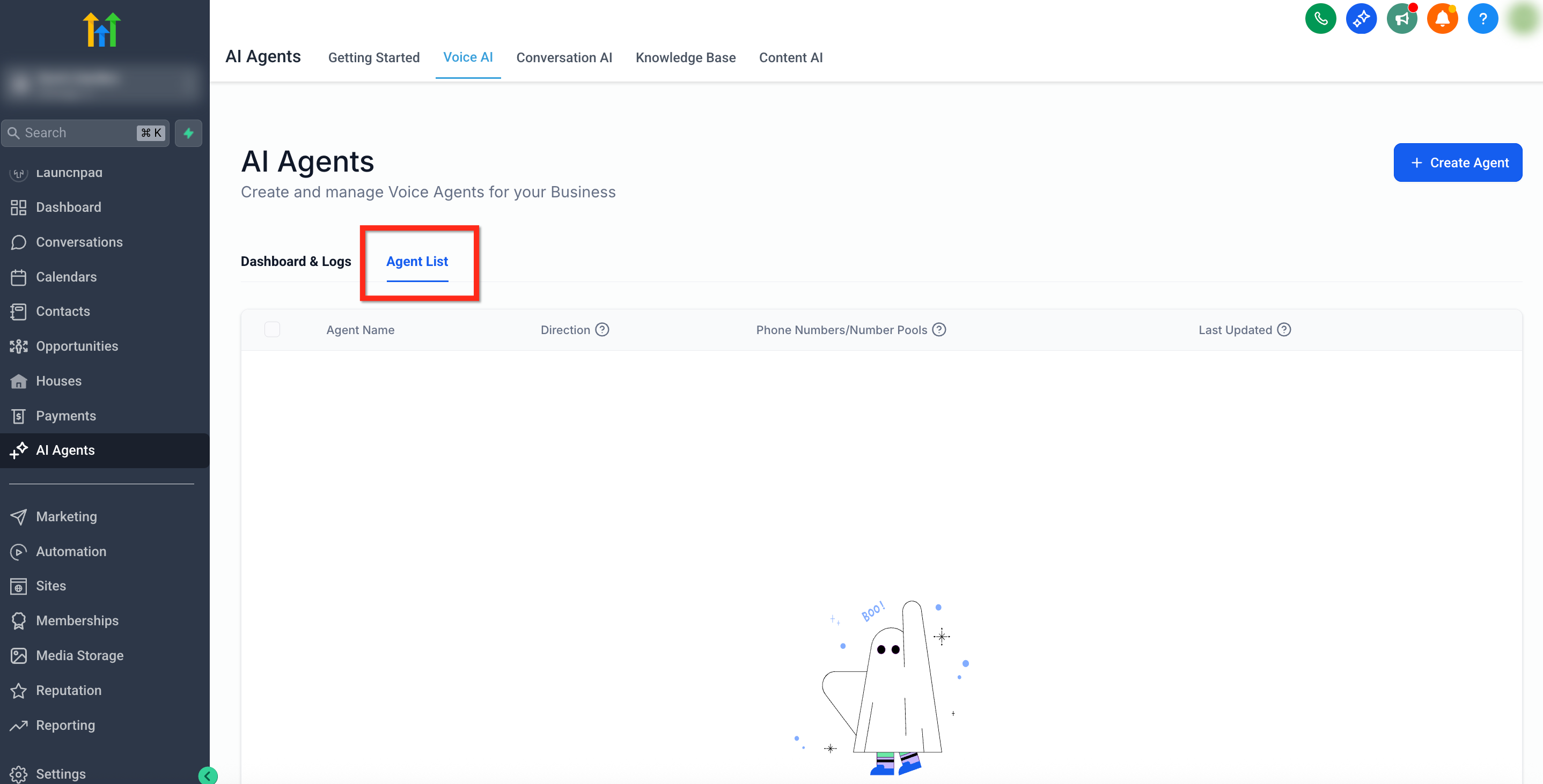
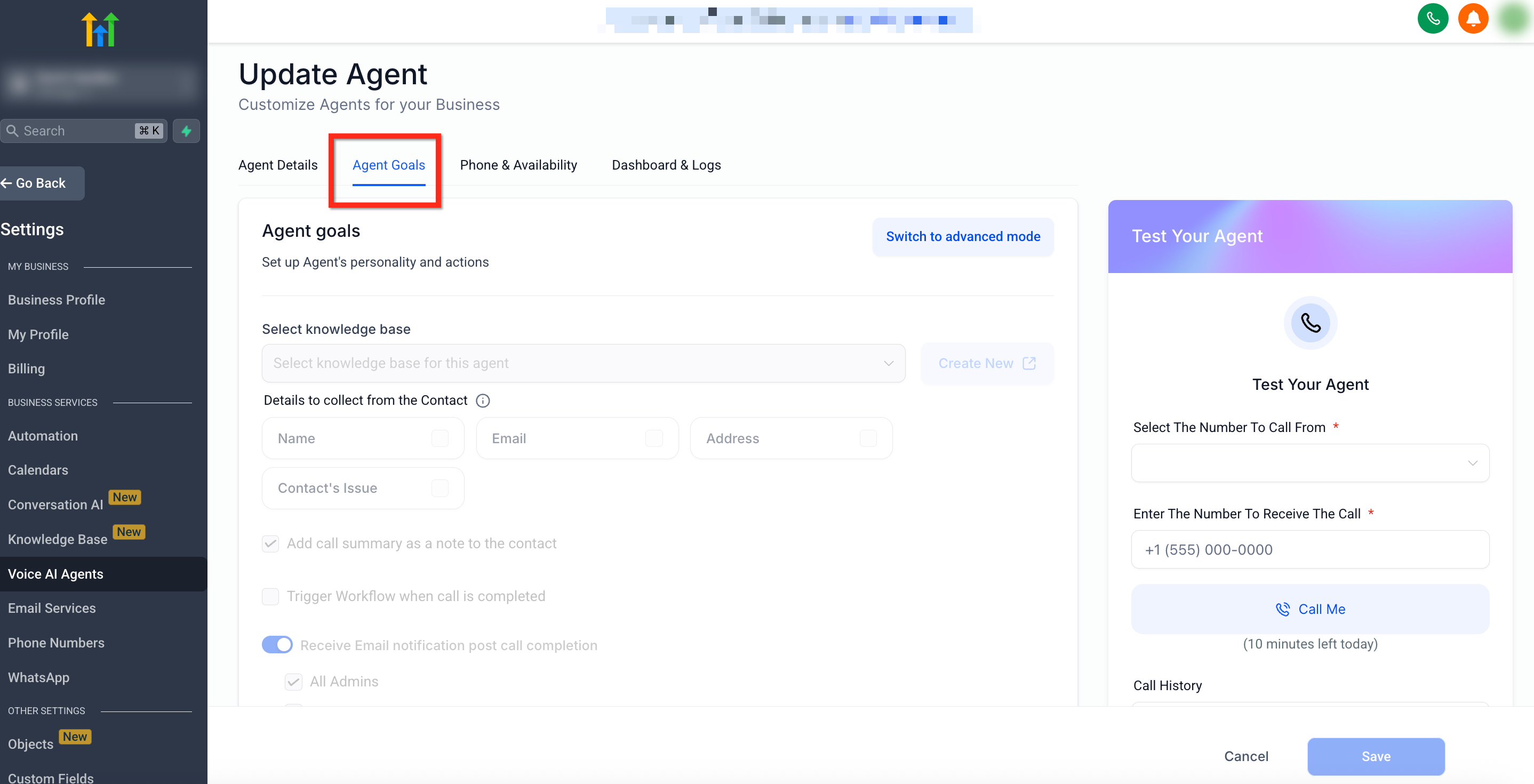
07Settings that matter
- AI Agents (Parent Control). Acts as the main switch for any Voice AI agent access; disabling it hides the entire agent list and disables related goal permissions.
- View & Manage Voice AI Agents. Grants full rights to create, edit, and delete Voice AI agents, as well as assign phone numbers and configure behavior.
- View Voice AI Agent Goals. Provides read only visibility of the Agent Goals tab so users can see settings without making changes.
- View & Manage Voice AI Agent Goals. Allows users to edit agent goals, including knowledge base, post call workflows, and data extraction settings.
- View Voice AI Dashboard. Enables access to performance dashboards that show call transcripts, recordings, and key metrics.
08Things to know before you rely on it
- Permissions are set per subaccount, not at the agency level.
- When Voice AI permissions are revoked during an active session, the platform blocks further actions and shows a Permission Denied message.
- If a role lacks Voice AI toggles, the navigation items for Voice AI disappear from the UI.
- These toggles affect only Voice AI phone agents; Conversation AI bots have separate permission sets.
09If something goes wrong
- Permission Denied while editing Voice AI. Refresh the page and verify the current permissions with an admin.
- Voice AI does not appear in the sidebar or AI Agents menu. Ask an admin to enable the needed Voice AI toggles under Settings > My Staff > Roles & Permissions > AI Agents.
10How it connects to the rest of HighLevel
- Learn how to create a Voice AI agent before assigning permissions. Create Voice AI agents
- Set up inbound call routing that works with your Voice AI agents. Configure inbound call flow
- Review plan details that include Voice AI capabilities. HighLevel pricing
Michael's take

Michael ReimerFounder of CRM Pros, HighLevel Commander and Certified Admin
Granular Voice AI permissions give tight control over who can access and modify voice agents.
Read the full details on HighLevel →Published November 2, 2026 · Updated November 16, 2026