
01Who this is for
- Customer support managers, they can confirm that new prompts work before routing real callers.
- Product teams building Voice AI agents, they need a safe way to assess changes without skewing analytics.
- Quality assurance specialists, they can listen to test recordings and read transcripts to ensure compliance.
02Test call logs, explained
Test call logs are records created whenever a Voice AI agent is exercised in a test scenario. Each entry may contain a recording, a transcript, the agent name, timestamps and outcome data. These logs appear in the same table that shows live call activity, but they are omitted from dashboard performance numbers. The logs live under the Dashboard & Logs section of the Voice AI area; users can narrow the view by selecting an agent, adjusting the date range, and applying the Live/Test filter, which toggles between real and test calls. Selecting a row opens a detail pane where any available recording or transcript can be played or read.
03How businesses use test call logs
- Dental practice. The office tests a new appointment booking Voice AI agent by making trial calls. After each change, staff open the test call logs, listen to the audio and read the transcript to verify that the correct time slots are offered before the agent handles actual patient calls.
- Real estate agency. Agents run a test of a property search Voice AI script. They filter the logs to show only test entries, review the recorded dialogue, and adjust the script wording until the agent reliably captures buyer preferences.
- SaaS startup. The development team validates a multilingual Voice AI support bot. They use the test call logs to compare recordings across languages, ensuring that each version returns the proper responses before enabling the bot for live customers.
04How to set up and use test call logs in HighLevel
View test call logs in the Voice AI dashboard
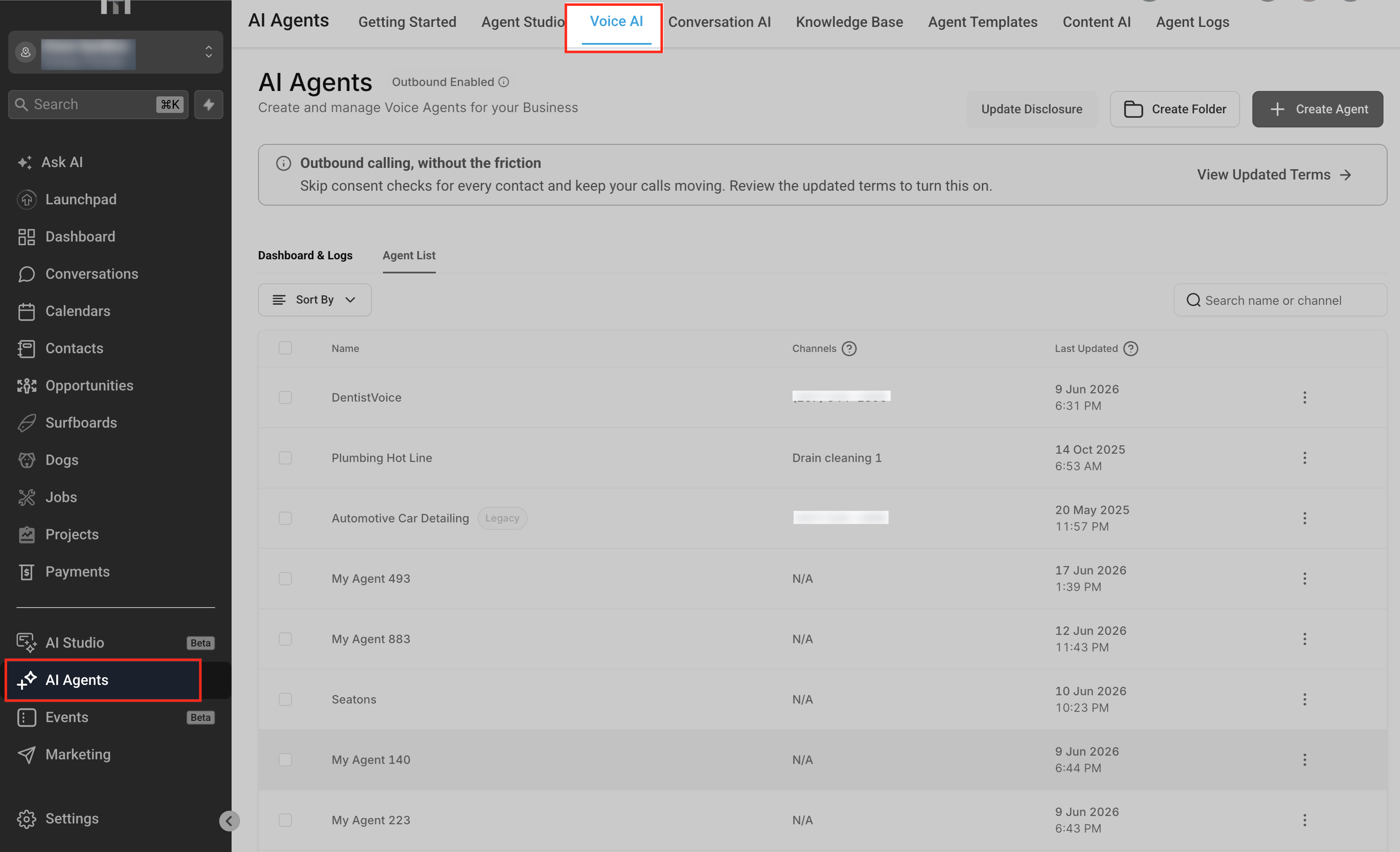
- Navigate to AI Agents > Voice AI.
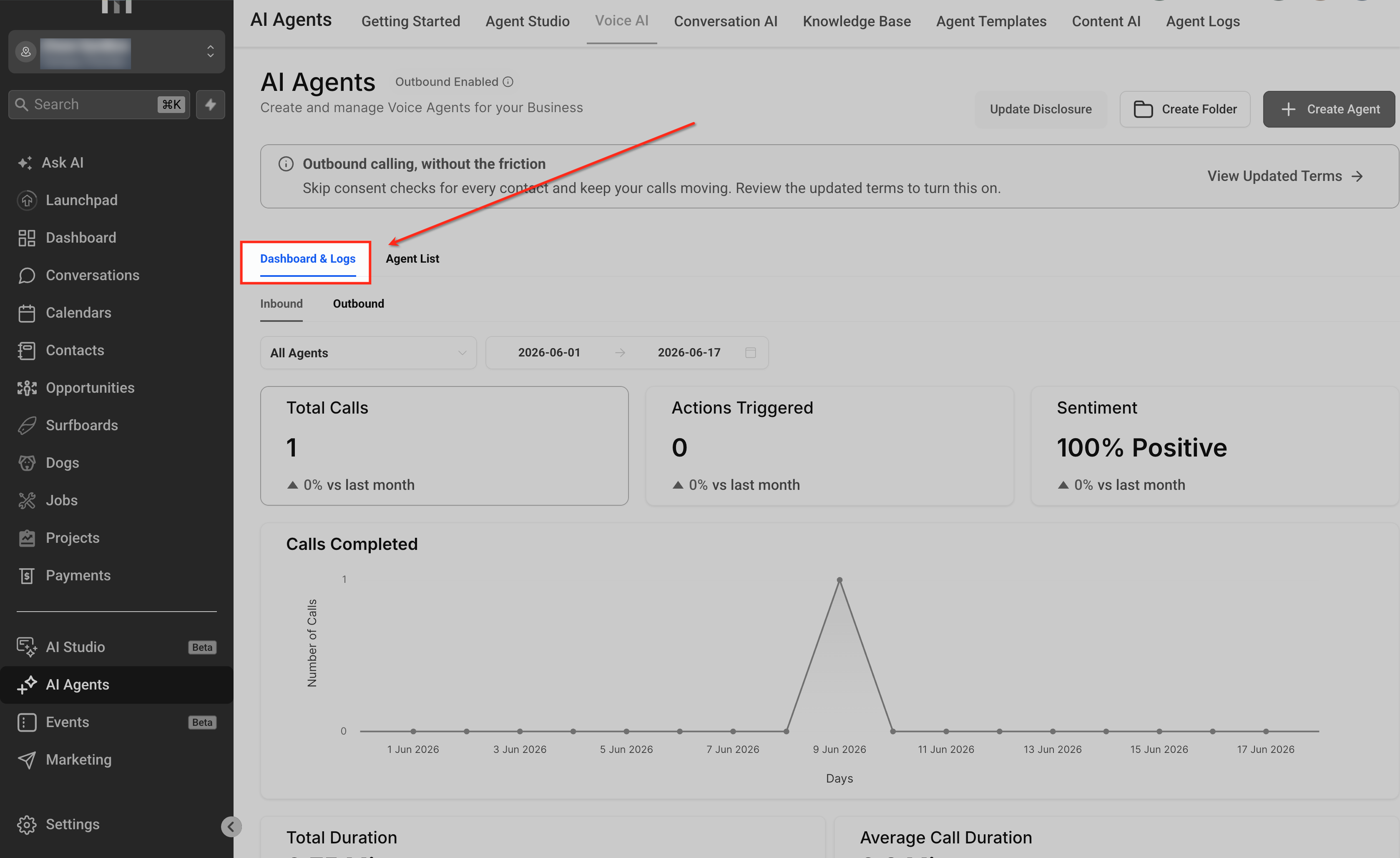
- Select Dashboard & Logs.
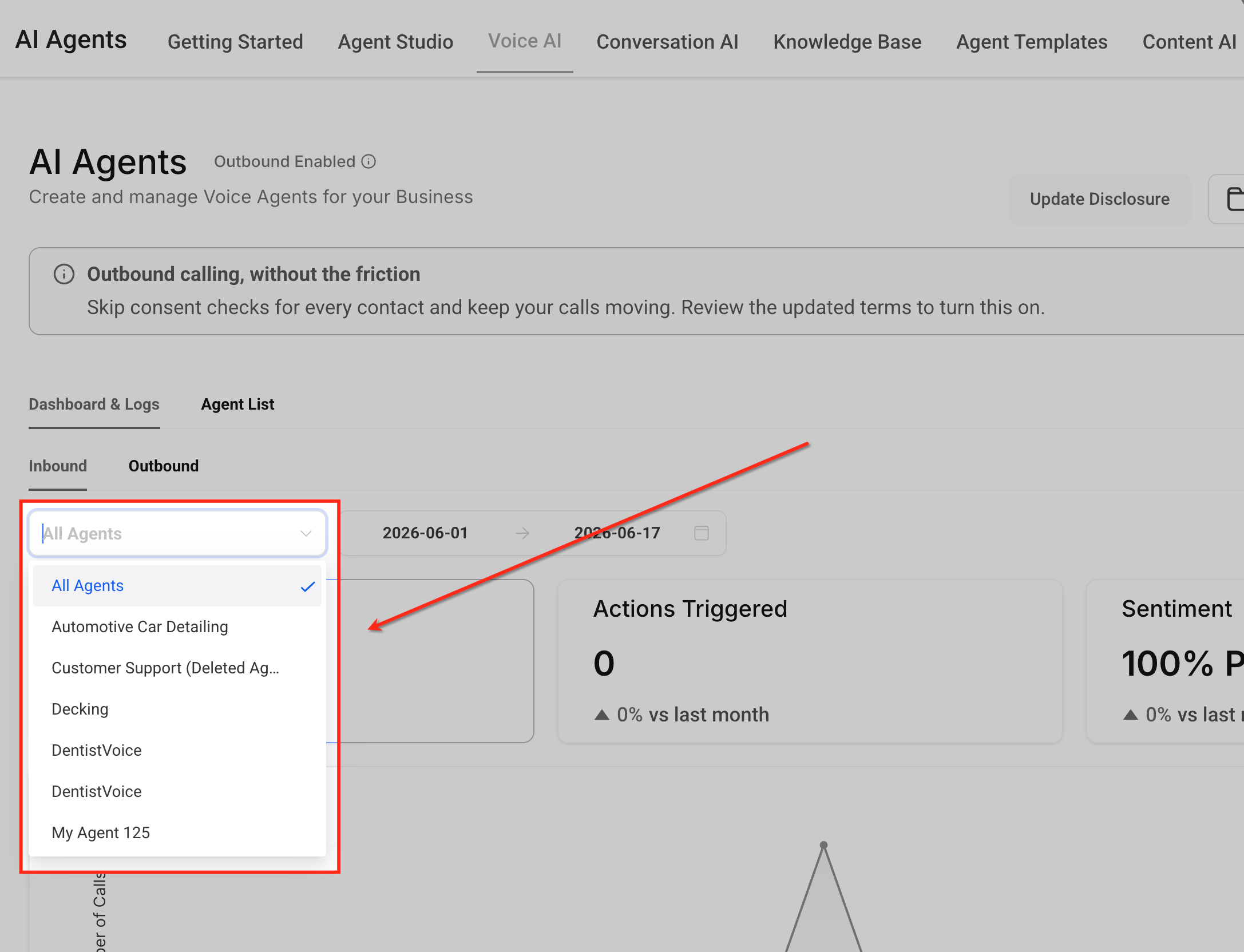
- Use the agent filter to pick all agents or a single agent.
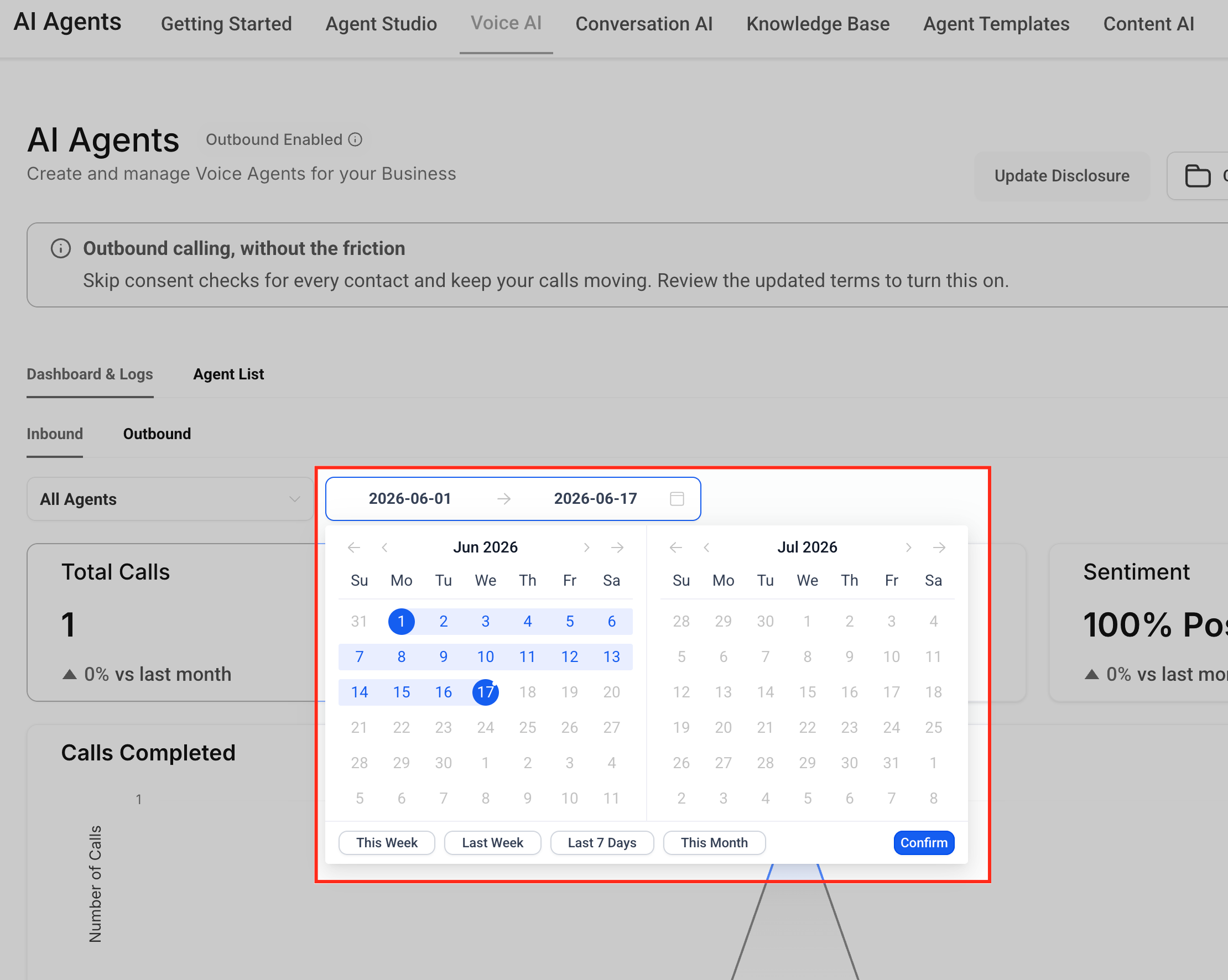
- Set the date range picker to include the period of the test calls.
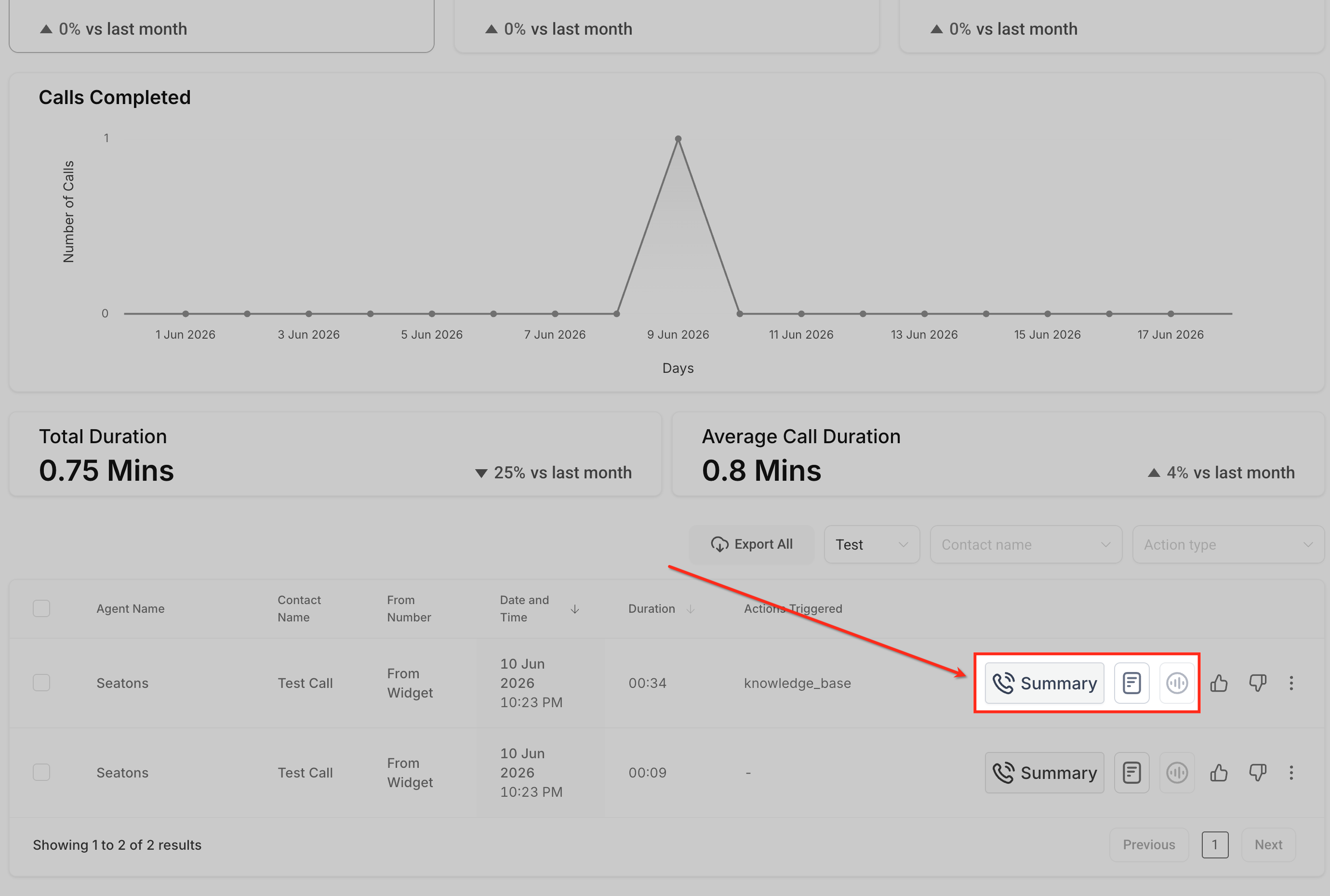
- Scroll down to the logs table positioned under the analytics cards; test calls appear here, not in the dashboard metric cards.
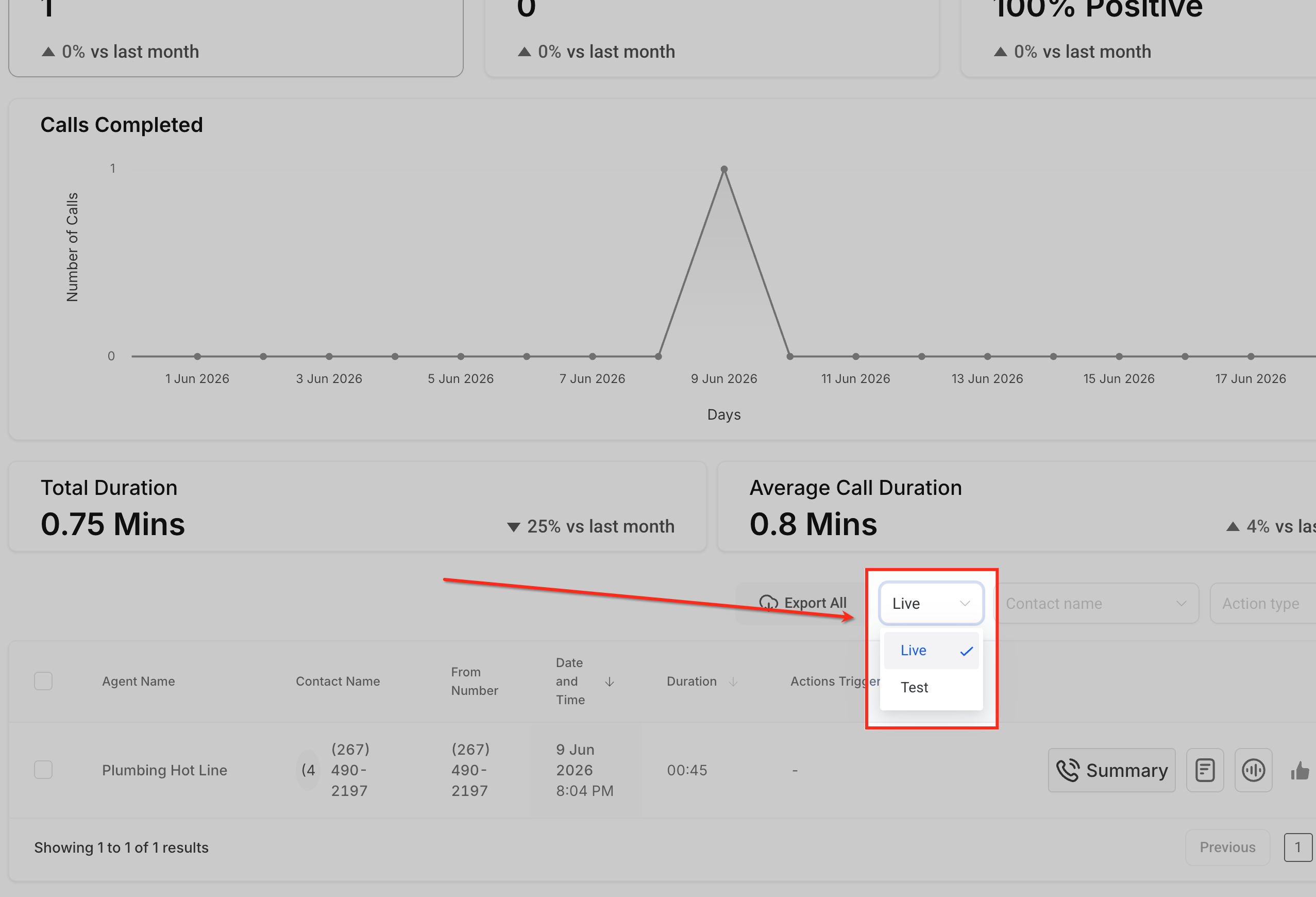
- Open the Live/Test filter in the table and choose the test call option.
- Click a test call row to open its details, where recordings, transcripts and other data appear.
- If the expected test call does not appear, verify the date range, agent filter, and Live/Test filter settings.
- Reset or modify the Live/Test filter after reviewing to return to the live call view.
05What it looks like in HighLevel
06Settings that matter
- Live/Test filter. Controls whether the logs table displays live calls, test calls, or both.
- agent filter. Limits the log view to either all Voice AI agents or a specific selected agent.
- date range picker. Defines the time window for which call entries are shown in the logs.
07Things to know before you rely on it
- Test call entries do not contribute to dashboard analytics or performance metrics.
- Only calls that have completed processing will show recordings or transcripts.
08How it connects to the rest of HighLevel
- Learn how to test Voice AI agents via web and phone calls. Testing Voice AI agents
- Set up inbound call routing for your Voice AI agents. Inbound call flow
- Read an overview of Voice AI agents and their business uses. Voice AI overview
Michael's take

Test call logs can feel like a safety net that lets you catch mistakes before customers hear them. The upside is clear. You can tweak prompts, actions and settings without polluting your live performance numbers.
I’d start by pulling a test call after each major change and listening to the recording while scanning the transcript. It’s a quick way to verify tone, timing and routing before you go live.