
01Who this is for
- Founders of service based businesses who need quick phone support without building a flow from scratch.
- Small business owners who want to capture call outcomes as tags for follow up campaigns.
02Voice AI flow builder templates, explained
The Voice AI Flow Builder lets you assemble a voice agent by connecting instructions and actions inside HighLevel. Using a guided setup, you start with a ready made template that inserts core instructions and relevant actions for a specific use case. After the template loads, you can edit the text, add or remove actions, and complete any settings that remain incomplete.
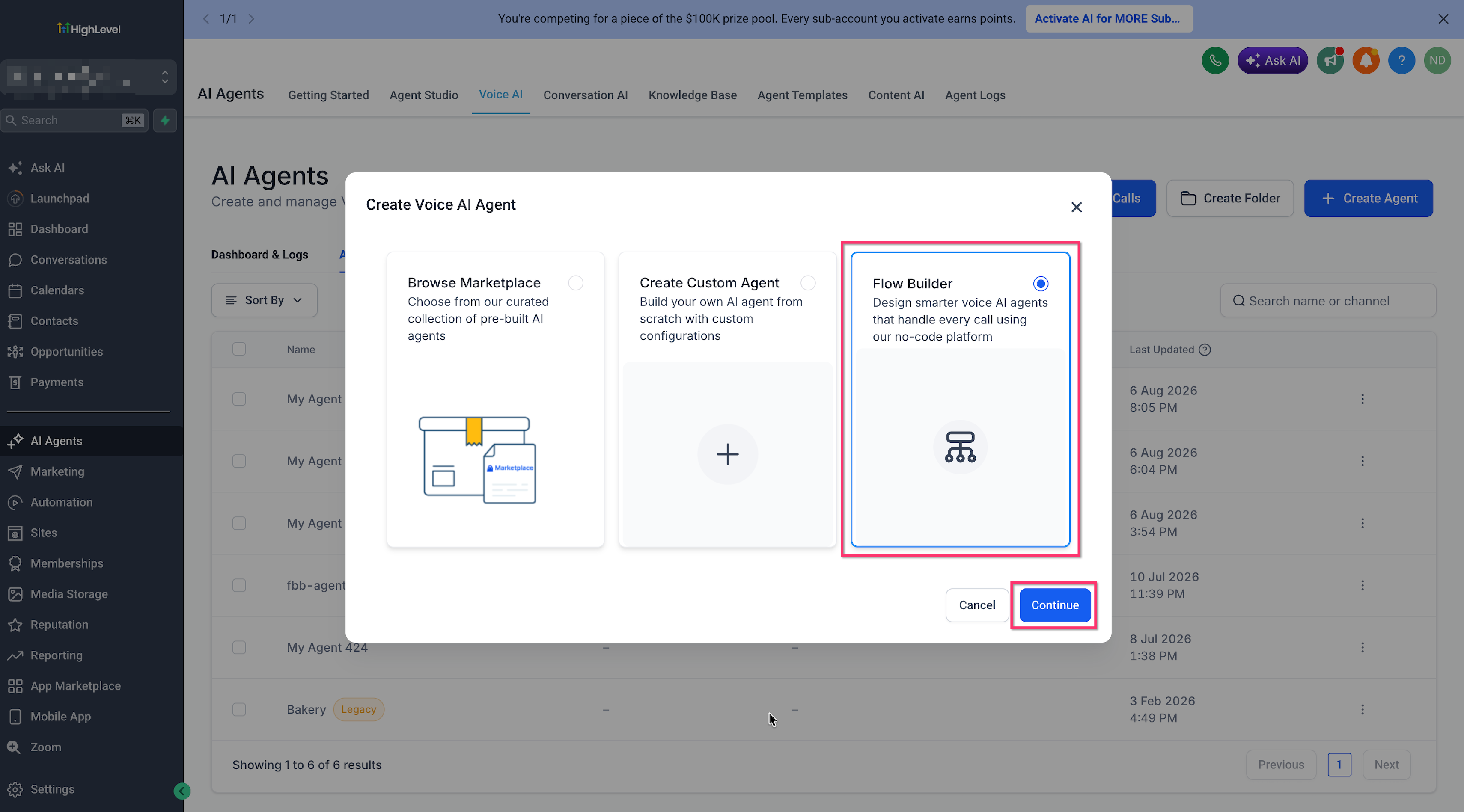
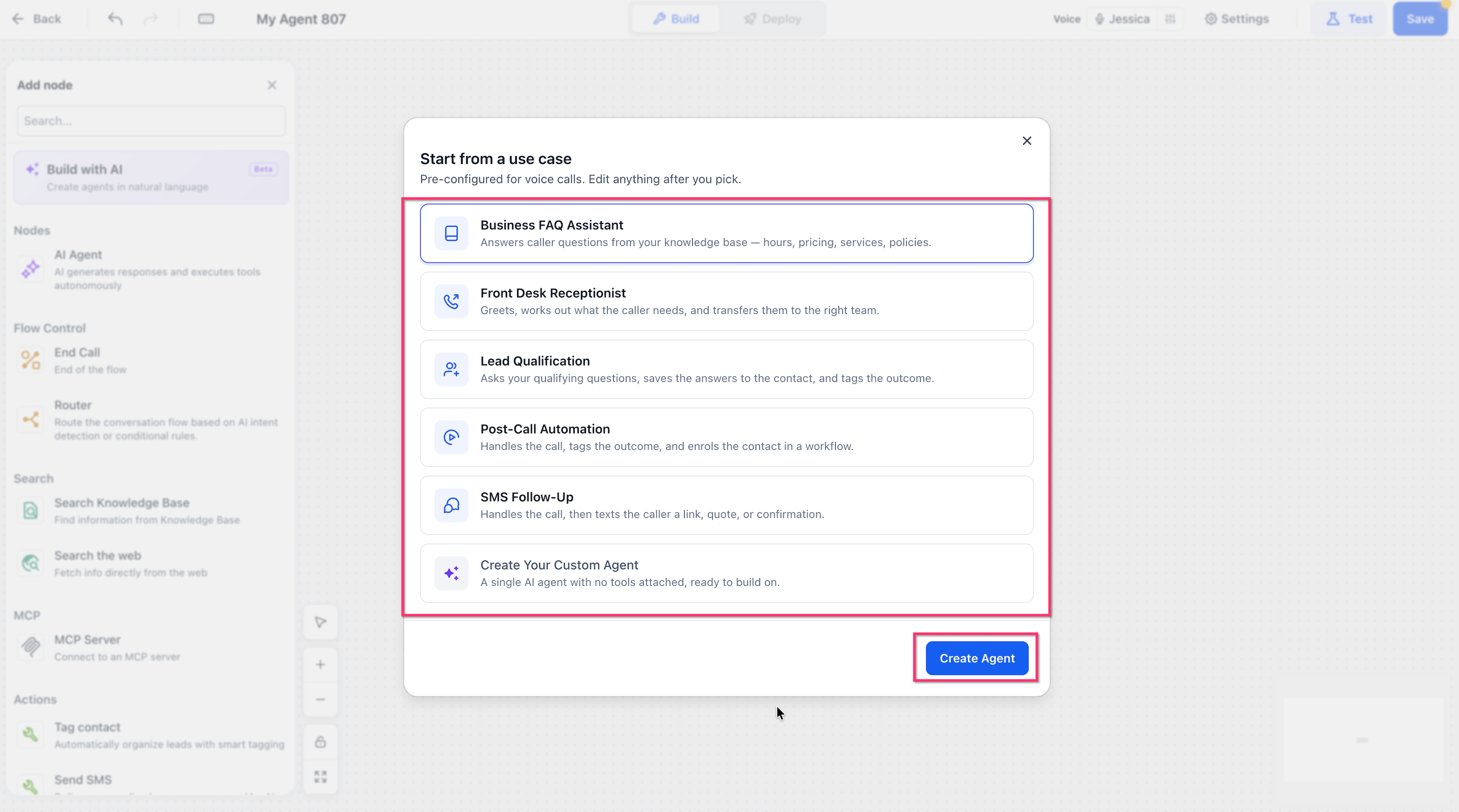
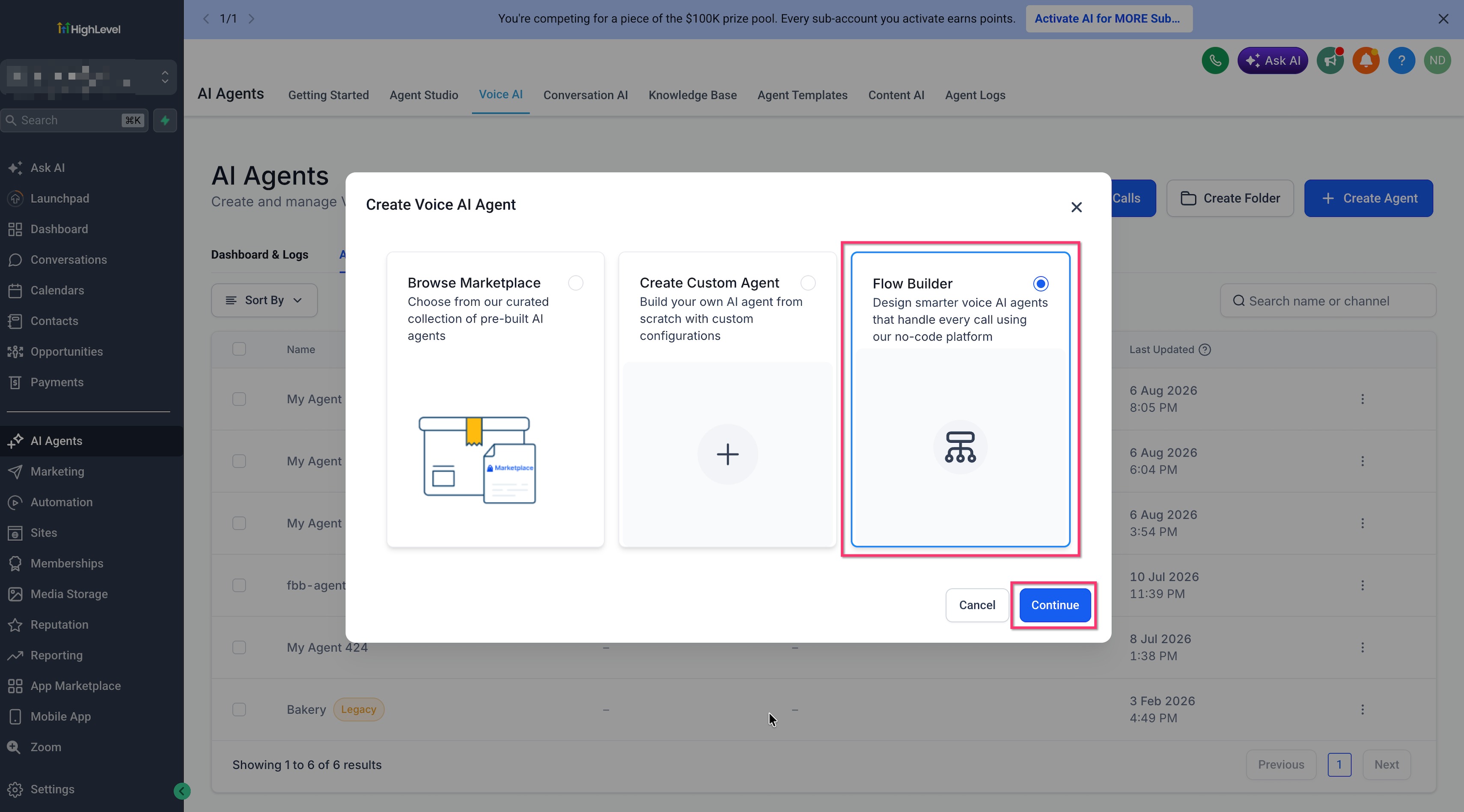
The builder lives under AI Agents > Voice AI. When you select Flow Builder, a list of five pre configured templates appears, plus an option to create a custom agent. Once you finish all required configurations, you can save, test with a real or web call, and finally deploy the agent to a phone number or other destination.
03How businesses use Voice AI flow builder templates
- Dental practice. Select the Business FAQ Assistant template, then edit the instructions to include office hours and insurance information. Add a Send SMS action that delivers appointment reminders after the call.
- Real estate brokerage. Choose the Lead Qualification template, customize the qualifying questions, and configure the Update Tag action to tag contacts as "Qualified Lead" or "Not Interested" based on responses.
- Fitness studio. Pick the SMS Follow Up template, adjust the SMS content to include a class schedule link, and ensure the Update Contact Field action saves the caller's preferred workout time.
04How to set up and use Voice AI flow builder templates in HighLevel
Set up a Voice AI agent using a template
- Navigate to AI Agents > Voice AI.
- Click the Create Agent button.
- Select Flow Builder as the creation method.
- Press Continue to open the builder.
- Review the listed template options.
- Select the template that fits your goal.
- Click Create Agent to confirm the template.
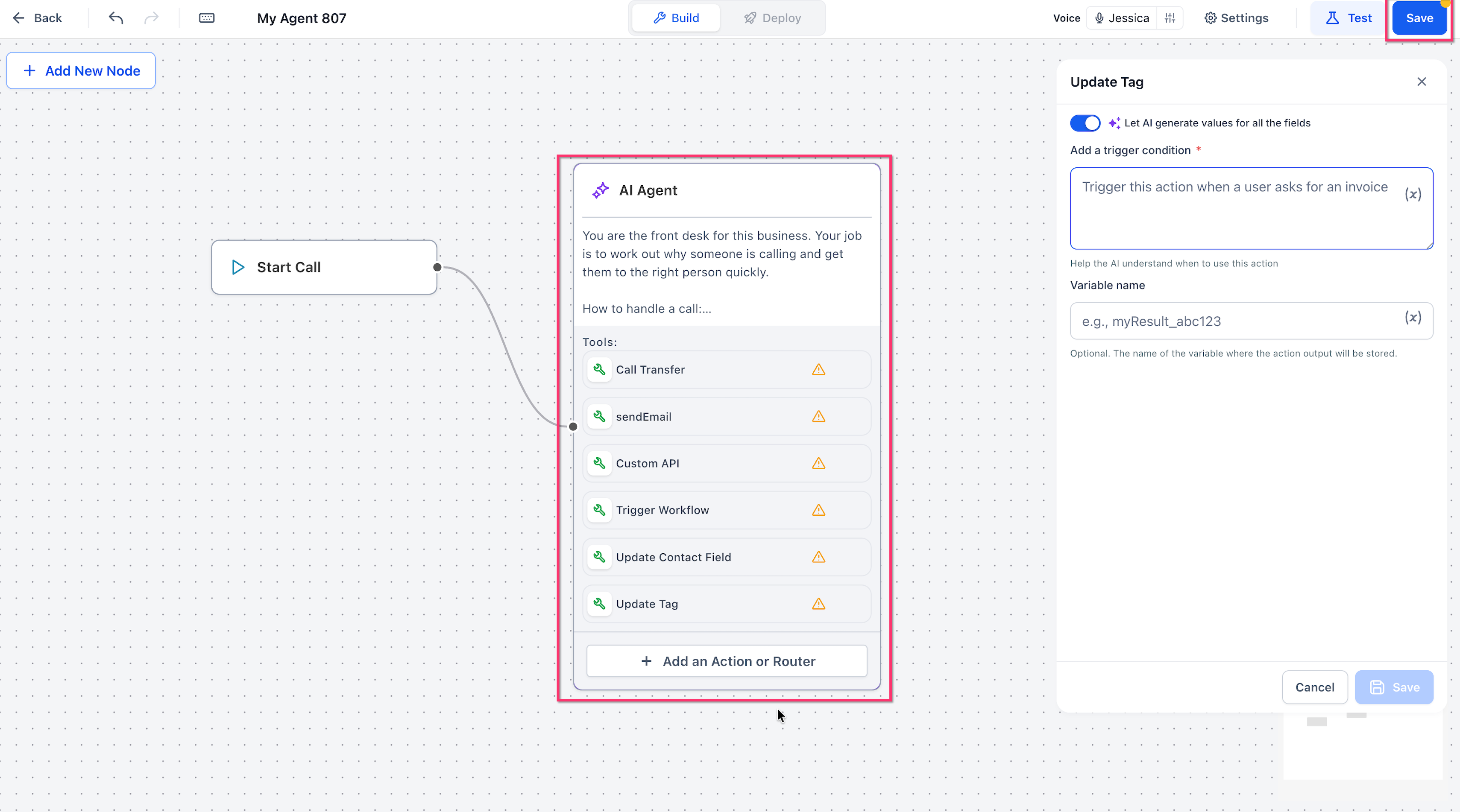
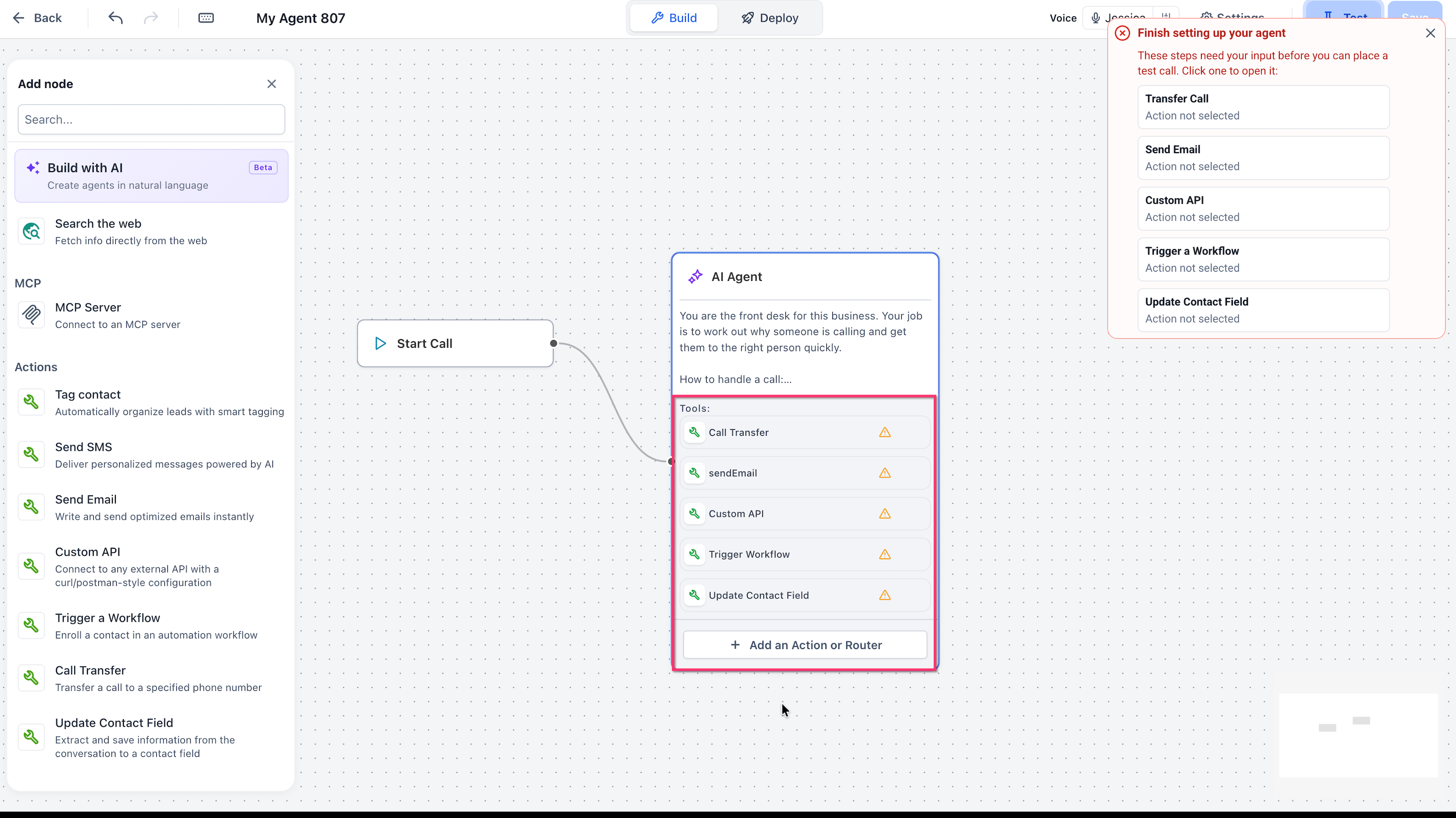
- Examine the auto generated agent instructions.
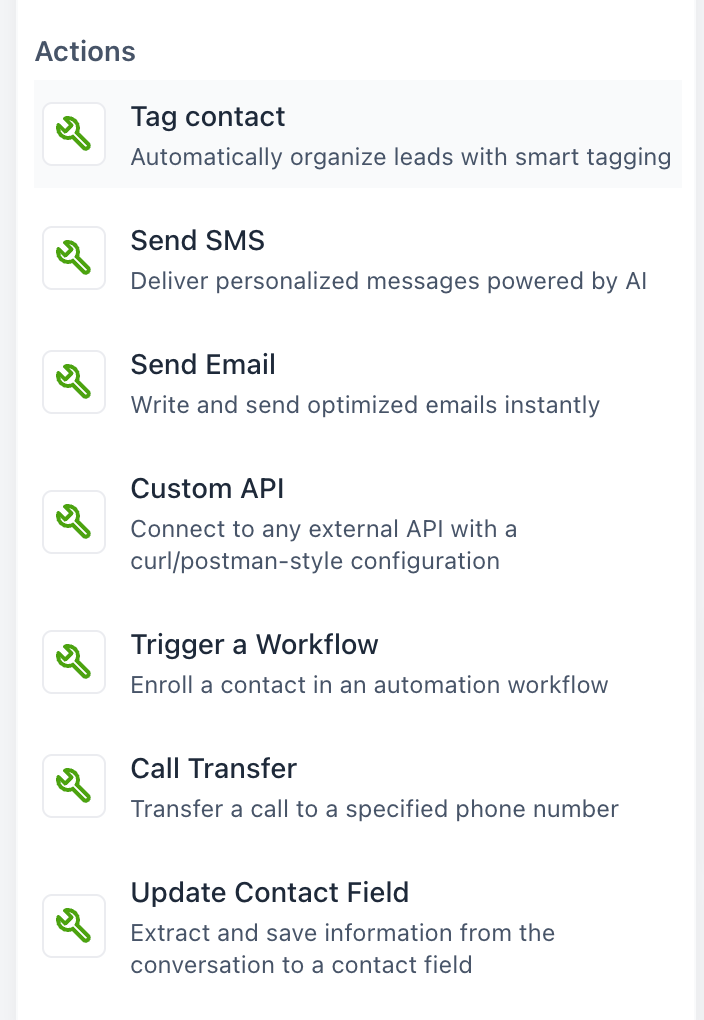
- Edit the action list: delete any unnecessary actions and add needed ones.
- Update the instructions to match your business language.
- Resolve each warning by opening the pending action, entering required details, and saving.
05What it looks like in HighLevel
06Settings that matter
- Update Tag. Controls when the Voice AI agent adds a specific tag to the contact based on conditions you define during the call.
07Things to know before you rely on it
- Call Transfer cannot be tested with a web call; use a phone call test for that action.
- Existing Voice AI agents remain unchanged by the template update; only new agents receive the pre configured flow.
08If something goes wrong
- Test button is unavailable. Complete all required actions shown in the Finish setting up your agent notification, then the Test option becomes active.
- Deploy button is disabled. Resolve every warning icon and finish configuring all pending actions before attempting to deploy.
09How it connects to the rest of HighLevel
- Build a Voice AI agent from scratch or with a template Create Voice AI Agents
- Set inbound call flow for a Voice AI agent Inbound Call Flow
- Configure outbound calling workflows for Voice AI Outbound Calling
Michael's take

Templates reduce the amount of manual work required to get a Voice AI agent answering calls, making it easier for a small business to start handling inquiries.
If required actions are not completed, Test is unavailable, so you must finish the guided setup warnings before testing.