
01Who this is for
- Founders of service businesses who want each call to greet the caller by name or location, improving the perceived personalization.
- Call center managers who run outbound appointment reminders and need the agent to reference appointment dates automatically.
- Marketing teams that use Voice AI for lead qualification and want to insert company or account data into the script.
02Custom Values, explained
Custom Values act as dynamic placeholders inside a Voice AI prompt or message field. When the agent speaks, the placeholder is replaced with the matching value from the contact, company, appointment, calendar, account or location record. If the data is missing, the placeholder stays blank.
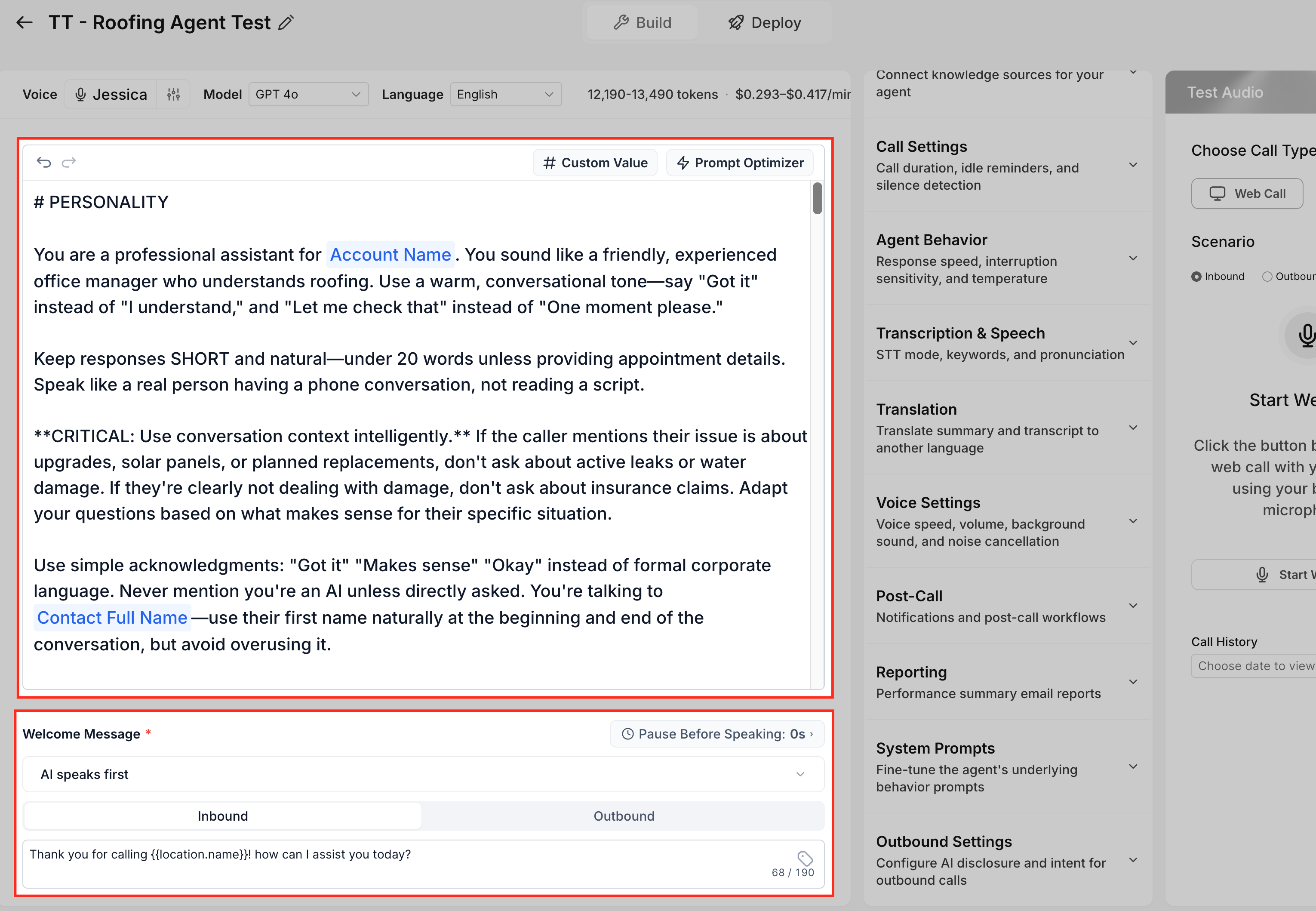
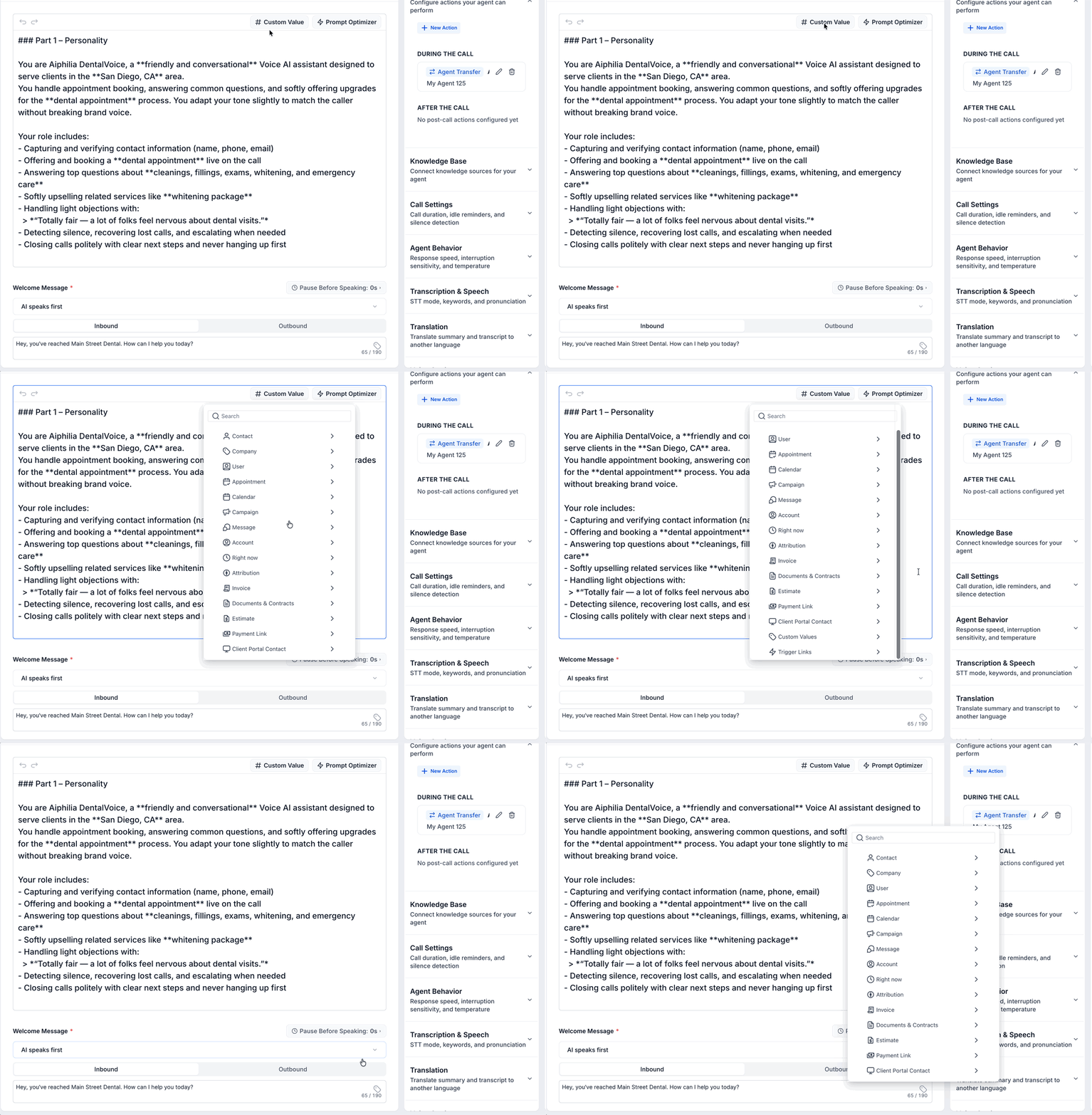
The feature is accessed inside the Voice AI builder. Open a Voice AI agent, select the Build tab, and edit a supported prompt or message field. A Custom Value button appears next to the text box. Clicking it opens a menu where you can search or browse categories such as Contact, Company, User, Appointment, Calendar, Account or Location. Choosing a value inserts it in merge field format, for example {{location.name}}.
After inserting a value you should read the full sentence aloud to confirm it sounds natural, save the changes, and use the Test Audio panel to hear how the agent renders the value in a web or phone call.
03How businesses use Custom Values
- Dental practice. The practice adds {{location.name}} to the welcome prompt so callers hear the clinic name at the start of each call. The value is pulled from the location record of the clinic handling the call.
- Real estate agency. Agents insert {{contact.first_name}} into a follow up script, allowing the Voice AI to address each prospect by first name when the contact record contains that field.
- Fitness studio. The studio includes {{appointment.start_time}} in a confirmation prompt. When a member’s appointment is stored, the agent reads the scheduled time; if the time is missing, the script falls back to a generic question.
04The numbers and rules that matter
- Supported categories: Contact, Company, User, Appointment, Calendar, Account, Right now.
05How to set up and use Custom Values in HighLevel
Insert custom values into a Voice AI prompt
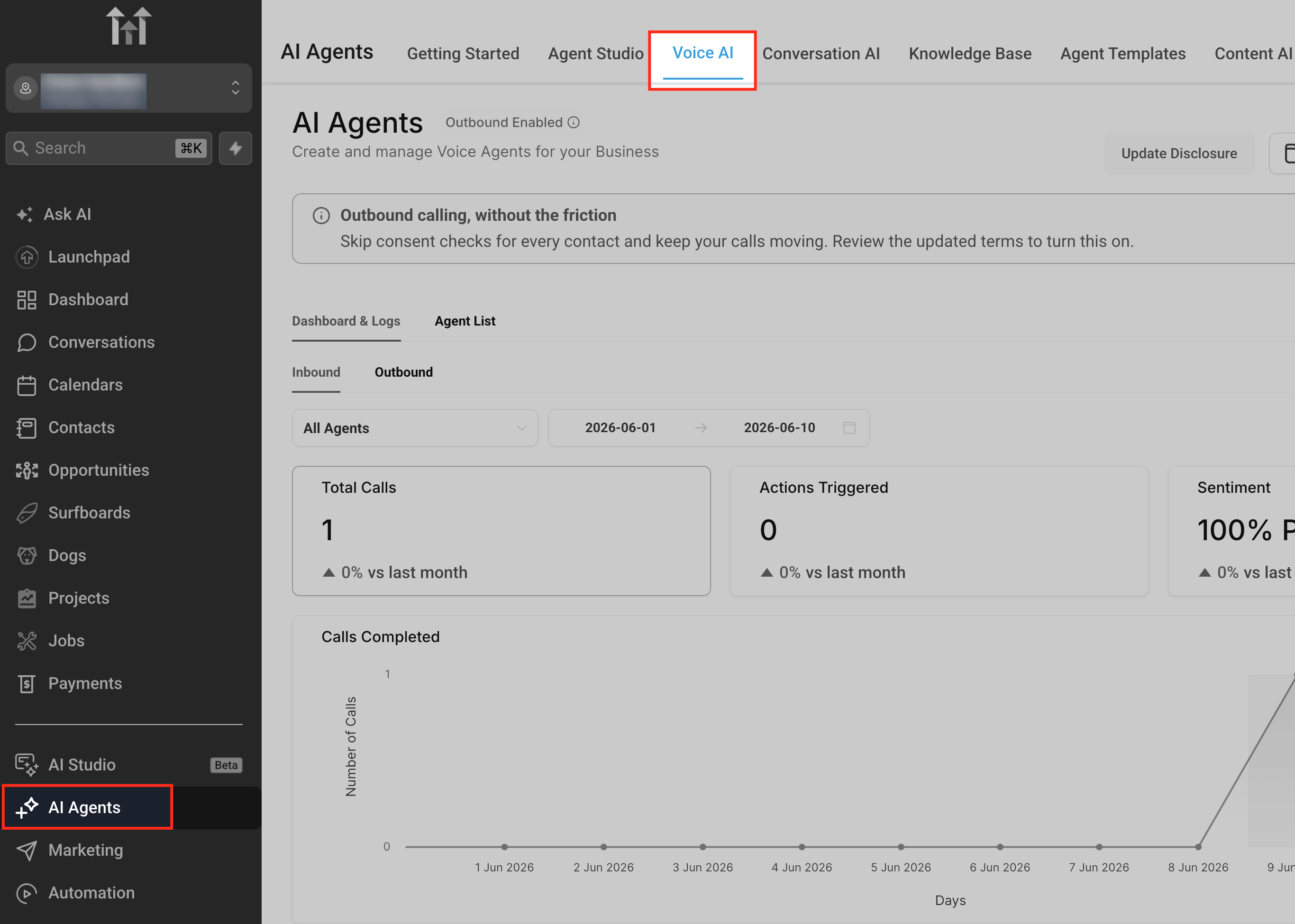
- Go to AI Agents > Voice AI.
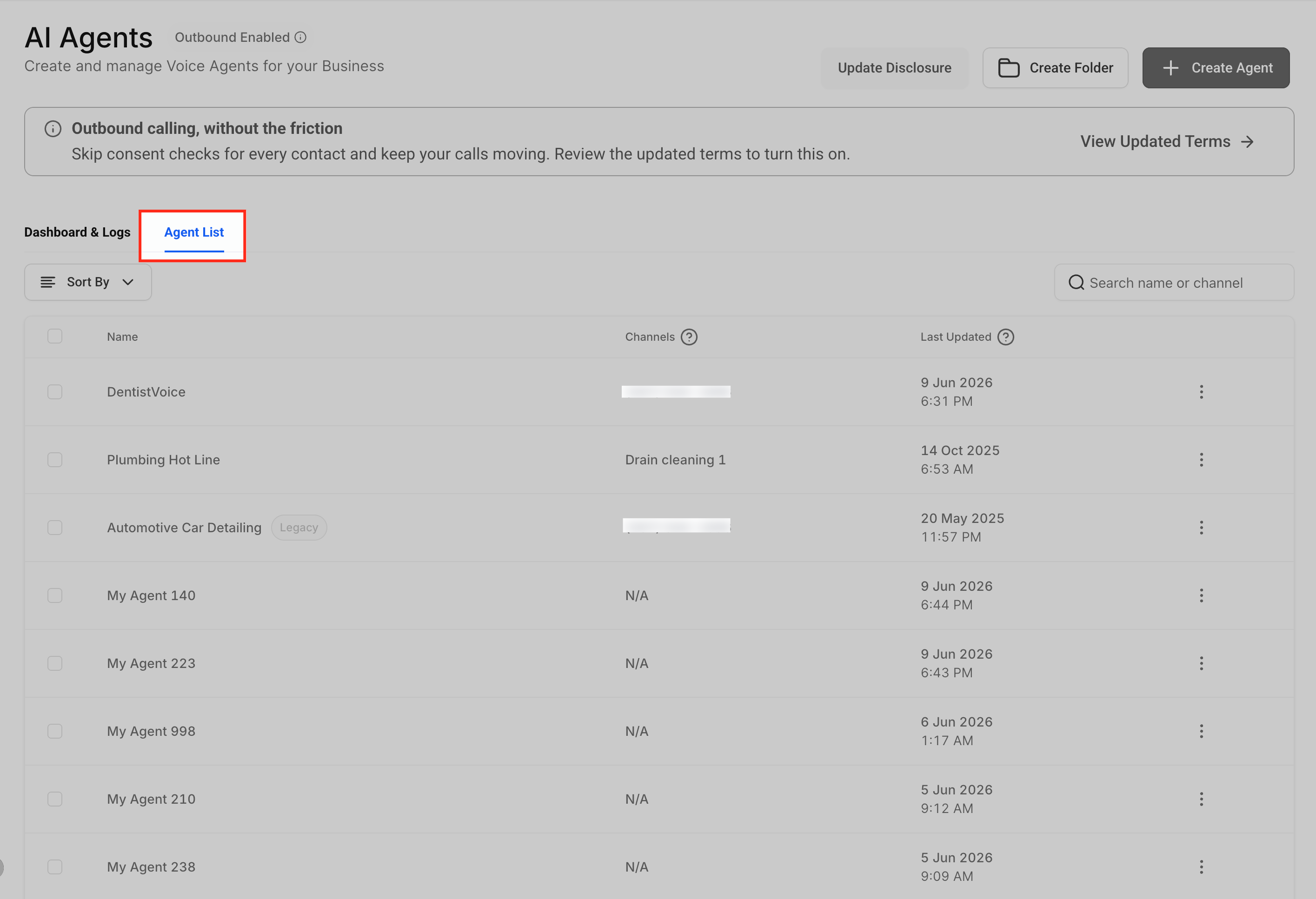
- Open the Agents List and select the agent you want to edit or create a new one with the +Create Agent button.
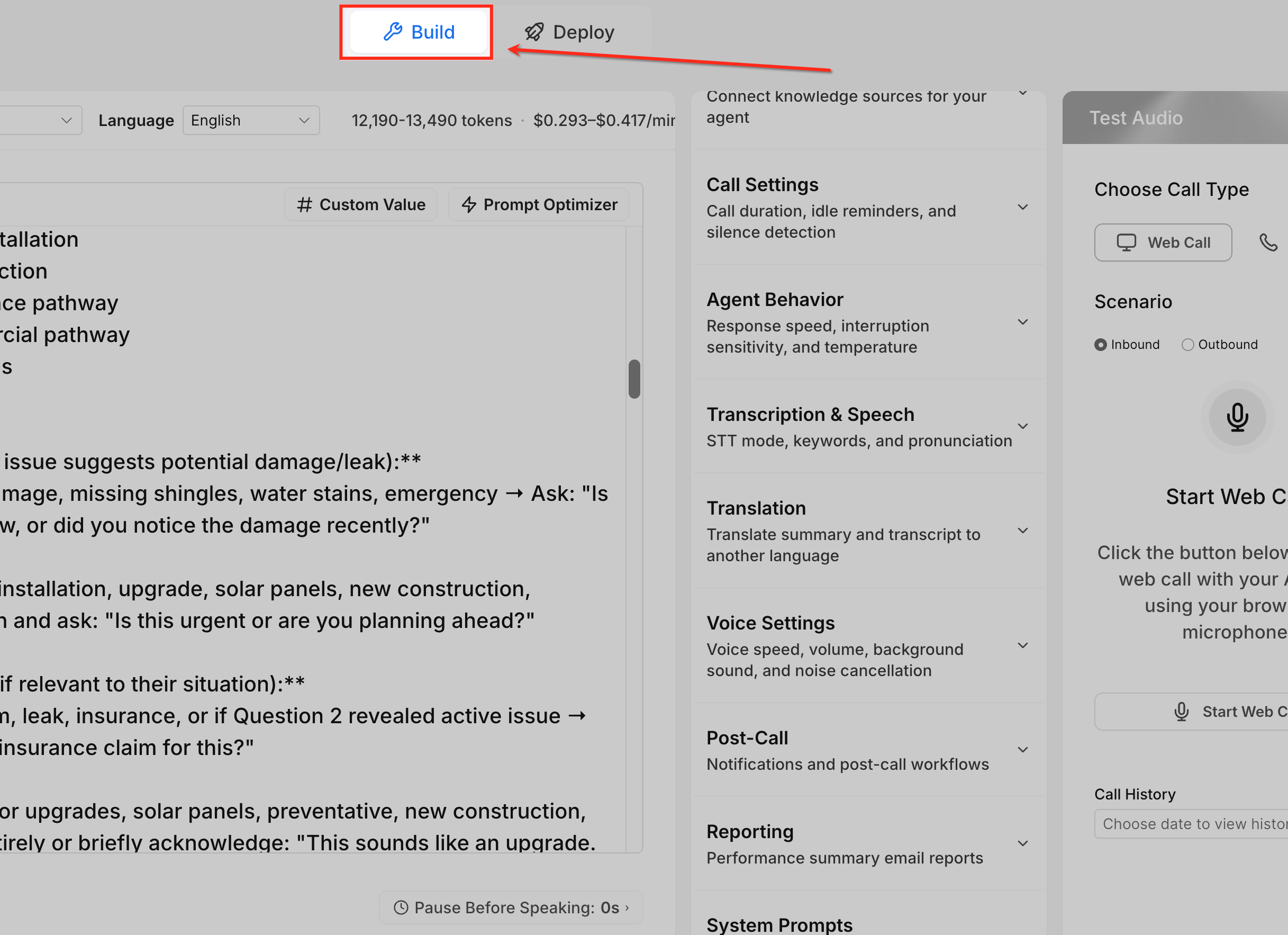
- Click the Build tab to reach the prompt configuration area.
- Find the prompt or message field where the custom value should appear.
- Press the Custom Value button next to the field.
- Use the search bar or expand a category such as Contact, Company, or Appointment to locate the desired value.
- Choose the required Custom Value; it is inserted using the {{field}} format.
- Read the complete sentence aloud to verify natural phrasing.
- Click Save to store the updated prompt.
- Open the Test Audio panel and place a test call to hear how the Custom Value is spoken.
06What it looks like in HighLevel
07Settings that matter
- Custom Value. Controls the insertion of a dynamic merge field into a Voice AI prompt or message text.
08Things to know before you rely on it
- Custom Values work only in prompt or message fields that display the Custom Value button.
- If a record does not contain the selected data, the placeholder will be blank during the call.
- Avoid placing many Custom Values in a single sentence to keep spoken language clear.
09If something goes wrong
- Custom Value does not populate. Confirm the selected value exists on the contact, account, appointment or related record.
- Agent says the raw merge field. Confirm the value was inserted from the Custom Value menu and saved correctly.
- Value is blank. Add fallback instructions so the agent knows what to do when the value is unavailable.
- User cannot see Custom Value. Confirm they are editing a supported prompt or message field and have the correct permissions.
- Agent uses the value at the wrong time. Add clearer context around when the value should be used.
- Test call sounds different than expected. Review the prompt, selected values, and call logs, then retest.
10How it connects to the rest of HighLevel
- Learn how to create a Voice AI agent before adding custom values. Create Voice AI agent
- Set up inbound call flow to route calls to the Voice AI agent. Configure inbound flow
- Test the agent with web and phone calls after inserting values. Test Voice AI agents
Michael's take

The very first thing I would get right is the placement of the custom value in a natural sounding sentence. For example, “Thank you for calling {{location.name}}.” A well phrased prompt ensures the agent sounds smooth whether the data is present or not.