
01Who this is for
- Content marketers who need fast revisions to blog drafts and want AI assistance with tone and clarity.
- Small business owners creating SEO blog posts and require quick fixes for spelling or length without leaving HighLevel.
02Quick actions for Content AI, explained
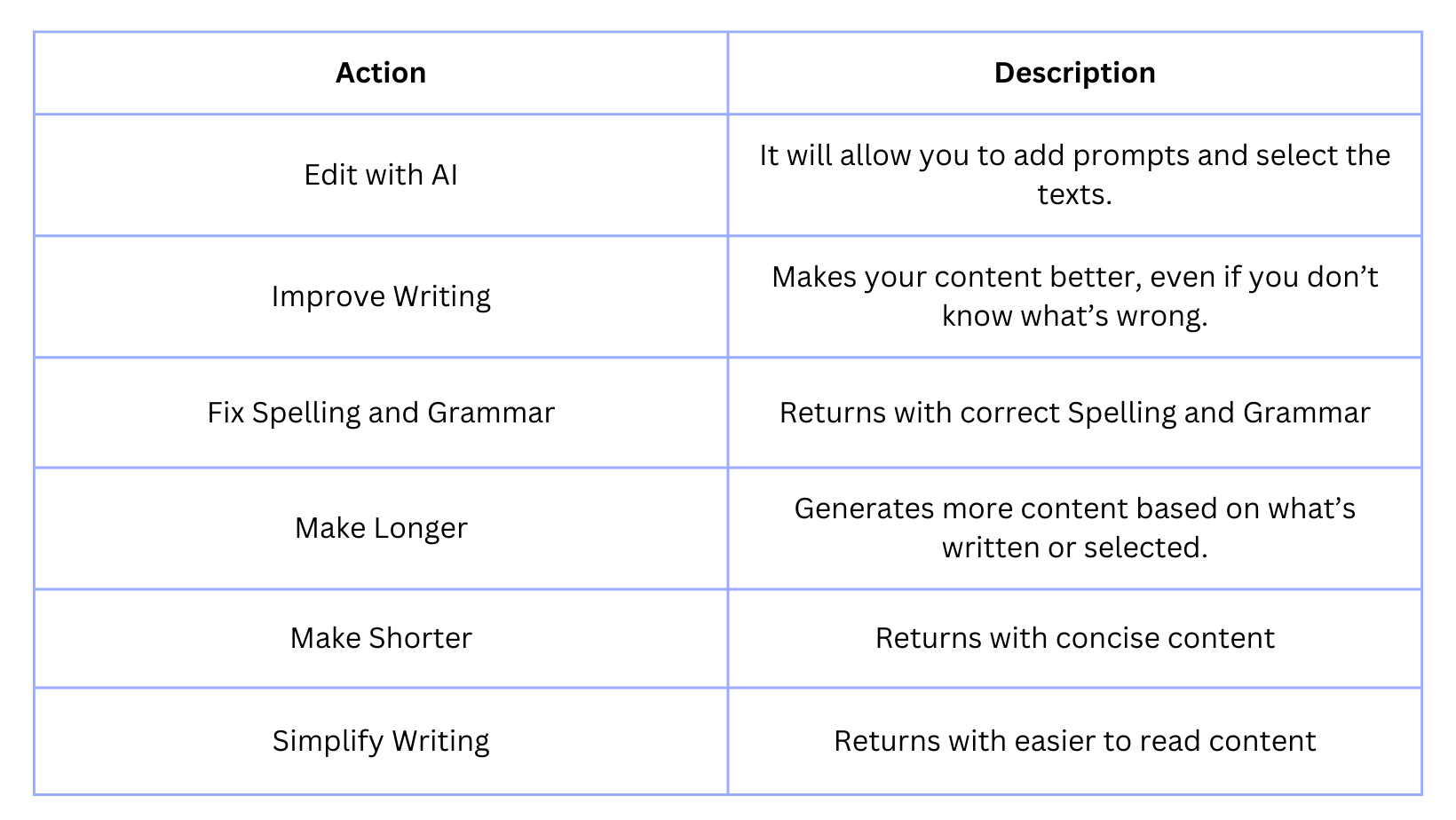
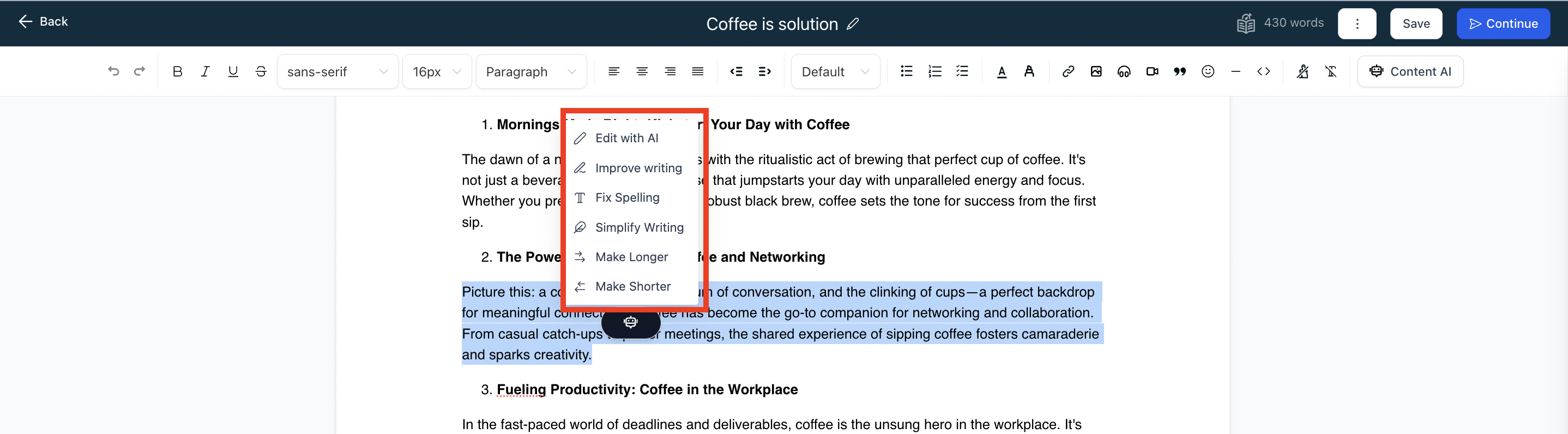
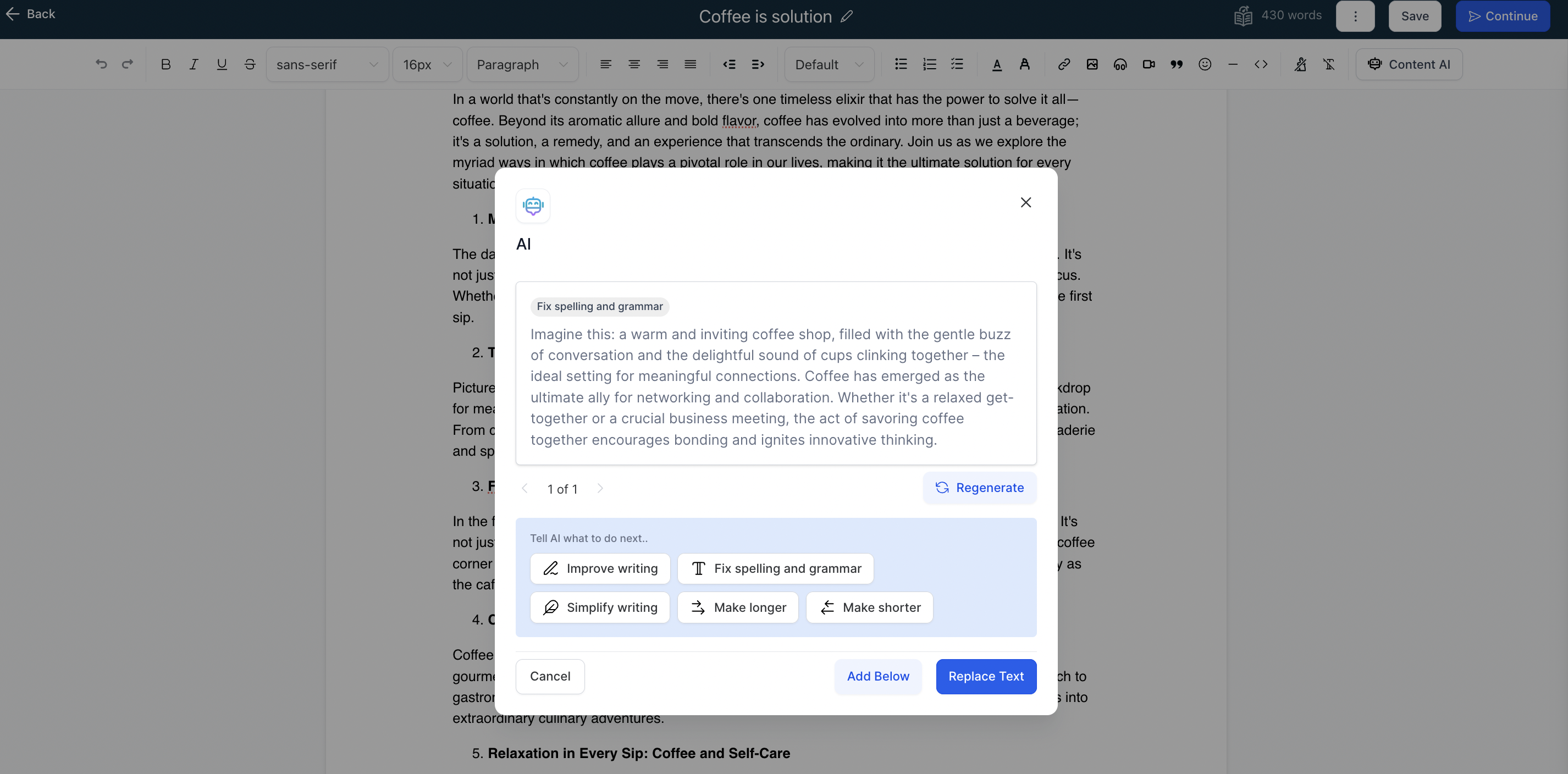
Content AI provides a set of quick action tools that work inside the blog editor. When you type or select text, a Content AI button appears in the editor bar. Clicking the button opens a menu of five actions that the AI can perform on the selected or entire content.
The AI can improve overall writing quality, correct spelling and grammar, expand a passage, condense it, or rewrite it in a simpler style. The generated text can be inserted below the original block or replace the existing content. All activity is recorded and can be reviewed later.
These tools are located in the blog editor under Sites > Blogs, and the history of generated text is stored in Automation > Content AI.
03How businesses use quick actions for Content AI
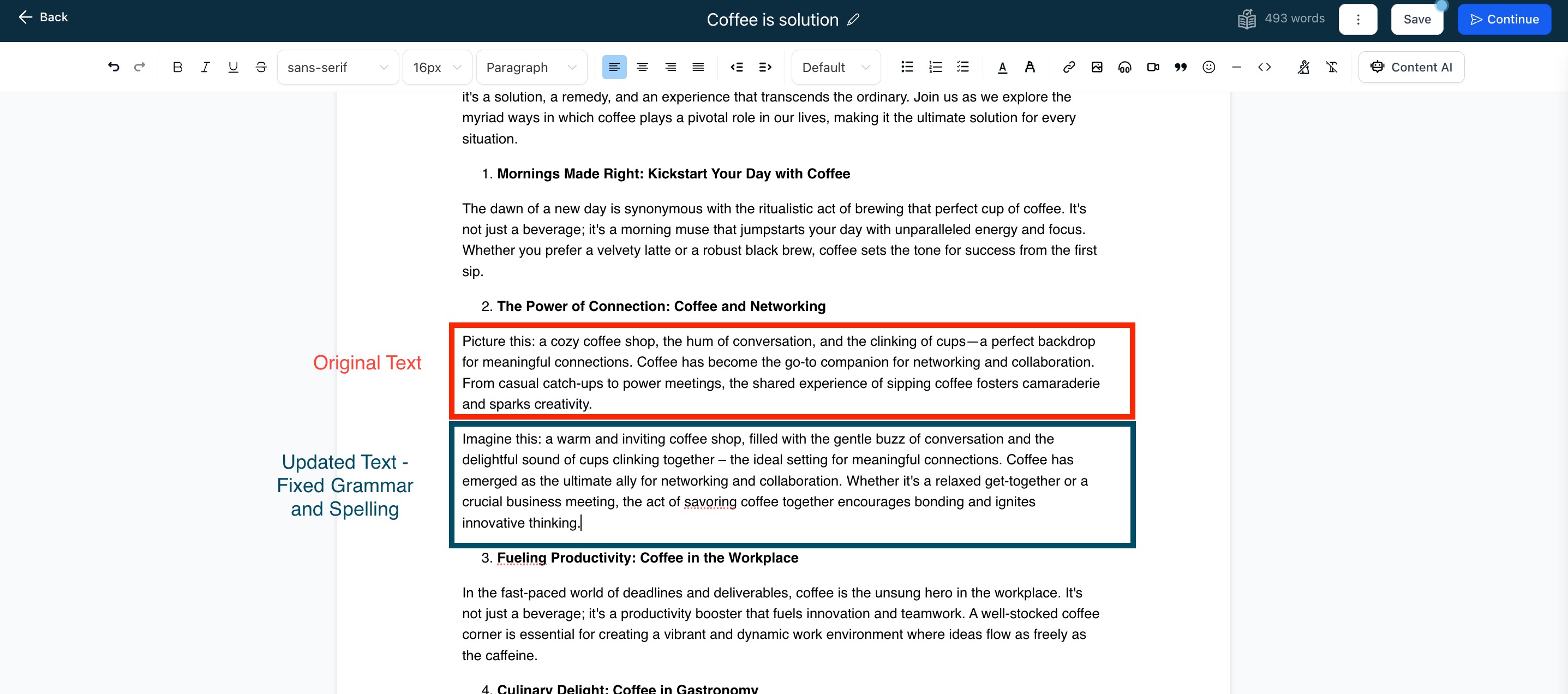
- Digital marketing agency. The agency opens a blog draft, highlights a paragraph, and selects Make Longer to expand the content for SEO. It then uses Fix Spelling and Grammar to ensure the text is error free before publishing.
- Ecommerce store. The store owner creates a product blog post, selects Simplified Writing to turn technical descriptions into easy to read copy, and inserts the revised text directly into the post.
- Legal consultancy. The consultant writes a case study, highlights a section, and chooses Improve Writing to polish the language while preserving the original tone, then saves the updated version.
04Before you start
- A blog post must be opened in the editor before using Content AI quick actions.
05How to set up and use quick actions for Content AI in HighLevel
Use quick actions for Content AI
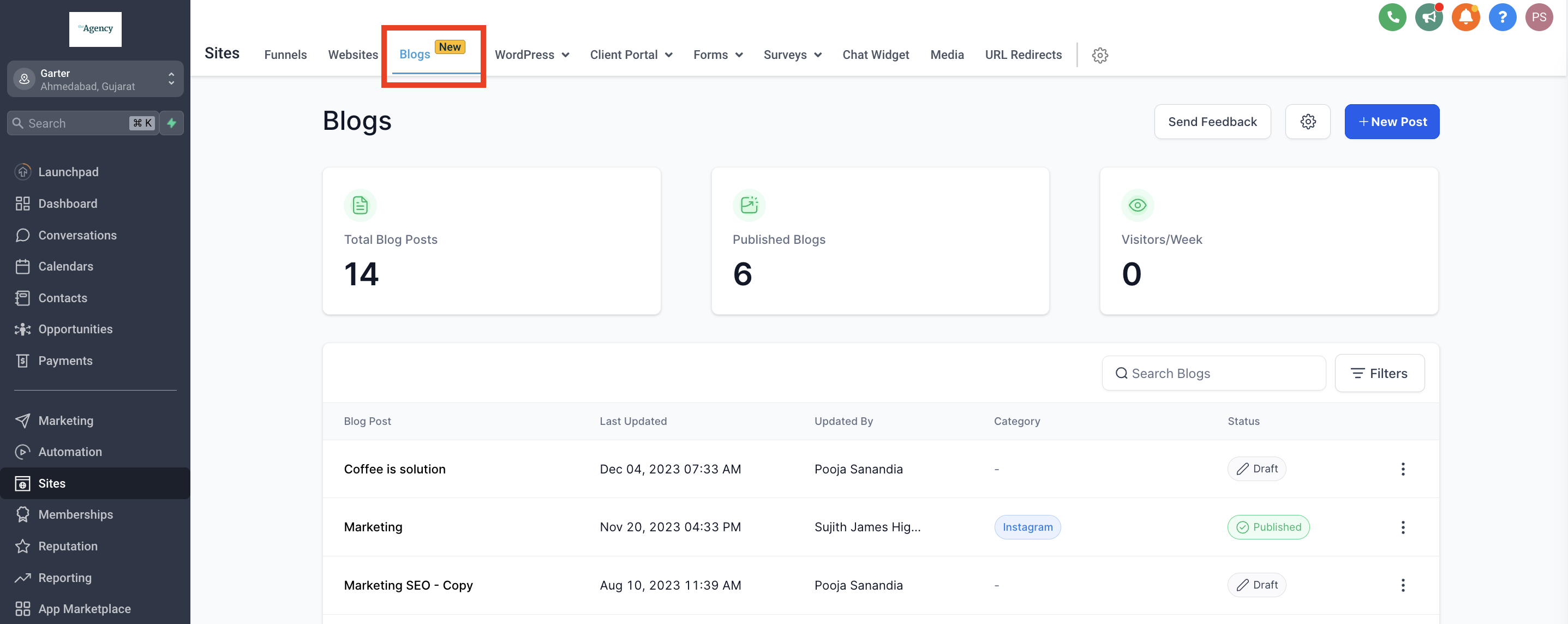
- Navigate to Sites > Blogs.
- Click Create new blog post and fill in the SEO details.
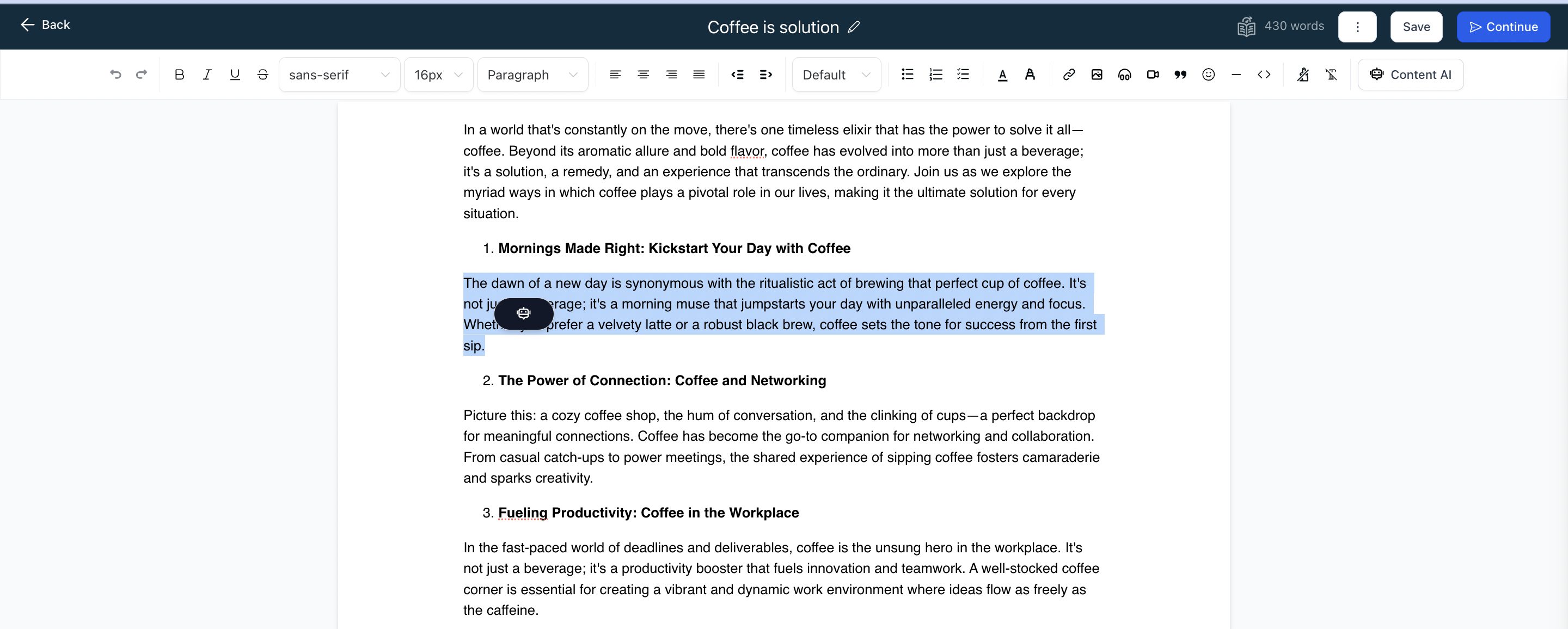
- Start typing in the post; the AI button appears with its options.
- If text already exists, select the portion you want to modify.
- Open the Content AI option in the editor bar.
- Choose one of the actions: Improve Writing, Fix Spelling and Grammar, Make Longer, Make Shorter, or Simplified Writing.
- The AI will generate new content based on the selected action.
- You can insert the generated text below the original block or replace the existing text.
- If no text is selected, the AI will consider the entire post.
- View the generated result in the paginated data view.
- Access the history of all AI generated text in Automation > Content AI.
06What it looks like in HighLevel
07How it connects to the rest of HighLevel
- Create outlines for blog posts with Content AI. Blog outlines
- Set up AI Employee access to enable Content AI features. AI Employee access
- Review pricing for AI usage and limits. AI pricing
Michael's take

A word of caution: AI rewrites can sometimes shift nuance, so always give the output a quick read before publishing.