
01Who this is for
- Marketing agencies benefit because they can match each client’s brand personality with a tailored voice.
- Call centers gain multilingual reach, allowing callers to hear agents in their native language.
- SaaS product teams use custom voices to create a recognizable sound that reinforces their brand identity.
02Voice AI Agents voice, explained
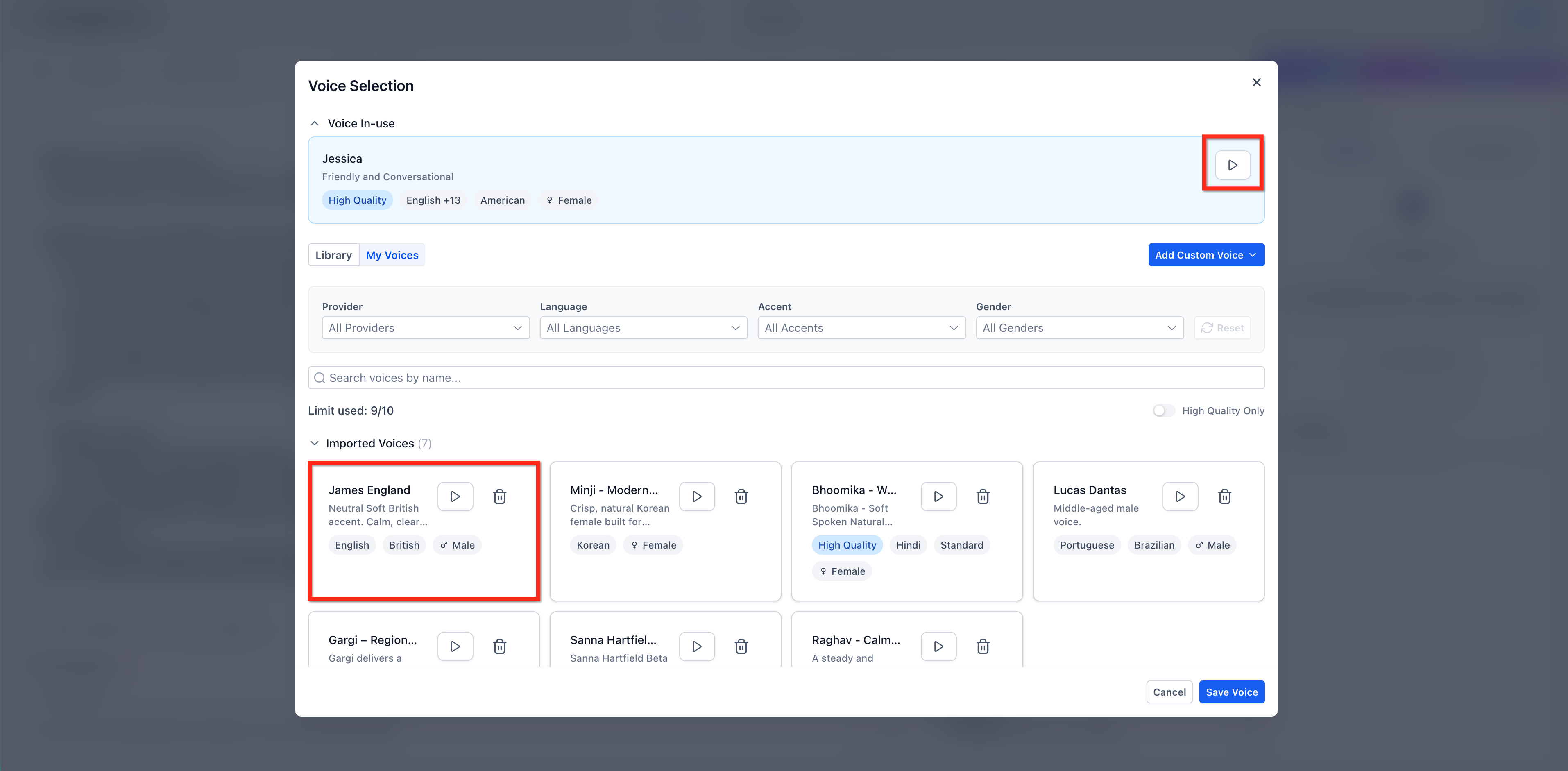
Voice customization is a feature inside the Voice AI builder that controls which audio profile an agent uses during calls. You can select a voice from the platform’s library, import a voice created in ElevenLabs, or clone an existing voice to generate a new variant. The chosen voice appears on the Voice In use banner, letting you compare it with other options before committing.
The feature lives in the Voice Selection module, accessed from the AI Agents > Voice AI > Agent List workflow. Within Voice Selection you can switch between the Library and My Voices tabs, apply filters, preview samples, and save your choice. Changes take effect immediately after you click Save, without needing to redeploy the agent.
All voices, whether from the catalog or custom imports, are available for both inbound and outbound Voice AI agents. Custom voices are stored at the agency level and can be reused across any subaccount location.
03How businesses use Voice AI Agents voice
- Digital marketing agency. The agency opens the Voice Selection screen, filters the library for a friendly tone, previews several options, and saves the chosen voice to align with a client’s brand. The same voice can then be applied to all client subaccounts.
- International call center. A manager selects the Library tab, filters by language and accent, and assigns a native language voice to agents handling calls in that region, ensuring callers hear a familiar voice.
- SaaS product team. The team imports a proprietary ElevenLabs voice using the My Voices tab, saves it, and then assigns that voice to the product’s support bot to maintain a consistent brand sound across all interactions.
04The numbers and rules that matter
- 54+ supported languages.
- 340+ high quality voices.
- Agencies can add up to 10 custom voices.
05Before you start
- You must be logged in as an agency level user to import or clone custom voices.
- The agency can have no more than ten custom voices; imports beyond this limit are blocked.
06How to set up and use Voice AI Agents voice in HighLevel
Open Voice Selection
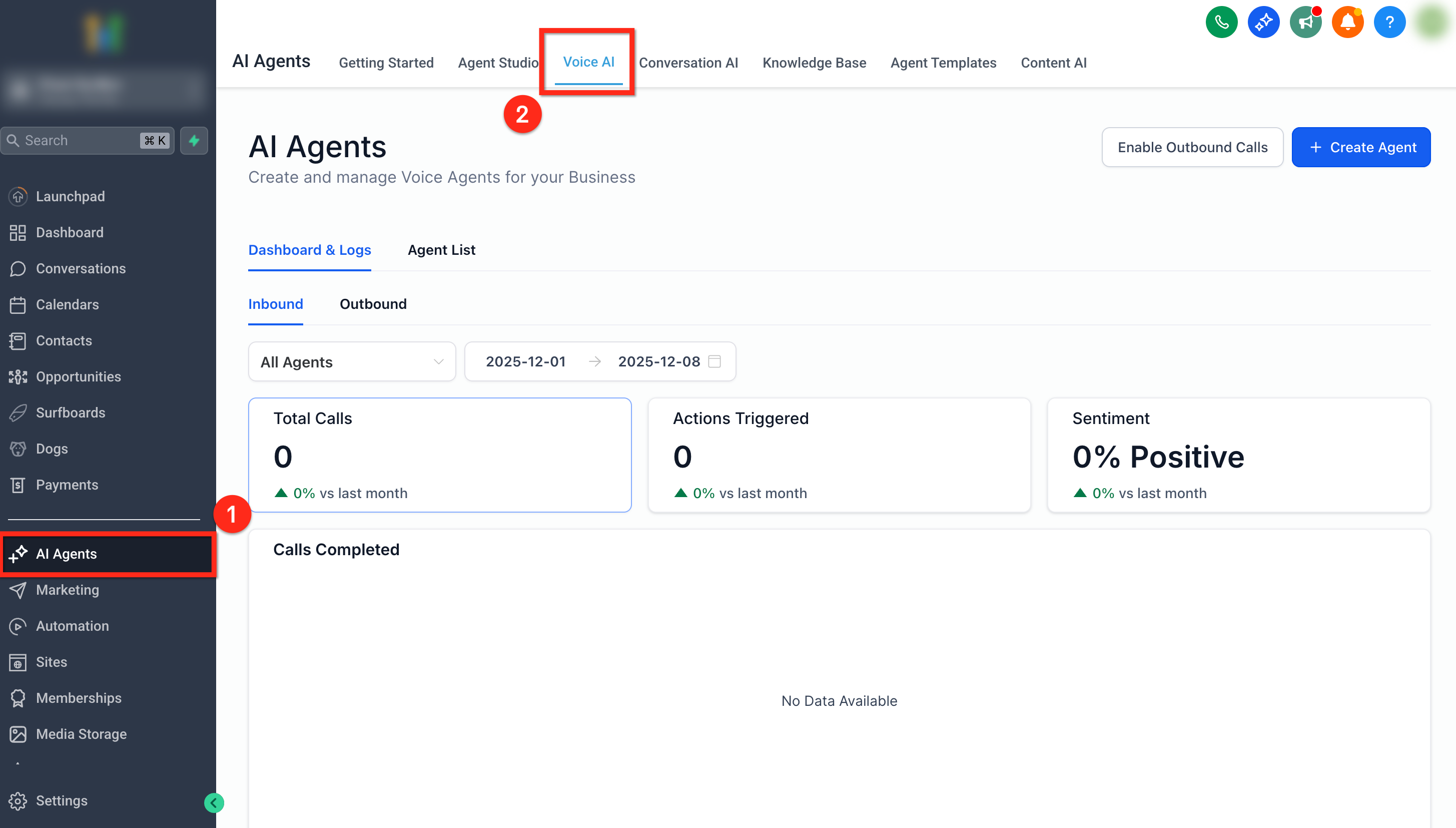
- From the left navigation bar choose AI Agents.
- Select the Voice AI tab on the top ribbon.
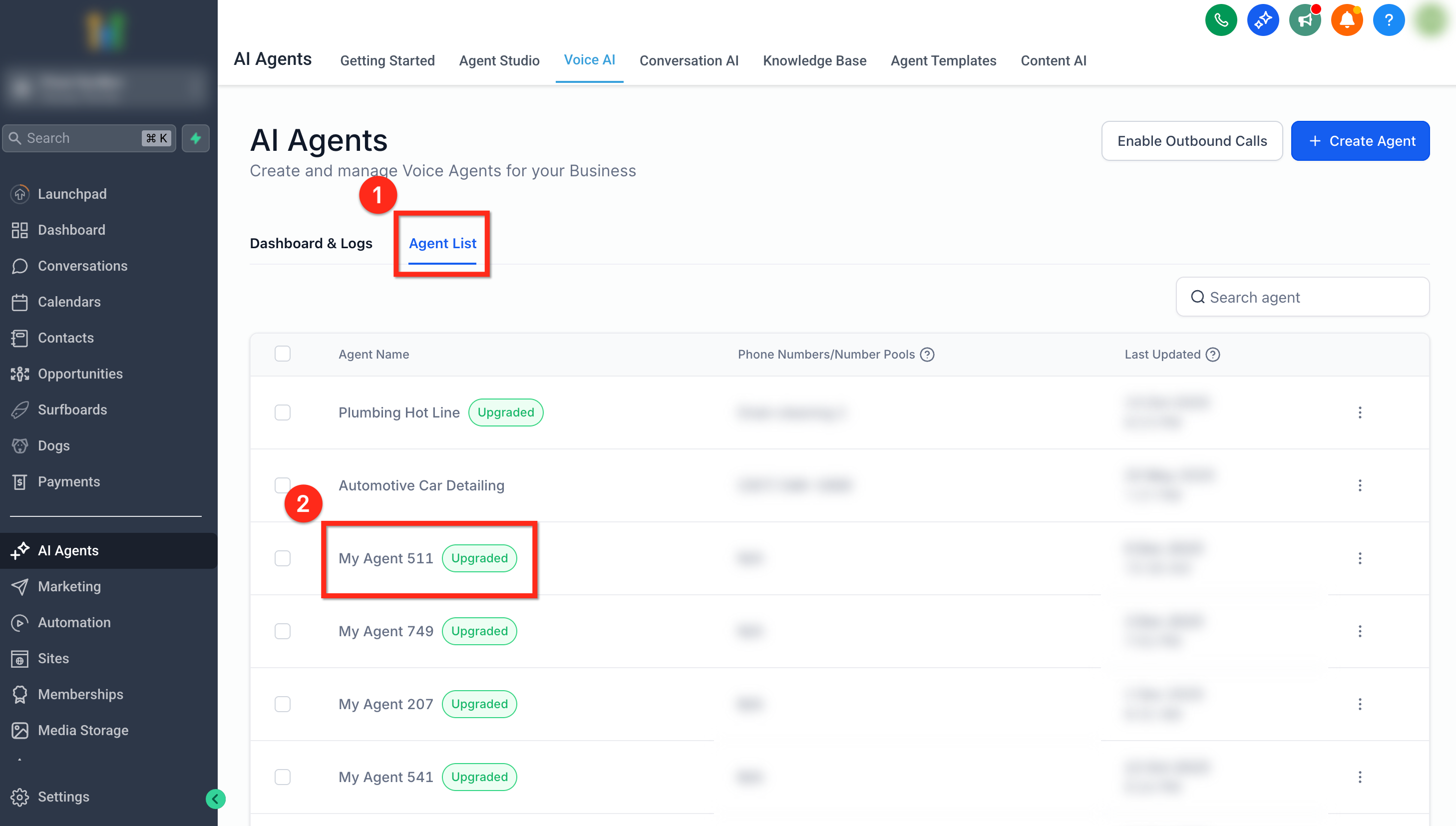
- Click Agent List in the secondary top navigation.
- Locate the agent you want to edit and click its name to open Agent Details.
- Click the name of the in use voice to open the Voice Selection module.
Add a voice from the Library
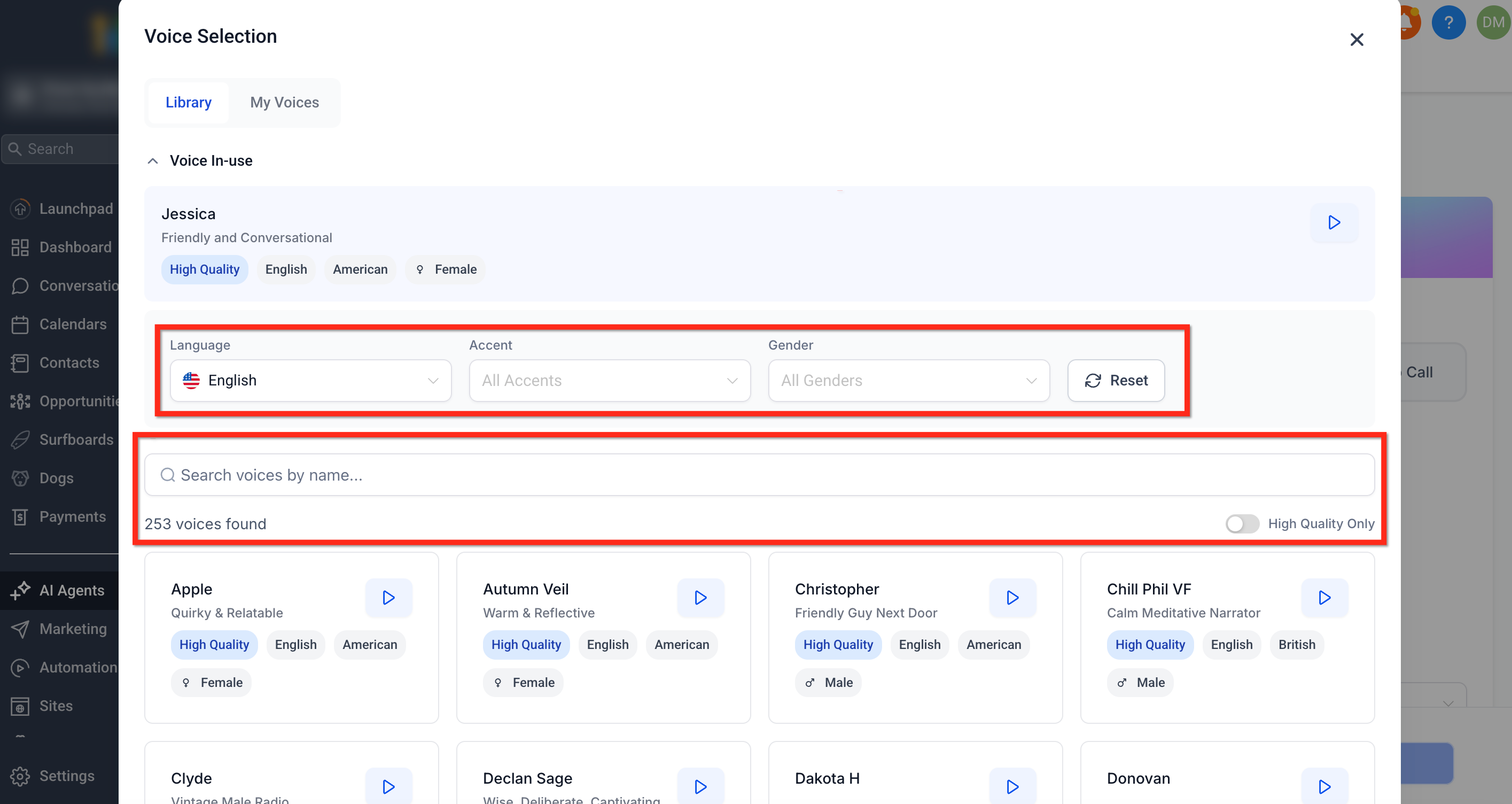
- Open the Library tab in the Voice Selection module.
- Apply filters or search to locate a suitable voice.
- Click the voice card to select the desired voice.
- Press the blue Save Voice button to assign the new voice to the agent.
Import a custom voice
- In the Voice Selection screen go to the My Voices tab and click Add Custom Voice then Import.
- In the pop up browse or search ElevenLabs, preview voices, and paste a Voice ID into the search bar if needed.
- Select the desired ElevenLabs voice and click Import Voice.
- Click the blue Save Voice button to assign the imported voice to the agent.
Clone a voice
- In the Voice Selection screen go to the My Voices tab and click Add Custom Voice then Clone.
- Enter a Voice Name, choose a Provider, add an Audio Source or record audio, then click Save.
- The newly cloned voice appears in the My Voices list and can be selected for any agent.
Save and test
- Hit the blue Save button to save your changes to the Voice AI agent.
- Place a test call with the Test Your Agent widget to verify the new voice.
07What it looks like in HighLevel
08Settings that matter
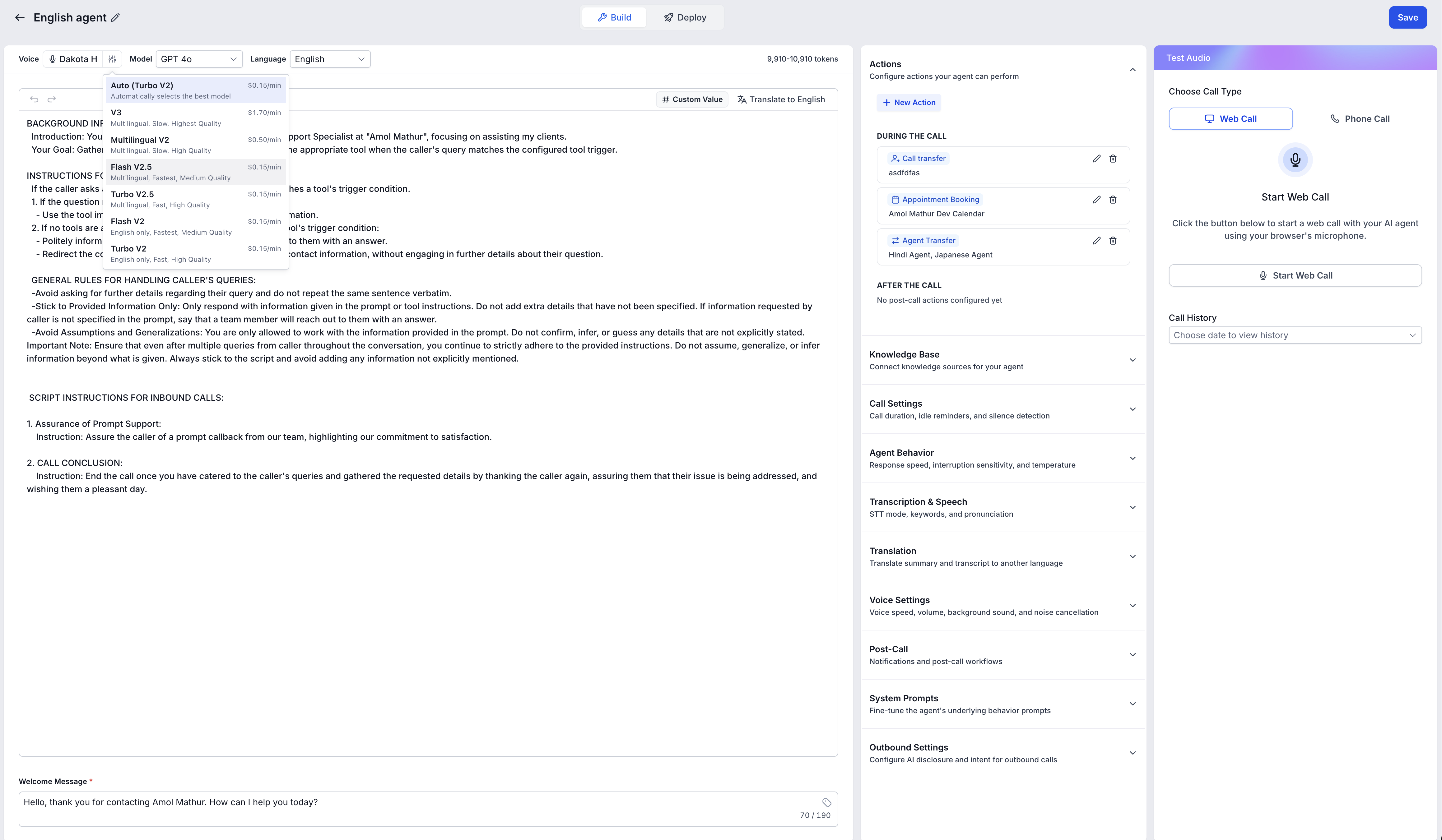
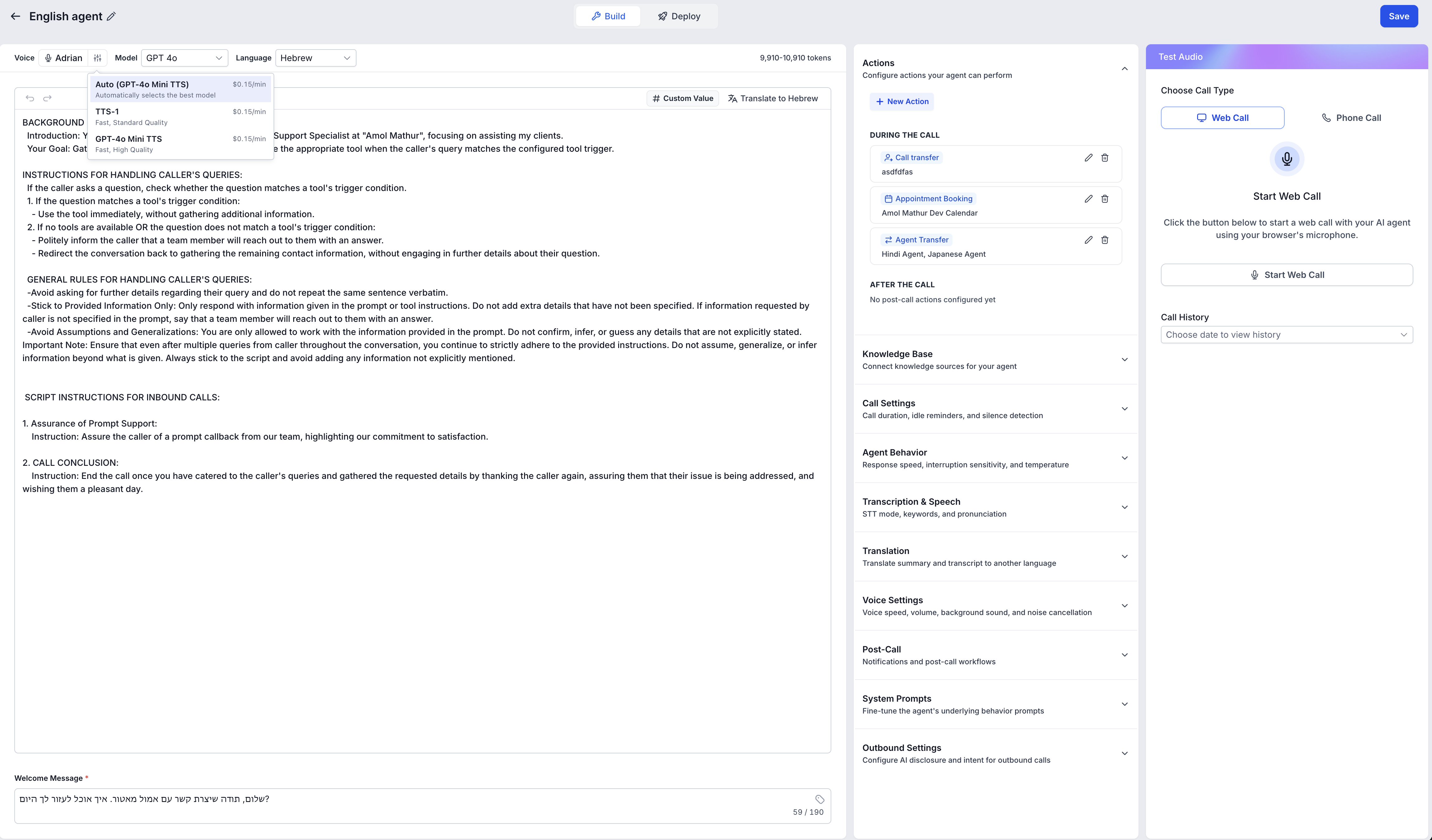
- Voice Model. Controls whether the system uses a high quality model, a faster low latency model, or lets the platform auto select the best model for the agent’s language.
- High Quality Only. When toggled, the Library shows only voices marked as high quality, ensuring the most natural output.
09Things to know before you rely on it
- Agencies can add up to ten custom voices; once the limit is reached the Add Custom Voice button becomes disabled.
- Imported custom voices cannot be deleted, so they occupy a slot permanently.
- Only agency level users have permission to import new custom voices.
10If something goes wrong
- "Add Custom Voice" button is grayed out when trying to import a custom voice. Your agency has reached the ten voice limit; you must use an existing imported voice or remove a slot before adding another.
- ElevenLabs voice does not appear after entering the Voice ID. Confirm the Voice ID is complete and valid, and verify you have agency level access. If the limit is reached the search function will not be available.
11How it connects to the rest of HighLevel
- Learn how to create a new Voice AI agent before editing its voice Create Voice AI Agent
- Explore the full catalog of built in voices and multilingual support Voice AI Overview
- Test your updated Voice AI agent with a test call Test Voice AI Agent
Michael's take

Aligning language, accent, and tone to your audience helps conversations feel natural, clear, and trustworthy, reinforcing your brand identity.
Choosing the right model balances clarity with cost and latency.