
01Who this is for
- Customer support managers looking to route callers to the right AI agent based on request type.
- Marketing teams that want to automate appointment booking and record updates during inbound calls.
02Voice AI flows, explained
The Flow Based Builder lets you drag and drop AI Agent, Router and Action nodes onto a canvas. Each node defines a single responsibility such as greeting, qualification, or updating a record. Connections determine the next step in the call.
When the flow runs, HighLevel executes the nodes in real time. Agents speak using chosen voices, routers evaluate caller input, and actions trigger native updates, custom API calls, or MCP tools. All configurations live under the AI Agents > Voice AI section of the platform.
The flow can be tested via web or phone calls before assigning a phone number. Settings for language, welcome messages, voice style and call handling are adjustable to match the audience and the call type.
03How businesses use Voice AI flows
- Real estate agency. The agency creates a Greeter agent that welcomes callers and asks if they are buying or renting. A Router then directs the conversation to a Qualification agent for buyers or a Scheduling agent for rentals. The flow updates the contact record and books showings through native actions.
- Dental practice. The practice builds an agent that asks for the patient’s name and reason for calling. A Router sends appointment seeking callers to an Appointment Booking agent that uses the MCP integration to reserve a time slot. After the booking, the flow confirms the appointment and ends the call.
- SaaS startup. The startup configures a Support agent that gathers issue details, then a Router routes technical problems to a Custom API node that creates a ticket in an external system. The flow sends a confirmation message to the caller and logs the interaction in the system.
04The numbers and rules that matter
- Supported action methods: Native Actions, Custom API, MCP Server.
05Before you start
- Access to a HighLevel subaccount with permission to manage Voice AI agents.
- A defined call scenario and the data each agent must collect or provide.
- Any required calendars, knowledge resources, API credentials, or MCP connections.
- An eligible phone number or Number Pool for live phone deployment.
- Applicable outbound calling verification and compliance setup if using outbound calls.
06How to set up and use Voice AI flows in HighLevel
Create a Voice AI flow
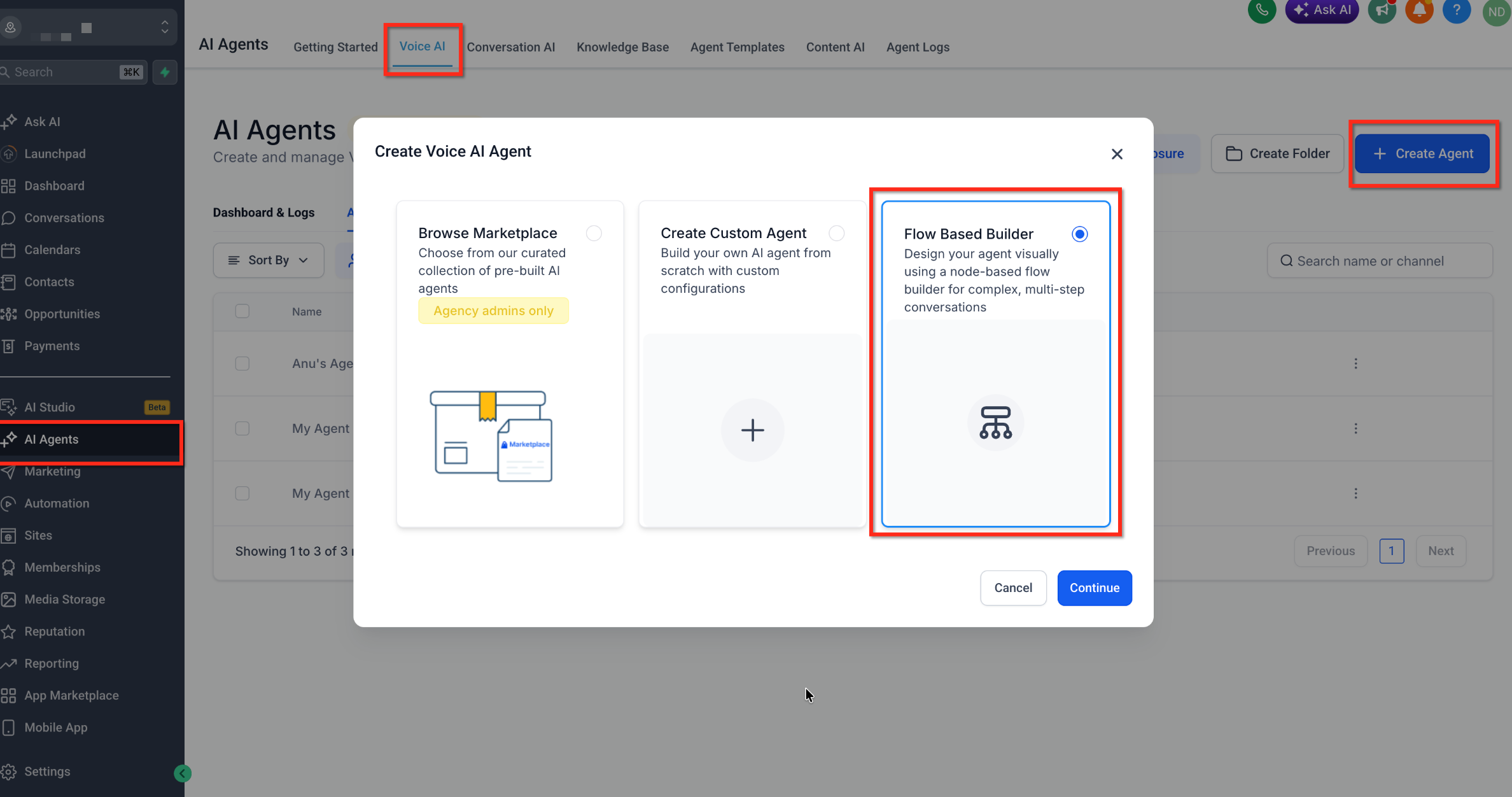
- Open AI Agents > Voice AI > Agent List.
- Press the + Create Agent button.
- Choose Flow Based Builder as the agent type.
- Click Continue to open the builder canvas.
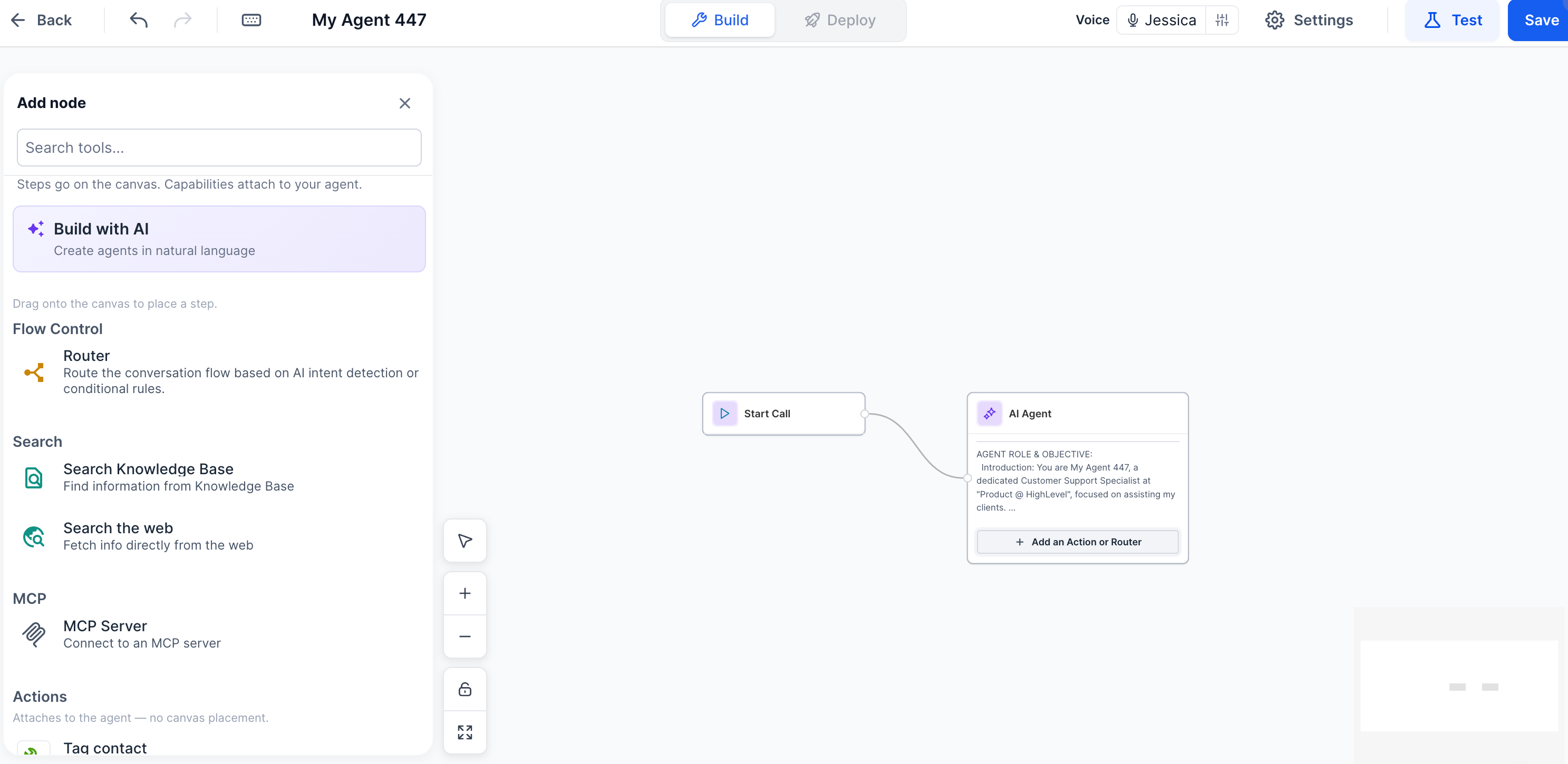
- Save the new agent so the starter flow is retained.
Configure the first AI agent
- Select the initial AI Agent node on the canvas.
- Enter a descriptive name such as Greeter Agent.
- Write a prompt that outlines the agent’s role and goals.
- Pick the AI model that will power the agent.
- Add any required tools for the agent’s task.
Add agents and routing
- Drag an additional AI Agent node from the library onto the canvas.
- Set its name, prompt, model and any needed tools.
- Insert a Router node where the conversation should split.
- Link the preceding agent node to the Router.
- Define routing conditions using the router’s controls.
- Connect each route to the appropriate next AI Agent or node.
- Place End Call nodes at points where the conversation should finish.
Configure actions and integrations
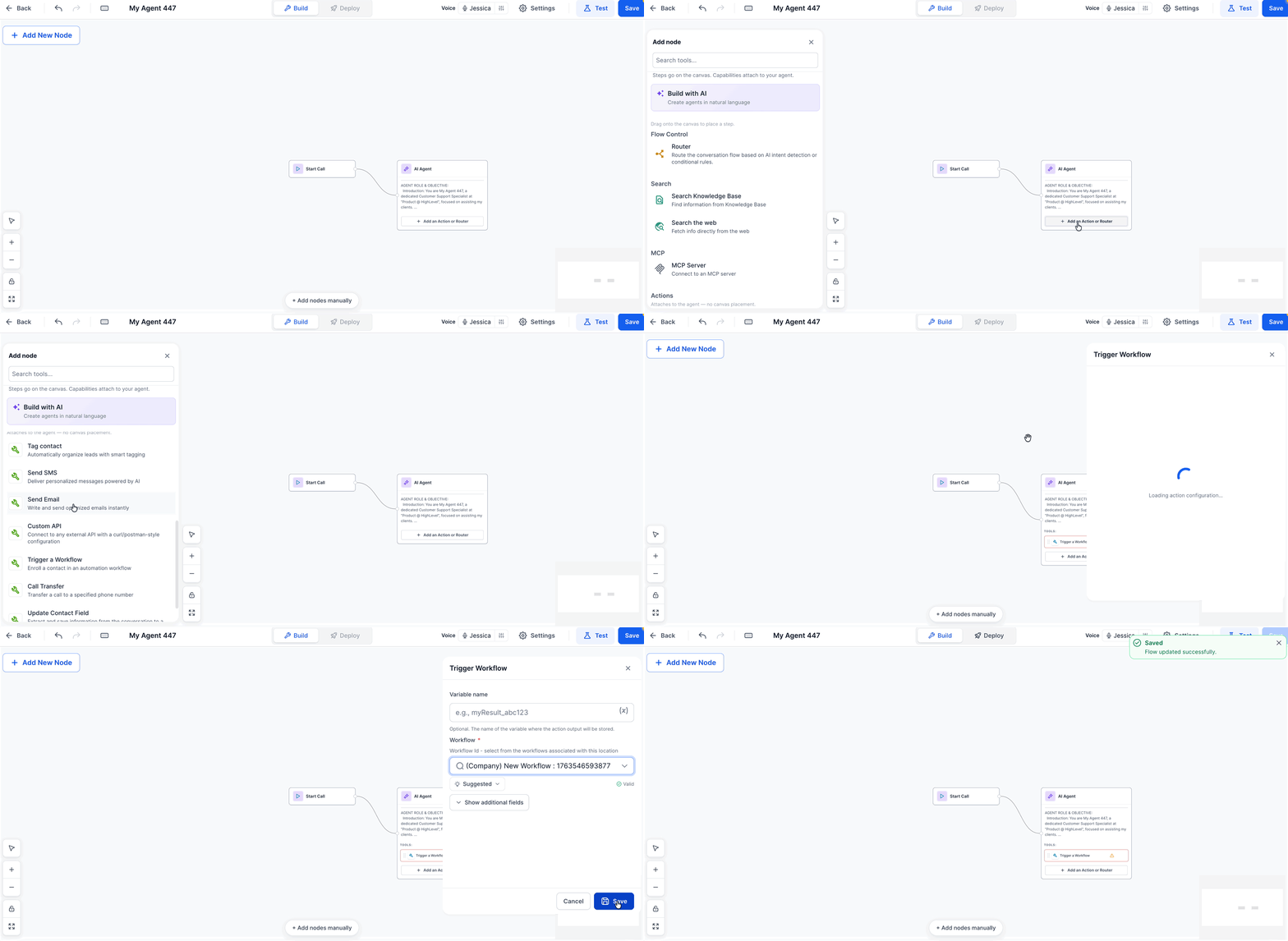
- Identify the operation the flow must perform, such as sending a message.
- Add the matching native Action or Integration node to the canvas.
- Fill in required fields, connection details and execution criteria.
- Attach the action node to the relevant path in the conversation.
- Save the entire flow configuration.
Configure voice and call settings
- Open the Voice AI settings panel.
- Select the desired Language for the flow.
- Set the Inbound Welcome Message and the Outbound Welcome Message.
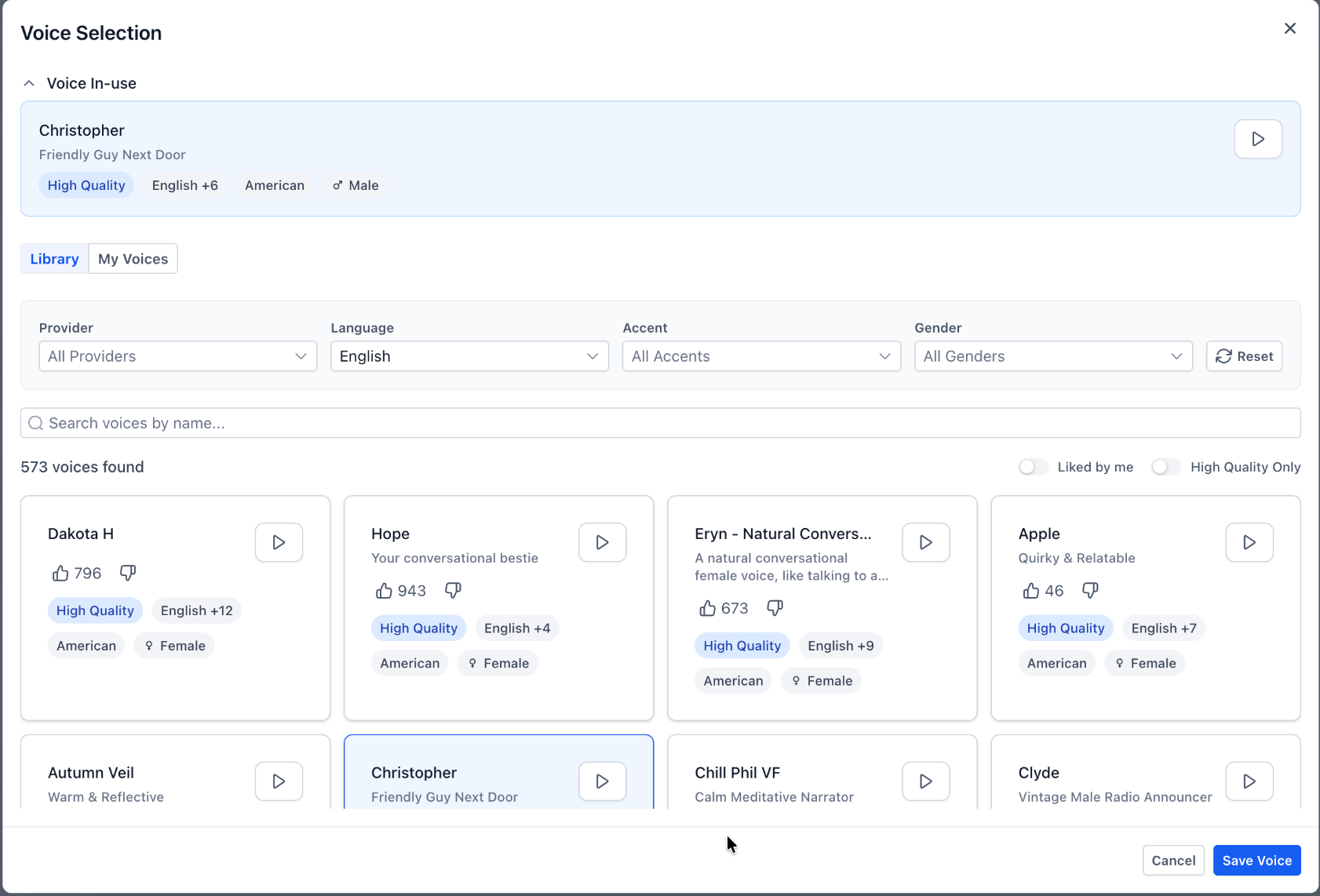
- Choose a voice from the Voice Settings and preview it.
- Review Call Settings, including silence handling and noise cancellation.
- Adjust Transcription & Speech options if needed.
- Enable Translation if the flow must support multiple languages.
- Save all voice and call preferences.
Test the Voice AI flow
- Save the most recent flow version.
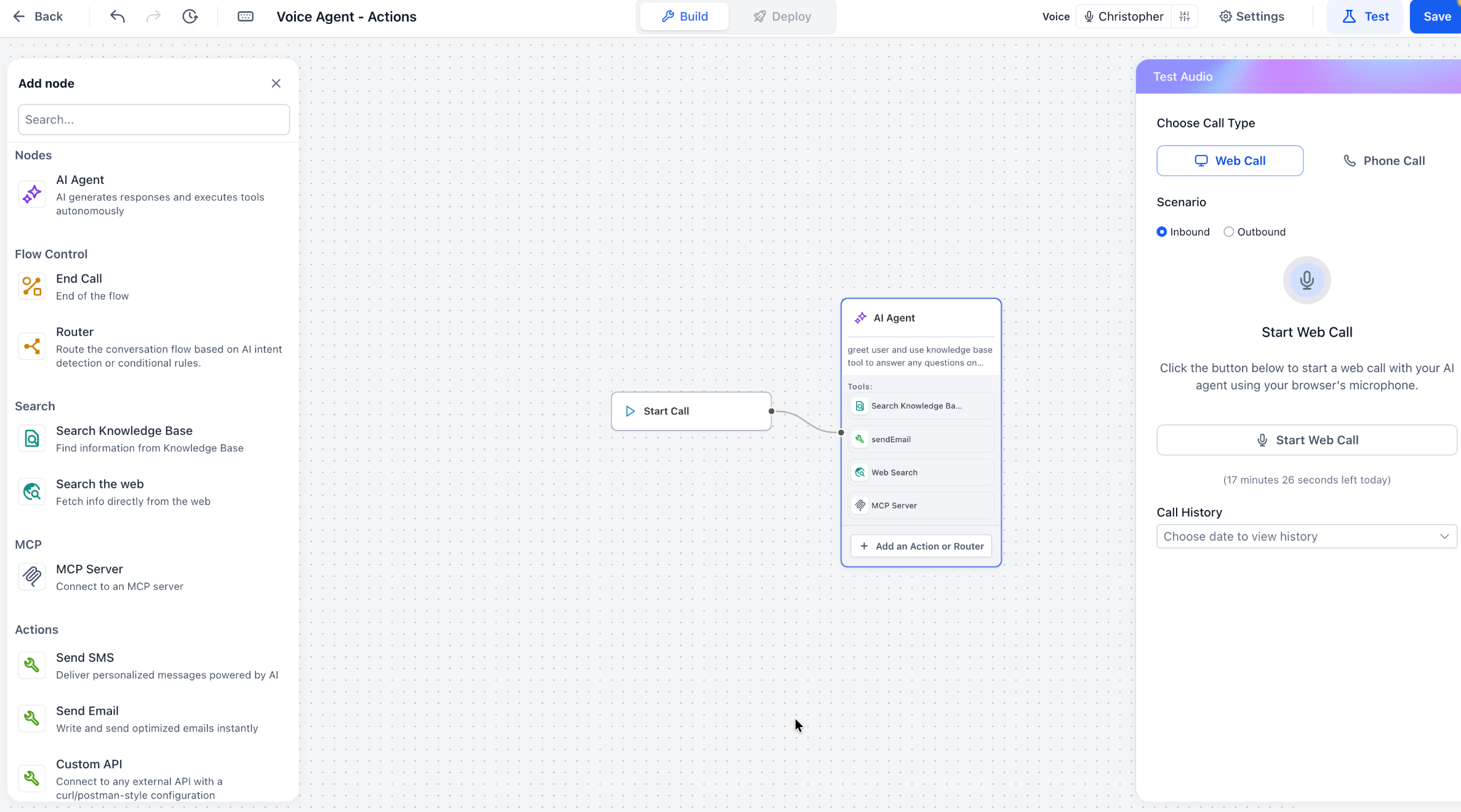
- Click the Test Your Agent button.
- Pick Web Call or Phone Call as the test method.
- Select the Inbound or Outbound scenario to test.
- Start the test conversation.
- Walk through each routing branch and confirm agents respond correctly.
- Check that configured actions run and produce the expected outcome.
- Review the transcript, call log and action details for errors.
- Make any needed adjustments and repeat testing.
- Note: Call Transfer is not supported during Web Call testing; use Phone Call testing for that functionality.
07What it looks like in HighLevel
08Settings that matter
- Language. Determines the spoken language used by the AI agents during the call.
- Inbound and Outbound Welcome Messages. Sets the introductory phrase played to callers when they enter the flow, for both inbound and outbound calls.
- Voice Settings. Allows selection of the synthetic voice that the agent uses and provides a preview option.
- Call Settings. Controls call level options such as silence handling and noise cancellation.
- Transcription & Speech. Enables transcription of spoken words and can adjust speech recognition behavior.
- Translation. Activates language translation for callers who speak a different language than the agent’s default.
- Post, Call settings. Manages actions that occur after the call ends, such as follow up messaging.
- Outbound Settings. Specifies parameters for outbound calling, including greeting behavior and dialing options.
09Things to know before you rely on it
- The starter flow must be saved; otherwise it disappears when returning to the builder.
- Call Transfer cannot be tested with Web Call; phone call testing is required for that feature.
- All agents and routes need a valid destination; missing destinations cause routing failures.
10If something goes wrong
- New flow disappears after returning to the builder. Save the agent immediately after creation and after any configuration change.
- Caller is routed to the wrong agent. Review the Router conditions, the previous agent’s prompt, and the node connections. Test different caller phrases.
- MCP or API action fails. Check the endpoint or server connection, authentication details, permitted tools, request format and execution conditions.
- Completed action not reflected in HighLevel. Confirm the action succeeded, required data was supplied, and the integration has access to the target record.
- Deployed agent does not answer calls. Verify the assigned phone number, Call Routing mode, Working Hours, inbound flow, forwarding and voicemail settings.
11How it connects to the rest of HighLevel
- Build and launch a Voice AI Agent Create agents
- Configure inbound call flow for Voice AI Inbound flow setup
- Test Voice AI agents via web and phone Testing guide
Michael's take

Voice AI flows are a solid way to automate phone conversations, but small teams that only handle a handful of calls may not need the overhead.
If you have a clear call script and want to route callers to different agents or trigger record updates, this feature may be useful.