
01Who this is for
- Teams that operate many Voice AI agents use folders to keep their workspace tidy.
- Administrators who need to prevent accidental changes benefit from the clear organization folders provide.
02Folders for Voice AI Agents, explained
Folders are a way to categorize Voice AI agents inside the agent list. They appear in the navigation path AI Agents > Voice AI > Agent List and let you create, rename, move, delete, and bulk manage groups of agents. When a folder is removed, its agents return to the main list without being deleted.
The folder view can be toggled between a grouped (folder) layout and a flat (agent first) layout. Sorting options let you order items by name or by the date they were last updated. Bulk actions let you act on several agents or folders at once, such as moving or deleting them.
03How businesses use folders for Voice AI Agents
- Digital marketing agency. The agency creates a folder for each client and assigns the client’s Voice AI agents to it. When a new campaign launches, the team adds the relevant agents to the client’s folder, keeping every client’s bots separate and easy to find.
- Real estate brokerage. The brokerage groups agents by property type, rental, sales, and commercial, using folders. Agents can be moved between folders as listings change, and bulk actions let the team quickly reassign many agents when a property status updates.
- Healthcare clinic. The clinic places appointment booking agents in a dedicated folder. Staff can rename the folder to the current quarter and use the grouped view to focus on those agents, while bulk actions help archive old agents at the end of the period.
04The numbers and rules that matter
- Up to 100 agents can be created.
05Before you start
- Open the Voice AI Agent List via AI Agents > Voice AI > Agent List.
06How to set up and use folders for Voice AI Agents in HighLevel
Create a new folder
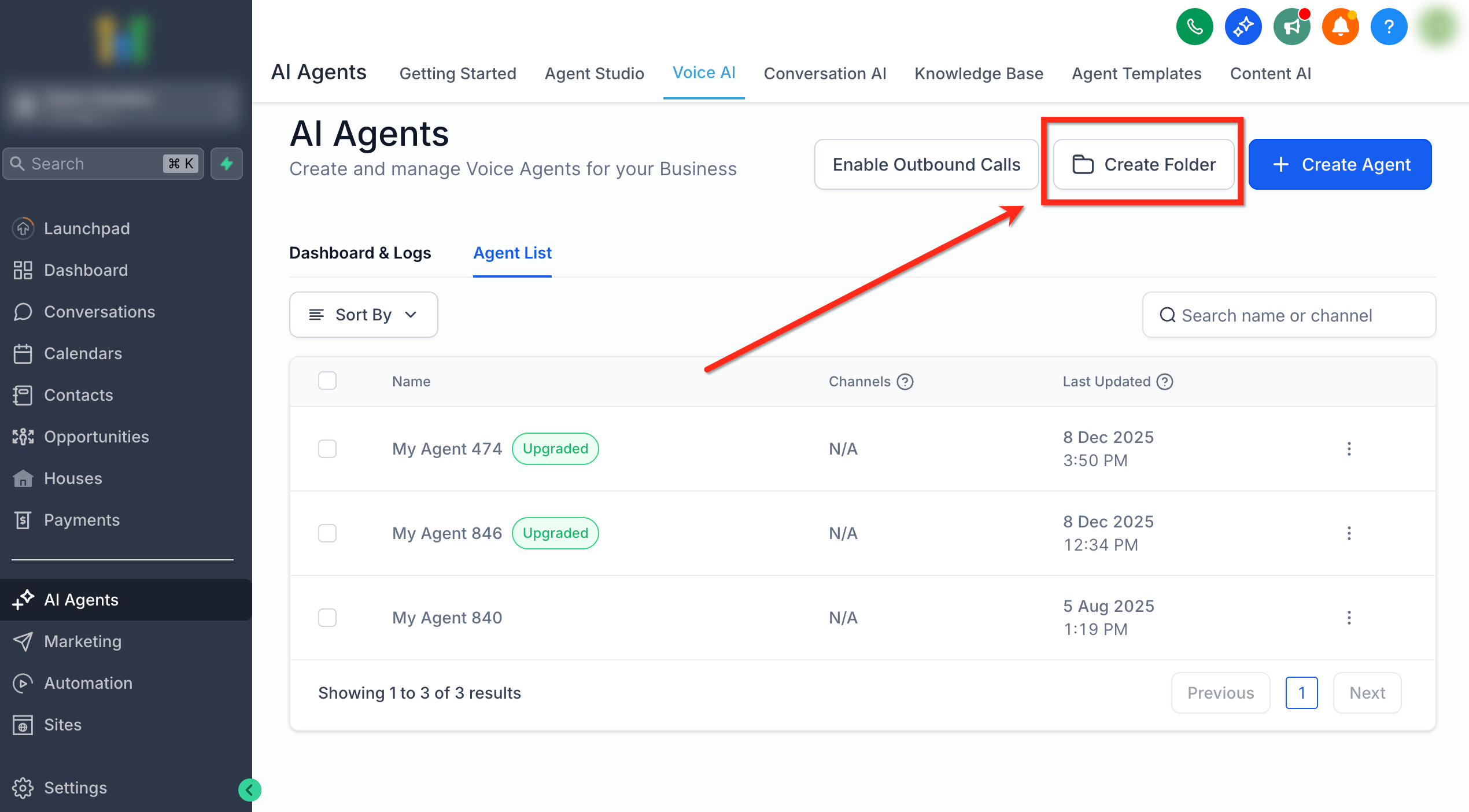
- Click the Create Folder button on the Voice AI Agent list screen.
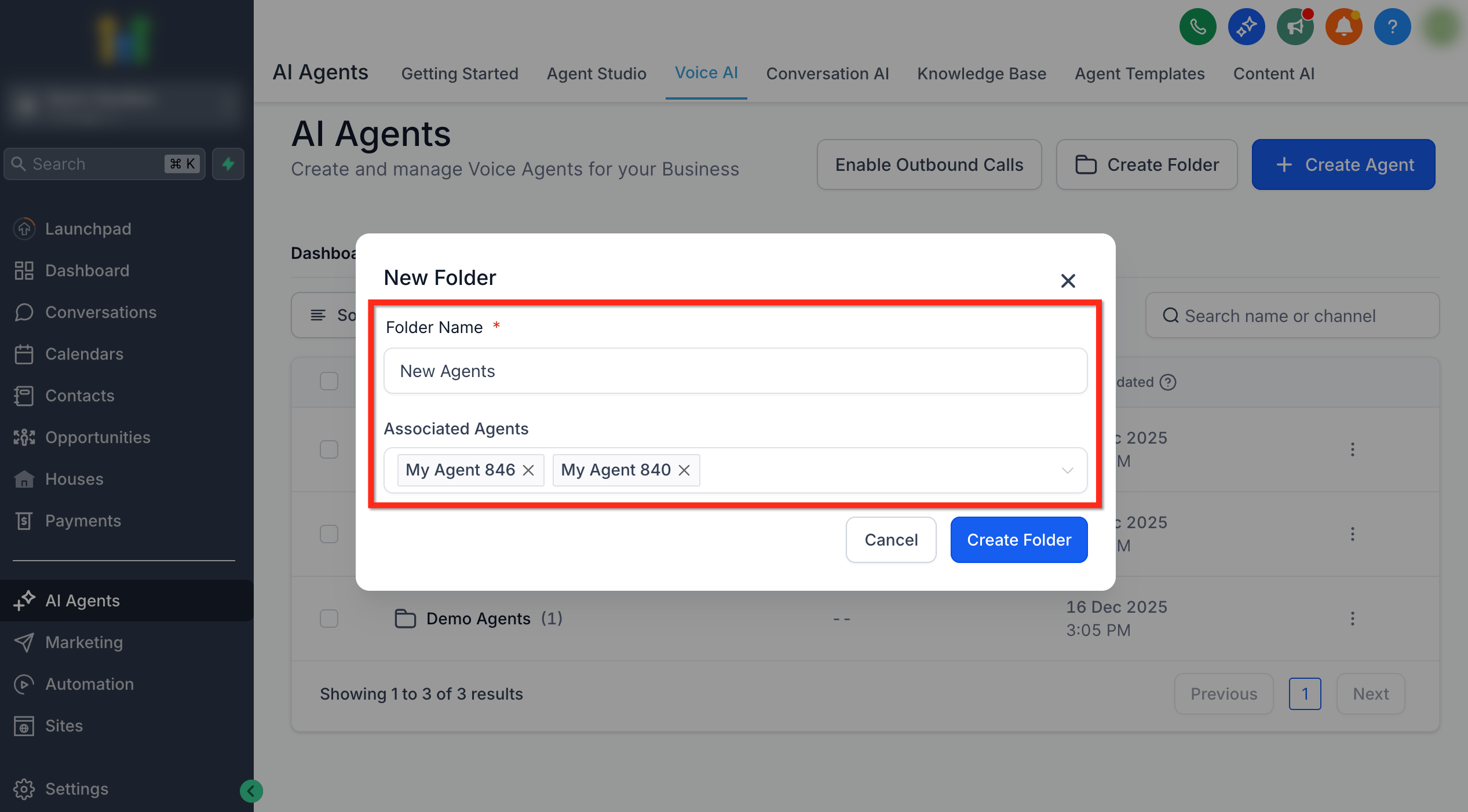
- Enter a folder name and select any agents to place inside it.
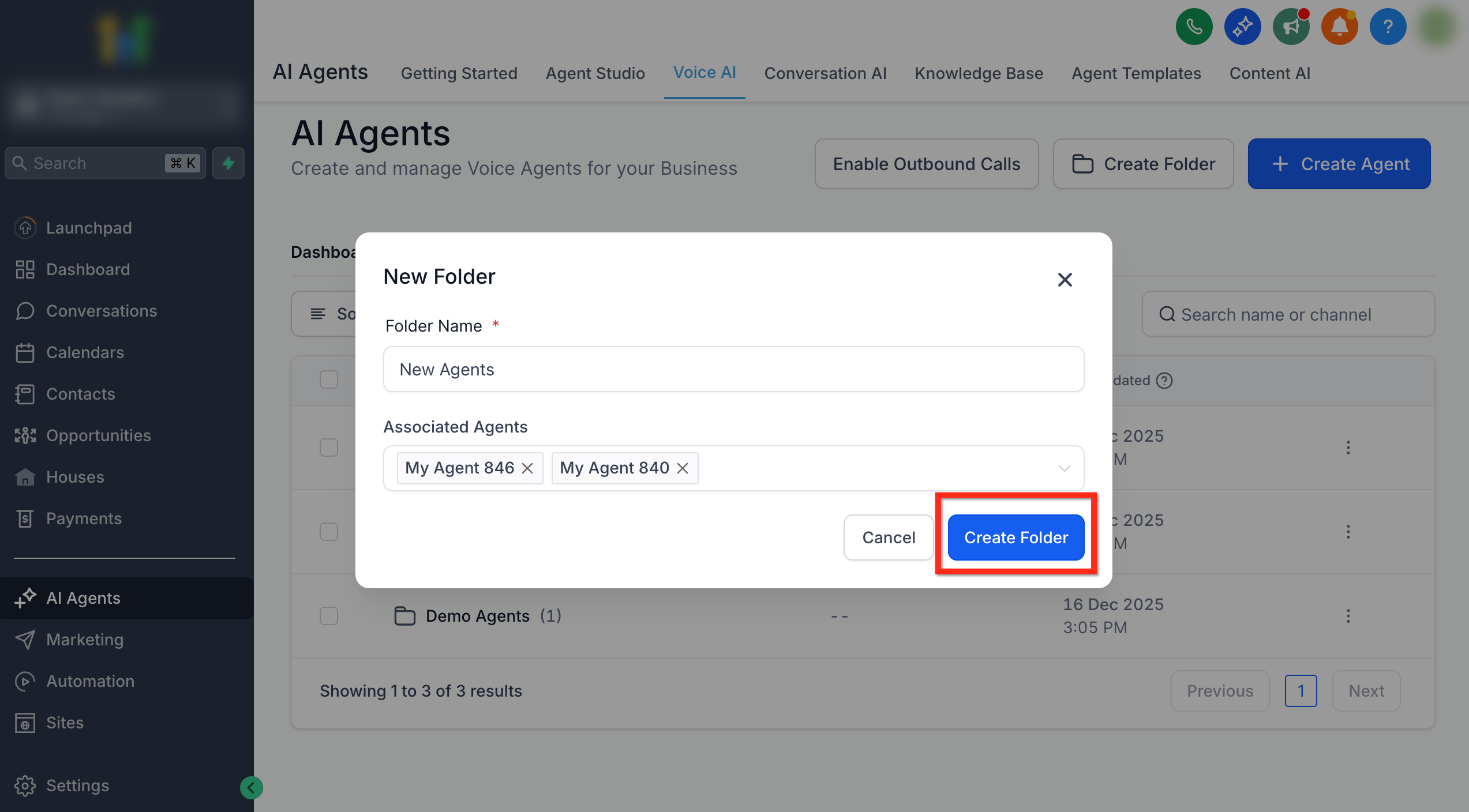
- Click Create Folder; the chosen agents appear in the newly created folder.
Move an agent across folders
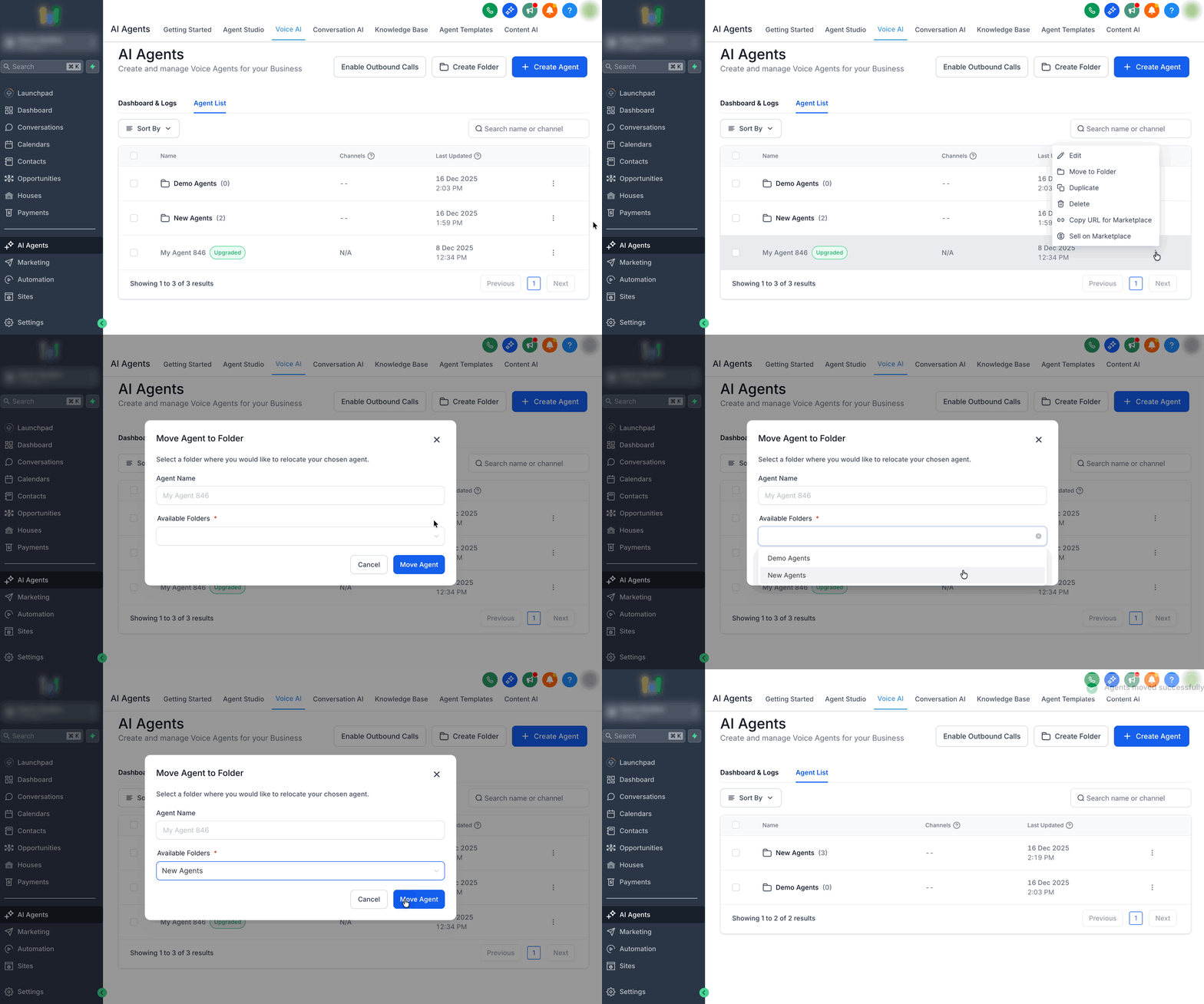
- Open the three dot menu next to the agent and choose Move to Different Folder.
- Select the destination folder from the dropdown list.
- Click the Move Agent button.
- The agent is immediately transferred to the chosen folder.
Rename or edit a folder
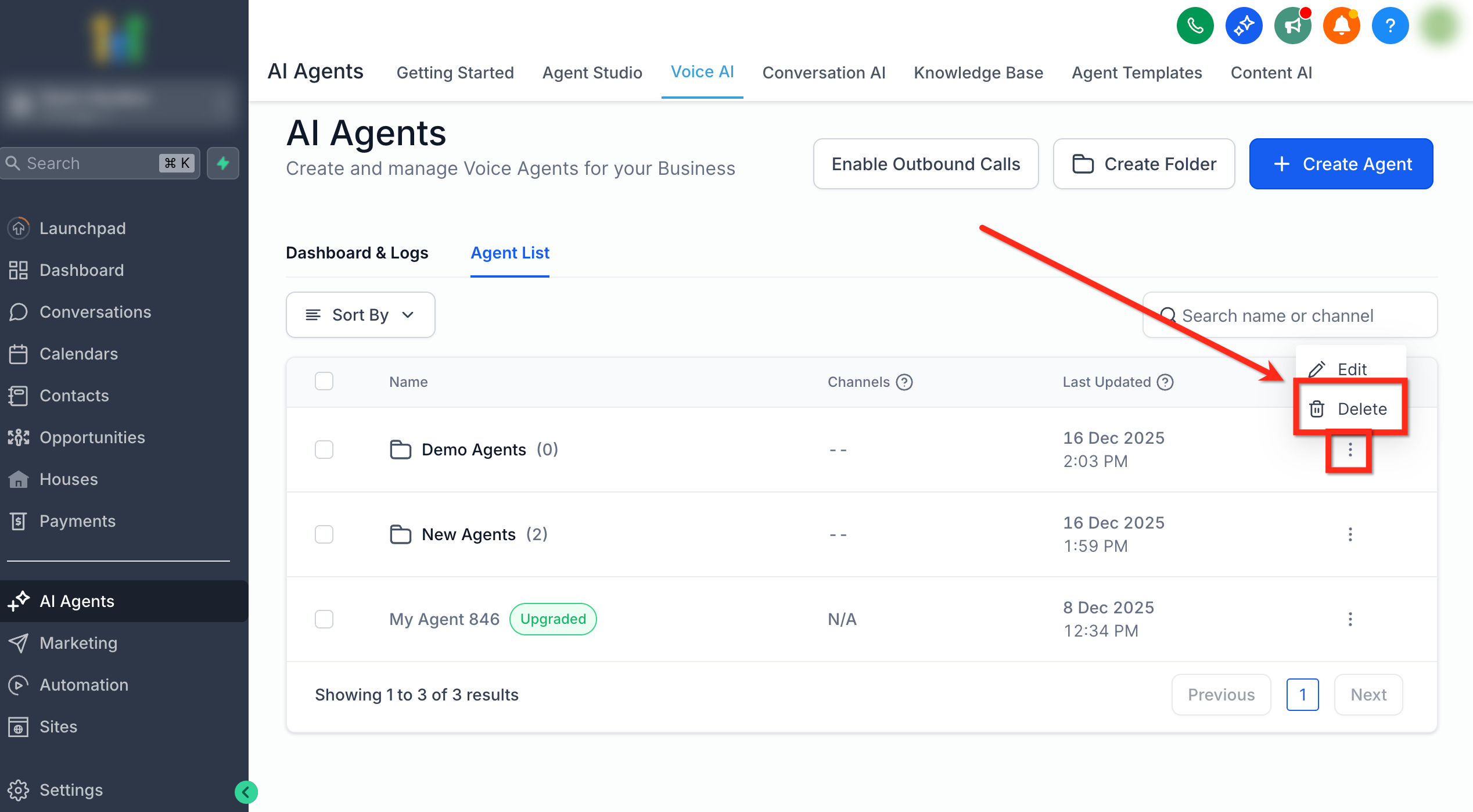
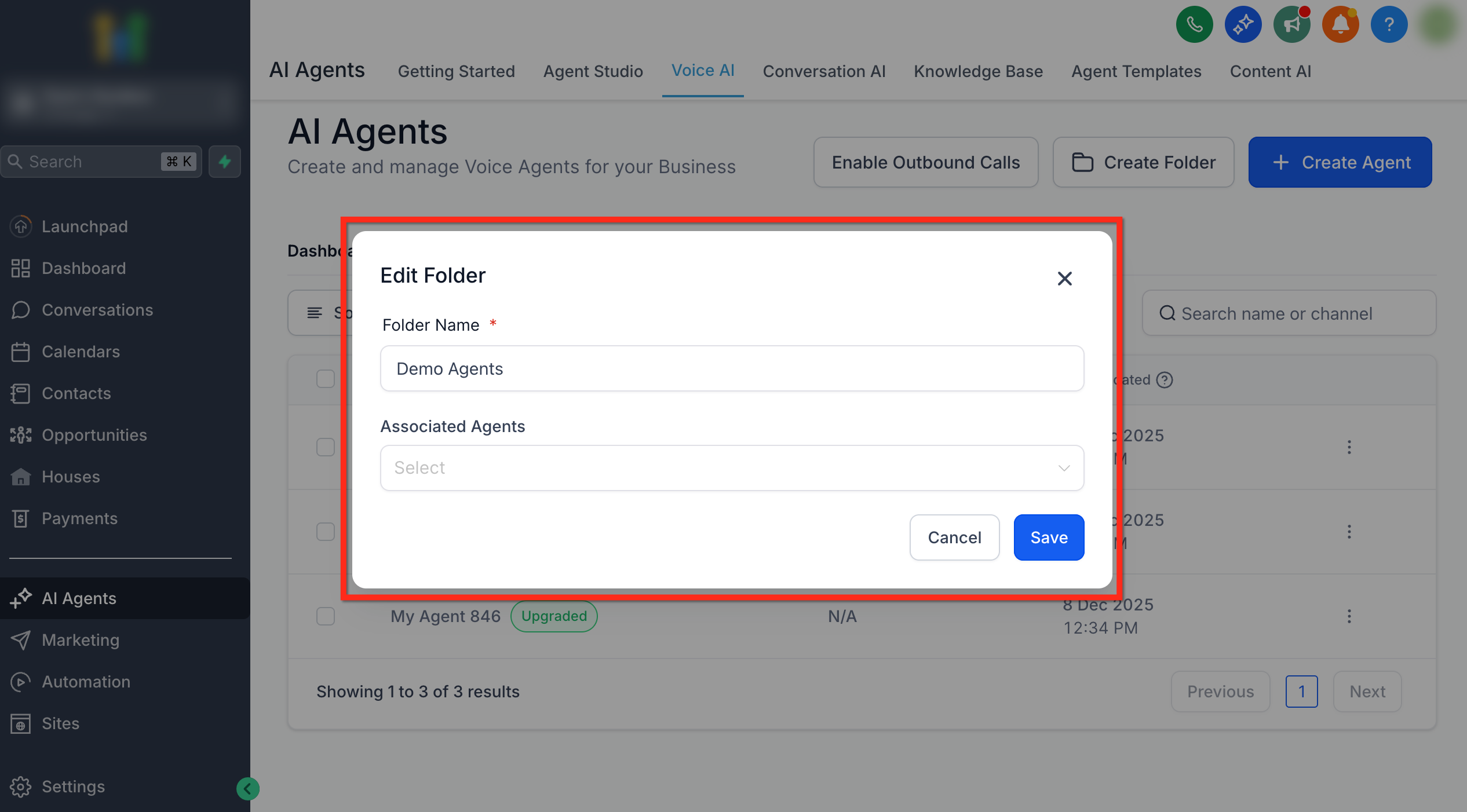
- In the folder view, open the three dot menu and select Edit.
- Update the folder name or modify the associated agents using the provided fields.
- Save the changes to apply the new folder details.
Use bulk actions
- Mark the checkboxes next to the agents or folders you wish to affect.
- Choose Bulk Actions and pick the desired operation from the menu.
- Confirm the action; the selected items are processed together.
Customize your agent list view
- Open the sort options and switch between grouped (folder) and flat (agent first) views.
- Select a sort order such as name or last updated.
- The list refreshes to display items according to the chosen grouping and sorting.
07What it looks like in HighLevel
08Settings that matter
- Folder Name. Sets the label displayed for a folder.
- Associate Agents. Determines which agents are placed inside the folder.
- Available Folders. Lists destination folders when moving an agent.
- Grouping view (folder vs agent, first). Controls whether the list shows agents grouped by folder or in a flat view.
- Sort by name or last updated. Defines the order in which agents or folders appear in the list.
09Things to know before you rely on it
- An agent can belong to only one folder at a time.
- The platform supports up to 100 Voice AI agents.
- Search works only within the currently opened folder; it does not search across all folders.
10How it connects to the rest of HighLevel
- How to build and launch a Voice AI Agent in HighLevel Create Voice AI agents
- Configure inbound call flow for Voice AI in HighLevel Inbound call flow
- Understanding HighLevel voice AI agents and their business uses Voice AI overview
Michael's take

Wondering if you really need another layer of organization for your Voice AI Agents? When you have dozens of agents, folders become a practical way to keep things from turning into a chaotic list, and they let you move or delete groups in a single click.
I’d start by setting up a folder for each stage of your rollout. Demo, testing, production. And assign agents as you create them. That way the workspace stays tidy from day one, and you avoid the risk of editing the wrong script.