
01Who this is for
- Customer support managers need to audit agent conversations for quality and compliance.
- Sales directors require visibility into call outcomes to coach agents and refine scripts.
- Marketing teams use call details to measure campaign response and improve messaging.
02Call logs for Voice AI Agents, explained
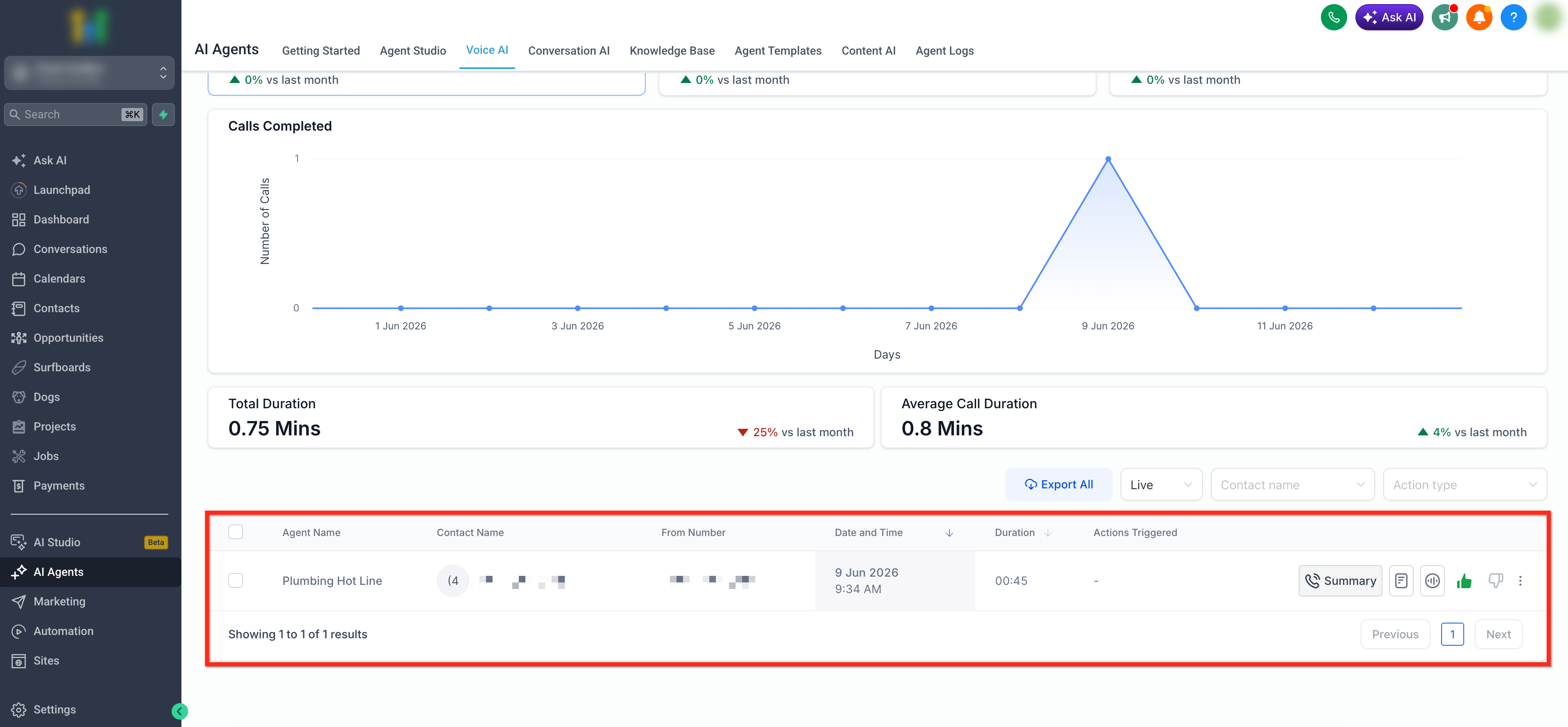
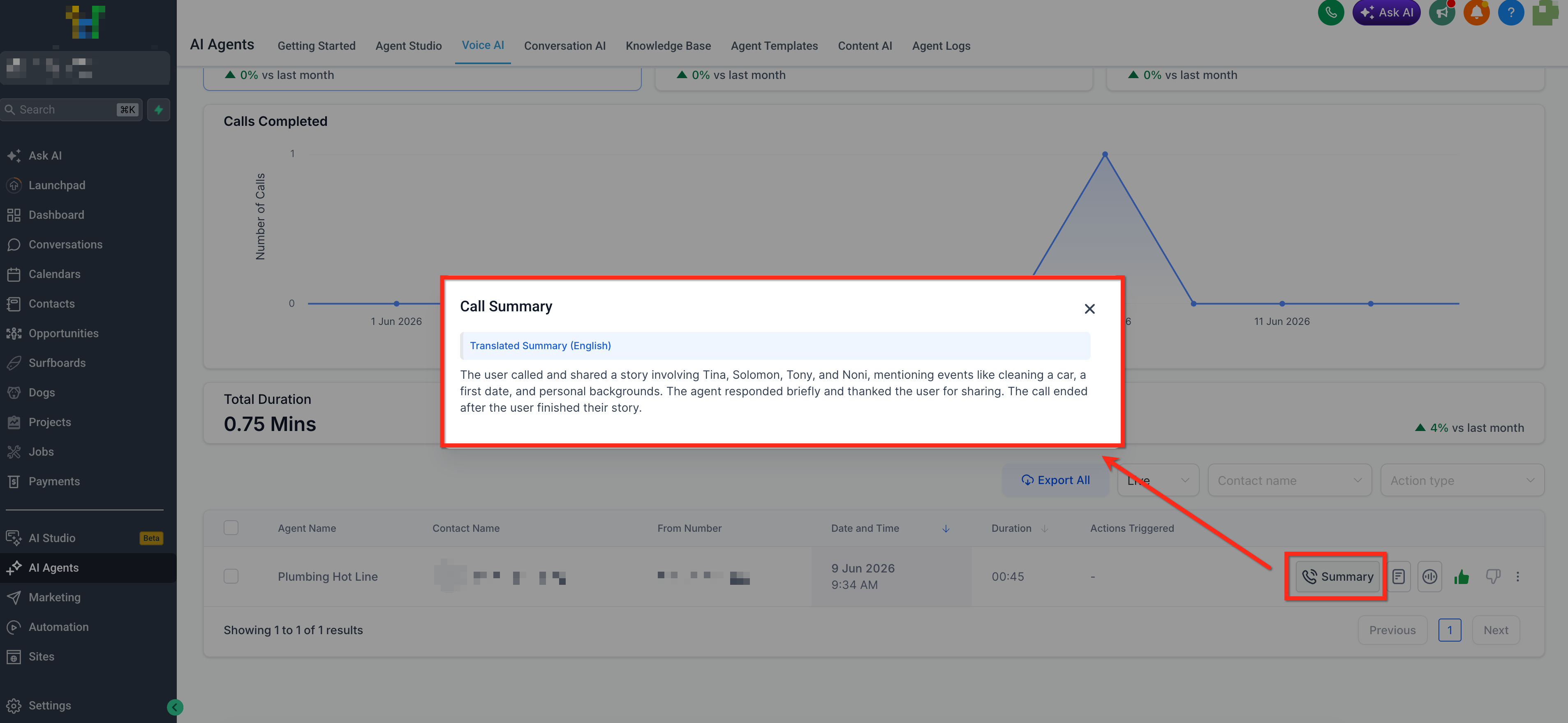
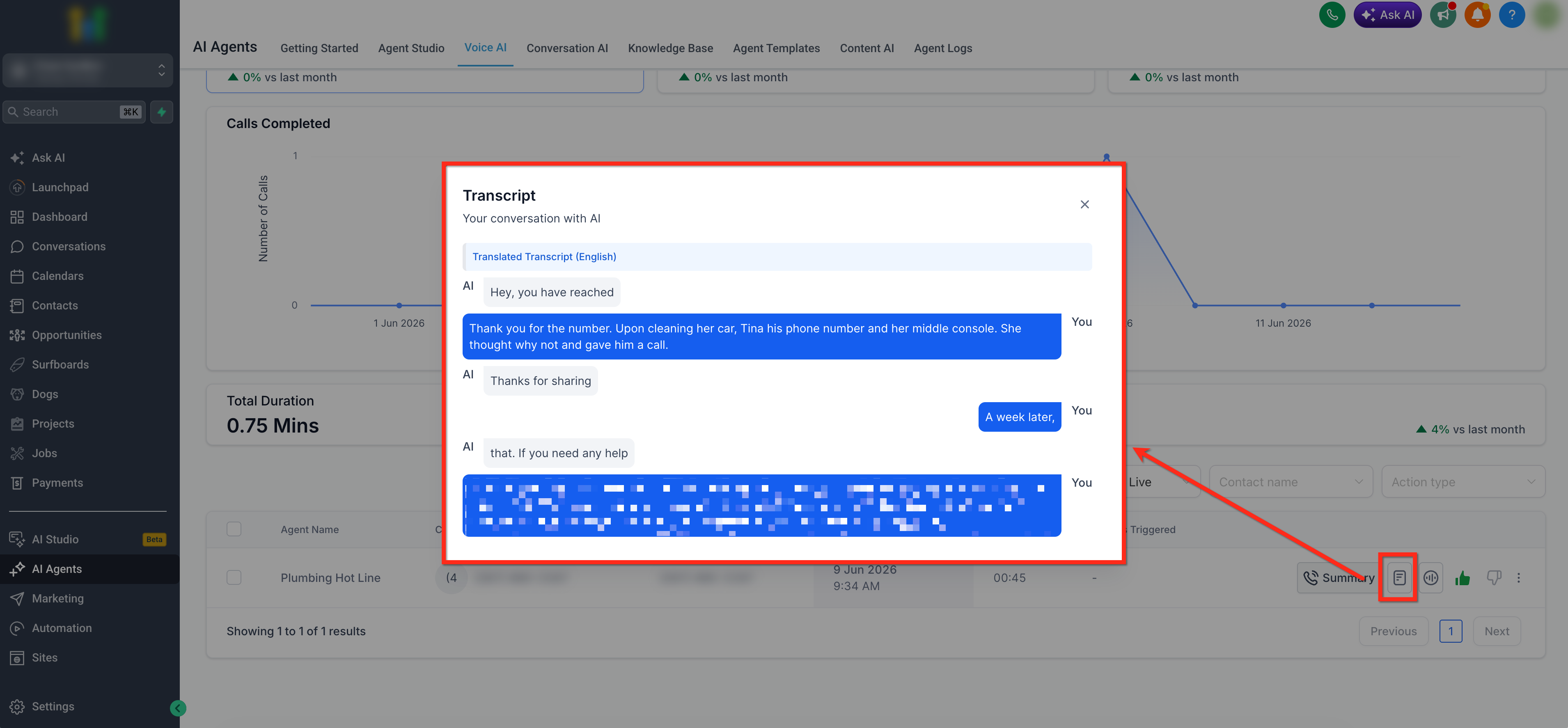
Call Logs collect a full history of each call managed by a Voice AI agent. The log entry displays the agent name, caller information, date, duration, actions taken, a brief summary, the complete transcript, and any available recording.
The logs live inside the AI Agents section of HighLevel. From there you can apply filters, review individual call details, and export data. Exporting respects the active filters and creates a CSV file containing up to the 50 most recent matching calls.
The feature also lets you open a call’s summary for a quick overview, view the full transcript for exact wording, or listen to the recording when it exists. Recordings can be downloaded from the recording window.
03How businesses use call logs for Voice AI Agents
- Real estate brokerage. Agents can open the call log table, filter by the listing agent, and read summaries to see if callers were interested in a property. For disputed calls, the broker can open the transcript or listen to the recording to verify details.
- Healthcare clinic. Clinic staff use the logs to confirm patient appointment requests captured by the Voice AI. They filter by date range, view the summary to ensure the correct date was recorded, and download the transcript for record keeping.
- Online store. The marketing team filters calls by promotional campaign, exports the matching logs, and reviews the transcripts to see how the AI handled product questions. Recordings are listened to for tone analysis.
04The numbers and rules that matter
- Exports up to the 50 most recent calls that match your current filters.
05Before you start
- Voice AI agents must be created and actively handling calls.
06How to set up and use call logs for Voice AI Agents in HighLevel
Access call logs
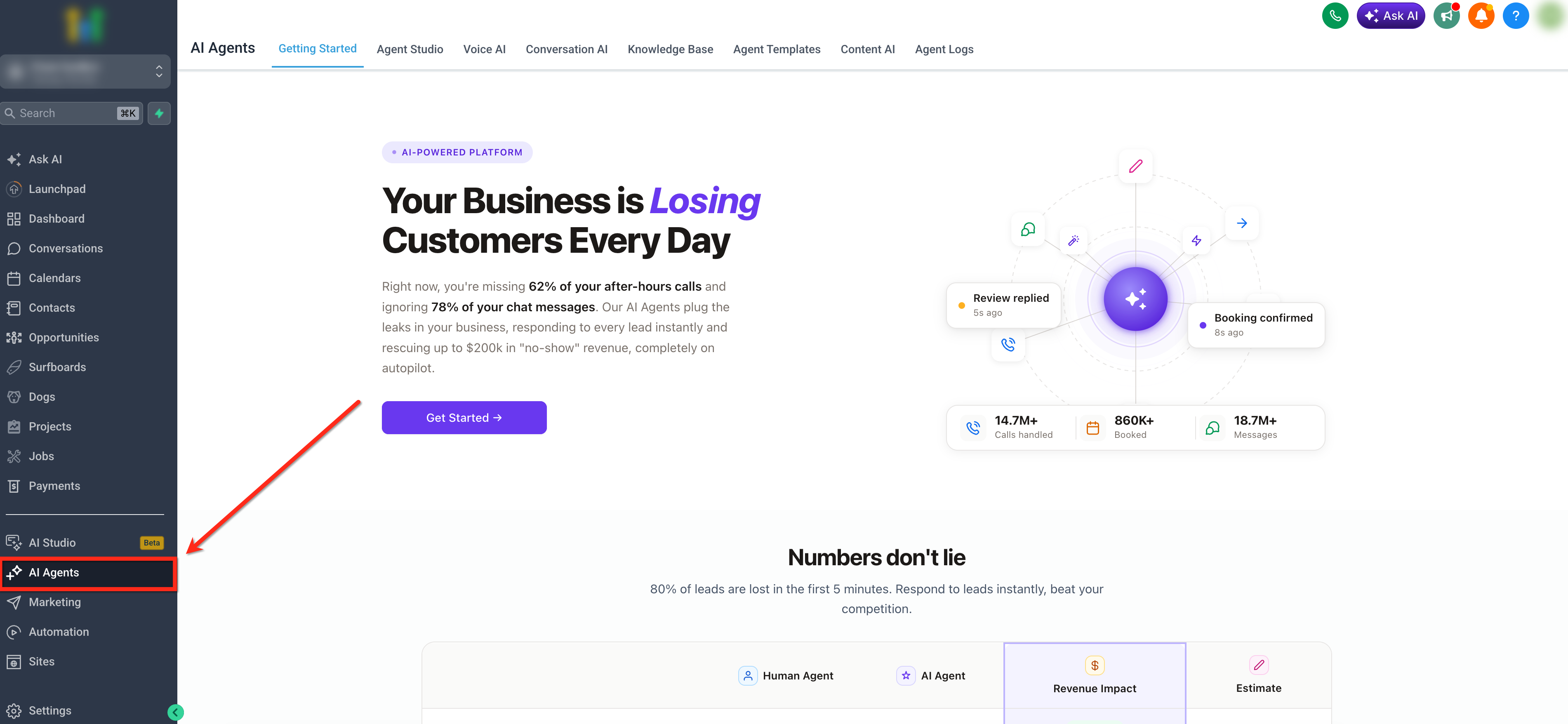
- In the left navigation menu, click AI Agents.
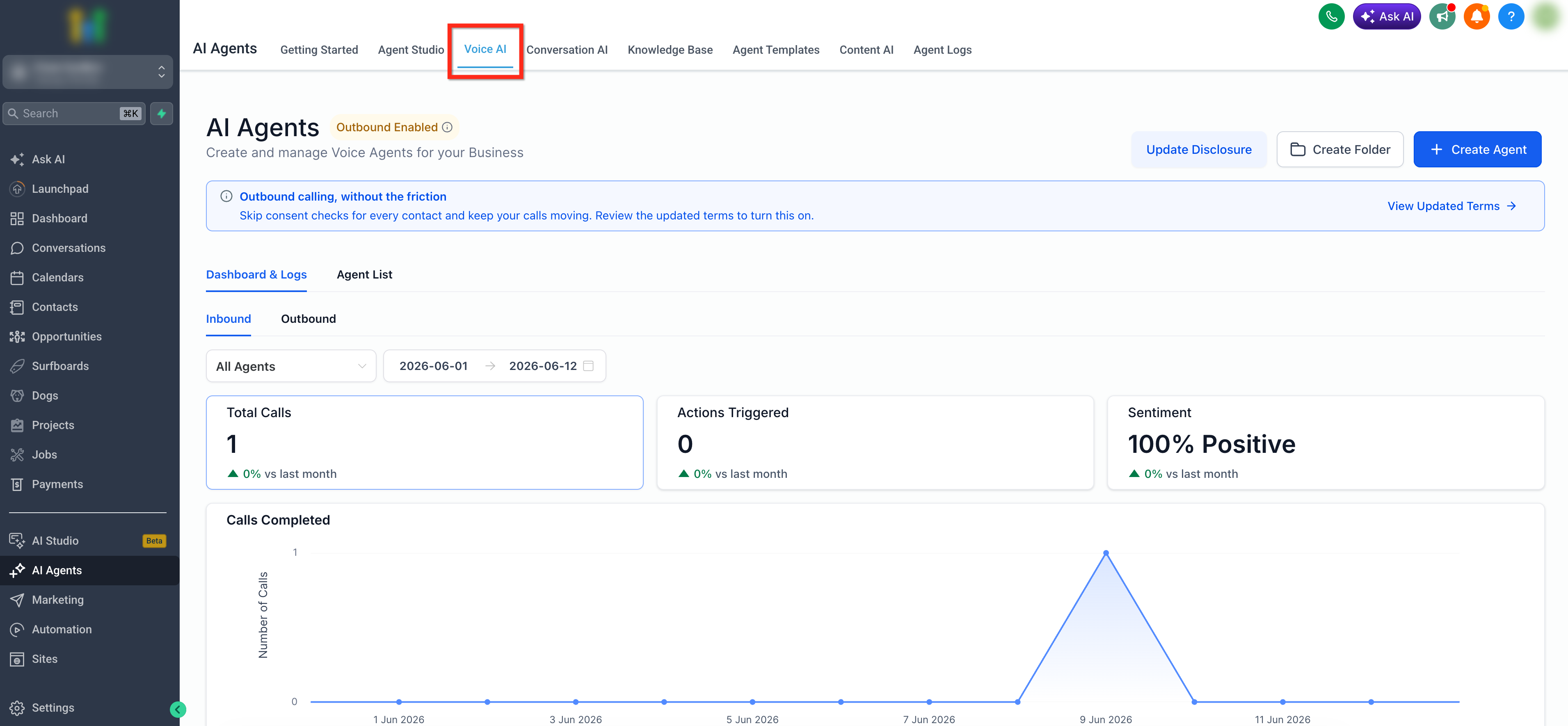
- At the top of the AI Agents area, click Voice AI.
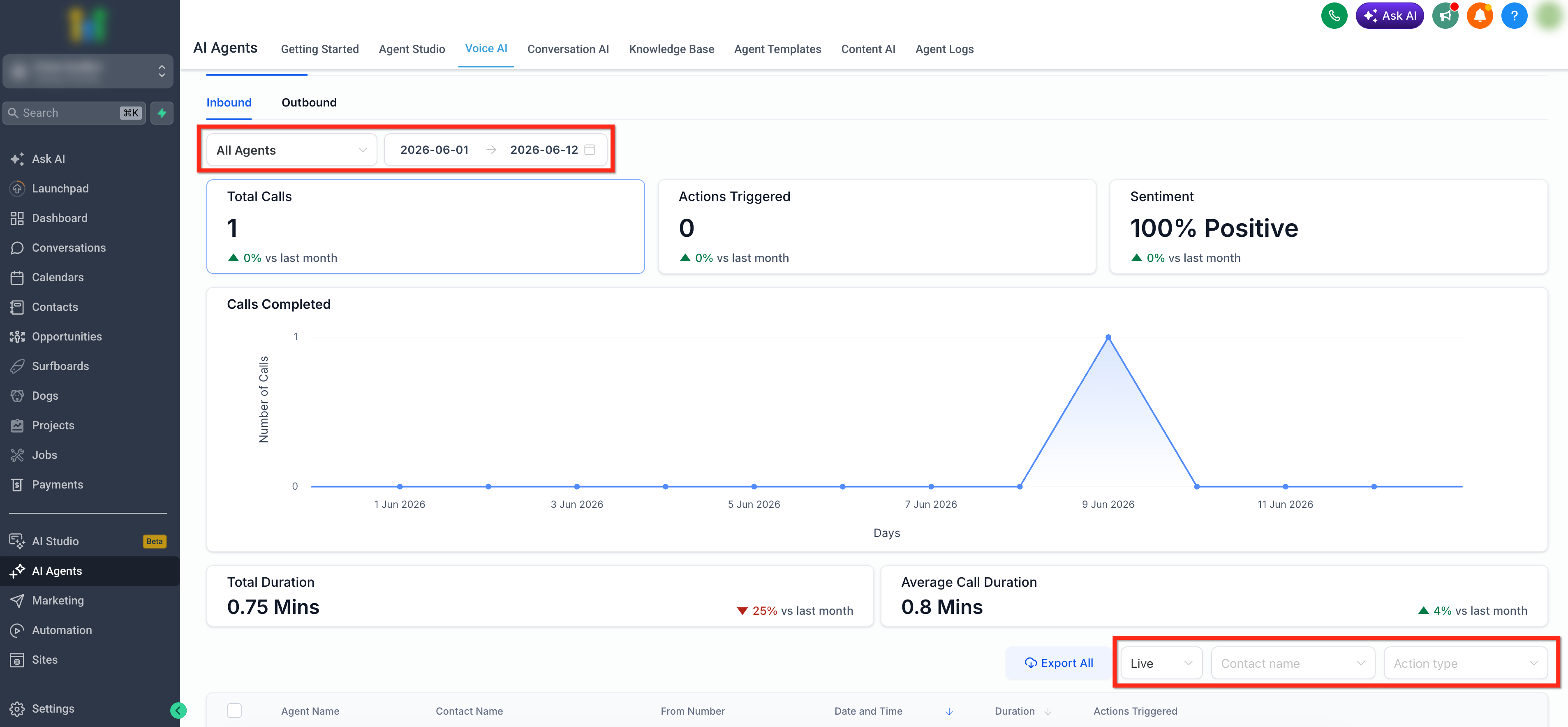
- Apply any needed filters to narrow the list.
- Scroll down to view the call log table.
Bulk export call logs
- Click Export All to download every call that matches the current filters.
- Select individual calls by checking the boxes next to them.
- Click Export to download a CSV file with only the selected calls.
07What it looks like in HighLevel
08Things to know before you rely on it
- Bulk export includes a maximum of the 50 most recent calls that match the active filters.
- Call recordings can only be downloaded for completed calls where a recording exists, and availability may depend on provider support.
09How it connects to the rest of HighLevel
- How to build and launch a Voice AI Agent in HighLevel Create Voice AI agents
- Configure inbound call flow for Voice AI in HighLevel Inbound call flow
- HighLevel pricing and plans Pricing
Michael's take

Call logs for Voice AI Agents are a clear way to see exactly what your AI phones are doing.
Skip it if you never need to audit calls or export data.