
01Who this is for
- Founders of service oriented businesses who need a quick way to capture caller details without manual node wiring.
- Customer support managers who want to automate FAQ handling and routing for voice calls.
- Marketing leaders of SaaS companies looking to qualify inbound leads through voice interactions.
02Build with AI, explained
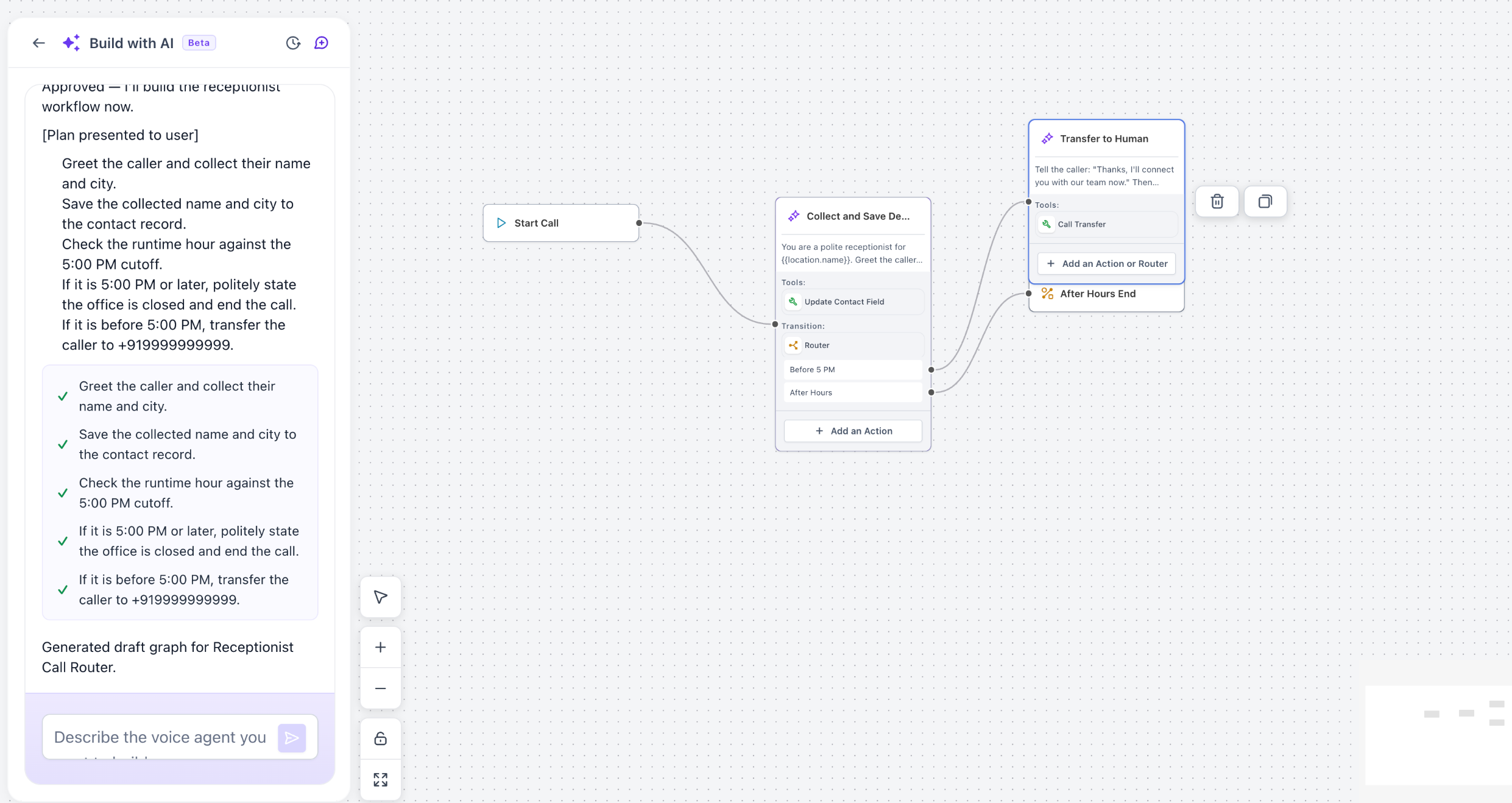
Build with AI lives inside the Flow Based Builder interface. It replaces the traditional drag and drop process with a chat window where you type the Voice AI experience you want. The AI interprets your description, asks clarification questions, and proposes a build plan.
When you approve the plan, Build with AI renders a full flow graph on the right hand canvas. The graph shows every node, connection, and action that will run during a call. You can inspect each node, request changes, or apply the flow to your workspace. After applying, the flow behaves like any other HighLevel flow, ready for inbound or outbound voice use.
03How businesses use build with AI
- Dental office. The office describes a flow that answers clinic FAQs, distinguishes emergency calls, and sends after hours SMS details. Build with AI creates the nodes and routing logic, which the practice then applies to handle calls automatically.
- Home services business. The business tells the AI to collect service type and ZIP code, verify serviceability, update the contact record, and start an estimate workflow. Build with AI generates that sequence, ready for immediate deployment.
- SaaS sales line. The sales team asks for a flow that qualifies callers by company size and use case, tags the contact, and routes enterprise prospects to a live agent. Build with AI builds the flow, which the team then applies to their inbound line.
04The numbers and rules that matter
- Supports native actions, Knowledge Base integrations, Web Search, Model Context Protocol (MCP), and other supported tools.
05How to set up and use build with AI in HighLevel
Create or edit a Voice AI flow using Build with AI
- Open the Flow Based Builder workspace and locate the Build with AI chat panel.
- Enter a description of the Voice AI experience you want, including actions and data to collect.
- Answer any follow up questions the AI asks to clarify your workflow requirements.
- Review the build plan the AI presents, requesting modifications if needed.
- Preview the generated flow graph in the canvas panel to see all nodes and connections.
- Remember that the flow is not applied to your workspace until you explicitly choose to apply it.
- Click to apply the flow when you are satisfied, adding it to your workspace.
06What it looks like in HighLevel
07How it connects to the rest of HighLevel
- Overview of HighLevel voice AI agents Voice AI overview
- How to build and launch a Voice AI Agent in HighLevel Create Voice AI agents
- Configure inbound call flow for Voice AI in HighLevel Inbound call configuration
Michael's take

It's wise to examine the preview before applying the flow to ensure it matches your expectations.
Build with AI can generate a Voice AI conversation flow in minutes, reducing the need for manual node configuration.