
01Who this is for
- Agency owners who want a single place to discover and add client ready templates, saving time on manual uploads.
- Marketing teams that need quick access to paid design assets and want to keep all template work inside HighLevel.
- Template creators looking to monetize their work by selling directly to other HighLevel users.
02Template library marketplace integration, explained
The integration links the Template Library with the Marketplace, so browsing, previewing, purchasing and installing templates happen in a continuous workflow. Users can filter templates, view details, choose a pricing plan for paid items, and complete the install with a single confirmation click.
Creators start a new template, add required listing, support and pricing information, then use the Sell Template option to push the data to the Marketplace Seller Portal. After filling the remaining fields, the listing is submitted for review and becomes purchasable by other users.
03How businesses use template library marketplace integration
- Digital marketing agency. The agency opens the Template Library, filters for landing page templates, previews a paid option, selects the appropriate plan and confirms installation. The new template appears under My Templates for immediate client work.
- SaaS startup. The startup’s Founders create a custom onboarding email template, add support email and documentation URLs, then choose Sell Template on the Marketplace. After completing the seller portal details, they submit the listing to offer the template to other HighLevel users.
- Freelance designer. The designer browses free website builder templates, opens a preview to check design elements, and installs the chosen template directly from the preview without leaving the platform.
04The numbers and rules that matter
- Listing details include template link, name, about information, prerequisites, description, product type, category, tags, types, customization details and cover image.
- Support details include email, documentation URL, website URL, phone number, terms and conditions URL and privacy policy URL.
05Before you start
- Be logged into an Agency account with access to the Template Library.
- Have a subaccount selected when creating a new template to list for sale.
06How to set up and use template library marketplace integration in HighLevel
Preview & install templates
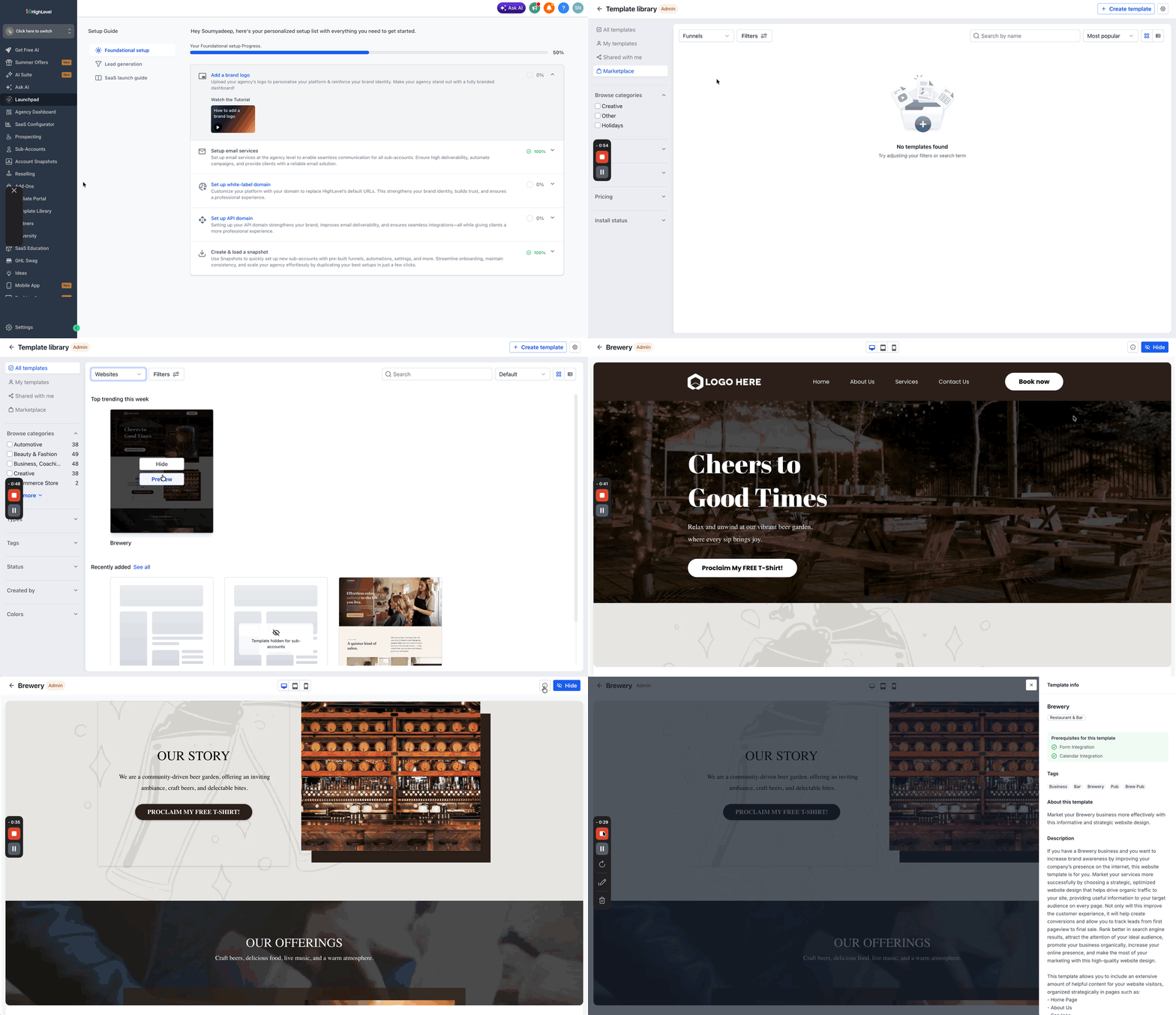
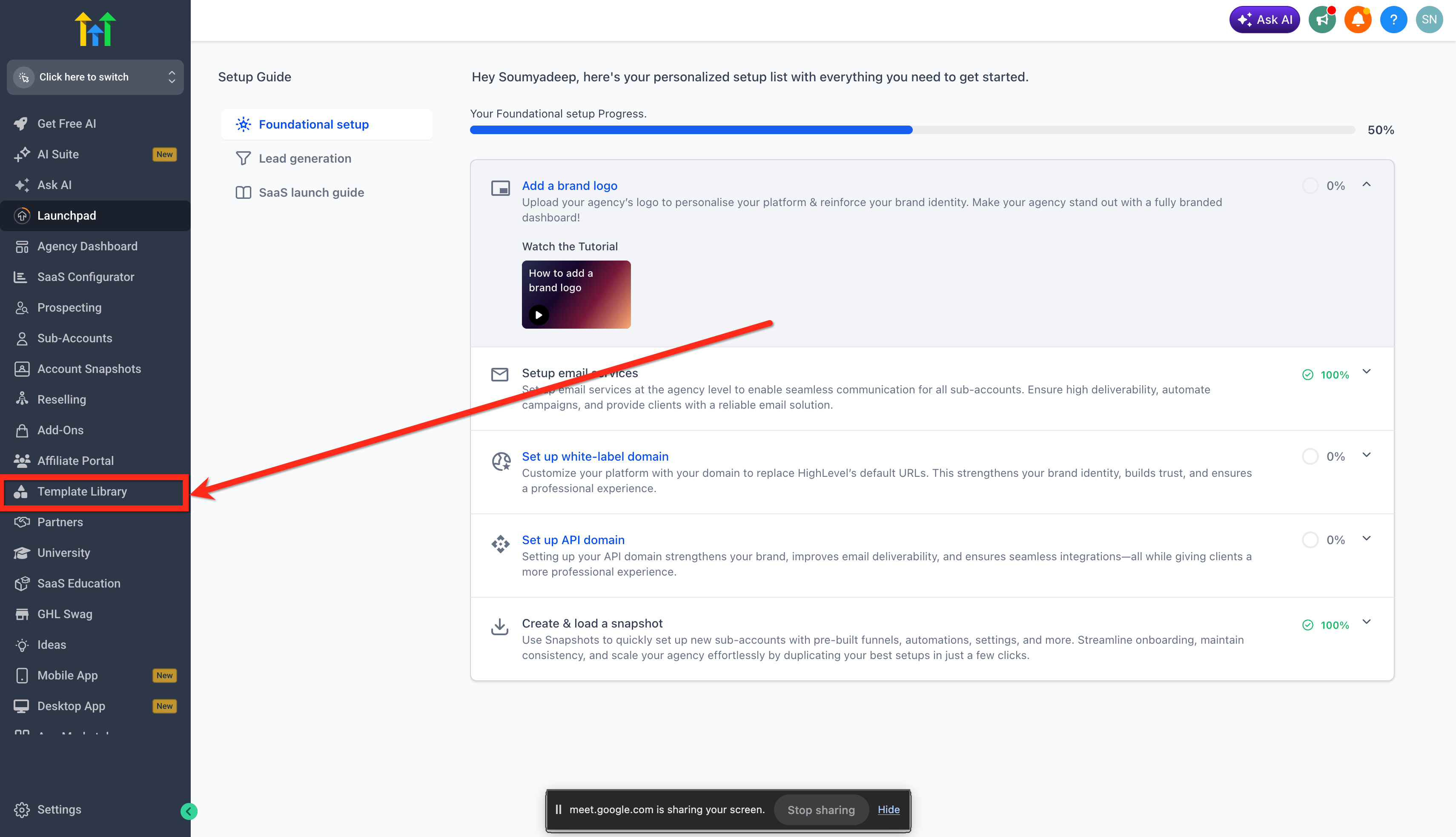
- Open the Template Library from the Agency View menu.
- Select the Marketplace tab.
- Use search or filters to locate a template.
- Open the template’s preview panel.
- Read the template details and any support information.
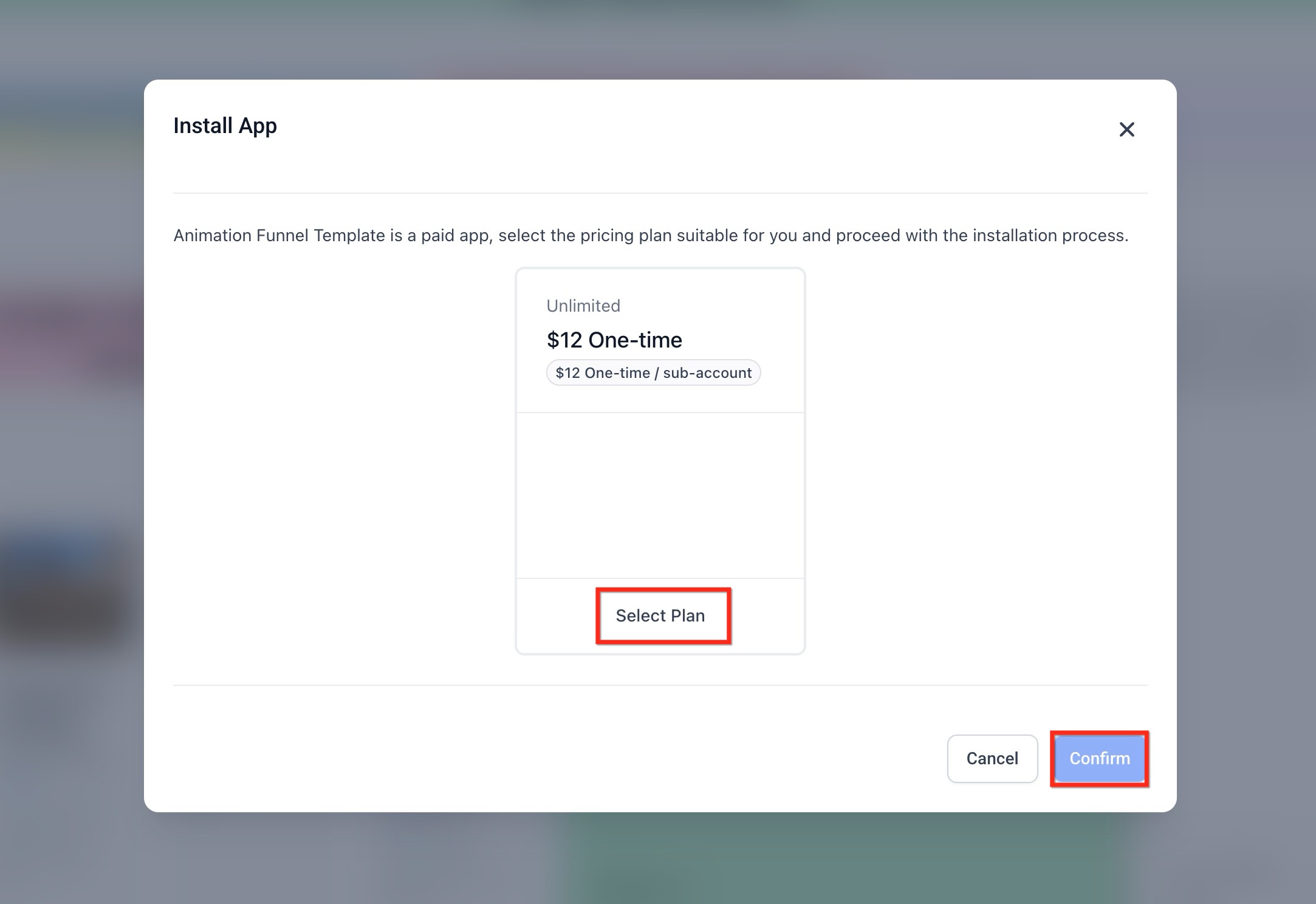
- If the template is paid, choose the desired pricing plan.
- Click Confirm to complete the installation or purchase.
Sell templates through the Marketplace
- Sign in to your Agency account and open the Template Library.
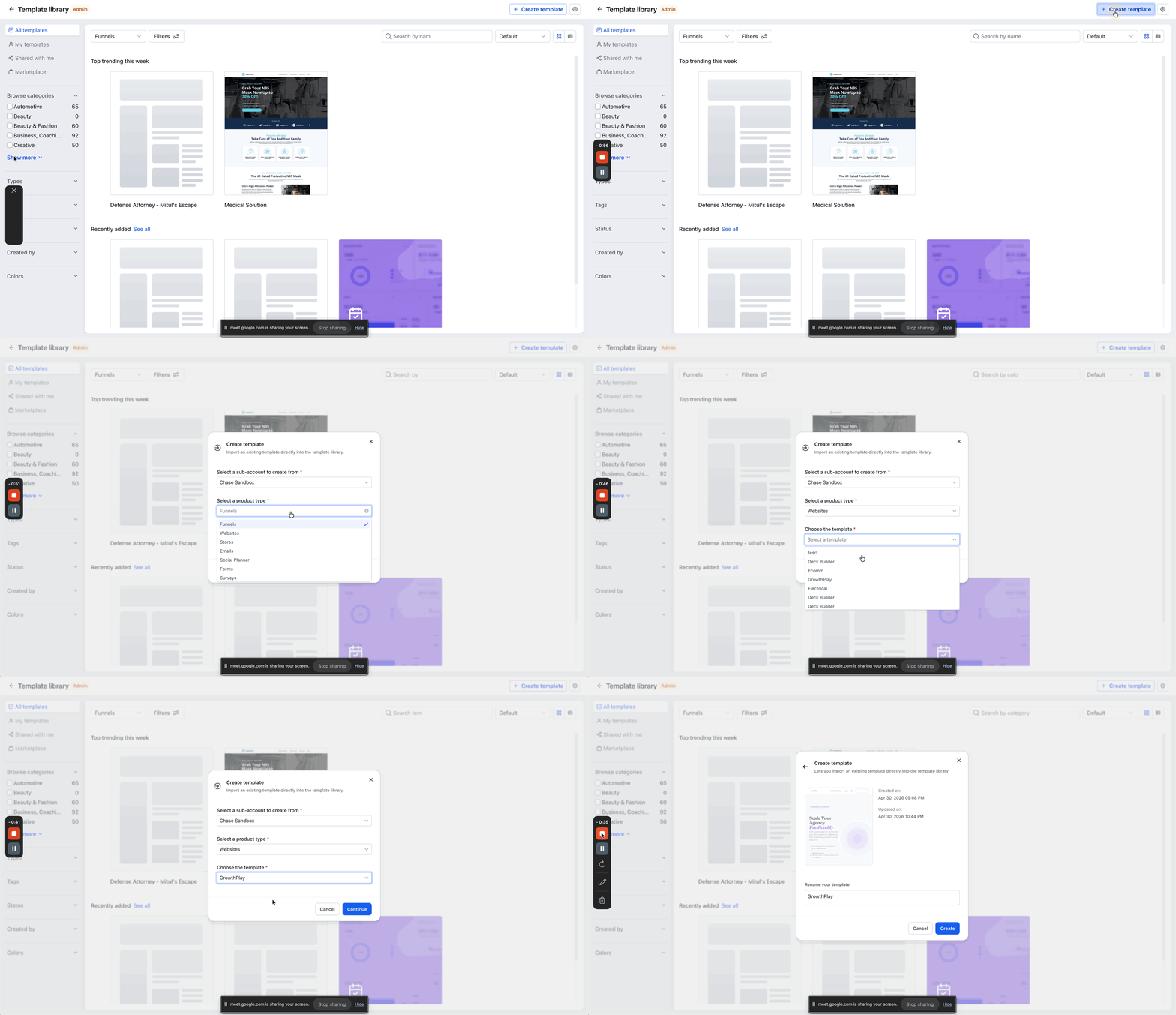
- Click the + Create Template button.
- Choose the subaccount where the template will be built.
- Select a product type for the new template.
- Pick a base template and press Continue.
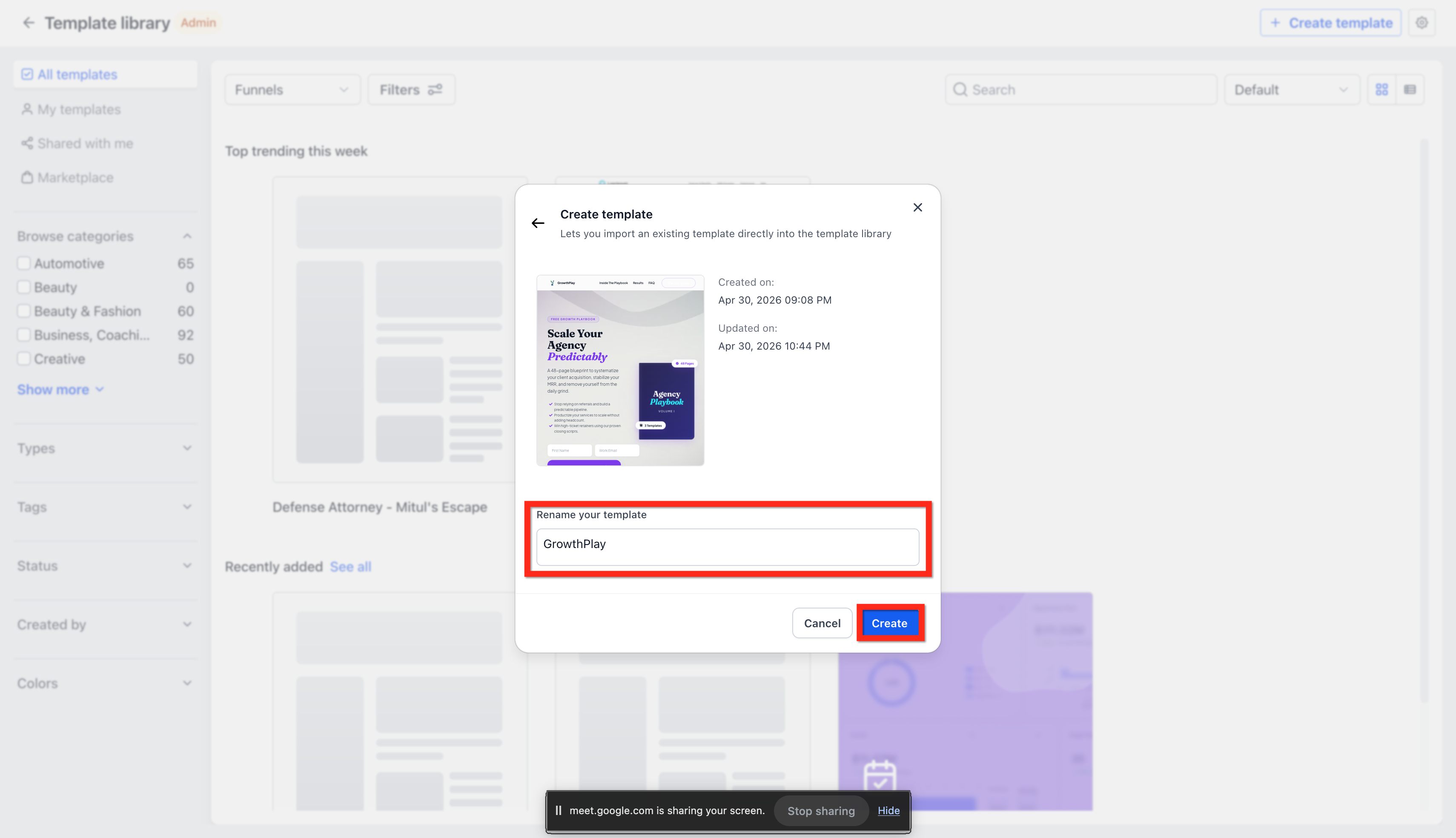
- Enter a new name for the template and click Create.
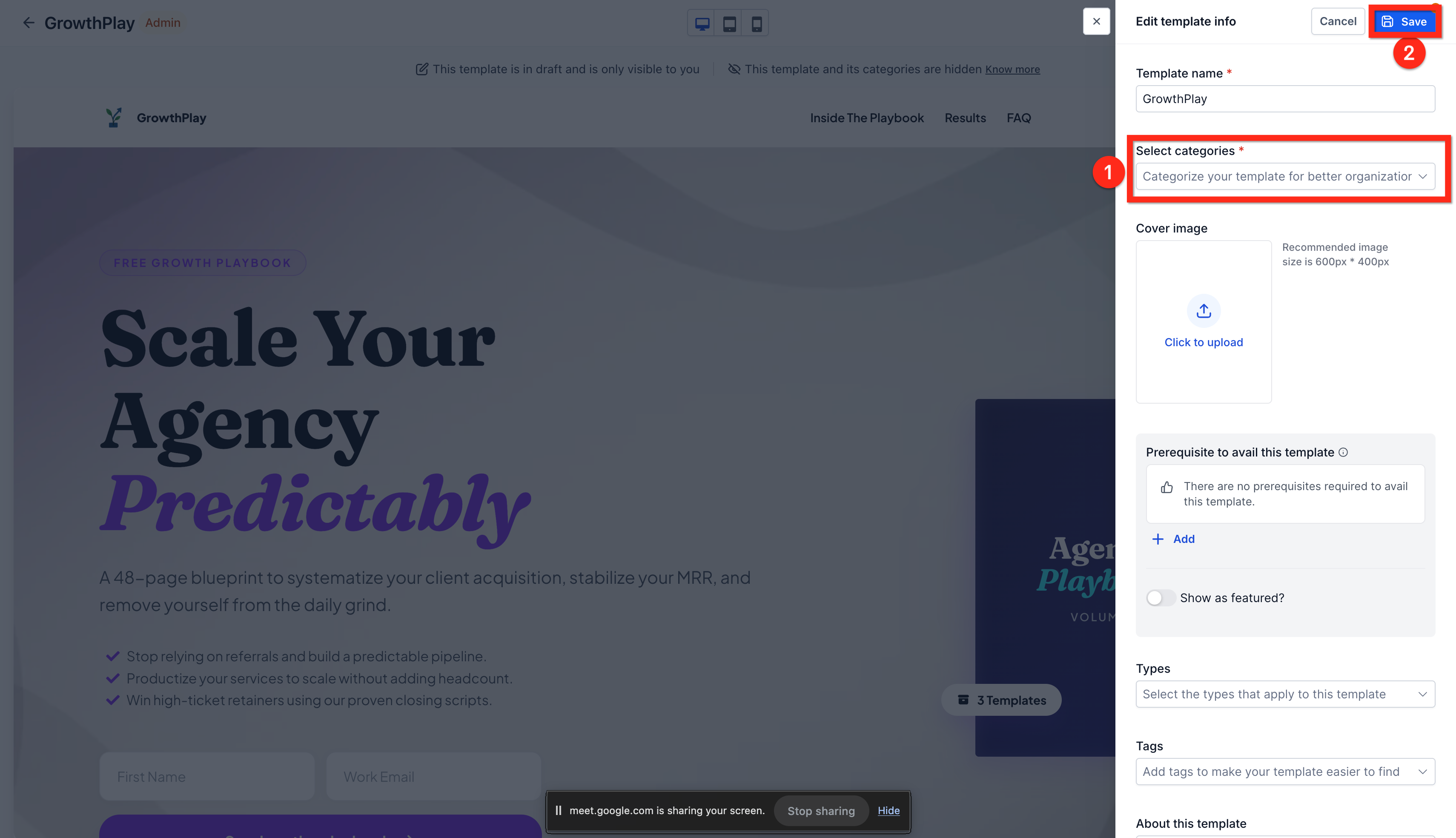
- Edit the template information and save the changes.
- Open the three dot menu on the template preview.
- Select Sell Template On The Marketplace.
- In the confirmation modal, click Go to Seller Portal.
- Enter all required listing, support, and pricing details in the Seller Portal.
- Submit the listing for marketplace review.
07What it looks like in HighLevel
08Settings that matter
- Pricing type. Defines whether the template price is a one time amount or tied to a plan.
- Amount. Specifies the monetary value the buyer will pay for a paid template.
- Plan name. Labels the pricing option shown to the buyer during purchase.
- Optional plan features. Lists any extra features included with the selected pricing plan.
- Template link. Provides the URL used to access the template after installation.
- Template name. The title displayed for the template in listings and search results.
- About information. Brief description that appears on the template’s marketplace card.
- Prerequisites. Any required setup a buyer must have before installing the template.
- Template description. Detailed explanation of what the template contains and how it works.
- Product type. Classifies the template for marketplace categorization.
- Template category. Groups the template with similar items for easier browsing.
- Tags. Keywords that improve searchability within the marketplace.
09Things to know before you rely on it
- Templates are sold on a one time payment basis; no recurring charges apply.
- Filters can narrow the marketplace view by pricing and install status, but cannot apply custom criteria beyond those options.
10How it connects to the rest of HighLevel
- Review all Agency View features for additional integration options. Agency View overview
- Check current plan pricing before listing paid templates. HighLevel pricing
- Start a free trial to explore the Template Library and Marketplace. 30 day trial
Michael's take

In my experience, the integration streamlines finding and using templates, which agencies that frequently need ready made assets find convenient.
If your agency rarely builds templates or you only work with custom coded solutions, the feature adds little value. The effort to maintain listings and keep support info current may outweigh the occasional upside.