
01Who this is for
- Agency owners, gain control over lead distribution while allowing subaccounts to manage follow up.
- Subaccount managers, receive full prospect records to run their own nurturing sequences.
02Prospect migration, explained
The Prospect Migration feature copies prospects from the agency level Prospecting Dashboard into a chosen subaccount. The copy retains all fields, notes and interaction history, and remains visible to the agency for future use. It works only when the target subaccount has an active Prospecting Premium subscription.
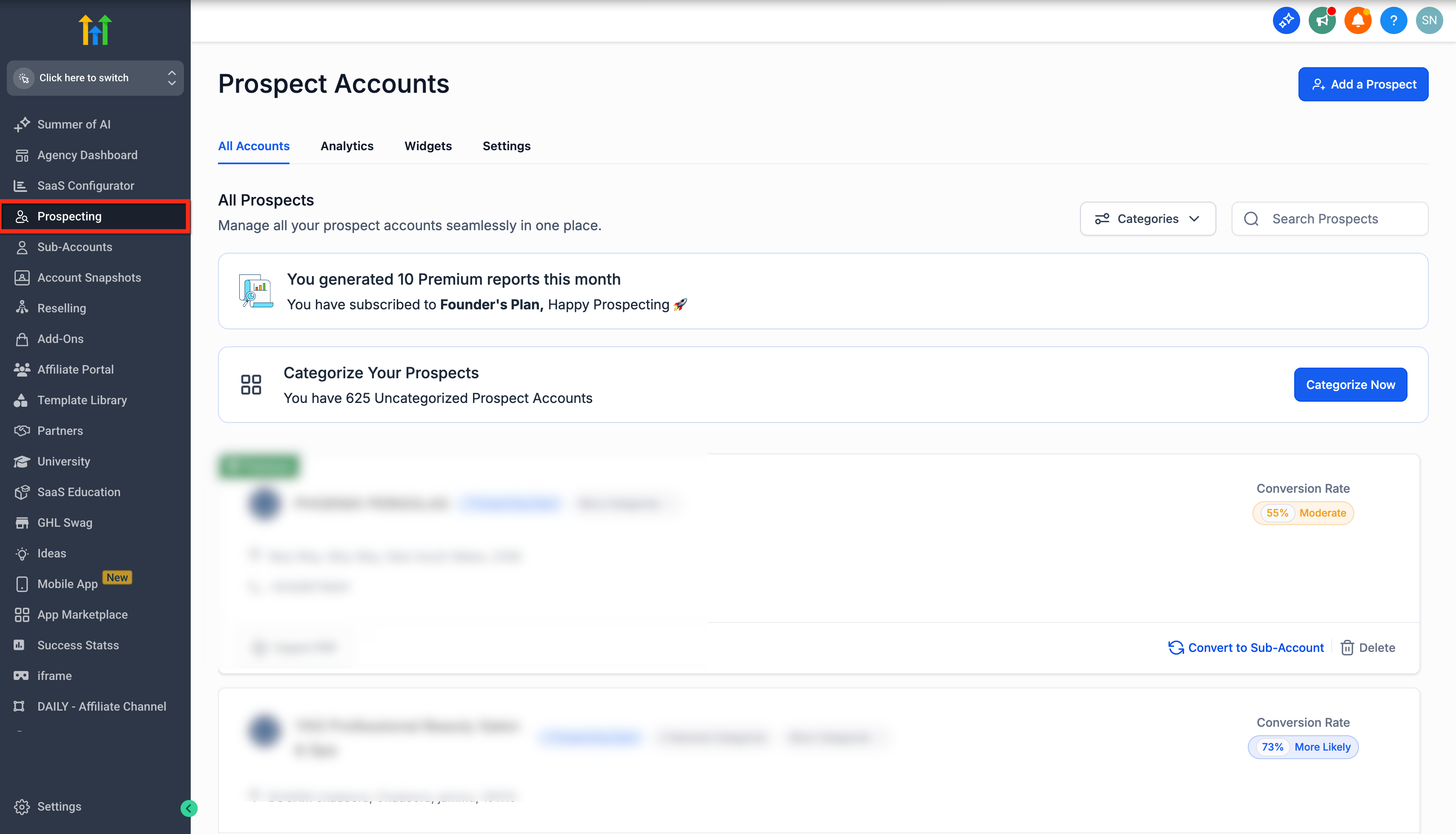
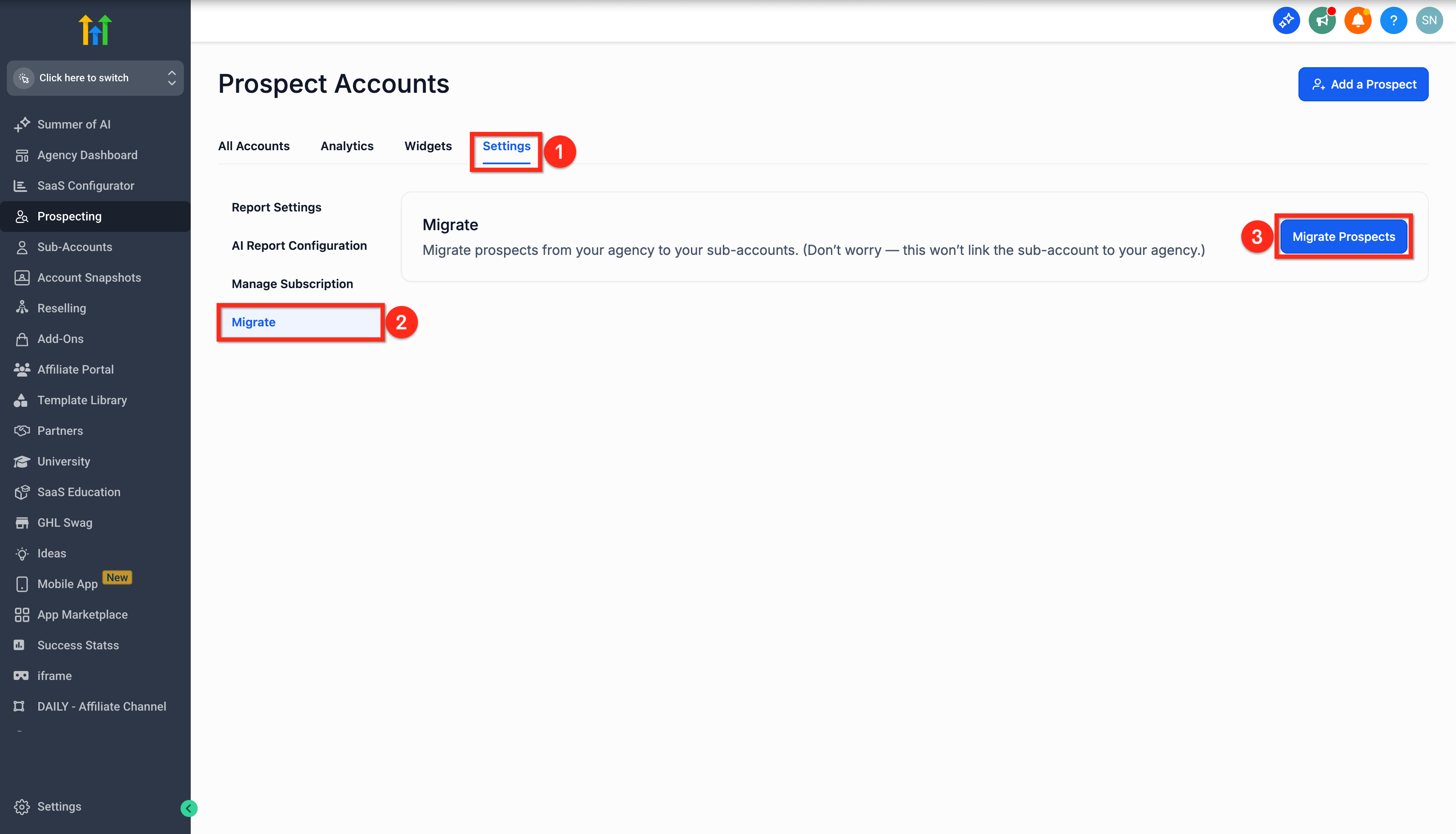
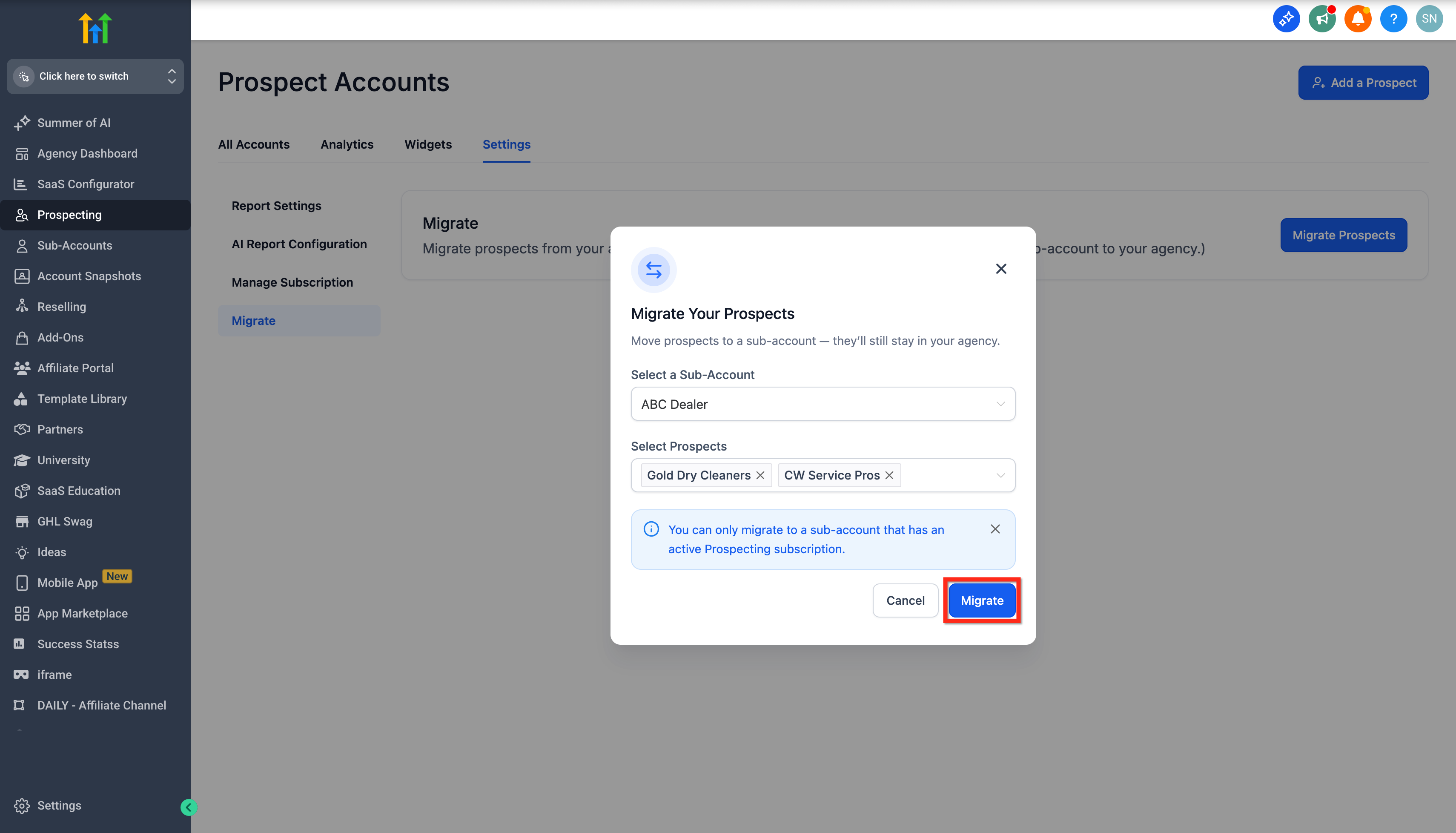
You find the migration controls inside the Prospecting section of the agency view. Open the Settings tab, select the Migrate sub tab, and use the Migrate Prospects button to start the process. After migration the contacts appear in the subaccount’s Contacts list while staying in the agency account.
03How businesses use prospect migration
- Digital marketing agency. The agency selects leads that belong to a specific client, migrates them to that client’s subaccount, and then lets the client run its own email and SMS campaigns using the copied prospects.
- Real estate brokerage. A brokerage moves property interest prospects to the subaccount of the responsible agent, enabling the agent to apply custom follow up pipelines while the brokerage retains overall visibility.
- SaaS startup. The startup’s growth team copies trial sign up prospects into the product team’s subaccount, allowing product specialists to nurture them with in app messaging while the agency tracks overall conversion.
04Before you start
- The destination subaccount must have Premium Prospecting activated.
- You must have existing prospects available at the agency level.
05How to set up and use prospect migration in HighLevel
Migrate prospects
- Log in to your HighLevel agency account.
- Click the Prospecting option in the left navigation.
- Open the Settings tab at the top of the Prospecting screen.
- Select the Migrate sub tab within Settings.
- Click the Migrate Prospects button.
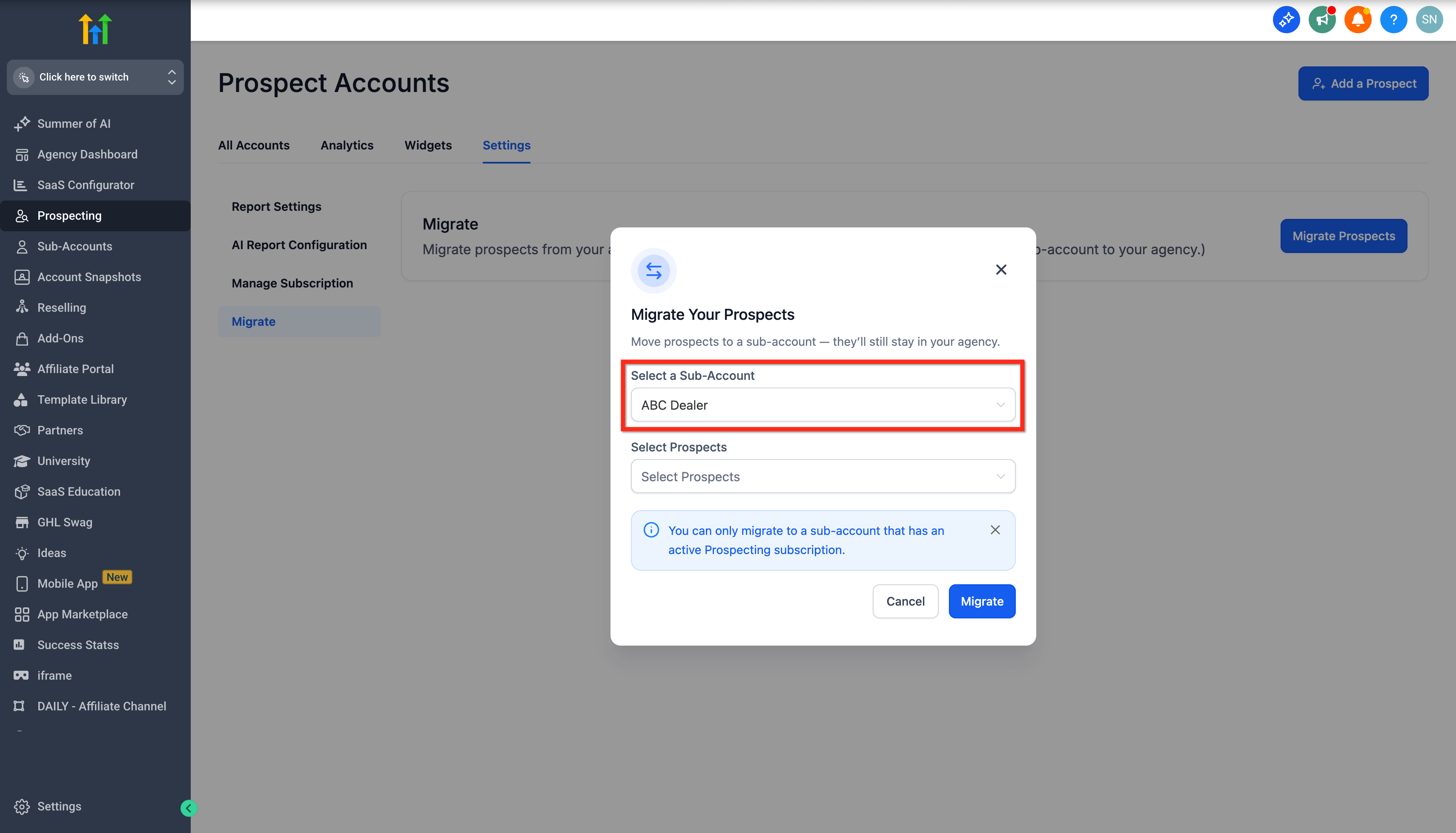
- Choose the destination subaccount from the pop up list. Only subaccounts with an active Prospecting Premium subscription will be listed.
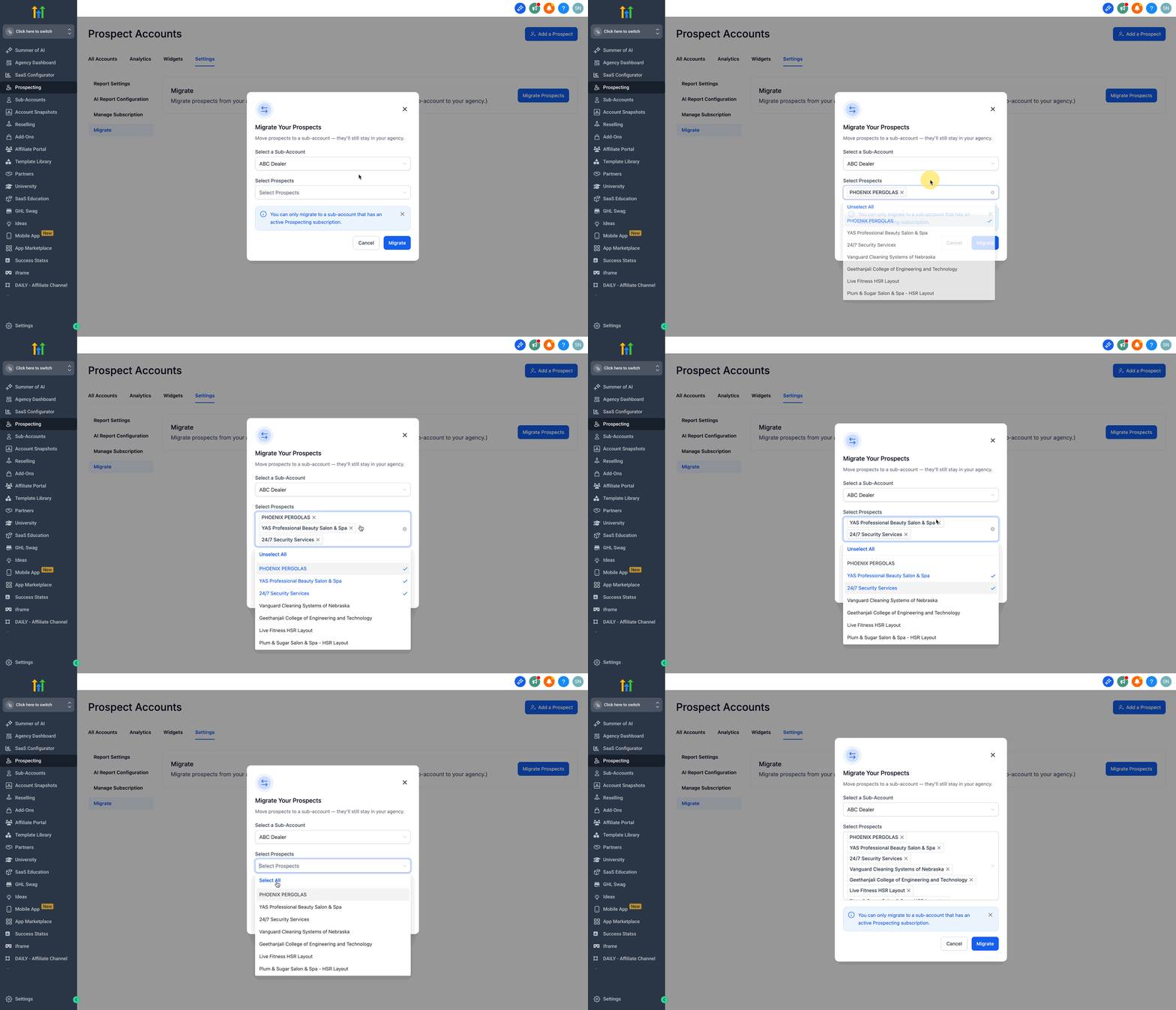
- Click the Select Prospects button and pick the desired leads or use the Select All option.
- Press the Migrate button to start the transfer.
06What it looks like in HighLevel
07Settings that matter
- Migrate sub tab. Opens the interface where you can move prospects to a subaccount.
- Migrate Prospects button. Starts the copy process for the selected prospects.
- Select Prospects button. Displays a list of agency prospects to choose for migration.
- Select All option. Allows you to copy every available prospect in one action.
08Things to know before you rely on it
- Only subaccounts with an active Prospecting Premium subscription appear for selection.
- The feature is included in the Prospecting Premium subscription at no extra cost.
- Prospects remain in the agency account after migration and can be copied again.
09How it connects to the rest of HighLevel
- Learn how subaccounts use the Prospecting tool. Prospecting in subaccounts
- Read about reselling the prospecting tool to subaccounts. Resell prospecting
- Find pricing details for the Prospecting Premium subscription. HighLevel pricing
Michael's take

The ability to keep a master copy while letting subaccounts run their own nurturing automations removes bottlenecks and speeds up scaling.
If you rarely split leads across different subaccounts or already manage everything from a single dashboard, the feature adds little value. The extra steps of copying and managing two sets of contacts may not justify the effort.