
01Who this is for
- Agencies that manage multiple client subaccounts and need a single source of new leads.
- Team members who need to send email or SMS outreach and run automations from a subaccount.
02Prospect leads, explained
The Prospecting tool discovers leads via AI, manual Google Business searches, or an embedded widget. When a lead is generated inside a subaccount, HighLevel automatically creates a contact record for it. That record can be used for email, SMS, pipeline placement, or workflow triggers.
Prospecting lives in two places. In Agency View you can explore leads and link them, but only Subaccount View lets you send messages and run automations. Enabling prospecting inside a subaccount copies the leads to that account’s contact list and may fire any attached workflows.
03How businesses use prospect leads
- Real estate agency. The agency runs AI generated prospecting to find property owners, then opens each prospect’s contact card in the subaccount and sends a personalized SMS. The contact can be added to the agency’s sales pipeline for follow up.
- Marketing consultancy. Consultants perform a manual Google Business search, migrate the resulting prospects to a client’s subaccount, tag them as new prospects, and place them into a nurture workflow that delivers a marketing audit report.
- SaaS startup. The startup embeds the Prospecting widget on its landing page. Leads captured by the widget appear as contacts in the subaccount, where a workflow automatically sends a welcome email with a product overview.
04Before you start
- An active Prospecting subscription must exist at the Agency level.
- The subaccount where you want to work must be created and accessible.
05How to set up and use prospect leads in HighLevel
Enable prospecting in a subaccount
- Confirm that the agency holds an active Prospecting subscription.
- Link the desired subaccount to that subscription to grant access.
- Migrate agency prospects into the linked subaccount; the system copies them to contacts and may trigger workflows.
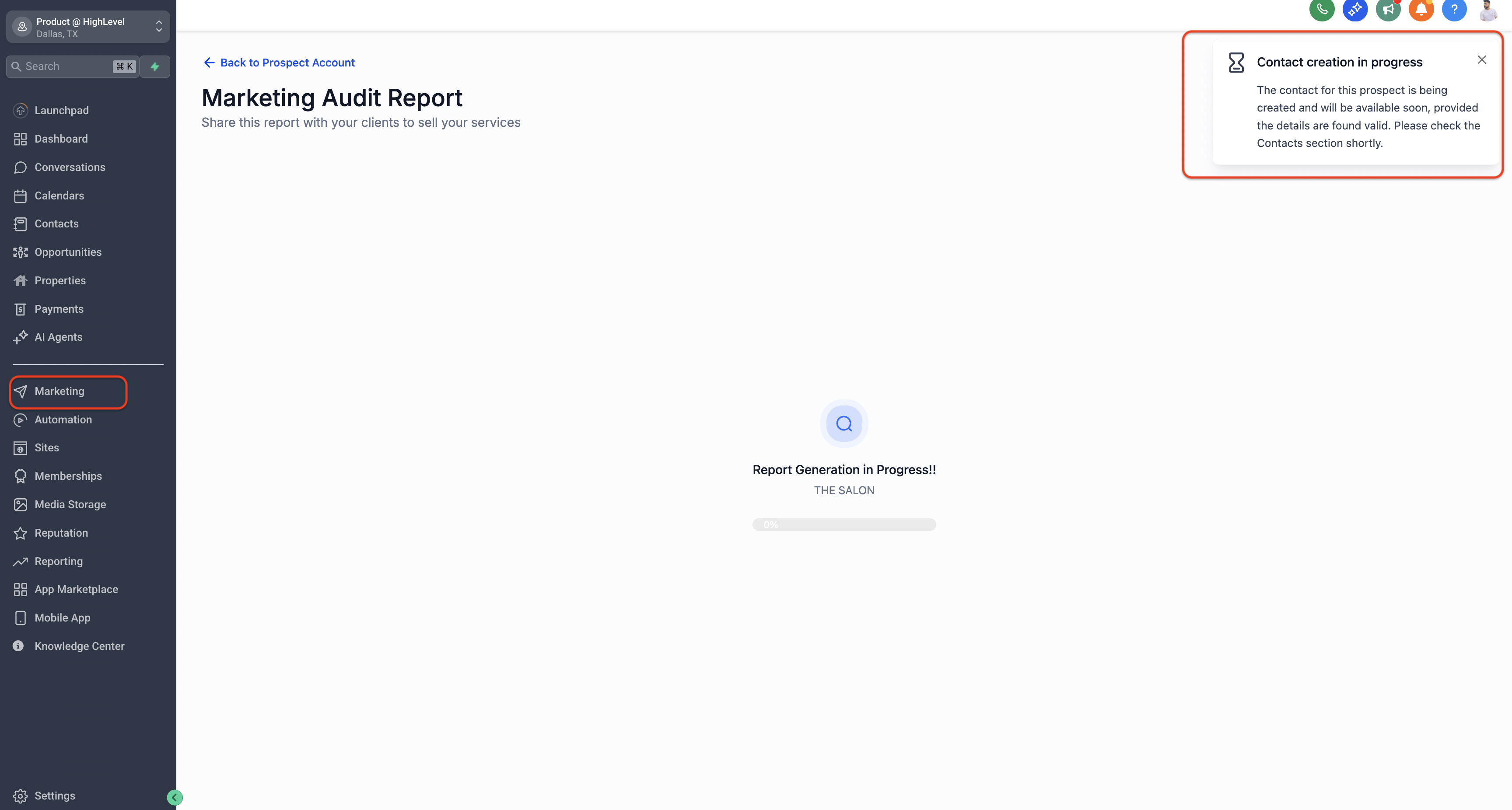
- Open the subaccount and locate Prospecting under the Marketing Tab.
Find prospects in your contact list
- From Agency View, open the subaccount where prospecting was performed.
- Select the Contacts Tab in the left navigation sidebar.
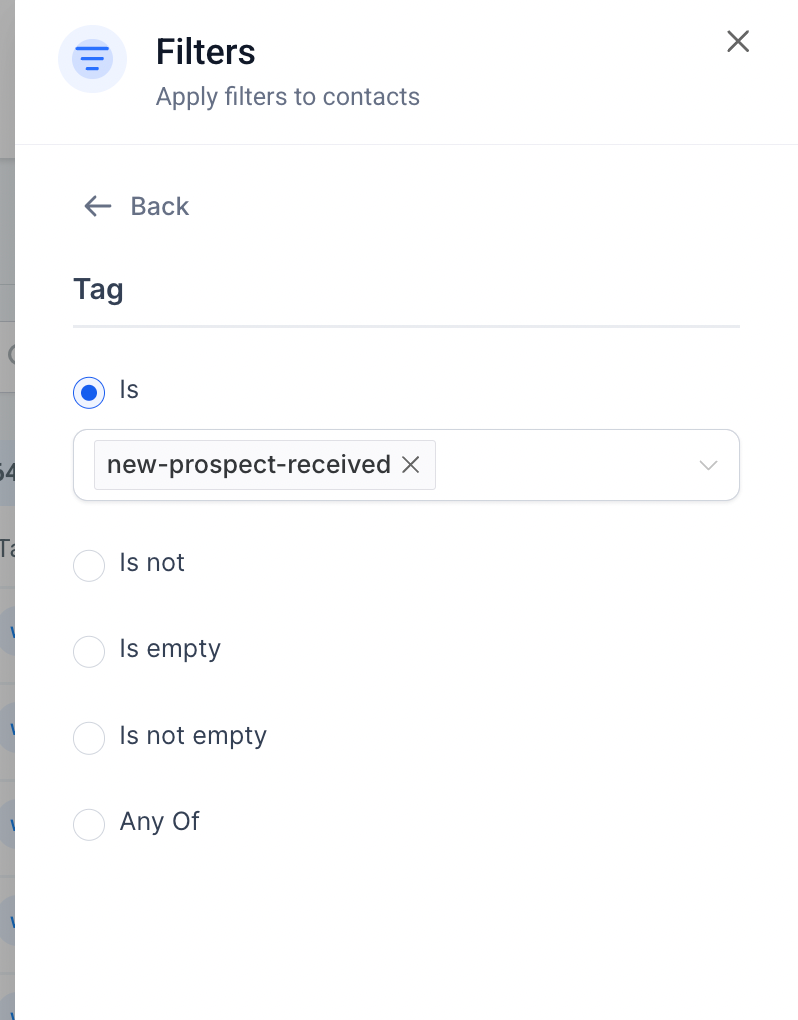
- Click the More Filters button at the top right of the Contacts page.
- Choose Tag as the field, set the condition to is, and enter New Prospect Received as the value.
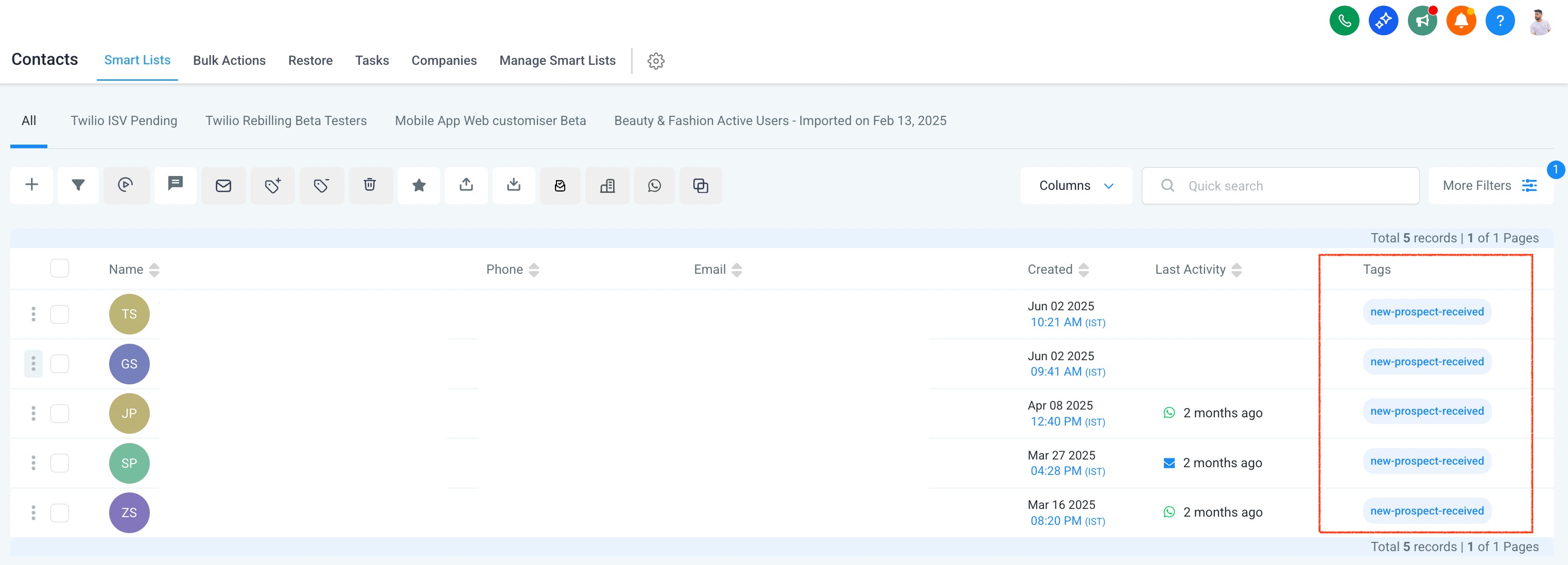
- Apply the filter to display all contacts generated by the Prospecting tool.
Engage with a prospect
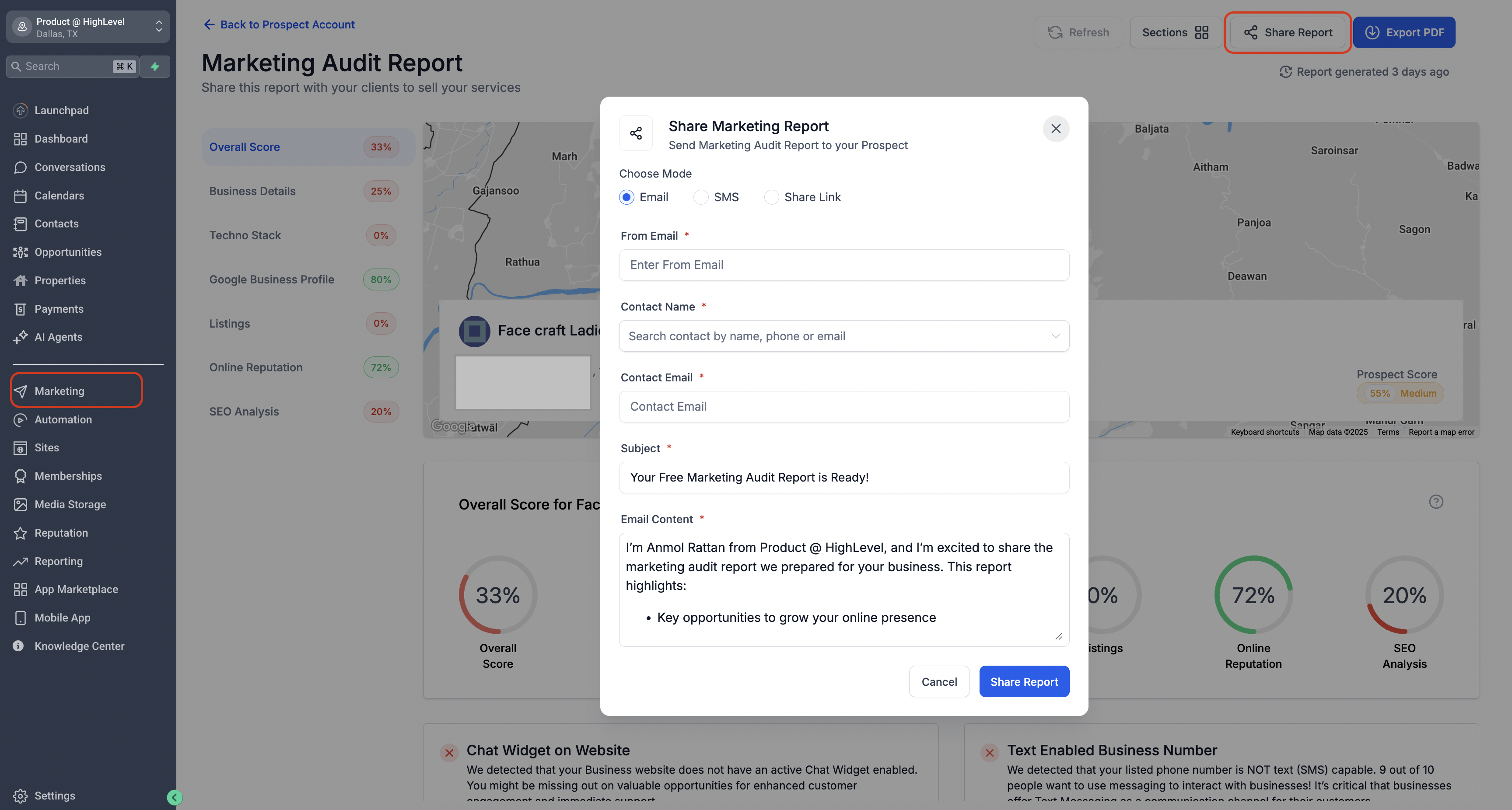
- Open a prospect report in the Prospecting tool and use the Share option to send the lead via SMS or email.
- In the contact list, click a contact card to view full details.
- From the contact view, manually send an email or SMS and review the linked Marketing Audit Report.
- Click the three dot menu on the contact card to add the lead to a pipeline or schedule an appointment.
Automate prospect follow up using workflows
- Open the Workflow Builder inside the subaccount.
- Add a Prospecting Workflow Trigger to the canvas.
- Configure actions such as sending a welcome email or SMS, creating tasks, tagging the lead, or adding it to a pipeline.
- Save and activate the workflow so it runs whenever a new prospect is added to contacts.
06What it looks like in HighLevel
07Settings that matter
- Prospecting Tab (toggle). Turns the Prospecting feature on or off for a subaccount, allowing the account to receive generated leads.
- New Prospect Received (tag). Identifies contacts that originated from the Prospecting tool; used for filtering and as a workflow trigger.
08Things to know before you rely on it
- Only Subaccounts can send email, SMS, and execute workflows; Agency View is limited to lead discovery.
- If a prospect does not appear in contacts, it may be due to a temporary sync delay.
- AI generated message suggestions are marked as Coming Soon and are not currently available.
09If something goes wrong
- Prospect missing from the Contacts list. Create the contact manually using details from the Prospecting tool, tag it as New Prospect Received, and then add it to any needed workflows or pipelines.
10How it connects to the rest of HighLevel
- Migrate prospects to a subaccount Prospect migration guide
- Resell the prospecting tool to multiple subaccounts Prospecting resell guide
- HighLevel pricing and plans Pricing page
Michael's take

Prospect leads appear in HighLevel automatically, so you can start outreach right away.
Don’t forget to confirm Prospecting is turned on in the subaccount before you expect leads to sync.