
01Who this is for
- Agency owners who need consistent branding across web reports and PDFs so prospects see a unified look.
- Marketing consultants managing multiple subaccounts, allowing them to set branding once and have it apply everywhere.
02PDF customizations, explained
PDF customization is a feature inside the Prospecting Report Builder. It pulls the brand theme, header, footer and contact fields you define and applies them to exported PDF audits. The same design that appears on live web reports is reproduced in the PDF.
The feature lives under the Prospecting tab for agencies and under Marketing > Prospecting for subaccounts. Users with a Premium Prospecting subscription can save changes; Basic users can preview but cannot save. Web only header or footer blocks are omitted from PDFs.
When you export, you choose a language and the system translates all generated text. The PDF opens in a new browser tab with the saved brand styles already applied.
03How businesses use PDF customization
- Digital marketing agency. The agency opens the Report Builder, enters its name, phone and logo, sets border and heading colors, previews the design and saves it. All audit PDFs sent to clients then carry the agency’s visual identity.
- Social media consulting firm. The firm navigates to Prospecting > All Accounts, selects a client, chooses Export PDF, picks the required language and clicks Export. The resulting PDF includes the firm’s branding and multilingual headings.
- SEO consulting practice. The practice logs into a subaccount, accesses the Report Builder via Marketing > Prospecting, configures branding once, and later exports PDFs for each audit without re applying styles.
04The numbers and rules that matter
- Logo field in Header Customization autoscales images up to 300 px wide.
05Before you start
- A Premium Prospecting subscription must be active.
- Log in to the appropriate Agency or Subaccount.
06How to set up and use PDF customization in HighLevel
Set up PDF customization
- Log in to the Agency or Subaccount where you want to configure the report.
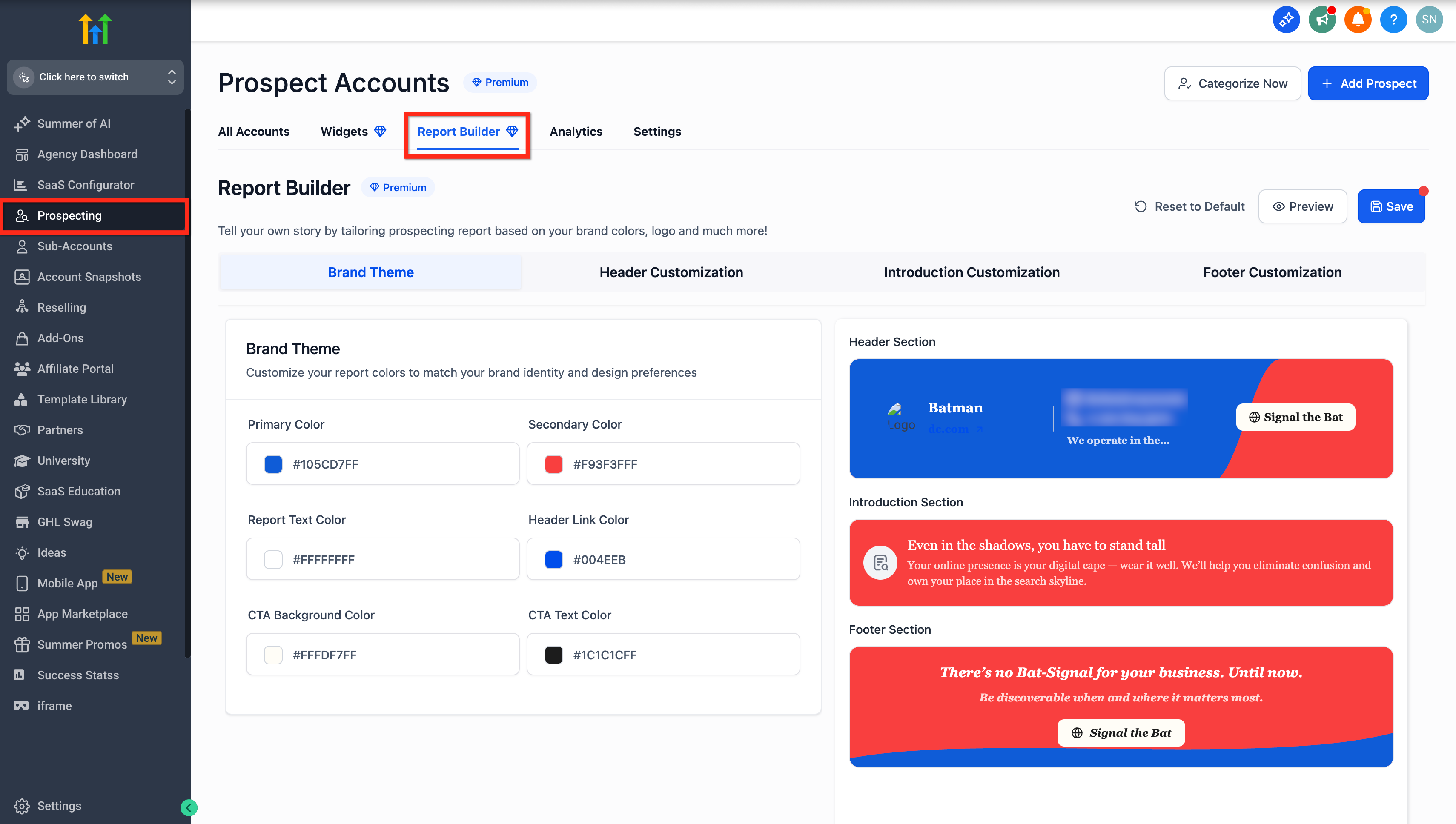
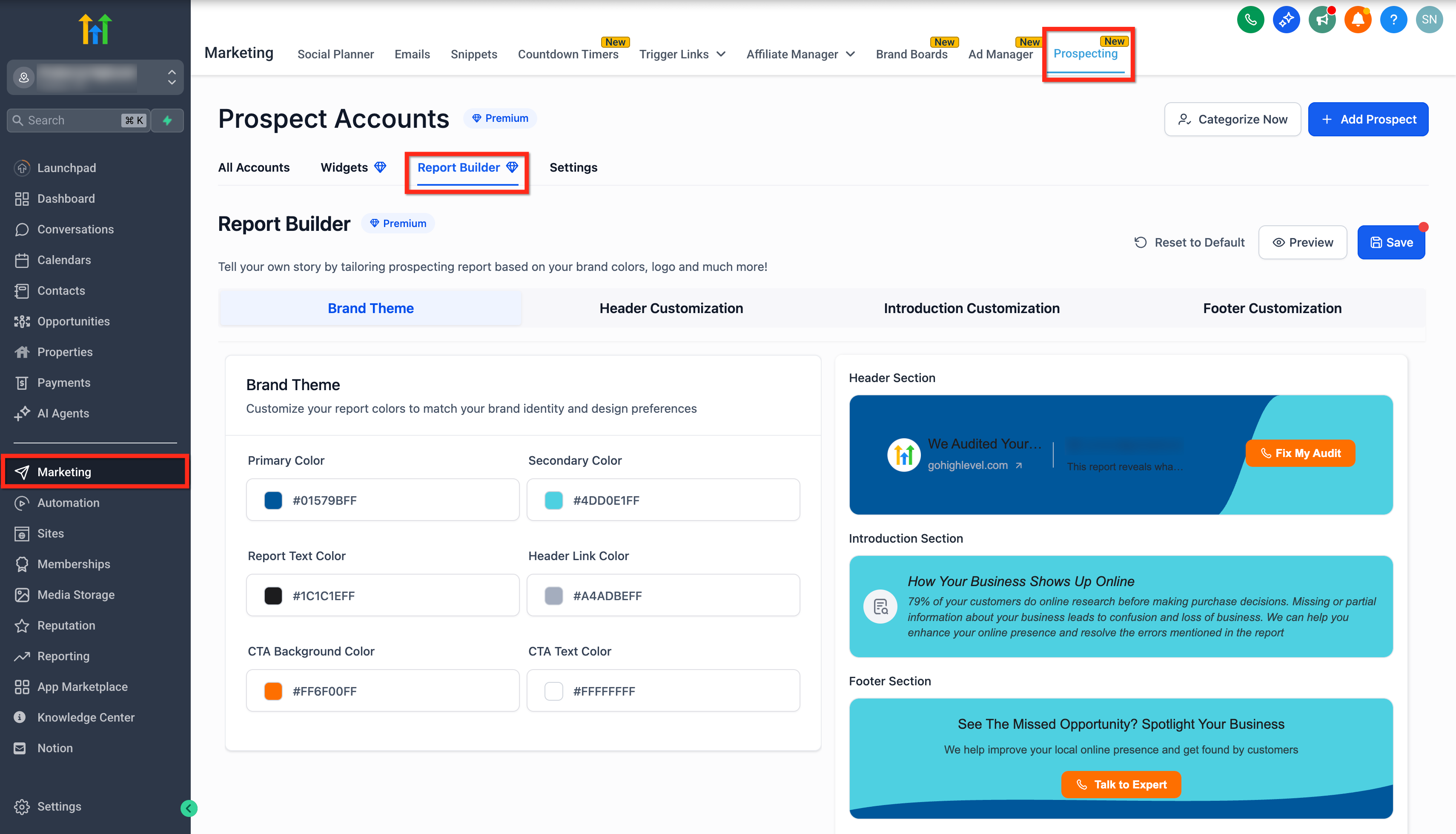
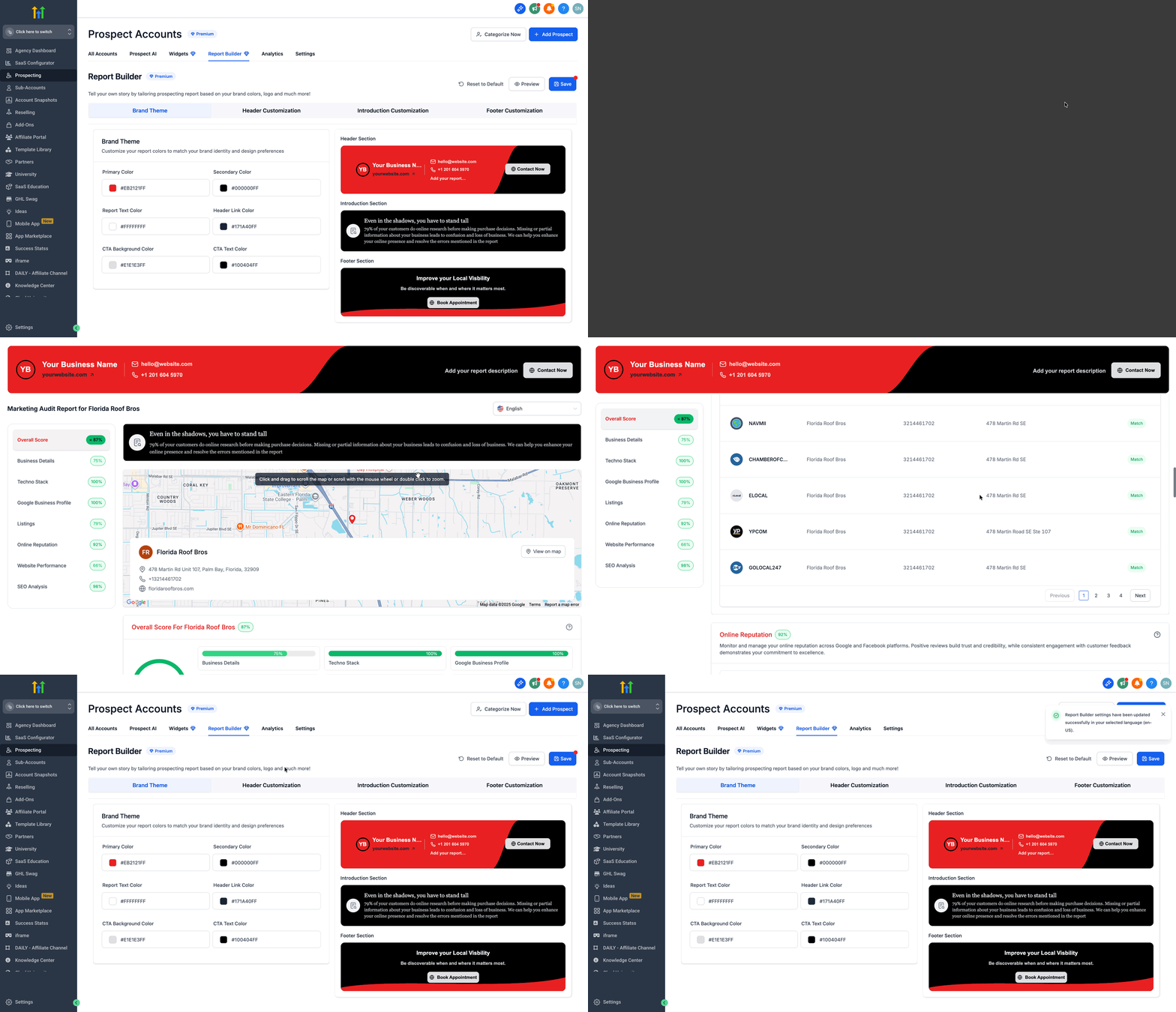
- Open the Prospecting tab (or Marketing > Prospecting for subaccounts) and select Report Builder.
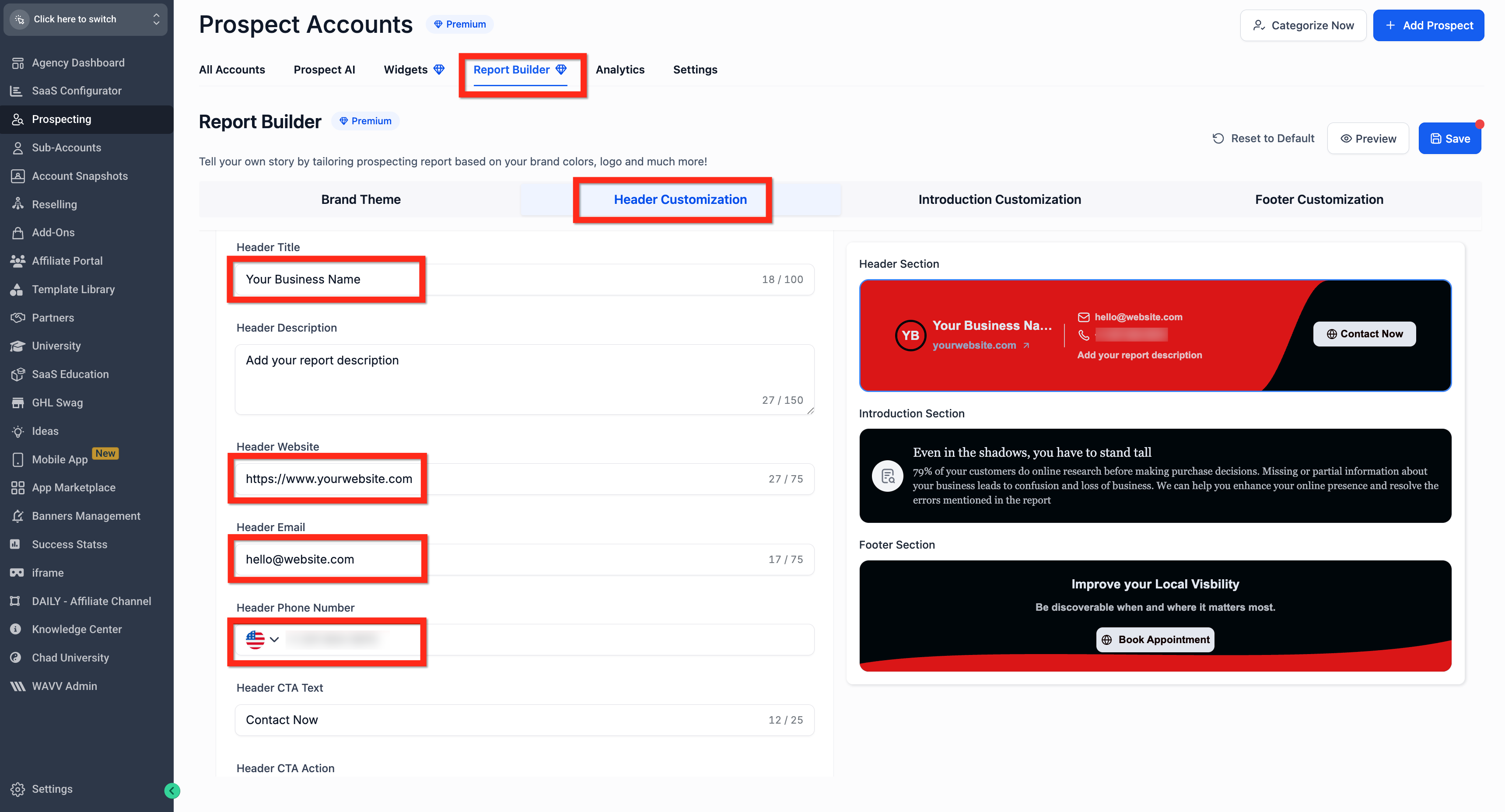
- Enter your agency name, phone, email and website in the Brand Name & Contact Details section.
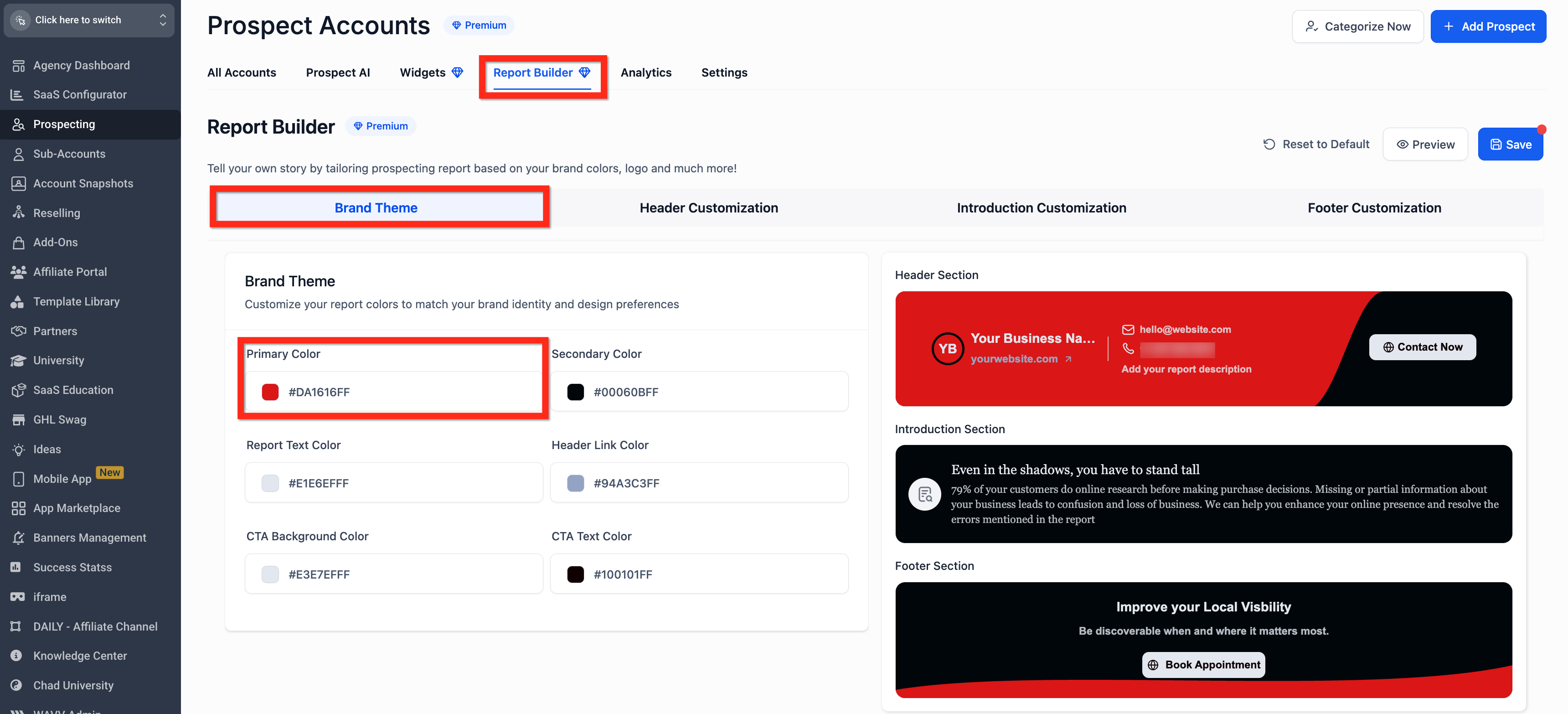
- Choose border colors that match your brand palette.
- Select heading colors for each report section such as Local Rank Tracker or Tech Stack Analysis.
- Click Preview to view a live rendering of the report with your changes.
- Click Save to store the branding settings for all future PDFs and web reports.
Export a customized PDF
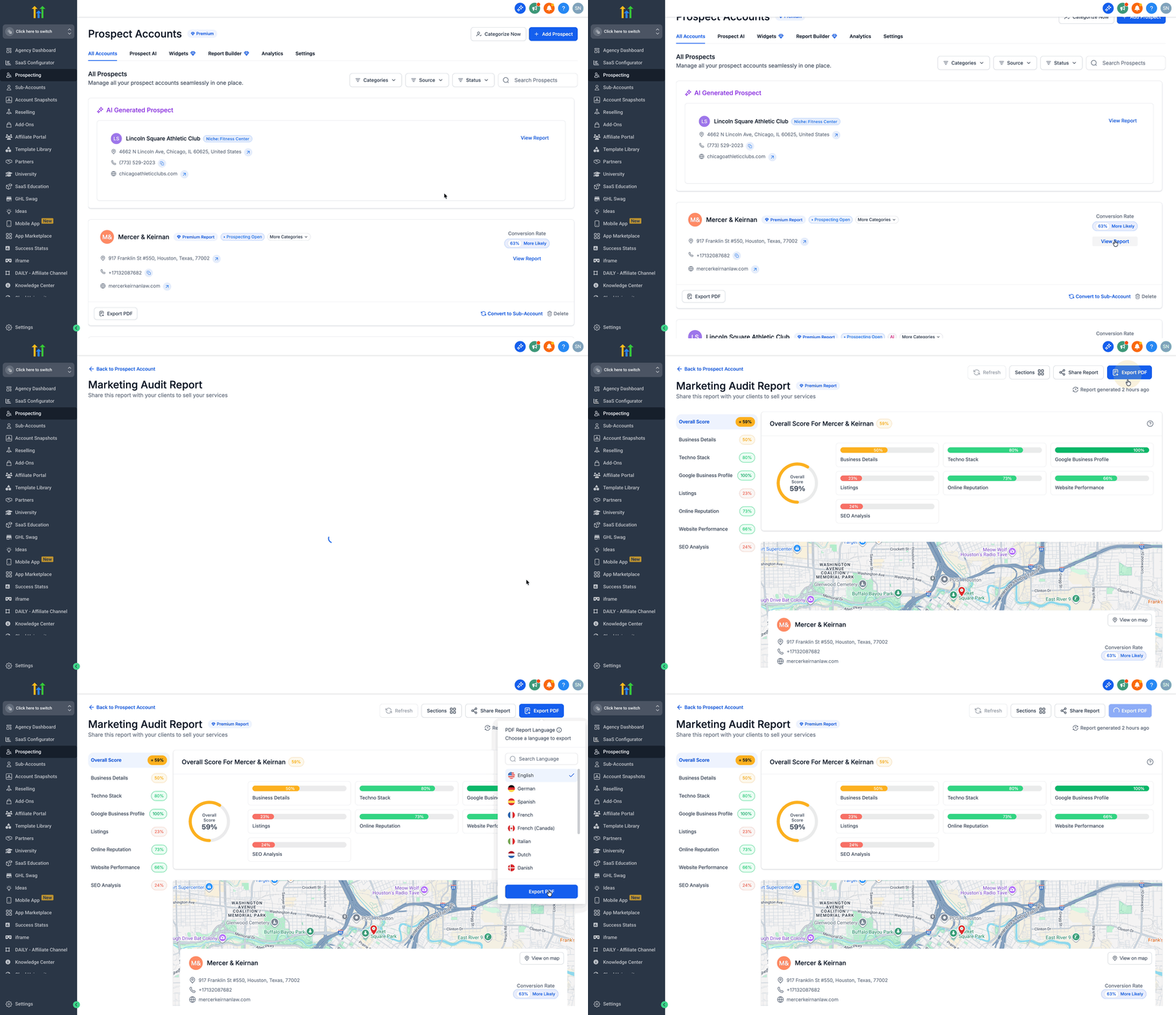
- Navigate to Prospecting > All Accounts.
- Find the prospect whose audit you want to export.
- Click View Report then Export PDF, or click Export PDF directly from the list.
- Select the language you want the PDF to be generated in.
- Click Export PDF and wait for the new tab to open with the branded document.
07What it looks like in HighLevel
08Settings that matter
- Brand Name & Contact Details. Controls the agency name, phone, email and website that appear on the PDF cover and footer.
- Borders & Colors. Sets the color of the report’s outer border to match the brand palette.
- Heading Colours. Defines the color used for section titles within the PDF.
- Header Customization. Allows a logo image that auto scales up to 300 px wide for optimal print quality.
09Things to know before you rely on it
- PDF customization requires a Premium Prospecting subscription; Basic users can preview but cannot save changes.
- Web only header or footer blocks do not appear in the exported PDF.
- The logo field auto scales images up to 300 px wide; larger images are not supported.
- If an older audit does not show the latest data, refresh the report before exporting the PDF.
10If something goes wrong
- Exported PDF shows outdated audit results. Refresh the report in the Prospecting tool before clicking Export PDF.
11How it connects to the rest of HighLevel
- Explore all Agency View features Agency View features
- Review HighLevel pricing and plans Pricing
- Start a 30 day HighLevel trial Free trial
Michael's take

The PDF customization feature feels like a small convenience that can turn a messy export process into a smooth brand showcase.
For agencies that regularly share audit results, it saves the time spent reformatting each file and makes every prospect feel like they’re getting a polished, on brand package.
A boutique SEO agency that delivers monthly rank tracker reports will love this. With a single setup in the Report Builder, they can export PDFs in the client’s language, keep the logo crisp, and include contact info on every page. No extra design steps needed.