
01Who this is for
- Agency owners who need to build large prospect lists quickly, because bulk search and batch saving cut manual effort.
- Local service businesses such as dentists or roofers that rely on nearby Google Maps results to find new clients.
- Marketing teams that run outreach campaigns and require duplicate detection to keep contact records clean.
02Bulk prospecting, explained
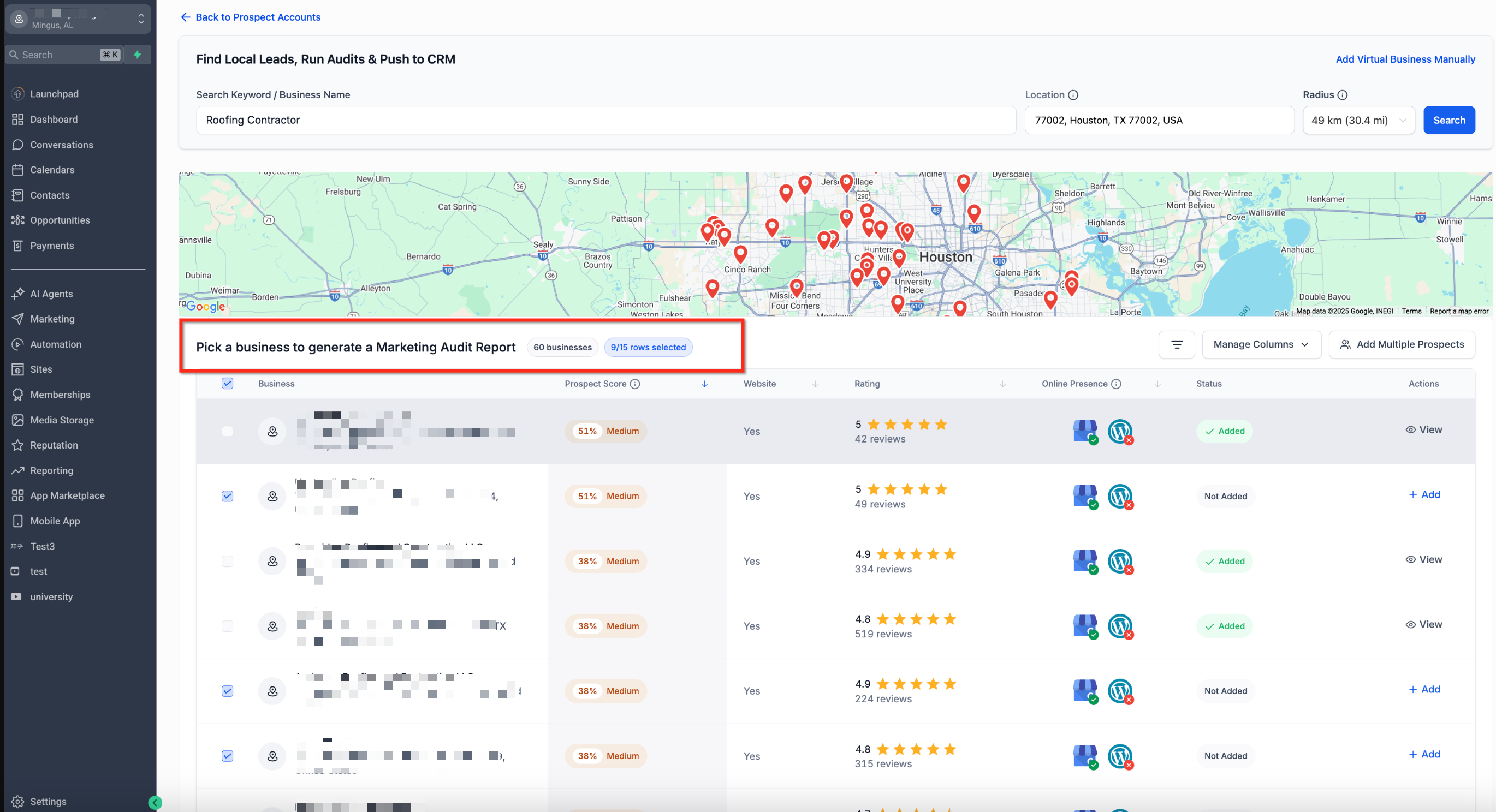
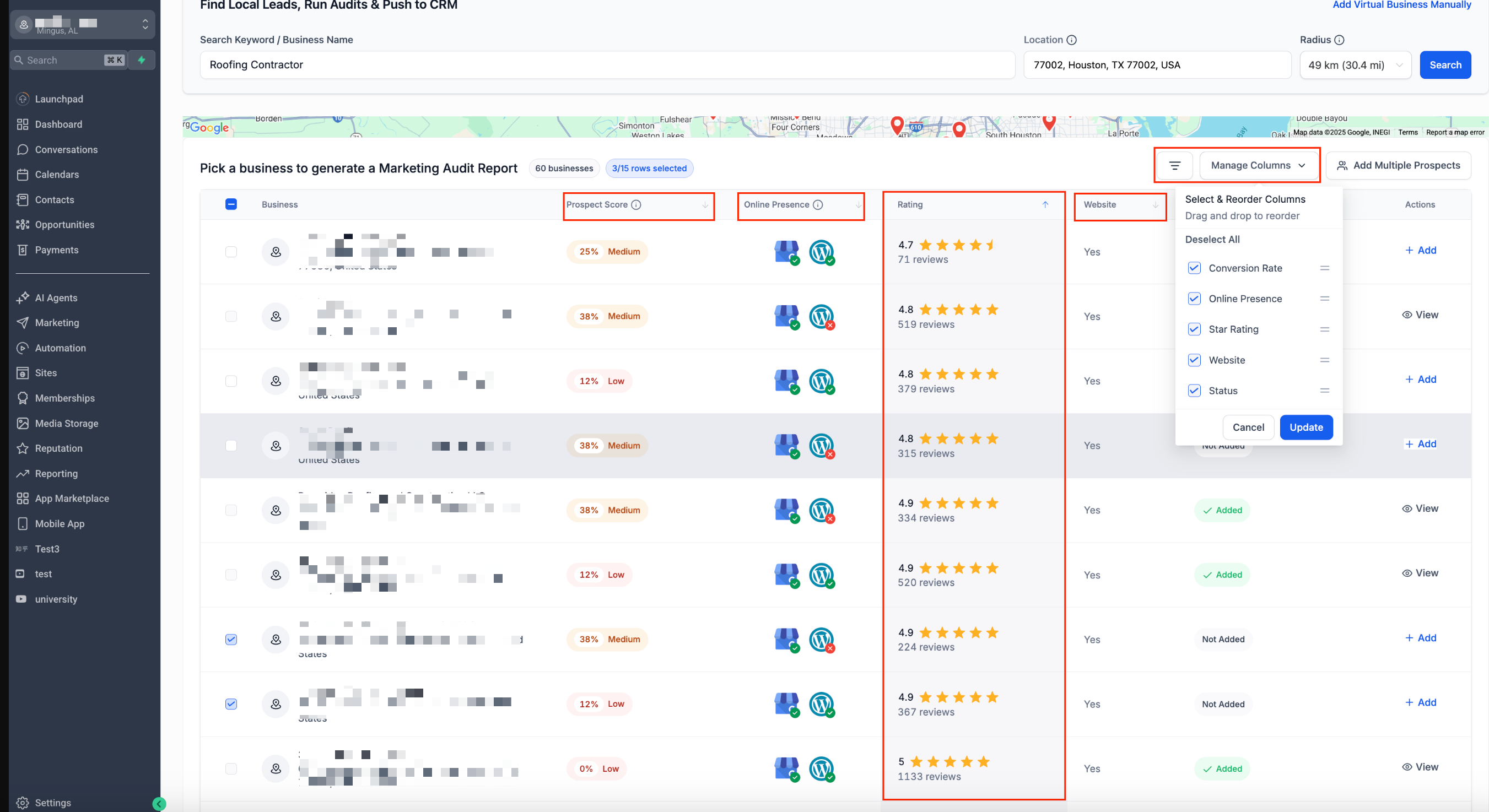
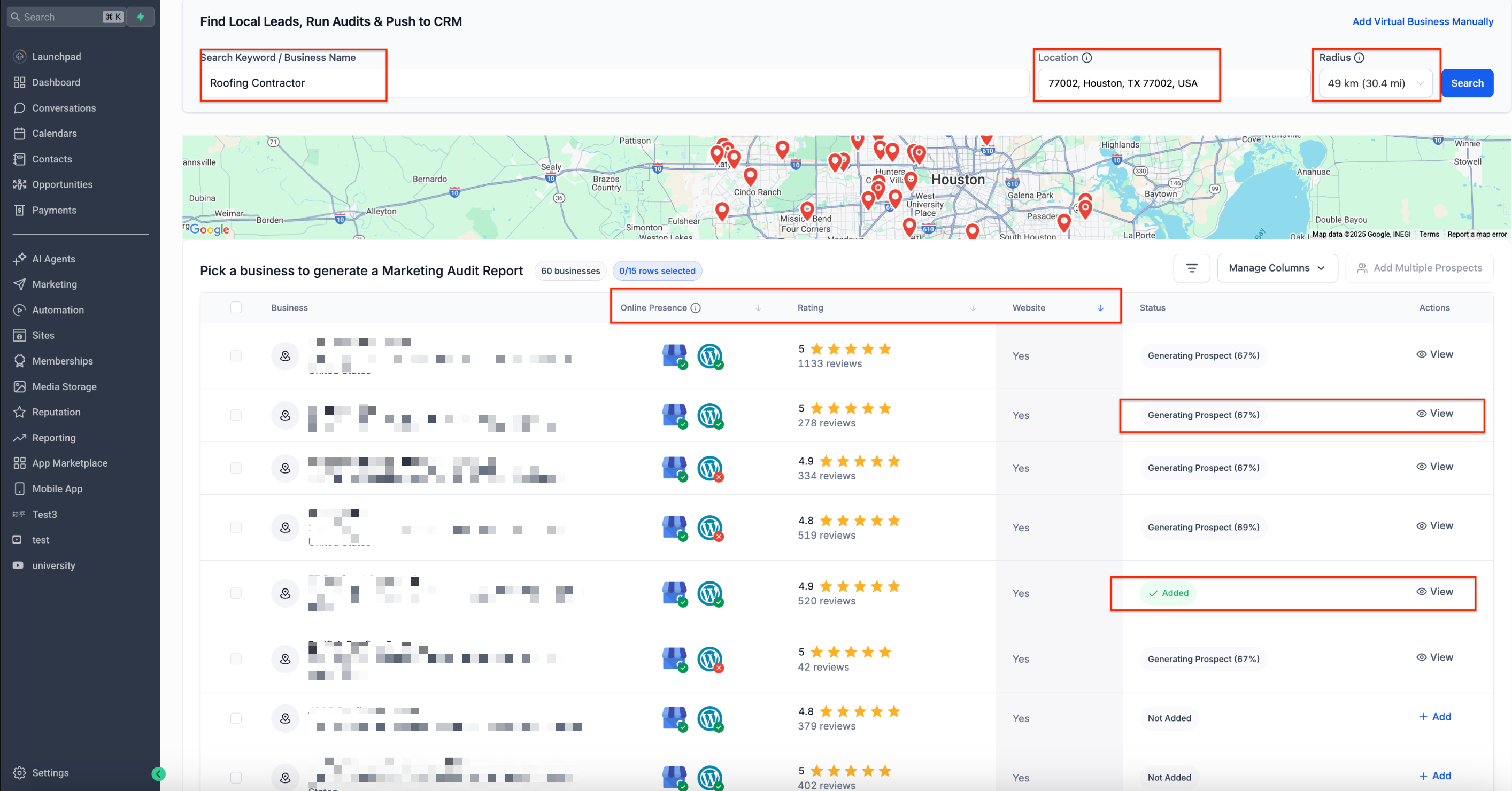
Bulk Prospecting is an advanced search and save workflow inside HighLevel’s Prospecting Tool. It expands the return set to a maximum of 60 Google Map results per query and adds controls for keyword, location and radius up to about 30 miles. Users can sort columns, adjust visible fields, and see a status column that flags duplicates.
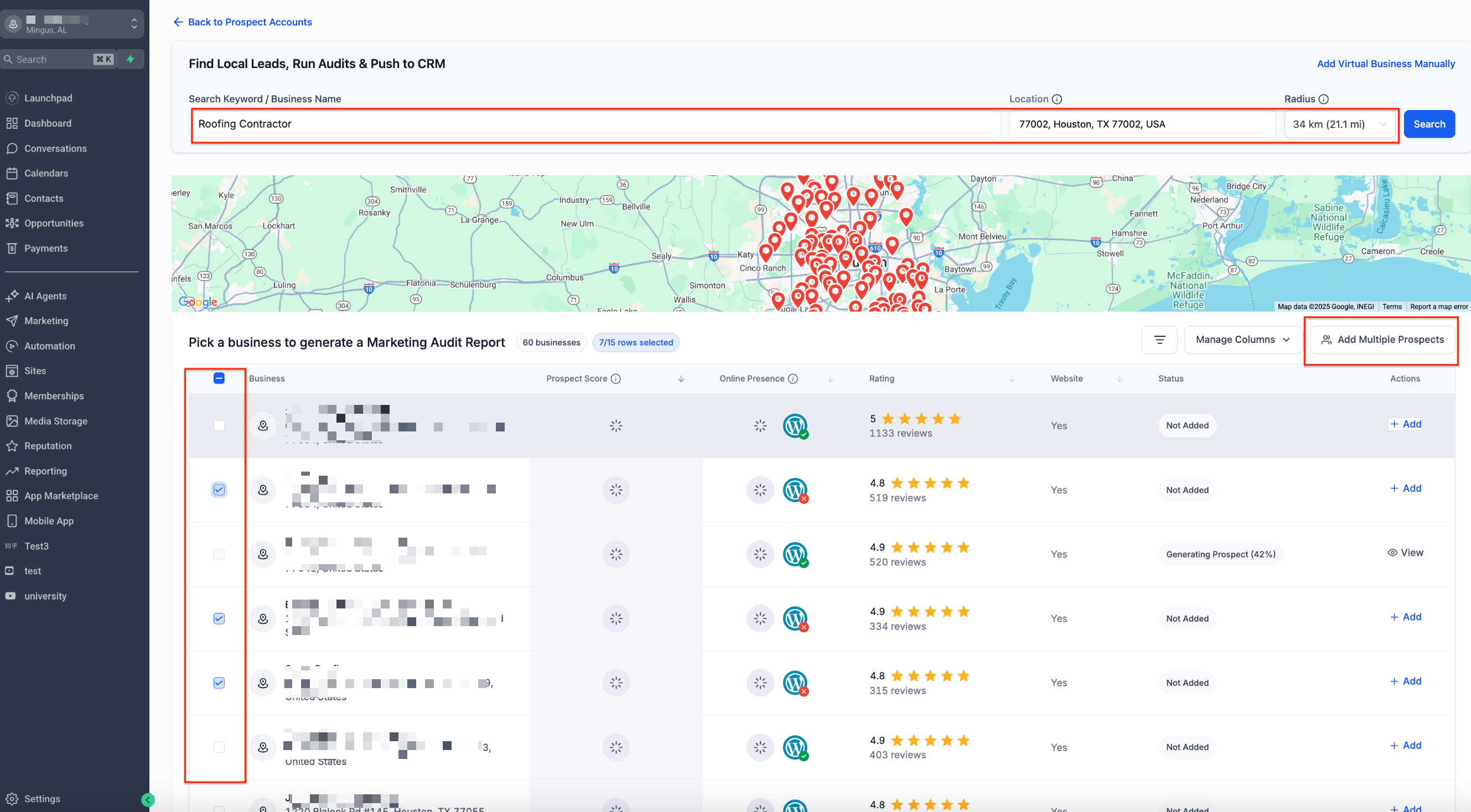
The tool lets you pick up to 15 rows at once, even when those rows span multiple pages, and add them in a single batch. After adding, HighLevel creates prospect records, generates a Marketing Audit, and if Prospecting Premium is linked it syncs matching contacts to the subaccount for automation.
You access Bulk Prospecting by opening a subaccount, navigating to Marketing > Prospecting, and clicking Add Prospect. All actions occur within the Prospecting interface; no external spreadsheets are needed.
03How businesses use bulk prospecting
- Dental practice. The practice enters "Dentist" as the keyword, sets the city as the location, and runs the search. After sorting by rating, it selects 15 nearby offices that lack a website and adds them to the prospect list for future referral outreach.
- Roofing contractor agency. The agency types "Roofing Contractor" and a target ZIP code, adjusts the radius to capture a broader area, then uses the Select All button on each page to batch save 15 potential subcontractors for partnership offers.
- Digital marketing agency. The agency searches for a specific brand name, filters the results to those without an online presence, and saves the identified prospects. The generated contacts are then linked to automation sequences for lead nurturing.
04The numbers and rules that matter
- Radius limit: Up to ~30 miles (49 km).
- Result cap: Up to 60 leads per search (Google imposed).
- Batch save limit: Up to 15 prospects per batch.
- Rows per page options: 5, 10, or 15.
- Status values: Not Added, Added, Generating Prospect (xx%).
05Before you start
- Access to a subaccount that includes the Marketing > Prospecting section.
- Prospecting Premium must be enabled and linked to the subaccount if automatic Contact creation is needed.
06How to set up and use bulk prospecting in HighLevel
Run a bulk prospecting search and save prospects
- Open the subaccount, go to Marketing > Prospecting, and click Add Prospect.
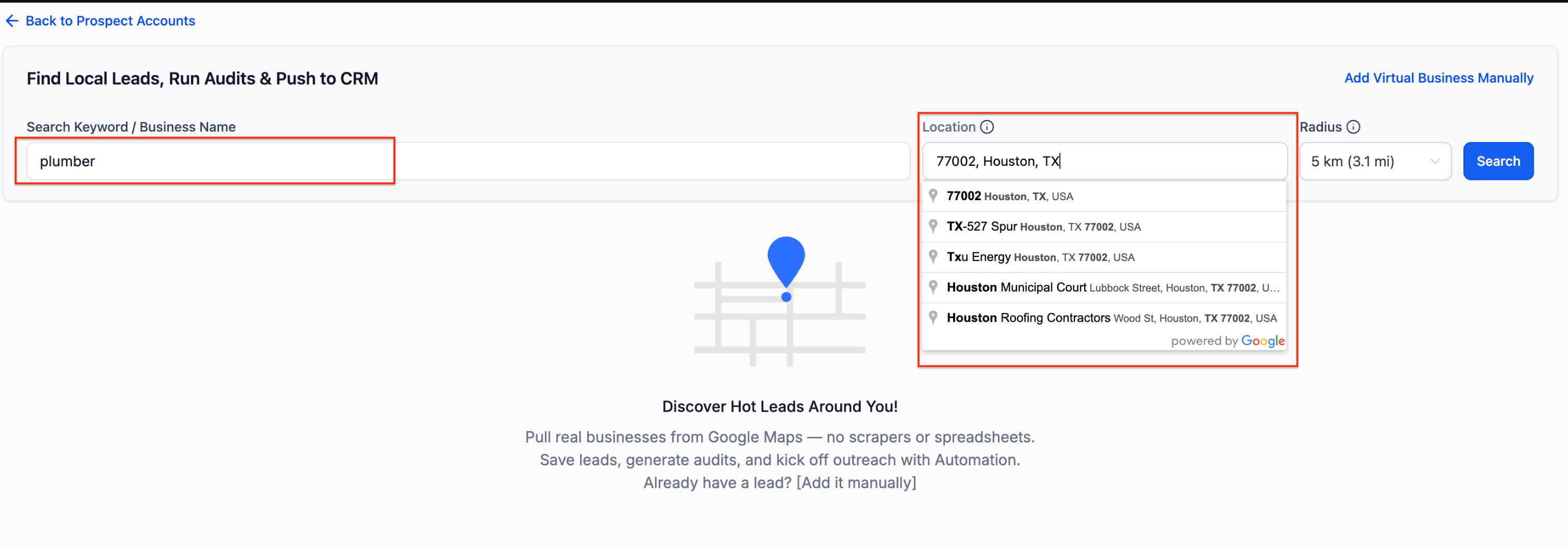
- Enter a keyword or business name, type a location, set the radius up to ~30 miles, and click Search.
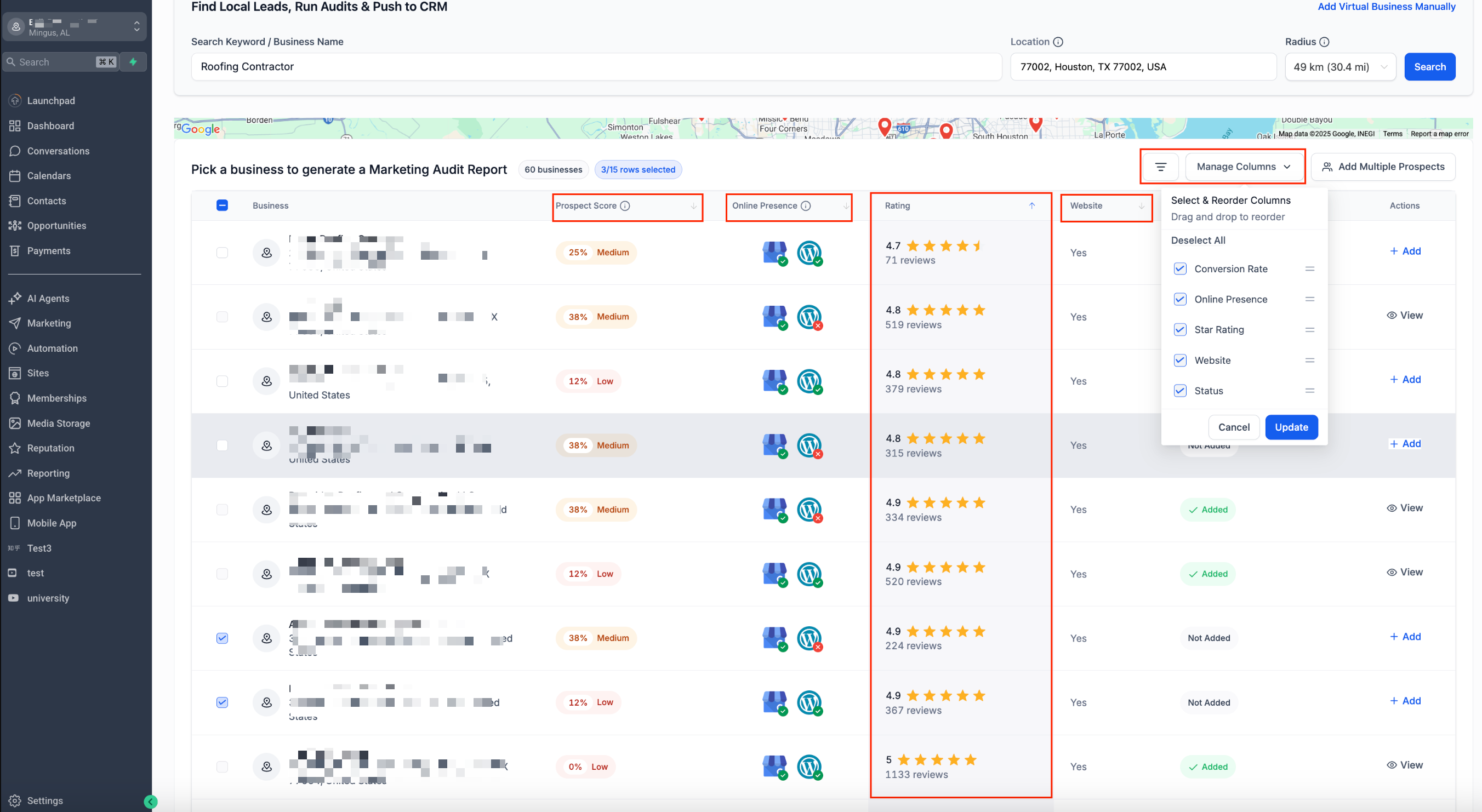
- Review the result list and map, sorting columns like Prospect Score or Rating as needed.
- Select up to 15 rows, using Select All on the current page if desired; selections stay active across pages.
- Click Add Multiple Prospects to store the chosen leads.
- IMPORTANT: Watch the Status column until it changes from Generating Prospect to Added, then click View to open the record.
07What it looks like in HighLevel
08Settings that matter
- Search Keyword / Business Name. Defines the industry term or specific brand to look for in Google Maps results.
- Location. Specifies the address, city, ZIP code, or "near me" option that centers the search area.
- Radius. Limits the search distance to roughly 30 miles (49 km) from the chosen location.
- Manage Columns. Controls which data fields appear in the result table and their order.
- Rows per page. Sets how many result rows are shown on each page, options include 5, 10, or 15.
09Things to know before you rely on it
- Each search returns a maximum of 60 leads, a cap imposed by Google.
- You can add up to 15 prospects in a single batch.
- The radius control caps at about 30 miles (49 km).
- Duplicate detection works by marking already saved businesses with an Added status.
10If something goes wrong
- Search stops at 60 results. Broaden the radius, modify the keyword, or move the center location to generate a new set of leads.
- "Near me" shows inaccurate location. Check VPN or network settings, or input the location manually for precise targeting.
11How it connects to the rest of HighLevel
- Prospecting in subaccounts: using HighLevel’s CRM tools Subaccount prospecting
- How to enable, locate and engage prospects in HighLevel Engage prospects
- HighLevel pricing and plans Pricing
Michael's take

Most people assume they can grab every local business with one generic search and then prune the list later. In reality the 60 lead cap and the radius limit mean you need to be strategic about keywords and location before you click Search.
If I were setting this up, I’d start with a narrow, high intent keyword like “roofing contractor” and a zip code that defines my core service area. I’d run the search, sort by Prospect Score, and batch save the top 15. From there I’d verify the contacts in the subaccount and fire a simple nurture sequence.