
Home/HighLevel/Integrations/ClickUp
Integrations · ClickUp
Does GoHighLevel integrate with ClickUp? Yes, inside workflows.
GoHighLevel has ClickUp triggers and actions built into its workflow builder. A won deal can create the ClickUp task, and a ClickUp update can start a HighLevel workflow. Here is how to set it up, what data moves and what to check when it stops.
The short answer
Yes, GoHighLevel integrates with ClickUp natively. ClickUp triggers and actions are built into HighLevel workflows, so a HighLevel event can create or update a ClickUp task, and a ClickUp event can start a workflow. You connect ClickUp in each subaccount with a ClickUp sign in. The ClickUp actions are premium and billed by usage.
Michael is a sponsored HighLevel affiliate. Links to HighLevel use his partner link at no extra cost to you. HighLevel prices and product facts on this page come from HighLevel's own pricing page and help center, checked on the date above.
Connect
How do you connect ClickUp to GoHighLevel?
You connect ClickUp from inside a workflow or from the subaccount settings. Either way you sign in to ClickUp and approve access, and you connect the ClickUp workspace that goes with that subaccount. If you searched for go high level and ClickUp expecting to need a connector tool, you do not need one. The steps below follow the HighLevel help center.
- In HighLevel, open the subaccount, go to Automation, then Workflows, and create or open a workflow.
- Add a ClickUp trigger or a ClickUp action. If the account is not connected yet, click Connect Now.
- Sign in to ClickUp and approve access. You can also connect from Settings, then Integrations, then ClickUp, then Connect.
- Choose the direction. A ClickUp trigger starts the workflow from ClickUp. A ClickUp action does work in ClickUp.
- Select the ClickUp workspace and list, then map HighLevel values such as contact, opportunity or form fields.
- Add If/Else filters and Wait steps where a ClickUp item must exist before the next action runs.
- Test with one small record, read the execution logs, then click Publish.
Check three things before you start. You need access to Workflows and Integrations in the subaccount. The ClickUp user you sign in with must be allowed to create and update items in the workspace, because every action follows that user's ClickUp permissions. The agency may also need to turn on premium features for workflows before the ClickUp steps will run.
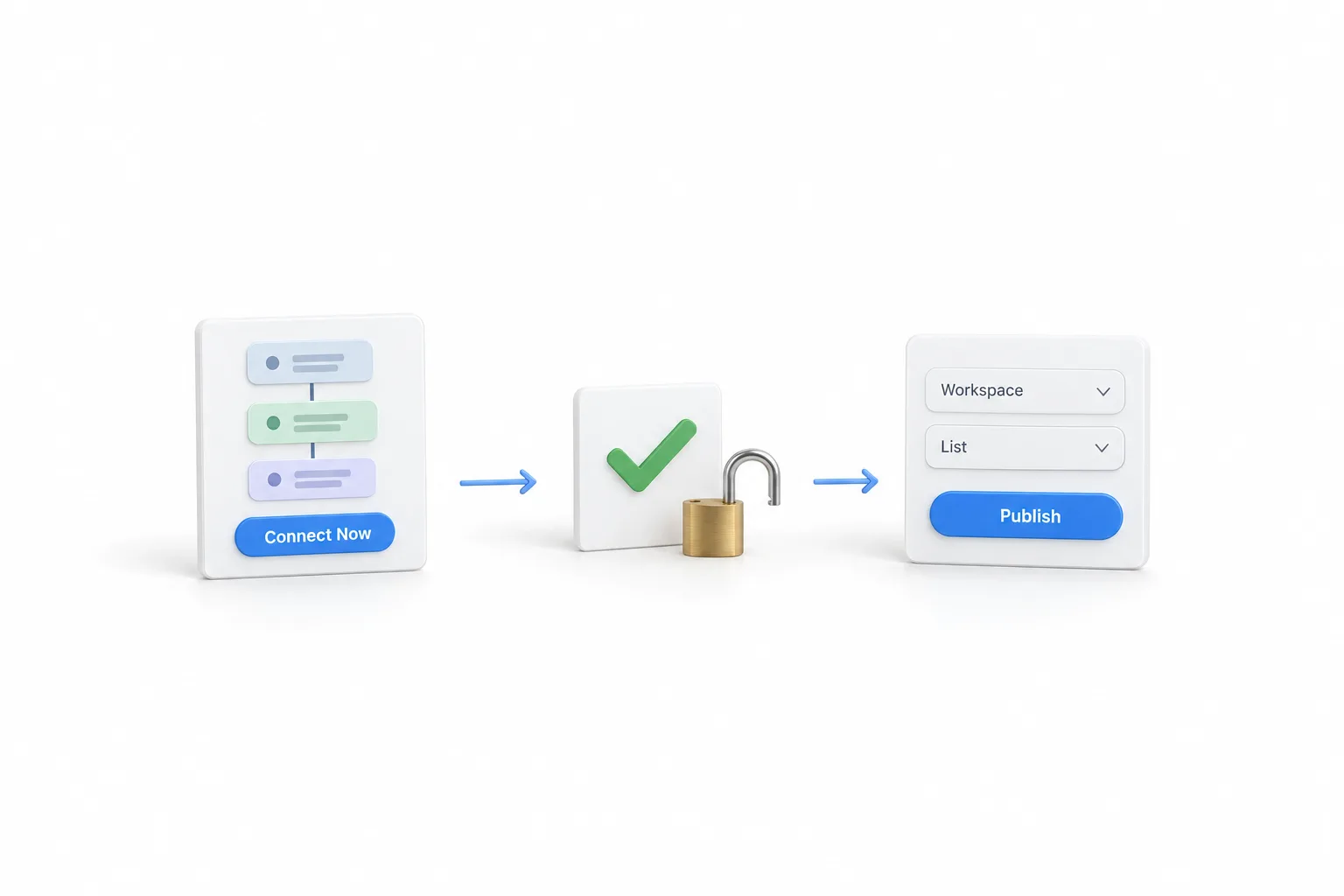
Source: the HighLevel help center article ClickUp Actions and Triggers in Workflows, last updated by HighLevel in March 2026 and checked November 11, 2026.
Data
What data moves between GoHighLevel and ClickUp?
Tasks, lists, folders, comments, attachments, time entries and documents move between the two, one workflow step at a time. Triggers bring ClickUp events into HighLevel. Actions send work from HighLevel into ClickUp. Nothing mirrors the two systems in the background. Only the steps you build move data.
| Direction | Workflow steps | What they do |
|---|---|---|
| ClickUp to HighLevel, triggers | New Task, Task Changes | Start a workflow when a task is created or updated, such as a new status or due date |
| ClickUp to HighLevel, triggers | New List, New Folder | Start a workflow when someone adds a list or a folder |
| ClickUp to HighLevel, triggers | New Comment on a Task, New Attachment Added to Task, New Time Entry | Start a workflow when someone comments on a task, attaches a file or logs time |
| ClickUp to HighLevel, triggers | New Reaction on Chat Message, New Reaction on Task Comment | Start a workflow when someone reacts to a public channel message or a task comment |
| HighLevel to ClickUp, actions | Create Task, Update Task, Archive or Delete Task | Create a task with a name, due date and assignee, change its status, due date or priority later, or archive or delete it |
| HighLevel to ClickUp, actions | Create Space, Create Folder, Create List | Build the structure for a new client or project |
| HighLevel to ClickUp, actions | Post Task Comment, Post Attachment | Add a comment or a file to an existing task |
| HighLevel to ClickUp, actions | Create New Document, Create New Document Page, Edit Document Page | Save content, including text written by a HighLevel AI step, into ClickUp Docs |
| HighLevel to ClickUp, lookups | Find Task by ID, Find a List of All Tasks, Find Documents, Find Custom Fields, Find User by Name or Email | Look something up in ClickUp so a later step can use it |
Triggers fire when ClickUp sends HighLevel a webhook event, and you can add filters so a trigger only watches one workspace or one list. Actions take values you map from HighLevel, such as contact, opportunity or form fields. Due dates can be relative. A value such as +7 days sets the due date a week after the workflow runs.
Uses
What can you do with ClickUp and HighLevel together?
You can hand a sale straight to delivery. The deal closes in HighLevel, and the work starts in ClickUp without anyone typing the client details a second time. Other common builds:
- Turn a HighLevel form submission into a ClickUp task
- Create the client folder, lists and first tasks when a deal reaches a key pipeline stage
- Post a comment on a ClickUp task when a client submits a form
- Save a brief or summary from a HighLevel AI step as a ClickUp document for review
- Send a client update from HighLevel when a ClickUp task changes status
Here is how one build looks in practice. An agency moves an opportunity to its won stage. A HighLevel workflow runs Create Folder with the client name, waits, runs Create List, waits again, then runs Create Task for the kickoff call with a due date of +7 days. The delivery team opens ClickUp and the project is already there. Later, a second workflow starts from the Task Changes trigger, finds the contact and sends the client a short progress text.
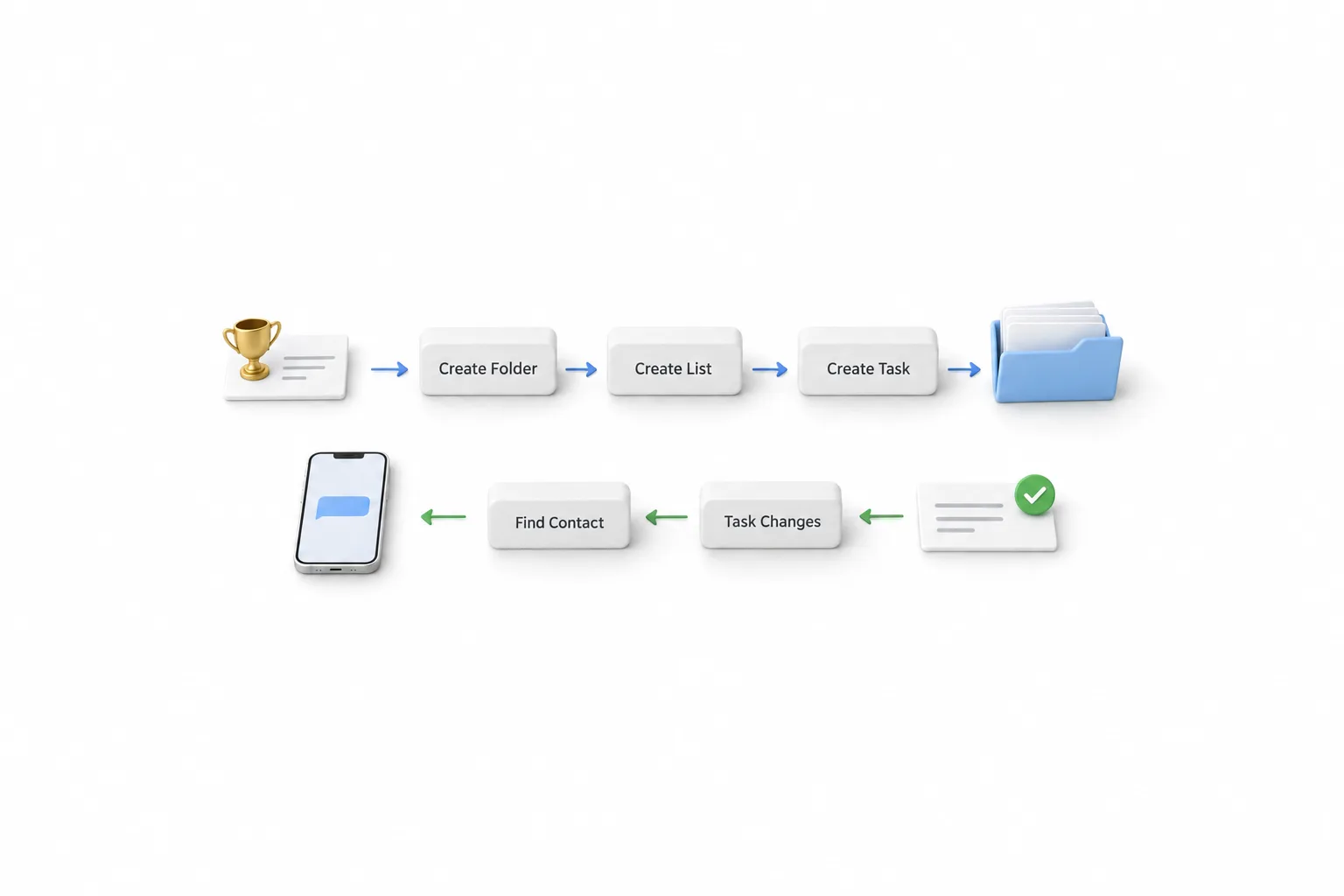
If the second workflow never starts, the guide to a workflow that is not triggering covers the publish and filter checks.
Limits
What are the limits to know about?
The main limits are cost, contacts and speed. The ClickUp actions are premium, triggers arrive without a contact, and ClickUp caps how fast it accepts requests. Plan around these before you build.
- Premium actions. HighLevel describes the ClickUp actions as premium, billed at its standard usage rates. Agencies can rebill that usage to clients when rebilling is on.
- Triggers have no contact. A ClickUp trigger does not attach the workflow to a contact. Add a Find Contact action and pass the email from the trigger data, if one is there, or a Create Contact action when the person is new.
- ClickUp rate limits apply. HighLevel sets no workflow limit of its own for this integration, but ClickUp caps how fast its API accepts requests. Space out bulk creation.
- Order matters. A task cannot go into a list that does not exist yet. Put a Wait step after Create List or Create Folder.
- Permissions carry over. Actions can only do what the connected ClickUp user is allowed to do.
- Custom field actions are not live yet. The help article still marks Create Custom Field and Update Custom Field Value as coming soon.
- ClickUp plans differ. HighLevel says the integration works with free and paid ClickUp plans, though some ClickUp features, such as time tracking, may need a paid plan.
HighLevel bills usage on top of the plan, and premium workflow steps are part of that usage. GoHighLevel pricing shows what each plan costs before usage.
Fix it
What should you check when ClickUp stops syncing?
Check the workflow first, because that is where HighLevel records what happened on every run. Then work down this list.
- Confirm the workflow is published. Saving alone does not turn it on.
- Open the execution logs and enrollment history and read the inputs, outputs and error on the ClickUp step.
- Check that the ClickUp account is still connected under Settings, then Integrations, and connect it again if not.
- Confirm the connected ClickUp user can still create and update items in the target workspace and list.
- Look at the trigger filters. A trigger scoped to one list ignores tasks created anywhere else.
- If the trigger runs but nothing reaches the client, add a Find Contact action. ClickUp triggers start with no contact attached.
- Add a Wait step if an action depends on a folder, list or task created earlier in the same workflow.
- Slow down bulk runs. Many actions at once can hit ClickUp rate limits.
- Ask the agency admin to confirm that premium features for workflows are turned on.
Then test again with one small record before you trust it with live deals. For a trigger, one test task in the list the trigger watches is enough.
Other routes
Do you still need Zapier, Make or webhooks for ClickUp?
Usually not. The built in steps cover the common jobs and keep the whole automation in one place. The other routes still work, and each has its use.
| Route | How it connects | Use it when |
|---|---|---|
| ClickUp steps in workflows | Triggers and actions inside the HighLevel workflow builder | Almost always. Start here |
| Zapier | The ClickUp app and the LeadConnector app, linked by Zaps you build | You already run Zapier, or you need an event the workflow steps do not offer |
| Webhooks | An Inbound Webhook trigger and the Custom Webhook action, sending JSON either way | You use Make or another automation tool in the middle |
| The API | A private integration token that lets a tool read and write HighLevel records | You are building something custom |
In Zapier, HighLevel appears as LeadConnector. The HighLevel and Zapier page covers that connection. For HighLevel with Make and similar tools, webhooks in HighLevel work in both directions. Zapier is a separate subscription that counts tasks, and the webhook steps are premium workflow features too, so every route has a running cost to compare. The HighLevel integrations hub lists every other tool covered on this site.
Decide
Should you use HighLevel project management instead of ClickUp?
Use HighLevel project management if your delivery work can live next to the client record, and keep ClickUp if your team already runs on it. HighLevel now has its own project management. You find it under Contacts, in the Tasks tab, organized as spaces, folders, lists and tasks. It has statuses, a Kanban view and saved views. Each task can link to the client's contact and opportunity, so the work shows up on the contact record. Three workflow triggers work with it: Task added, Task completed and Task reminder.
Michael walks through the full setup in the HighLevel project management video. He names the limit too. If your team lives in Gantt charts, a dedicated tool may still fit better. In that case keep ClickUp and let the integration carry the handoff.
If you are weighing HighLevel against other work management tools, HighLevel vs Monday.com covers a similar decision. To test the ClickUp steps and the built in project management side by side in your own account, use the 30 day trial through Michael's link. The standard HighLevel trial is 14 days. Usage fees for phone, texting, email and AI can apply during any trial.
HighLevel also has its own task workspace. See GoHighLevel Project Management.

Use the built in ClickUp steps before you add a tool in the middle. Fewer moving parts means fewer handoffs that break.
Questions
Common questions.
Does GoHighLevel integrate with ClickUp?
Yes. GoHighLevel has ClickUp triggers and actions built into its workflow builder. A ClickUp event, such as a new task, can start a HighLevel workflow, and a workflow can create or update tasks, lists, folders, comments and documents in ClickUp. You connect a ClickUp account in each subaccount that needs it.
Do I need Zapier to connect ClickUp to HighLevel?
No. The ClickUp steps are part of HighLevel workflows, so no tool has to sit in the middle. Zapier still works through the LeadConnector app, and webhooks or the API cover custom builds. Start with the built in steps and add another tool only when you need an event they do not offer.
Does the ClickUp integration cost extra in HighLevel?
Yes, by usage. The HighLevel help center describes the ClickUp actions as premium workflow actions billed at its standard rates. The agency may need to turn on premium features for workflows before they run, and that usage can be rebilled to clients. Check your workflow premium settings before you connect a busy event.
Which ClickUp plan do I need?
Either a free or a paid ClickUp plan works, according to HighLevel. Some ClickUp capabilities, such as time tracking or certain custom field features, may need a paid ClickUp plan. The connected ClickUp user also needs permission to create and update items in the workspace you choose.
Can HighLevel project management replace ClickUp?
For client delivery, often yes. HighLevel has its own project management with spaces, folders, lists, tasks, statuses and a Kanban view, and each task can link to the contact and the deal. If your team depends on Gantt charts, a dedicated project tool may still fit better, and the ClickUp integration connects the two.
Next step
See it in your own account. Thirty days, every feature.
Start a trial, build the first system and test it before the first invoice. Usage fees for phone, SMS, email and AI can apply during the trial.
See the full details.
Compare the PlansSee the full details