
Home/HighLevel/How to/Schedule social posts
How to · Social
How to schedule social posts in GoHighLevel. One calendar for every channel.
Social Planner drafts, schedules, publishes and tracks posts across the main social networks from one calendar inside GoHighLevel. Connect the accounts once and plan a month of posts in an afternoon.
One calendar for every channel.
The short answer
To schedule social posts in GoHighLevel, go to Marketing, Social Planner, connect each account by signing in and approving permissions, then create a post from a template or from scratch, add media, pick the accounts, choose a date and time and schedule it. Social Planner supports Facebook, Instagram, Threads, Google Business Profile, LinkedIn, TikTok, YouTube, Pinterest, HighLevel Community and Bluesky.
Michael is a sponsored HighLevel affiliate. Links to HighLevel use his partner link at no extra cost to you. HighLevel prices and product facts on this page come from HighLevel's own pricing page and help center, checked on the date above.
Connect
How do you schedule social posts in HighLevel?
- Go to Marketing, then Social Planner.
- Select a platform, sign in and approve the permissions.
- Choose the page, profile, channel or location to manage and finish authorization.
- Create a post from a template or from scratch and add images or video.
- Pick the accounts, choose a date and time and schedule it.
- Check the calendar and the performance view after it publishes.
At scale
A month at once.
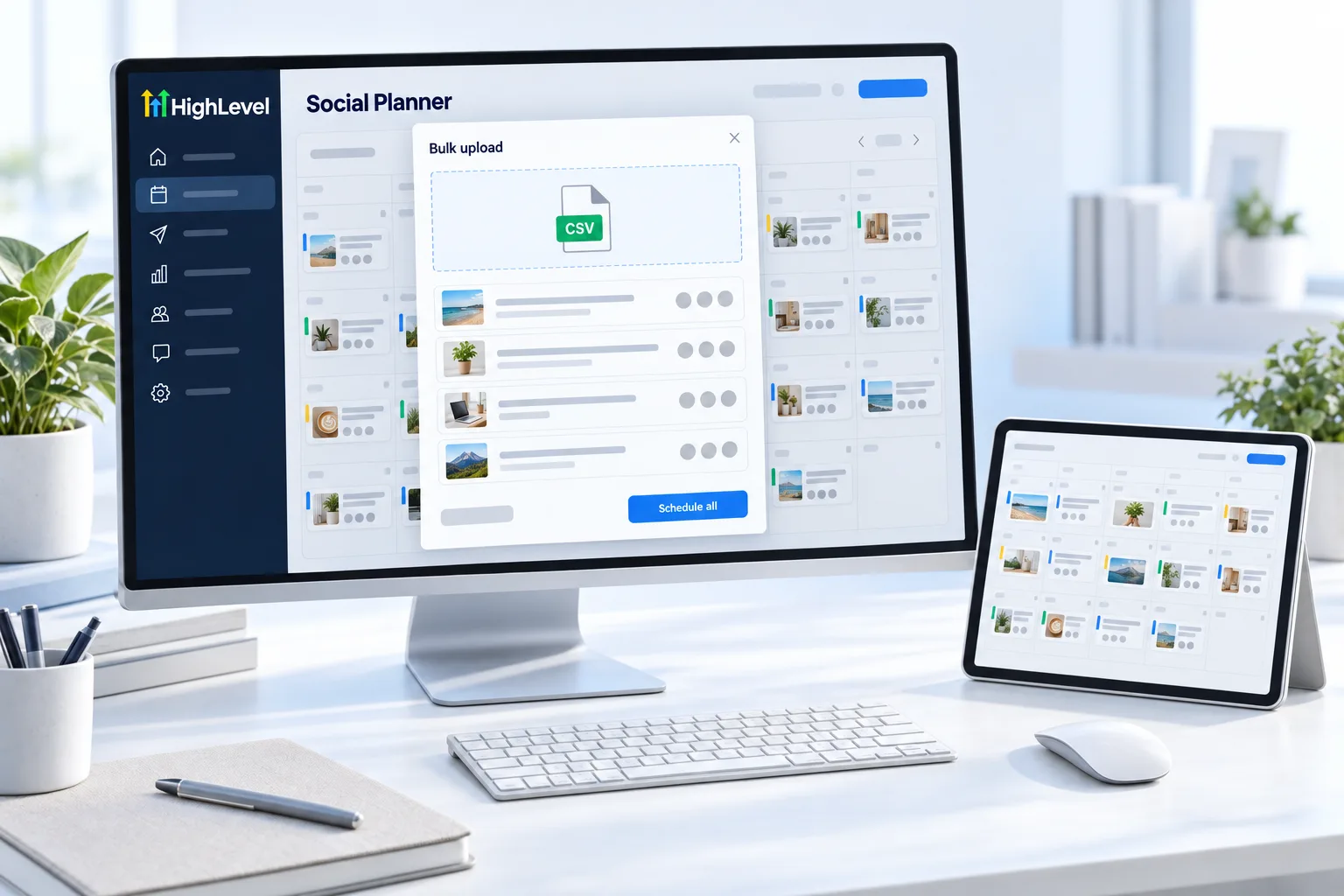
Social Planner's advanced CSV lets you bulk schedule many posts at once. Write the month in a spreadsheet, upload it and review the calendar before it goes live.
Before you start
What do you need before you schedule social posts?
Connecting accounts is where most people get stuck. Before you open Social Planner in HighLevel (GoHighLevel), have these to hand.
- Logins for each social account, with admin access to every Facebook Page
- Google Business Profile connected if you post there
- Images or video ready for each platform
- A simple plan: themes by week
- The name of whoever approves posts before they go live
Posting to LinkedIn? Read the HighLevel LinkedIn integration guide. Posting to TikTok? Read the GoHighLevel TikTok integration guide.
Test it
How do you test a scheduled post?
Schedule one post a few minutes out and watch it publish.
- Create a short test post for one account.
- Schedule it for ten minutes from now.
- Confirm it shows on the Social Planner calendar.
- After the time passes, open the social platform and confirm it published correctly.
- Check the performance view the next day.
Common mistakes
What mistakes should you avoid when you schedule social posts?
- Connecting with a profile that is not a Page admin. The Page will not appear. Sign in with a profile that has admin access.
- The same post everywhere. Adjust the wording and image for each platform.
- Scheduling and forgetting. Check comments and replies. Posting is half the job.
- Bulk uploads with no review. Check the calendar after a CSV upload before anything goes live.
- A connection that expired. If posts fail, reconnect the account. See fix Facebook integration disconnected.

Plan themes by week, not posts by day. It is much easier to write.
Questions
Common questions.
How do I schedule posts in HighLevel?
Go to Marketing, then Social Planner. Connect each account by signing in and approving the permissions, then choose the page, profile, channel or location to manage. Create a post from a template or from scratch, add images or video, pick the accounts, choose a date and time and schedule it. Check the calendar after it publishes.
Which platforms work?
Social Planner supports Facebook, Instagram, Threads, Google Business Profile, LinkedIn, TikTok, YouTube, Pinterest, HighLevel Community and Bluesky. You connect each one once by signing in and approving permissions, then pick any mix of connected accounts for each post. Adjust the wording and image for each platform instead of sending the same post everywhere.
Can I bulk schedule?
Yes. Social Planner's advanced CSV lets you bulk schedule many posts at once. Write the month in a spreadsheet, upload the file and review the calendar before anything goes live. A bulk upload with no review is a common mistake, so check every date, account and image on the calendar first.
Why can I not connect a Facebook Page?
The usual cause is signing in with a Facebook profile that is not an admin of that Page, so the Page does not appear. Sign in with a profile that has admin access to every Page you want to connect. If a connected account stops posting later, the connection may have expired, so reconnect it.
How should I plan a month of posts?
Write the month in a spreadsheet, upload it with the advanced CSV and review the calendar before it goes live. Plan themes by week, not posts by day, because that is much easier to write. Have images or video ready for each platform and agree who approves posts before they are scheduled.
Can I post to Google Business Profile from Social Planner?
Yes. Connect the Google Business Profile in Social Planner, choose the location to manage and finish authorization. After that you can pick it as one of the accounts whenever you schedule a post, alongside your other networks. Connect the profile before you plan the month so those posts are not left out.
Can agencies offer this as a service?
Yes. Social posting pairs well with reviews and local search work. See starting a local SEO agency and HighLevel with Facebook and Instagram for how the pieces fit. If you are still weighing tools for client social media, compare the best HighLevel alternatives before you commit.
What should I check after a post publishes?
Open the Social Planner calendar and the performance view. Confirm the post went to every account you picked, then open the social platform itself and check it published correctly. Look at the performance view again the next day, and answer comments and replies. You can practice all of this during a 30 day GoHighLevel trial through Michael's link.
Next step
See it in your own account. Thirty days, every feature.
Start a trial, build the first system and test it before the first invoice. Usage fees for phone, SMS, email and AI can apply during the trial.
HighLevel has three plans at a flat monthly price, each with unlimited users and contacts. See what each one includes and what it costs.
Compare the PlansStarter, Unlimited and Founder