
01Who this is for
- Agency owners who manage multiple client WordPress sites benefit because they can report hosting concerns without switching tools.
- Digital marketing agencies gain a quick way to share improvement ideas with the platform team while handling campaigns.
- Web development firms that host client sites can log issues directly from the dashboard, keeping feedback organized.
02Agency user feedback boxes, explained
The Feedback Box is a built in form that appears in the WordPress Hosting area of the HighLevel dashboard. It lets agency users type any comment, suggestion, or problem they have. After sending, a confirmation appears and the message is forwarded to a dedicated Slack channel for the HighLevel team.
The box requires no extra plugins or logins. It is always available to any user who can access the WP Hosting dashboard. The process works in real time; once the message is sent, the team can begin reviewing it immediately.
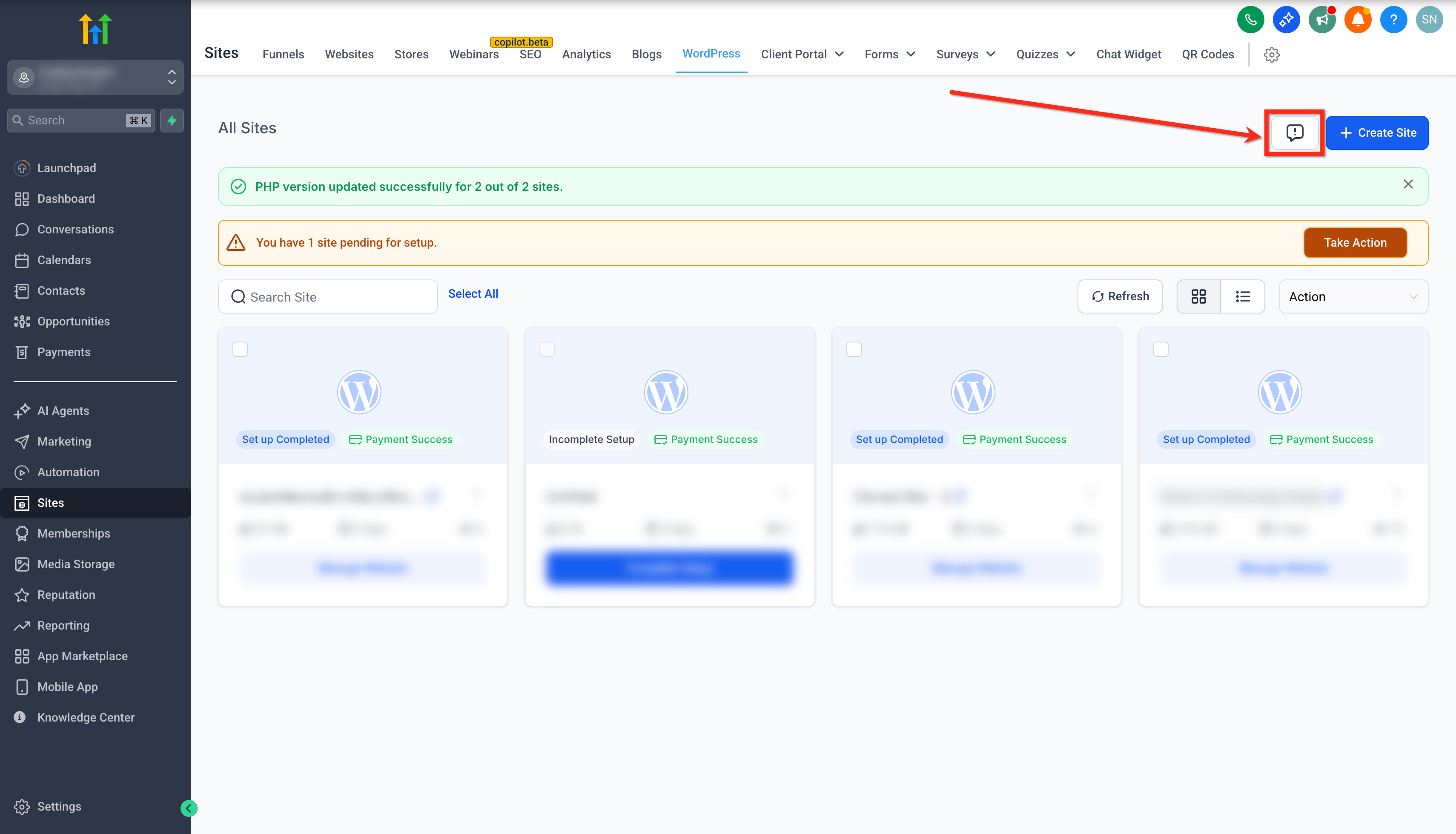
The feature is part of the WP Hosting dashboard, positioned next to the + Create Site button. It is visible only to agency accounts, ensuring that only appropriate users can submit feedback.
03How businesses use agency user feedback box
- Digital marketing agency. Open the WordPress Hosting dashboard, select the Feedback Box, and type a note about a recurring hosting slowdown. Click Send Message. The comment arrives in the Slack channel where the agency can track the response.
- Web design studio. When a client reports a plugin conflict, the studio uses the Feedback Box to describe the issue and include the client’s email address. After submission, the studio receives a confirmation and watches the Slack feed for updates.
- SaaS reseller. The reseller writes a suggestion for a new feature in the hosting environment directly in the Feedback Box. They submit the form and the suggestion is right away routed to HighLevel’s product team via Slack.
04Before you start
- You must be logged into a subaccount that has access to the WP Hosting dashboard.
- The feature appears only for agency users; non agency accounts will not see the Feedback Box.
05How to set up and use agency user feedback box in HighLevel
Submit feedback using the Agency Feedback Box
- Log in to your subaccount.
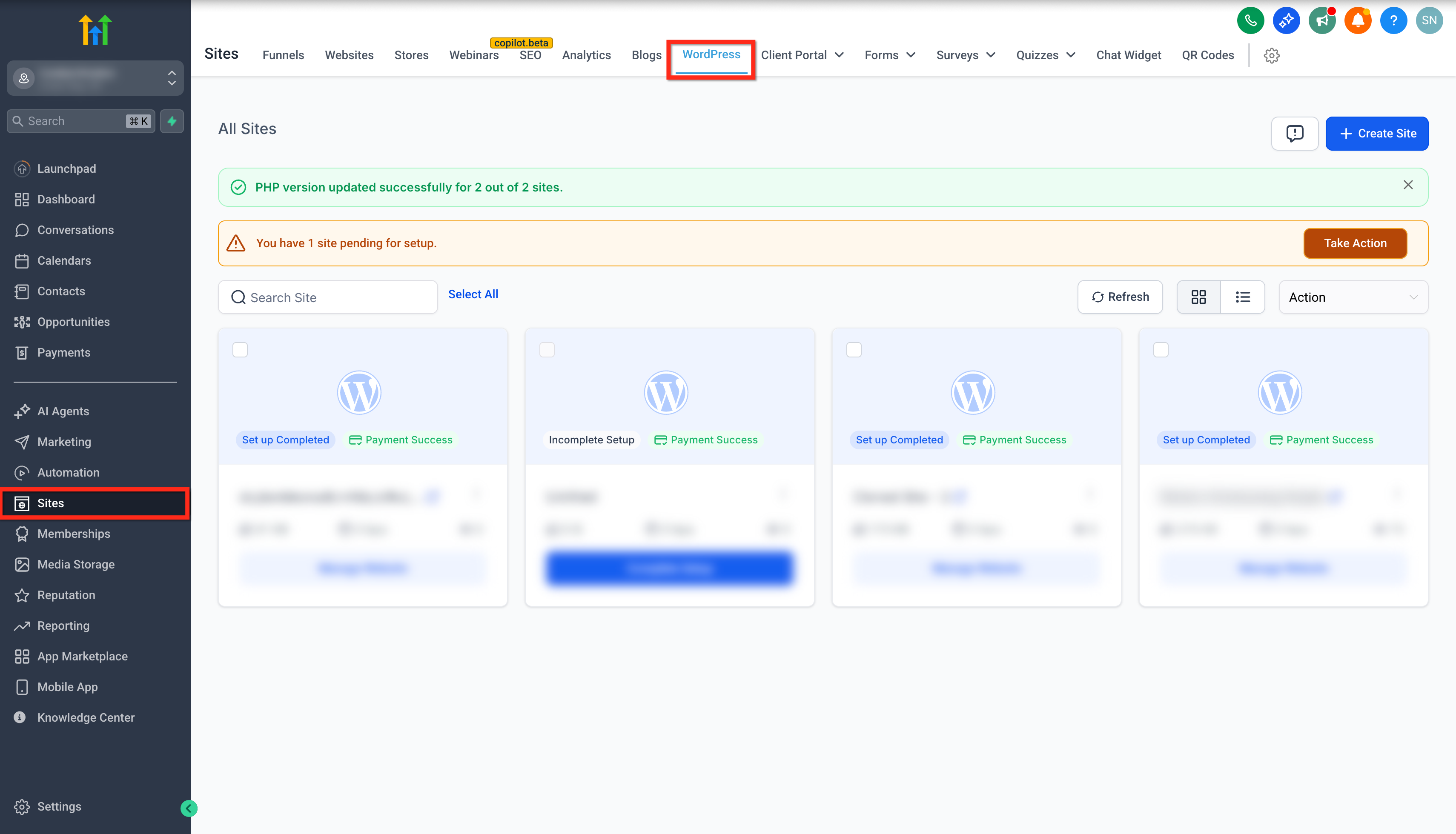
- Select the Sites tab.
- Choose the WordPress tab.
- Click the Feedback Box located beside the + Create Site button.
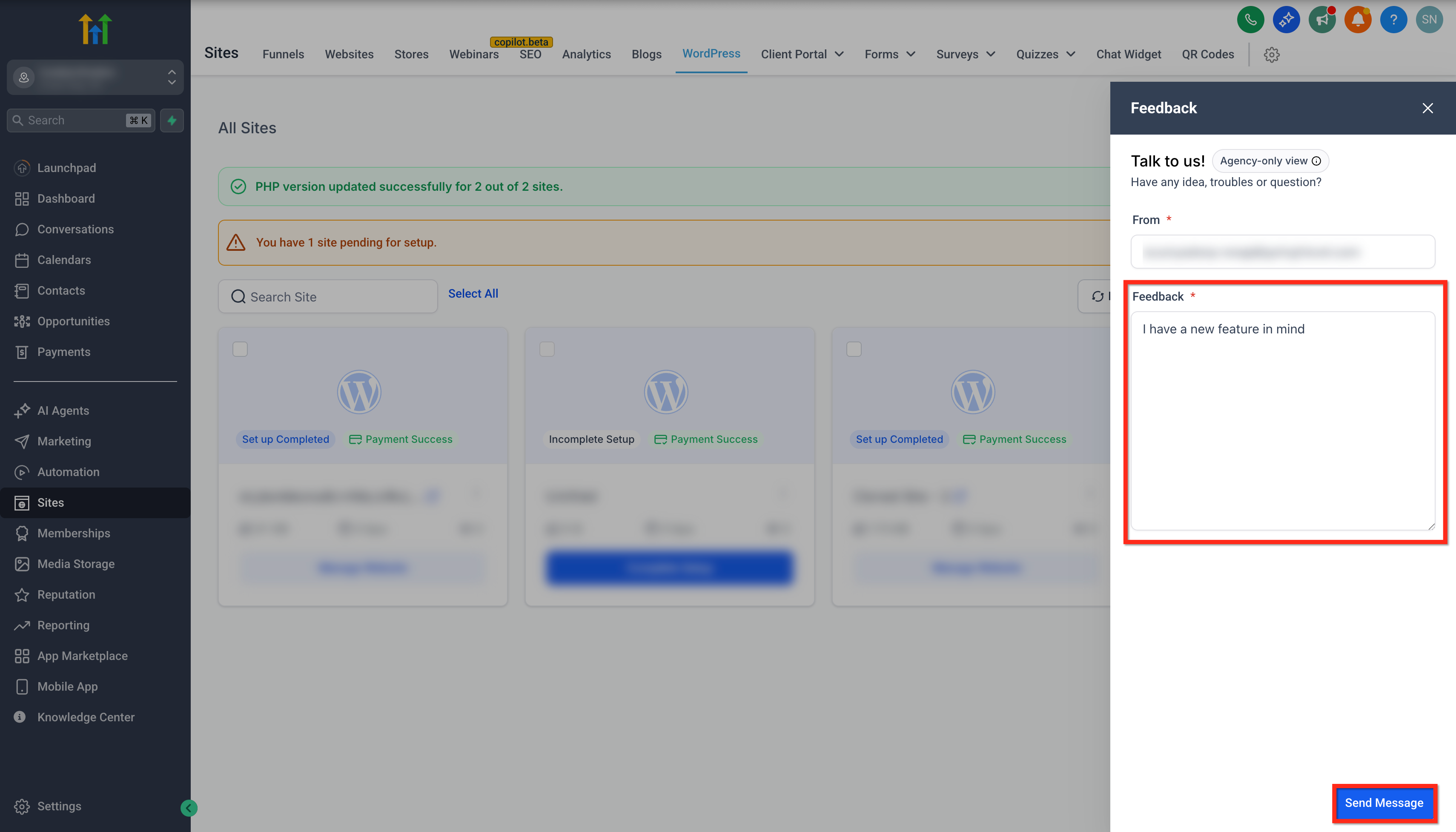
- Enter your ideas, issues, or questions in the provided field.
- Press the Send Message button to submit your feedback.
06What it looks like in HighLevel
07Things to know before you rely on it
- The Feedback Box is visible only to agency users with access to the WP Hosting dashboard.
- All submissions are sent to a dedicated Slack channel; no other routing options are available.
08How it connects to the rest of HighLevel
- Learn how to set up WordPress hosting for clients in HighLevel. WordPress hosting setup guide
- Manage WordPress plugins and themes within the HighLevel platform. Plugin and theme management
- Review WordPress hosting specifications, pricing, and plan options. Hosting specs and pricing
Michael's take

The agency user feedback box feels like a small convenience rather than a massive shift. It lets agency owners speak directly to the hosting team without leaving WordPress.
A digital marketing agency that runs dozens of client sites can use the box to flag recurring performance hiccups. Each note lands in Slack, giving the hosting team visibility into patterns.