
01Who this is for
- Agency owners who build client WordPress sites need clear steps to resolve import failures.
- In house marketing teams managing internal WordPress sites can quickly clear corrupted files or plugins.
- Technical support staff for agencies can follow the guide to identify whether the issue lies in the source or target installation.
02WordPress error codes, explained
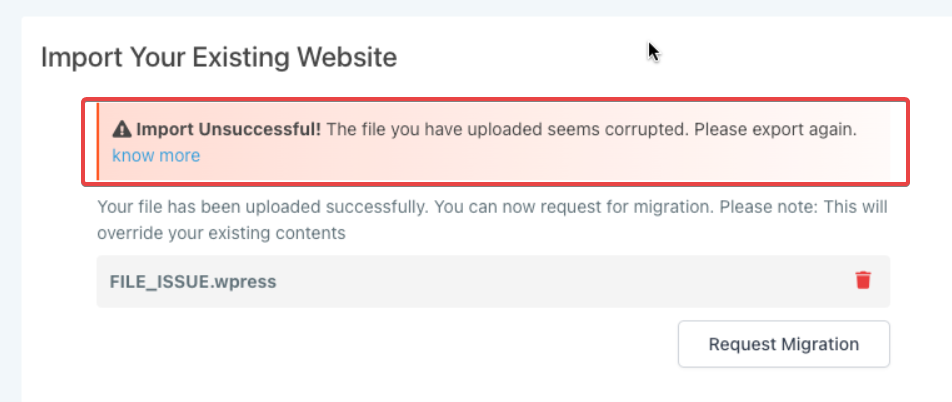
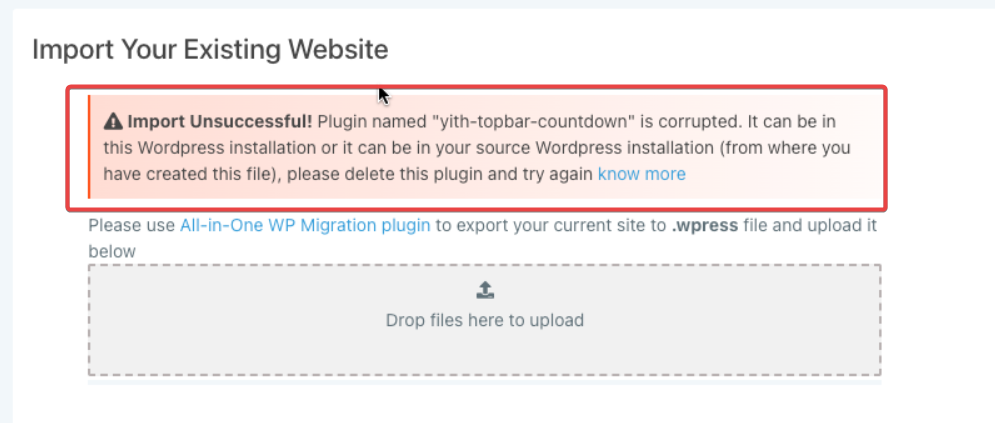
HighLevel’s WordPress hosting shows unique error codes when an import cannot use a file or plugin because it is damaged. The system distinguishes three cases: a corrupted file, a corrupted plugin, and an unknown error that may involve both. When an error appears, a message is displayed on the user interface indicating the problem.
03How businesses use WordPress error codes
- Digital marketing agency. When a client site import returns a File Corrupted error, the agency locates the mentioned file within the HighLevel WordPress environment, deletes it, and repeats the import. This restores the client site without needing external tools.
- Local boutique shop. If a Plugin Issue error appears during a theme update, the shop staff removes the flagged plugin from the HighLevel WordPress dashboard and re runs the update. The site then loads correctly.
- Freelance web developer. When an Unknown error shows both plugin and file problems, the developer deletes the identified plugin, retries, and if a file error follows, removes the corrupted file before retrying again, ensuring a clean site build.
04How to set up and use WordPress error codes in HighLevel
Resolve file corrupted error
- Identify the file reported as corrupted in the error message.
- Delete that file from the WordPress installation in HighLevel.
- Run the import again to confirm the issue is resolved.
Resolve plugin issue error
- Read the error message to find the name of the corrupted plugin.
- Remove the indicated plugin from the WordPress installation in HighLevel.
- Retry the import or update to verify the error is cleared.
Resolve unknown error (possible plugin and file corruption)
- Observe the unknown error message; the system will first display a plugin error.
- Delete the plugin named in the error message from the HighLevel WordPress setup.
- Attempt the import again.
- If the error changes to a file corruption message, locate the corrupted file.
- Delete the file and retry the import one more time.
05What it looks like in HighLevel
06If something goes wrong
- File Corrupted error. Delete the corrupted file and retry the import.
- Plugin Issue error. Delete the corrupted plugin and retry the import.
- Unknown error showing plugin then file corruption. Delete the plugin, retry; if a file error appears, delete the file and retry again.
07How it connects to the rest of HighLevel
- Activate a WordPress hosting plan before importing sites. WordPress hosting plans
- Manage plugins and themes after fixing errors to keep the site stable. Plugin management
- Clone a clean WordPress site once errors are resolved for faster deployment. Clone sites
Michael's take

Michael ReimerFounder of CRM Pros, HighLevel Commander and Certified Admin
When moving a WordPress site into HighLevel, the error messages indicate whether a file or a plugin is corrupted. Deleting the indicated file or plugin and retrying the import follows the recommended troubleshooting steps.
Get More InformationOpens on HighLevelPublished November 2, 2026 · Updated November 16, 2026