
01Who this is for
- Agencies managing multiple client sites can set update preferences centrally, minimizing security risks across all websites.
- Ecommerce owners benefit from automatic core and plugin updates that keep payment and catalog features current without daily checks.
- Bloggers with custom themes can enable or disable theme updates to avoid layout changes while still receiving core security patches.
02Automatic updates, explained
The feature provides control over WordPress core, plugin and theme updates from within the HighLevel WordPress Dashboard. Under Advanced Settings you can define how core updates are applied, and you can turn auto updates on or off for each installed plugin and theme.
Core updates can be set to Off, Latest Version, or Minor Version. Plugins and themes each have a toggle that lets you enable or disable automatic updates individually. All settings are accessed through the dashboard, keeping management in one place.
03How businesses use automatic updates
- Digital marketing agency. The agency opens the WordPress Dashboard for each client site, sets core updates to Minor Version for stability, and enables auto updates for critical plugins only. This keeps client sites protected while preserving custom functionality.
- Online retailer. The retailer navigates to the Plugins section, locates the payment gateway plugin, and toggles its automatic update to ON. Core updates are set to Latest Version to ensure the platform receives all new features.
- Personal brand blog. The blogger goes to Themes, selects the active theme, and turns automatic updates OFF to avoid unexpected design changes, while allowing core updates to the Latest Version for security.
04How to set up and use automatic updates in HighLevel
Manage WordPress core update preferences
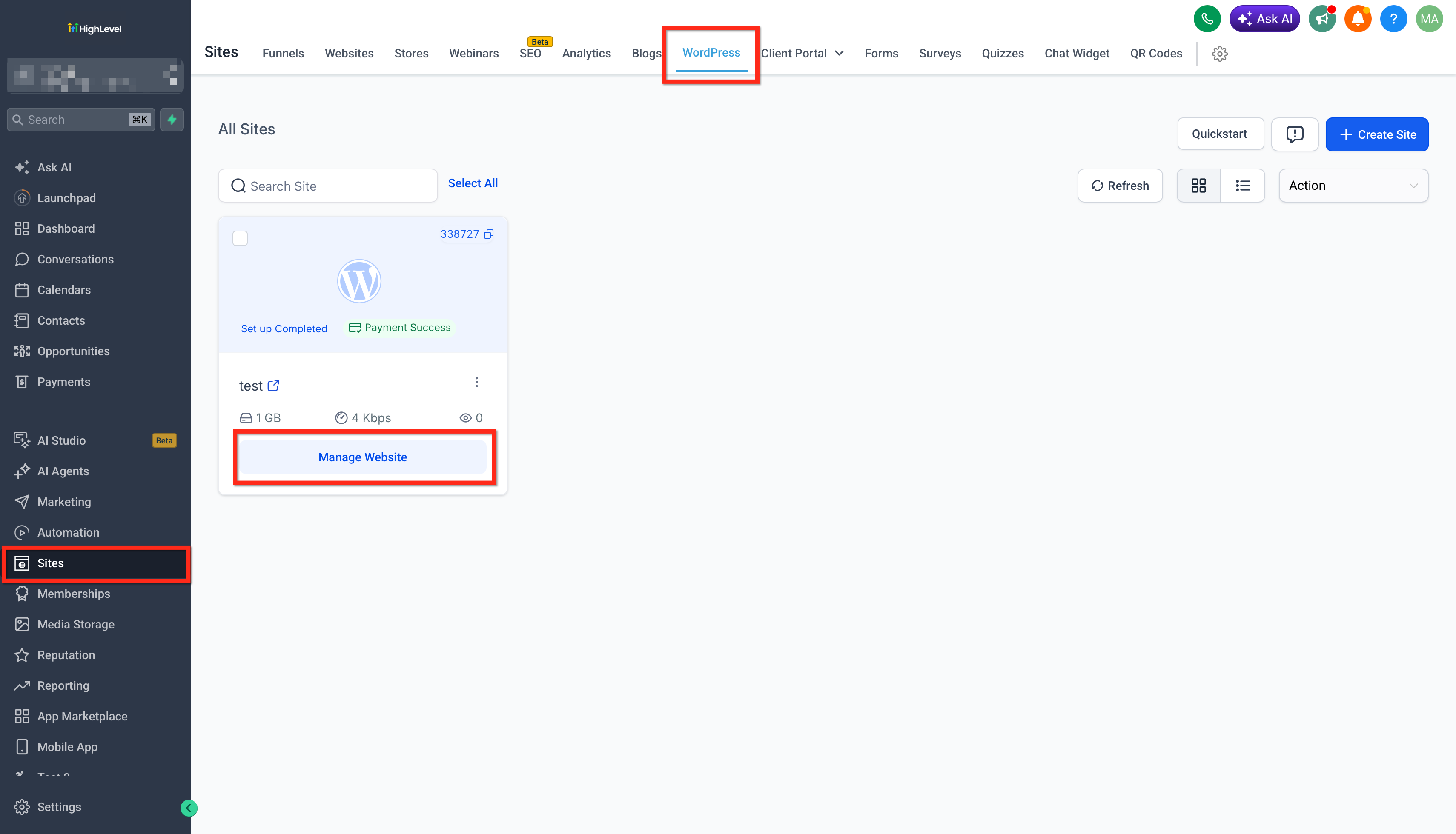
- Open the Sites section in HighLevel.
- Select Sites > WordPress Dashboard and choose the site to edit.
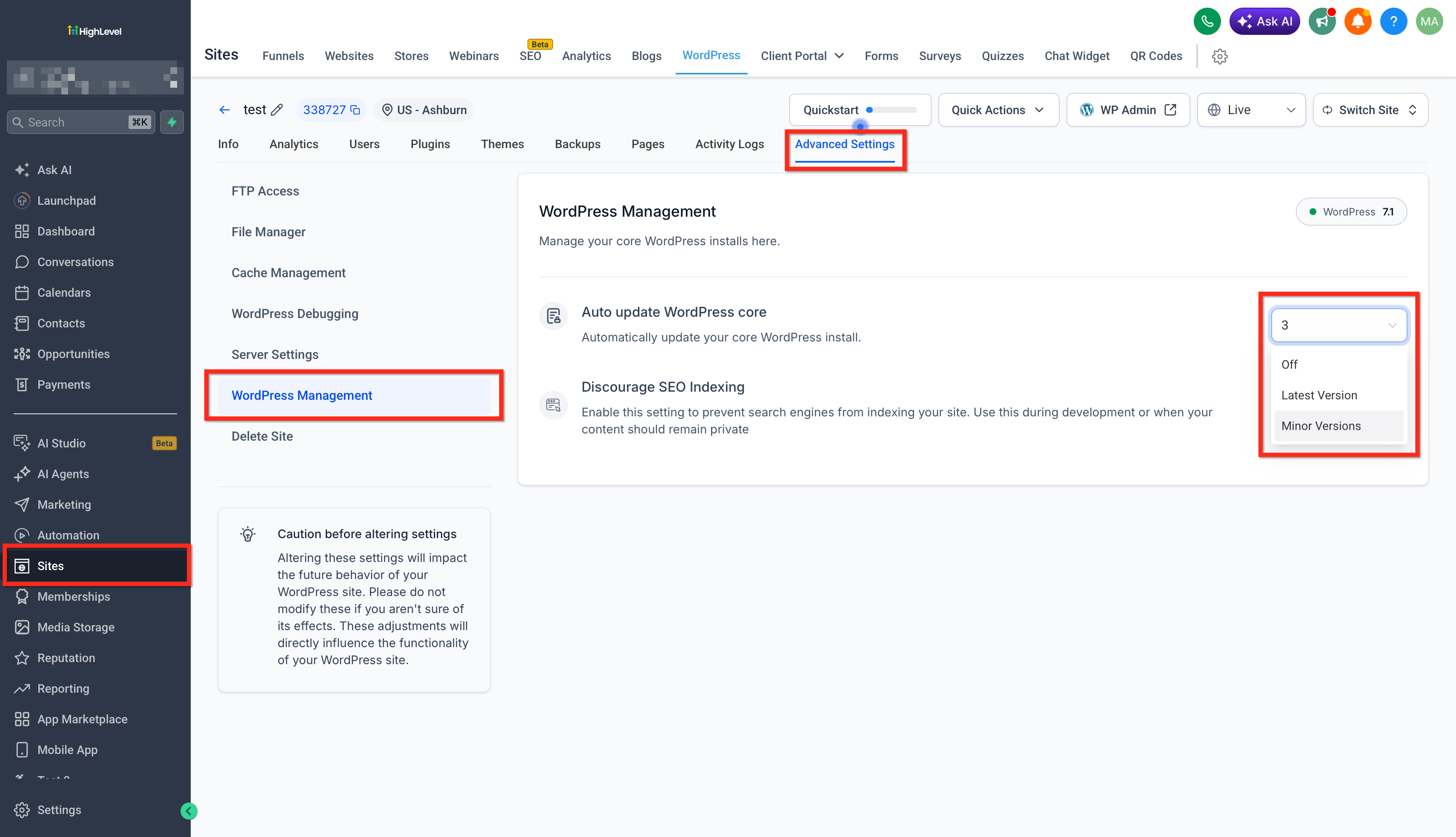
- Open Advanced Settings.
- In Advanced Settings > WordPress Management, locate Core Update Preferences.
- Select Off, Latest Version, or Minor Version for core updates.
Manage automatic plugin updates
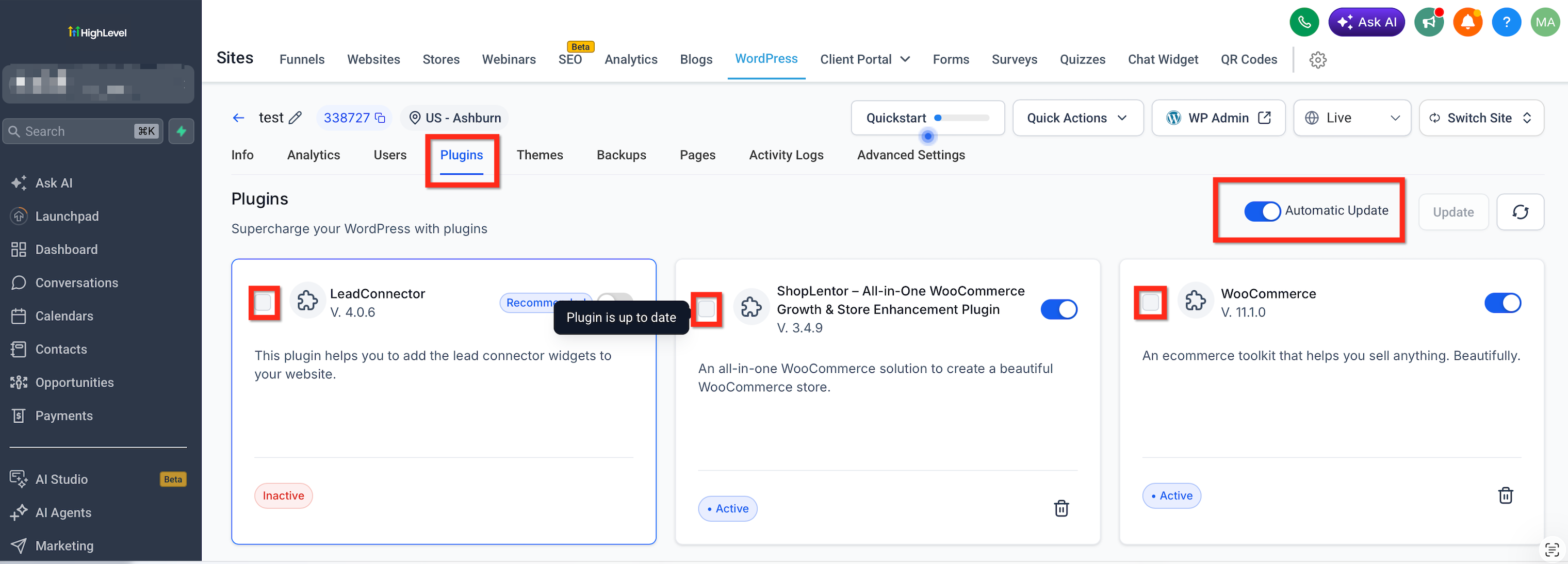
- From the WordPress Dashboard, go to Site > Plugins.
- Locate the list of installed plugins.
- Switch the auto update toggle ON or OFF for each plugin as needed.
Manage automatic theme updates
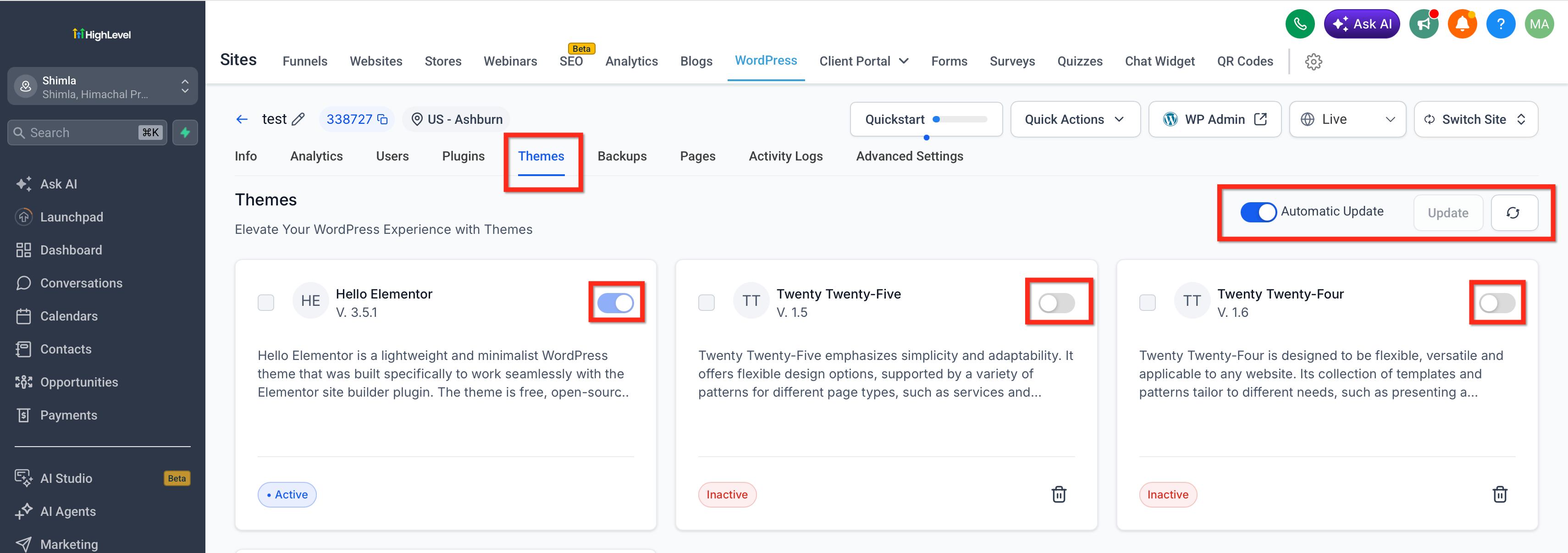
- From the WordPress Dashboard, navigate to Site > Themes.
- Pick the theme you want to adjust.
- Toggle the automatic update setting ON or OFF for that theme.
05What it looks like in HighLevel
06Settings that matter
- Core Update Preferences. Determines whether WordPress core updates are disabled, limited to minor releases, or always upgraded to the latest version.
07How it connects to the rest of HighLevel
- Manage plugins and themes in HighLevel Plugin & Theme Management
- Set up WordPress hosting for your clients WordPress Hosting Setup
- Activate a WordPress hosting plan Activate Hosting Plan
Michael's take

Michael ReimerFounder of CRM Pros, HighLevel Commander and Certified Admin
In my experience, automatic updates can save time, but on heavily customized sites I prefer to test updates manually before applying them.
Get More InformationOpens on HighLevelPublished November 2, 2026 · Updated November 17, 2026